Portuguese
  English
  German
  Spanish
  Italian
  French
  Danish
  Swedish
  Polish
  Korean
  Japanese
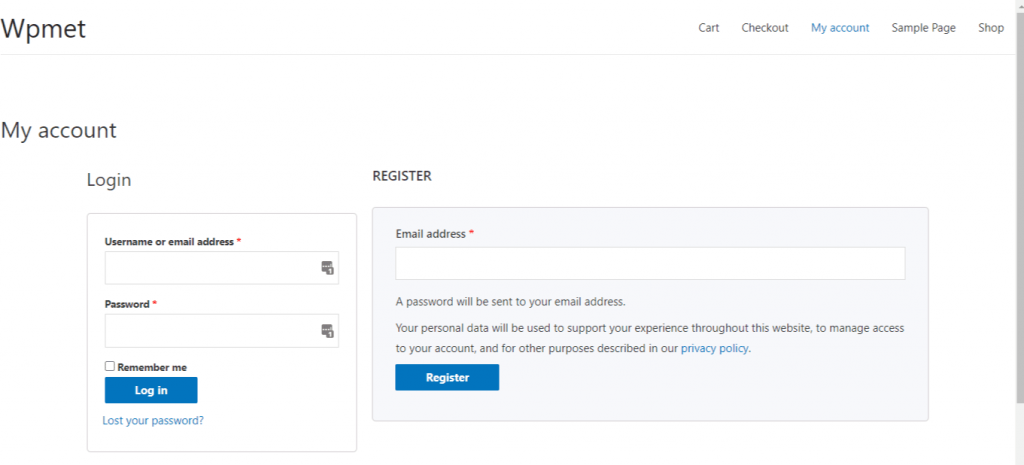
 Com o ShopEngine, você pode criar facilmente uma página “Minha conta” onde os clientes podem visualizar seu painel, rastrear seus pedidos e downloads, editar os endereços e detalhes de suas contas. A partir desta mesma página, eles também podem fazer login ou registrar-se em sua conta no seu site.
Normalmente, uma “página minha conta” apresenta um painel de controle da conta, pedido da conta, detalhes do pedido da conta, downloads da conta, endereços da conta, detalhes da conta e página de login/registro da conta.
Let’s get to know how to create each of these pages to create a complete “my account page” for your users with a friendly WooCommerce my account page builder.
Quick Overview
Starting from my account dashboard to account login page, this guide will demonstrate creating any type of account pages with ShopEngine, a no-code WooCommerce my account page builder.
Tools Used: ShopEngine, Elementor, and WooCommerce.
After installing and activating these plugins, you need to create and customize the following My Account pages:
- My account dashboard
- My account order
- My account order details
- My account downloads
- My account address
- My account details
- My account register
1. Crie a página do painel da minha conta #
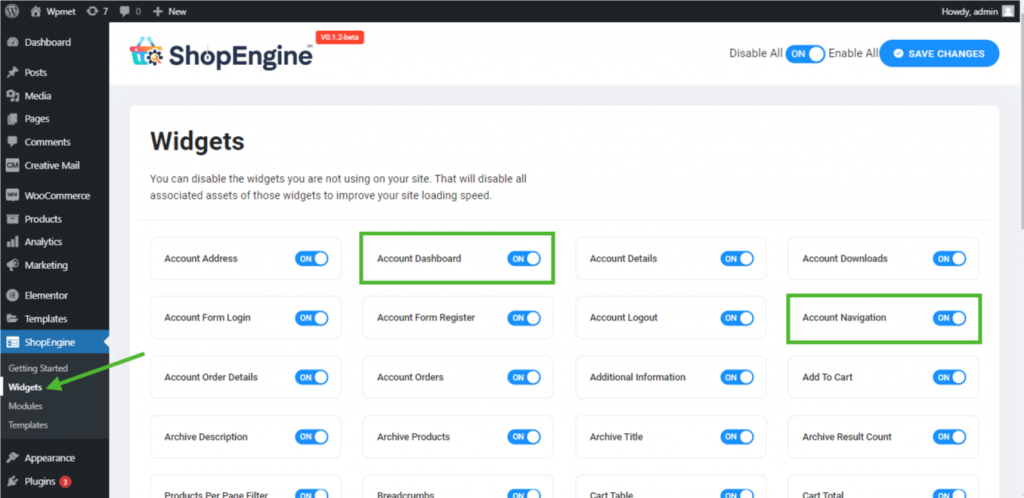
Etapa 1: ativar os widgets necessários #
- Go to ShopEngine-> Widgets -> Make sure that the Painel de Conta e Navegação da conta widgets são habilitado.
Etapa 2: criar modelo de painel #
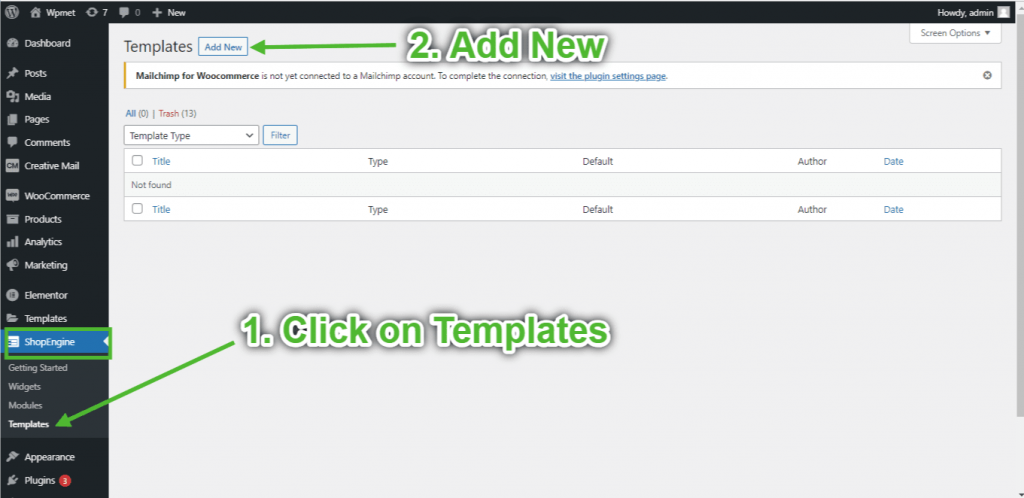
- Go to ShopEngine-> Modelos -> Adicionar novo.
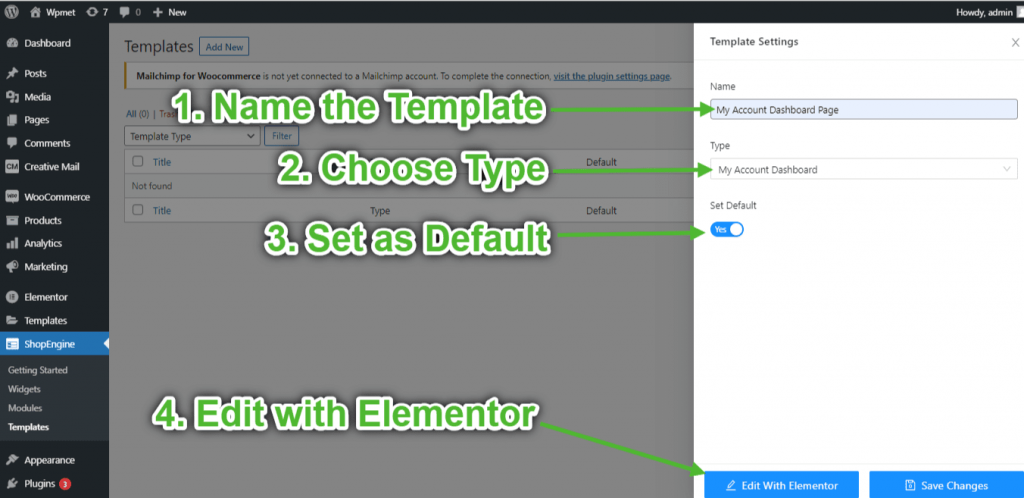
- Fornecer modelo Nome-> Select Page Type: Painel da minha conta
- Enable Default Template-> Set Default->Sim -> Click on Editar com Elementor (As configurações do modelo serão inseridas primeiro e depois abertas com Elementor Page Builder)
Etapa 3: escolha uma estrutura #
- Clique no "+”Ícone do Elementor e escolha o layout de seção de sua preferência.
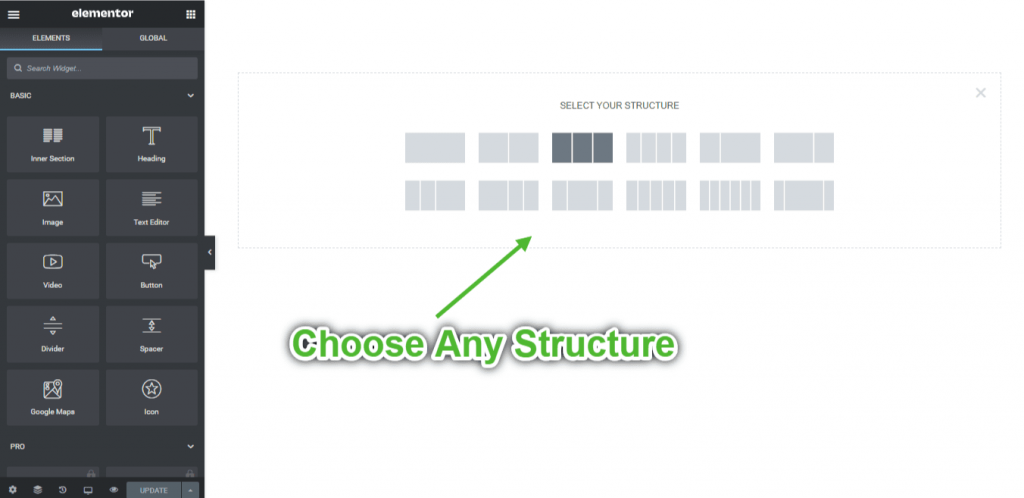
Etapa 4: construir página do painel #
Para construir a página Painel da conta, você precisará aproveitar dois widgets: Navegação da conta e Painel de Conta widgets.
- Arraste e solte o widget Navegação da conta do bloco de elementos Minha conta do ShopEngine do Elementor. Você pode alterar a cor do texto e do link, a espessura da fonte do texto e do link, a espessura da fonte do usuário, a tipografia, a cor de foco do link, etc. na guia de configurações de estilo, se desejar.
- Além disso, arraste e solte o widget Painel da conta do mesmo bloco e faça as alterações desejadas.
- Once you are done editing your Account Dashboard page, save it by clicking on -> Atualizar.
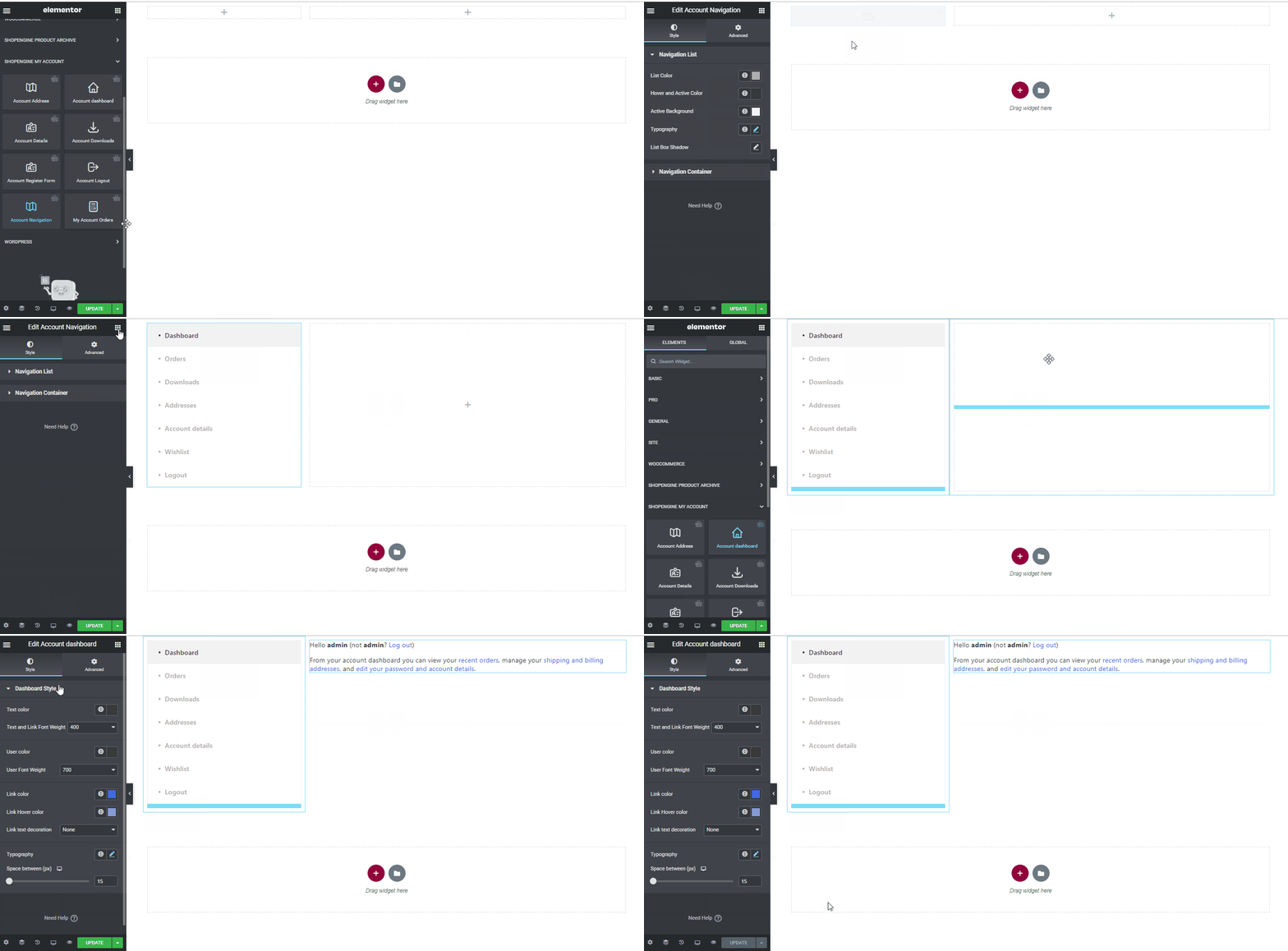
Etapa 5: visualizar a página do painel #
- Agora, vá para o Página Minha conta of your website->Click on Painel. Essa é uma prévia de como seus clientes verão o Painel da conta em seus dispositivos.
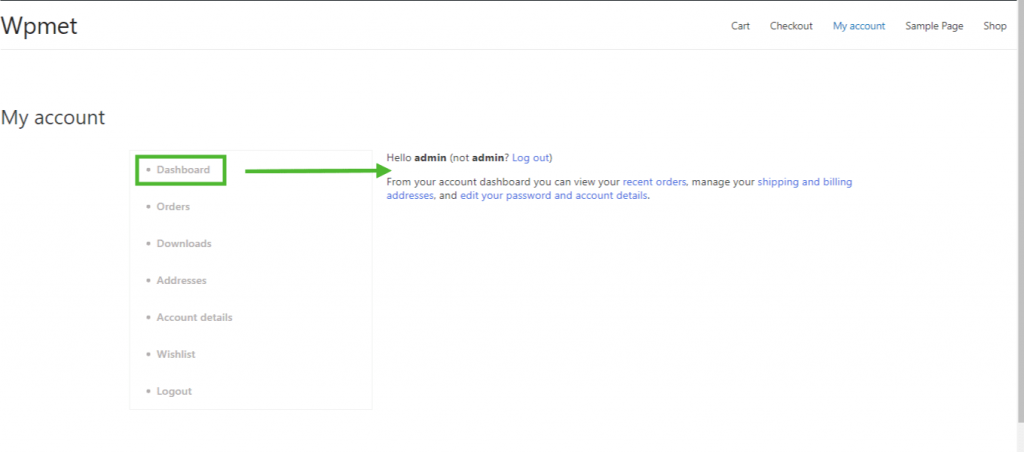
2. Crie a página de pedido da minha conta #
Etapa 1: ativar os widgets necessários #
- Go to ShopEngine-> Widgets -> Make sure that the Pedidos de conta ferramenta Navegação da conta widgets são habilitado.
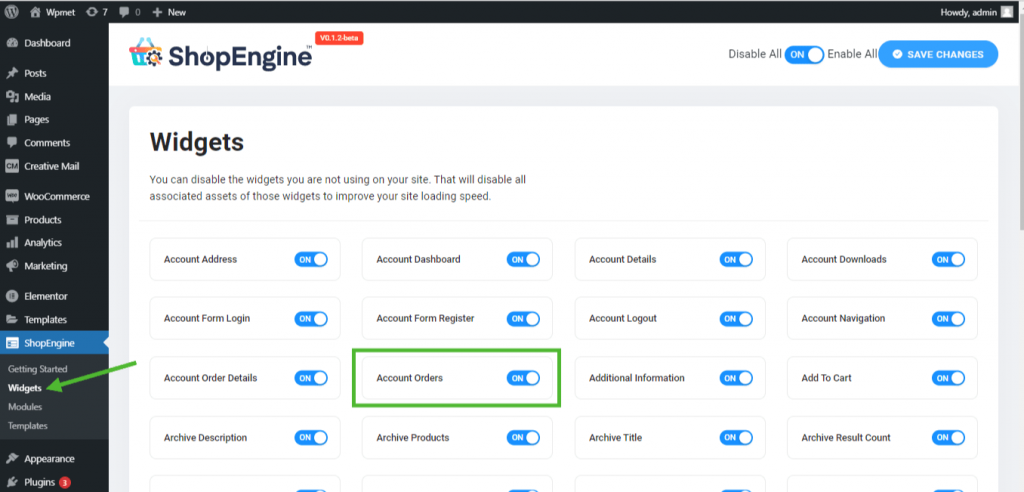
Step 2: Create WooCommerce My Account Order Page Template #
- Go to ShopEngine-> Templates -> Add New
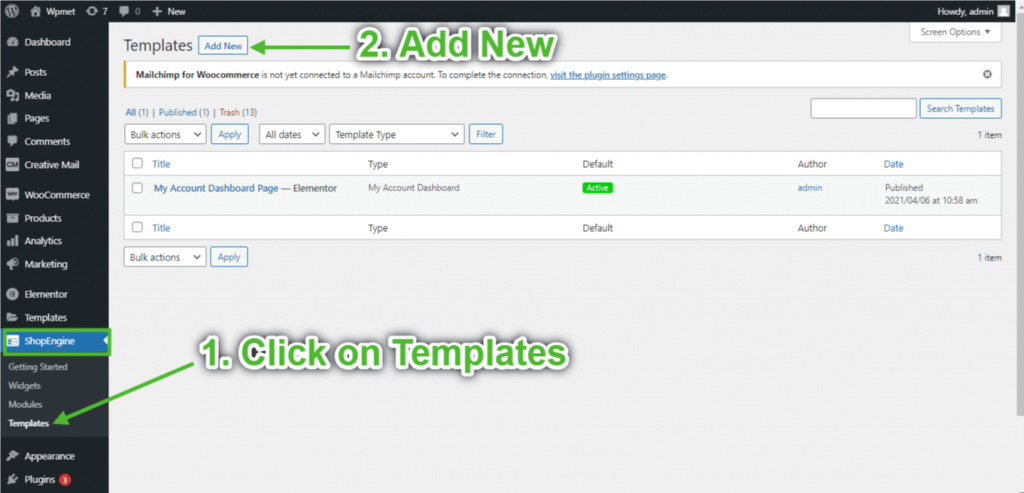
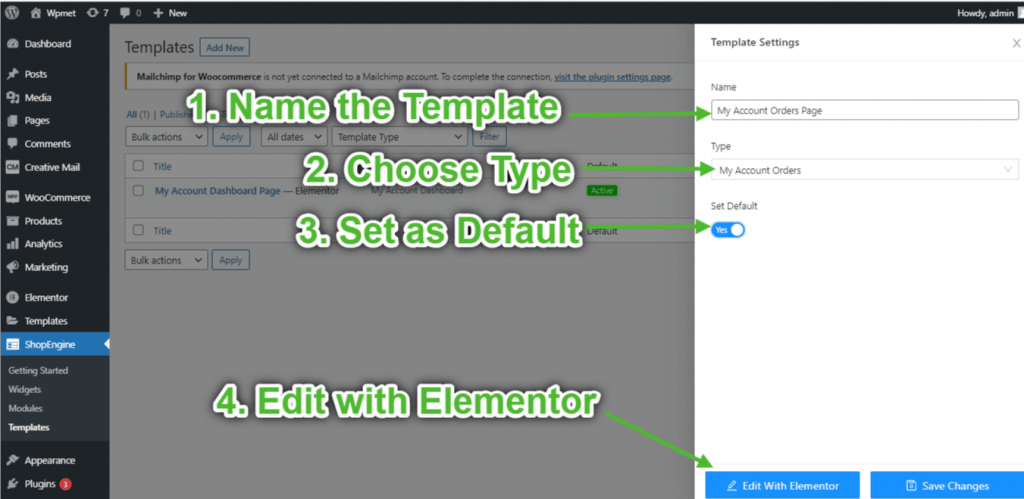
- Fornecer modelo Nome-> Select Page Tipo: Meus pedidos de conta
- Enable Default Template-> Set Default->Sim -> Click on Editar com Elementor
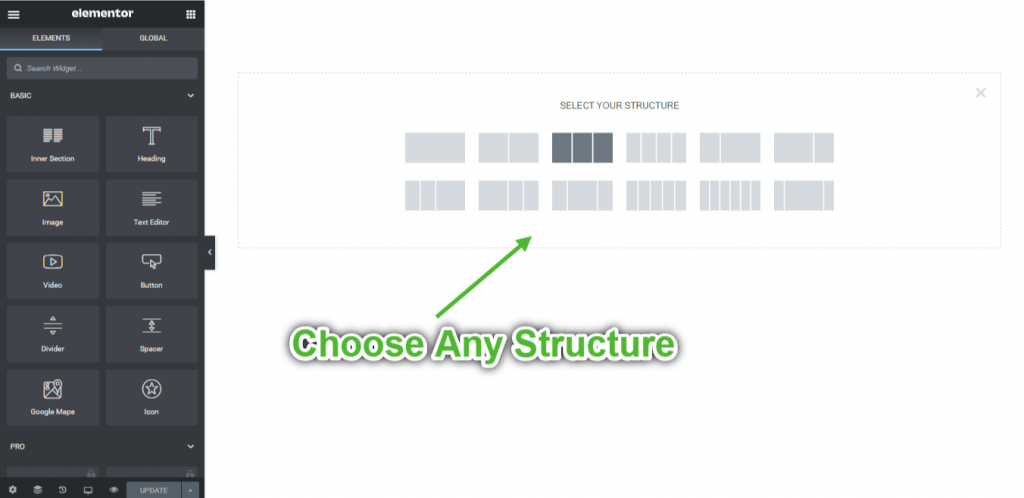
Etapa 3: escolha uma estrutura #
- Clique no "+”Ícone do Elementor e escolha o layout de seção de sua preferência.
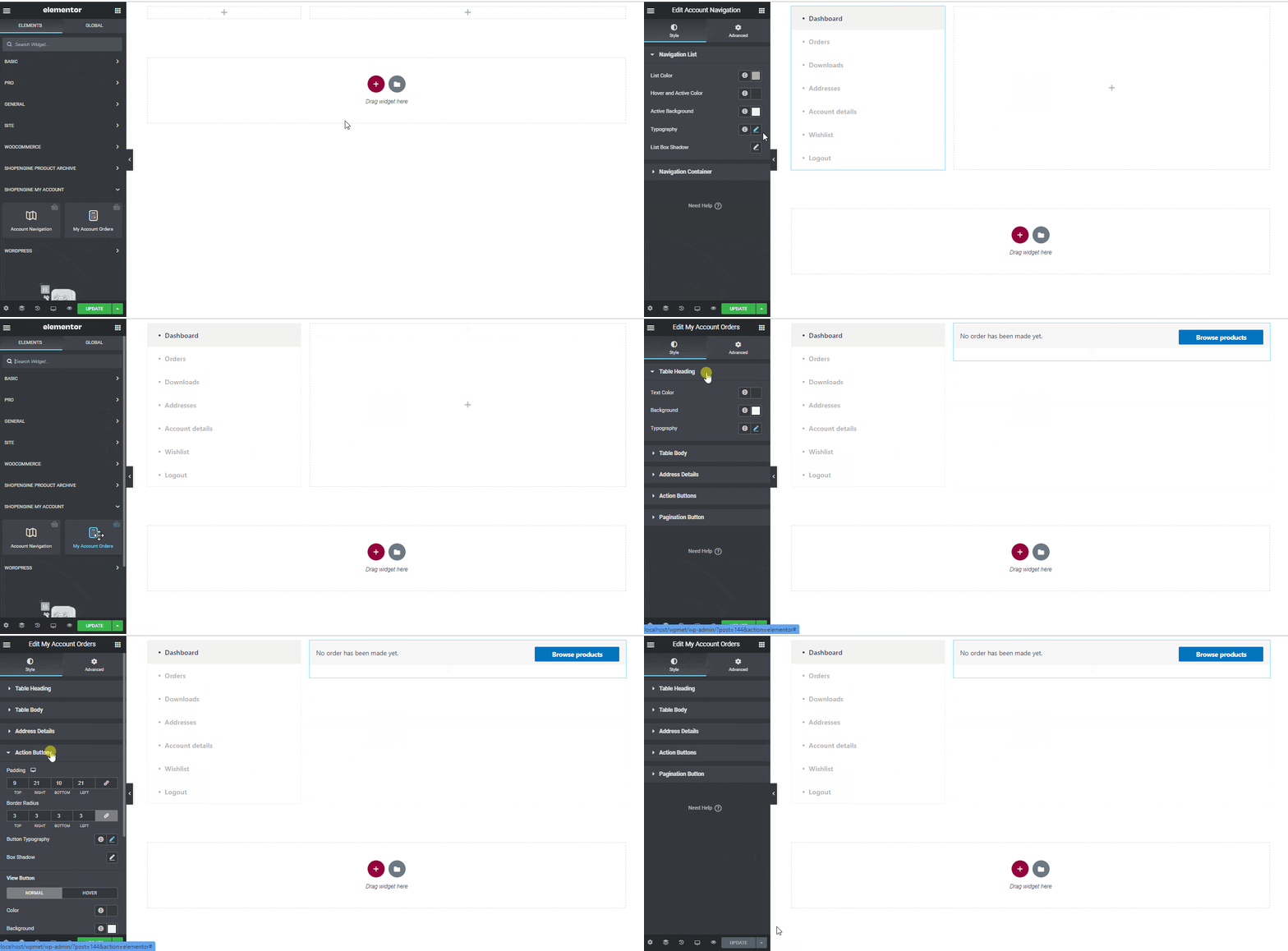
Etapa 4: criar página de pedidos de conta #
Para construir a página Pedidos de conta, você precisará aproveitar dois widgets: Navegação da conta e Pedidos da minha conta widgets.
- Arraste e solte o widget Navegação da conta do bloco de elementos Minha conta do ShopEngine do Elementor. Você pode alterar a cor do texto e do link, a espessura da fonte do texto e do link, a espessura da fonte do usuário, a tipografia, a cor de foco do link, etc. na guia de configurações de estilo, se desejar.
- Além disso, arraste e solte o widget Pedidos de conta do mesmo bloco de elemento e faça as alterações desejadas.
- Once you are done editing your Account Orders page, save it by clicking on -> Atualizar.
Etapa 5: visualizar a página de pedidos da conta #
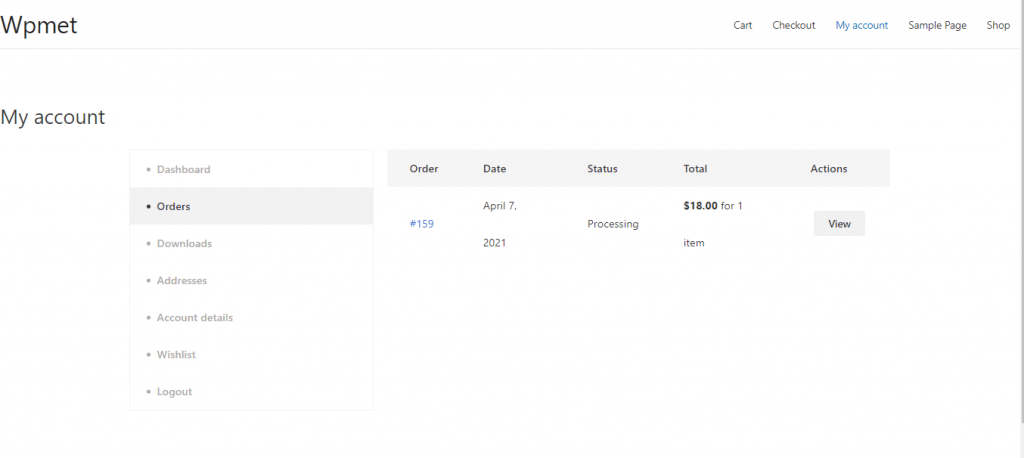
Agora, vá para o Minha conta página do seu site->Clique em Pedidos. Essa é uma prévia de como seus clientes verão a página Pedido em seus dispositivos.
3. Crie a página de detalhes do pedido da minha conta #
Etapa 1: ativar os widgets necessários #
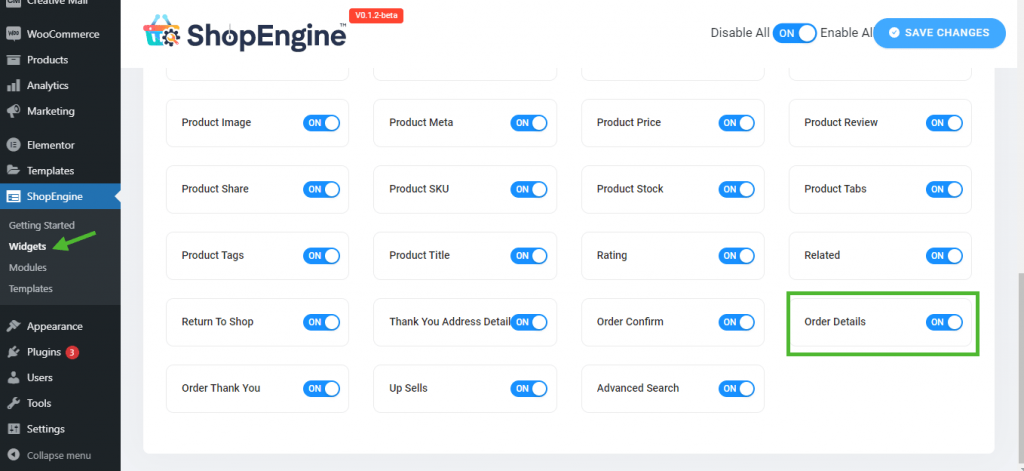
- Go to ShopEngine-> Widgets -> Make sure that the detalhes do pedido e Navegação da conta widgets são habilitado.
Etapa 2: Criar modelo de detalhes do pedido #
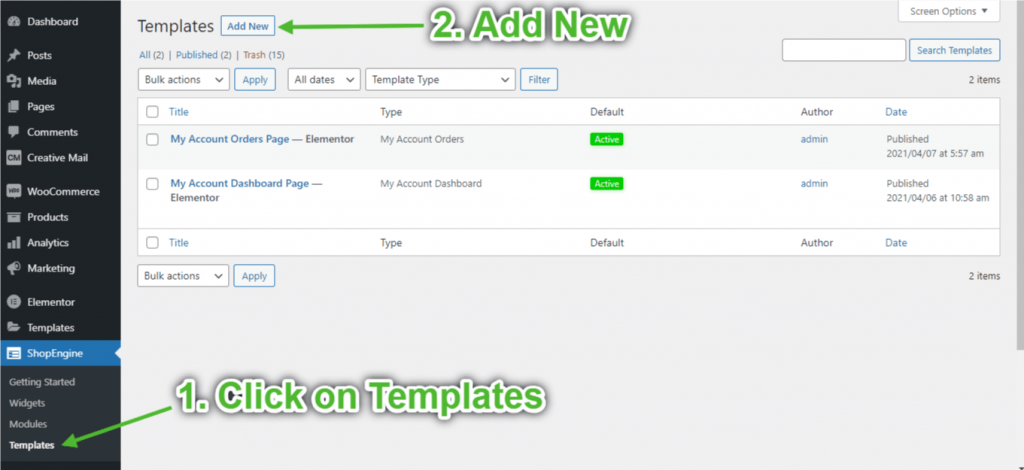
- Go to ShopEngine-> Modelos -> Adicionar novo
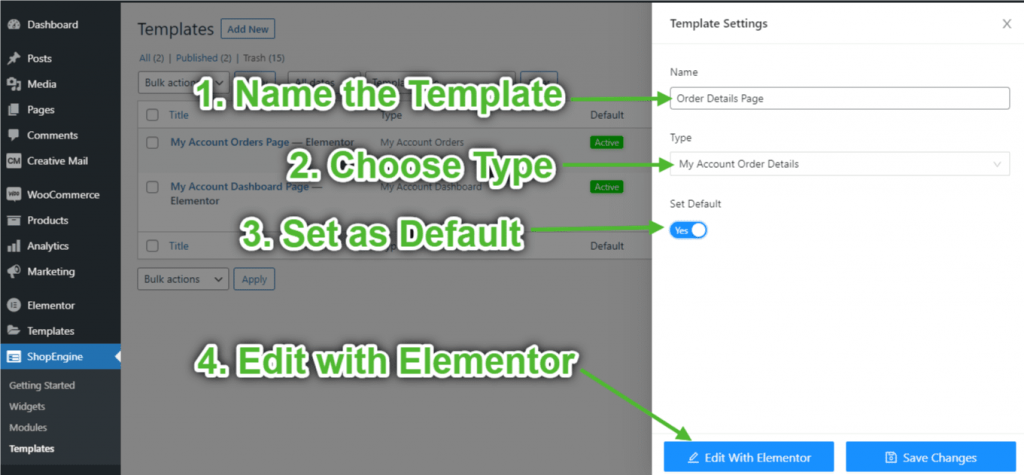
- Fornecer modelo Nome-> Select Page Tipo: Detalhes do pedido da minha conta
- Enable Default Template-> Set Default->Sim -> Click on Editar com Elementor
Etapa 3: escolha uma estrutura #
- Clique no "+”Ícone do Elementor e escolha o layout de seção de sua preferência.
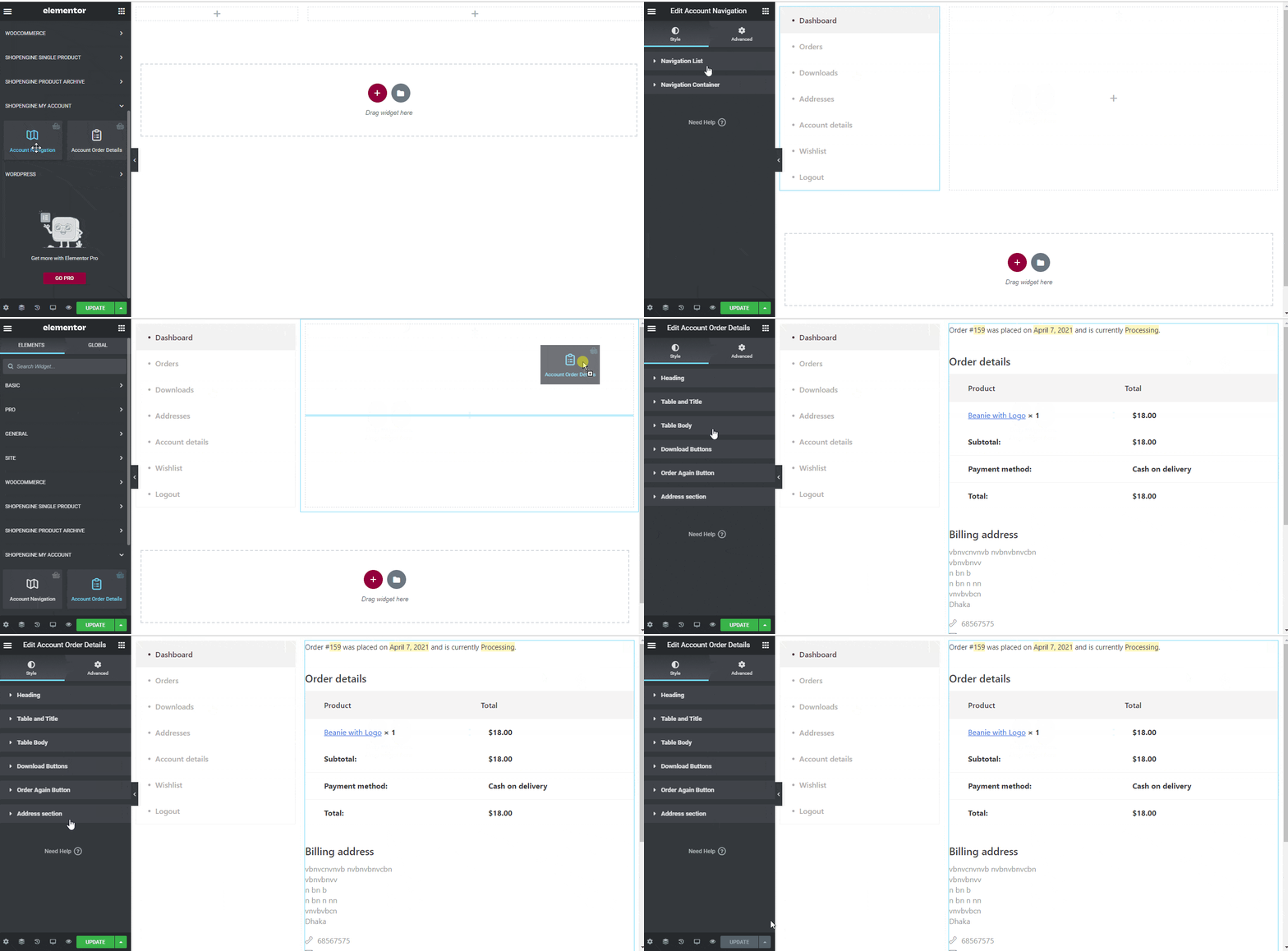
Etapa 4: criar página de detalhes do pedido #
Para construir a página Detalhes do pedido, você precisará aproveitar dois widgets: Navegação da conta e Detalhes do pedido da conta widgets.
- Arraste e solte o widget Navegação da conta do bloco de elementos Minha conta do ShopEngine do Elementor. Você pode alterar a cor do texto e do link, a espessura da fonte do texto e do link, a espessura da fonte do usuário, a tipografia, a cor de foco do link, etc. na guia de configurações de estilo, se desejar.
- Além disso, arraste e solte o widget Detalhes do pedido da conta do mesmo bloco de elemento e faça as alterações desejadas.
- Once you are done editing your Account Order Details page, save it by clicking on -> Atualizar.
Etapa 5: visualizar a página de detalhes do pedido #
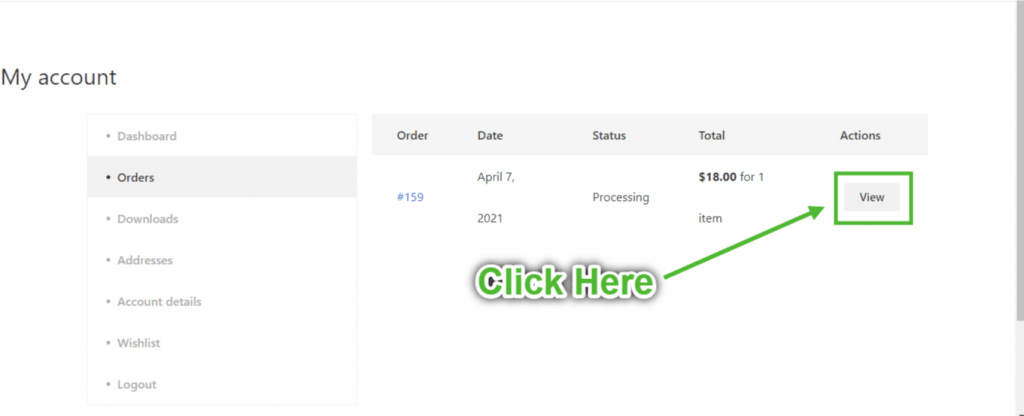
Agora, vá para o Meu Página da conta do seu site->Clique em Pedidos-> Clique em Visualizar do lado direito de qualquer pedido. Esta é uma prévia de como seus clientes verão a página de detalhes do pedido em seus dispositivos.
4. Crie a página de downloads da minha conta #
Etapa 1: ativar os widgets necessários #
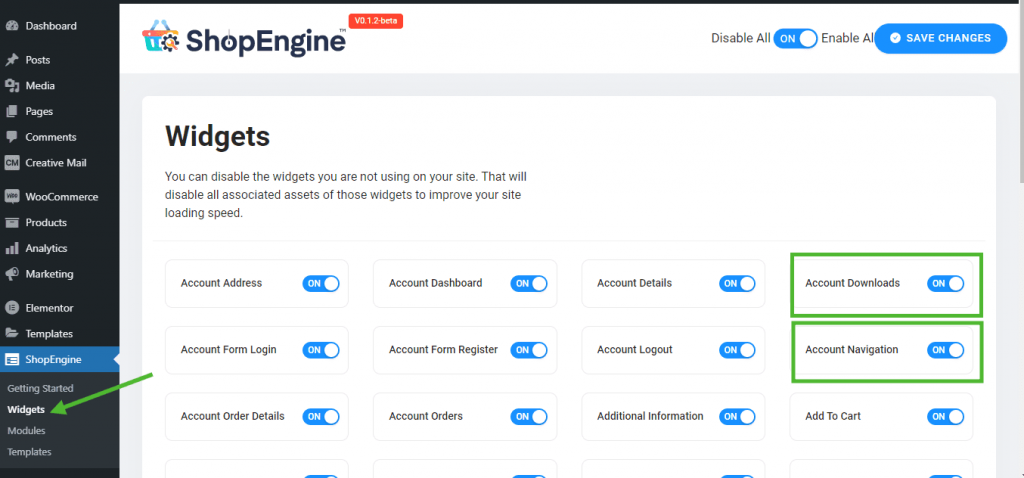
- Go to ShopEngine-> Widgets -> Make sure that the Conta Navegação e Downloads de conta widgets são habilitado.
Etapa 2: criar o modelo de downloads da minha conta #
- Go to ShopEngine-> Modelos -> Adicionar novo
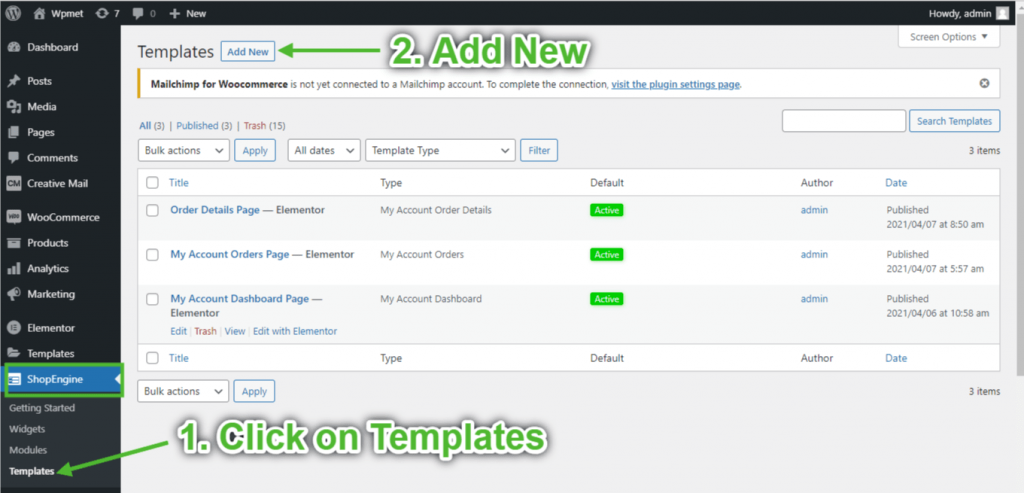
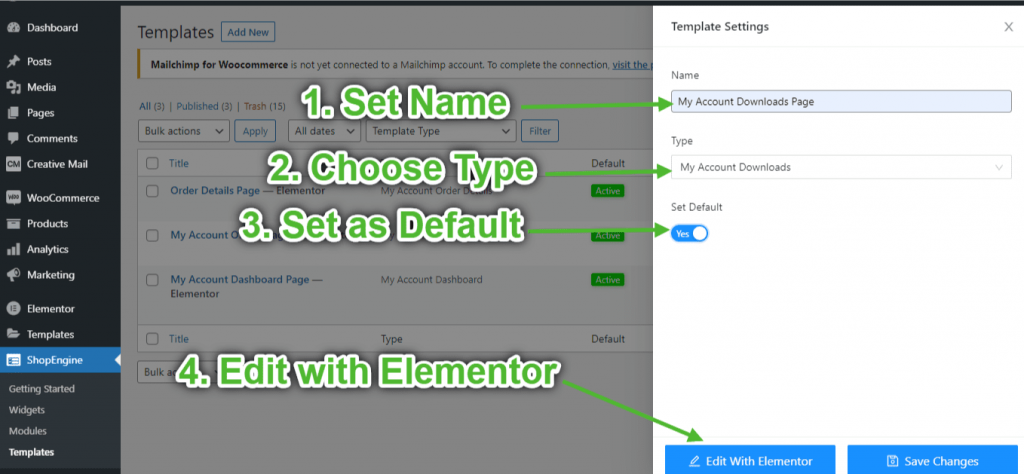
- Fornecer modelo Nome-> Select Page Tipo: Downloads da minha conta
- Enable Default Template-> Set Default->Sim -> Click on Editar com Elementor
Etapa 3: escolha uma estrutura #
- Clique no "+”Ícone do Elementor e escolha o layout de seção de sua preferência.
Etapa 4: criar página de downloads da conta #
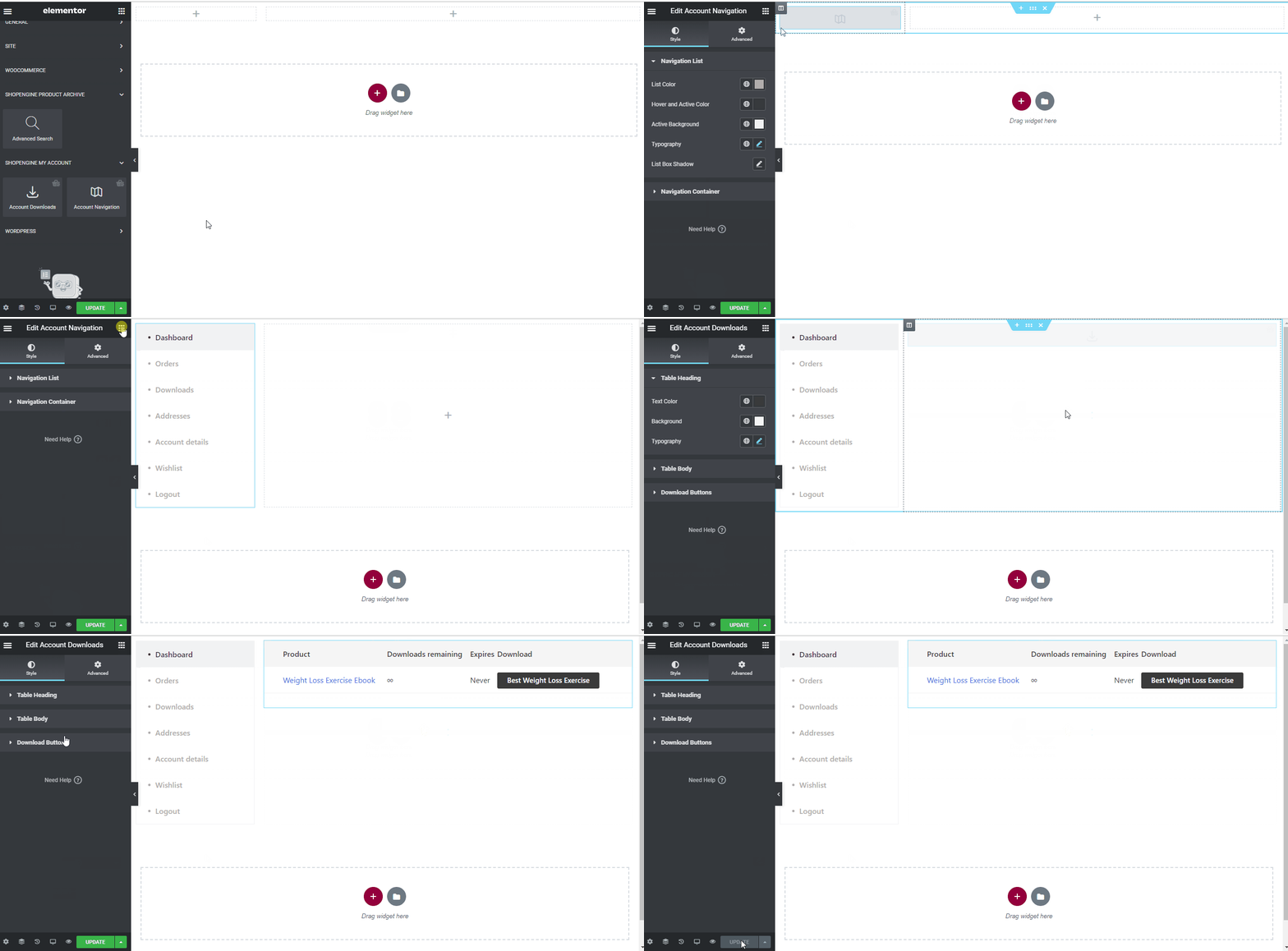
Para criar a página de downloads da conta, você precisará aproveitar dois widgets: Navegação da conta e Downloads de conta widgets.
- Arraste e solte o widget Navegação da conta do bloco de elementos Minha conta do ShopEngine do Elementor. Você pode alterar a cor do texto e do link, a espessura da fonte do texto e do link, a espessura da fonte do usuário, a tipografia, a cor de foco do link, etc. na guia de configurações de estilo, se desejar.
- Além disso, arraste e solte o widget Downloads de conta do mesmo bloco de elemento e faça as alterações desejadas.
- Once you are done editing your Account Downloads page, save it by clicking on -> Atualizar.
Etapa 5: visualizar página de downloads da conta #
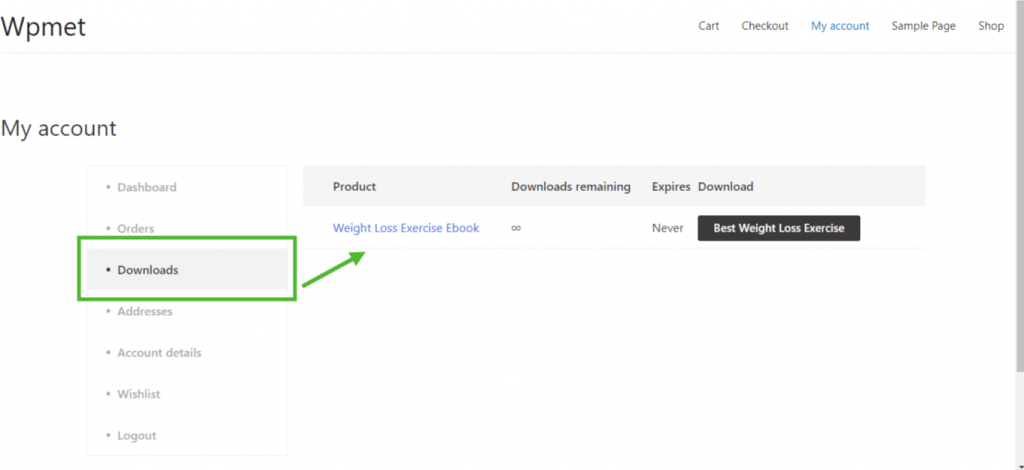
Agora, vá para o Minha conta página do seu site->Clique em Transferências. Essa é uma prévia de como seus clientes verão a página em seus dispositivos.
5. Crie a página de endereço da minha conta #
Etapa 1: ativar os widgets necessários #
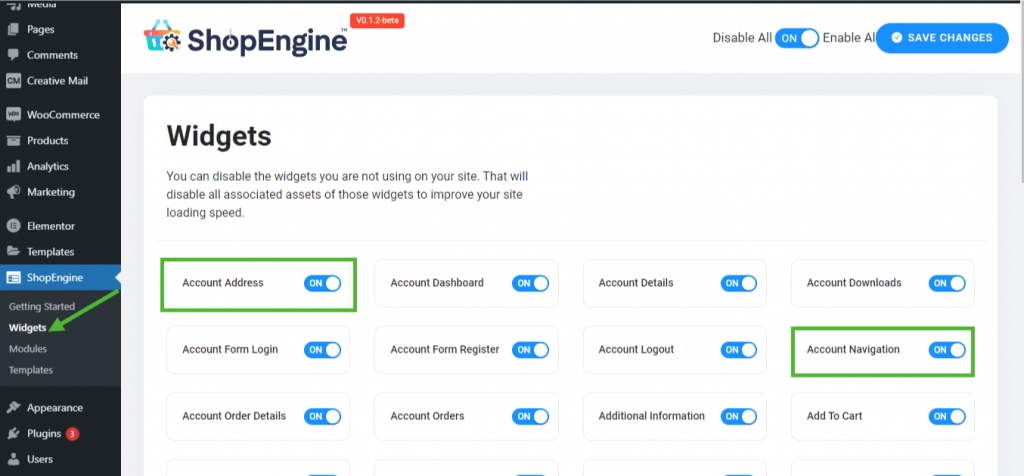
- Go to ShopEngine-> Widgets -> Make sure that the Conta Navegação e Endereço da conta widgets são habilitado.
Etapa 2: criar o modelo de endereço da minha conta #
- Go to ShopEngine-> Modelos -> Adicionar novo
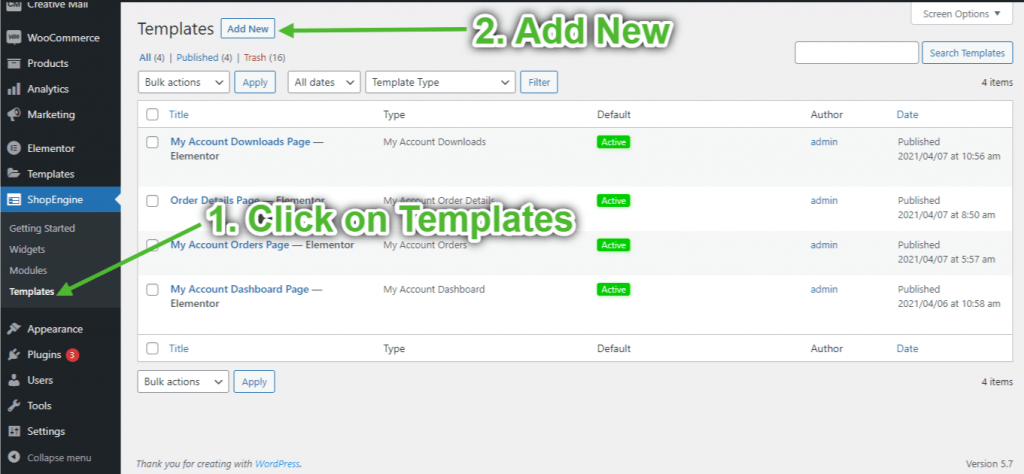
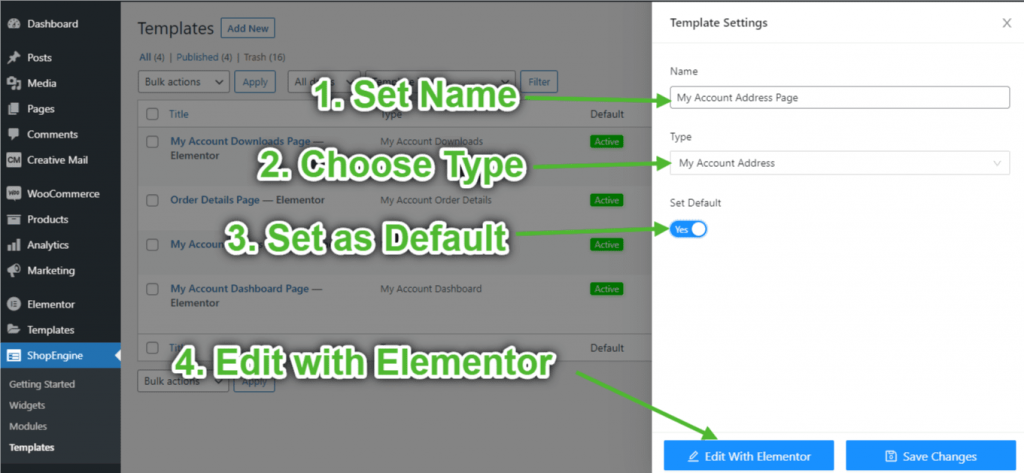
- Fornecer modelo Nome-> Select Page Tipo: Endereço da minha conta
- Enable Default Template-> Set Default->Sim -> Click on Editar com Elementor
Etapa 3: escolha uma estrutura #
- Clique no "+”Ícone do Elementor e escolha o layout de seção de sua preferência.
Etapa 4: criar página de endereço da conta #
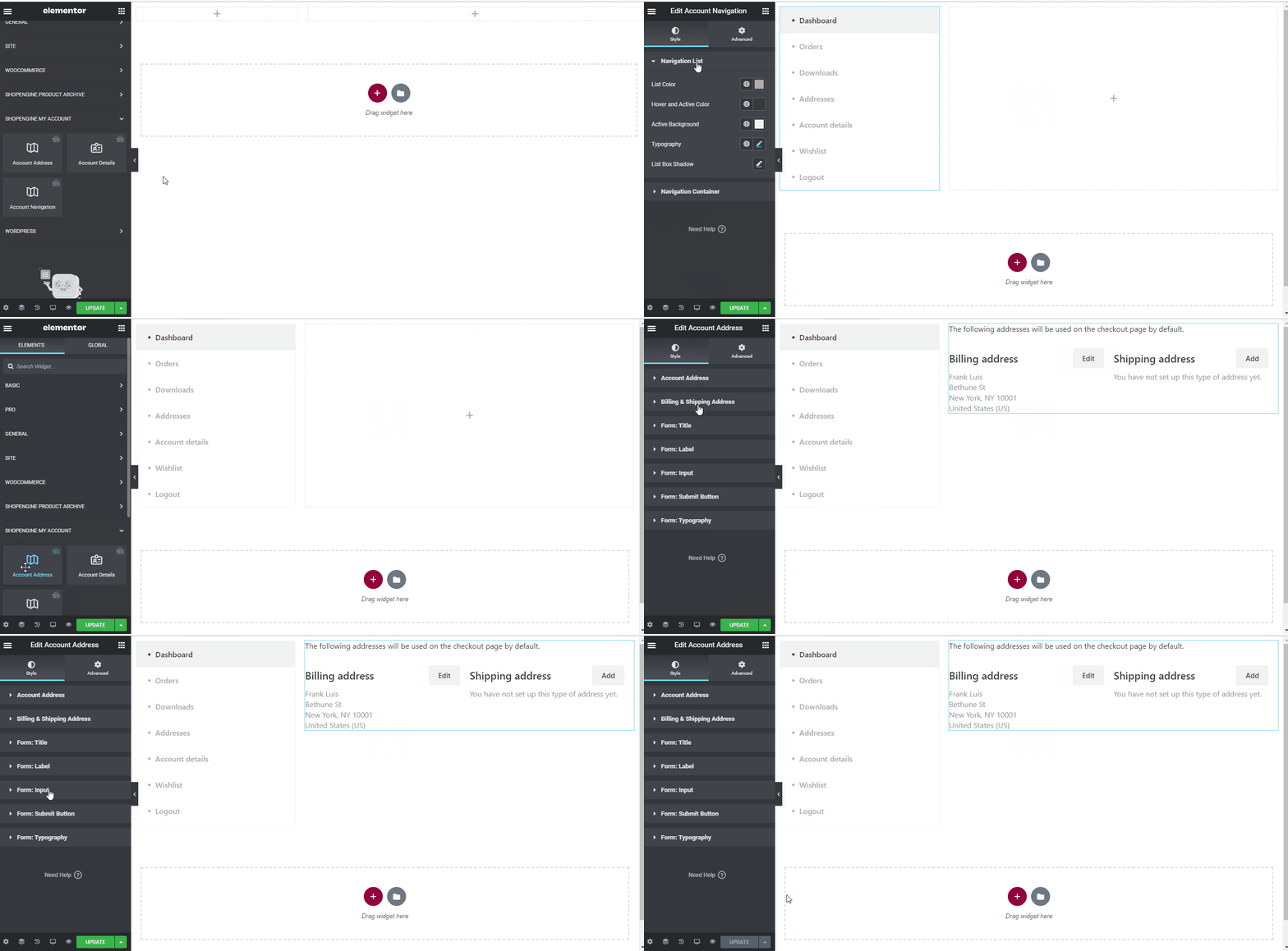
Para construir a página Endereço da conta, você precisará aproveitar dois widgets: Navegação da conta e Endereço da conta ferramenta.
- Arraste e solte o widget Navegação da conta do bloco de elementos Minha conta do ShopEngine do Elementor. Você pode alterar a cor do texto e do link, a espessura da fonte do texto e do link, a espessura da fonte do usuário, a tipografia, a cor de foco do link, etc. na guia de configurações de estilo, se desejar.
- Além disso, arraste e solte o widget Endereço da conta do mesmo bloco de elemento e faça as alterações desejadas.
- Once you are done editing your Account Address page, save it by clicking on -> Atualizar.
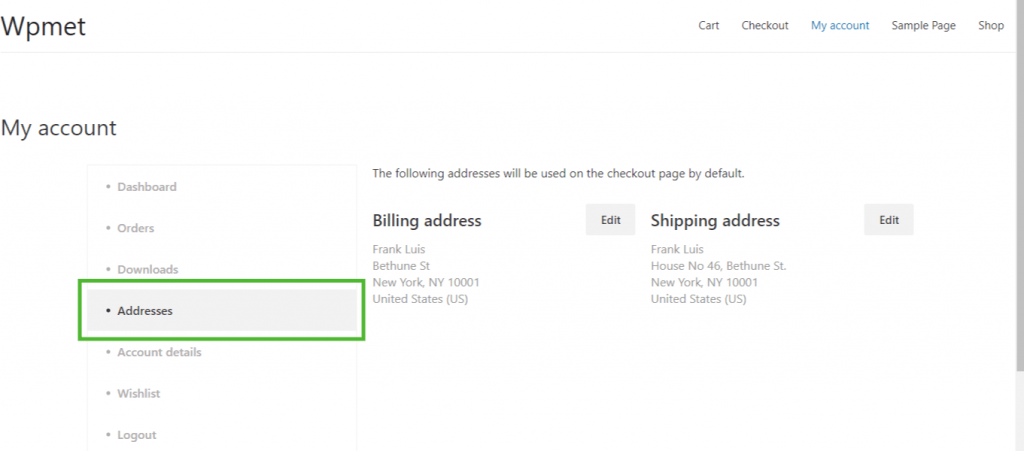
Etapa 5: visualizar a página de endereço da conta #
Agora, vá para o Minha conta página do seu site->Clique em Endereços. Essa é uma prévia de como seus clientes verão a página em seus dispositivos.
6. Crie a página de detalhes da minha conta #
Etapa 1: ativar os widgets necessários #
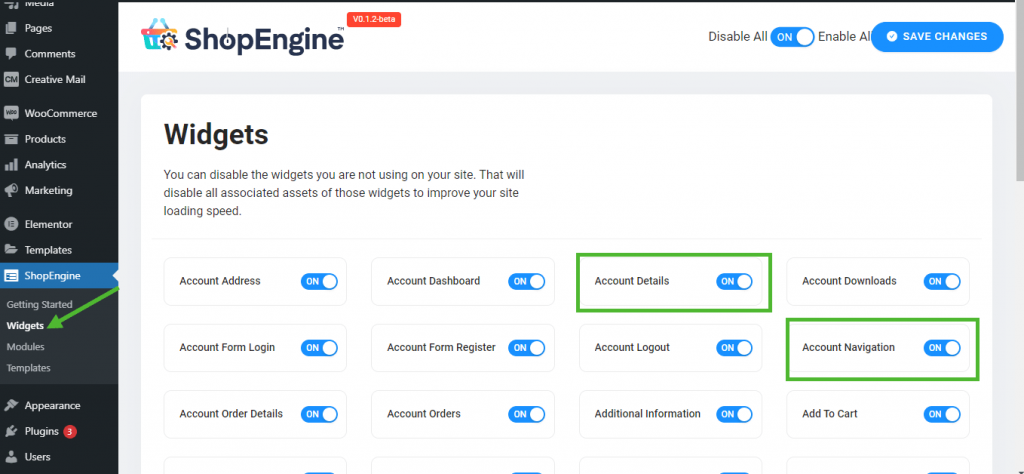
- Go to ShopEngine-> Widgets -> Make sure that the Conta Navegação e Detalhes da conta widgets são habilitado.
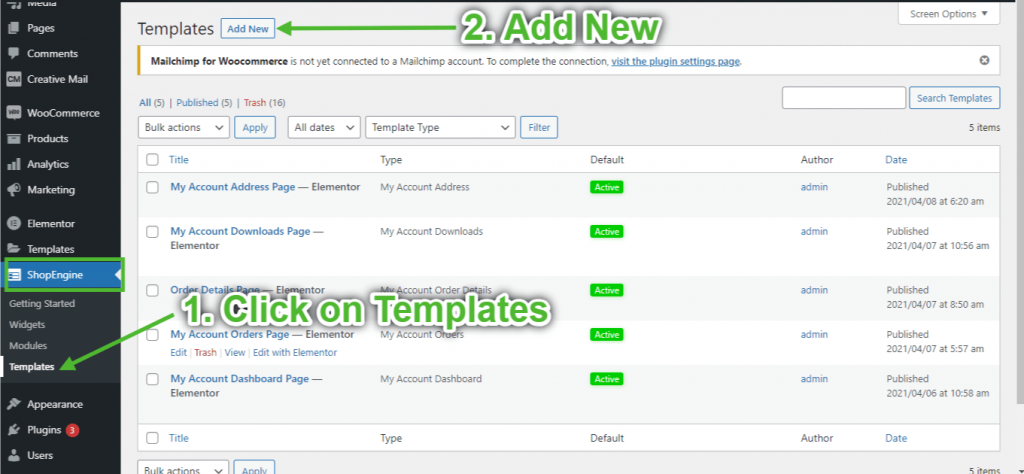
Etapa 2: Criar modelo de detalhes da minha conta #
- Go to ShopEngine-> Modelos -> Adicionar novo
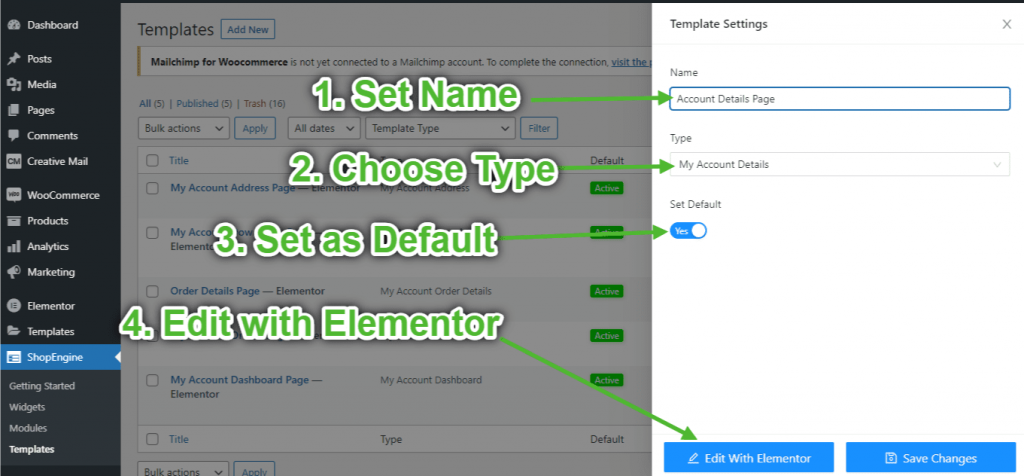
- Fornecer modelo Nome-> Select Page Tipo: Detalhes da minha conta
- Enable Default Template-> Set Default->Sim -> Click on Editar com Elementor
Etapa 3: escolha uma estrutura #
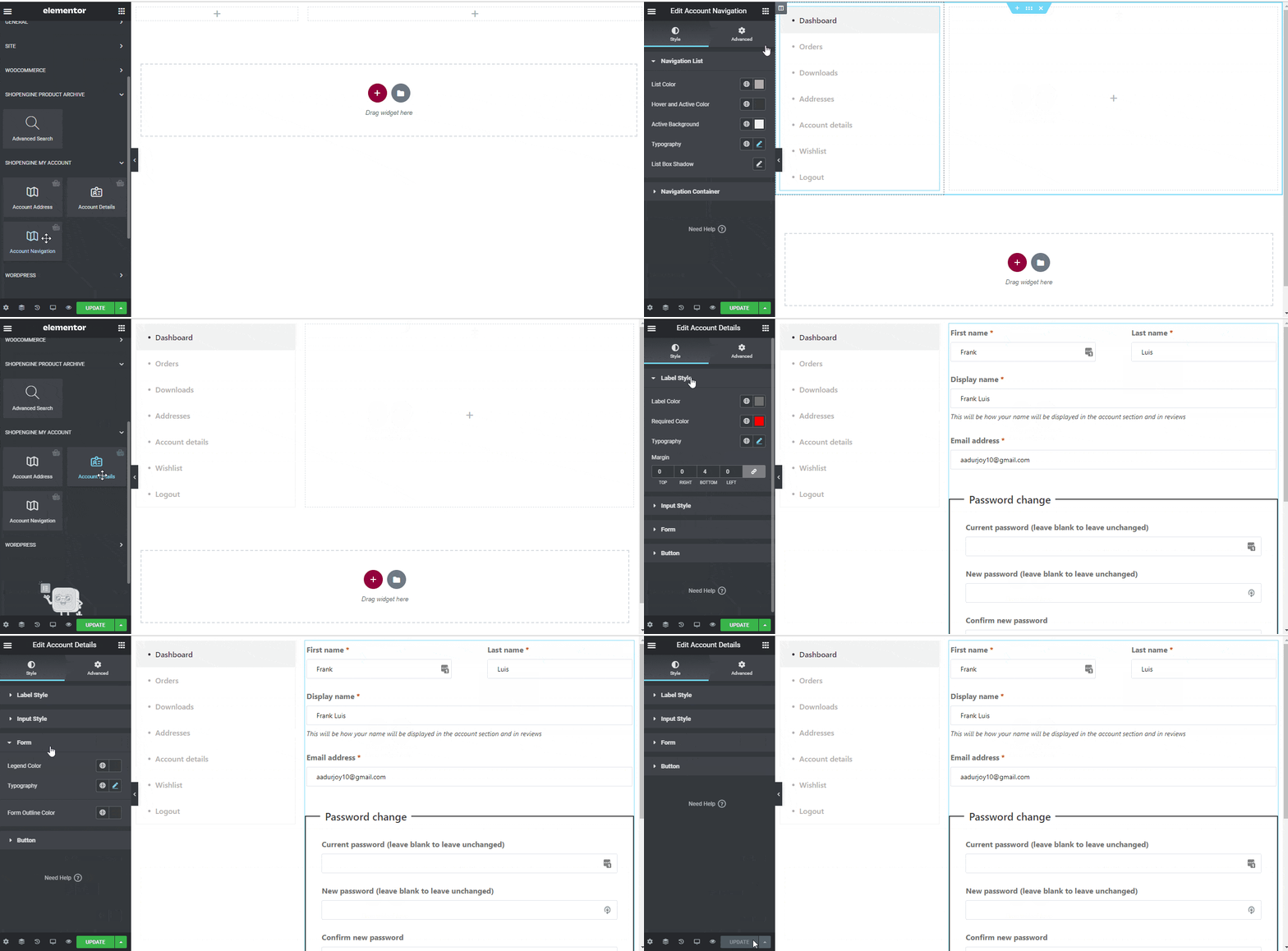
- Clique no ícone “+” do Elementor e escolha o layout de seção de sua preferência.
Etapa 4: criar página de detalhes da conta #
Para criar a página Detalhes da conta, você precisará aproveitar dois widgets: Navegação da conta e Detalhes da conta ferramenta.
- Arraste e solte o widget Navegação da conta do bloco de elementos Minha conta do ShopEngine do Elementor. Você pode alterar a cor do texto e do link, a espessura da fonte do texto e do link, a espessura da fonte do usuário, a tipografia, a cor de foco do link, etc. na guia de configurações de estilo, se desejar.
- Além disso, arraste e solte o widget Detalhes da conta do mesmo bloco de elemento e faça as alterações desejadas.
- Once you are done editing your Account Details page, save it by clicking on -> Atualizar.
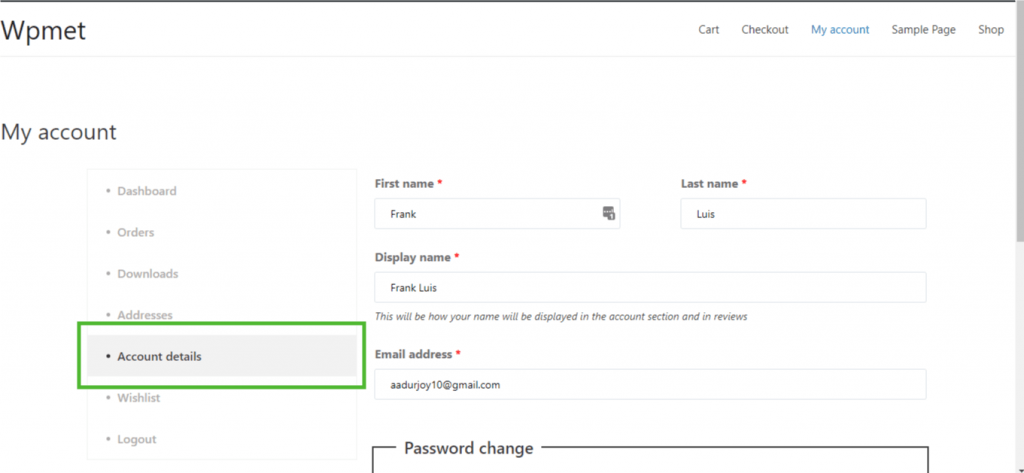
Etapa 5: visualizar a página de detalhes da conta #
Agora, vá para o Minha conta página do seu site->Clique em Detalhes da conta. Essa é uma prévia de como seus clientes verão a página em seus dispositivos.
7. Crie a página de login/registro da minha conta #
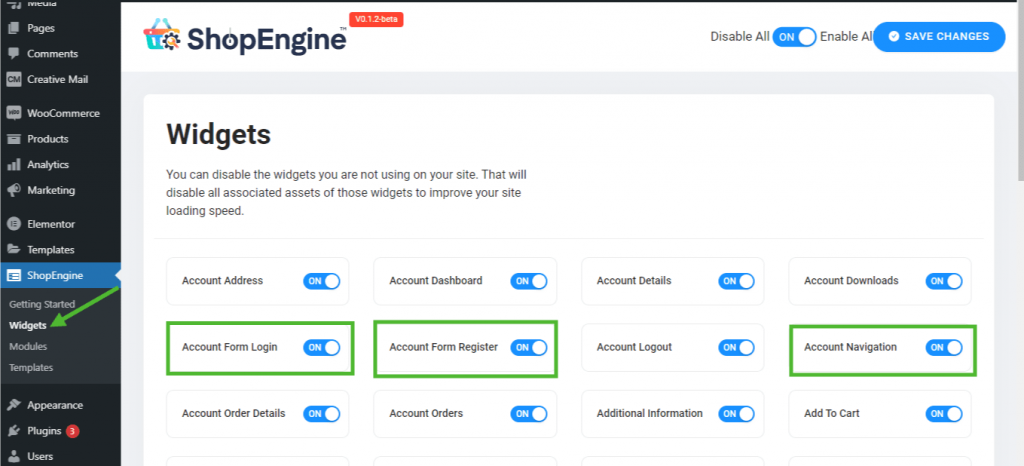
Etapa 1: ativar os widgets necessários #
- Go to ShopEngine-> Widgets -> Make sure that the Conta Navegação, Cadastro de Formulário de Conta, e Login no formulário de conta widgets são habilitado.
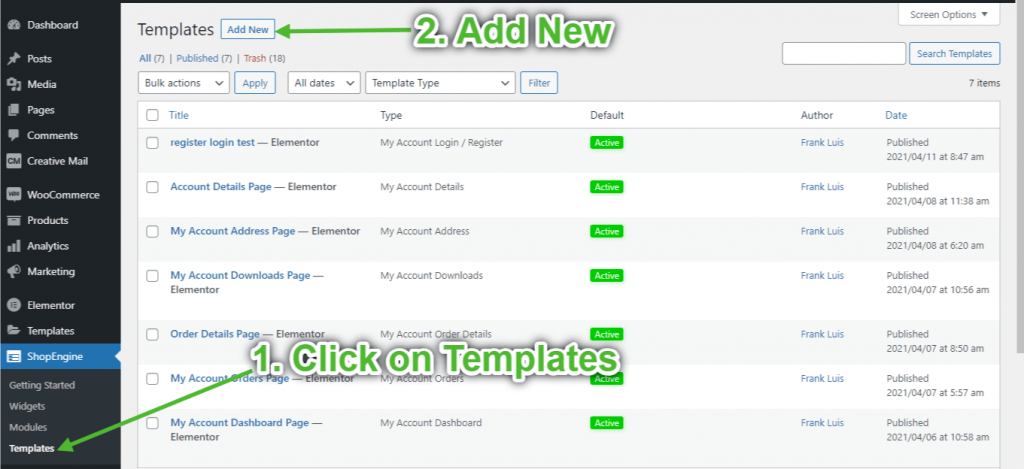
Etapa 2: Criar modelo de login/registro para minha conta #
- Go to ShopEngine-> Modelos -> Adicionar novo
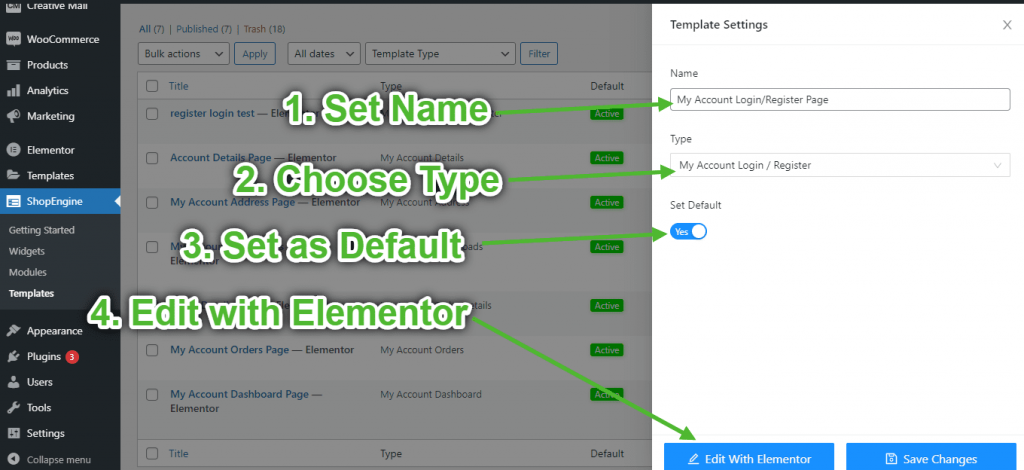
- Fornecer modelo Nome-> Select Page Tipo: Minha conta Login/Registro
- Enable Default Template-> Set Default->Sim -> Click on Editar com Elementor
Etapa 3: escolha uma estrutura #
- Clique no ícone “+” do Elementor e escolha o layout de seção de sua preferência.
Etapa 4: criar página de login/registro da conta #
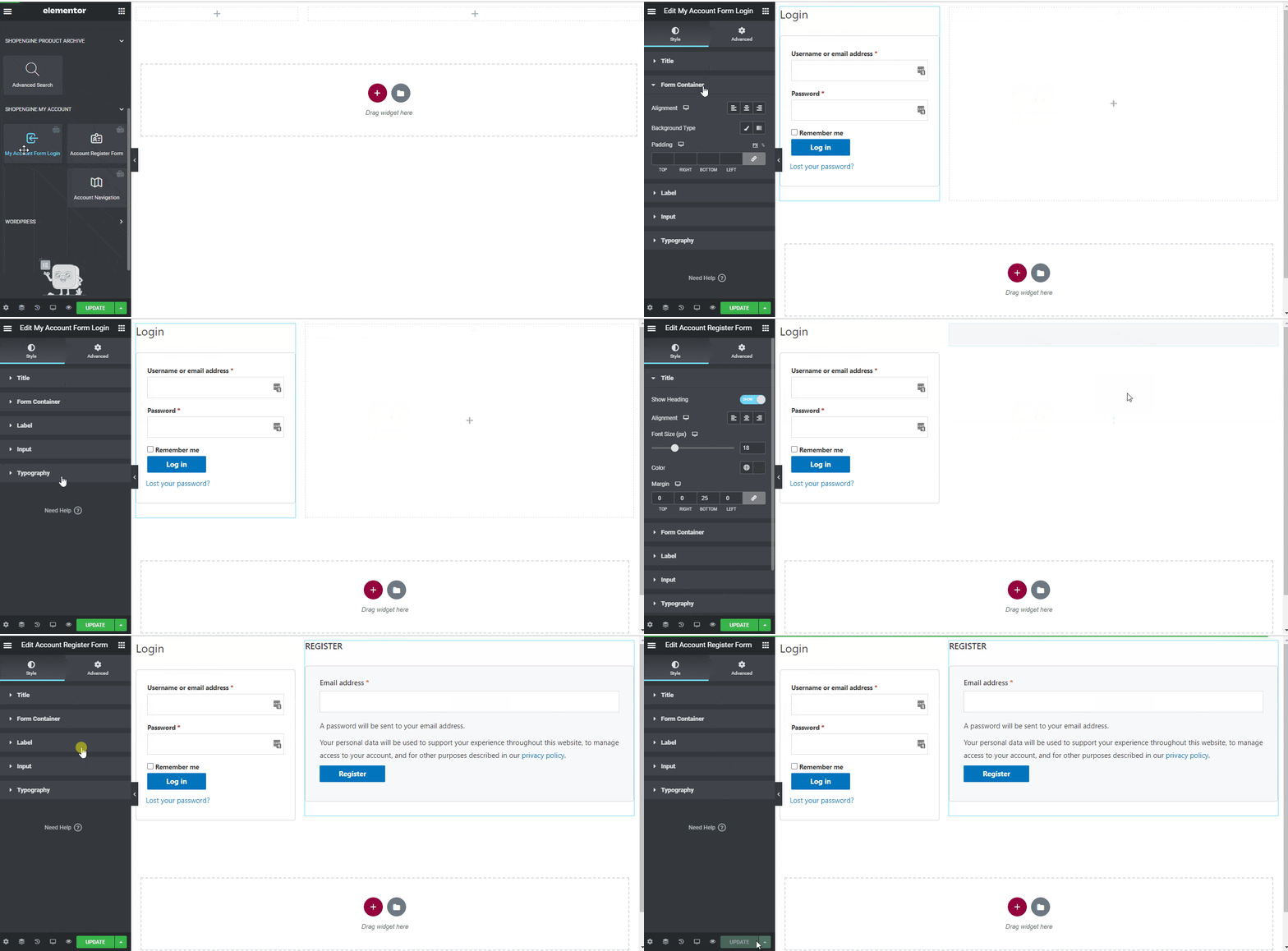
Para construir a página de login/registro da conta, você precisará aproveitar dois widgets: Login do formulário da minha conta, e Formulário de registro de conta ferramenta.
- Arraste e solte o Login do formulário da minha conta widget do bloco de elementos ShopEngine My Account do Elementor. Você pode alterar o título, o contêiner do formulário, o rótulo, a entrada e a tipografia na guia de configurações de estilo, se desejar.
- Além disso, arraste e solte o Formulário de registro de conta widget do mesmo bloco de elemento e faça as alterações desejadas.
- Once you are done editing your page, save it by clicking on -> Atualizar.
Etapa 5: visualizar a página de login/registro da conta #
Agora, vá para o Minha conta página do seu site-> Vá para Painel -> Clique em Sair. Agora, você poderá ter uma prévia de como seus clientes verão a página em seus dispositivos.