Portuguese
  English
  German
  Spanish
  Italian
  French
  Danish
  Swedish
  Polish
  Korean
  Japanese
 Como criar uma página de arquivo WooCommerce com ShopEngine #
Páginas do arquivo WooCommerce são levados a organizar uma lista de produtos com um preço específico, cor de categoria, etiqueta, etc. Arquivo do ShopEngine Widgets incluindo categoria, Título do arquivo, Contagem de arquivos, Arquivar produtos., Filtros de produto, etc.. Usando esses widgets, você pode organizar facilmente sua página de arquivo da maneira desejada.
Just follow the step-by-step process to create & beautify your Archive page with ShopEngine, um WooCommerce archive page builder:
Quick Overview
This guide will present creating a WooCommerce product archive page using ShopEngine’s provided archive widgets. This plugin supports Elementor’s drag-and-drop interface that facilitates beginners who have zero to minor technical expertise.
Plugins needed: ShopEngine, WooCommerce, and Elementor.
After installing these plugins, you need to enable the archive widgets. Then you need to create and customize an archive page template with ShopEngine’s archive widgets.
Step 1: Create an WooCommerce Product Archive Page Template #
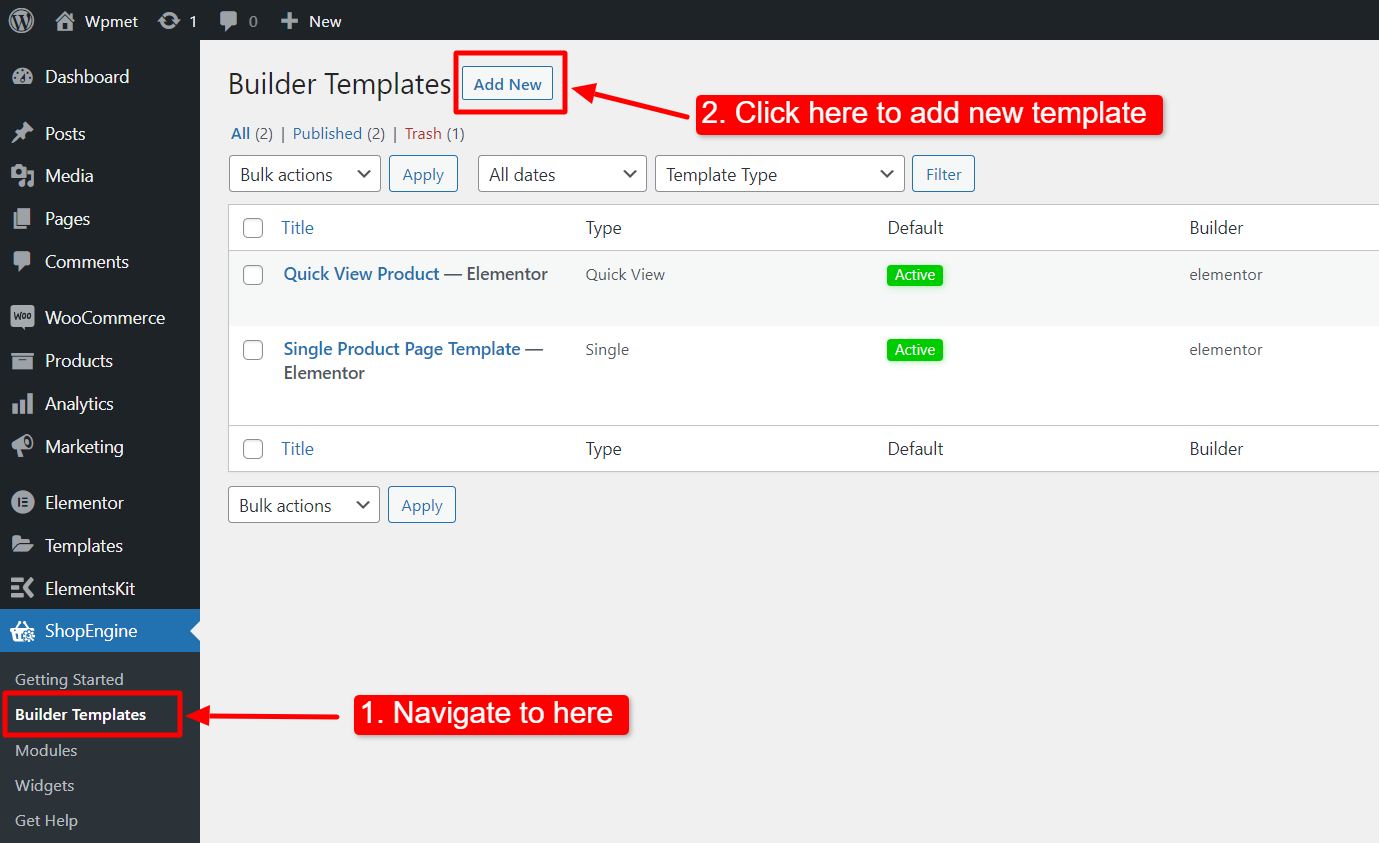
- Navegar para ShopEngine-> Modelos do seu painel do WordPress.
- Clique no Adicionar novo botão para criar um novo modelo.
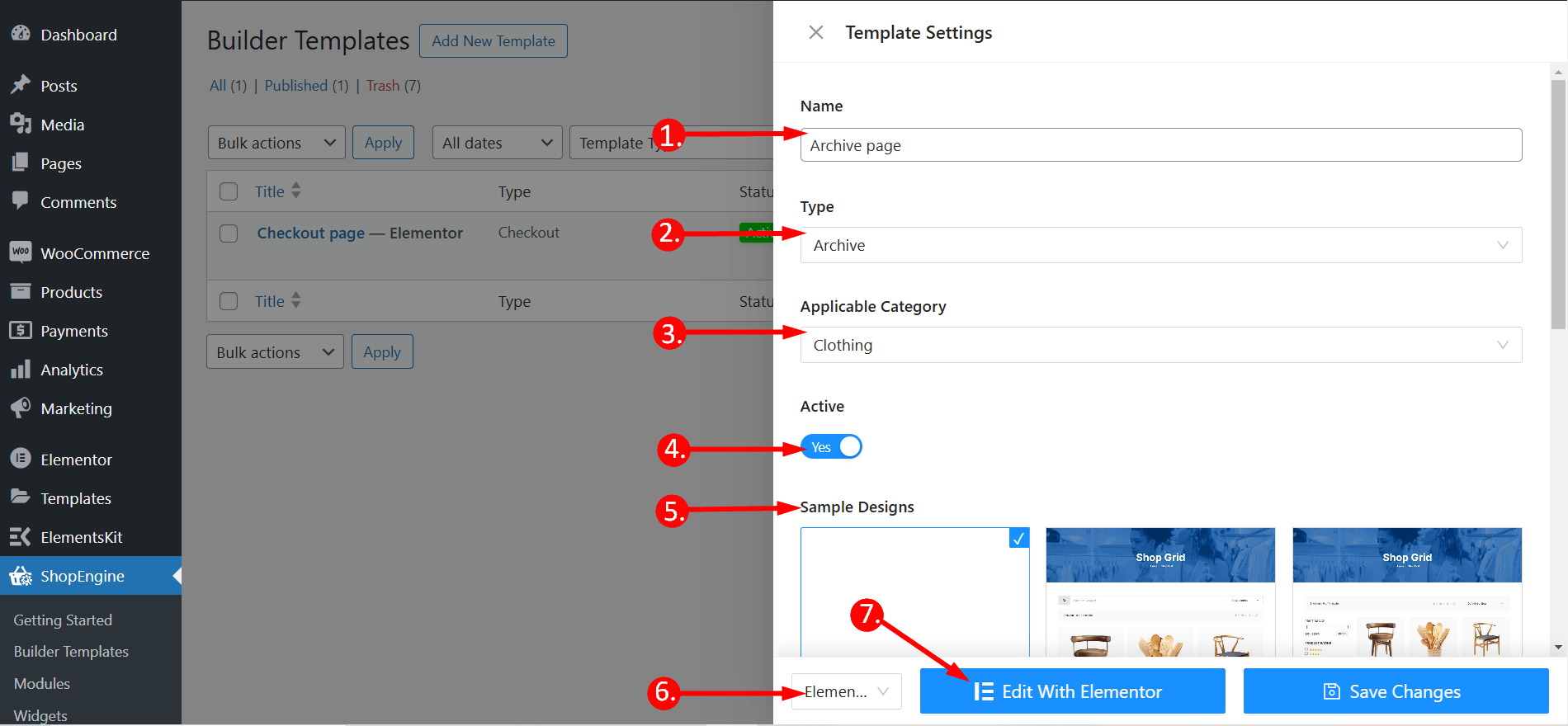
Depois disso, uma janela fora da tela aparecerá para configurações do modelo. Nas configurações do modelo,
- Introduzir um Nome do modelo.
- Defina o tipo de modelo: Arquivo.
- Selecione um Categoria aplicável para produtos. (Opcional. Porém, se você escolher uma categoria, deverá criar outro modelo para produtos gerais, bem como produtos de outras categorias).
- Habilitar Conjunto padrão para definir o modelo como Padrão.
- Selecione um desenho no modelos disponíveis ou criar um projeto por conta própria usando widgets de página de produto único. Mostraremos o modelo criado do zero.
- Escolha qual editor você deseja usar para editar o modelo a partir das opções fornecidas: Elementor e Gutenberg.
- Agora clique em Edit with Elementor/Gutenberg or Save changes.
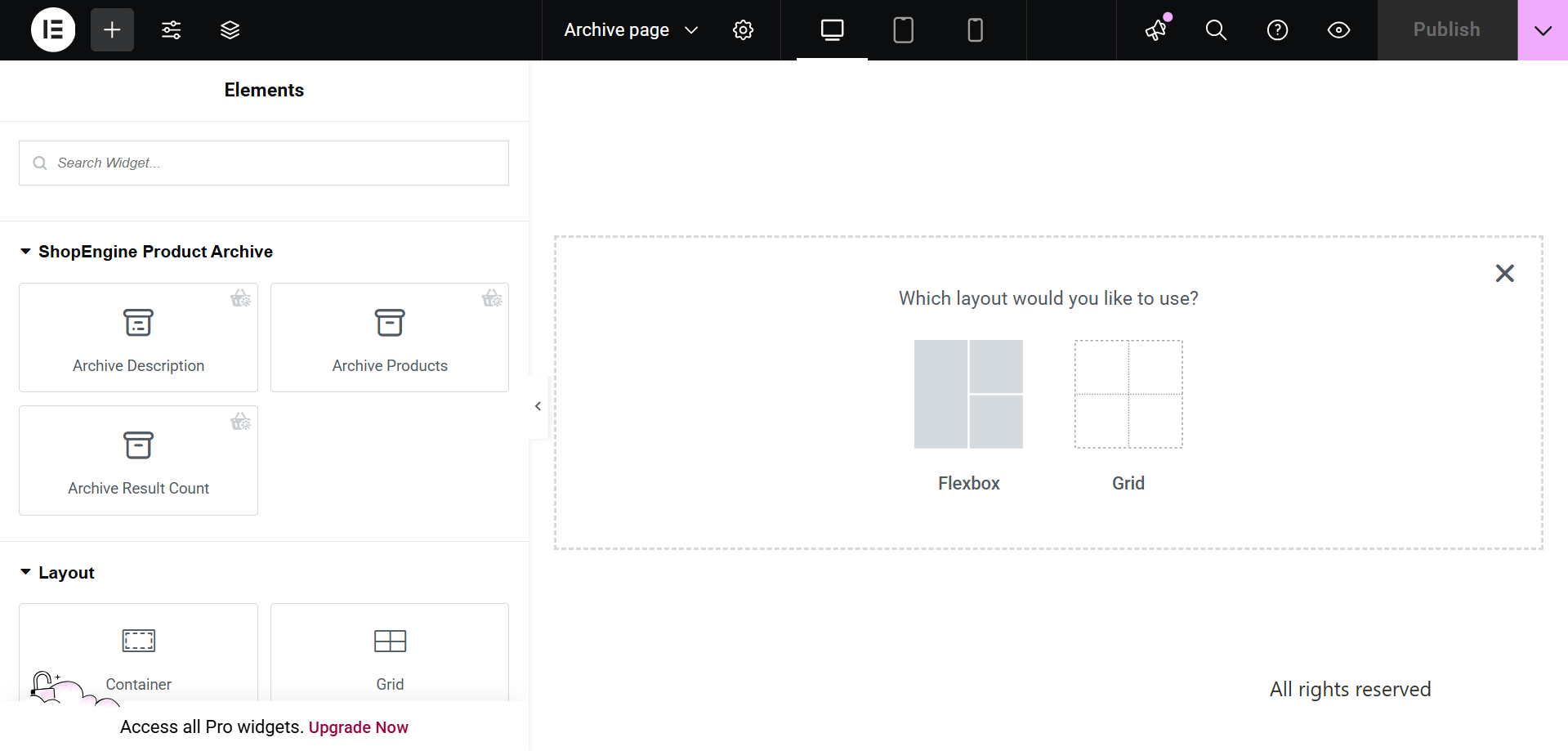
Passo 2: Escolha uma estrutura #
- Escolha sua estrutura na área selecionada.
Etapa 3: Projete sua página de arquivo WooCommerce com ShopEngine Archive Widgets #
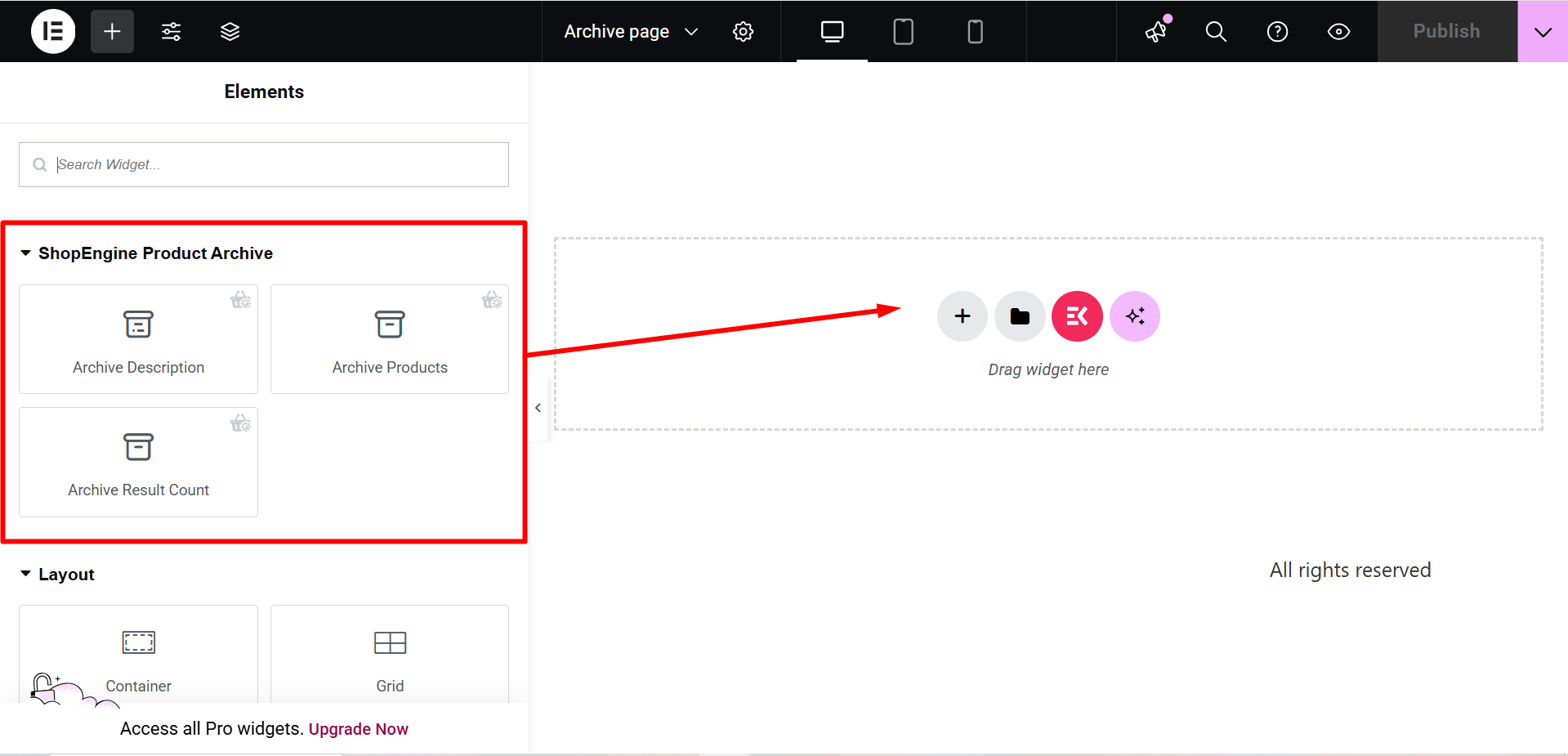
Vá para um bloco ShopEngine e você poderá criar o seu próprio. Aqui você obterá alguns especificados Arquivo do ShopEngine Widgets incluindo categoria, Título do arquivo, Contagem de arquivos, Arquivar produtos, etc.. Vamos ver como personalizá-los:
Agora basta arrastar os seguintes widgets e soltá-los na área selecionada.
- Categoria.
- Título do arquivo.
- Contagem de arquivos.
- Arquivar produtos.
Etapa 4: publique sua página de arquivo #
- Depois de terminar de projetar, clique em Atualizar.
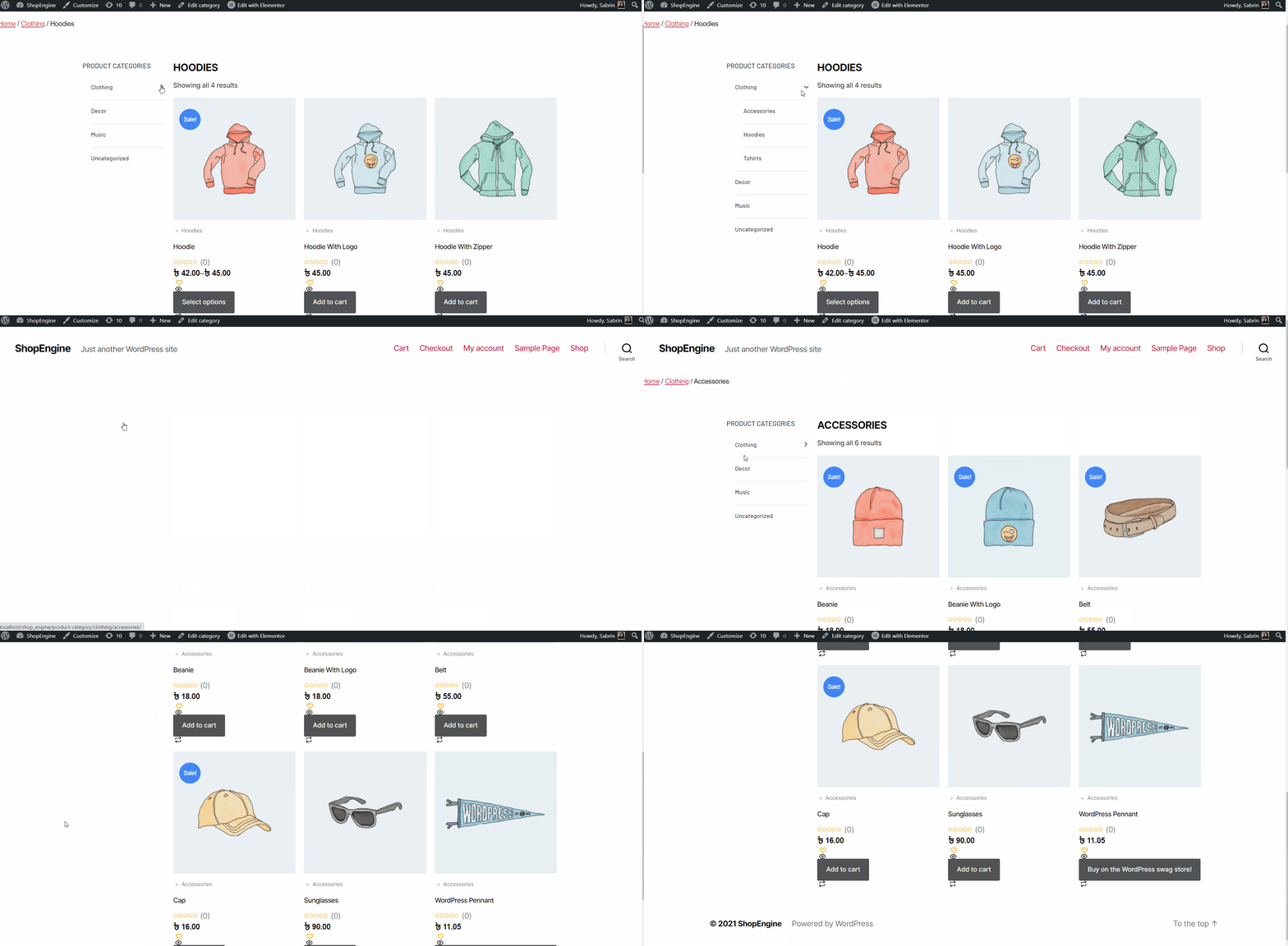
Agora veja o Página de arquivo do front-end. Lá você pode ver a página Arquivo que você projetou e verificar se todas as funcionalidades da página estão funcionando perfeitamente.