Danish
  English
  German
  Spanish
  Italian
  French
  Portuguese
  Swedish
  Polish
  Korean
  Japanese
 How to Create a WooCommerce Archive Page with ShopEngine #
WooCommerce Archive pages are led to organizing a list of products under a specific price, category color, tag, etc. Here you will get some specified ShopEngine Archive Widgets including Category, Arkiv titel, Archive Count, Arkiv produkter., Product Filters, etc. Using these widgets, you can easily arrange your Archive page in your desired way.
Just follow the step-by-step process to create & beautify your Archive page with ShopEngine, en WooCommerce archive page builder:
Quick Overview
This guide will present creating a WooCommerce product archive page using ShopEngine’s provided archive widgets. This plugin supports Elementor’s drag-and-drop interface that facilitates beginners who have zero to minor technical expertise.
Plugins needed: ShopEngine, WooCommerce, and Elementor.
After installing these plugins, you need to enable the archive widgets. Then you need to create and customize an archive page template with ShopEngine’s archive widgets.
Step 1: Create an WooCommerce Product Archive Page Template #
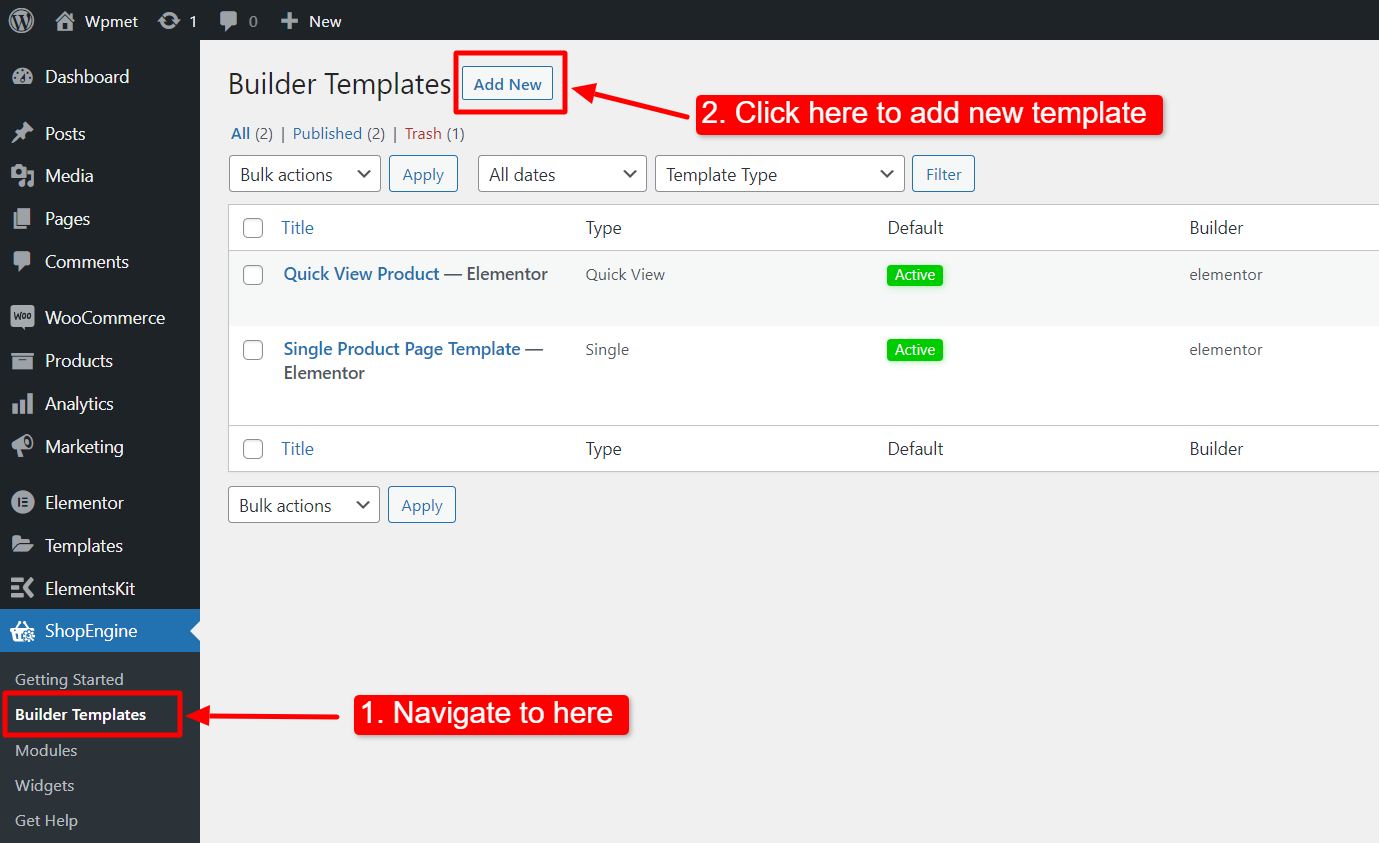
- Naviger til ShopEngine-> Skabeloner fra dit WordPress-dashboard.
- Klik på Tilføj ny button to create a new template.
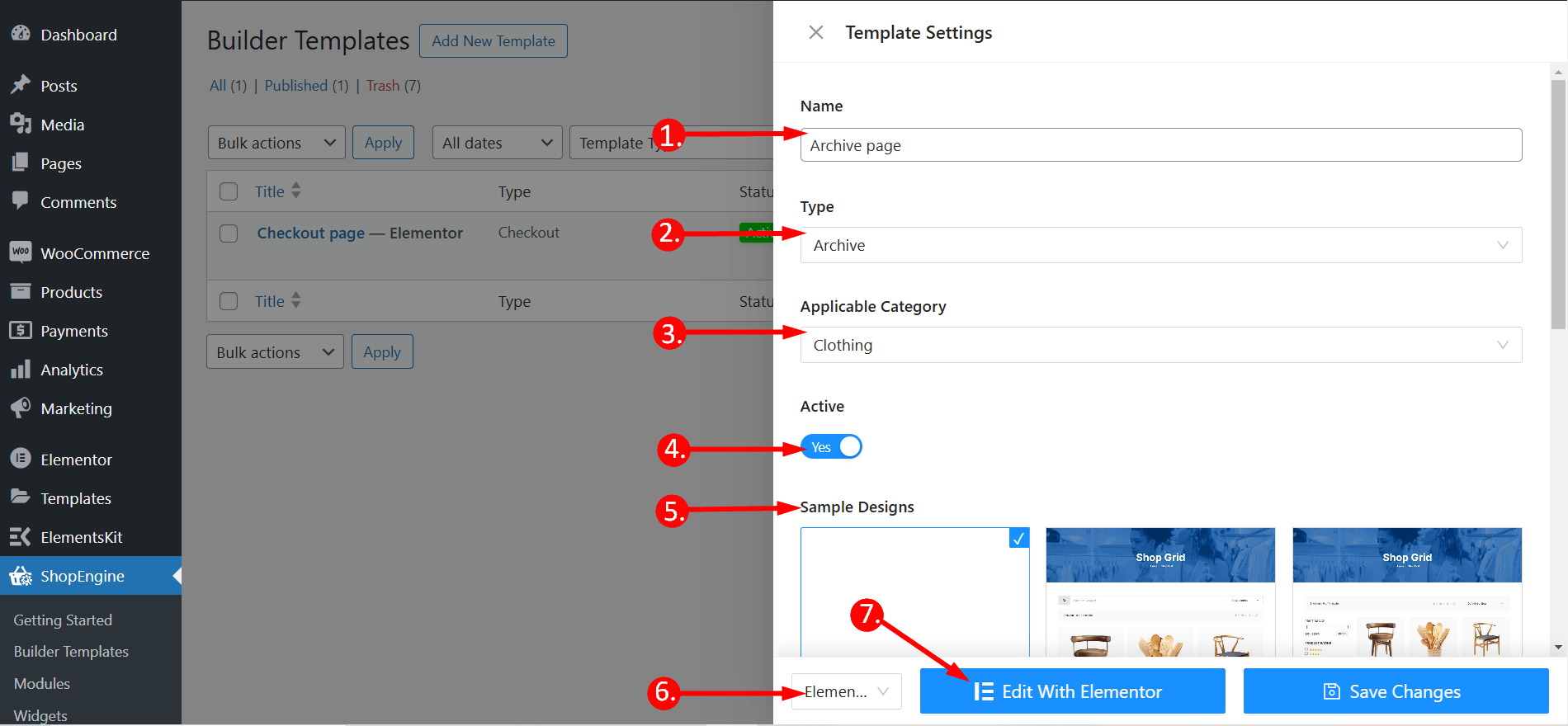
Derefter vises et off-canvas-vindue for skabelonindstillinger. I skabelonindstillingerne,
- Indtast en Skabelonnavn.
- Set the template Type: Arkiv.
- Vælg en Gældende kategori for products. (Optional. However, if you choose a category, you have to create another template for general products as well as products of other categories).
- Aktiver Sæt standard to set the template as Standard.
- Vælg et design fra available templates eller create a design on your own using single product page widgets. We will show the template created from the scratch.
- Vælg hvilken editor du vil bruge til at redigere skabelonen fra de givne muligheder: Elementor og Gutenberg.
- Klik nu på Edit with Elementor/Gutenberg or Save changes.
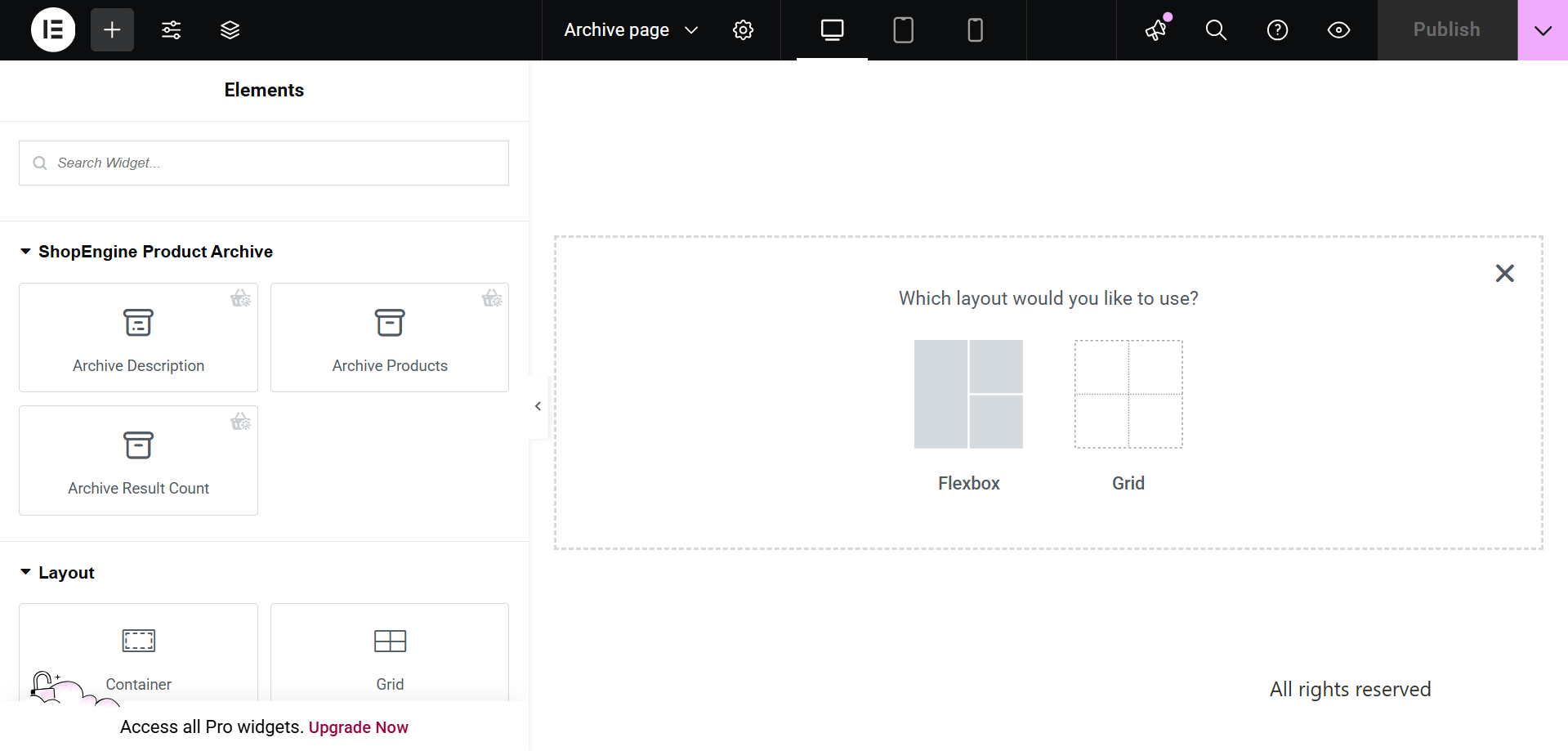
Step 2: Choose a structure #
- Vælg din struktur fra det valgte område.
Step 3: Design your WooCommerce archive page with ShopEngine Archive Widgets #
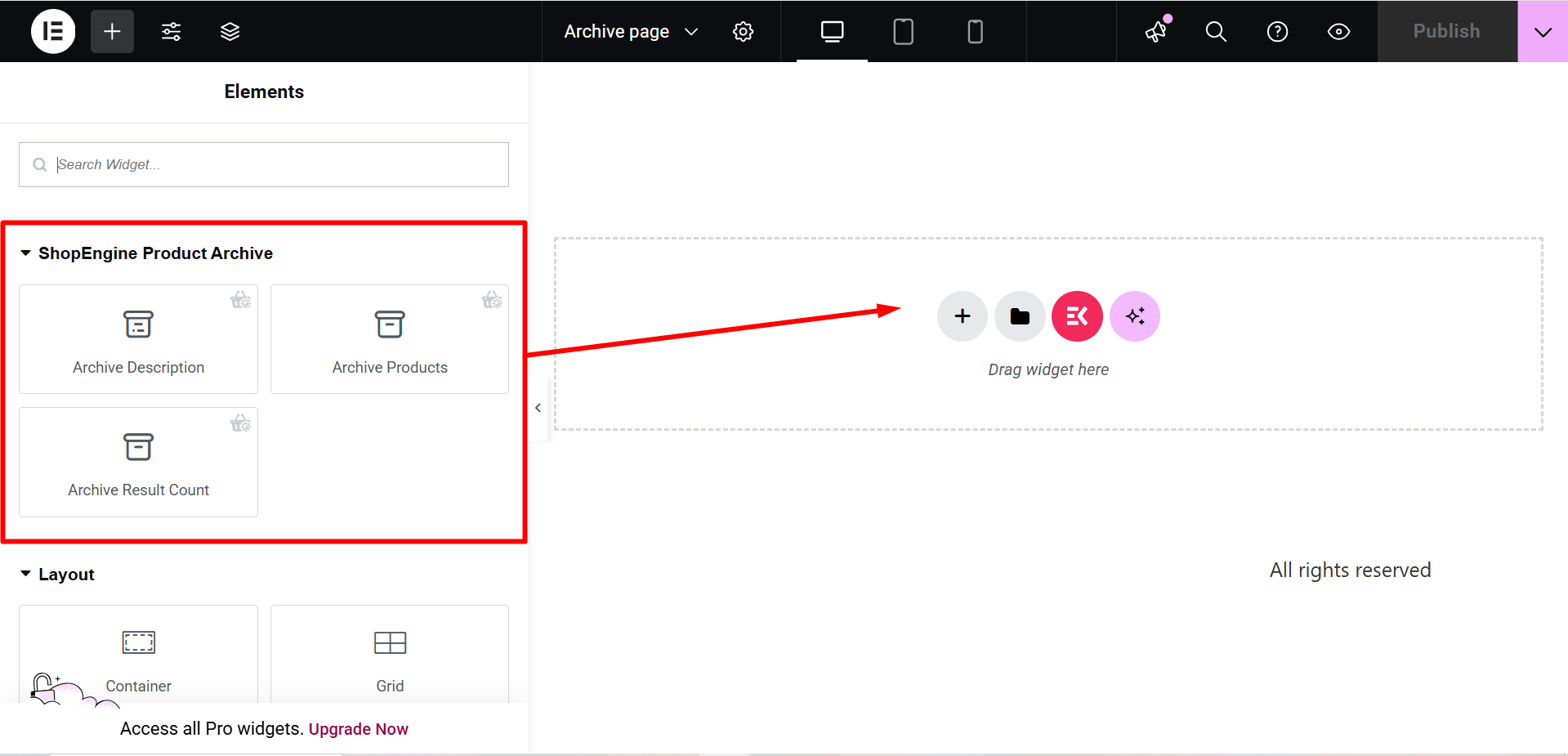
Go to a ShopEngine Block and you can design your own. Here you will get some specified ShopEngine Archive Widgets including Category, Arkiv titel, Archive Count, Archive Products, etc. Lad os se, hvordan du tilpasser dem:
Now just drag the following widgets and drop them on the selected area.
- Kategori.
- Archive Title.
- Archive Count.
- Arkiv produkter.
Step 4: Publish your Archive Page #
- Når du er færdig med at designe, skal du klikke Opdatering.
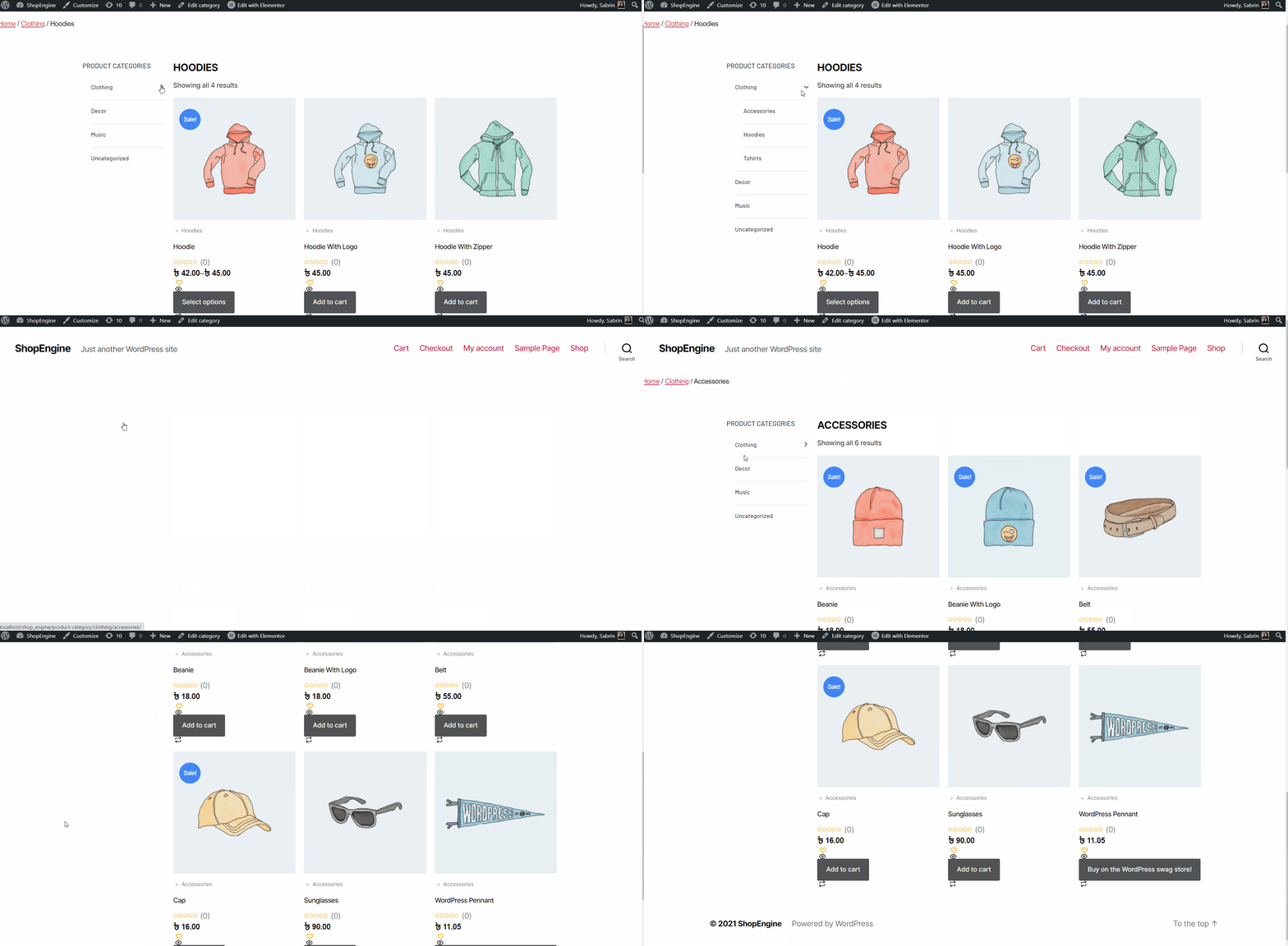
Now view the Archive Page from the front end. There you can see the Archive page you have designed and check every functionality of the page is working perfectly.