Polish
  English
  German
  Spanish
  Italian
  French
  Danish
  Portuguese
  Swedish
  Korean
  Japanese
 Moduł Płatność częściowa umożliwia otrzymywanie płatności ratalnych dla sklepów WooCommerce. Możesz dokonać częściowej płatności za produkt i wybrać inną metodę otrzymania reszty pieniędzy.
Możesz także otrzymać pieniądze za rezerwację hotelu, rezerwacji w restauracji itp. dzięki wbudowanemu modułowi płatności częściowej ShopEngine.
Jak zintegrować częściową płatność w WooCommerce #
Krok 1: Włącz płatność częściową #
- Przejdź do Panel WordPress => ShopEngine => Moduł.
Włącz płatność częściową Modułuj i wprowadzaj zmiany według potrzeb.
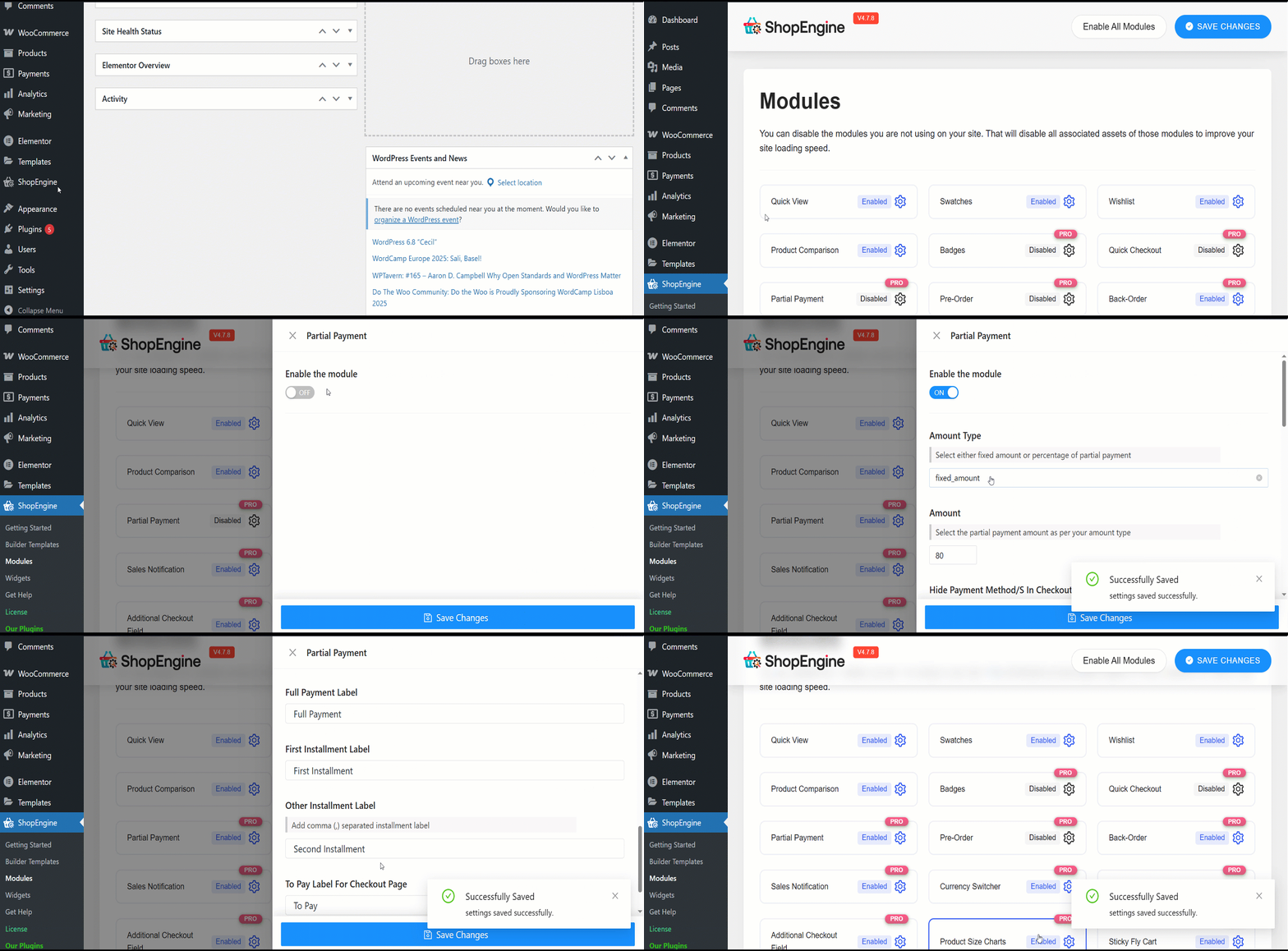
- Rodzaj kwoty:Możesz wybrać rodzaj częściowej płatności – procent lub stała kwota.
- Kwota: Wprowadź kwotę lub procent częściowej płatności.
- Ukryj metodę płatności/S w kasie: Wybierz tę opcję, aby ukryć wybór metody płatności podczas realizacji transakcji.
- Wyślij pocztę po dacie zamówienia w dniach/dniach: Ustaw liczbę dni od zakupu, po upływie których klienci otrzymają e-maile z przypomnieniem o płatności.
Następnie możesz wprowadzić niestandardowe etykiety dla następujących pięciu funkcji:
- Partial Payment Loop Product Label: Display a custom label on product listings showing partial payment availability.
- Partial Payment Single Product Label: Show partial payment info directly on the individual product page.
- Etykieta pełnej płatności: Clearly indicate the option for paying the full amount upfront.
- Etykieta pierwszej raty: Label the first payment amount in an installment plan.
- Other Installment Label: Define the text for upcoming or recurring installment payments.
- Aby zapłacić etykietę za stronę kasy: Highlight the amount due now at checkout for partial payments.
Krok 2: Edytuj stronę produktu, aby włączyć opcję Częściowej płatności za produkt #
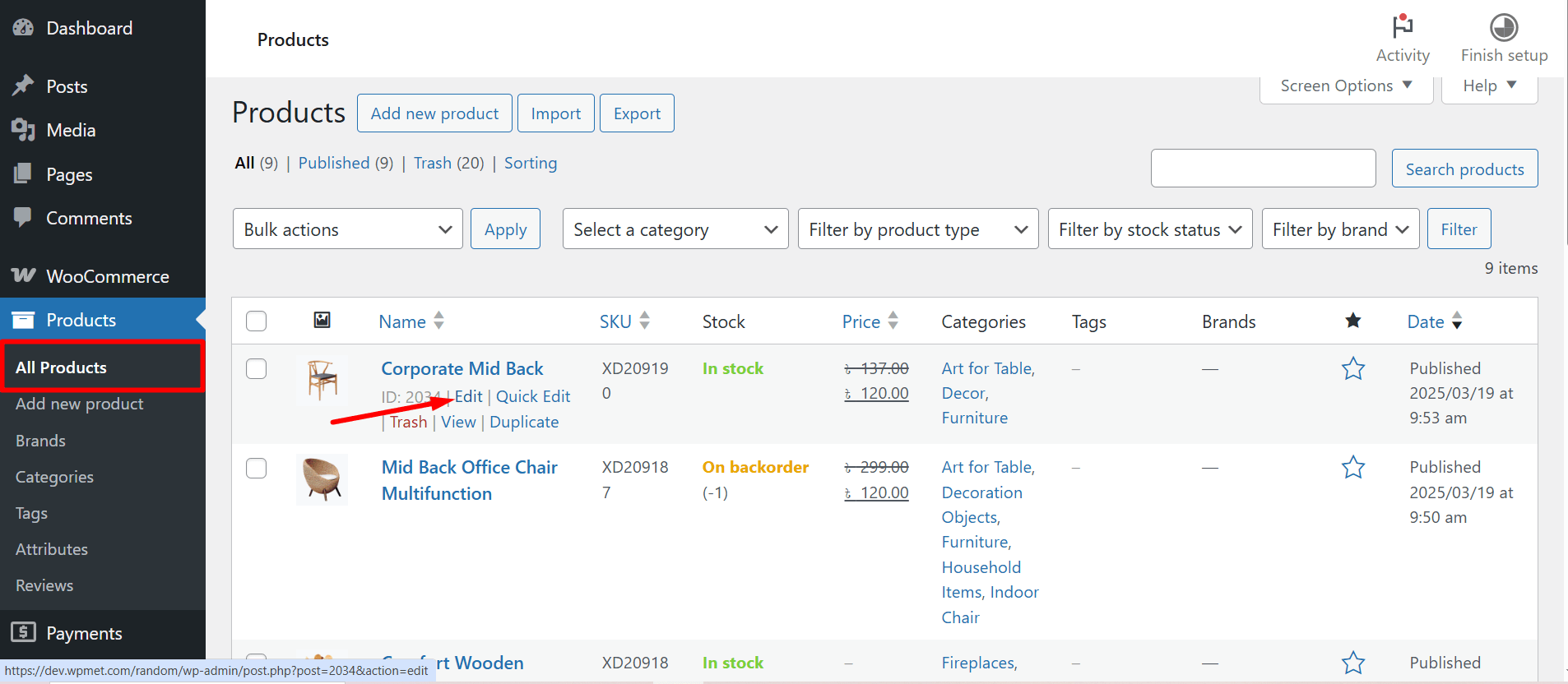
Przejdź teraz do produktu, dla którego chcesz włączyć płatność częściową.
WooCommerce >> Products >> All Products >> Select the Product >> Edit
Następnie na stronie produktu włączyć częściową płatność dla tego konkretnego produktu. Wybierz rodzaj płatności częściowej.
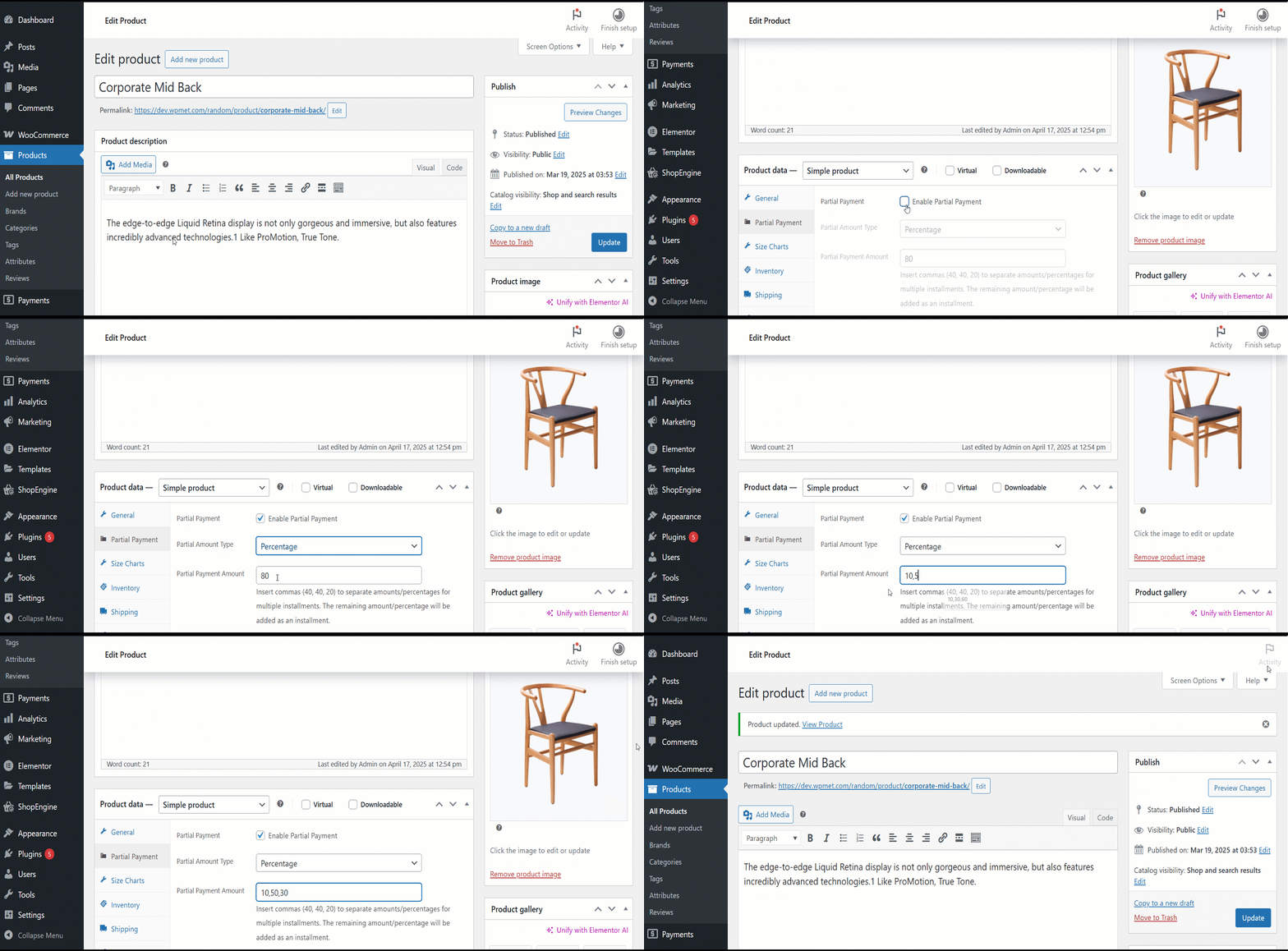
Jeśli używasz wartości procentowych, wybierz wartość procentową. Zaktualizuj produkt. Możesz też wybrać stałą kwotę.
Krok 3: Utwórz szablon należnej płatności #
Aby utworzyć szablon należnej płatności,
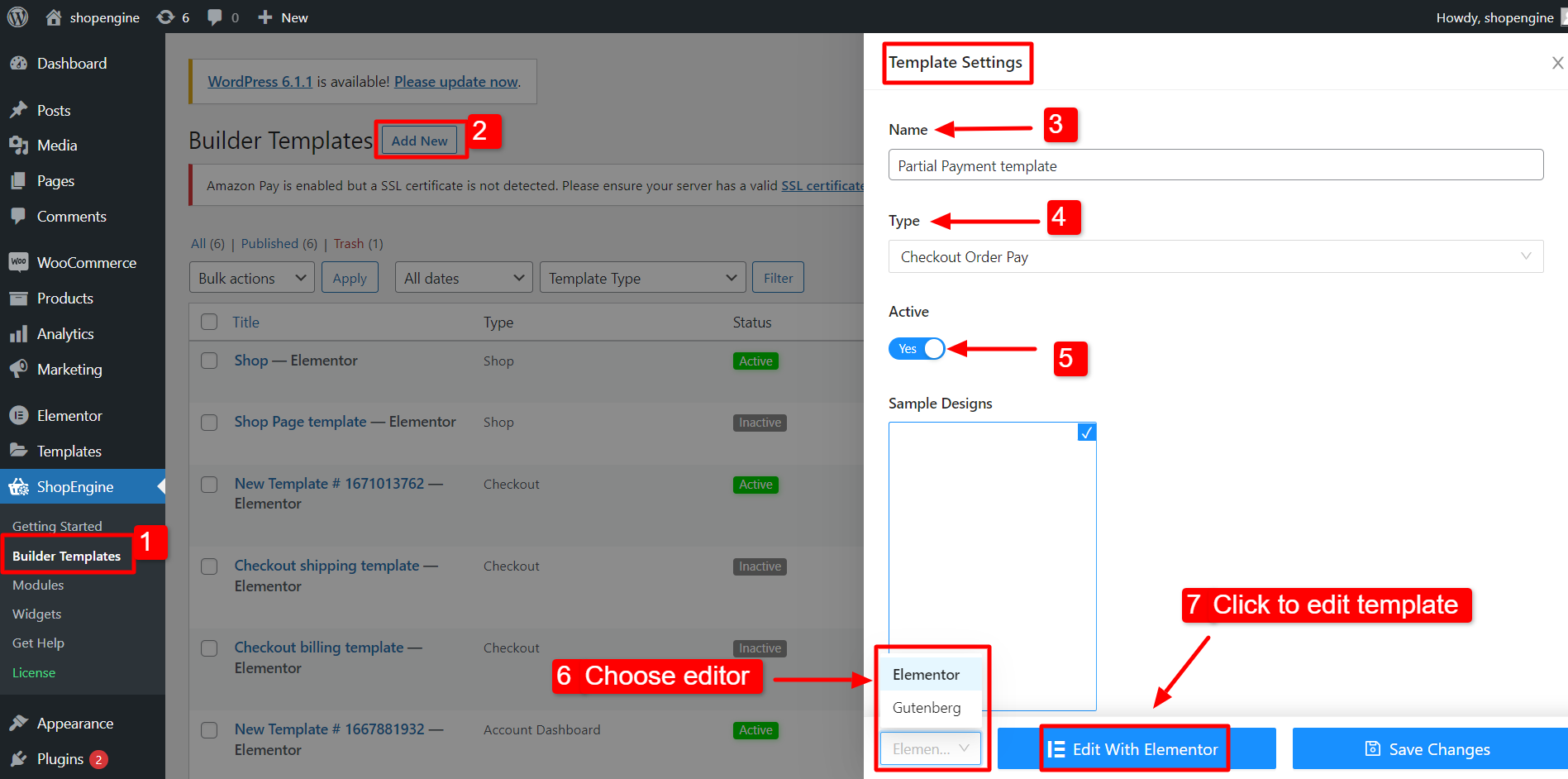
- Nawigować do ShopEngine >> Szablony konstruktorów z panelu WordPress.
- Kliknij na "Dodaj nowe” w lewym górnym rogu.
- W oknie Ustawienia szablonu wprowadź szablon Nazwa.
- Ustaw szablon Typ na: Do kasy Zamówienie Zapłać.
- Aktywuj szablon.
- Wybierz edytor (w tym przypadku Elementor).
- Kliknij na Edytuj za pomocą Elementora.
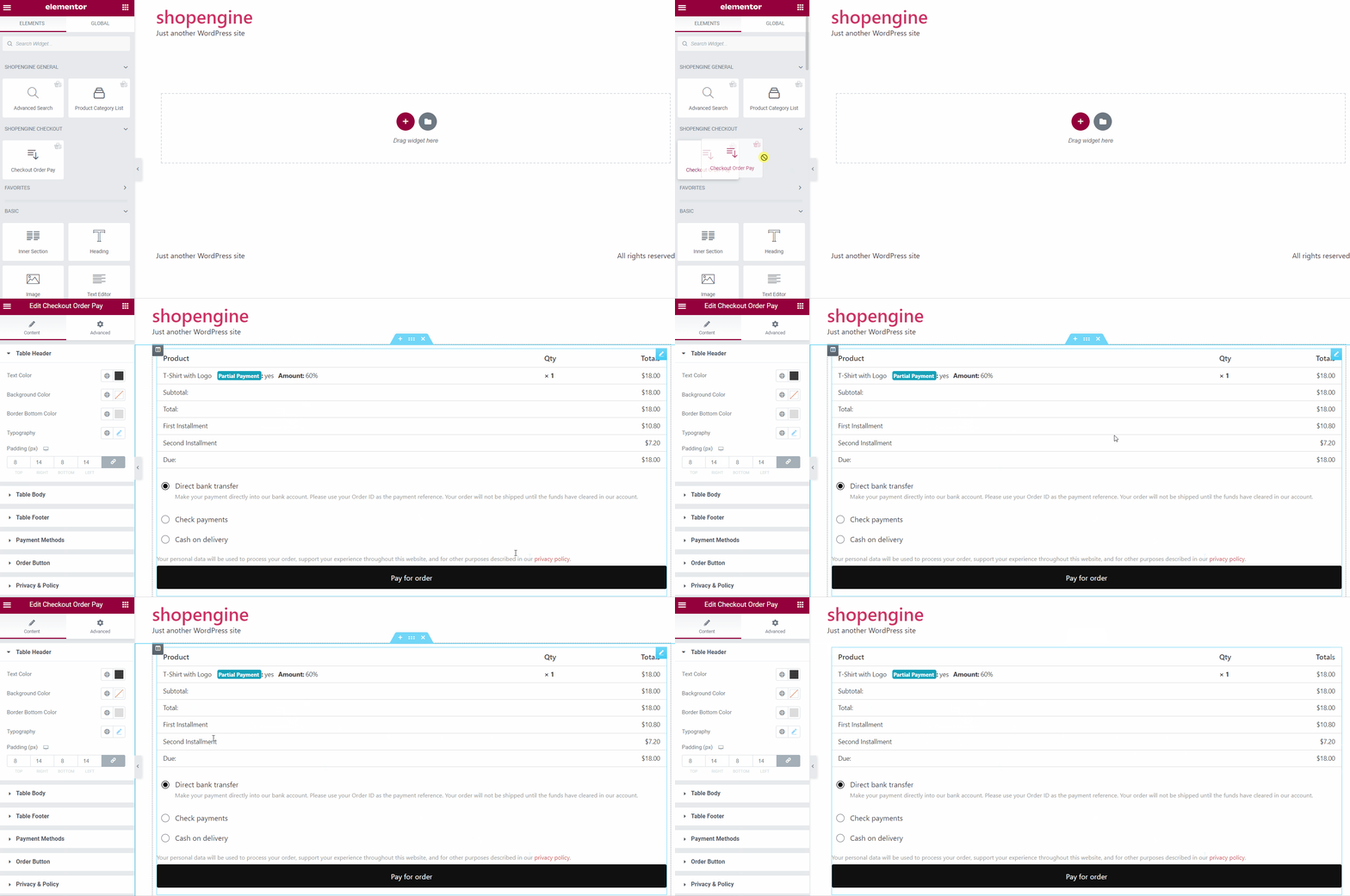
W edytorze Elementora przeciągnij i upuść widżet Zamówienie zamówienia, płatność w obszarze projektu. Teraz możesz zobaczyć szczegóły płatności swojego zamówienia.
Step 4: Check how it work #
- Przejdź teraz do strony produktu. Zobaczysz opcje płatności częściowej i pełnej.
- Wybierać Częściowa płatność i kliknij Dodaj do koszyka przycisk.
- Teraz od góry kliknij „Wyświetl koszyk” i sprawdź, czy działa częściowa płatność.
- Możesz także sprawdzić szczegóły na stronie realizacji transakcji.
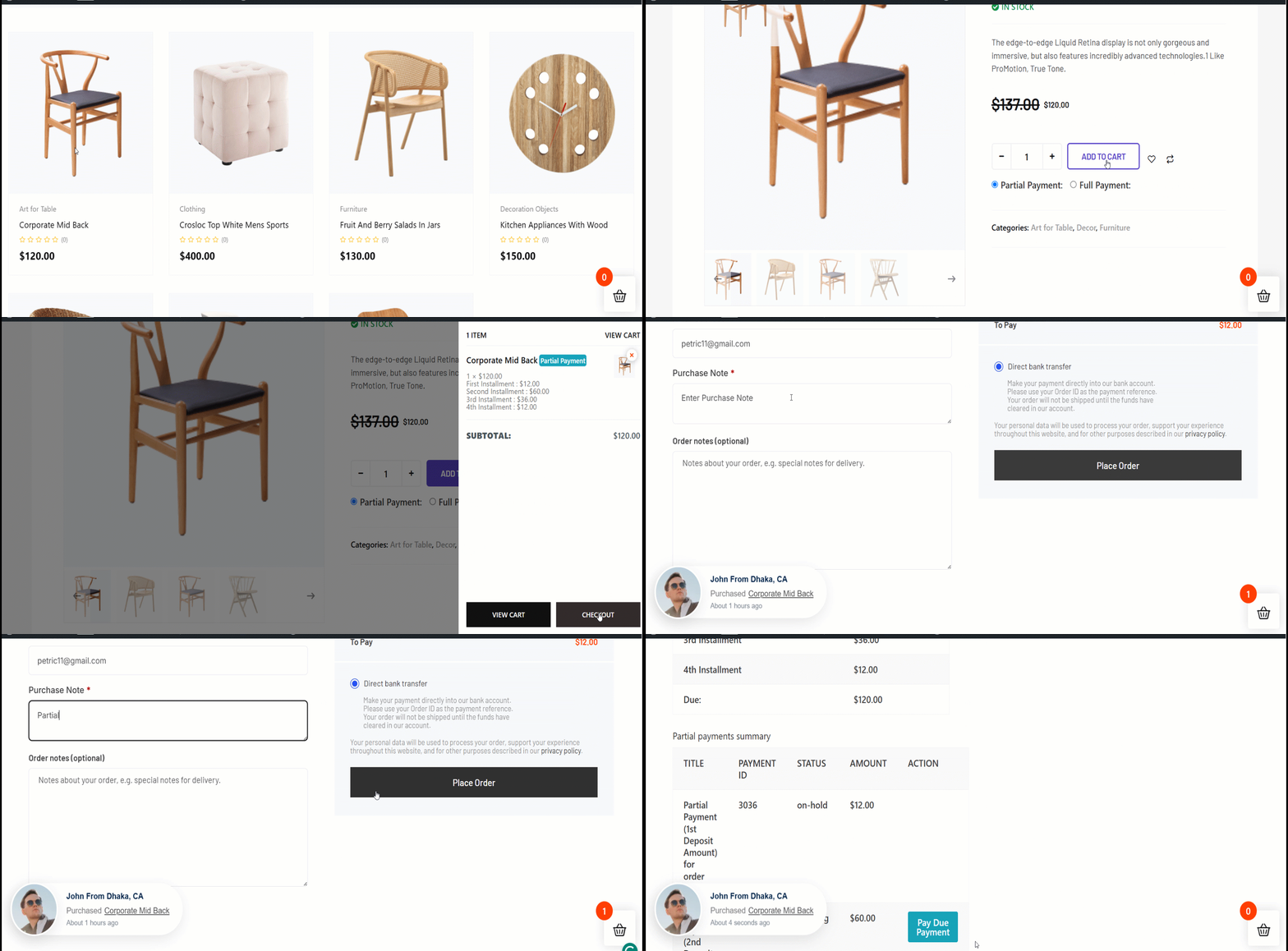
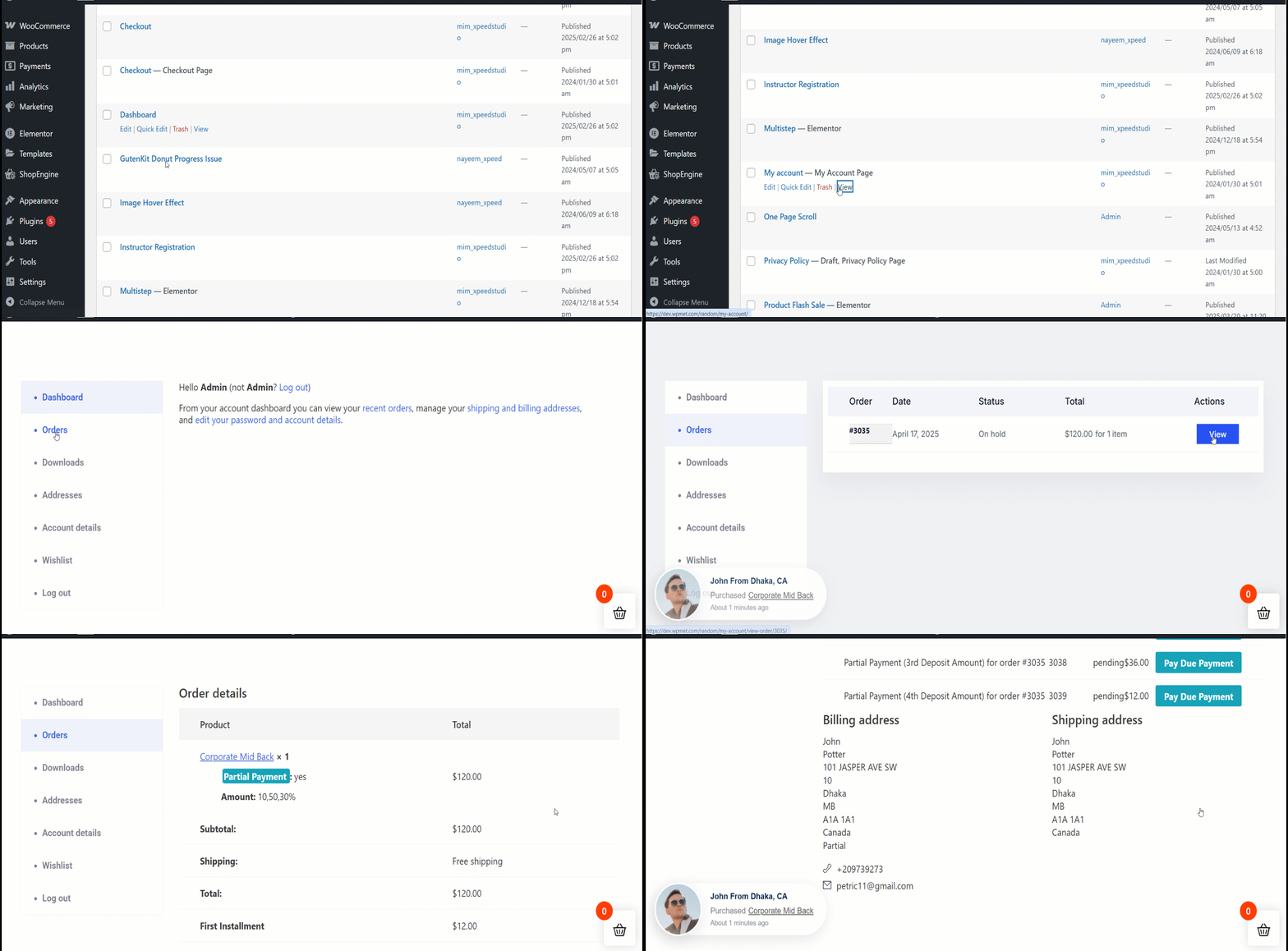
Once the user completes the first payment, he will see the due amount on the my account order details page.
Gdy użytkownicy przejdą do Moje konto > Zamówienia > Pogląd szczegóły zamówienia, wyświetli się taka możliwość Zapłać należną płatność. Jeśli zdecyduje się na płatność należnej płatności, wyświetli się opcja drugiej raty w następujący sposób.
Użytkownicy mogą następnie zapłacić należną kwotę z tej strony.