


 Polish
  English
  German
  Spanish
  Italian
  French
  Danish
  Portuguese
  Swedish
  Korean
  Japanese
 Interesująco zaprojektowane teksty najbardziej przyciągają uwagę odbiorców. Marketerzy stylizują swoje komunikaty marketingowe, stosując fantazyjne efekty. ElementsKit wprowadził tak wspaniały widżet z zaawansowanymi funkcjami. Pomaga on łatwo tworzyć animowane i atrakcyjne teksty.
Nauczmy się jak używać ElementsKit Fantazyjny widżet tekstowy postępując zgodnie z poniższymi krokami.
Dodawanie efektownego tekstu animowanego za pomocą ElementsKit #
Wejdź do pulpitu nawigacyjnego -> Wybierz dowolną stronę lub wpis -> Kliknij edytuj za pomocą ElementsKit -> Wyszukaj w widżecie ElementsKit Fancy Animation Text -> Przeciągnij i upuść widżet
Sekcja treści #
Tutaj zobaczysz Wymyślny tekst część zawiera następujące pola-
Animacja #
- Styl animacji- Możesz wybrać Tekst lub SVG dla różnych stylów animacji.
- Typ animacji– W zależności od rodzaju animacji będziesz miał tutaj różne możliwości wyboru.
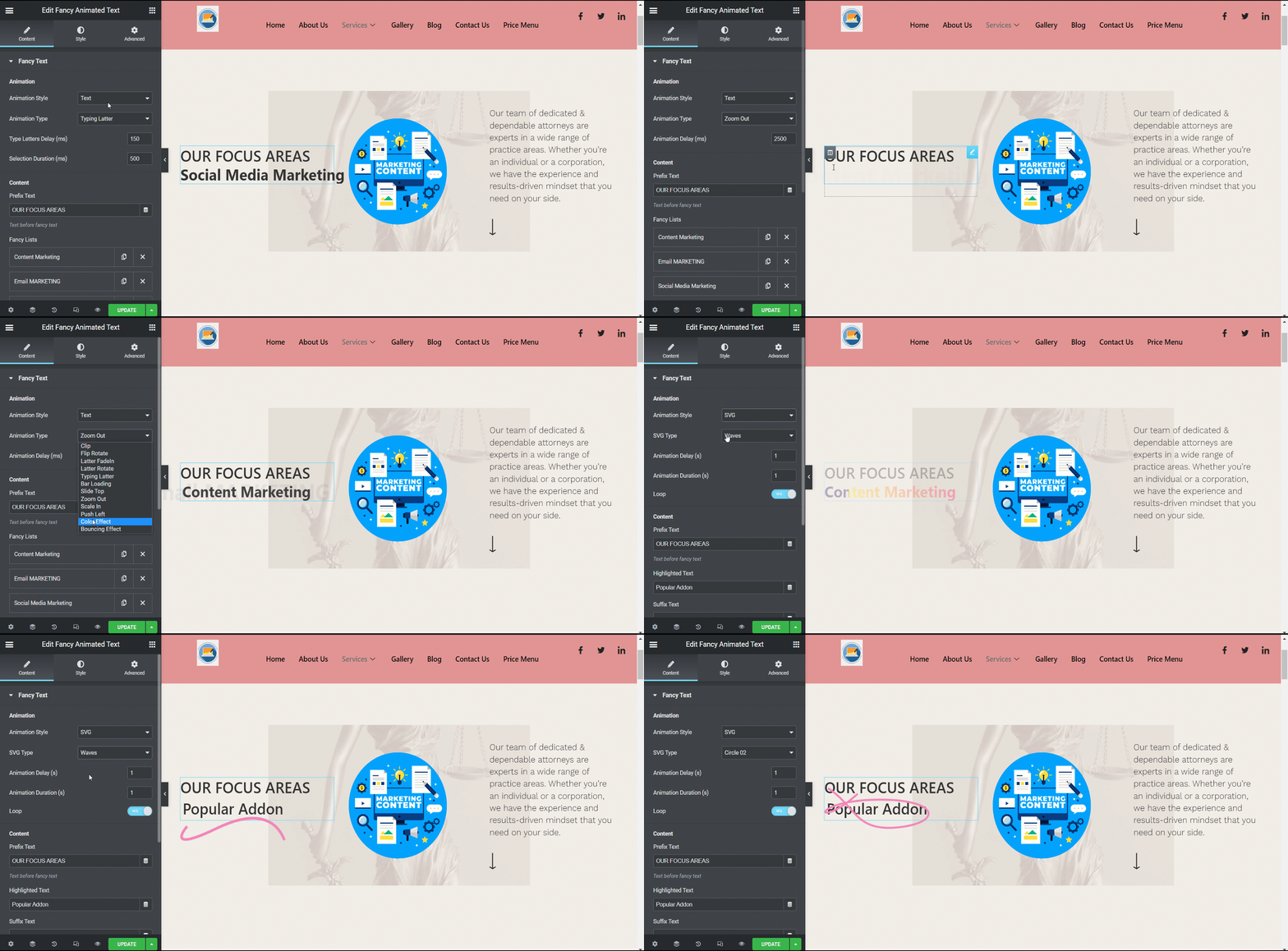
- Czas trwania ujawnienia (ms))/ Opóźnienie liter w typie (ms)/ Opóźnienie animacji itp.- Czas trwania należy dostosować do stylu i rodzaju animacji.
- Opóźnienie animacji ujawniania (ms)/ Czas trwania zaznaczenia (ms)/ Opóźnienie liter (ms) itd.- To pole jest również powiązane ze stylem i rodzajem animacji.
Treść #
- Tekst prefiksu– Napisz prefiks treści, który chcesz wyświetlić. Oznacza to, że zostanie on napisany przed fantazyjną animacją.
- Fantazyjne listy– Dodaj tutaj elementy, aby uzyskać fantazyjną animację.
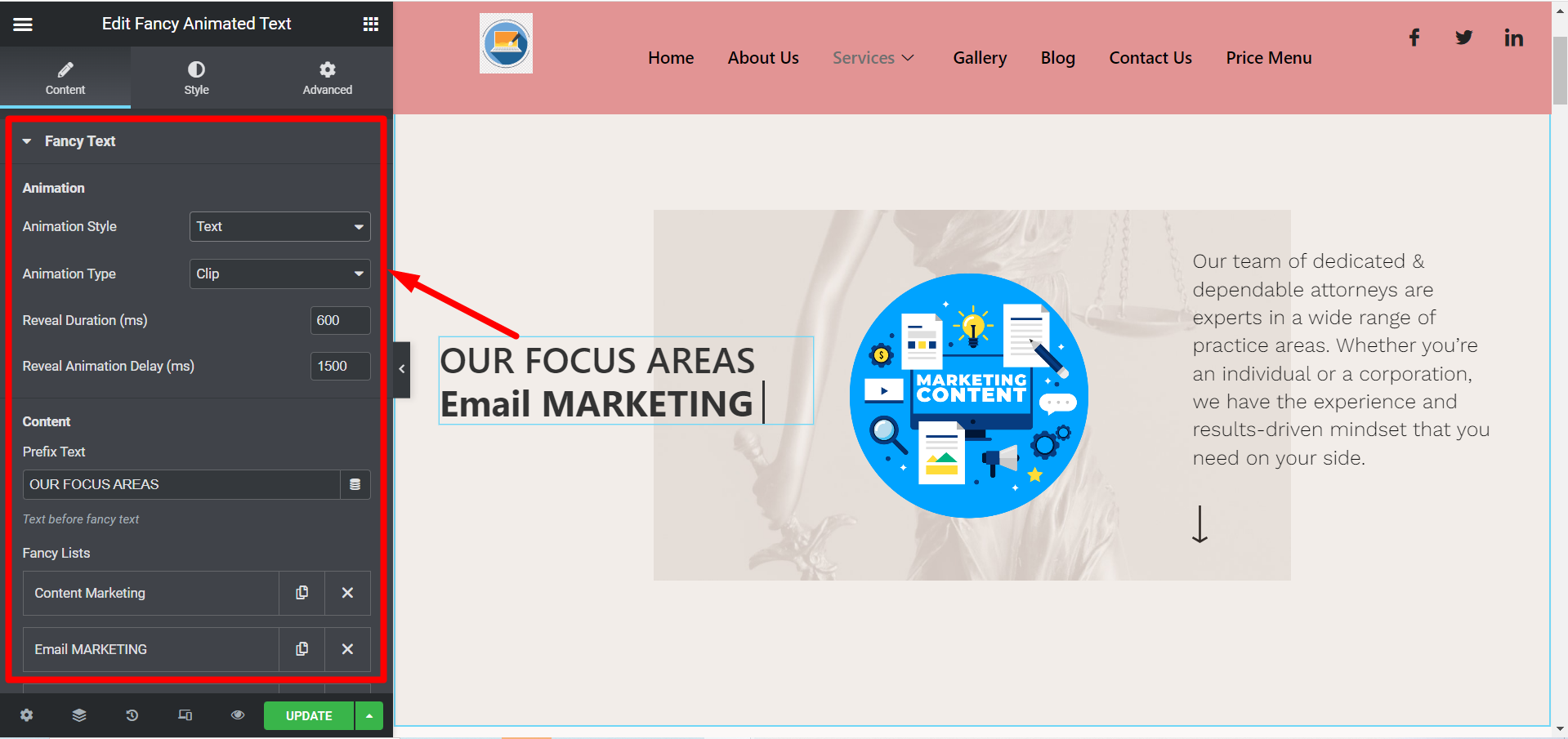
- Przyrostek Tekst– Napisz treść sufiksu, którą chcesz wyświetlić. Oznacza to, że zostanie ona napisana po fantazyjnej animacji.
- Tytułowy znacznik HTML– Wybierz tutaj znacznik HTML treści.
- Link (opcjonalnie)– Dodaj dowolny link, jeśli chcesz, aby użytkownicy przekierowywali do dowolnej innej lokalizacji.
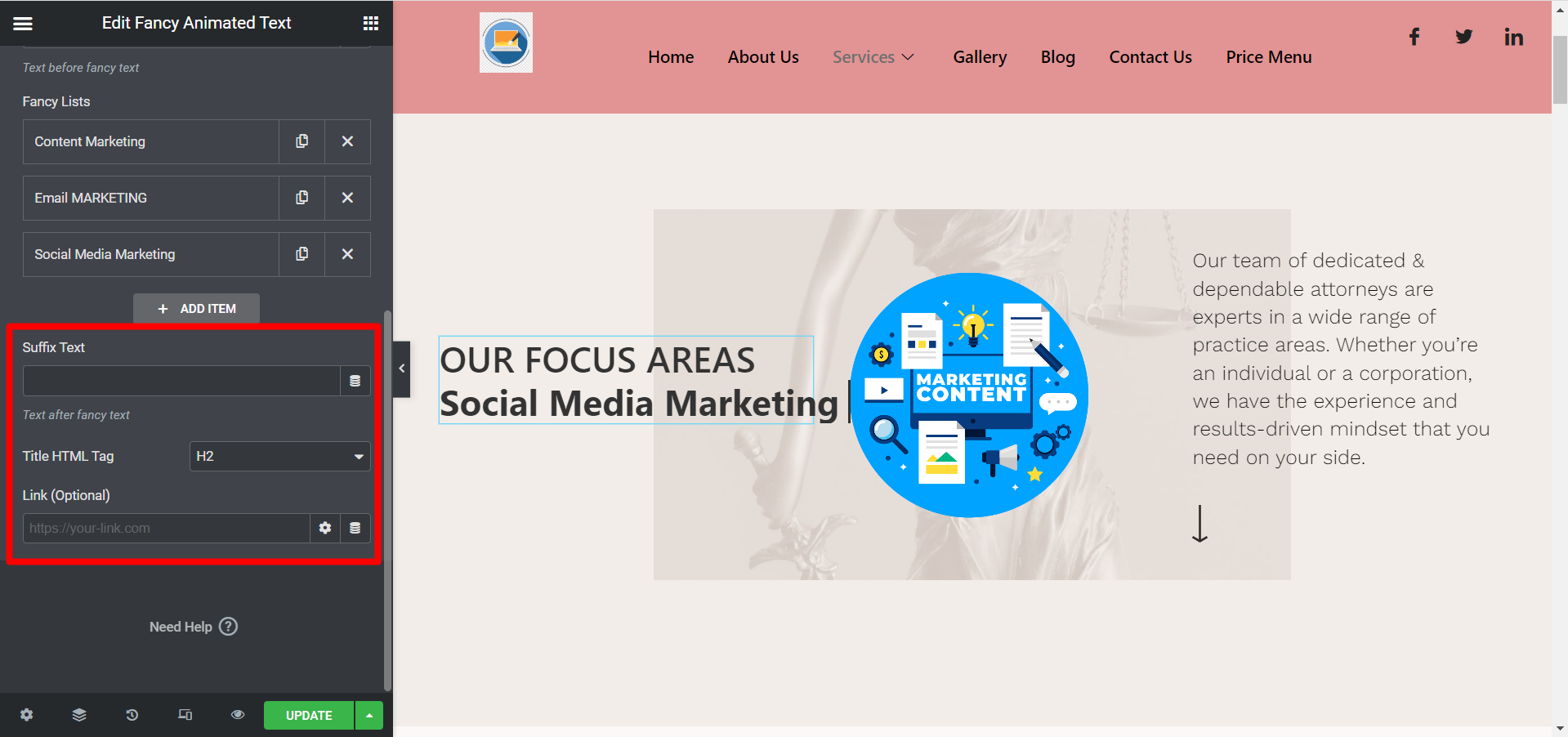
Sekcja Stylu #
- Tekst nagłówka- Tutaj możesz dostosować wyrównanie, typografię, kolor itp.
- Podświetlony tekst- Użyj tego pola, aby dostosować typografię, kolor i odstęp.
- SVG- wybierz tutaj kolor i grubość obrysu.
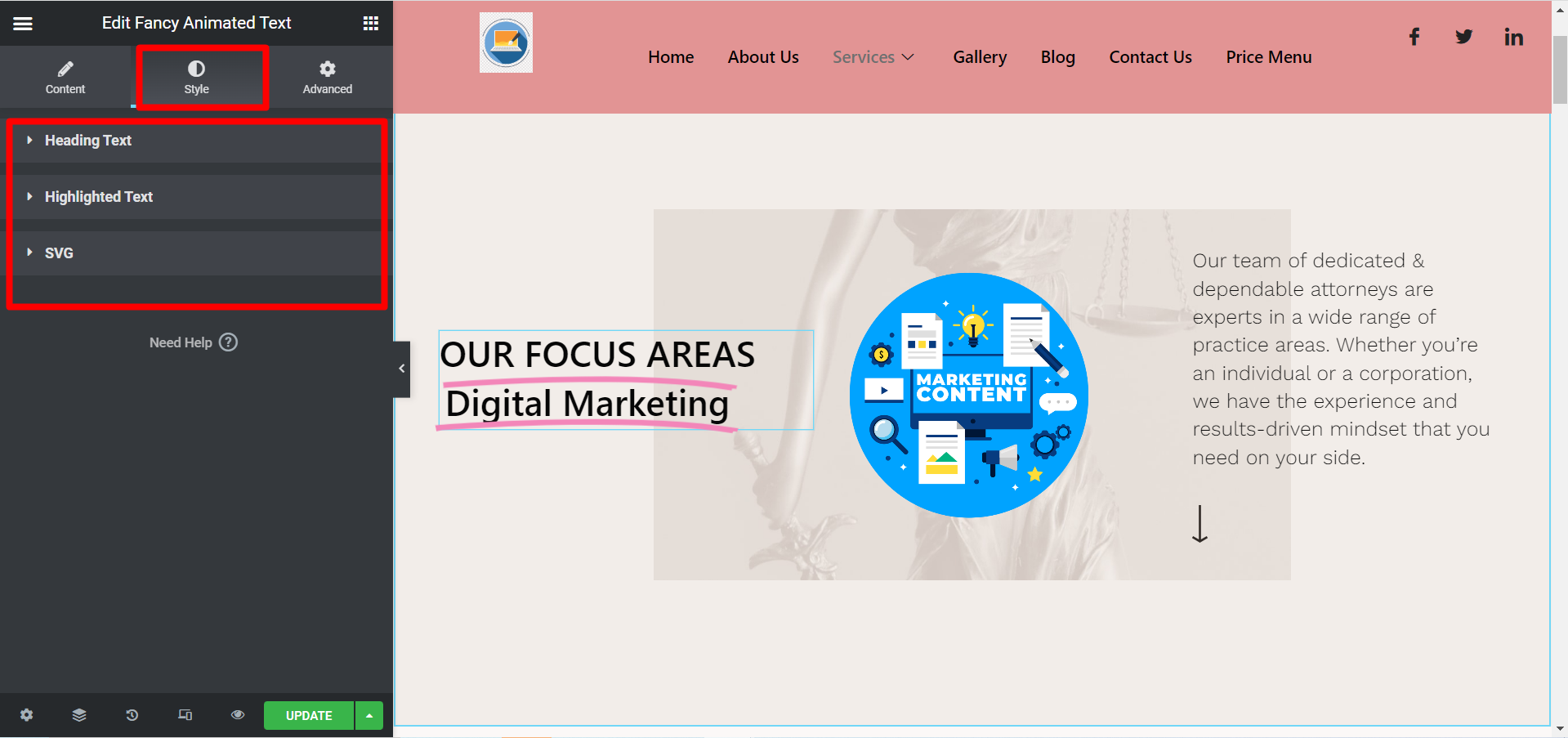
Po edycji i stylizowaniu wszystkich wymaganych oświadczeń kliknij aktualizuj i zobacz zmiany z front-endu. Przykładem jest-
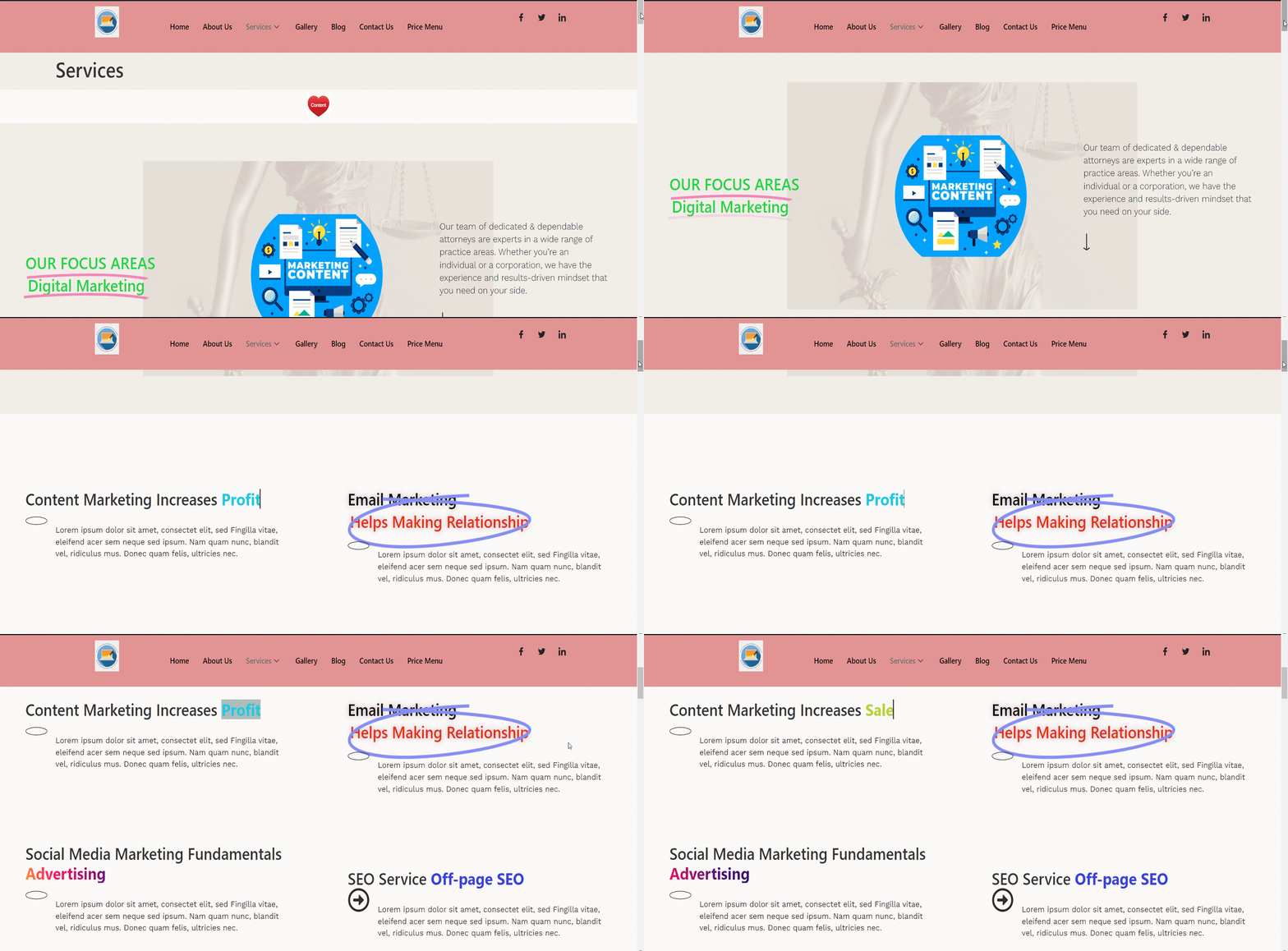
Użyj tego przydatnego narzędzia już dziś, jest szybkie i dobrze systematyczne. Możesz sprawić, że Twoje ważne nagłówki i oświadczenia promocyjne będą bardziej przyciągające wzrok, dostosowując treść za pomocą efektownego widżetu tekstowego ElementsKit.


