


 Polish
  English
  German
  Spanish
  Italian
  French
  Danish
  Portuguese
  Swedish
  Korean
  Japanese
 Skuteczny Tabela wtyczek WordPress z filtrem umożliwia wyświetlanie i personalizację danych użytkownika. The widget tabeli elementów dla WordPressa przydatne jest wyświetlanie danych w sposób posortowany z różnymi zaawansowanymi opcjami stylizacji. Możesz zaprojektować tabelę według wybranych opcji i wyświetlić informacje. Istnieją także dwie możliwości przesłania istniejącego spisu treści.
W tej dokumentacji omówimy funkcje tego widżetu tabeli WordPress.
Tabela wtyczek WordPress z filtrem #
Przejdź do ElementsKit > ElementsKit > Widżety > Włącz widżet tabeli > Zapisz zmiany
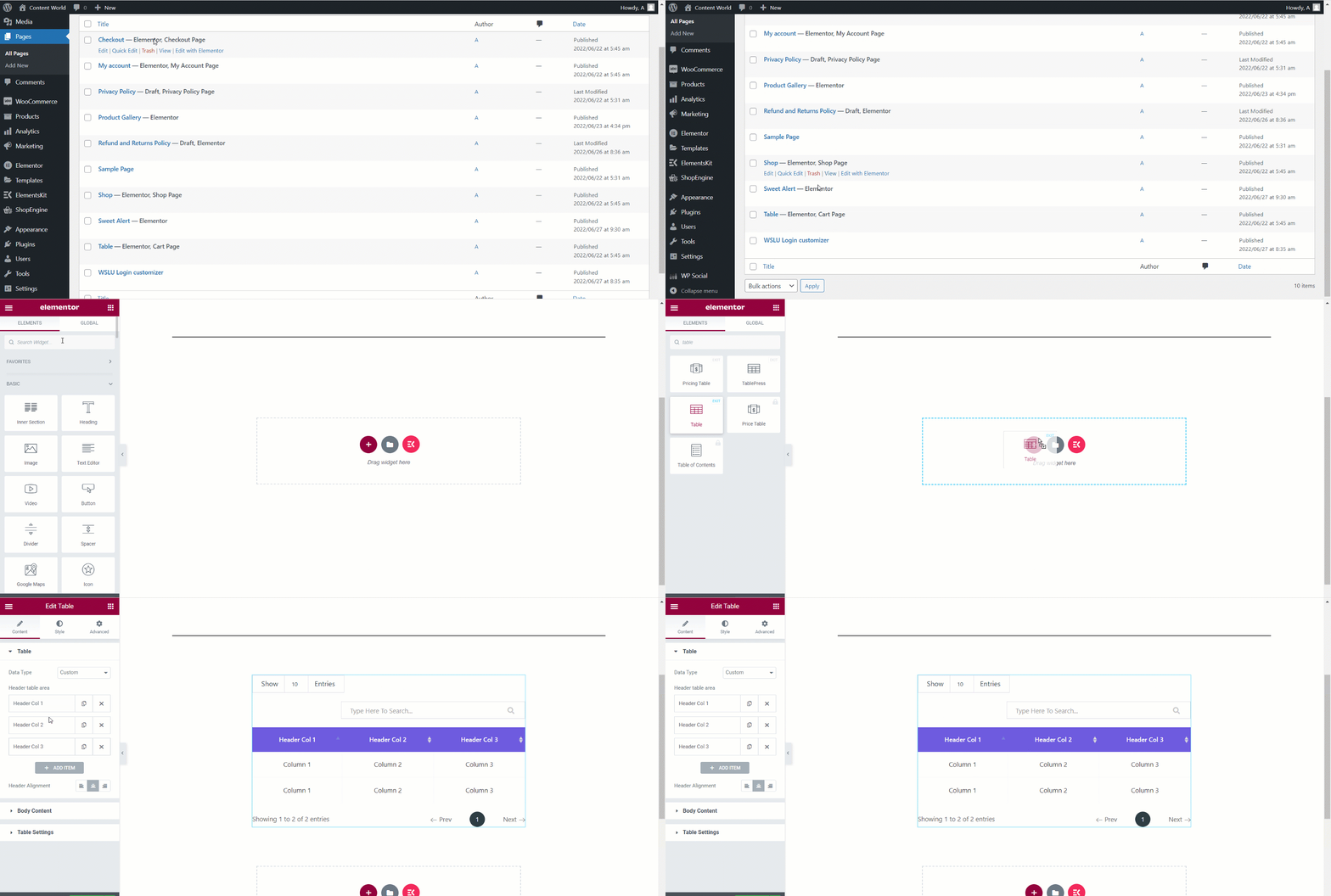
Tabela #
Istnieją dwie opcje typów danych, Niestandardowe i CSV. Możesz dostosować swoje dane lub przesłać plik CSV. Zobaczmy jak działają.
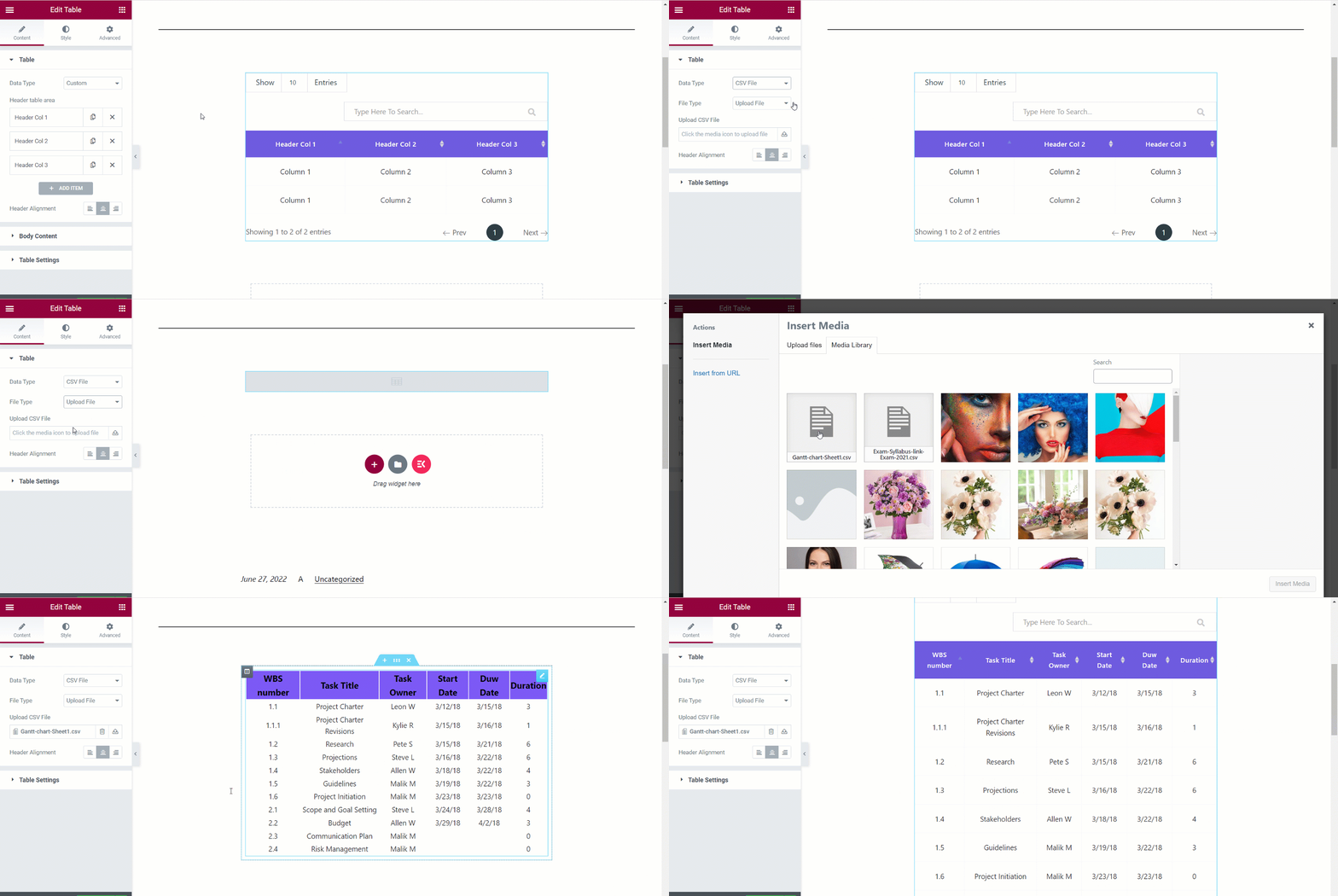
Typ danych – CSV #
- Wybierz typ danych: Plik CSV
- Typ pliku: Przesyłanie pliku
- Prześlij plik CSV. A jeśli masz już przesłany plik Włóż multimedia następnie znajdź plik i kliknij wstaw.
- Wyrównanie nagłówka: Ustaw tabelę wyrównanie nagłówka Do lewej, do środka lub do prawej.
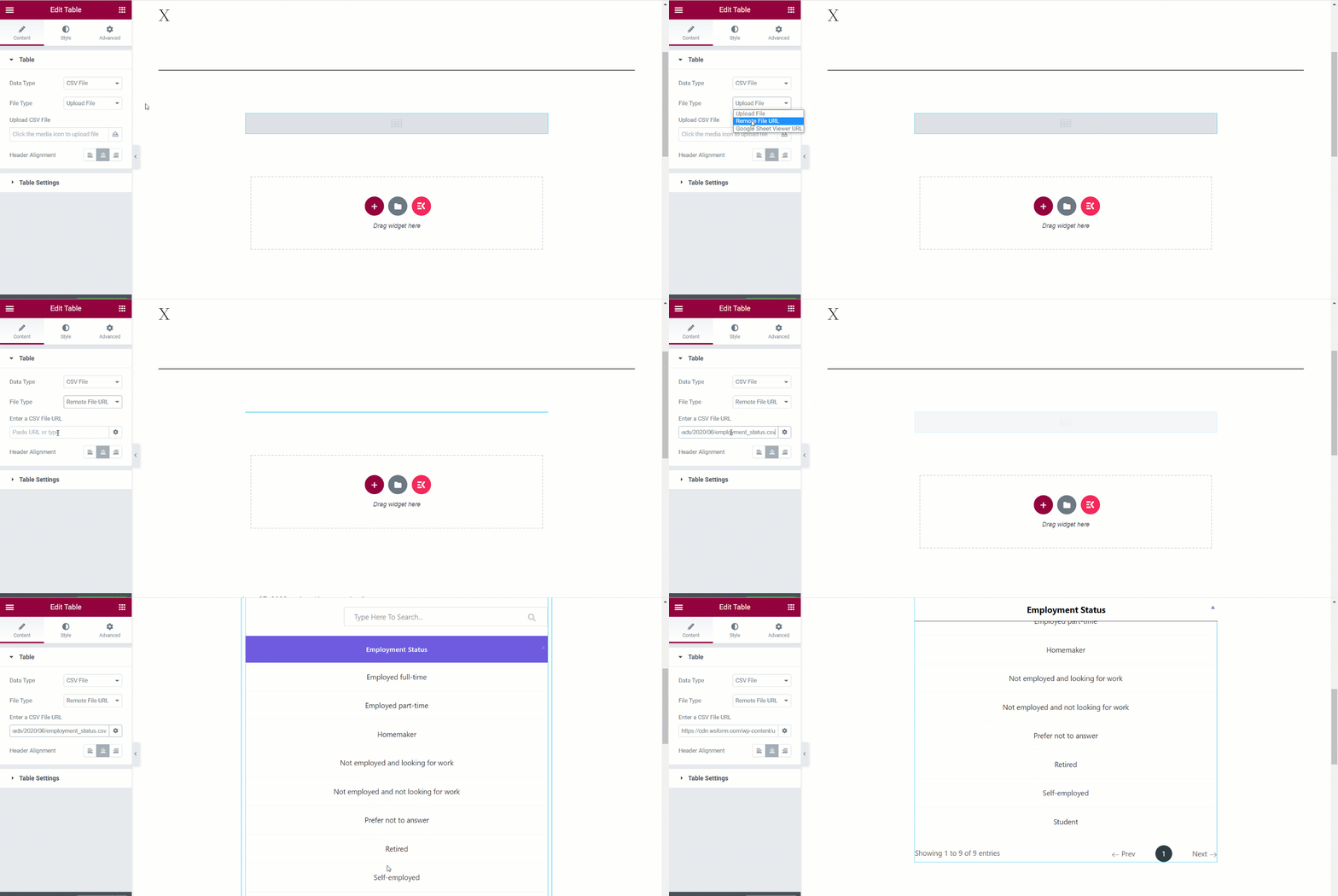
Adres URL pliku zdalnego– Jeśli wybierzesz ten typ pliku, możesz wyświetlić dane przy użyciu pliku CSV znajdującego się na innym serwerze. W tym celu po wybraniu Adres URL pliku zdalnego Tylko wprowadź w polu adres URL pliku CSV.
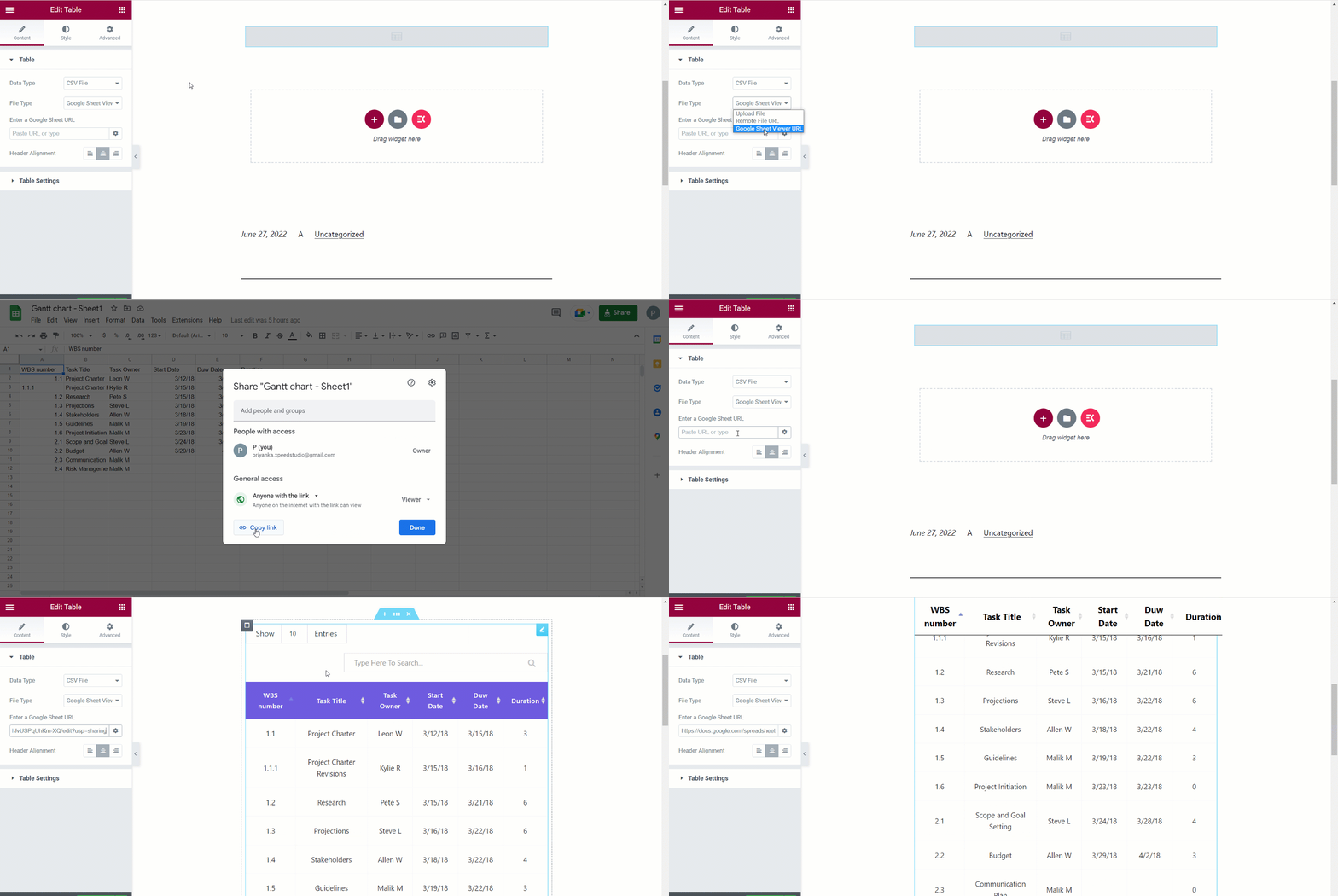
Adres URL przeglądarki arkuszy Google– Ponownie, aby użyć danych arkusza Google w tabeli WordPress, wybierz ten typ pliku i wprowadź adres URL arkusza Google w polu. Musisz pamiętać do tego adres URL arkusza Google powinien mieć dostęp Każdy użytkownik internetu mający ten link może oglądać.
Typ danych — niestandardowy #
Wybierać Zwyczaj z opcji. Zobaczmy, jak dostosować tabelę i odpowiednio wstawić dane.
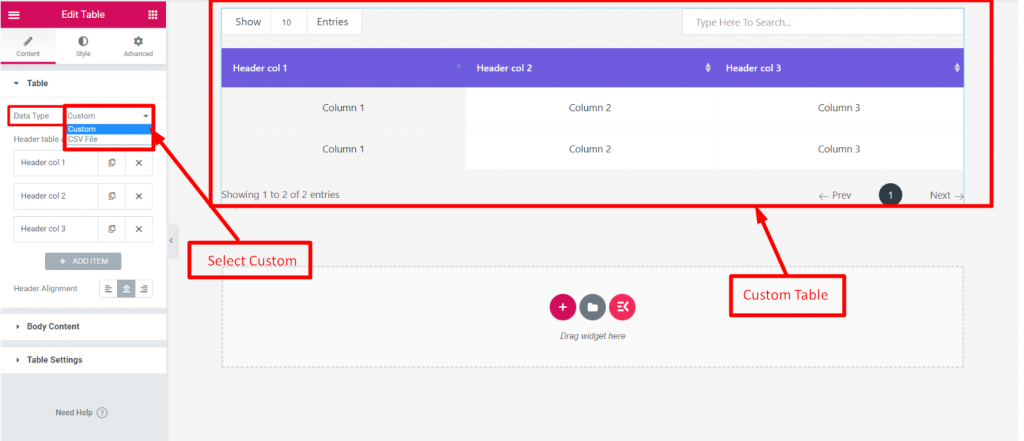
Obszar tabeli nagłówka– Kliknij opcję
- Będzie rozbudowany
- Dodaj lub edytuj tekst
- Ustaw kolor tła nagłówka
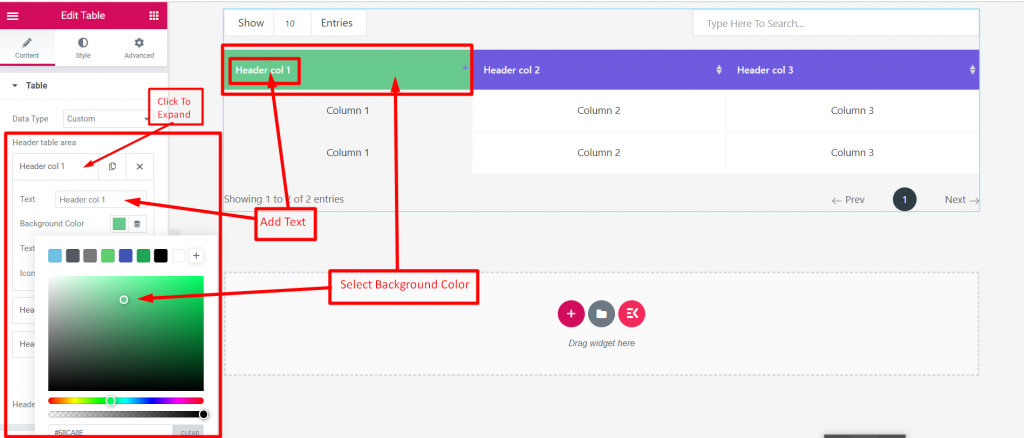
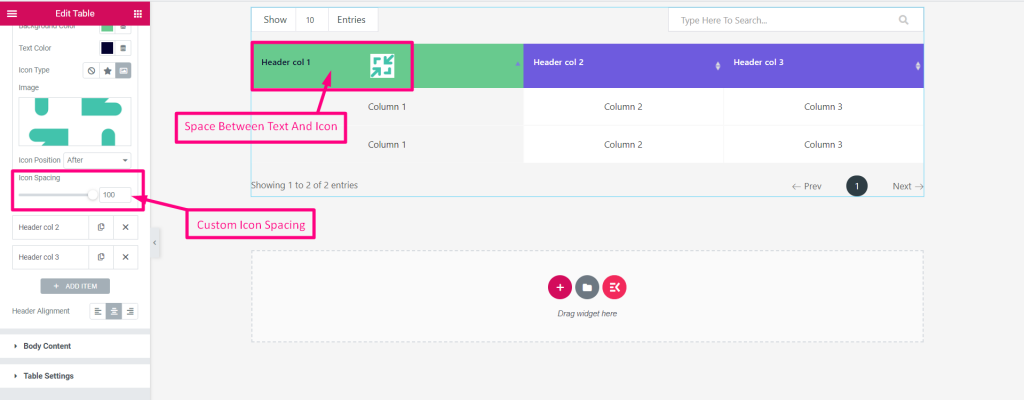
Typ ikony: Brak, ikona lub obraz Następnie Prześlij obraz w następnej opcji.
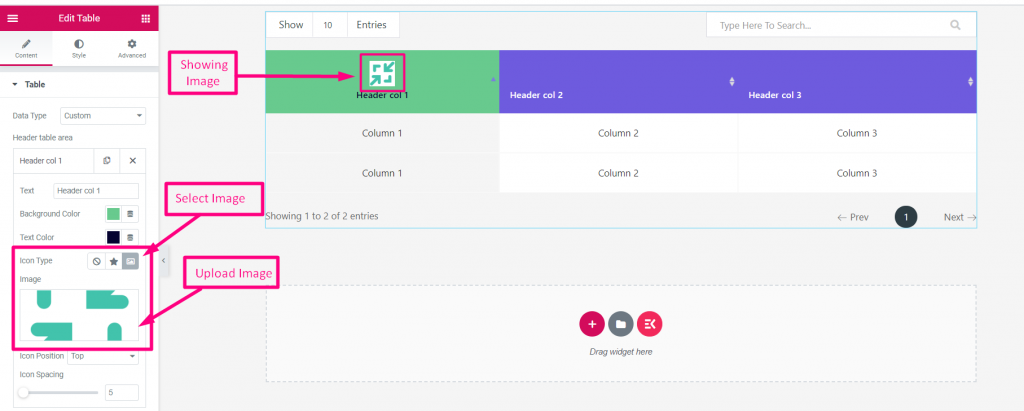
Pozycja ikony– Wybierz opcję Przed, Po lub Na górze
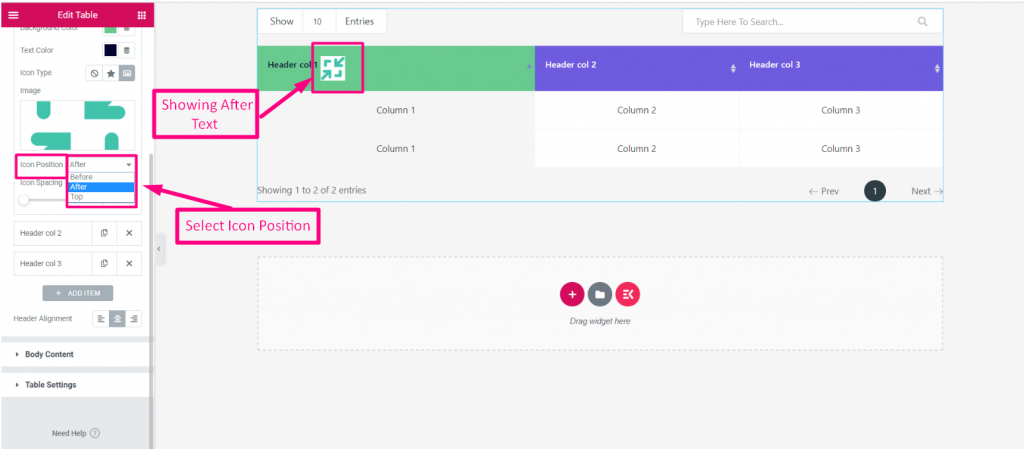
Odstępy między ikonami– Niestandardowe odstępy ikon między tekstem a ikoną
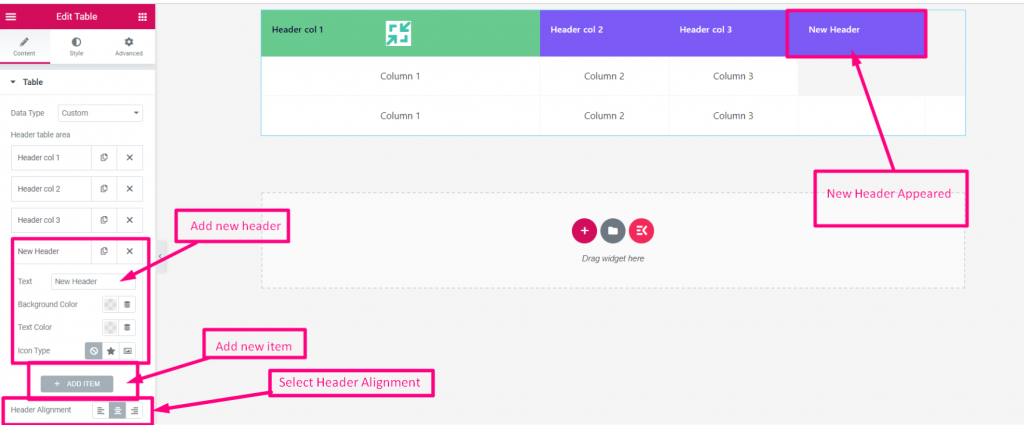
Dodaj Przedmiot- Zobacz opcje
- Dodaj lub edytuj nagłówek
- Dodaj nowy nagłówek
- Wybierz Wyrównanie nagłówka: Do lewej, Do środka lub Do prawej
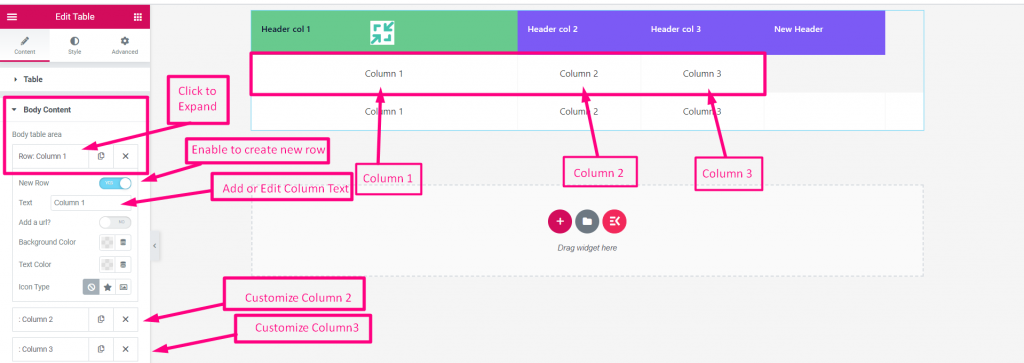
Treść ciała #
- Kliknij aby rozszerzyć
- Włącz nowy wiersz
- Dodaj lub edytuj tekst kolumny
- Dostosuj dowolną kolumnę
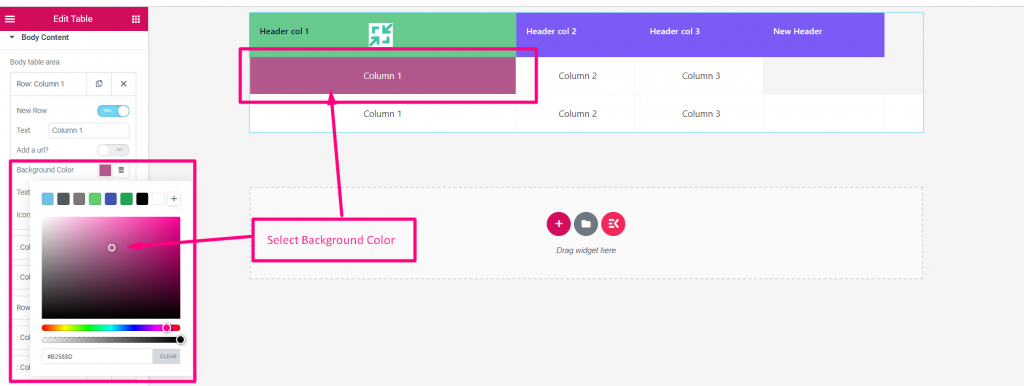
Kolor tła kolumny– Wybierz dowolny Kolor tła z palety.
Kolor tekstu w kolumnie Wybierz dowolny Kolor tekstu w kolumnie z palety
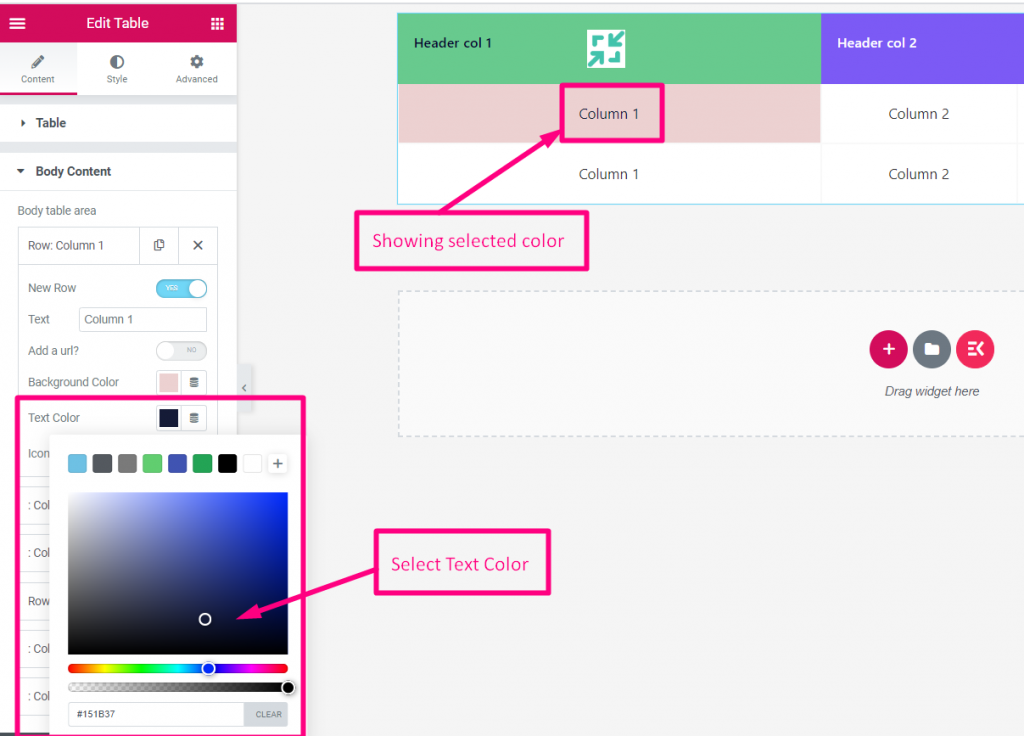
- Typ ikony- Wybierz: Brak, Ikona lub Obraz
- Ikona- Prześlij ikonę
- Pozycja ikony- Przed, Po lub na szczycie
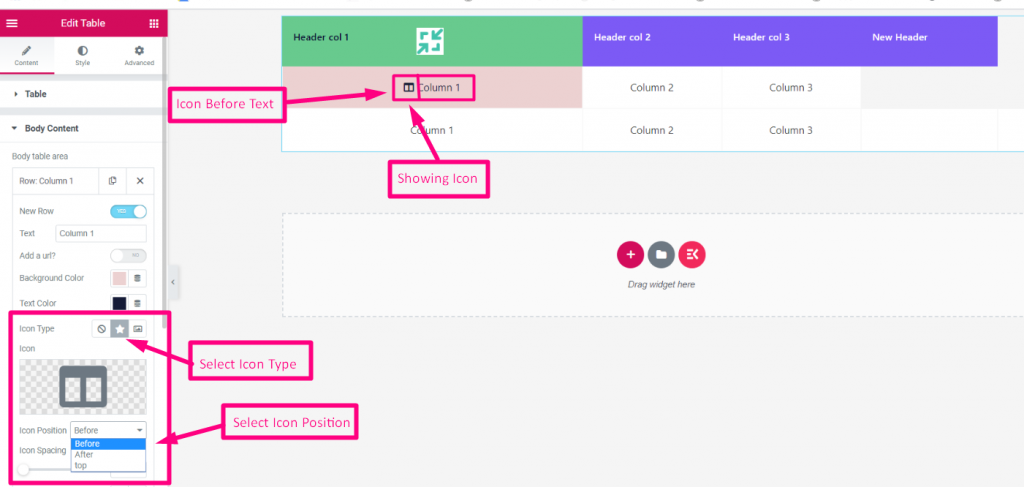
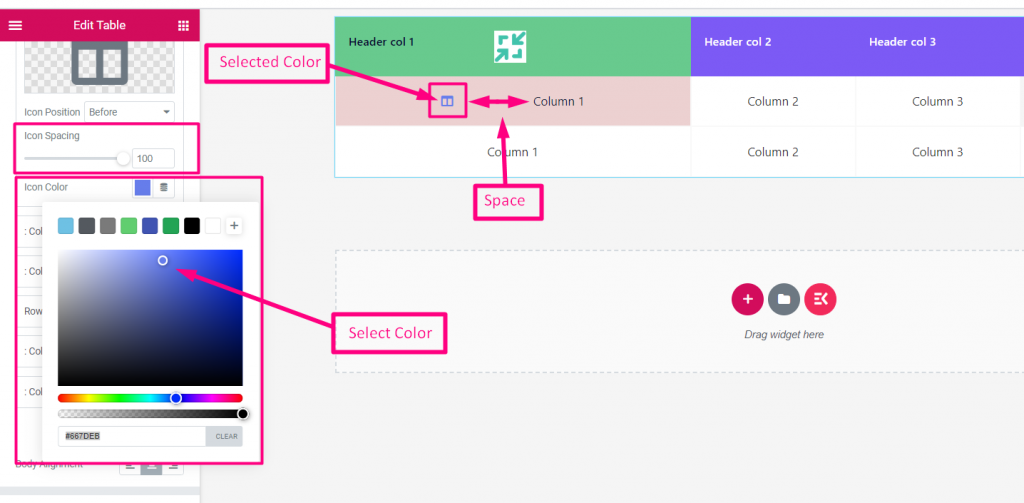
Odstępy między ikonami kolumn- Ustaw odstępy pomiędzy tekstem i ikoną oraz wybierz kolor tła ikony.
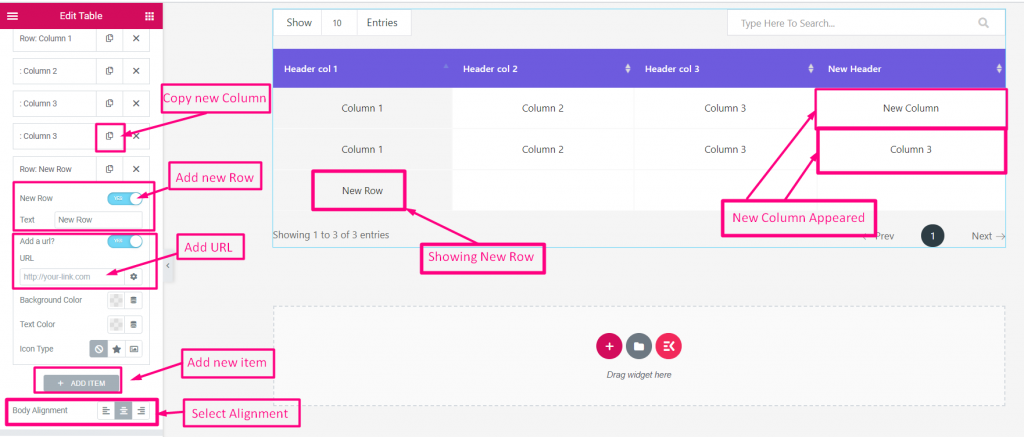
Dodaj nowe–
- Możesz Kopiuj istniejącą kolumnę
- Włącz, aby Dodaj nowy wiersz
- Dodaj adres url
- Dodaj nową pozycję
- Wybierz wyrównanie: Lewy, środkowy lub prawy
Nakrycie stołu #
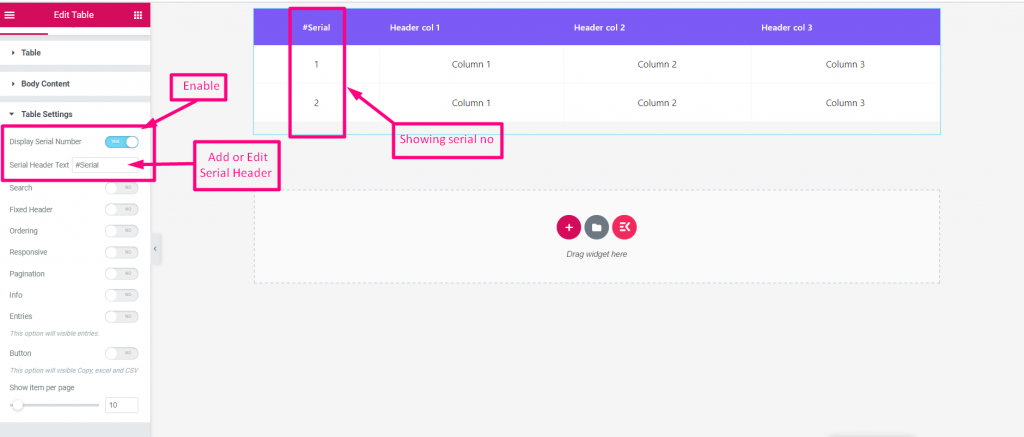
- Wyświetl numer seryjny- Włącz wyświetlanie numeru seryjnego.
- Tekst nagłówka seryjnego- Dodaj lub edytuj nagłówek szeregowy.
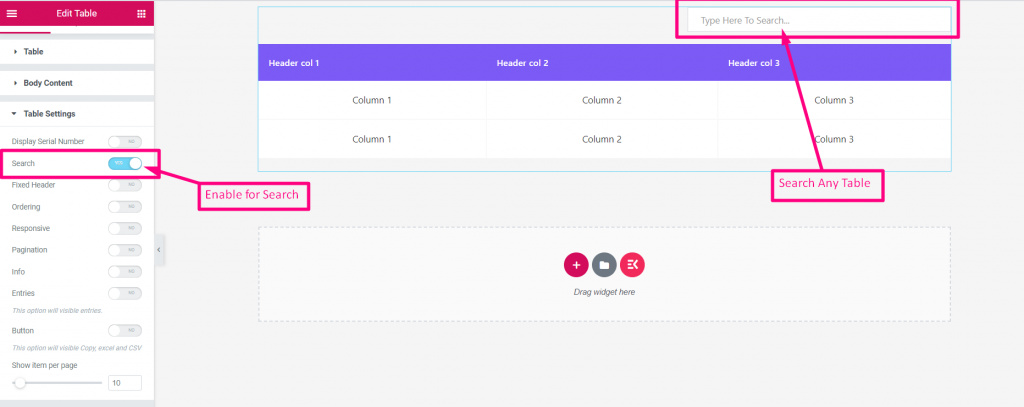
Szukaj- Włącz wyszukiwanie dowolnego elementu w tabeli
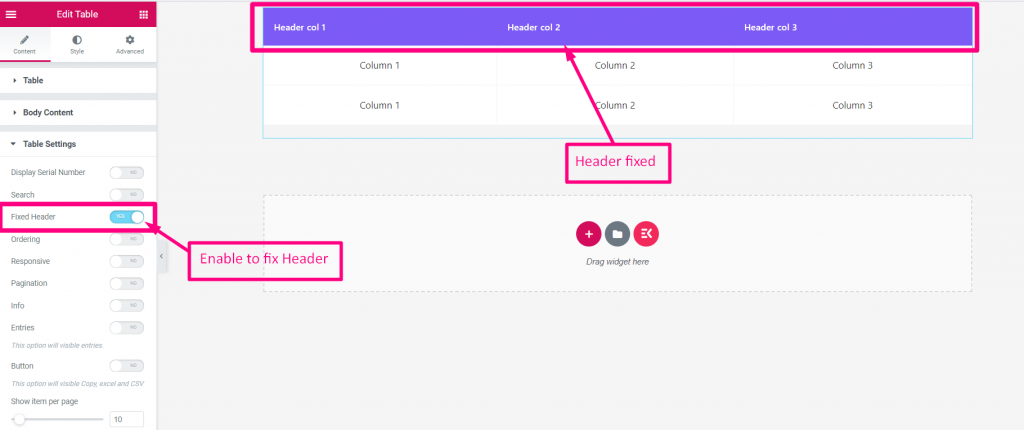
Naprawiono nagłówek- Włącz, aby naprawić nagłówek
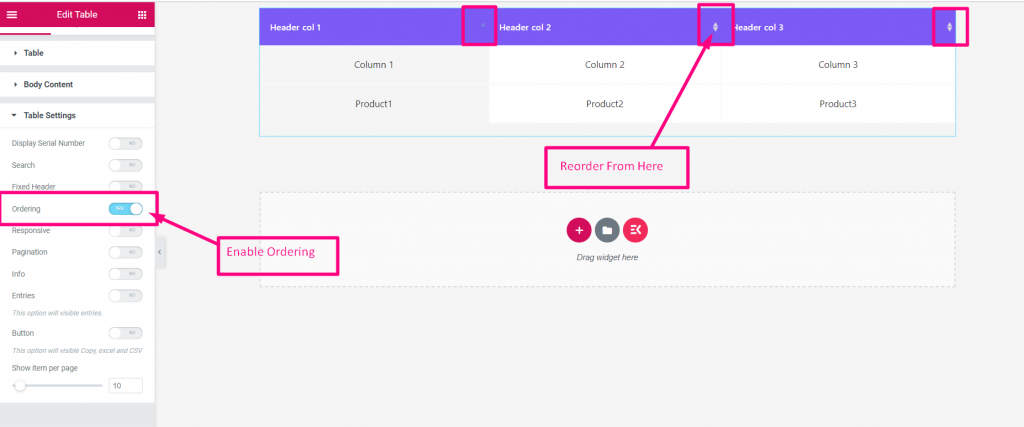
Zamawianie- Włącz opcję Zamawianie, aby ponownie zamówić dowolny przedmiot
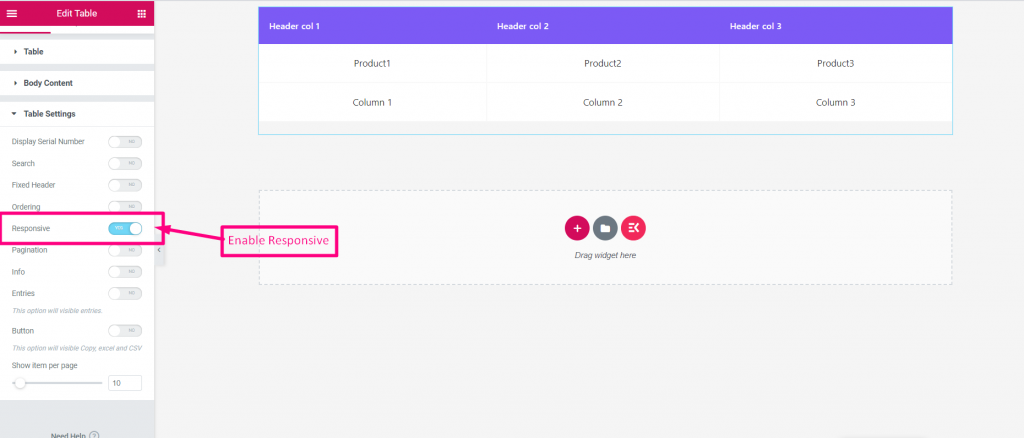
Włącz responsywność- Po prostu włącz tę opcję, jeśli potrzebujesz
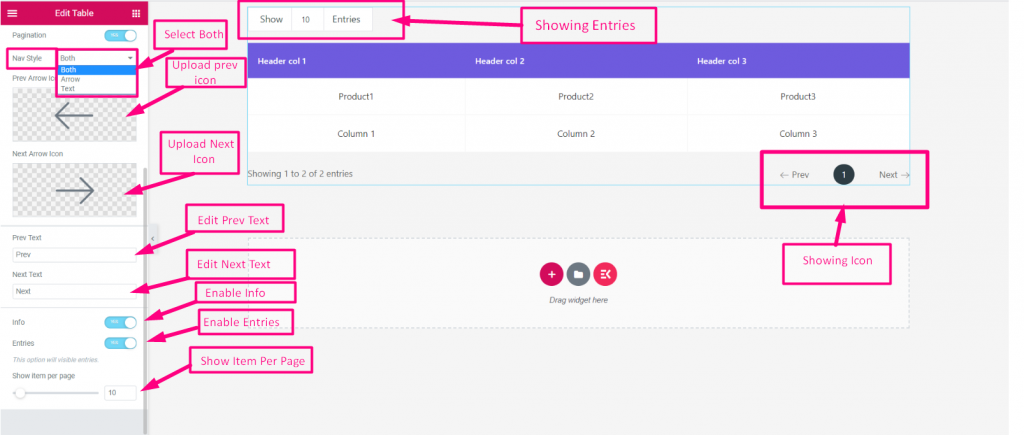
Paginacja- Jest tu kilka kroków
- Włącz paginację
- Możesz wyświetlić ikonę tylko strzałkę lub tylko tekst. Możesz także wybrać Oba
- Prześlij poprzednią strzałkę i następną strzałkę
- Dodaj lub edytuj poprzedni tekst i następny tekst
- Włącz informacje
- Włącz wpisy
- Pokaż element na stronę
Zatem ten widżet tabeli zapewnia standardowe możliwości wyświetlania tabeli dla aplikacji. Mamy nadzieję, że uznasz to za łatwe w użyciu i oszczędzające czas narzędzie.


