
 Polish
  English
  German
  Spanish
  Italian
  French
  Danish
  Portuguese
  Swedish
  Korean
  Japanese
 Użytkownicy WordPressa mogą potrzebować modułu kursora myszy, aby poprawić komfort korzystania z ich witryny. ElementsKit przygotował dla ciebie moduł o nazwie Kursor myszki. Pomoże Ci dodać efekty wizualne i teksty lub zmienić jego kształt. Różne wzorce kursorów sprawiają, że witryna jest bardziej wciągająca i interaktywna dla odwiedzających.
Korzystanie z modułu kursora myszy #
Dowiedzmy się, jak działa nasz Kursor Myszy. Wcześniej nie zapomnij zainstaluj ElemenstKit Pro na pulpicie nawigacyjnym WordPress.
KROK 1 #
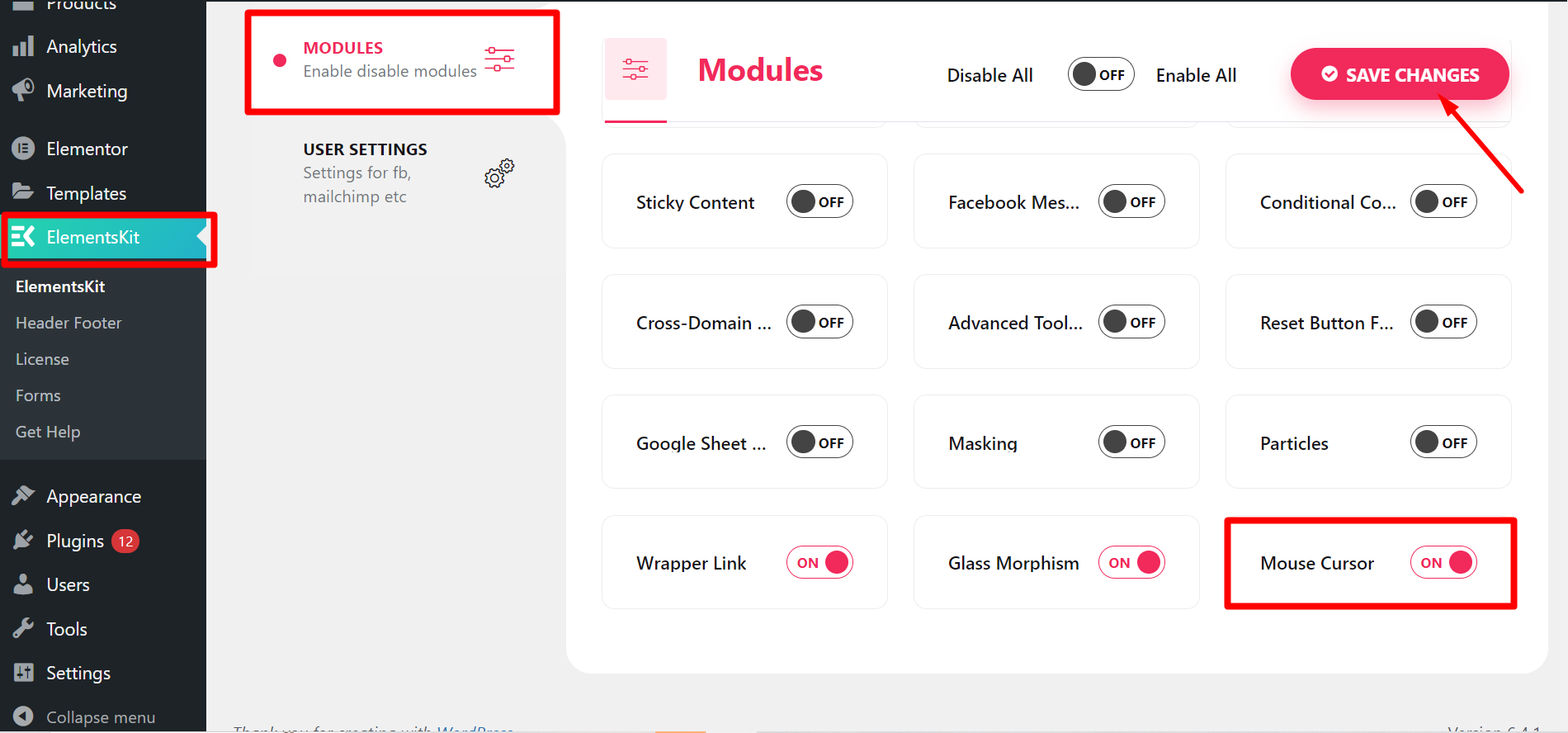
Przejdź do ElementsKit z panelu WordPress -> Przejdź do modułów -> Znajdź moduł Kursora myszy i włącz go -> Kliknij Zapisz zmiany
KROK 2 #
Otwórz dowolną stronę lub post, na którym chcesz umieścić kursor myszy i rozpocznij edycję za pomocą Elementora.
Teraz,
- Kliknij sekcję, w której chcesz użyć kursora myszy
- Przejdź do opcji Zaawansowane
- Znajdź kursor myszy ElementsKit
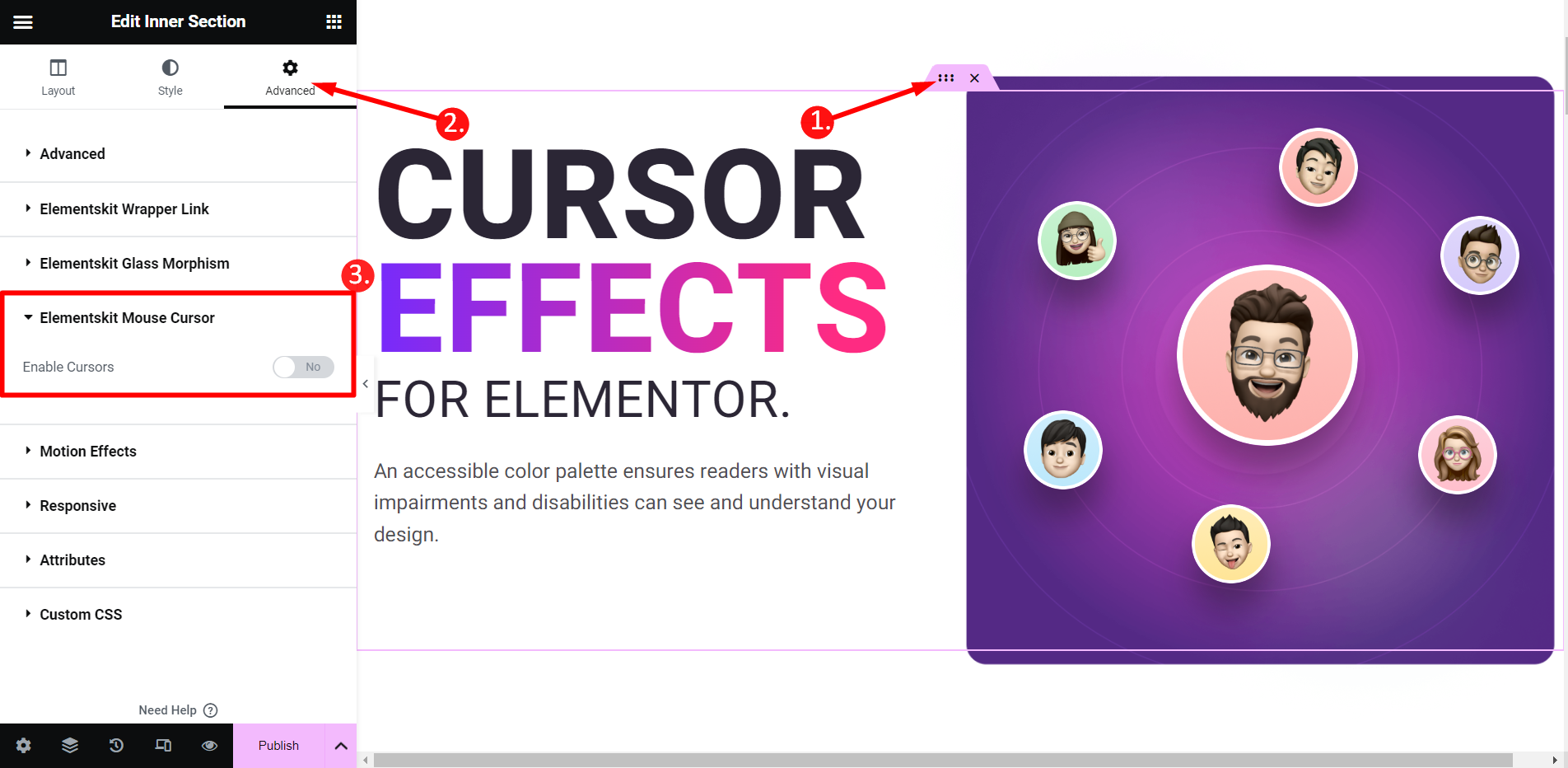
Jeśli rozwiniesz kursor myszy ElementsKit, musisz ustawić przycisk na Tak.
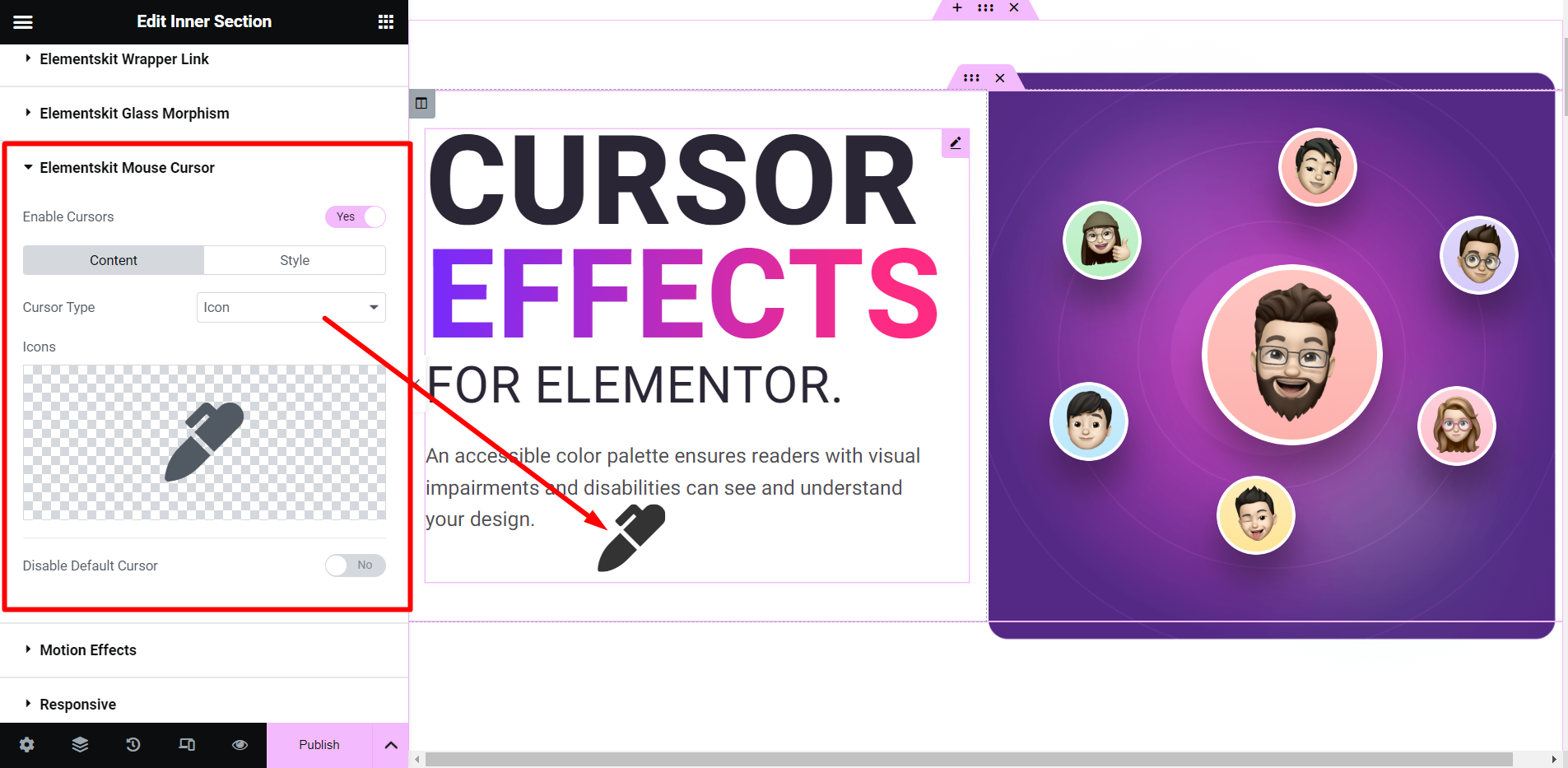
w Część treściowa, możesz dostosować –
- Typ kursora – Możesz zachować kursor typu Tekst, Obraz lub Ikona.
- Etykieta tekstowa/obraz/ikona – W zależności od wybranego typu kursora, opcja ta pojawi się tutaj.
Wyłącz domyślny kursor – Jeśli chcesz, możesz wyłączyć domyślny kursor za pomocą tego przycisku.
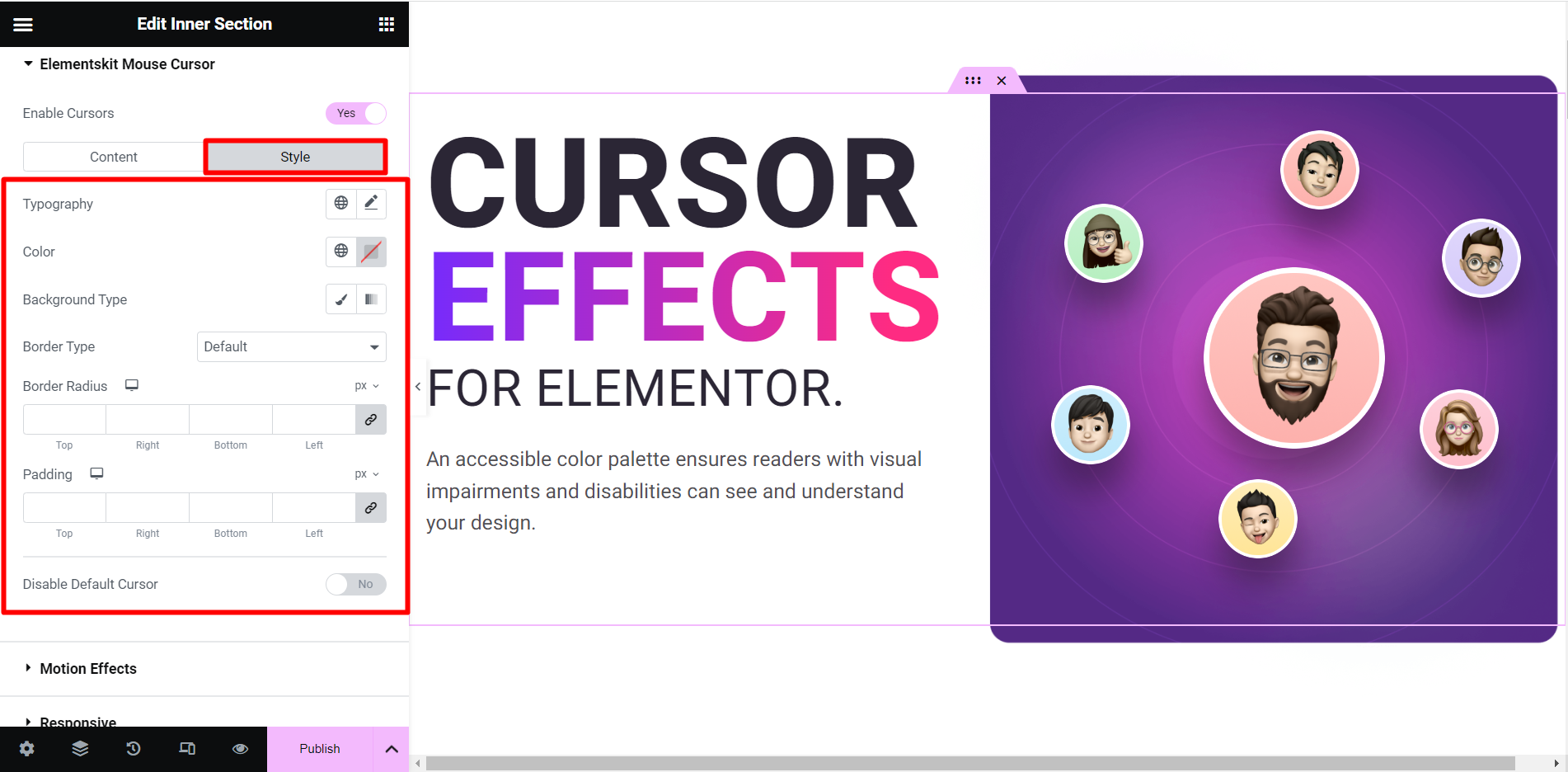
w Część stylowa, możesz znaleźć wiele opcji stylizacji kursora. Możesz na przykład zmienić typografię, kolor, typ obramowania, promień obramowania, dopełnienie i tak dalej. W zależności od wybranego typu kursora, dostępne będą tutaj te opcje.
Możesz jednak użyć ładnie wyglądającego kursora myszy dla dowolnej sekcji, kolumny, obrazu itp. Po prostu kliknij Przycisk nawigacyjny i znajdź obszar, w którym chcesz dostosować kursor myszy.
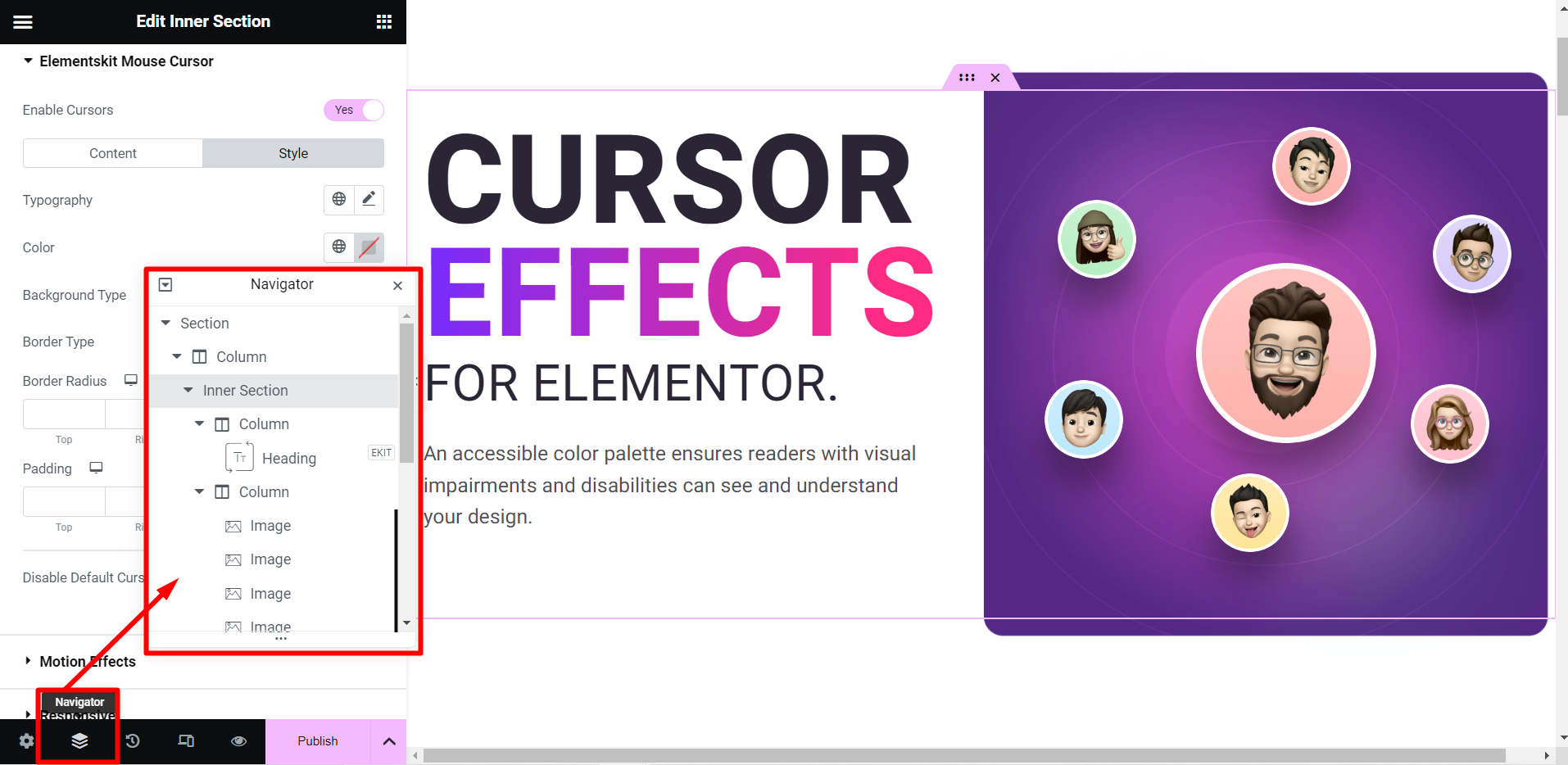
KROK-3: Sprawdź dane wyjściowe #
Oto nasze wyniki, spójrz na kreatywne kursory myszy, które stworzyliśmy ✌️
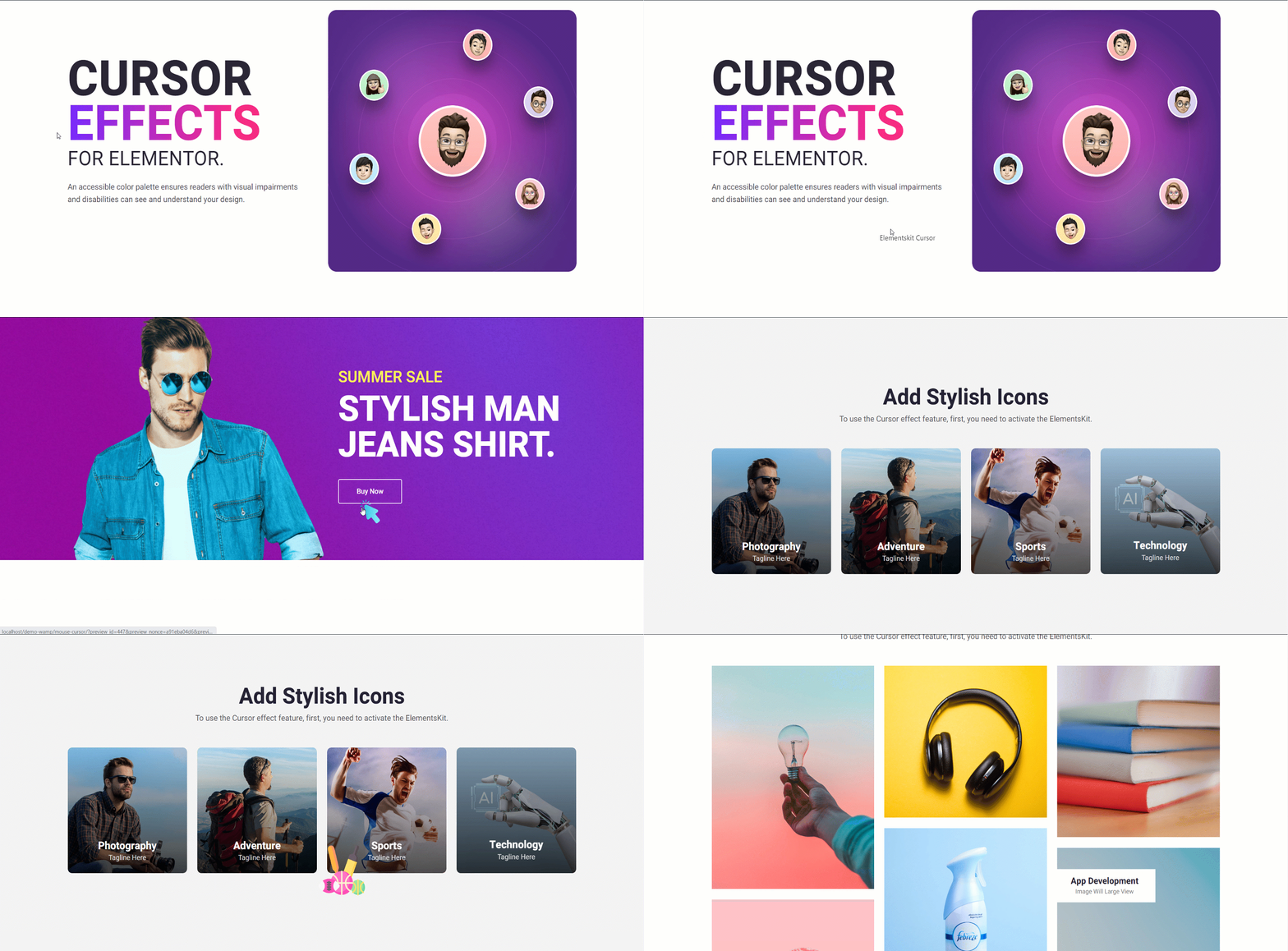
Czy to nie jest miłe i łatwe? Teraz możesz także szybko dostosować wygląd kursora myszy i przyciągnąć uwagę widzów.


