

 Danish
  English
  German
  Spanish
  Italian
  French
  Portuguese
  Swedish
  Polish
  Korean
  Japanese
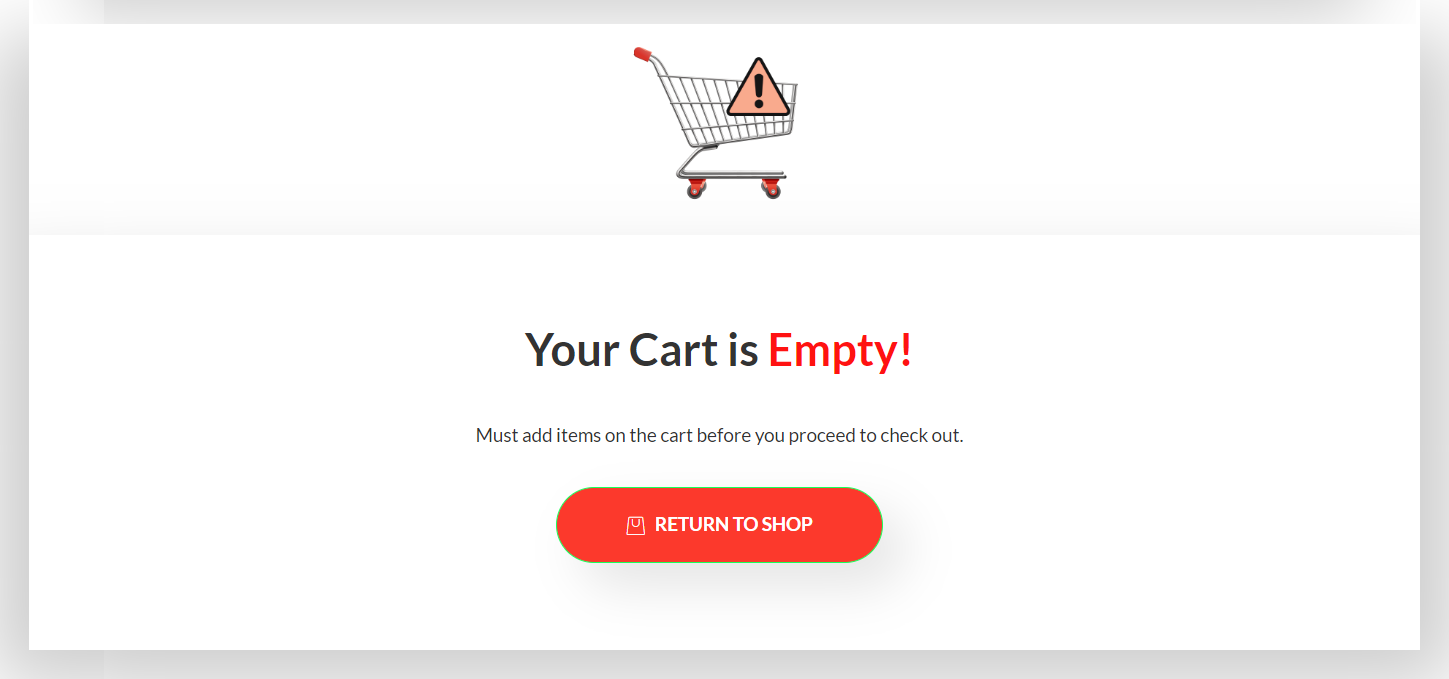
 ShopEngine giver den ultimative mulighed for at skabe og designe dit WooCommrece-websted med det højeste antal tilpasningsmuligheder. Sider fra produktsiden, butikssiden, betalingssiden til kurvsiden og næsten hver anden side kan tilpasses. Dette inkluderer tilpasning af kurvsiden, når WooCommerce-vognen er tom.
Tilpas, når WooCommerce-vognen er tom #
Ved hjælp af Empty Cart-skabelonen fra ShopEngine kan du styre indholdet og udseendet af kurvsiden, når der ikke er nogen produkter i kurven. Du kan designe en tilpasset skabelon til kurvsiden, når WooCommerce-vognen er tom.
Læs denne dokumentation om, hvordan du bruger ShopEngine Empty Cart Template på din hjemmeside.
Trin-1: Opret en skabelon til den tomme indkøbskurvside #
- Naviger til ShopEngine > Skabeloner fra dit WordPress-dashboard.
- Klik på Tilføj ny knap for at oprette en ny skabelon.
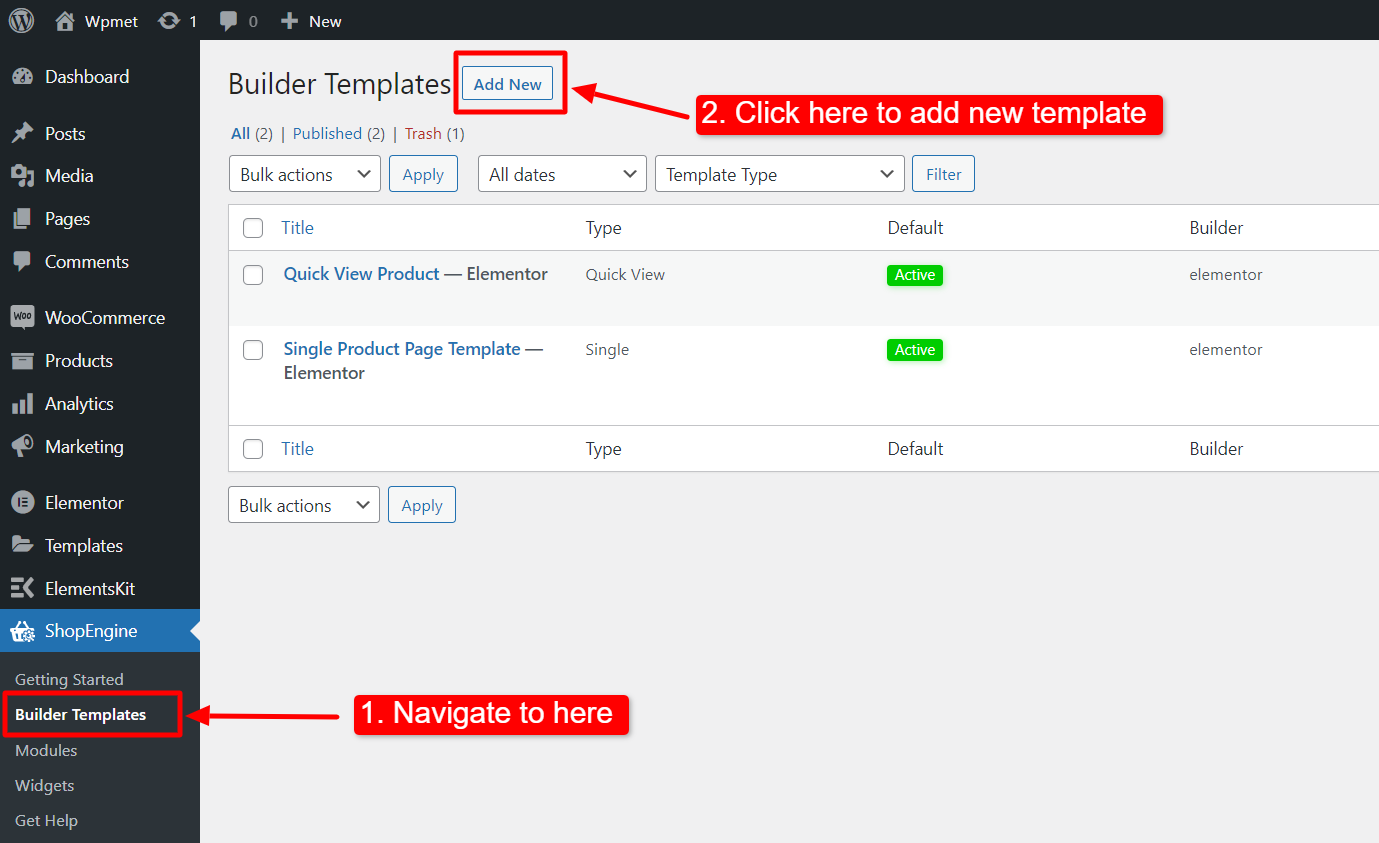
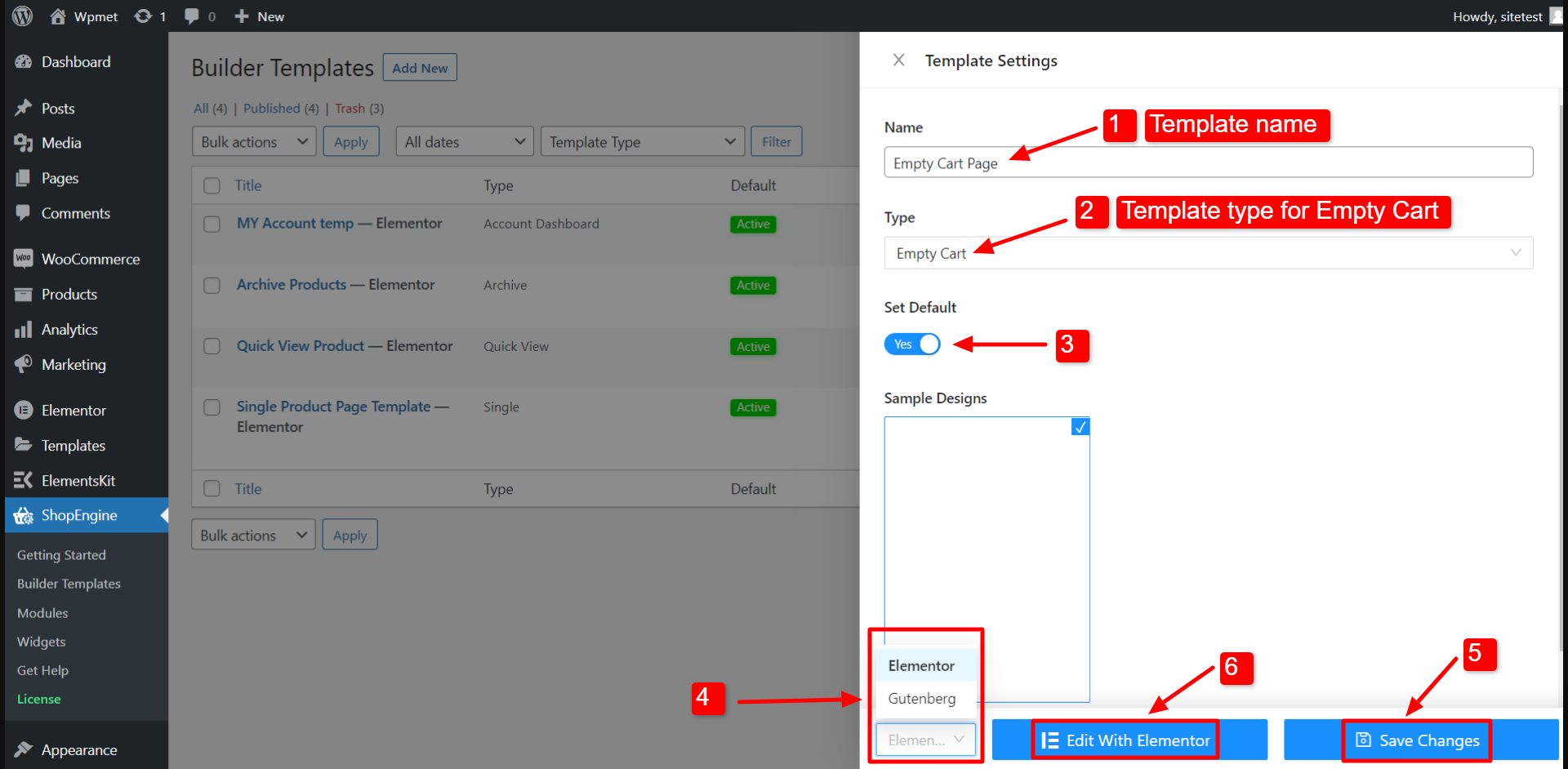
Derefter vises et off-canvas-vindue for skabelonindstillinger. I skabelonindstillingerne,
- Indtast en skabelon Navn.
- Vælg skabelonen Type som: Tom vogn.
- Aktiver Sæt standard mulighed for at indstille skabelonen som standard tom kurvside.
- Vælg om du vil redigere siden med Elementor eller Gutenberg.
- Klik nu på Gem ændringer.
- Klik til sidst videre Rediger med Elementor (eller Rediger med Gutenberg) for at åbne editoren.
Tilpas nu sidedesignet på editoren.
Trin-2: Design en tom kurvside #
På editorsiden kan du designe den tomme kurvside, som du vil. For at vise dig en demo her, har vi designet en prøveskabelon til WooCommerce tomme kurv-siden.
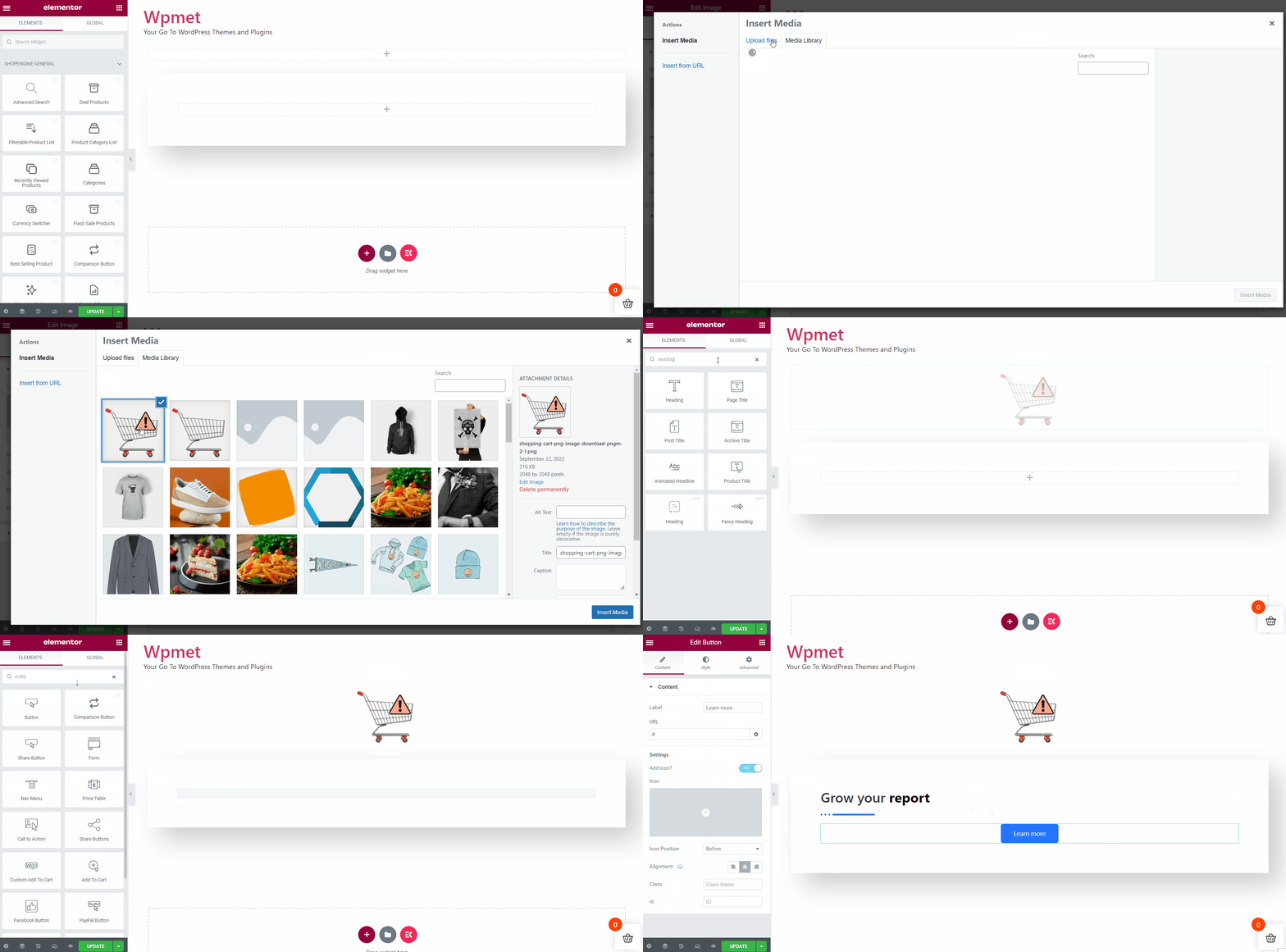
Tryk endelig på opdateringsknappen for at fuldføre tilpasningen. Nu kan du forbedre brugeroplevelsen af dit websted med et sofistikeret design, selv når WooCommerce-vognen er tom.