




 Danish
  English
  German
  Spanish
  Italian
  French
  Portuguese
  Swedish
  Polish
  Korean
  Japanese
 ShopEngine's Cart Total er en anden praktisk widget, der kan pifte dit vognbord op. Widget'en lader dig ændre forskellige elementer i din indkøbskurv total som subtotal, total og gå videre til kassen knappen.
Hvordan bruger man ShopEngines vognbord?
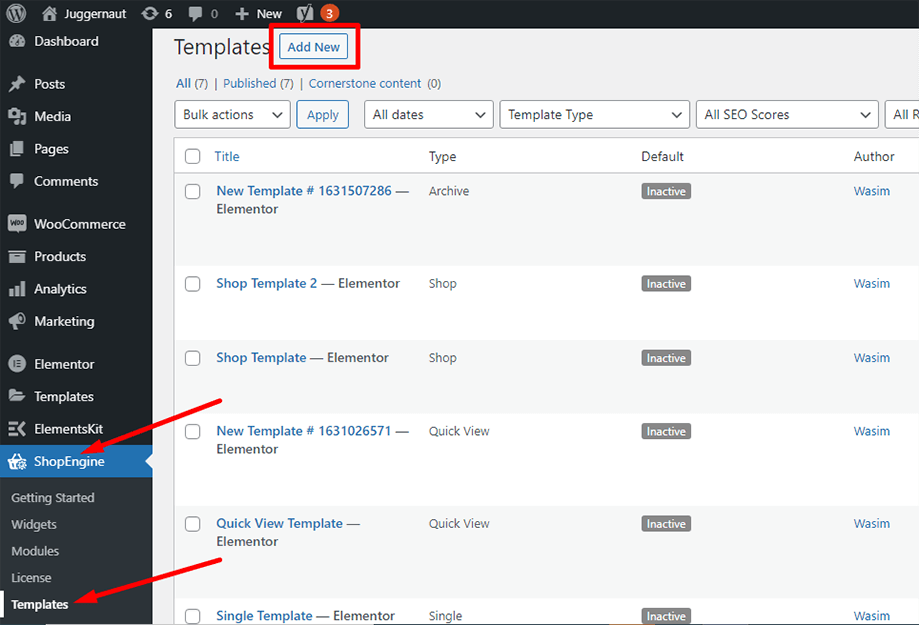
Først og fremmest skal du gå til dashboardet på dit adminpanel og finde ShopEngine fra listen over varer. Klik på ShopEngine, og vælg derefter Skabeloner i rullemenuen. Klik derefter på "Tilføj nyknappen øverst til højre ved siden af teksten "Skabeloner”.
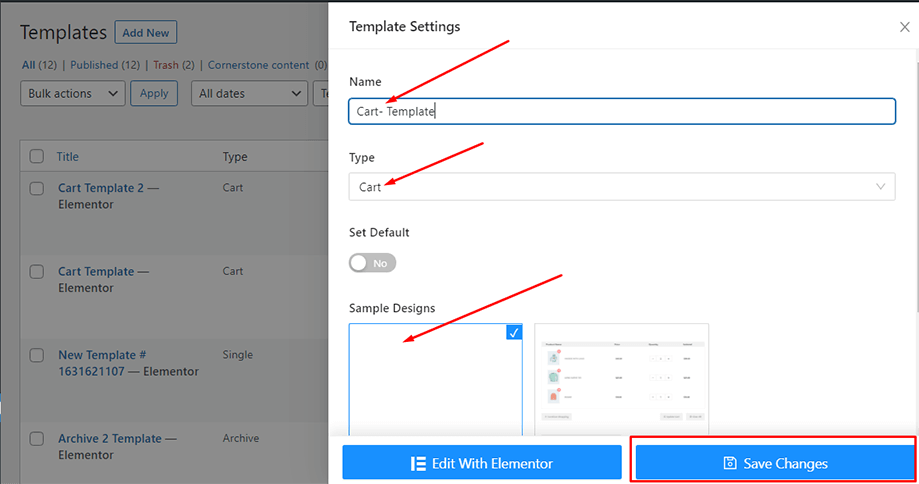
Umiddelbart derefter vises et popup-vindue med skabelonindstillinger. Indstil dit skabelonnavn i Navn og vælg typen Indkøbskurv, da dit mål er at tjekke Cart Table-widget.
Du kan også vælge et standardprøvedesign eller begynde at designe fra bunden. Tryk til sidst på "Gem ændringer”-knappen.
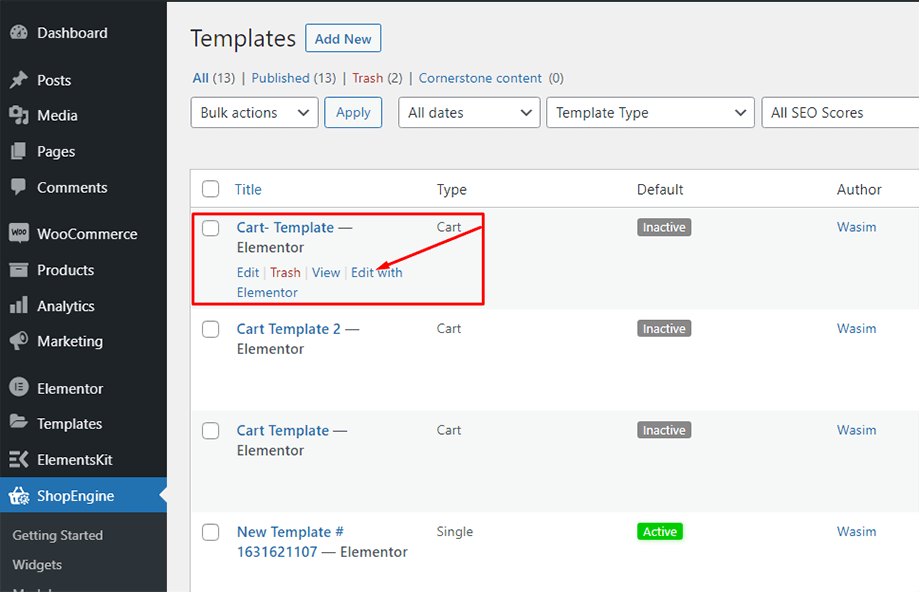
Din skabelon er oprettet, og du kan se den øverst på listen. Klik nu på "Rediger med Elementor” for at skifte til Elementor-vinduet.
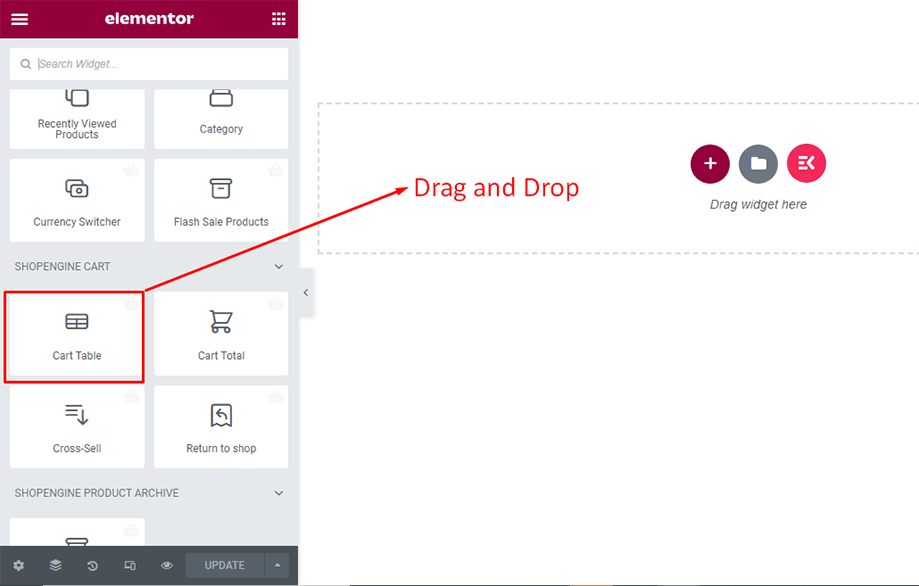
I dette trin vil du bemærke en sidebjælke til venstre med en liste over ShopEngine-widgets. Find Cart Table widget fra ShopEngine Cart sektionen, eller du kan normalt søge i widgetten i søgefeltet og derefter trække og slippe den til det udpegede område.
Dette vil dukke op en vogntabel med et antal elementer på det som produktnavn, produktbillede, pris, subtotal, mængde og andre nødvendige knapper.
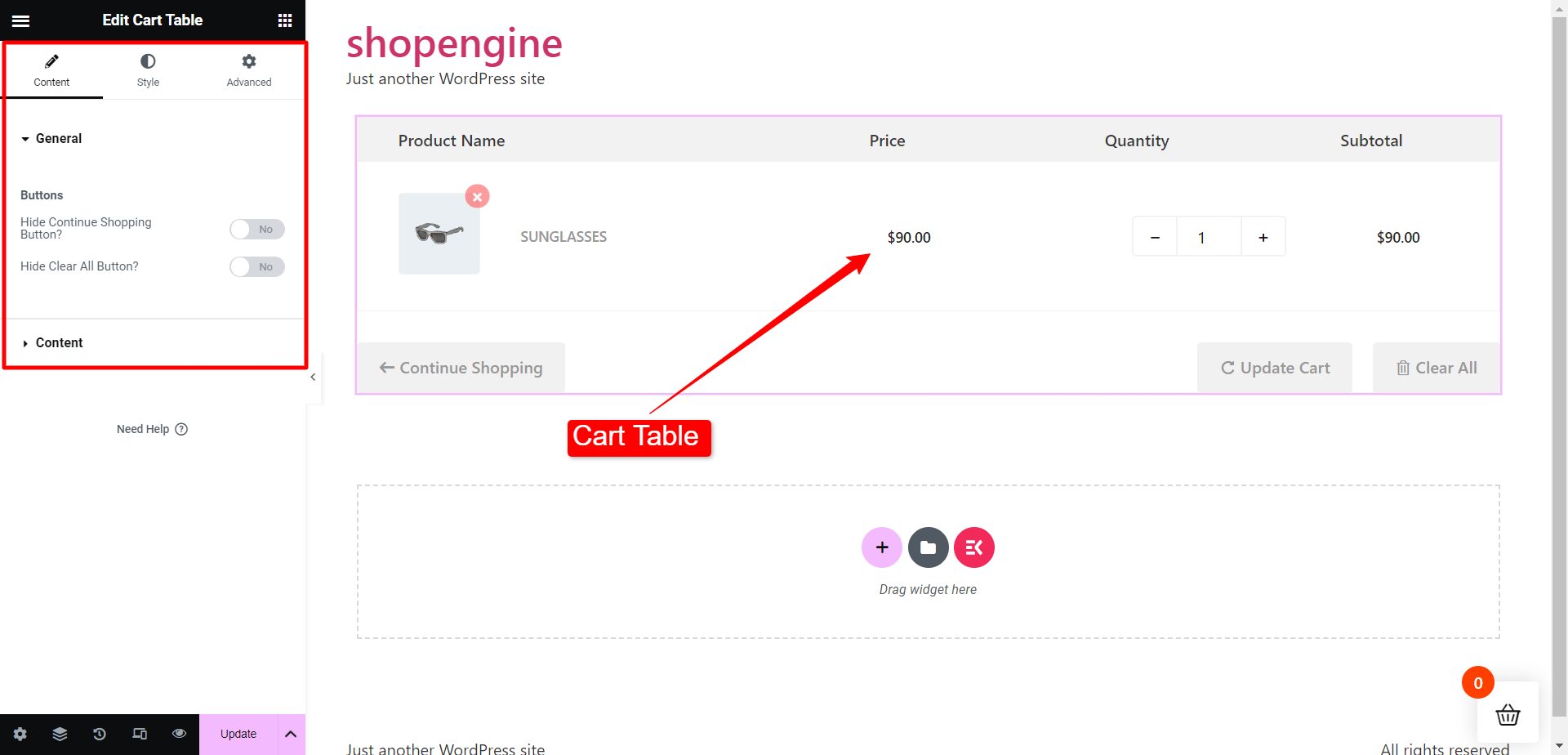
Find nu Cart Total widget fra ShopEngine Cart sektionen, eller du kan søge i widgetten i søgefeltet og derefter trække og slippe den til det tildelte område.
Kurvens samlede widget vil dukke op med det samme efter det. Du kan nu foretage de nødvendige justeringer fra fanen Stil. Fra sektionen Kurvtabel kan du ændre titel- og pristypografi, titelfarve, prisfarve osv.
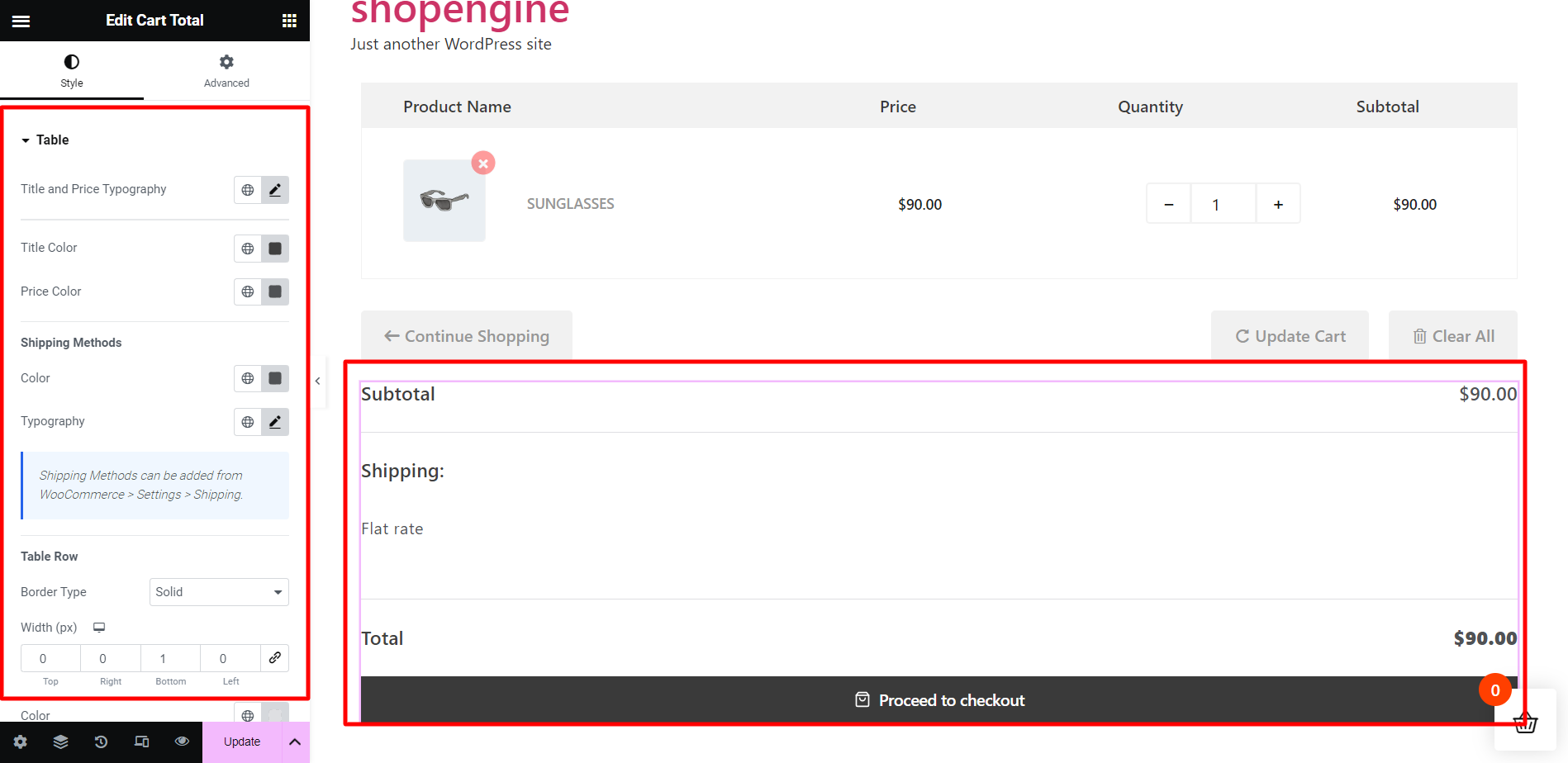
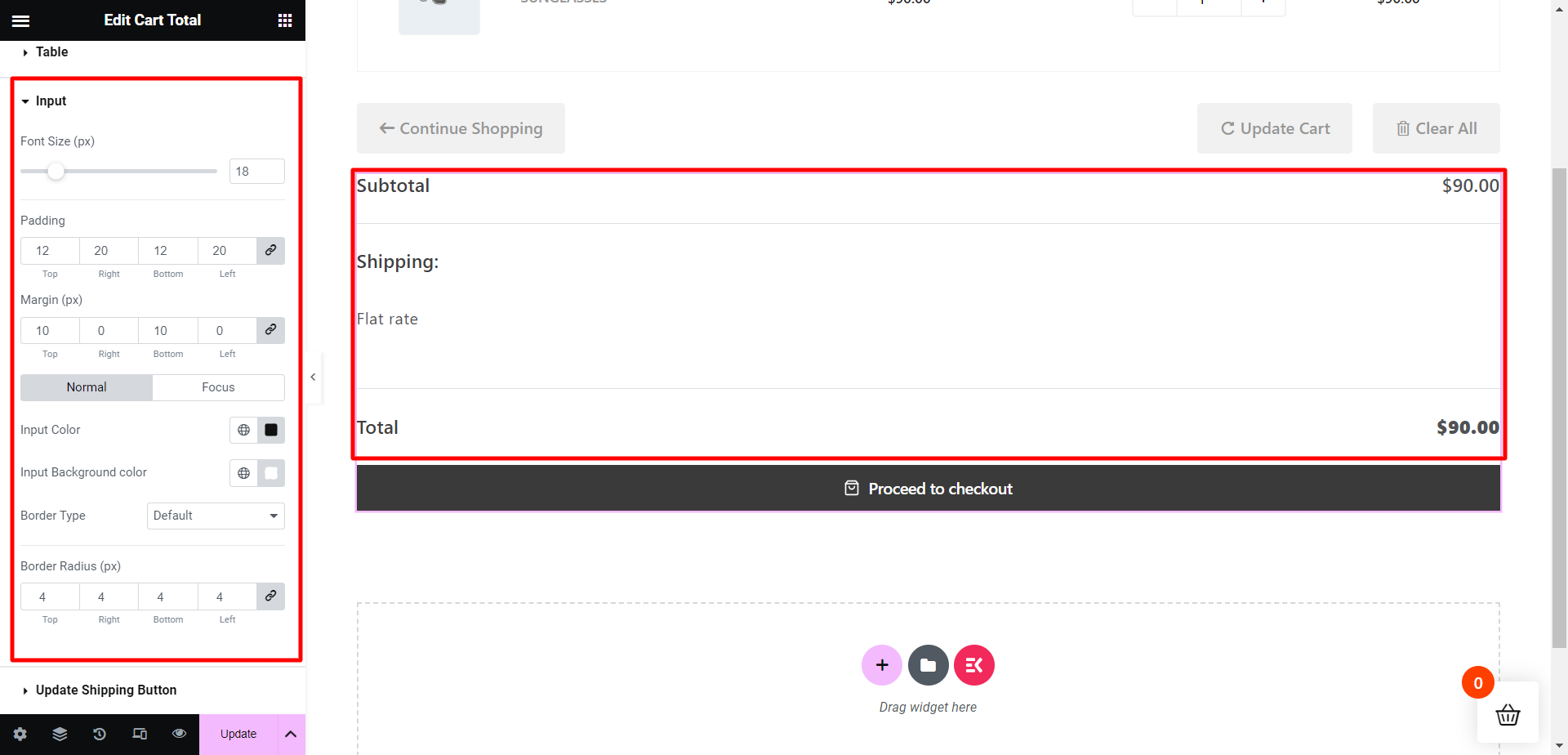
Derefter kan du fra Input-sektionen justere skriftstørrelse, polstring, margen, inputfarve, input-baggrundsfarve osv.
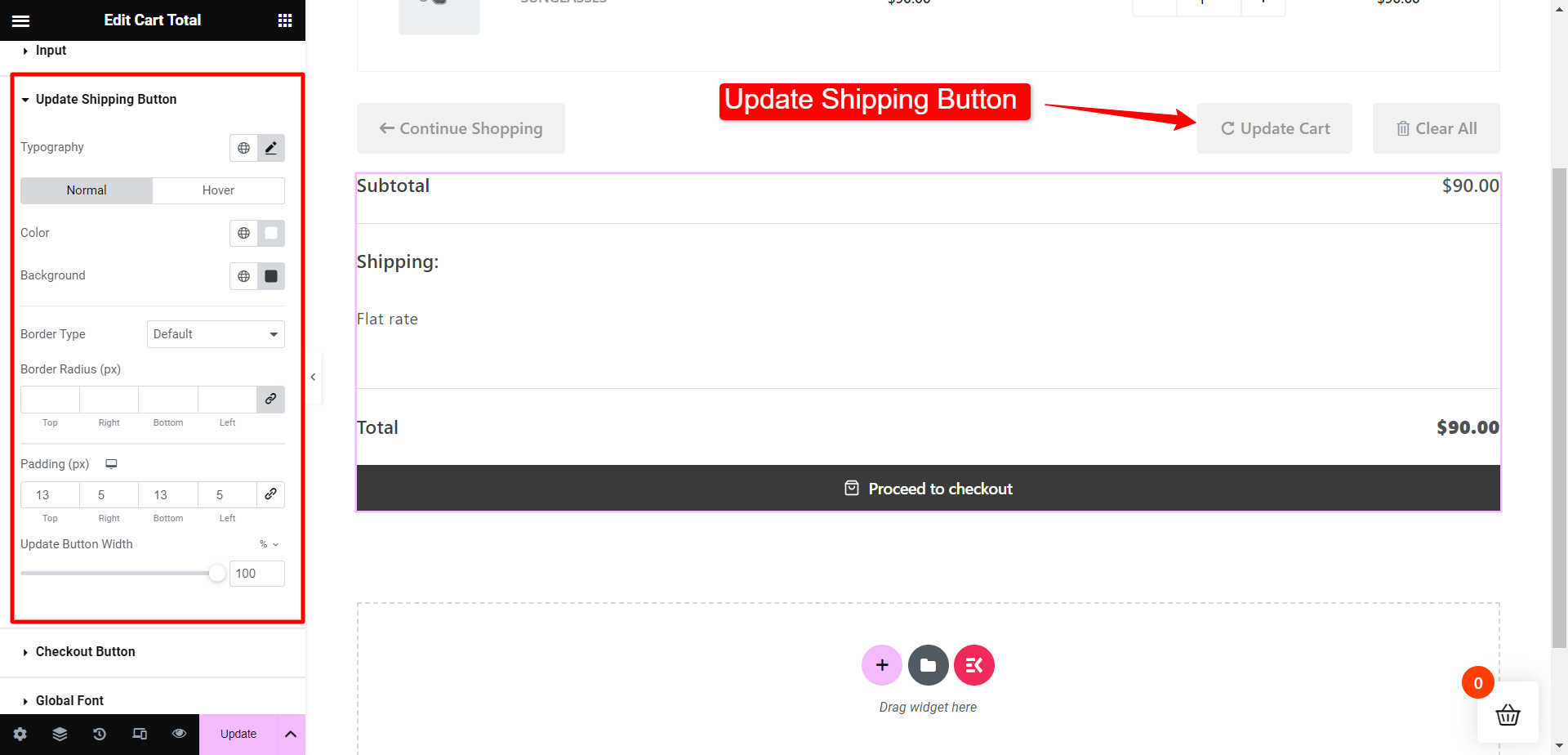
Så for Opdater forsendelsesknap sektion, kan du ændre typografi, knapfarver, kanttype, kantradius og så videre.
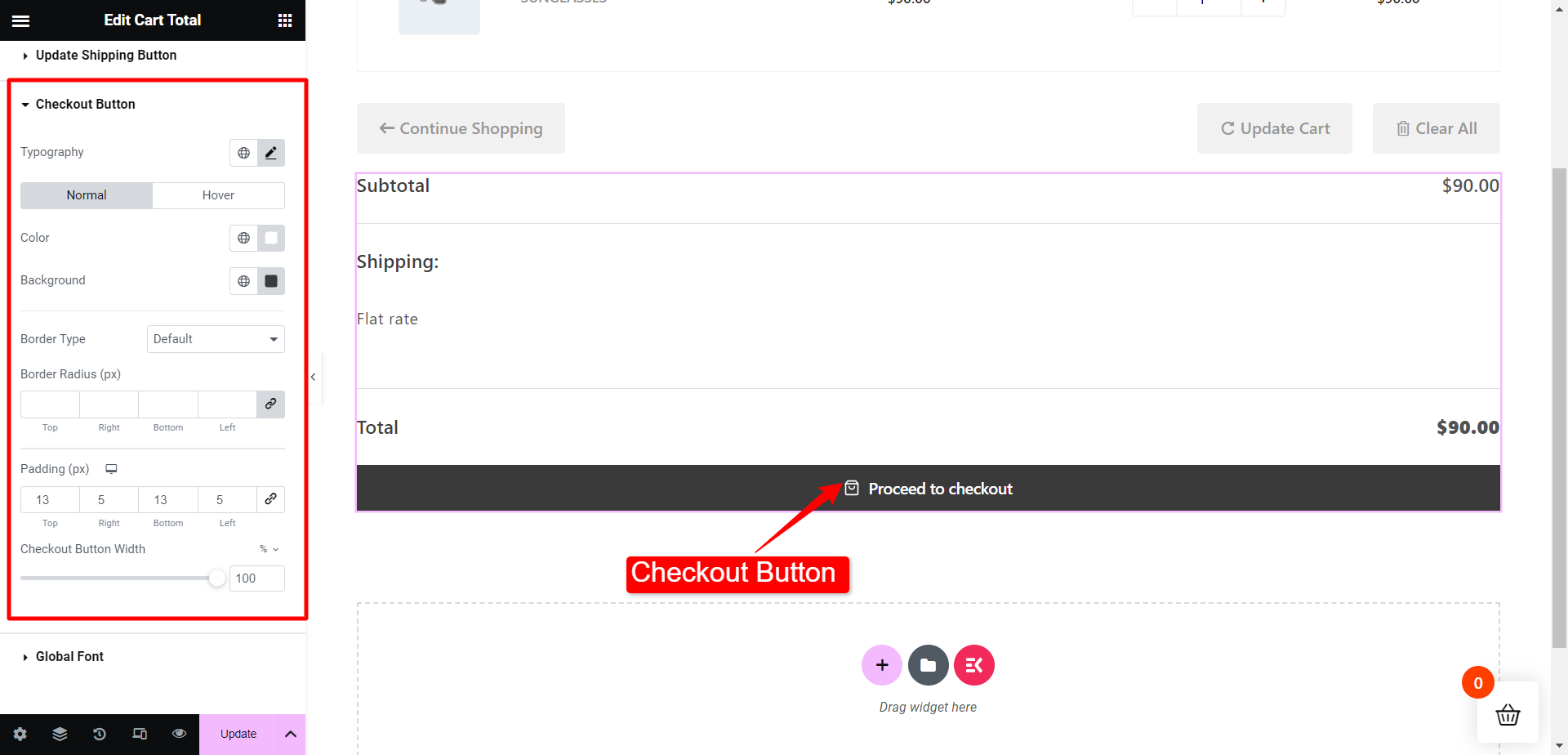
Tilsvarende for Checkout knap sektion, kan du ændre typografi, knapfarver, kanttype, kantradius og så videre.
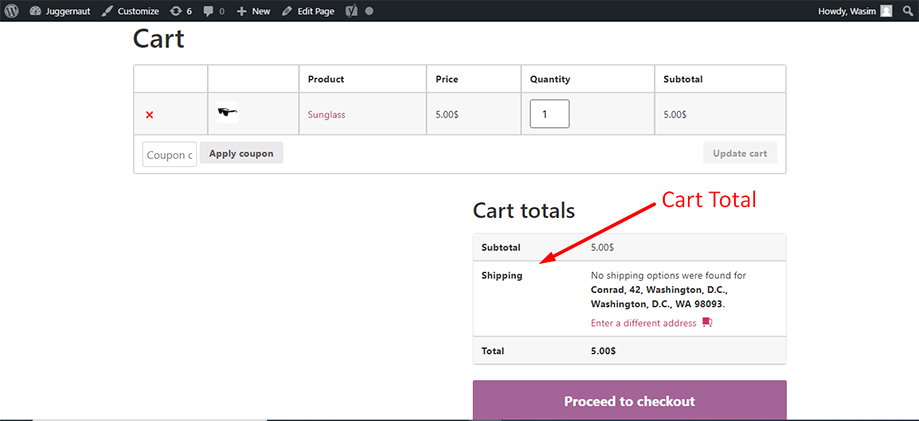
Den samlede vogn ser ud på forsiden som vist under vogntotaler i skærmbilledet nedenfor-
Sådan kan du gøre brug af ShopEngine Cart Total-widgetten og forstærke dine indkøbskurvs samlede elementer.


