




 French
  English
  German
  Spanish
  Italian
  Danish
  Portuguese
  Swedish
  Polish
  Korean
  Japanese
 Cart Total de ShopEngine est un autre widget pratique qui peut pimenter votre tableau de panier. Le widget vous permet de modifier différents éléments du total de votre panier comme le sous-total, le total et de passer au bouton de paiement.
Comment utiliser le tableau de panier de ShopEngine ?
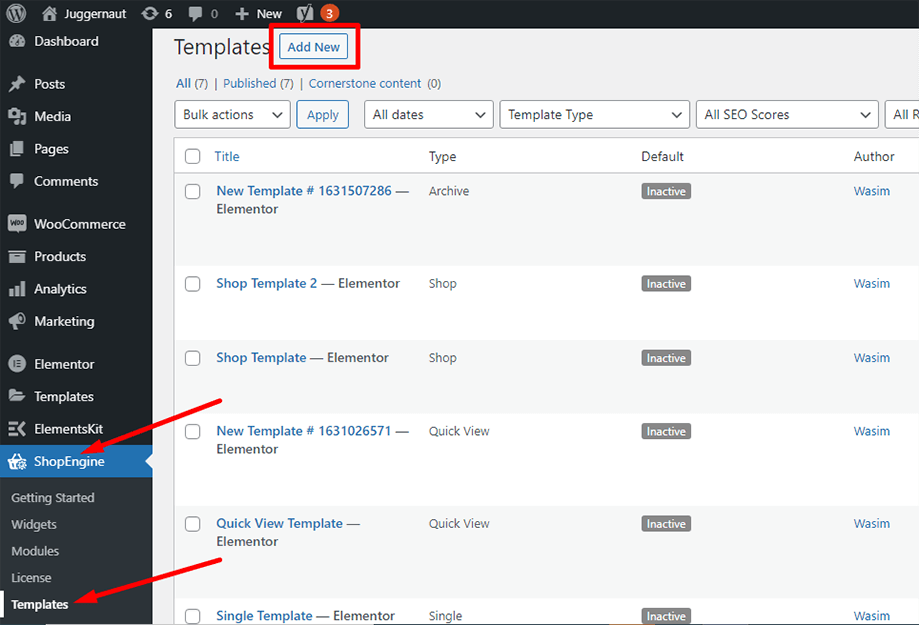
Tout d'abord, accédez au tableau de bord de votre panneau d'administration et recherchez ShopEngine dans la liste des éléments. Cliquez sur ShopEngine, puis sélectionnez Modèles dans le menu déroulant. Ensuite, cliquez sur le «Ajouter un nouveauBouton « en haut à droite à côté du texte »Modèles».
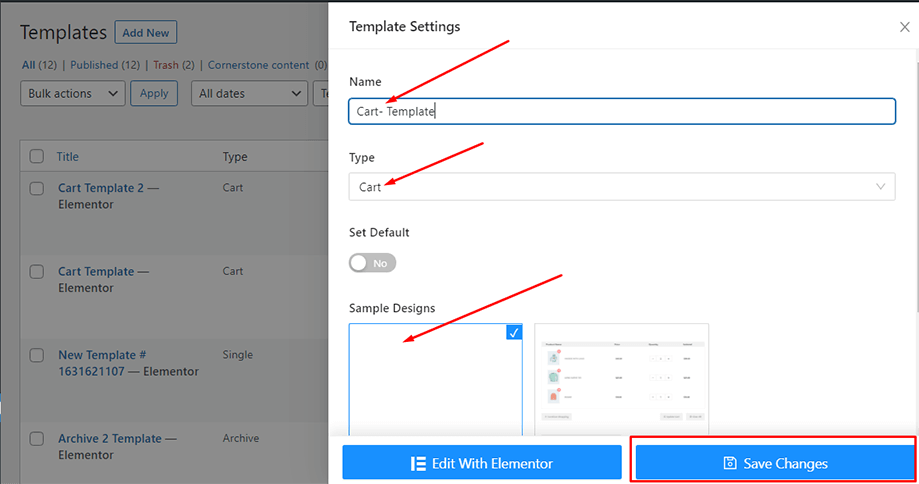
Immédiatement après cela, une fenêtre contextuelle apparaîtra pour les paramètres du modèle. Définissez le nom de votre modèle dans le Nom et sélectionnez le type de panier car votre objectif est de consulter le widget Cart Table.
En outre, vous pouvez choisir un plan d’échantillonnage par défaut ou commencer la conception à partir de zéro. Enfin, appuyez sur le bouton «Sauvegarder les modifications" bouton.
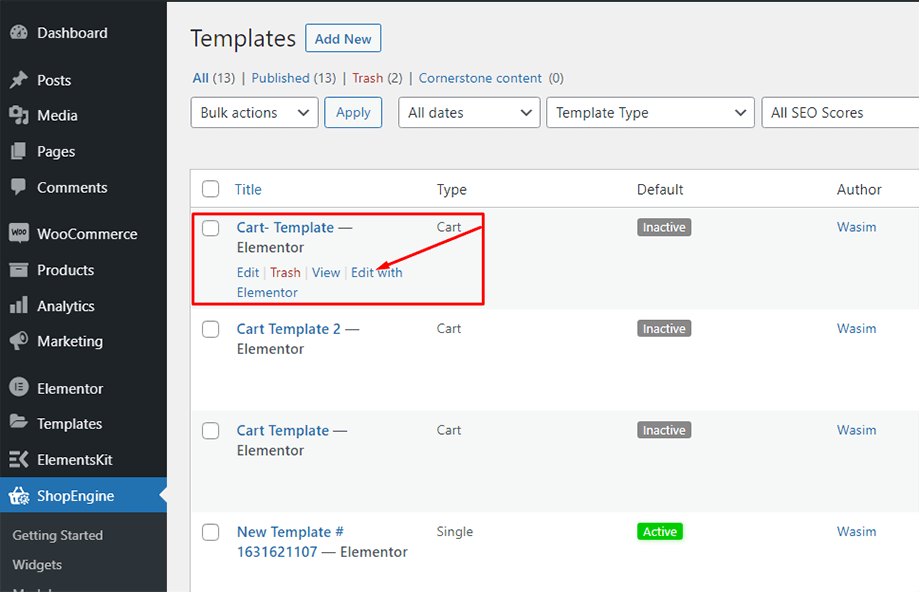
Votre modèle est créé et vous pouvez le voir en haut de la liste. Maintenant, cliquez sur «Modifier avec Elementor» pour passer à la fenêtre Elementor.
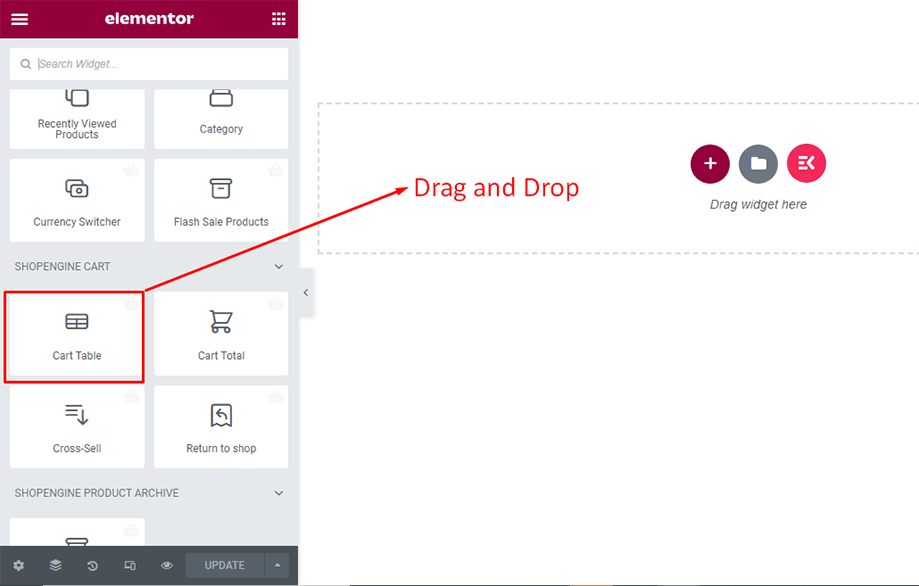
Dans cette étape, vous remarquerez une barre latérale sur la gauche avec une liste de widgets ShopEngine. Recherchez le widget Cart Table dans la section ShopEngine Cart ou vous pouvez normalement rechercher le widget dans le champ de recherche, puis faites-le glisser et déposez-le dans la zone désignée.
Cela fera apparaître un tableau de panier contenant un certain nombre d'éléments tels que le nom du produit, l'image du produit, le prix, le sous-total, la quantité et d'autres boutons nécessaires.
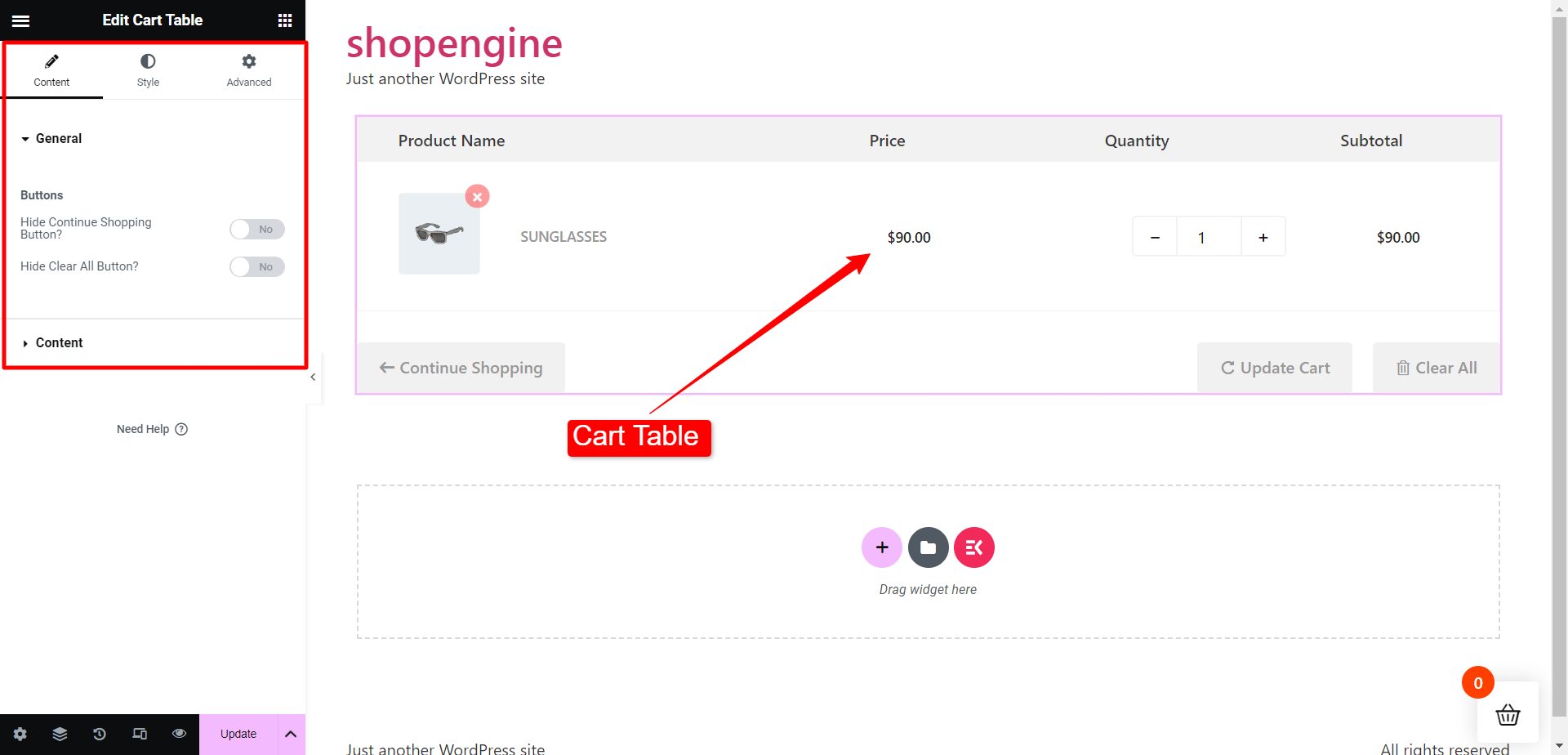
Maintenant, recherchez le widget Cart Total dans la section ShopEngine Cart ou vous pouvez rechercher le widget dans le champ de recherche, puis faites-le glisser et déposez-le dans la zone allouée.
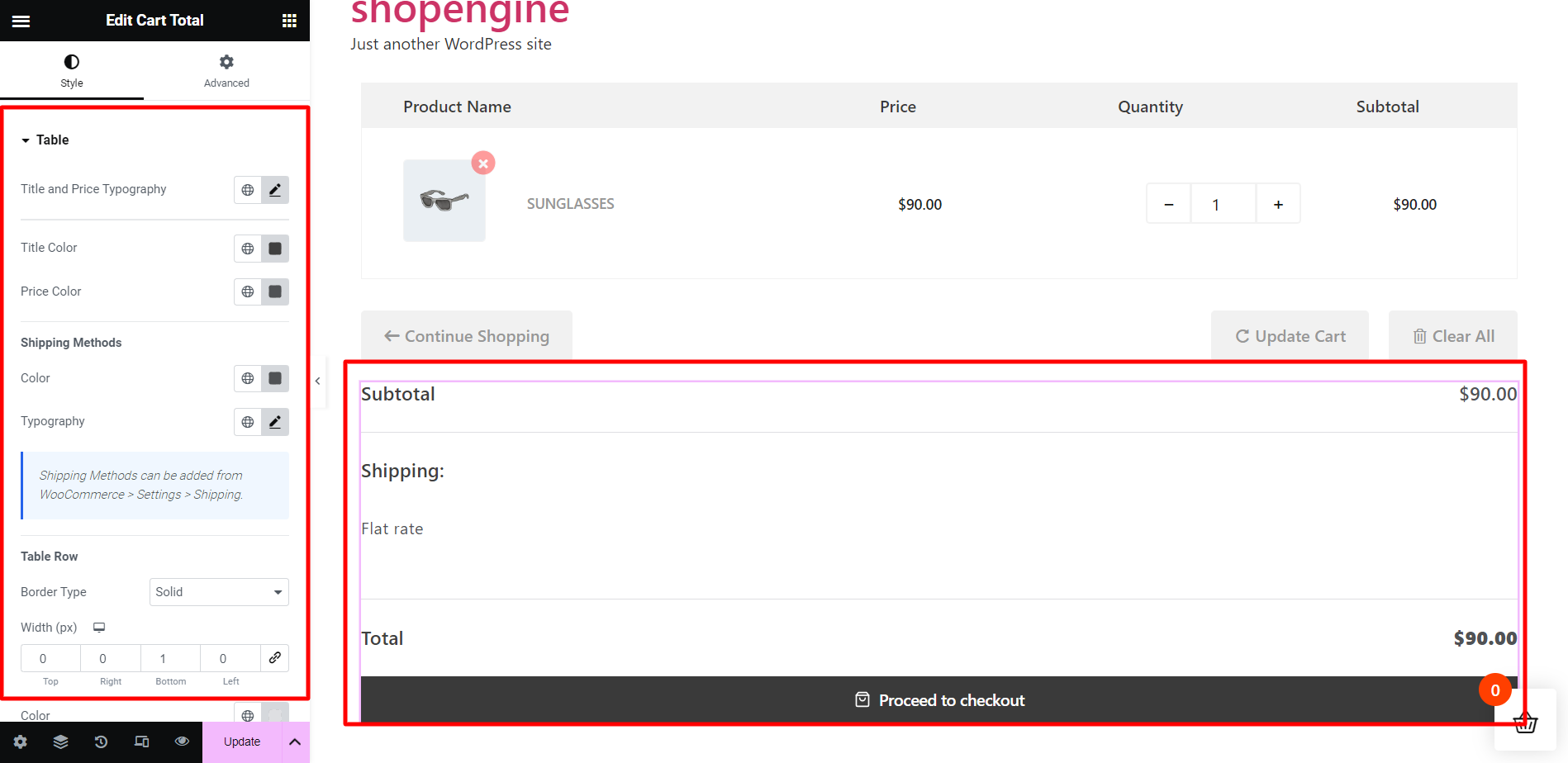
Le widget du total du panier apparaîtra instantanément après cela. Vous pouvez maintenant apporter les modifications nécessaires à partir de l'onglet Style. Dans la section Tableau du panier, vous pouvez modifier la typographie du titre et du prix, la couleur du titre, la couleur du prix, etc.
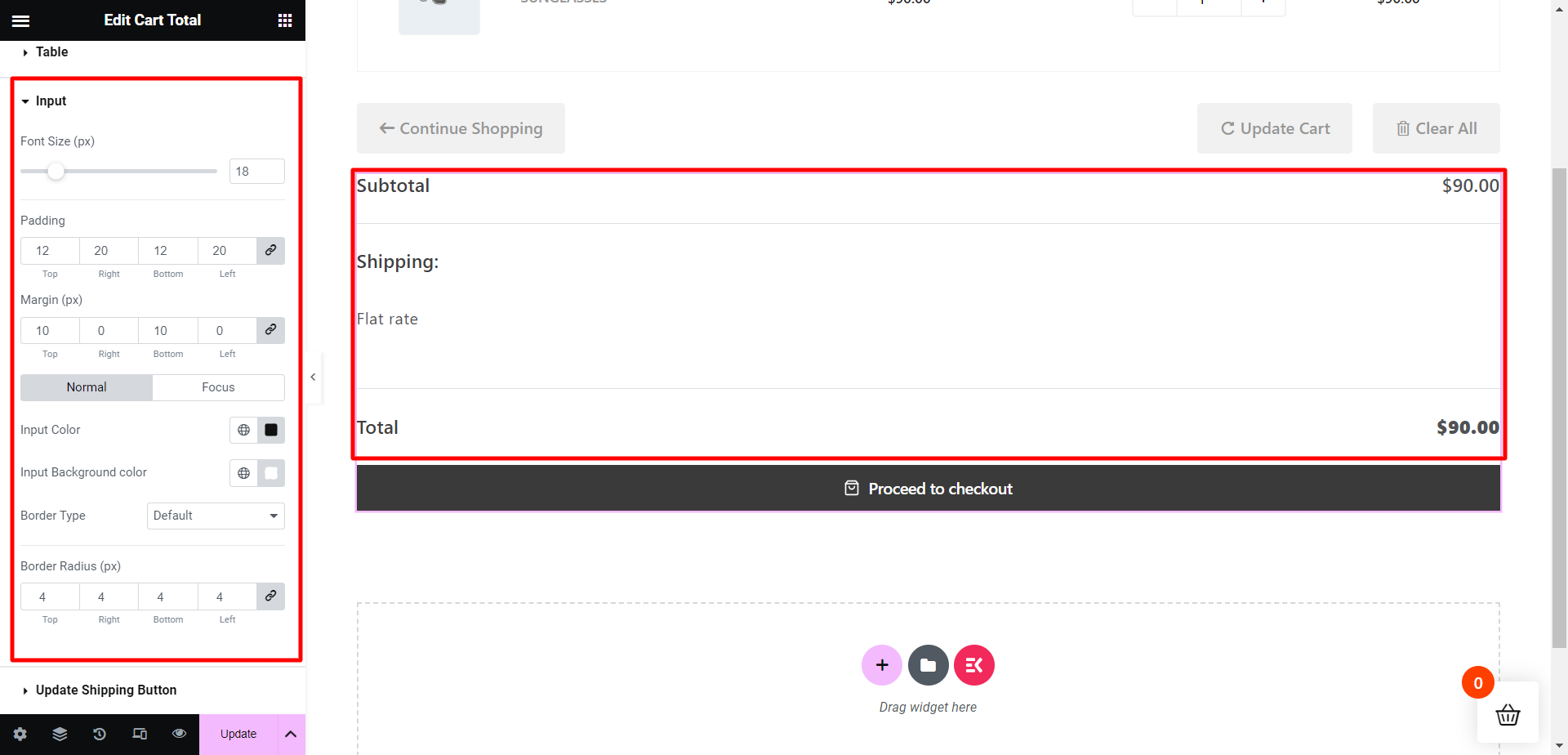
Ensuite, à partir de la section Entrée, vous pouvez ajuster la taille de la police, le remplissage, la marge, la couleur d'entrée, la couleur d'arrière-plan d'entrée, etc.
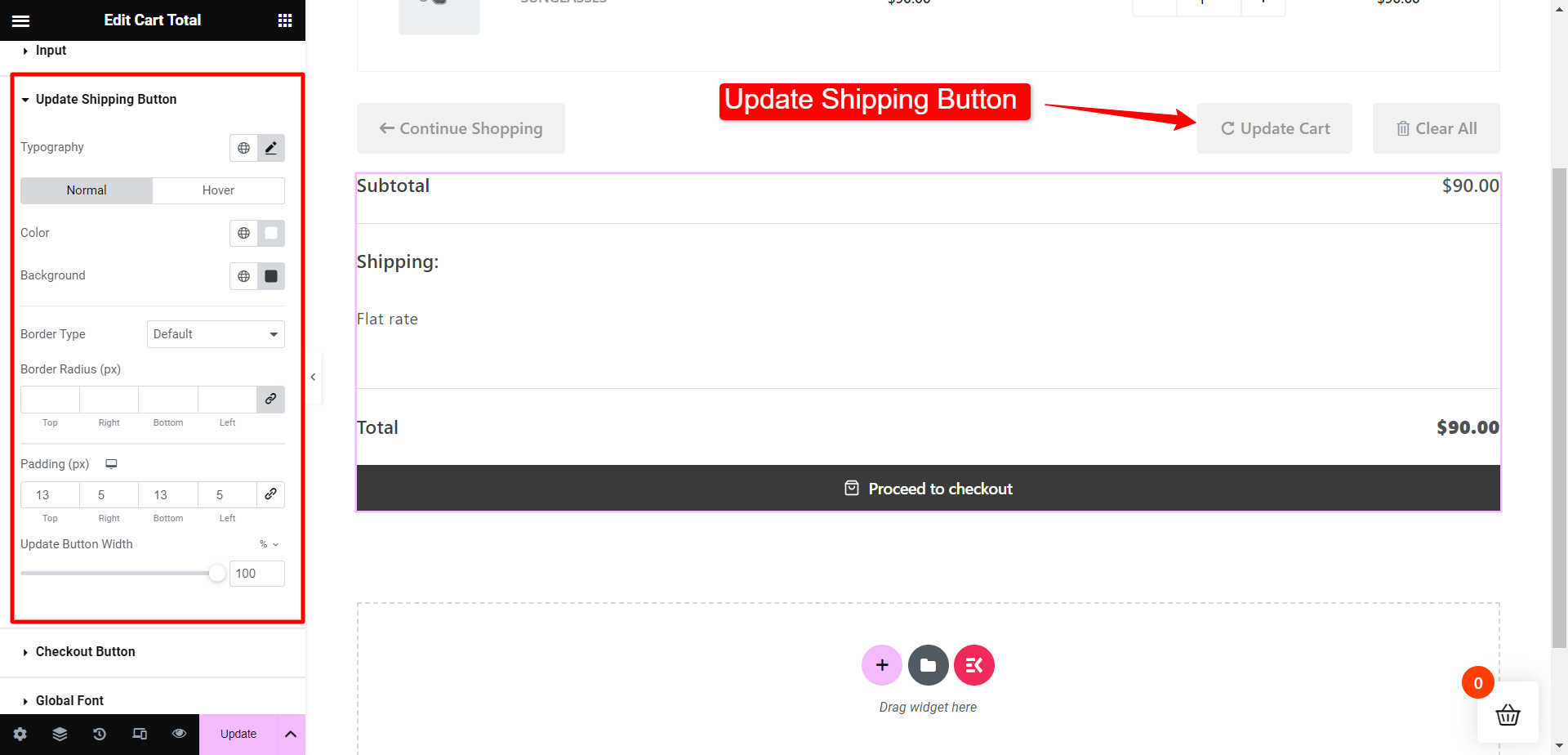
Ensuite, pour le Mettre à jour le bouton d'expédition , vous pouvez modifier la typographie, les couleurs des boutons, le type de bordure, le rayon de la bordure, etc.
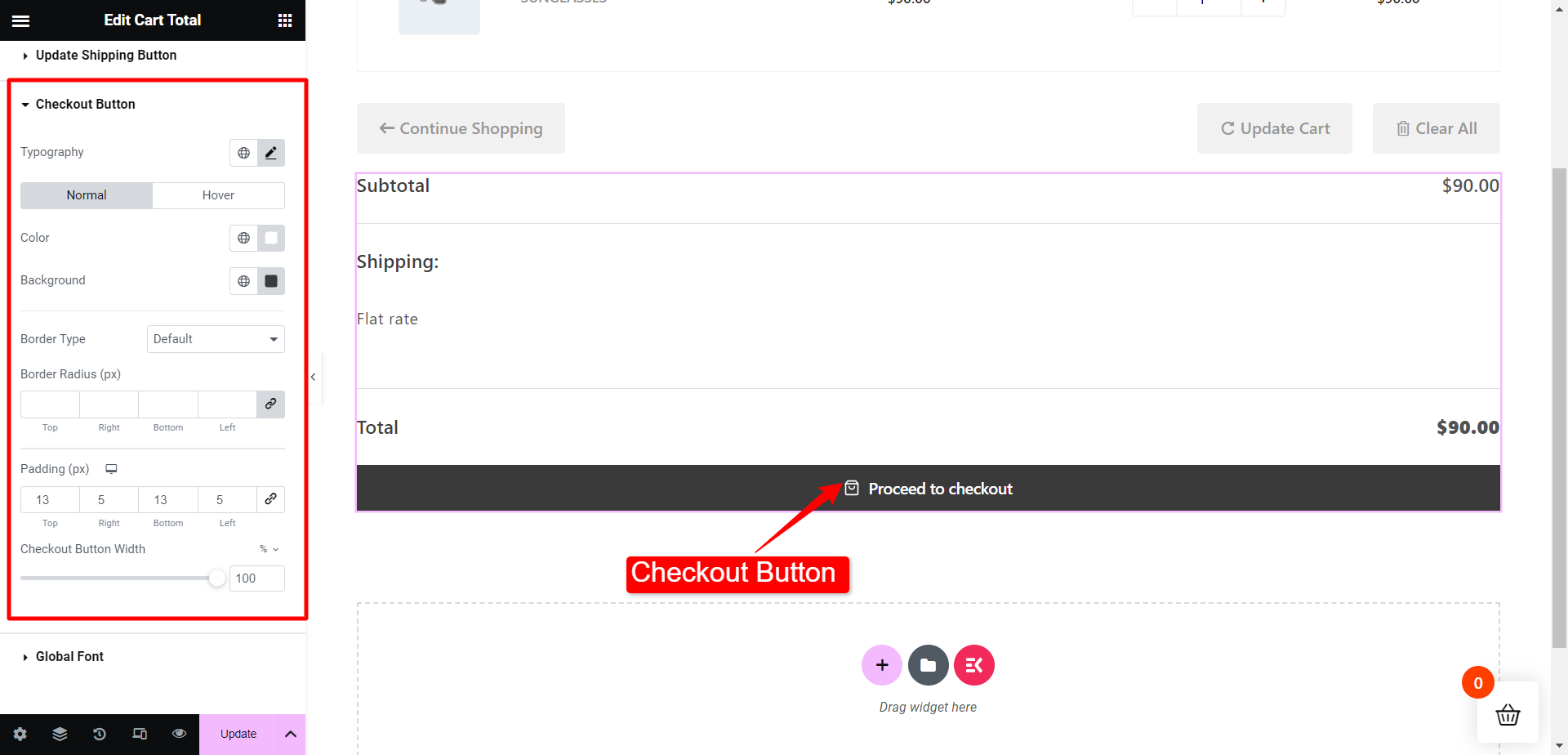
De même pour le Bouton de paiement , vous pouvez modifier la typographie, les couleurs des boutons, le type de bordure, le rayon de la bordure, etc.
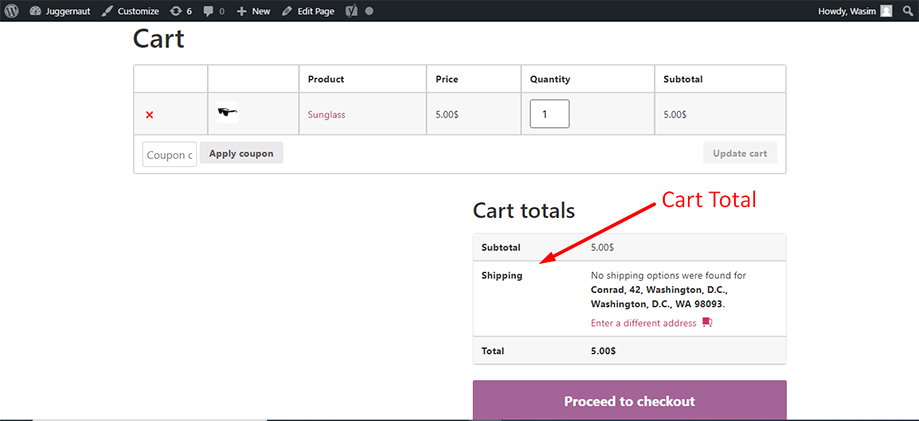
Le total du panier apparaît sur le devant comme affiché sous Totaux du panier dans la capture d'écran ci-dessous :
C'est ainsi que vous pouvez utiliser le widget ShopEngine Cart Total et égayer les éléments totaux de votre panier.


