
 Spanish
  English
  German
  Italian
  French
  Danish
  Portuguese
  Swedish
  Polish
  Korean
  Japanese
 Cart Total de ShopEngine es otro widget útil que puede darle vida a la tabla de su carrito. El widget le permite modificar diferentes elementos del total de su carrito, como el subtotal, el total, y proceder al botón de pago.
¿Cómo utilizar la tabla de carritos de ShopEngine?
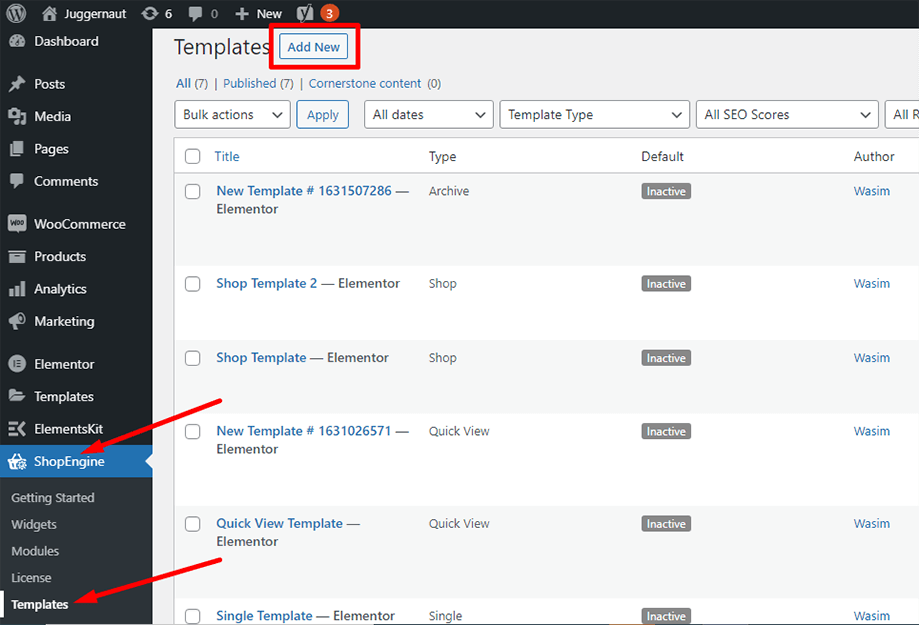
En primer lugar, vaya al panel de administración y busque ShopEngine en la lista de artículos. Haga clic en ShopEngine y luego seleccione Plantillas en el menú desplegable. Luego, haga clic en "Agregar nuevo"Botón en la parte superior derecha al lado del texto"Plantillas”.
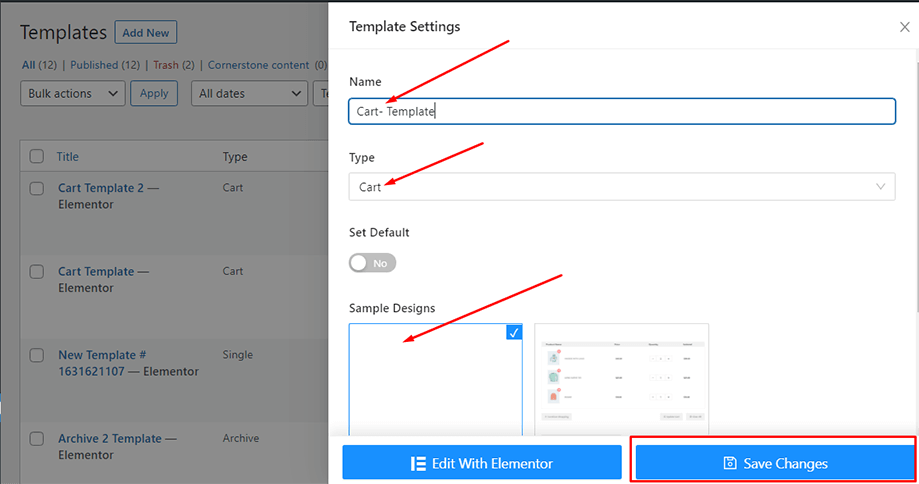
Inmediatamente después de eso, aparecerá una ventana emergente para la configuración de la plantilla. Establece el nombre de tu plantilla en el Nombre y seleccione el tipo Carrito ya que su objetivo es consultar el widget Tabla de carrito.
Además, puede elegir un diseño de muestra predeterminado o comenzar a diseñar desde cero. Finalmente, presione el botón "Guardar cambios" botón.
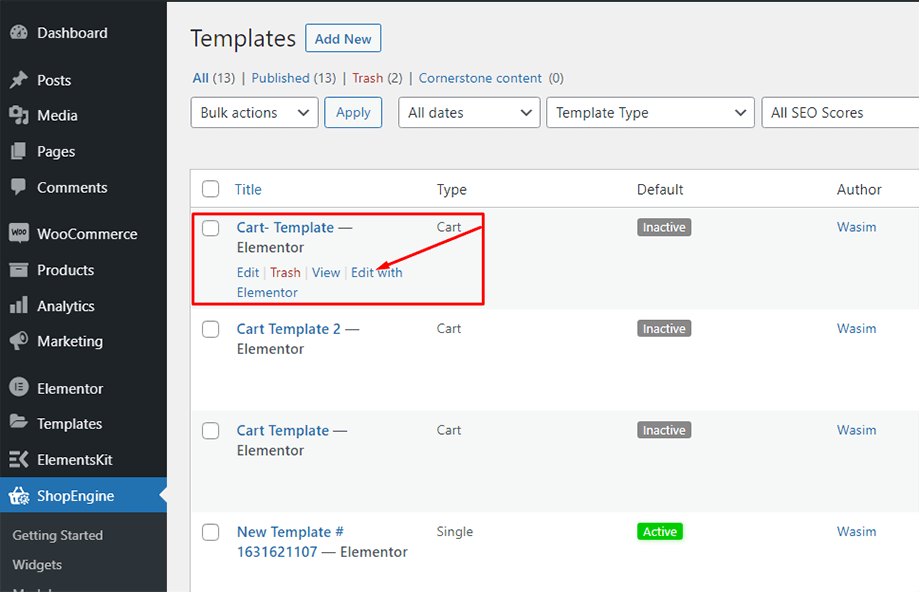
Su plantilla está creada y puede verla en la parte superior de la lista. Ahora, haga clic en "Editar con Elementor”para cambiar a la ventana de Elementor.
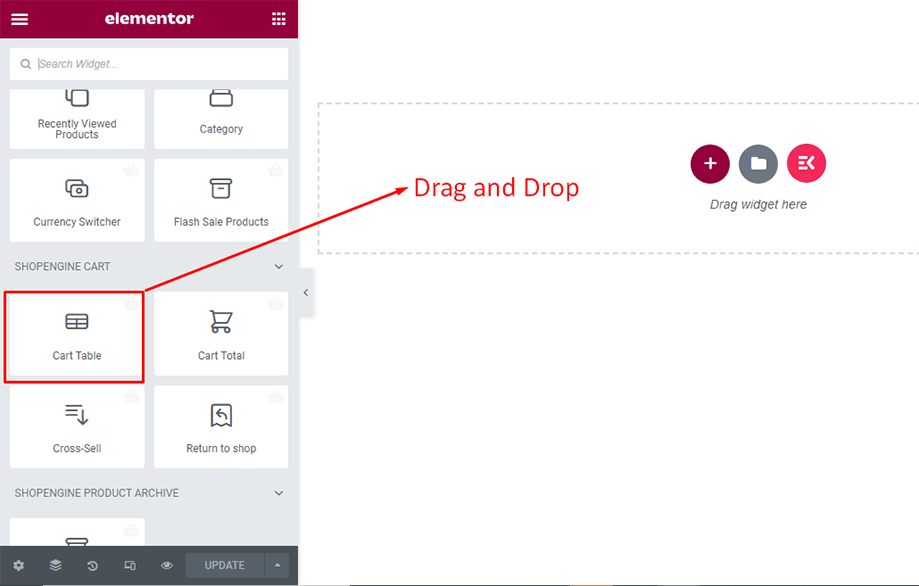
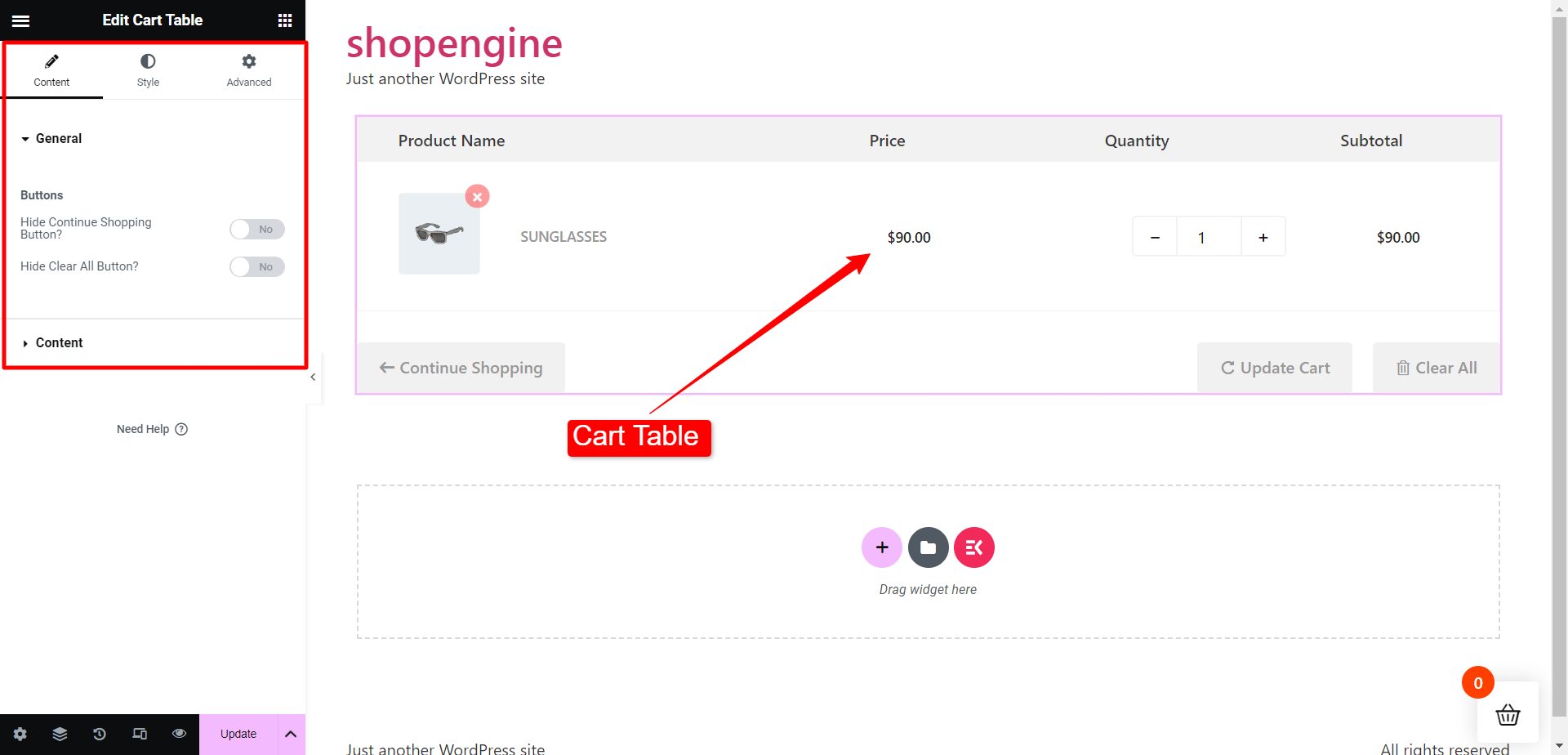
En este paso, verá una barra lateral a la izquierda con una lista de widgets de ShopEngine. Busque el widget Tabla del carrito en la sección Carrito de ShopEngine o normalmente puede buscar el widget en el campo de búsqueda y luego arrastrarlo y soltarlo en el área designada.
Esto abrirá una tabla de carrito con varios elementos, como nombre del producto, imagen del producto, precio, subtotal, cantidad y otros botones necesarios.
Ahora, busque el widget Total del carrito en la sección Carrito de ShopEngine o puede buscar el widget en el campo de búsqueda y luego arrastrarlo y soltarlo en el área asignada.
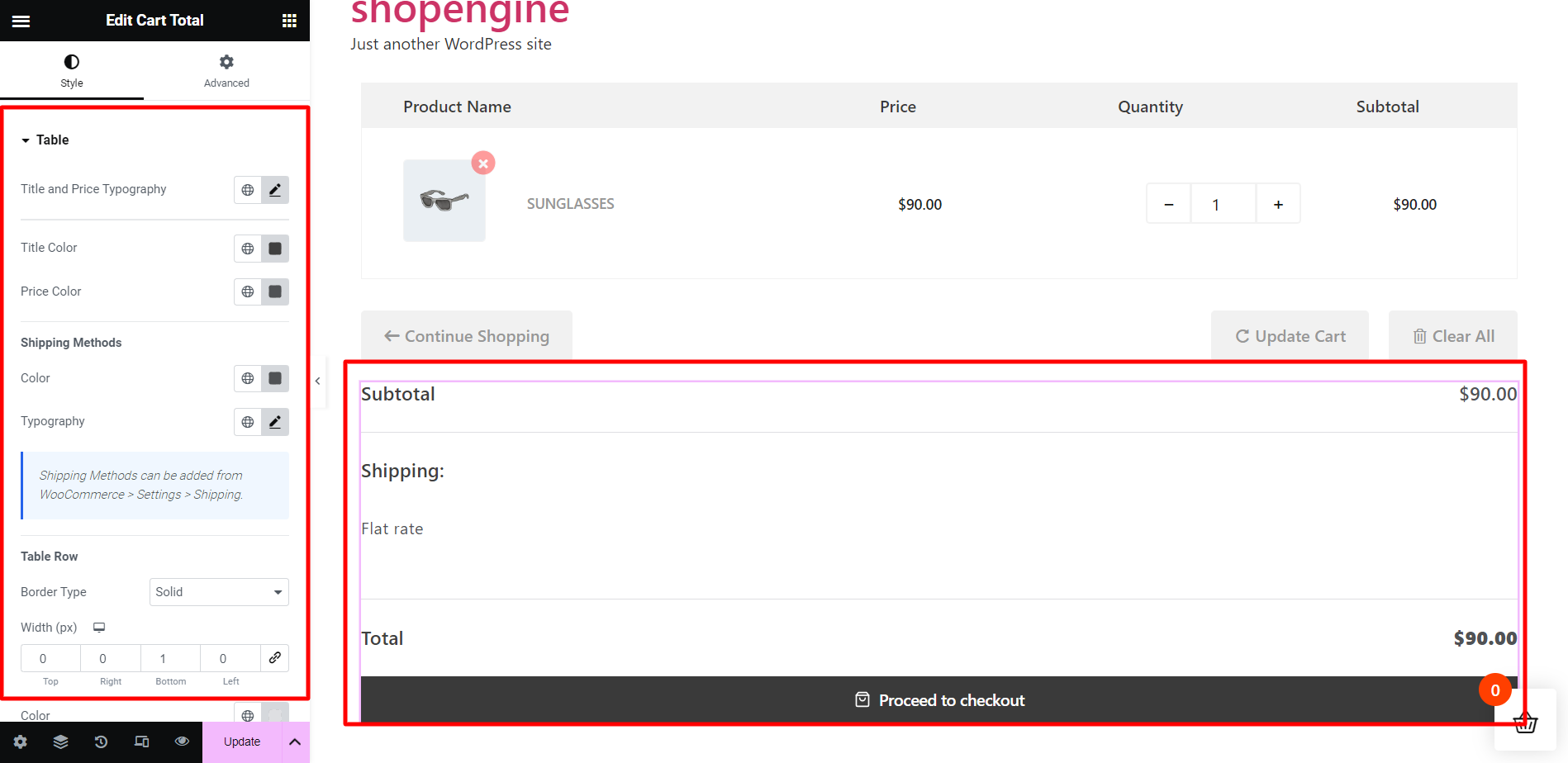
El widget del total del carrito aparecerá instantáneamente después de eso. Ahora puede realizar los ajustes necesarios desde la pestaña Estilo. Desde la sección Tabla del carrito, puede cambiar el título y la tipografía del precio, el color del título, el color del precio, etc.
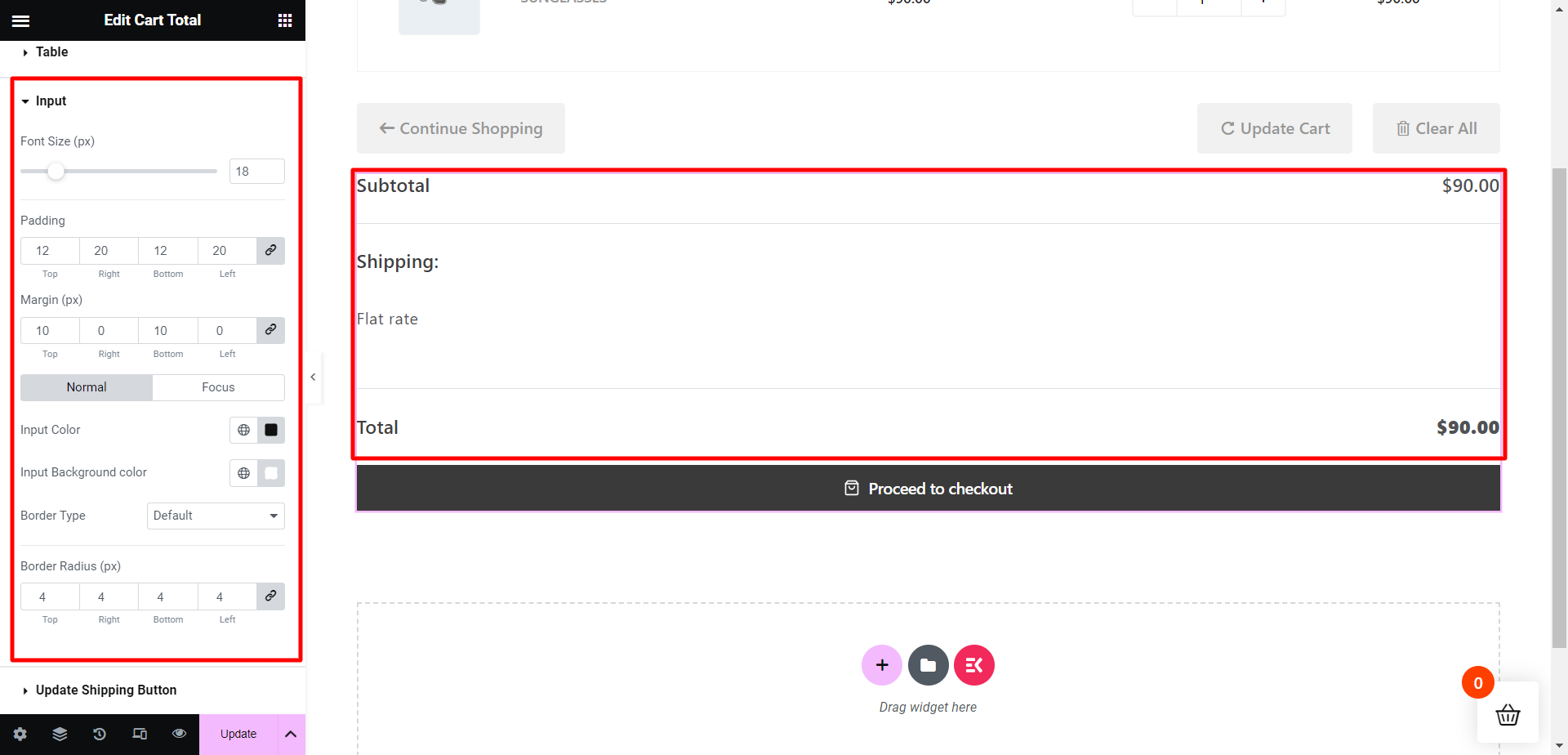
A continuación, desde la sección Entrada, puede ajustar el tamaño de fuente, el relleno, el margen, el color de entrada, el color de fondo de entrada, etc.
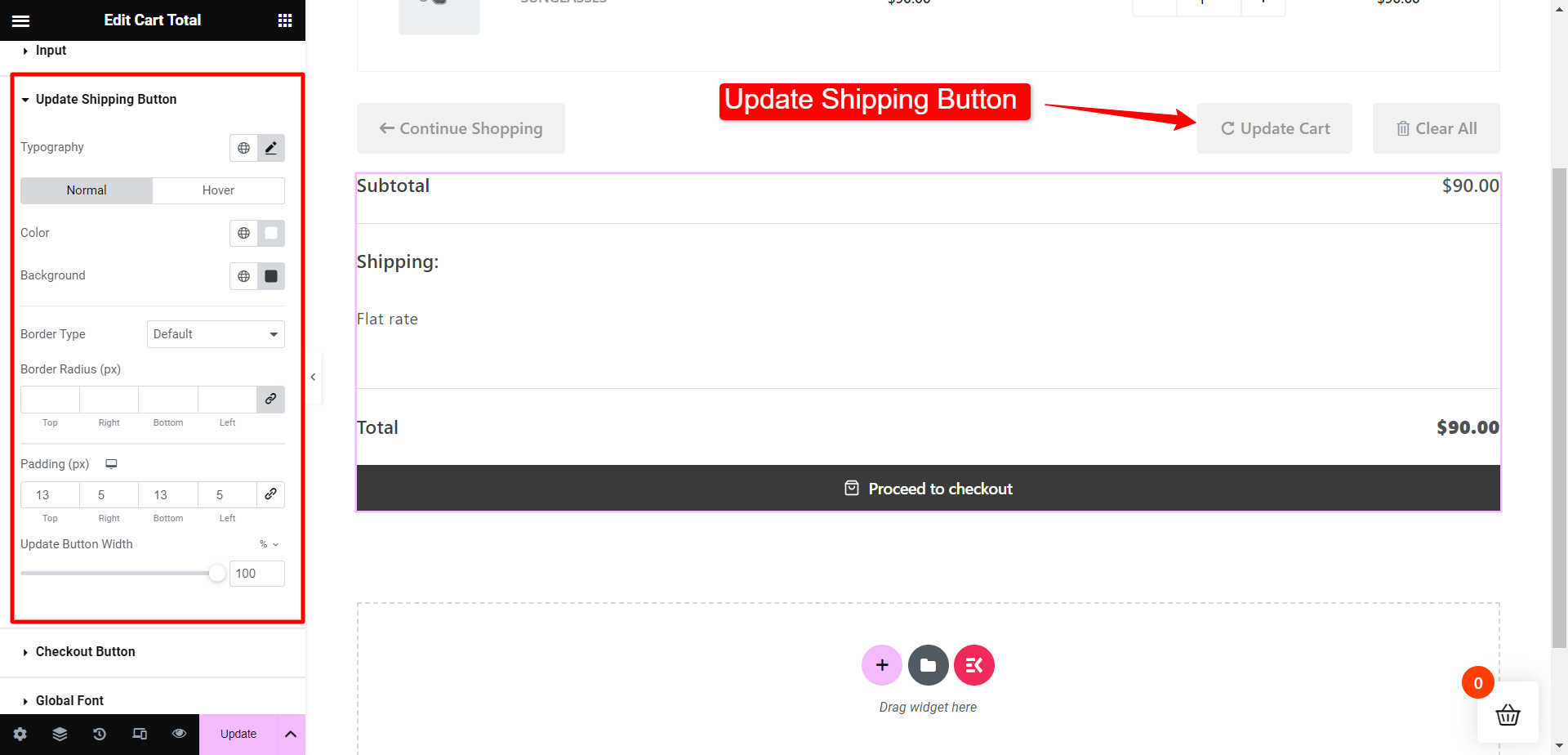
Entonces, para el Actualizar botón de envío sección, puede modificar la tipografía, los colores de los botones, el tipo de borde, el radio del borde, etc.
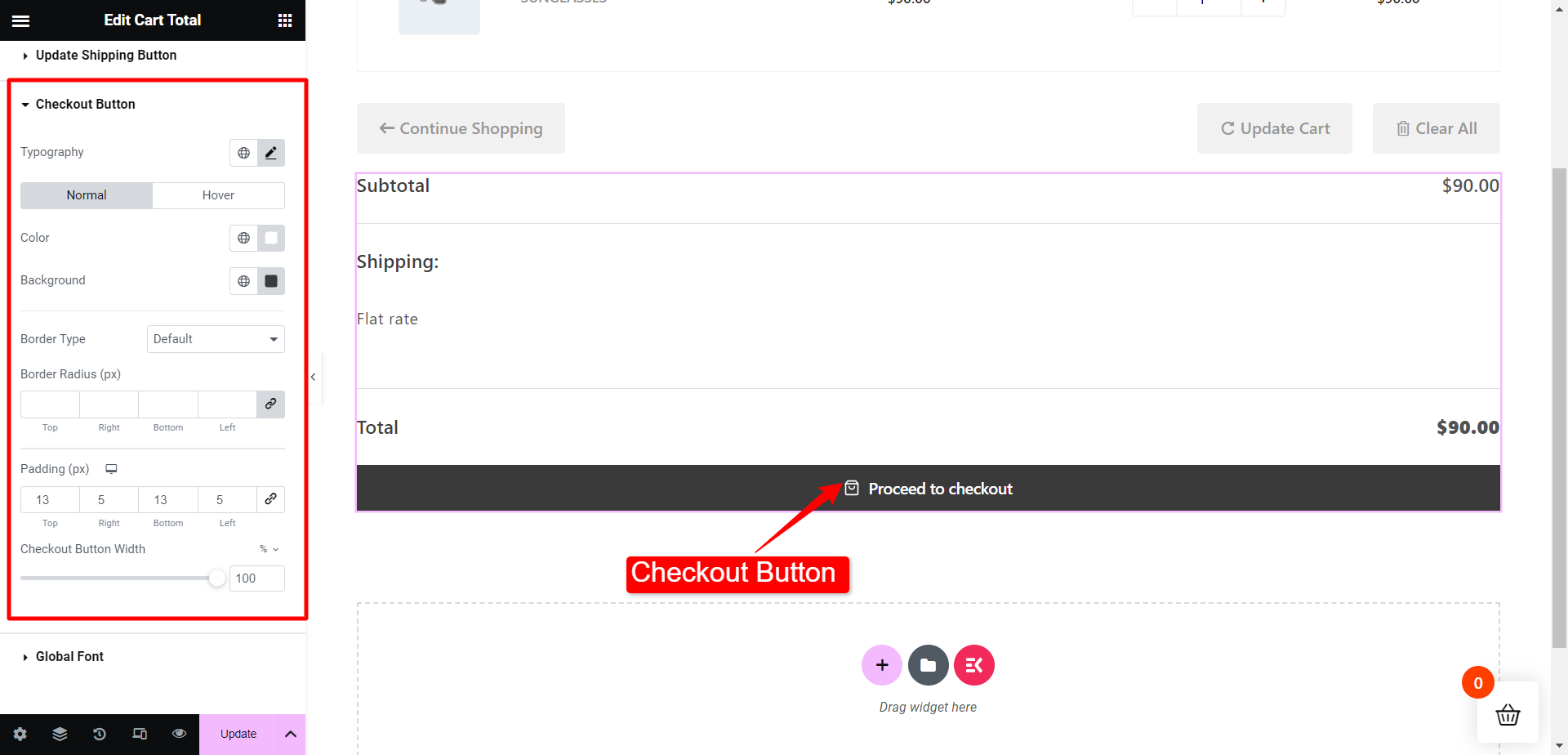
De manera similar para el Botón de pago sección, puede modificar la tipografía, los colores de los botones, el tipo de borde, el radio del borde, etc.
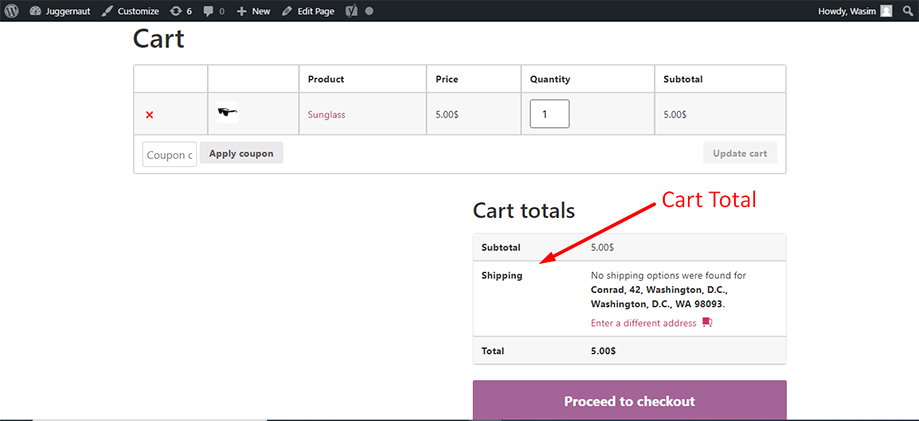
El total del carrito se ve en la parte frontal como se muestra en Totales del carrito en la captura de pantalla a continuación:
Así es como puede utilizar el widget ShopEngine Cart Total y mejorar los elementos totales de su carrito.


