
 German
  English
  Spanish
  Italian
  French
  Danish
  Portuguese
  Swedish
  Polish
  Korean
  Japanese
 Form duplication is one of the fine features of the MetForm form builder. MetForm allows you to duplicate a form easily whenever you need it. It is a hassle-free process that you can do within seconds. Most importantly, you can do it with the free version as well.
Let’s take a look at this document to learn how to duplicate a WordPress form with MetForm.
How to Duplicate a WordPress Form with MetForm #
If you’re looking to duplicate a WordPress form using the MetForm plugin, it means you already have MetForm installed and activated on your website.
So start from your WordPress dashboard and follow the steps below:
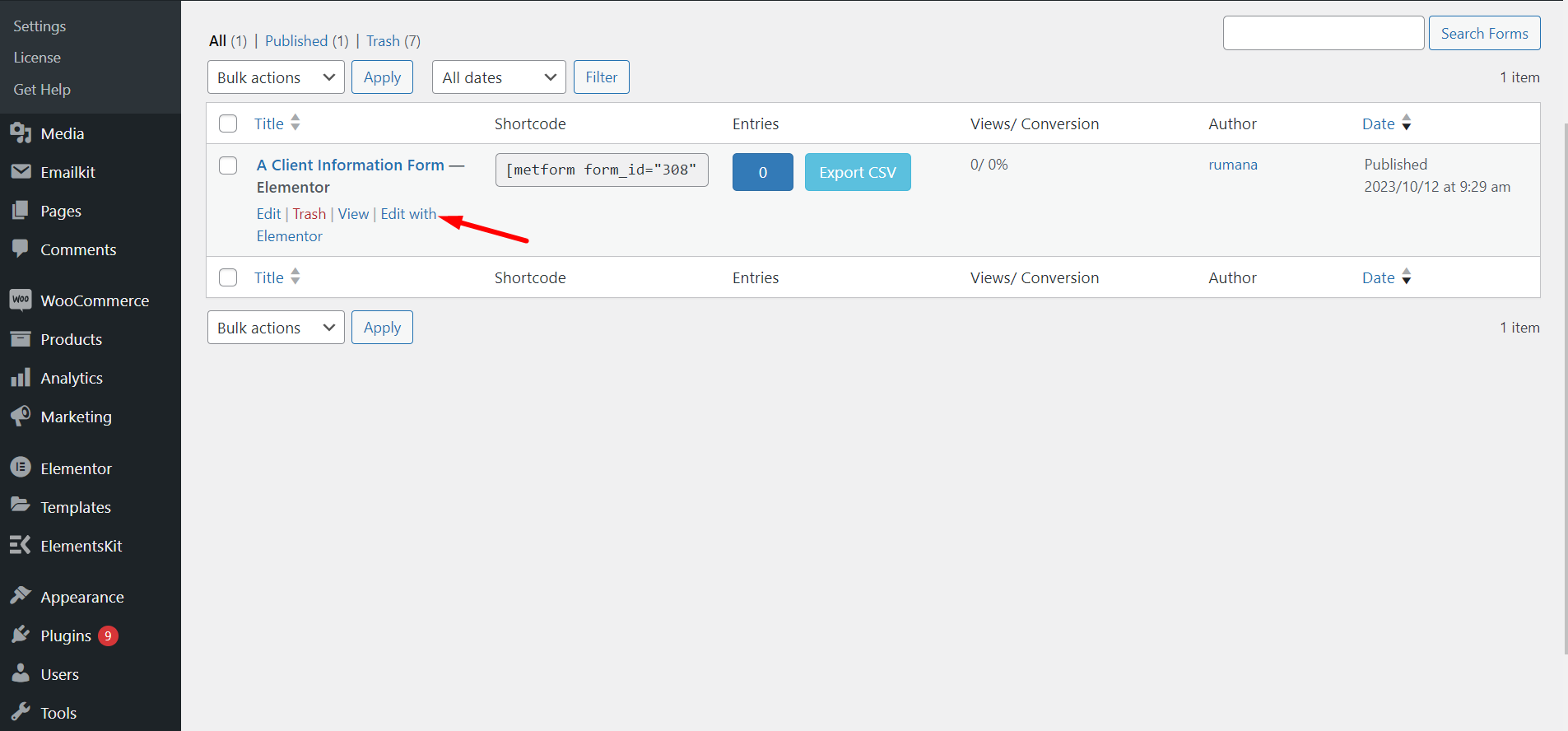
STEP-1: Select an Existing Form #
Gehen Sie zu Alle Formulare von MetForm -> Wählen Sie das Formular aus, das Sie duplizieren möchten, und klicken Sie auf Mit Elementor bearbeiten
STEP-2: Copy WordPress Form #
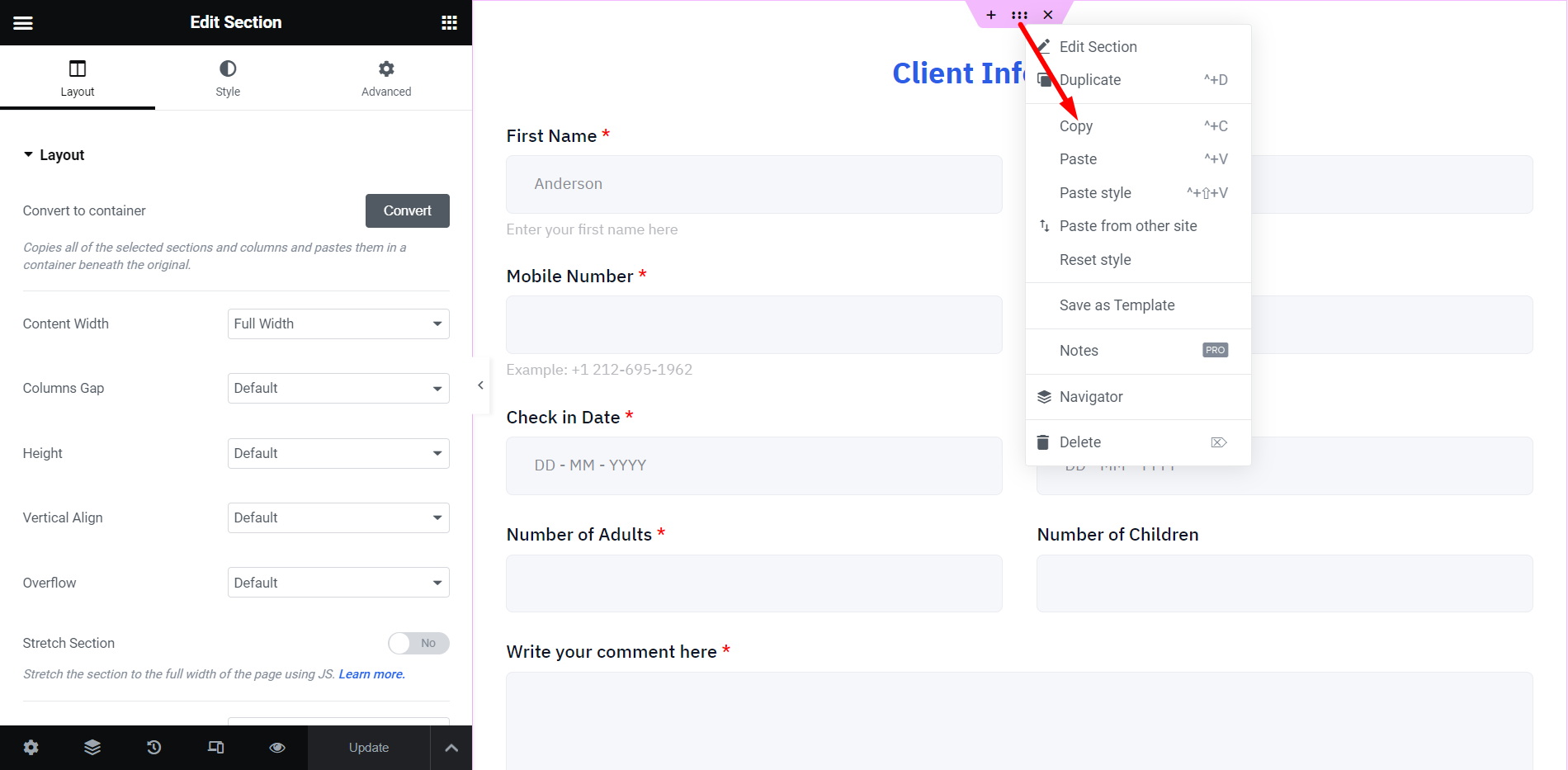
At this moment, you can see the MetForm builder interface on your screen. To copy this form, right-click on the dashboard and select “Copy All Content”. Here, the form we have duplicated is the ‘Client Information Form’.
Here, one thing you need to note is that if you want to duplicate a specific part of an existing form. through copying an element or container.
Do note that you can also duplicate a specific part of an existing form. To do this, drag the mouse cursor to a container and right-click on the container, here click on the “Kopieren" Möglichkeit.
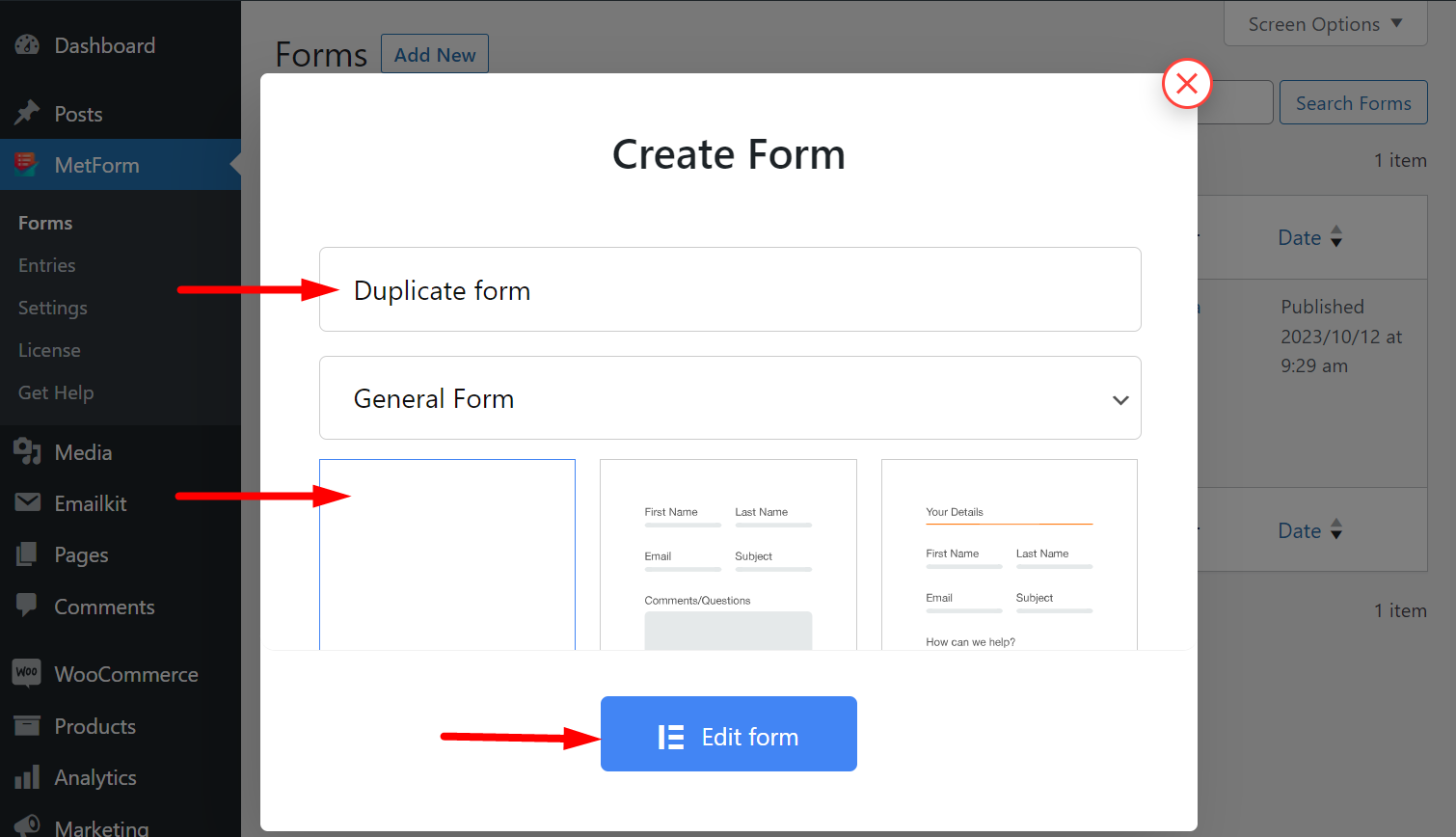
STEP-3: Add a New Form #
Gehen Sie als Nächstes zurück zu MetForm und erstellen Sie ein neues Formular. Geben Sie dem Formular zunächst einen Namen, nehmen Sie eine leere Vorlage und bearbeiten Sie das Formular. Hier ist das Formular „Duplicate Form“.
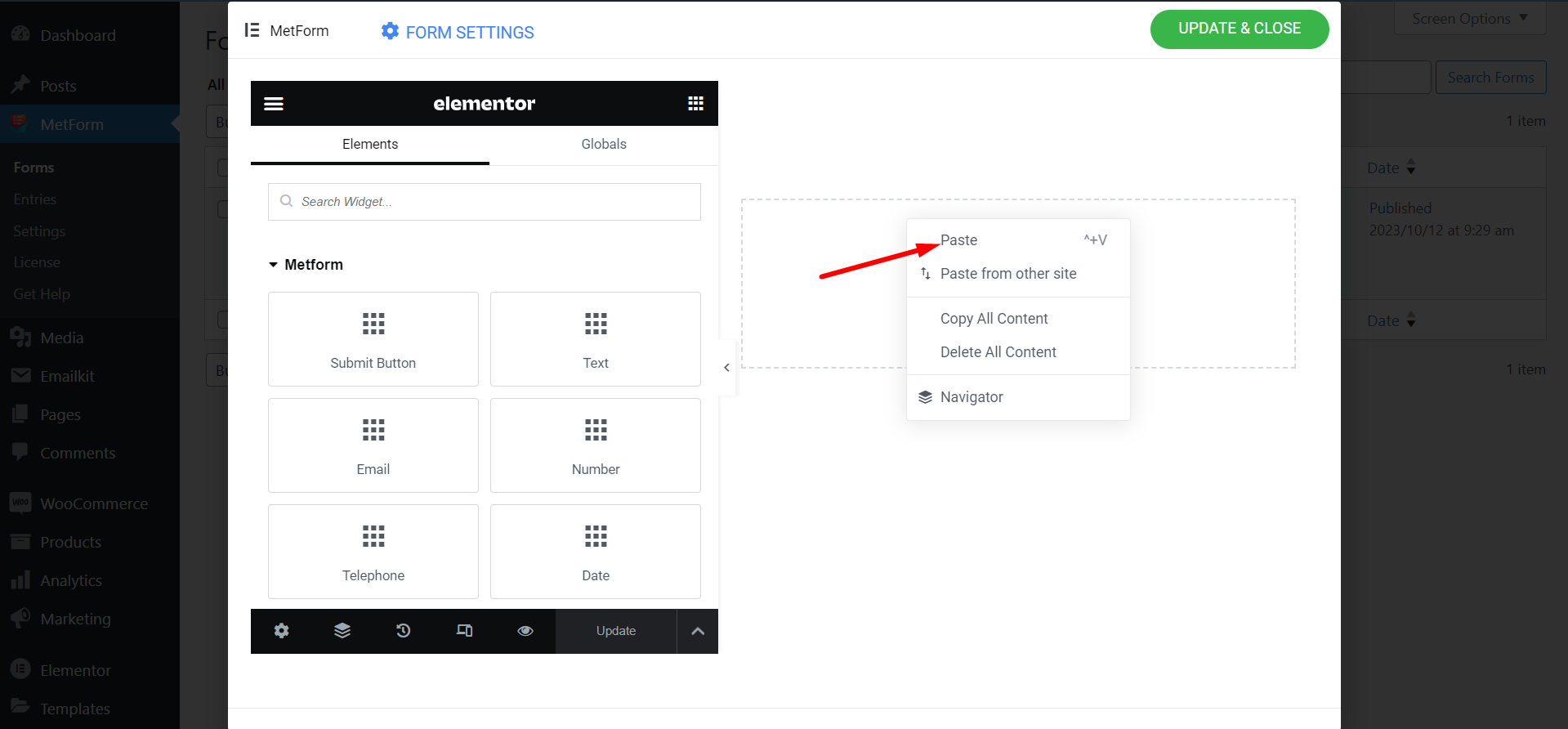
STEP-4: Paste Copied Content #
Fügen Sie nun das zuvor kopierte Formular ein.
STEP-5: Preview New Form #
Das neue Formular wurde erfolgreich erstellt. Sehen Sie sich jetzt beide Formulare an.
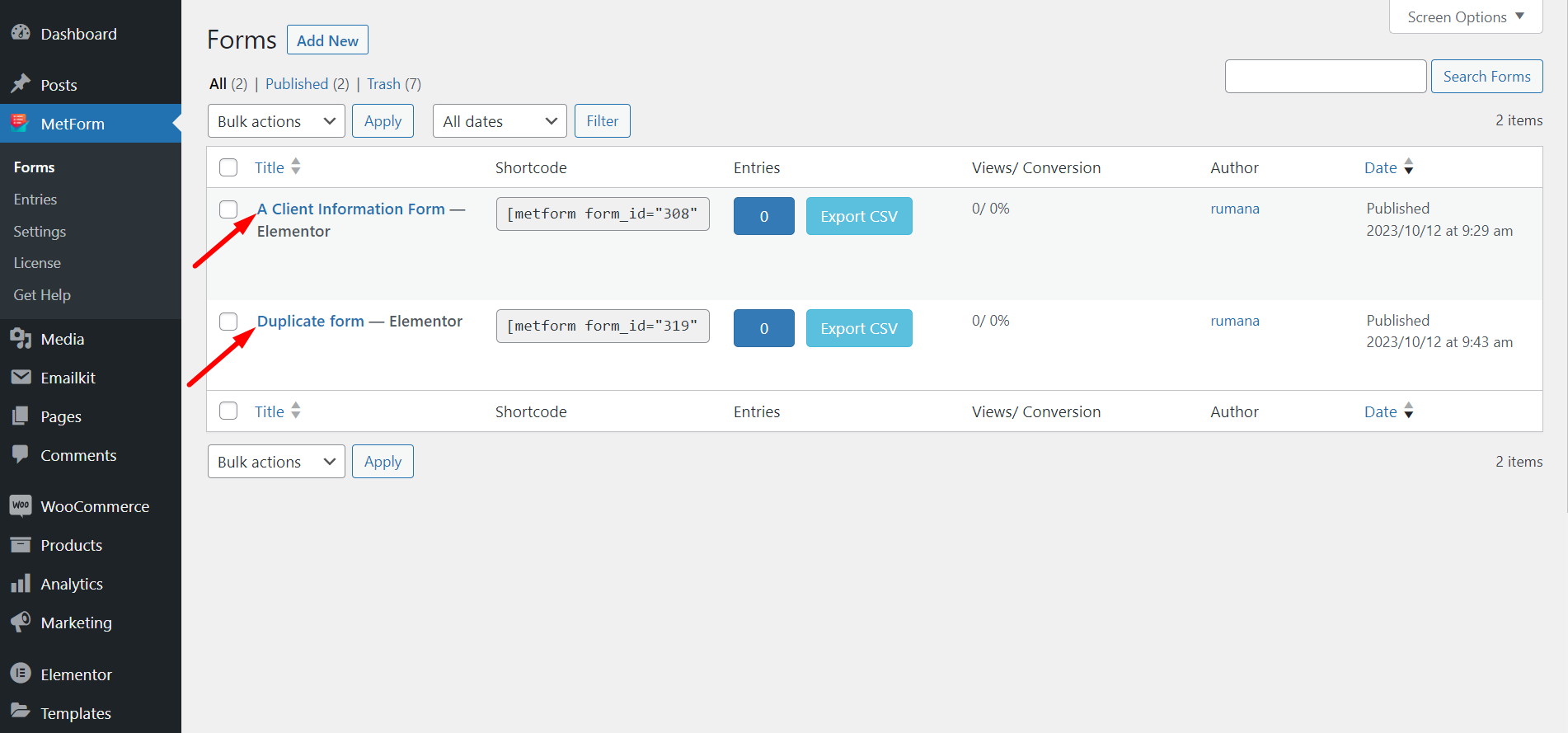
STEP-6: Form Duplication Success! #
Sie haben das Formular erfolgreich dupliziert.
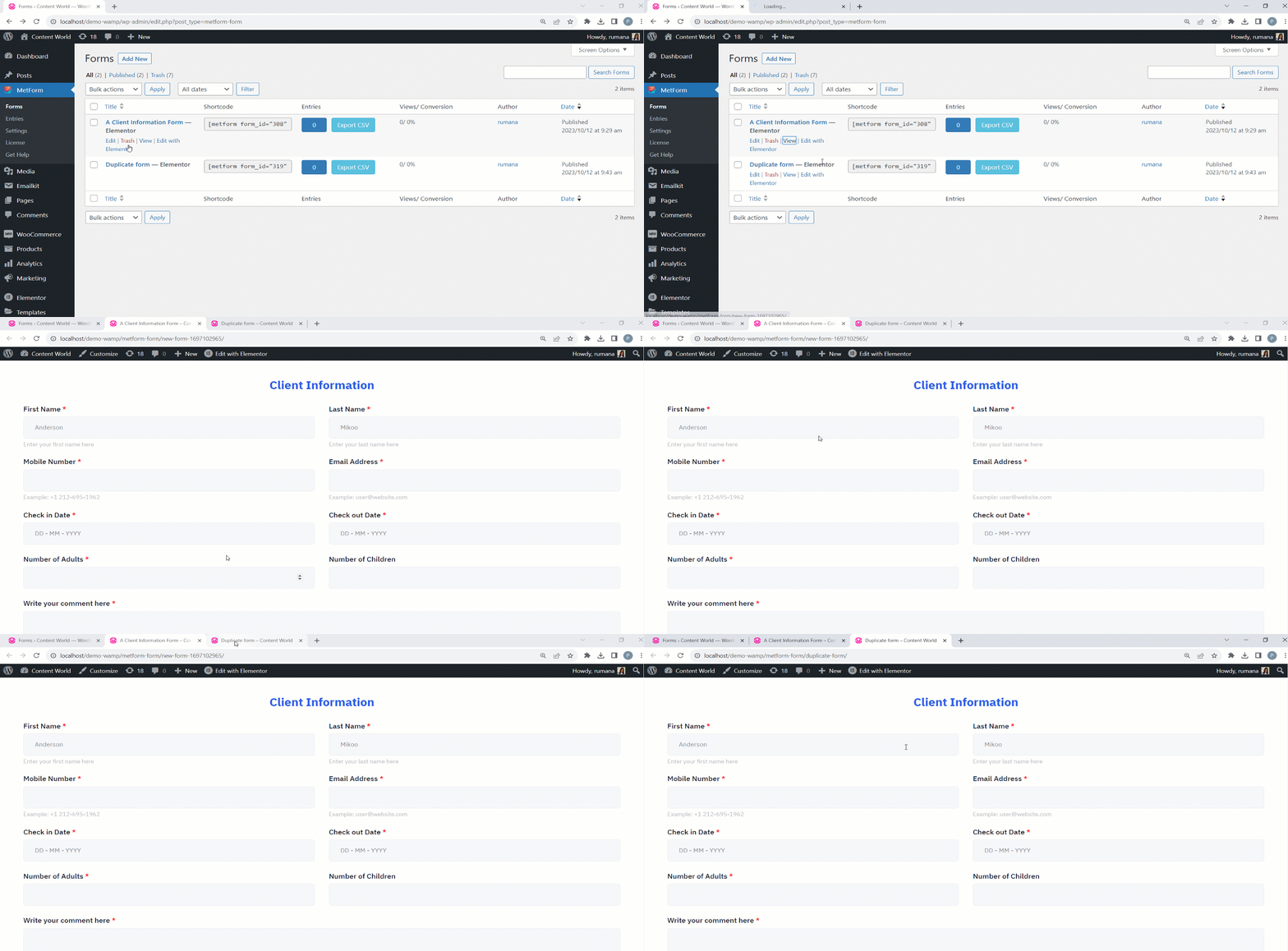
Befolgen Sie die Schritte und sparen Sie Zeit und Mühe, indem Sie die Struktur und das Layout des Originalformulars kopieren.


