




 German
  English
  Spanish
  Italian
  French
  Danish
  Portuguese
  Swedish
  Polish
  Korean
  Japanese
 Using the best form builder MetForm, you can easily set WordPress forms email notifications. Just follow the steps we have shared here.
- Zum Einrichten Notification Emails, Erste Erstellen Sie ein Formular
So erstellen Sie ein Formular #
Folge dem Video-Screencast:
Or Follow the Step By Step Process
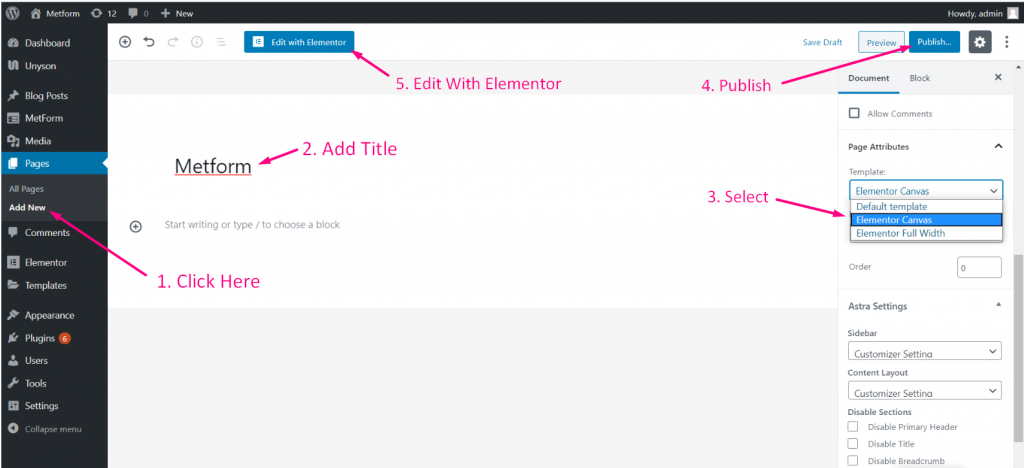
Schritt=>1: Gehe zu Armaturenbrett=> Seiten=> Neue hinzufügen=>
- Hinzufügen Seitentitel
- Vorlage auswählen Elementor-Leinwand
- Klicke auf Veröffentlichen
- Bearbeiten mit Elementor
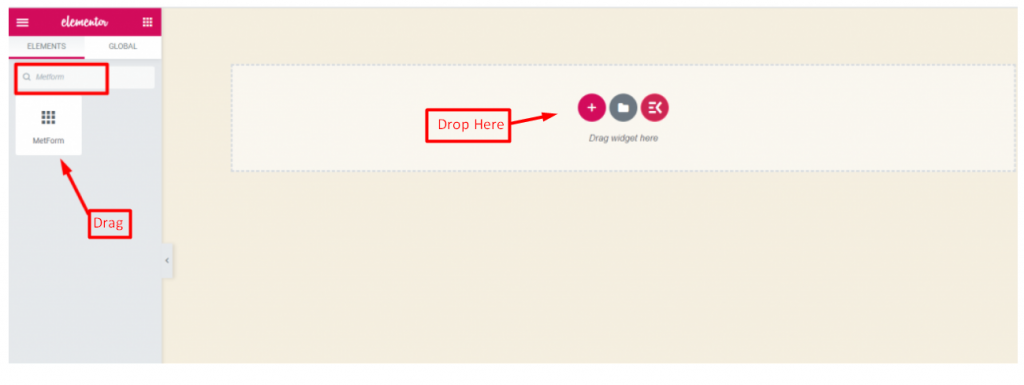
- Schritt=>2: Suchen nach Metform=> Drag-and-Drop
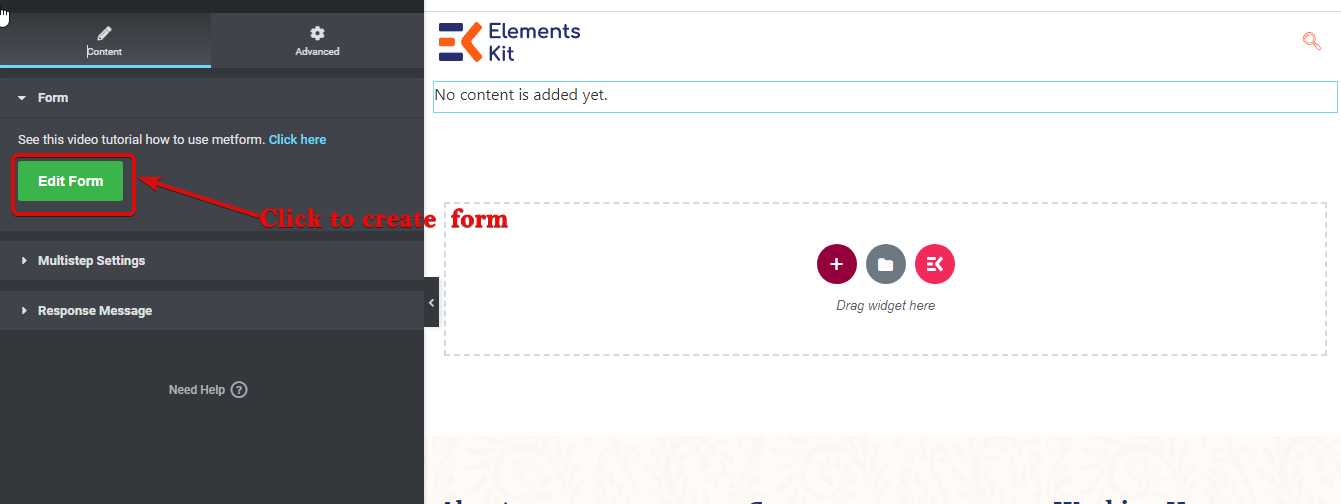
- Schritt=>3: Klicken Sie auf das ausgewählte Symbol
- Schritt=>4: Select the form option from the previously created form
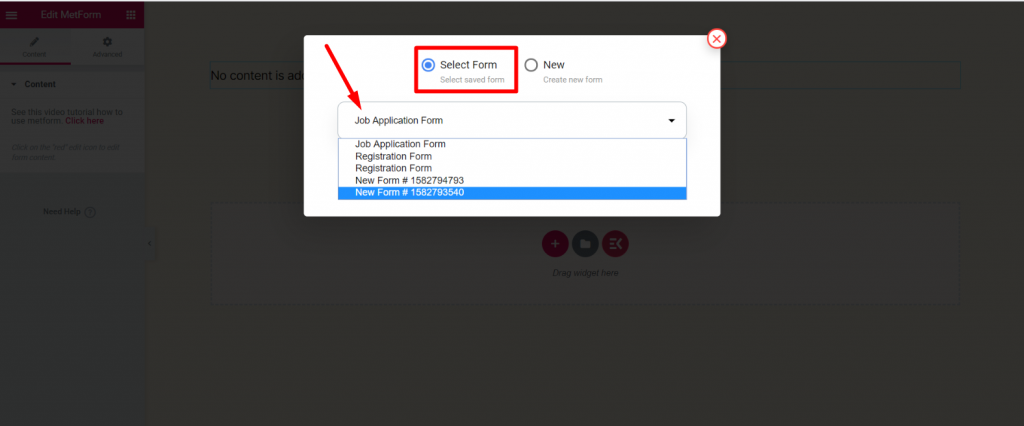
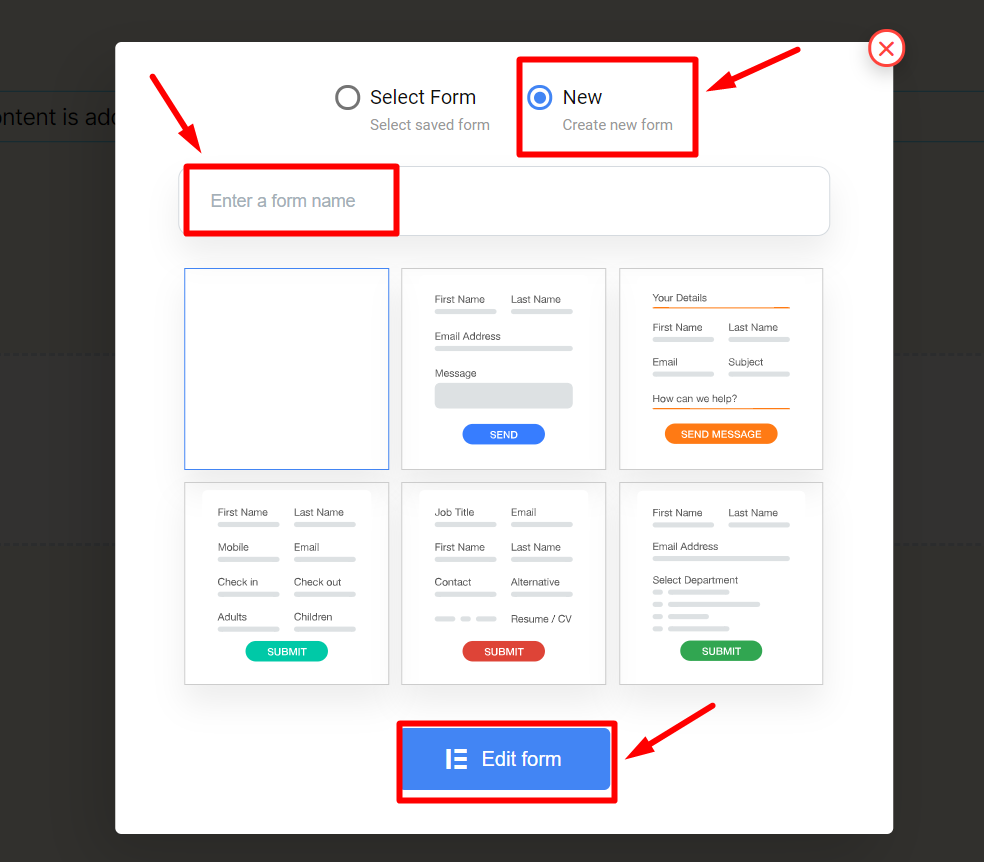
- Oder Sie können auswählen Neu=> Geben Sie Ihre ein Formularname=> Klicken Sie auf Formular bearbeiten
- Der Erstelltes Formular erscheint => Klicken Sie auf Formulareinstellung
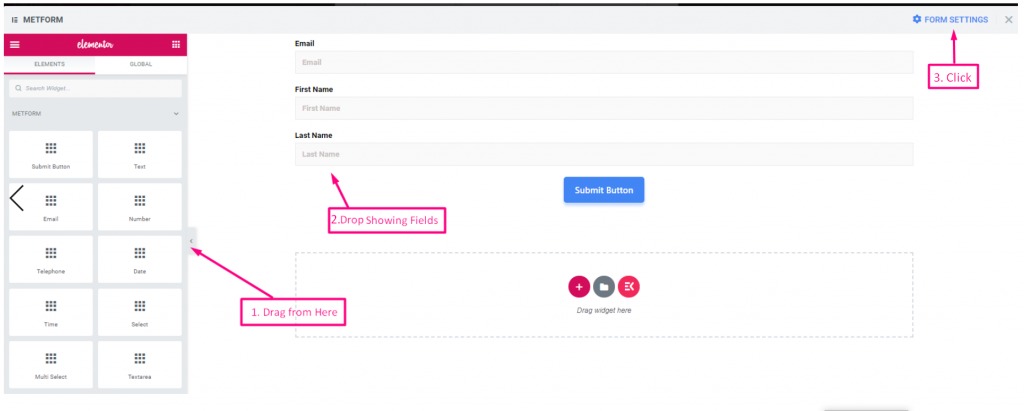
Formulareinstellung #
Gehe zu Formulareinstellung=> Notification Email
Notification Email #
You can send a submission copy to the admin by email. You can also set different WordPress forms email notifications for separate Forms.
- Follow the video Screen-cast
Or follow the step-by-step Process
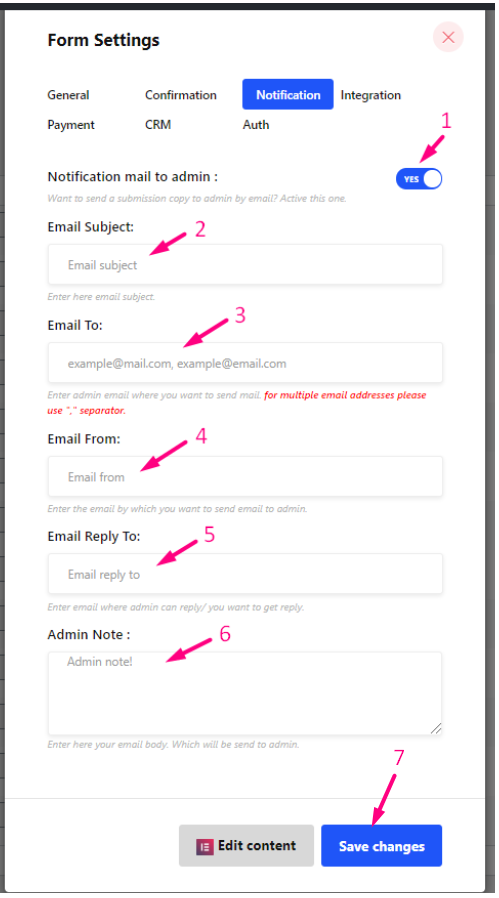
Schritt=>1: Navigieren Sie zu Form Settings → Notifications
- Toggle the Notification mail to admin Möglichkeit: Notify admin after user submission is completed or any type of customer data is processed.
- E-Mail Betreff: Provide the subject of the email.
- E-Mail an: Enter the admin email where you want to send mail. For multiple email addresses please use “,” separator.
- E-Mail von: Enter the email by which you want to send an email to the admin.
- E-Mail-Antwort an: Enter an email where the admin can reply or you want to get a reply.
- Administratorhinweis: Enter here your email body, which will send to the admin.
- Speichern Sie die Änderungen.
Conditional Admin Email Routing #
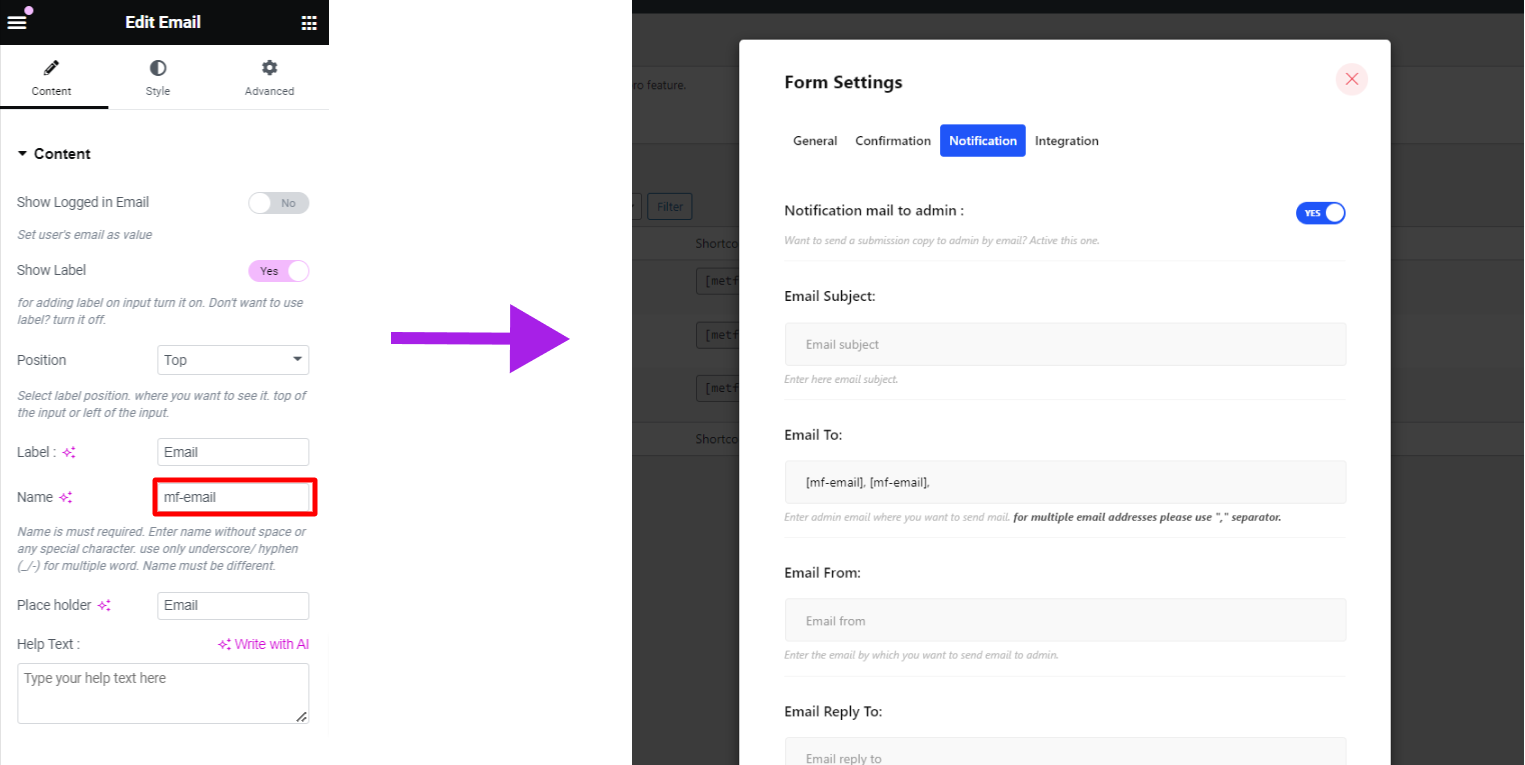
One new feature of MetForm is dynamic and conditional admin settings for your email form. You can set conditional admin email routing that allows you to send the form to a different email address based on the selections made on the form. Get tags from different widgets like dropdowns, checkboxes, buttons, text widgets, etc, and assign these tags to “E-Mail an” fields to send forms to the right team automatically.
For instance, all purchase-related forms should be directed to the sales team, while forms related to technical issues should be sent to the support team.



