


 Danish
  English
  German
  Spanish
  Italian
  French
  Portuguese
  Swedish
  Polish
  Korean
  Japanese
 Form duplication is one of the fine features of the MetForm form builder. MetForm allows you to duplicate a form easily whenever you need it. It is a hassle-free process that you can do within seconds. Most importantly, you can do it with the free version as well.
Let’s take a look at this document to learn how to duplicate a WordPress form with MetForm.
How to Duplicate a WordPress Form with MetForm #
If you’re looking to duplicate a WordPress form using the MetForm plugin, it means you already have MetForm installed and activated on your website.
So start from your WordPress dashboard and follow the steps below:
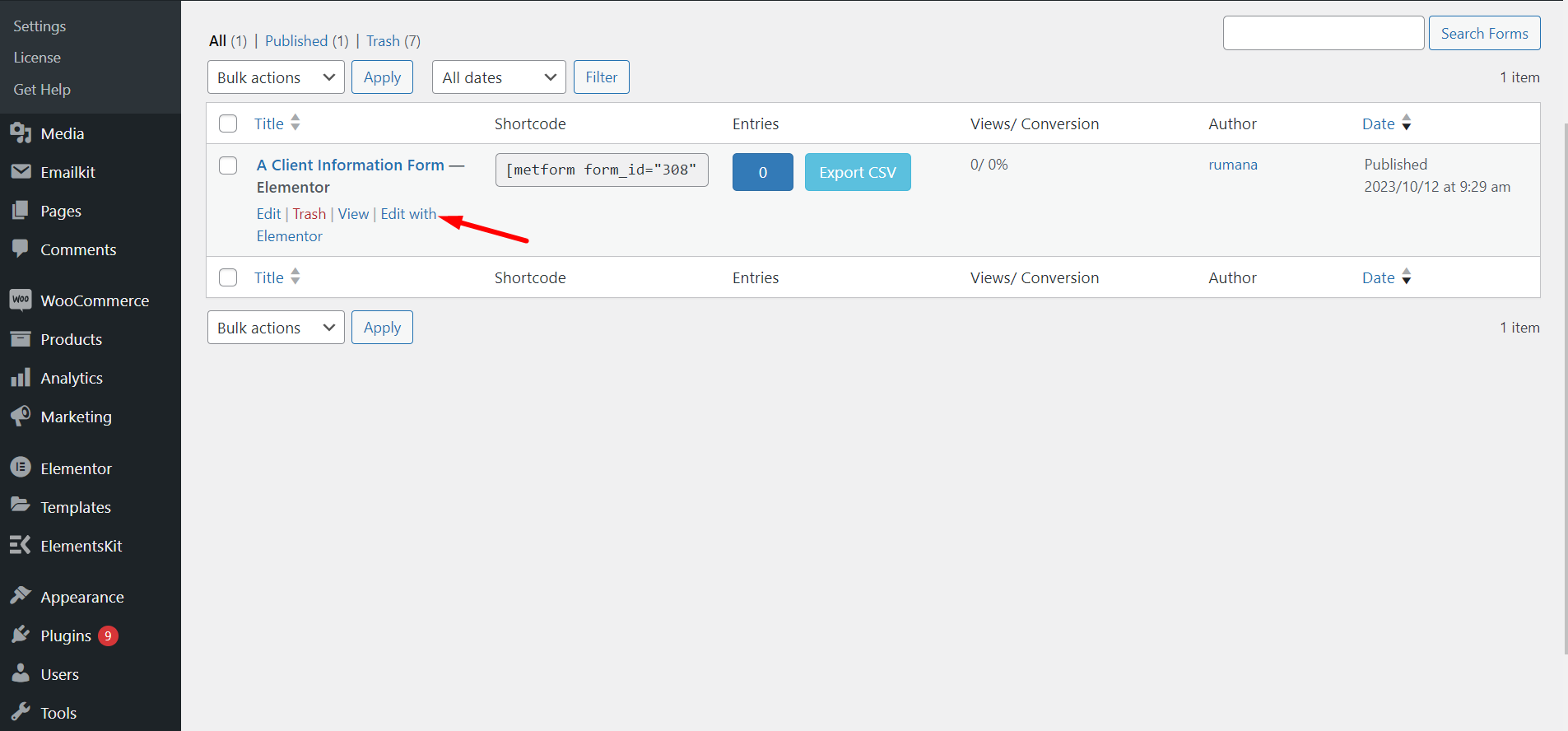
TRIN 1: Select an Existing Form #
Gå til Alle formularer fra MetForm -> Vælg den formular, du skal duplikere, og klik på Rediger med Elementor
TRIN-2: Copy WordPress Form #
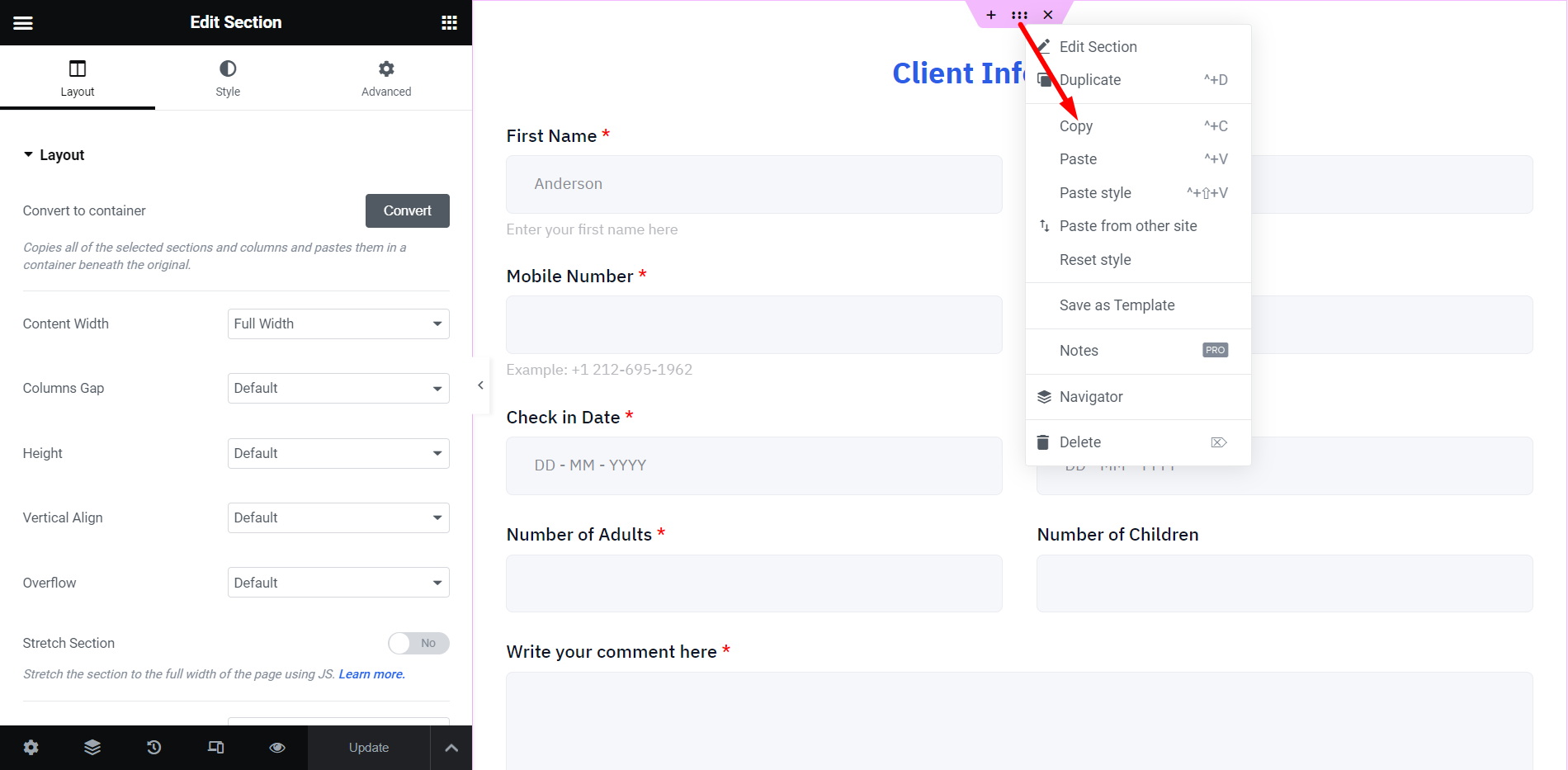
At this moment, you can see the MetForm builder interface on your screen. To copy this form, right-click on the dashboard and select “Copy All Content”. Here, the form we have duplicated is the ‘Client Information Form’.
Here, one thing you need to note is that if you want to duplicate a specific part of an existing form. through copying an element or container.
Do note that you can also duplicate a specific part of an existing form. To do this, drag the mouse cursor to a container and right-click on the container, here click on the “Kopi" mulighed.
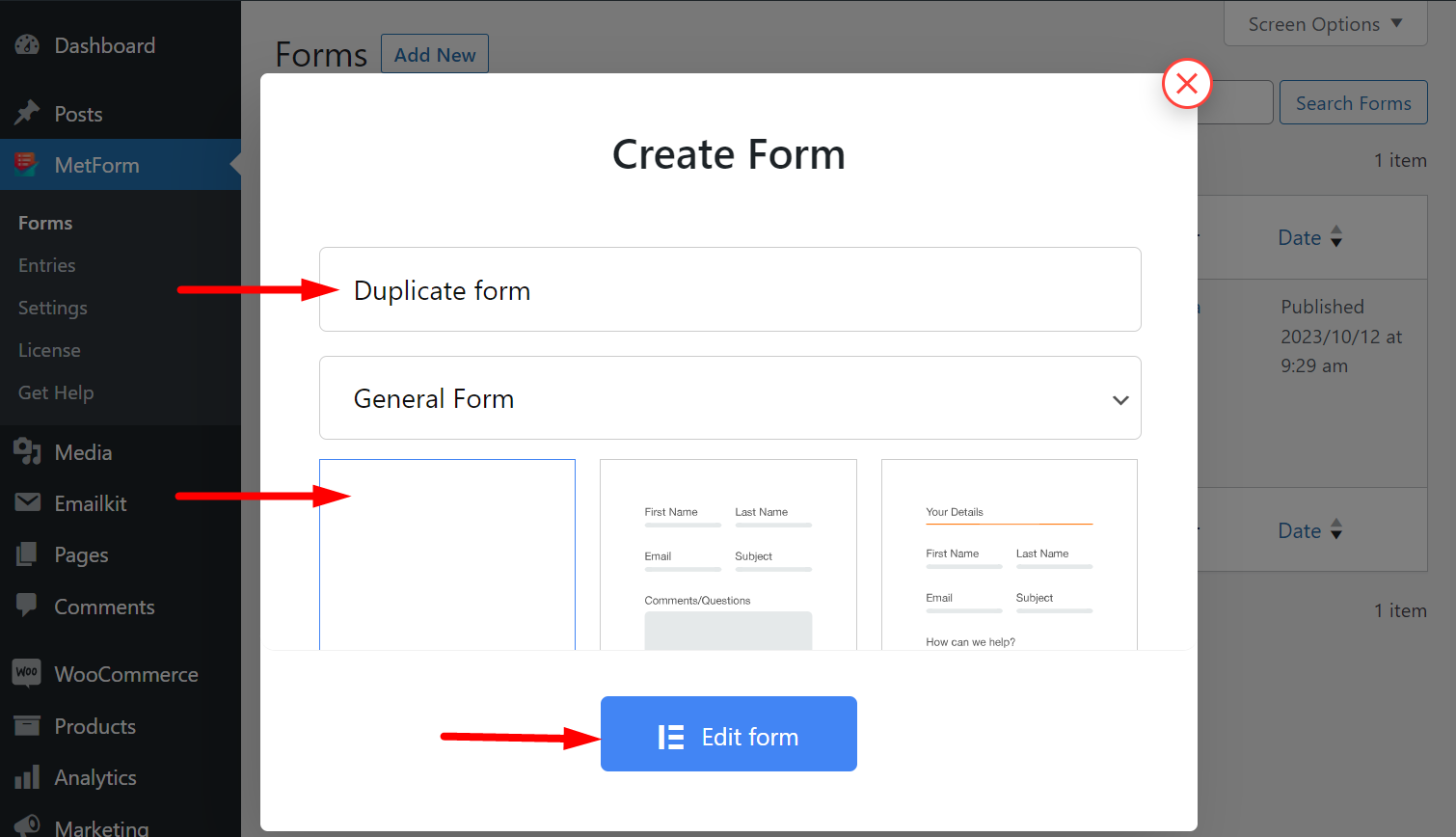
STEP-3: Add a New Form #
Gå derefter tilbage til MetForm og opret en ny formular. Begynd at give et navn til formularen, tag en tom skabelon, og rediger formularen. Her er formularen 'Duplicate Form'.
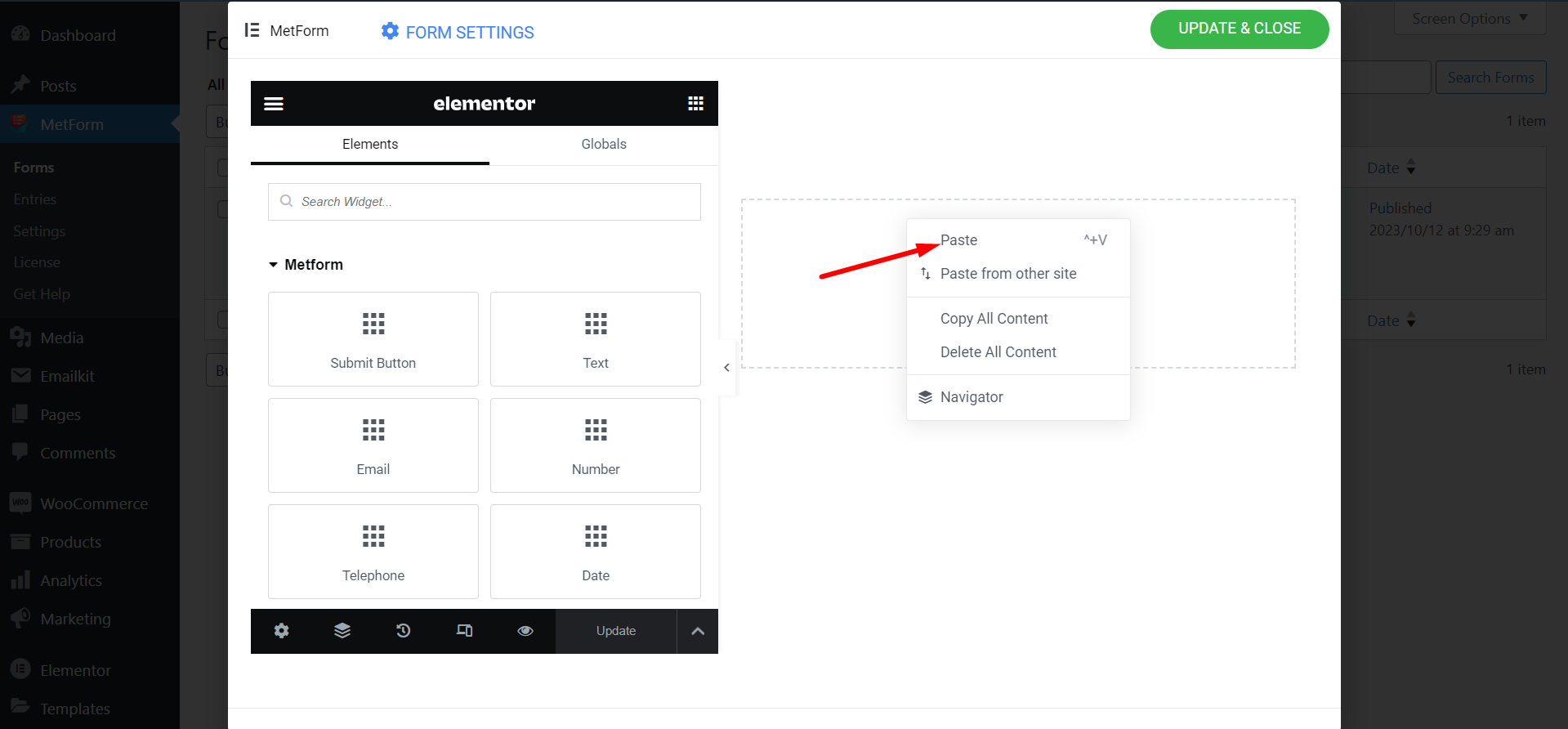
STEP-4: Paste Copied Content #
Indsæt nu formularen, du tidligere har kopieret.
STEP-5: Preview New Form #
Den nye formular er blevet oprettet. Se nu begge formularer.
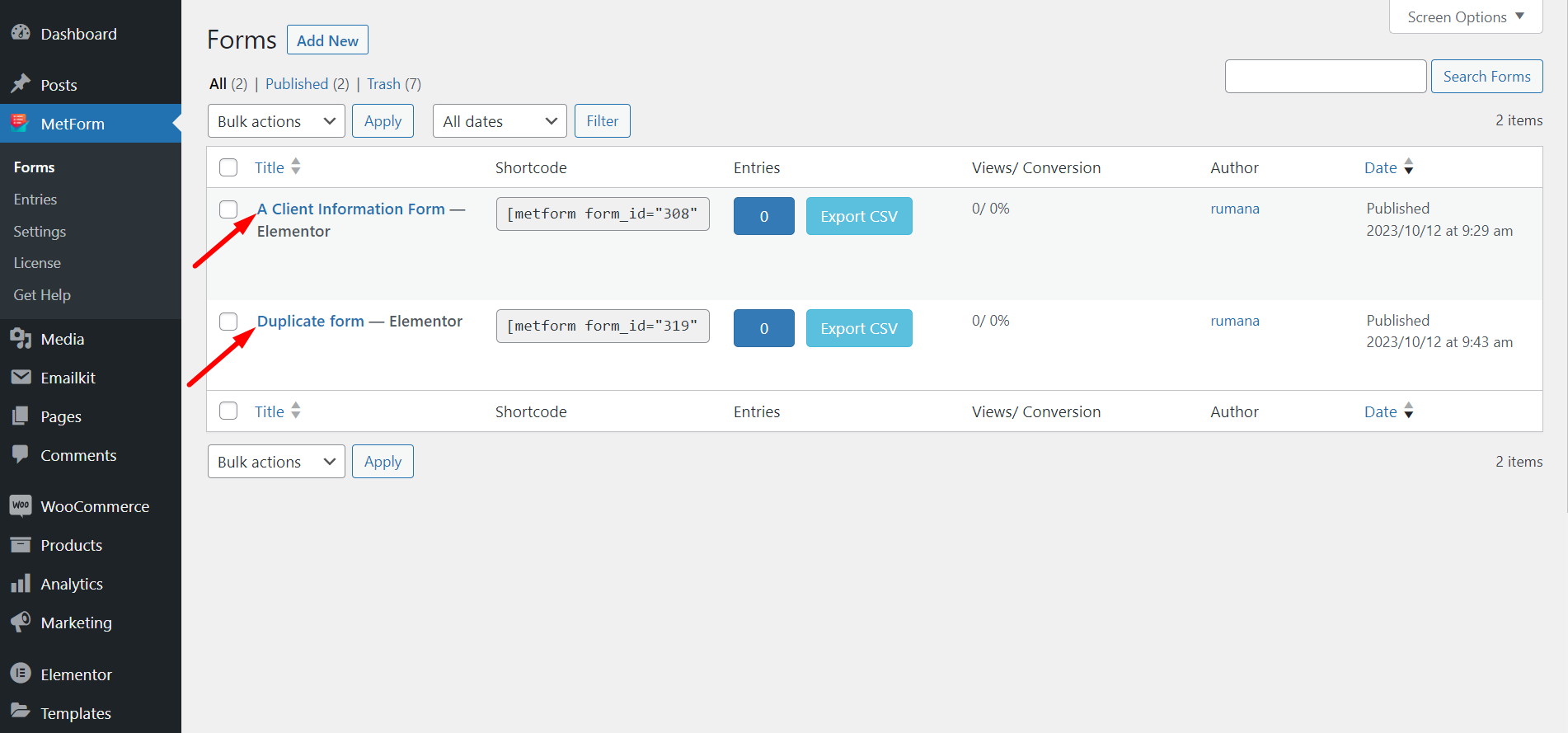
STEP-6: Form Duplication Success! #
Du har duplikeret formularen.
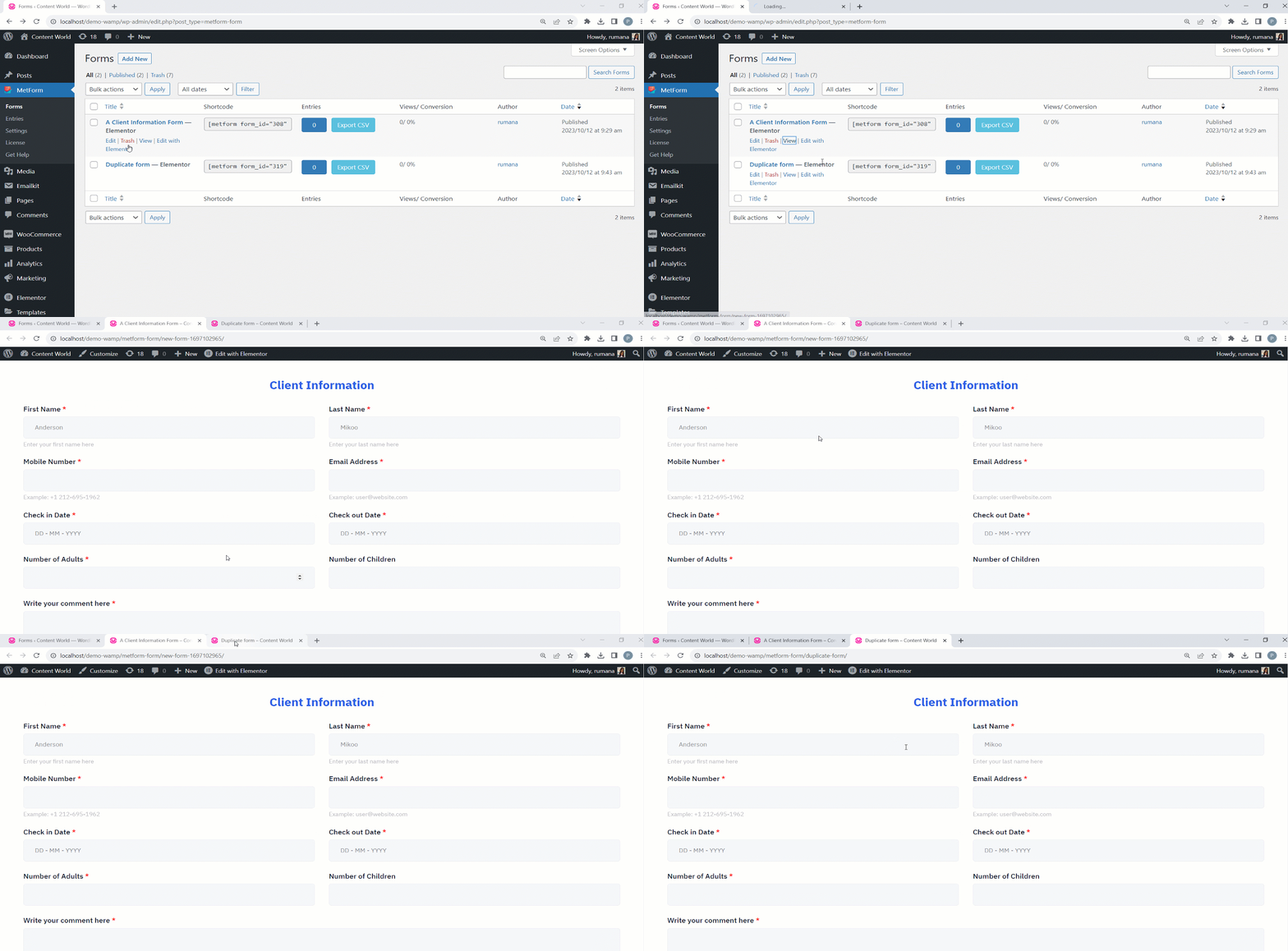
Følg trinene og spar tid og kræfter ved at kopiere strukturen og layoutet af den originale formular.


