To set up email notifications, open your email app or access your inbox from a desktop browser and go to Einstellungen. Select your email account and enable alerts for new messages. On mobile, manage sound or vibration options from Benachrichtigungseinstellungen, and on desktop, make sure browser notifications are allowed.
Enable Gmail Notifications (Mobile & Desktop)
- Android: Open Gmail → Menu > Settings > Account > Notifications → Select Alle oder High-priority emails.
- iPhone/iPad: Open Gmail → Menu > Settings > Email notifications → Choose your preferred notification level.
- Desktop:Open Gmail → Click Settings (gear icon) > See all settings → Scroll to Desktop notifications → Enable New mail oder Important mail alerts.
Troubleshooting Notification Issues
If notifications aren’t working properly, a few basic settings usually fix the problem. Check Gmail sync, battery optimization, and system-level notification permissions.
- Stellen Sie sicher Sync Gmail is enabled
- Turn off Battery Saver / Power Saving mode
- Allow Gmail notifications in your device’s system settings
Set Up Automated Email Notifications (Forms & Services)
Automated notifications notify you instantly when someone submits a form. Most form builders support this through built-in email settings or add-ons.
- Google Forms: Installieren Email Notifications for Forms from the Marketplace to receive submission alerts
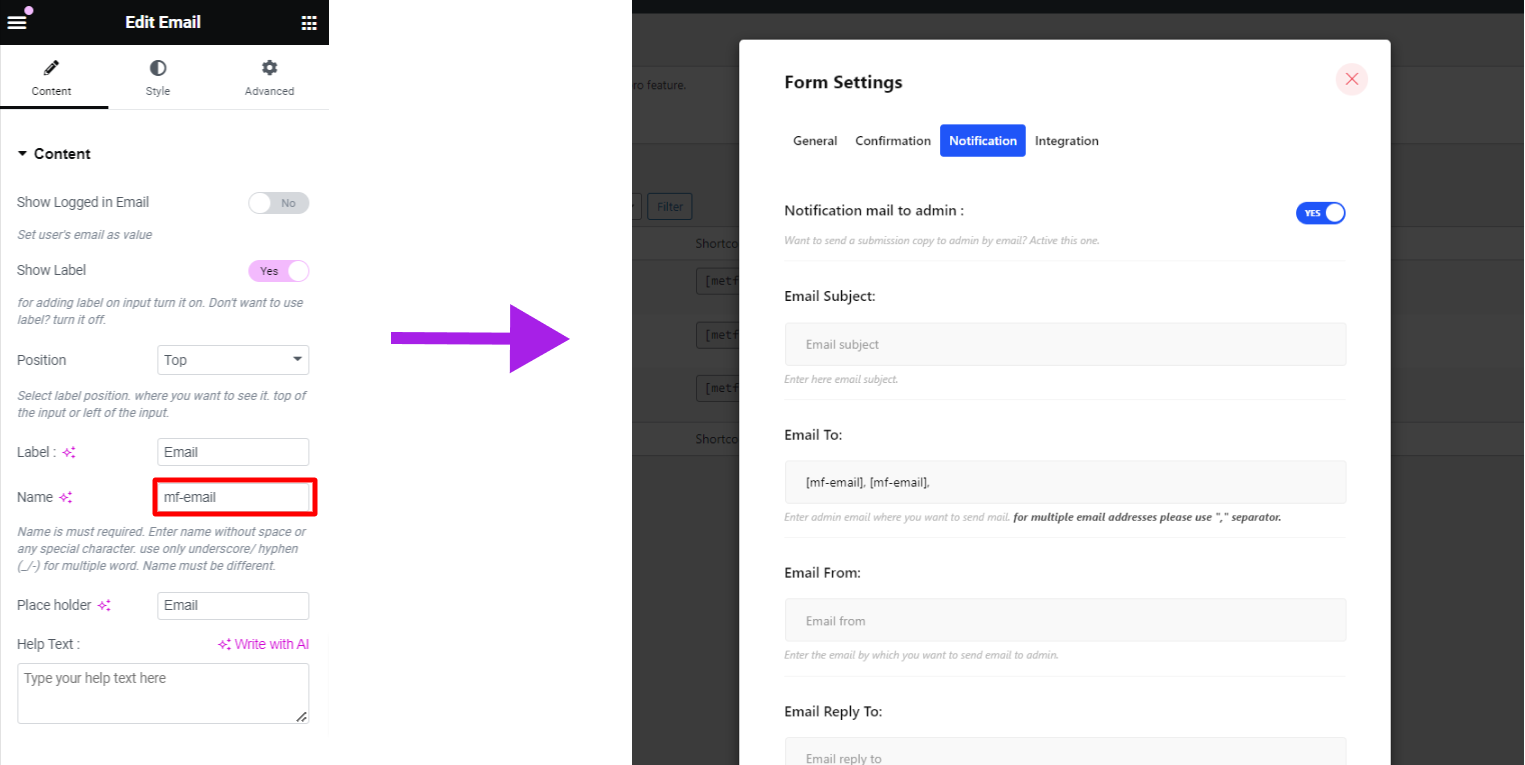
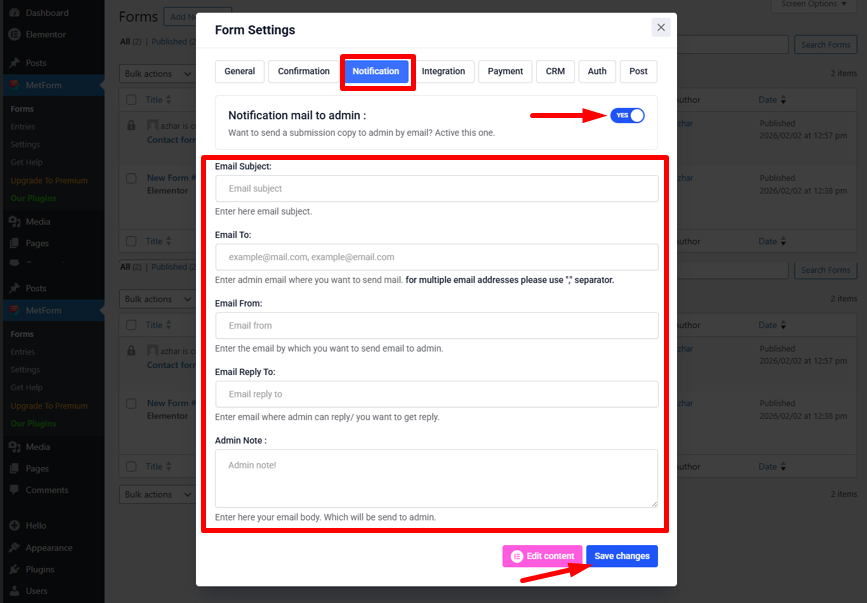
- MetForm: Gehe zu Form Settings > Notifications, provide the details, customize the notification content and save the changes.
Using the best form builder MetForm, you can easily set WordPress forms email notifications. Just follow the steps we have shared here.
Set up Notification Email with Metform #
Click the Edit option of the form where you want to set up notification email.
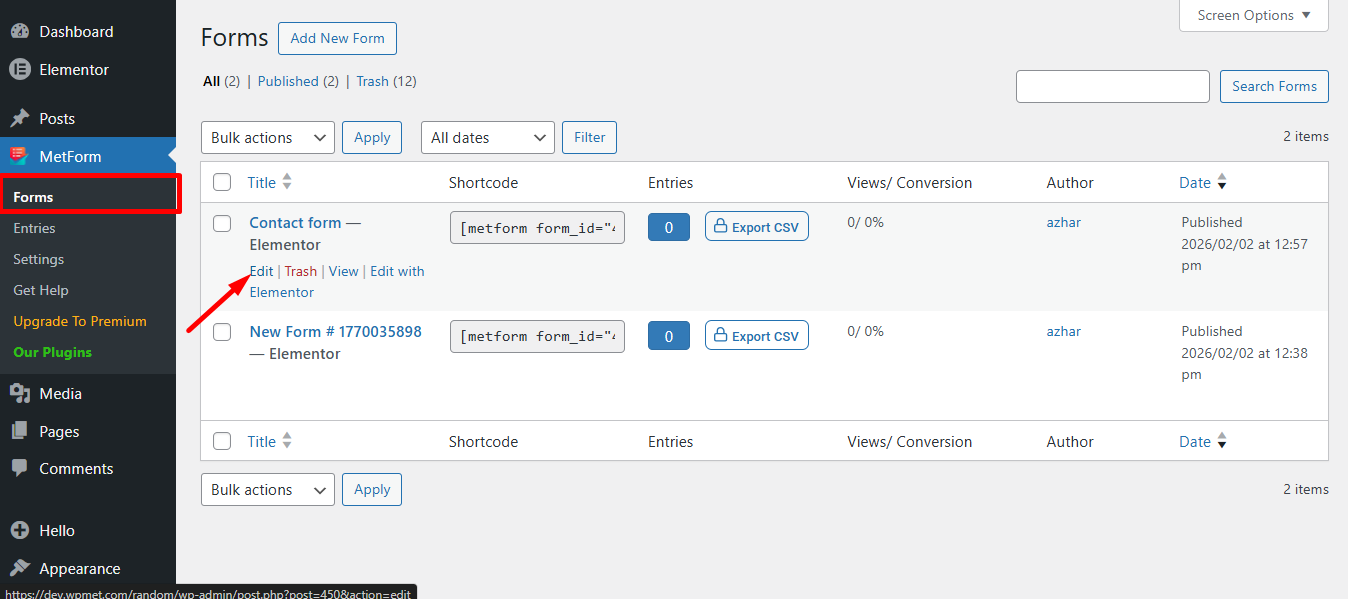
Also, you can open a new form if you need. follow the Video-Screencast:
Setting Notification Email #
You can send a submission copy to the admin by email. You can also set different WordPress forms email notifications for separate Forms. Follow the video Screen-cast
Or follow the step-by-step process
Navigieren Sie zu Form Settings → Notifications Tab
- Toggle the Notification mail to admin Möglichkeit: Notify admin after user submission is completed or any type of customer data is processed.
- E-Mail Betreff: Provide the subject of the email.
- E-Mail an: Enter the admin email where you want to send mail. For multiple email addresses please use “,” separator.
- E-Mail von: Enter the email by which you want to send an email to the admin.
- E-Mail-Antwort an: Enter an email where the admin can reply or you want to get a reply.
- Administratorhinweis: Enter here your email body, which will send to the admin.
- Speichern Sie die Änderungen.
Conditional Admin Email Routing #
This MetForm feature is dynamic and conditional admin settings for your email form. You can set conditional admin email routing that allows you to send the form to a different email address based on the selections made on the form.
Get tags from different widgets like dropdowns, checkboxes, buttons, text widgets, etc. and assign these tags to “E-Mail an” fields to send forms to the right team automatically.
For instance, all purchase-related forms should be directed to the sales team, while forms related to technical issues should be sent to the support team.