
 Danish
  English
  German
  Spanish
  Italian
  French
  Portuguese
  Swedish
  Polish
  Korean
  Japanese
 MetForm plugin is the most flexible Elementor WordPress conditional form builder with all the most advanced features. You can create sophisticated functional forms on your WordPress site and add the highest number of functionalities using MetForm.
Conditional Logic Pro er en førsteklasses funktion i MetForm. Funktionerne lader dig bygge avancerede betingede logiske formularer, hvor du kan vise eller skjule felter baseret på den betingede logik. Læs denne dokumentation for at lære, hvordan du opretter betingede logiske formularer til Elementor ved hjælp af MetForm.
Quick Overview
This documentation will guide you towards no-code process of creating conditional logic form in WordPress.
Tools Used: Elementor, MetForm free & MetForm Pro.
Steps need to follow:
1. Edit form with MetForm.
2. Add conditions to form field.
3. Enable conditional logic.
4. Add multiple conditions.
5. Set field action.
6. Add or delete conditions.
7. Match cases.
Se videoguiden om, hvordan du tilføjer betingede felter på Elementor-formularen
Tilføj betinget logik til formularer #
For at oprette betingede logiske formularer skal du først åbne en formular med Elementor. Følg derefter procedurerne:
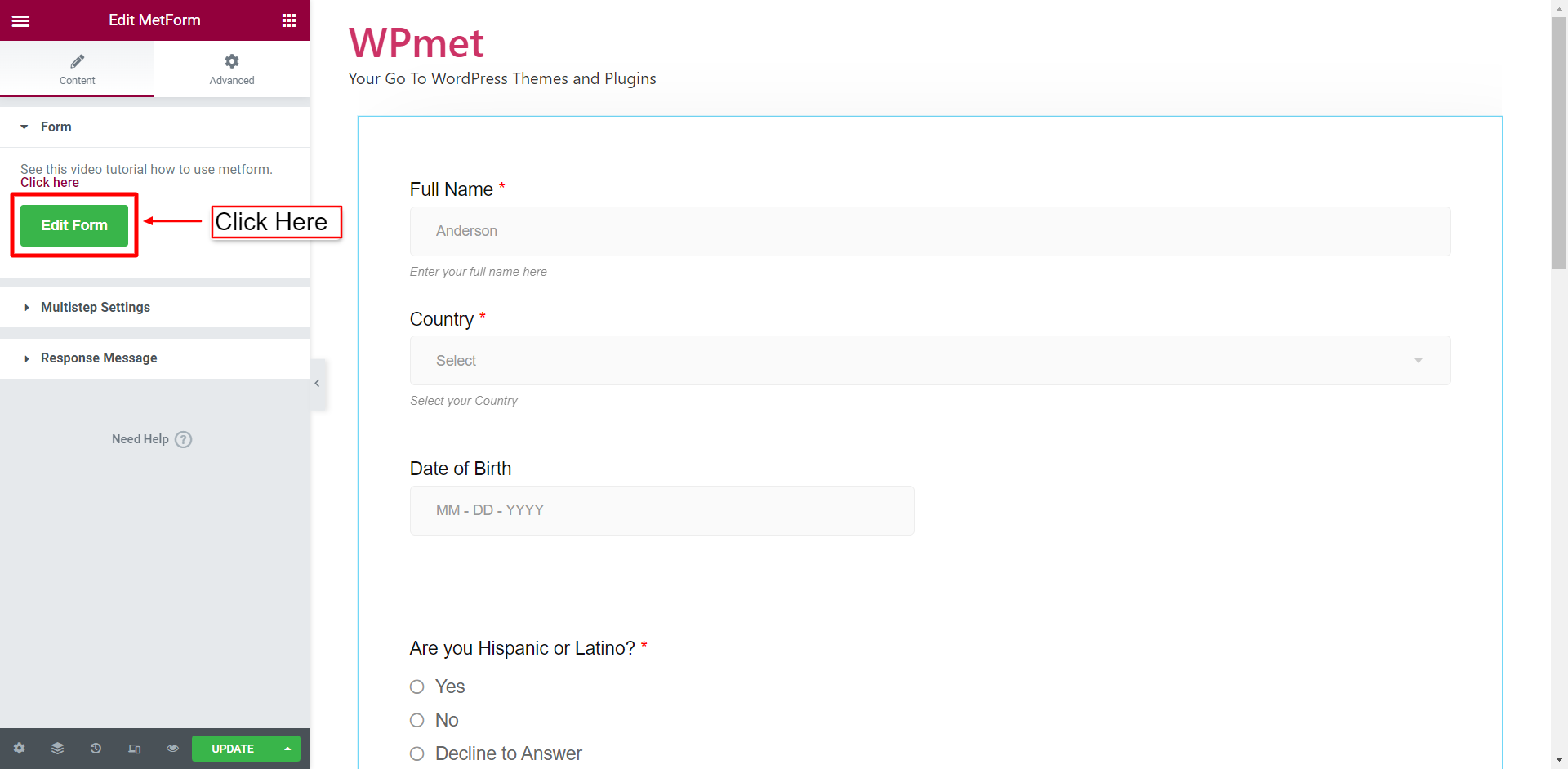
Trin 1: Klik på Rediger formular knappen for at åbne formularen i MetForm editor-tilstand.
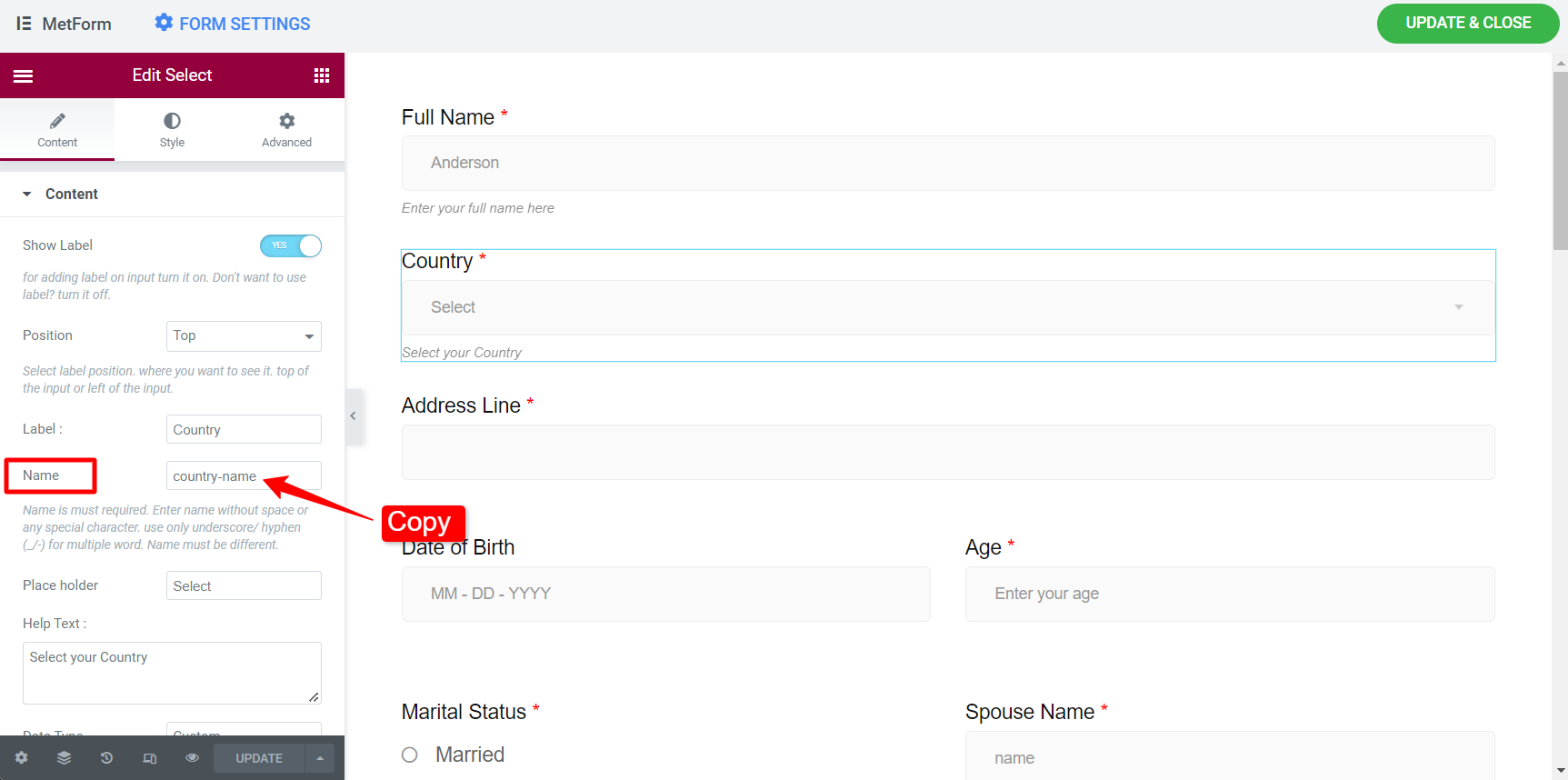
Trin-2: I formularen, hvis du f.eks. vil tilføje betinget logik til adresselinje baseret på feltet Land, skal du klikke på Land feltet og kopier Navn af det felt.
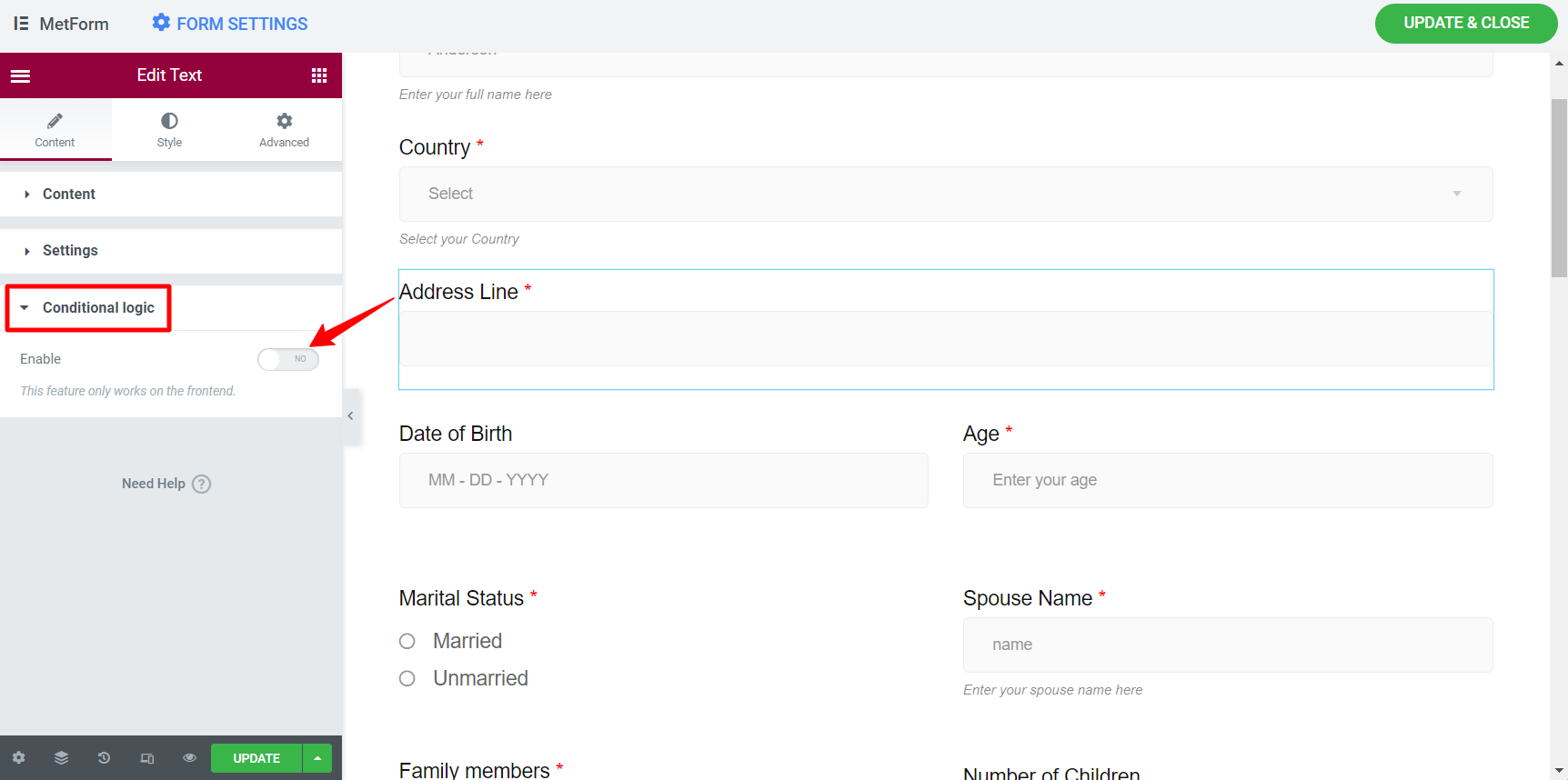
Trin-3: Klik nu på Adresselinje, og Aktiver den betingede logik.
Trin-4: Indstil Tilstand matchkriterier to AND/OR. This works when you add multiple conditions for a form field.
- AND: For the AND logic, all of the condition have to match.
- OR: Only one of the condition have to match.
Trin-5: Indstil Handling for at vise dette felt / Skjul dette felt.
Trin-6: Tilføj betingelser til betingede logiske formularer for Elementor ved at klikke TILFØJ VARE knappen, eller kan slette betingelser med krydsknappen.
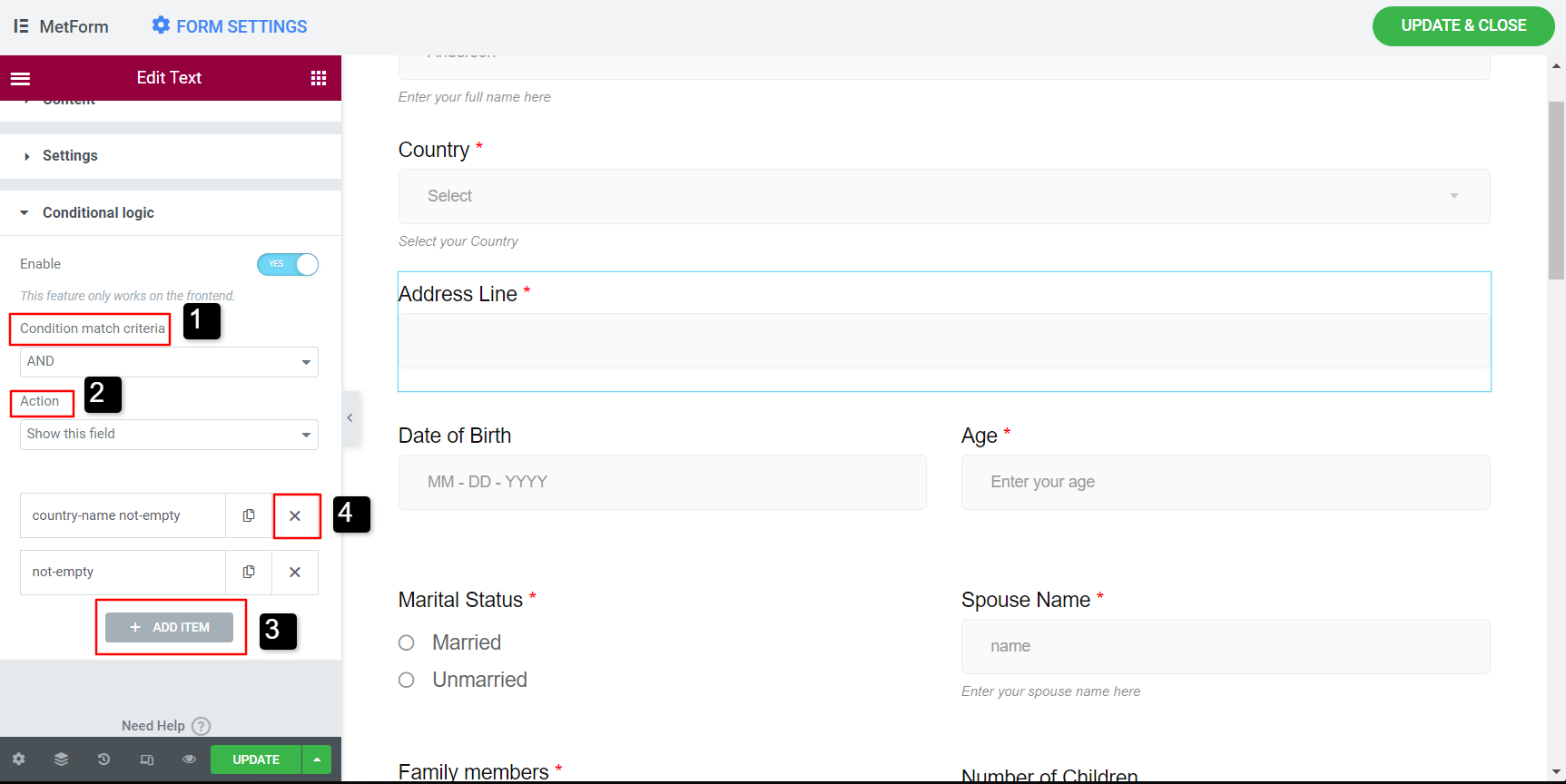
Trin-7: Sæt nu betingelserne for marken. Under Hvis feltet skal du indtaste navnet på feltet Land (kopieret fra Trin - 2). Indstil derefter Match (sammenligning) sager.
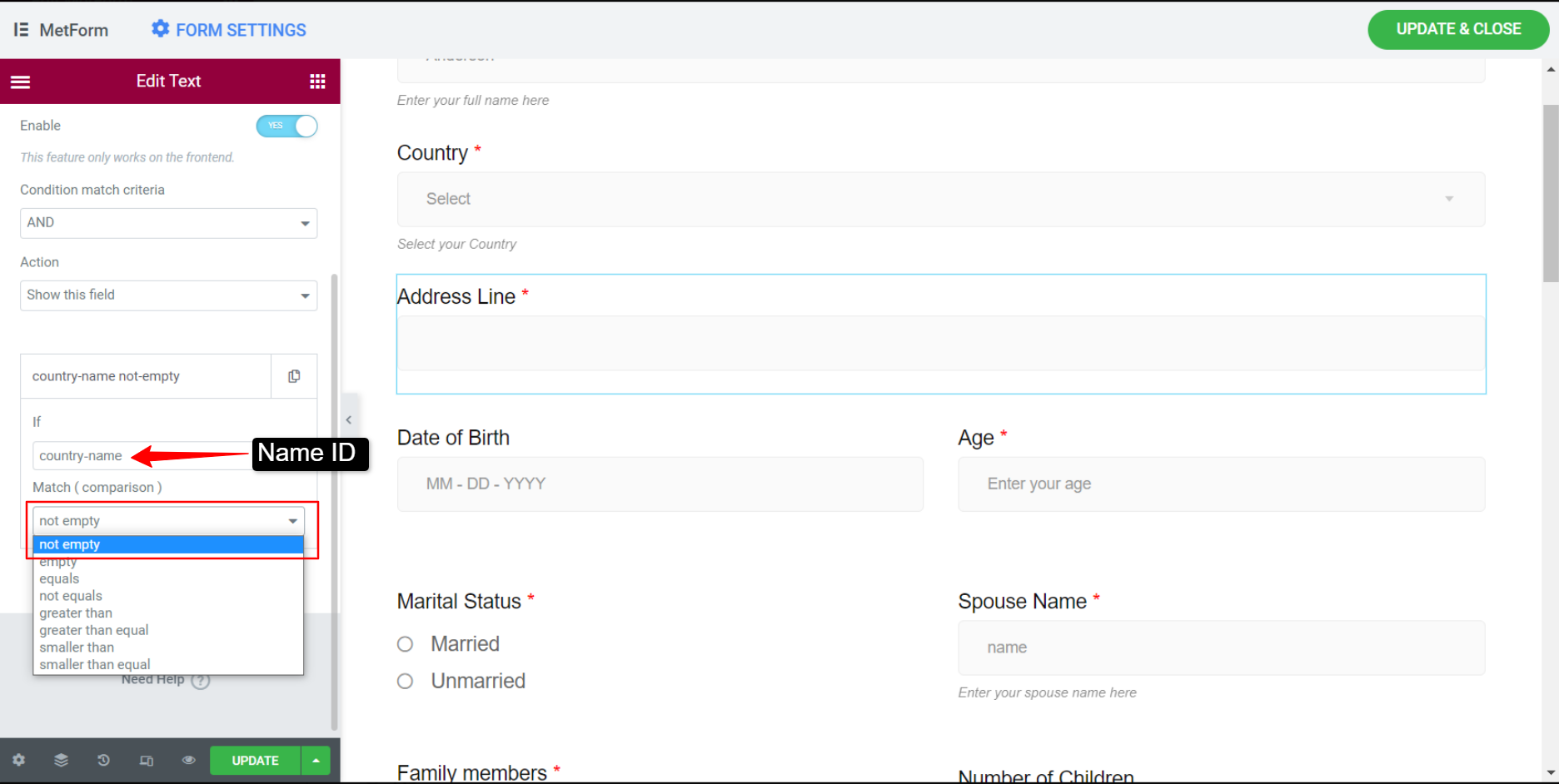
Der er forskellige Match-cases for forhold. Dernæst vil vi beskrive, hvordan man bruger disse matchtilfælde individuelt til betingede logiske former for Elementor.
Betinget logik for tom / ikke tom #
Lad os sige i dette tilfælde, at feltet "Adresselinje" vises, når brugeren vælger et landnavn. For at anvende betinget logik på denne sag:
- Indsæt Landenavn ind i Hvis felt iflg Trin -2 og Trin - 7.
- Indstil Match sag til ikke tom.
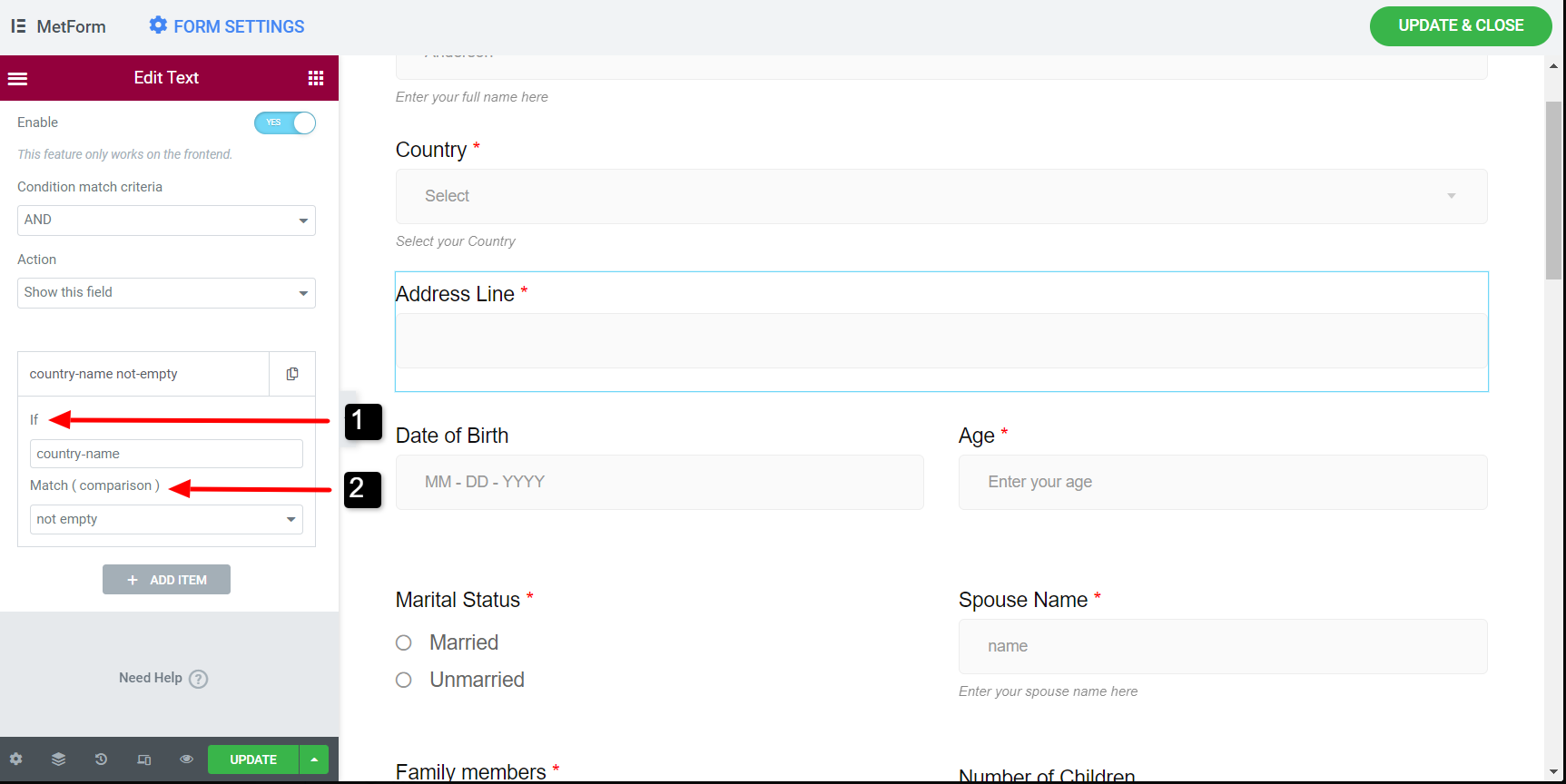
Følg den samme proces for Tom tilstand.
Betinget logik for lig / ikke lig #
Lad os i dette tilfælde sige, at feltet "Ægtefælles navn" vises, når en bruger vælger ægteskabelig status som gift. For denne sag,
- Kopier Navn på ægteskabelig status og indsæt det til Hvis feltet Ægtefælles navn. (Svarer til Trin-2 og Trin-7).
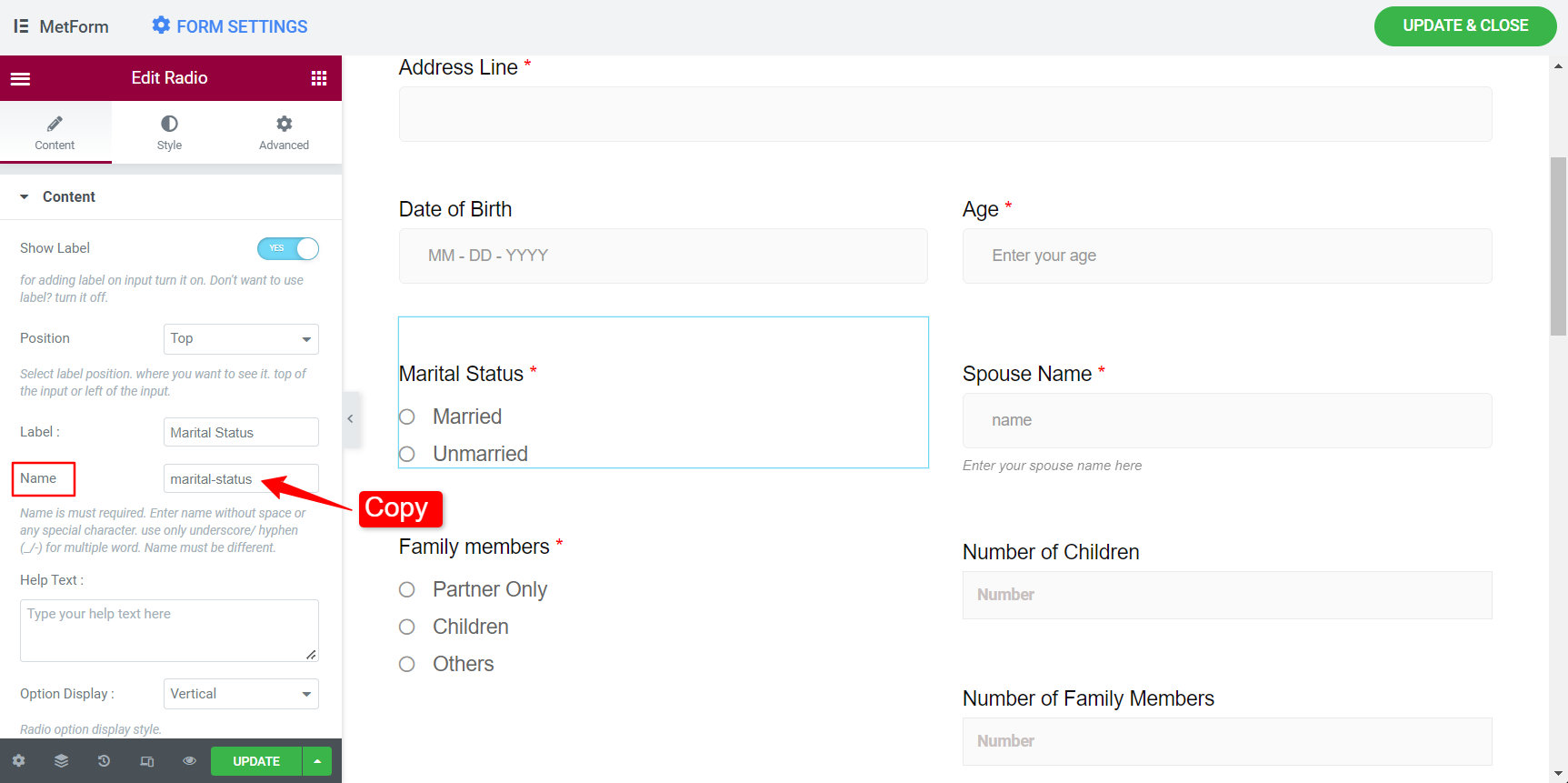
- Rul derefter ned til Radioindstillingen og kopier Valgfri værdi for Gift mulighed.
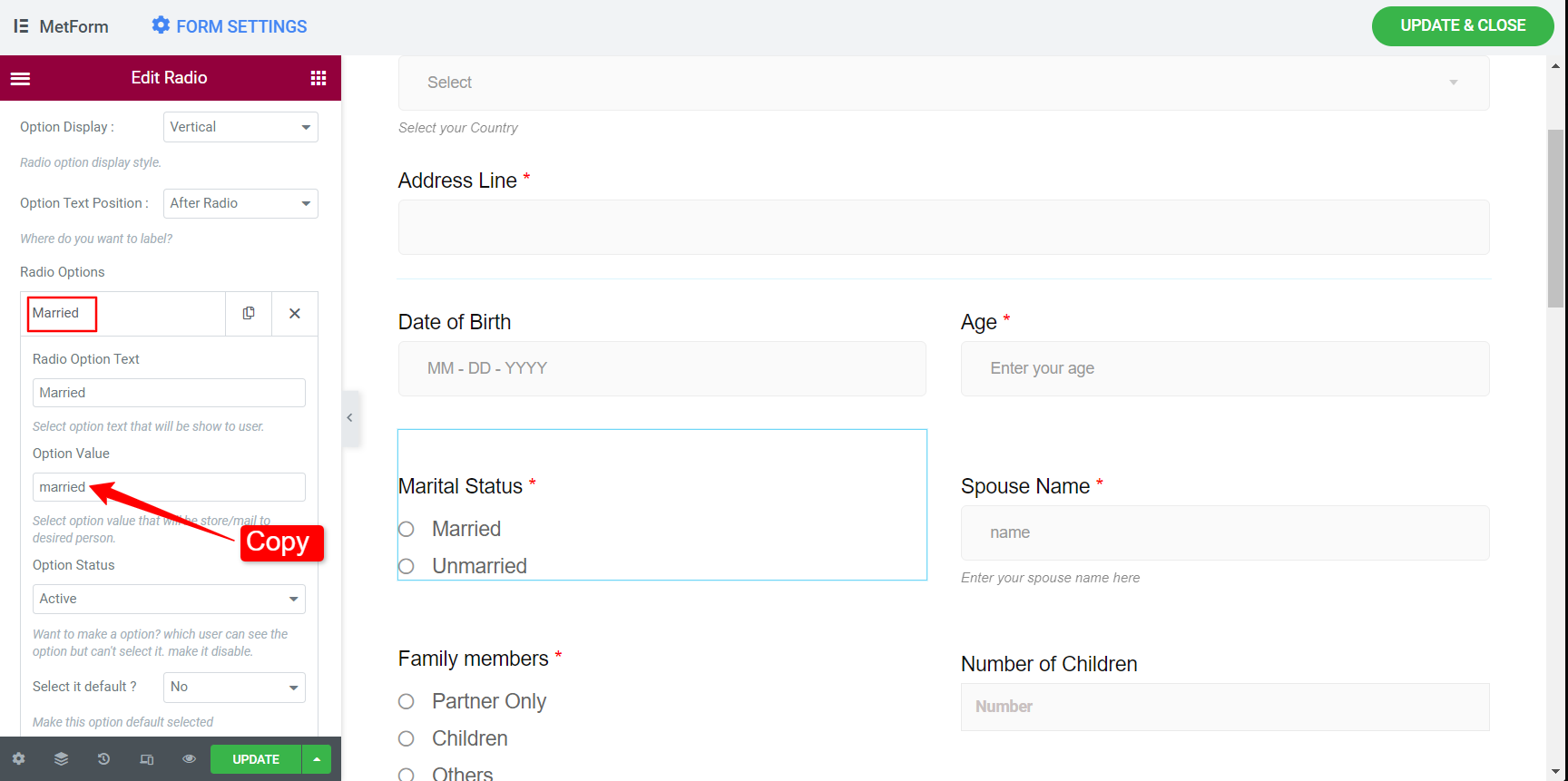
- Gå nu til afsnittet Betinget logik for ægtefælles navn og aktiver det.
- Vælg derefter Match case as Lige med.
- Gå ind i Match værdi som gift (valgfri værdi for gift).
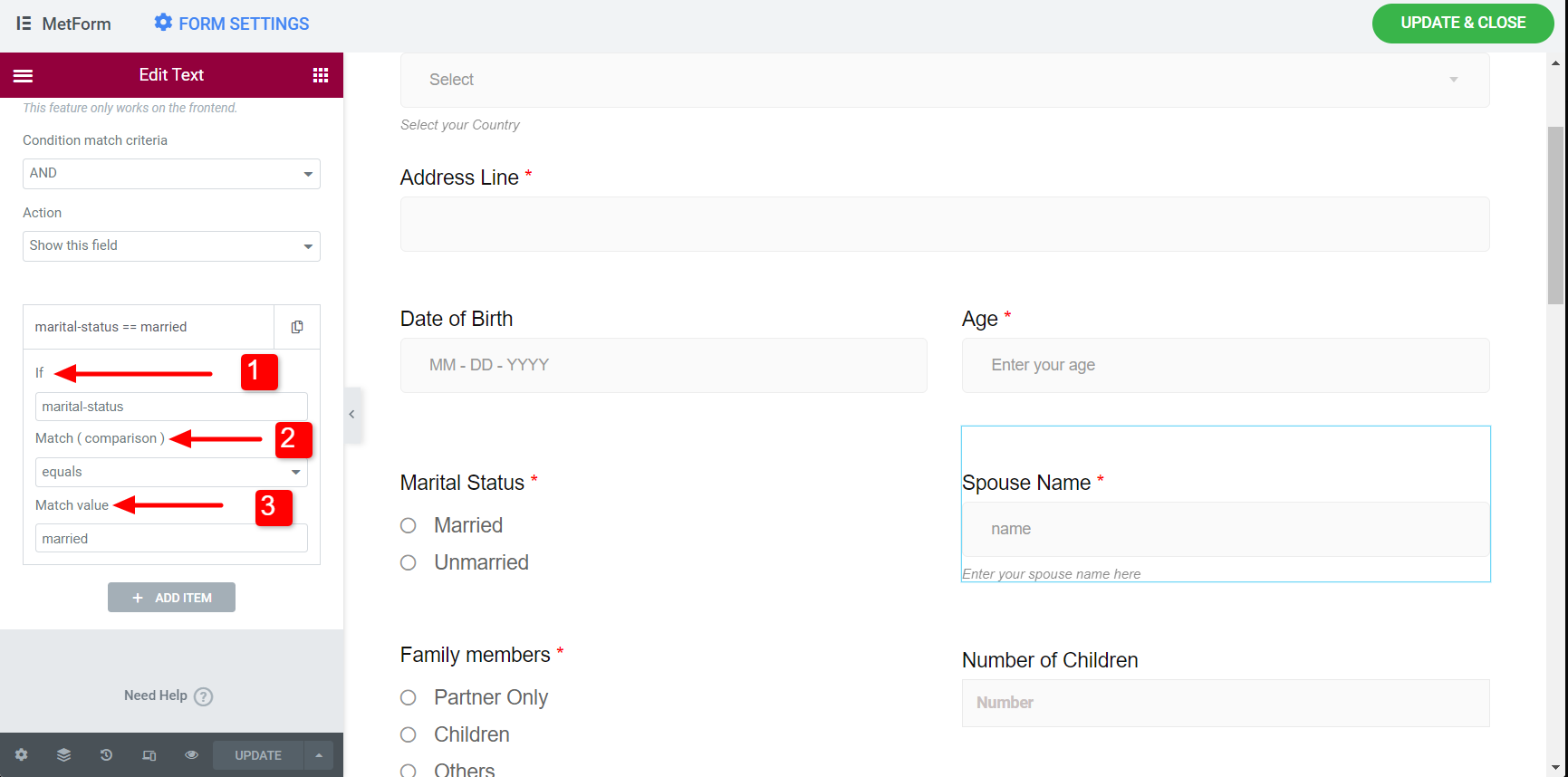
Følg den samme proces for tilstanden Ikke lig.
Conditional Logic for greater than/ greater than equal/ smaller than/ smaller than equal #
For these cases, let’s say, the Marital Status field will appear when the Age is greater than or equal to 18. To apply conditional logic to this case:
- Kopier Alder Navn og indsæt det til Hvis området civilstand. (Svarer til Trin-2 og Trin-7).
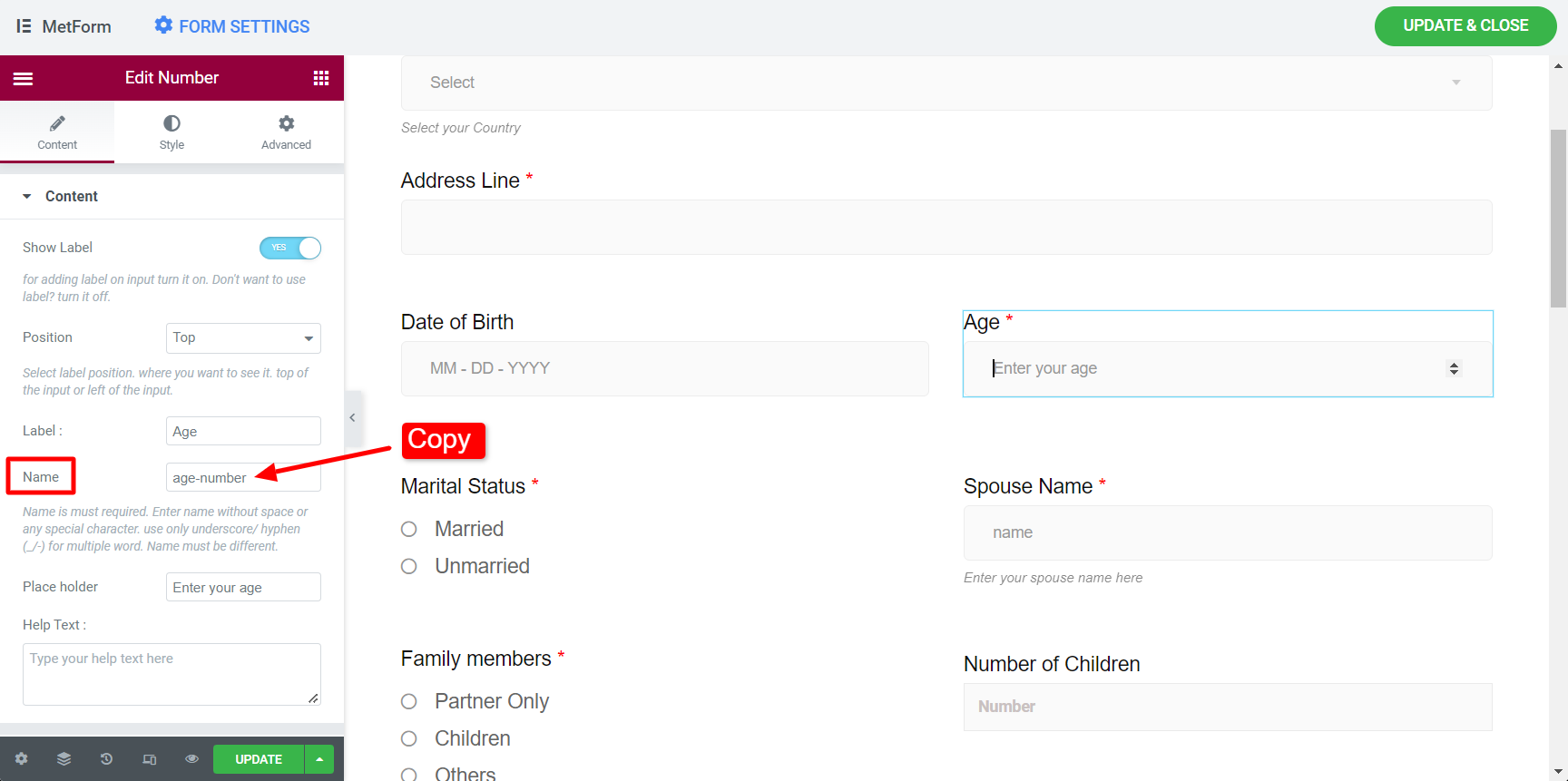
- Gå nu til afsnittet Betinget logik for ægteskabelig status og aktiver det.
- Vælg Match case som større end lige.
- Gå ind i Match værdi som 18.
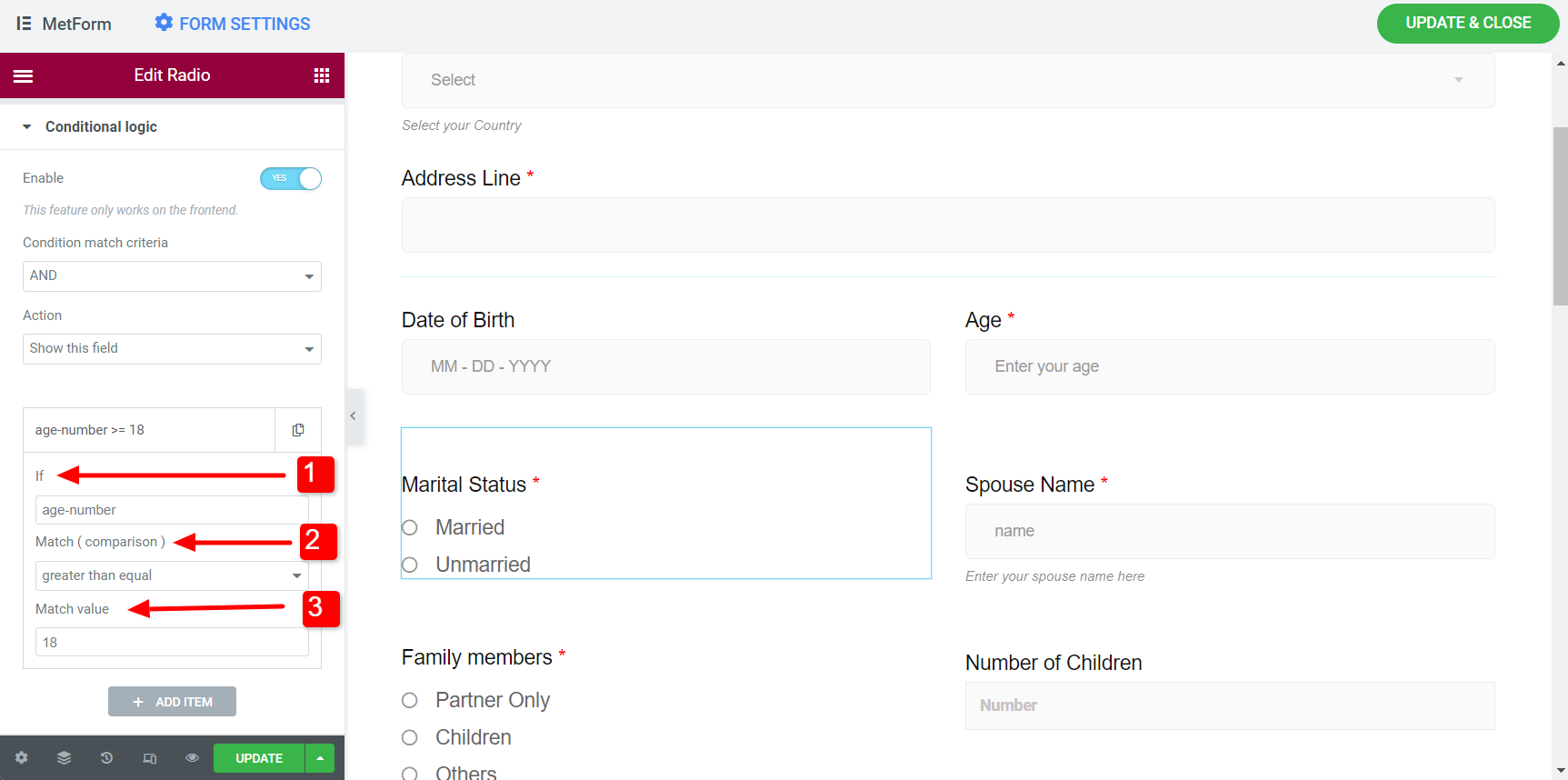
Follow the same procedure for Greate Than, Smaller Than, and Smaller than equal conditions using this best free WordPress conditional form builder.
Ved at følge ovenstående trin kan du nemt tilføje Conditional Logic til formularer ved hjælp af MetForm Conditional Logic Pro-funktionen.


