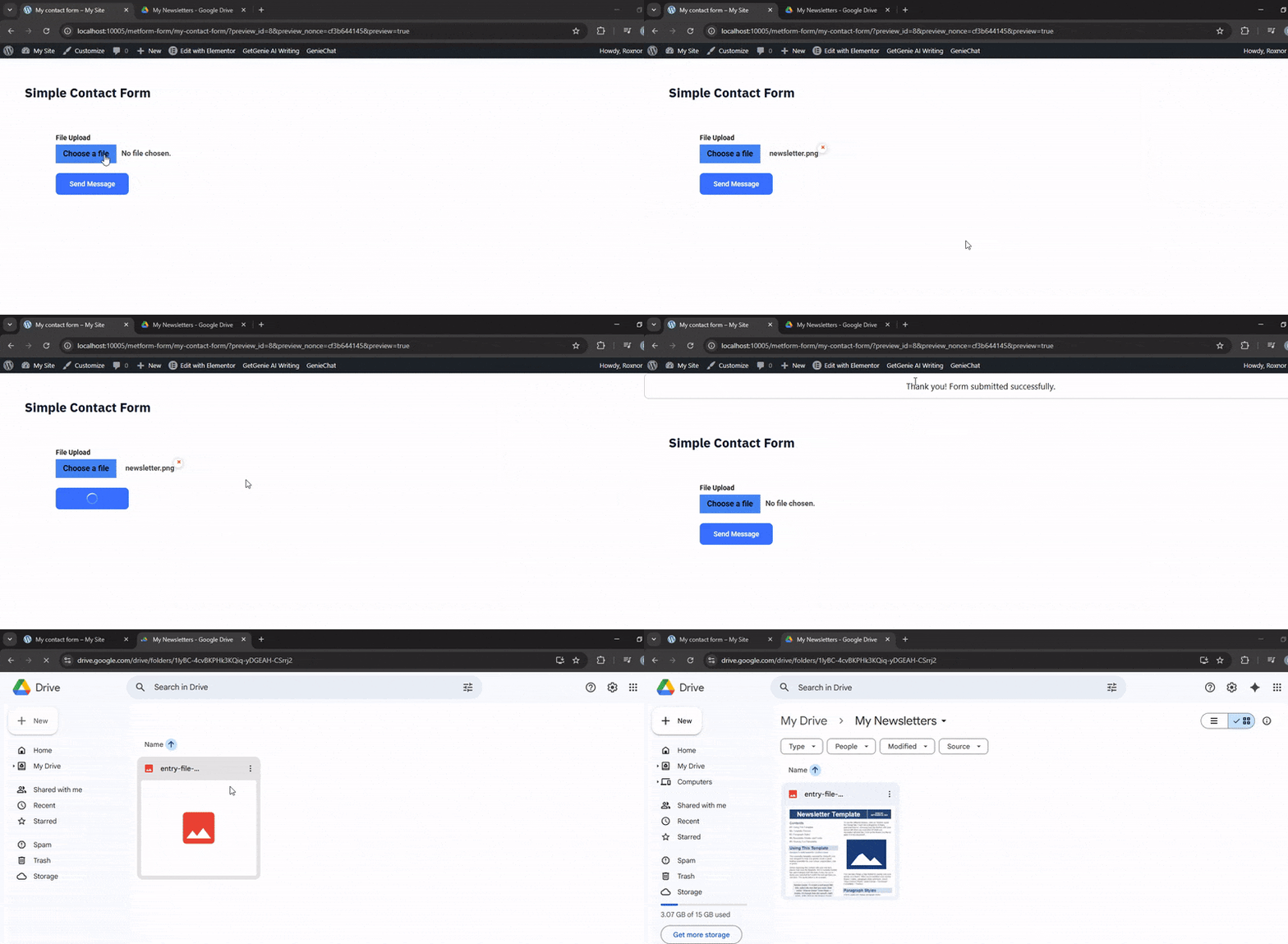
You can automatically store form entries from your WordPress site to a Google Sheet using MetForm.
This form builder plugin allows seamless integration between your forms and Google Sheets, so you can organize and manage form data more efficiently.
MetForm Google Drive Integration #
Must-have:
Step 1: Set up a project in the Google Cloud console #
The first step in integrating Google Drive with MetForm is setting up the required APIs. Access your Google Cloud Console account to start this process.
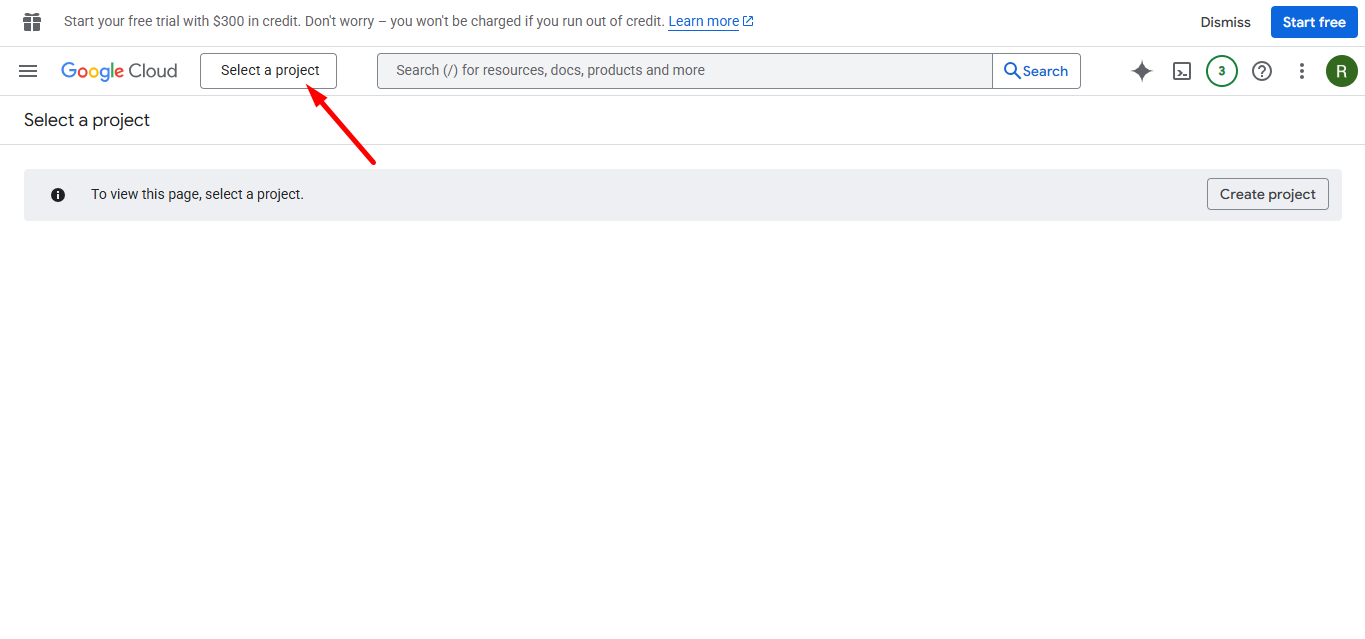
Klick auf das select a project button, du kannst create a new project von hier.
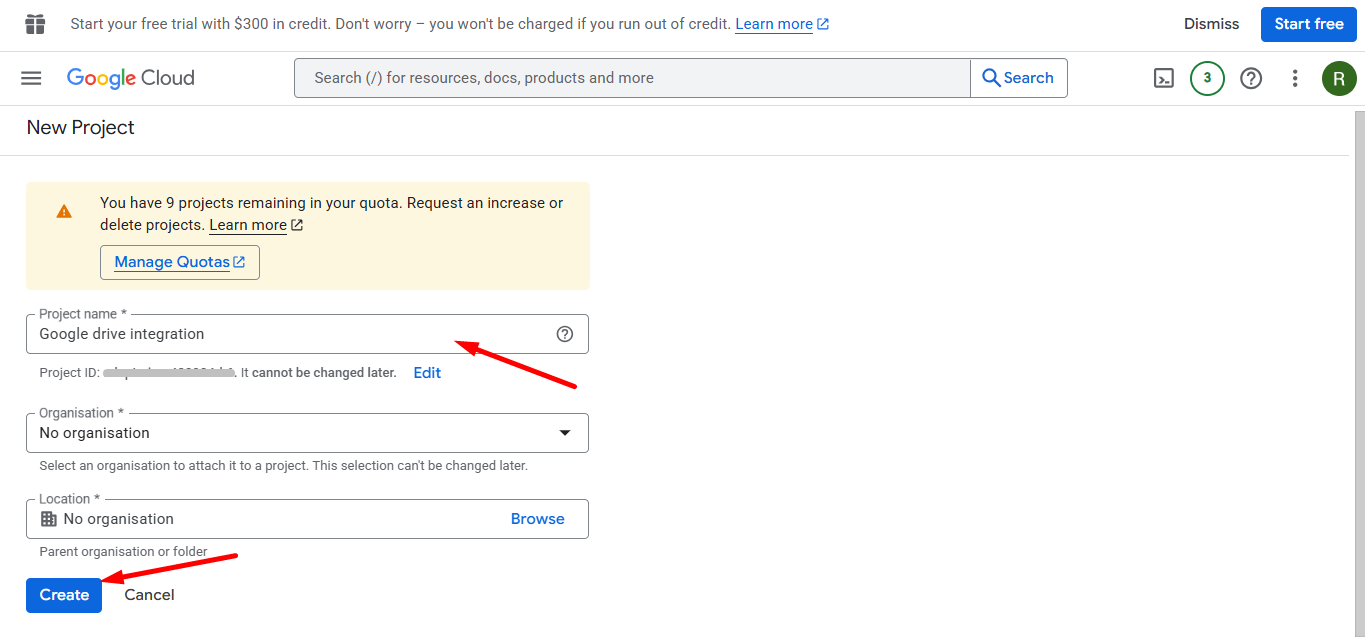
Geben Sie ein Projektname, organisation and location (if applicable) for the new project, dann klick Erstellen.
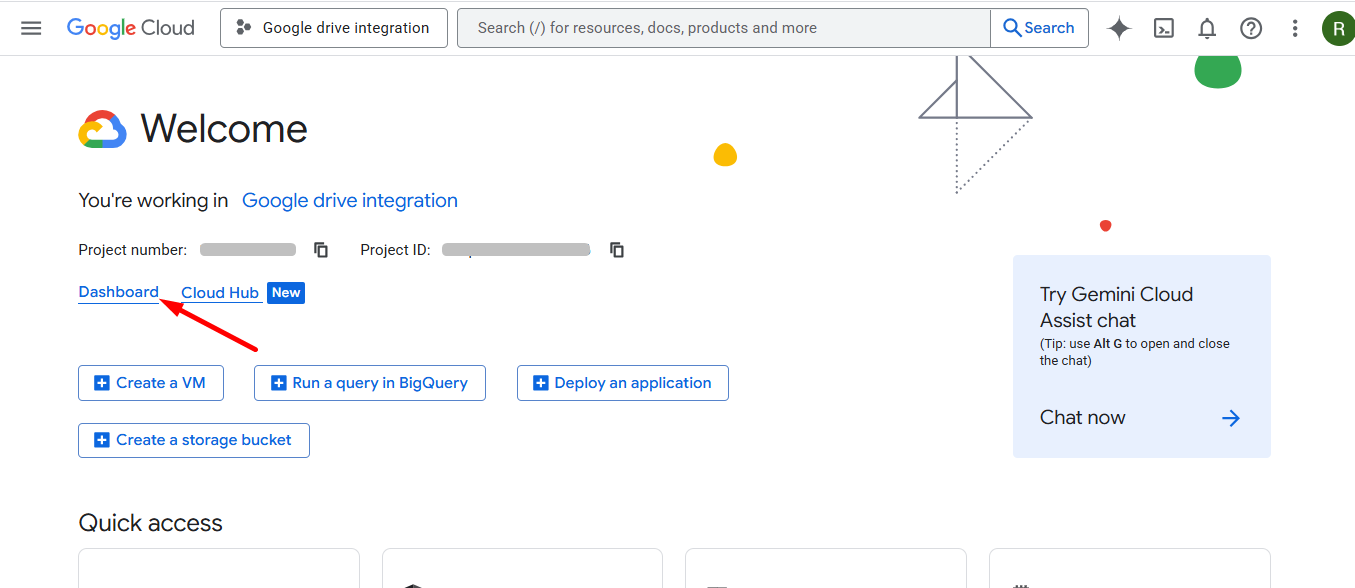
Your project has been created, now go to the dashboard.
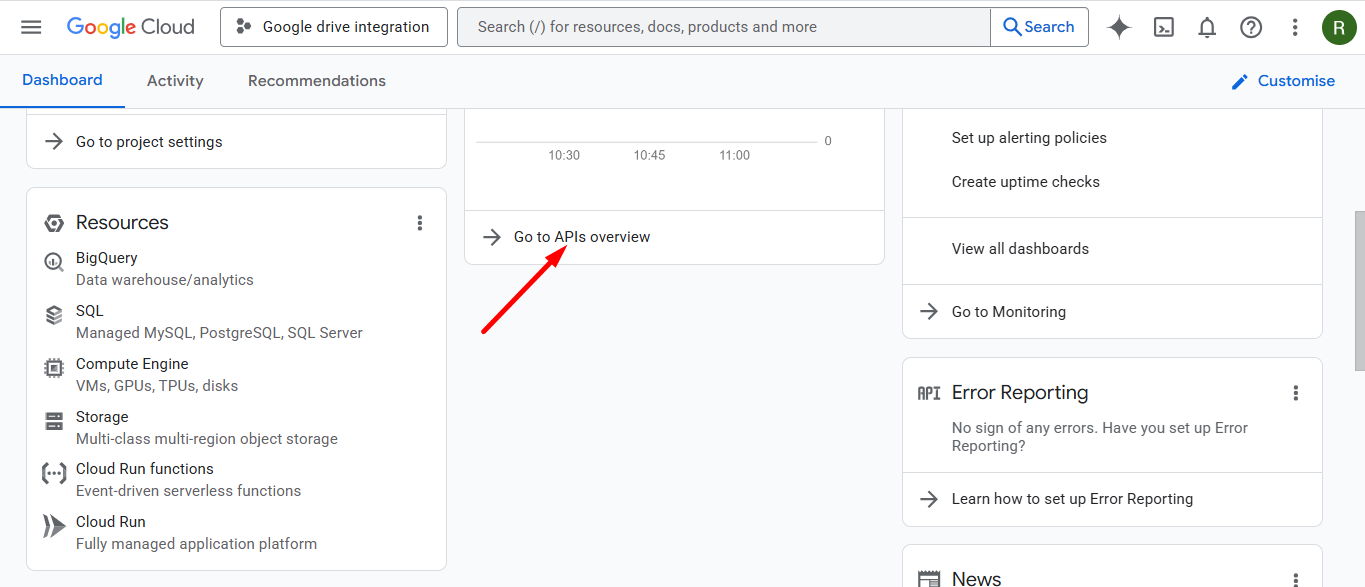
Next, go to APIs overview.
Click on OAuth consent screen and do project configuration.
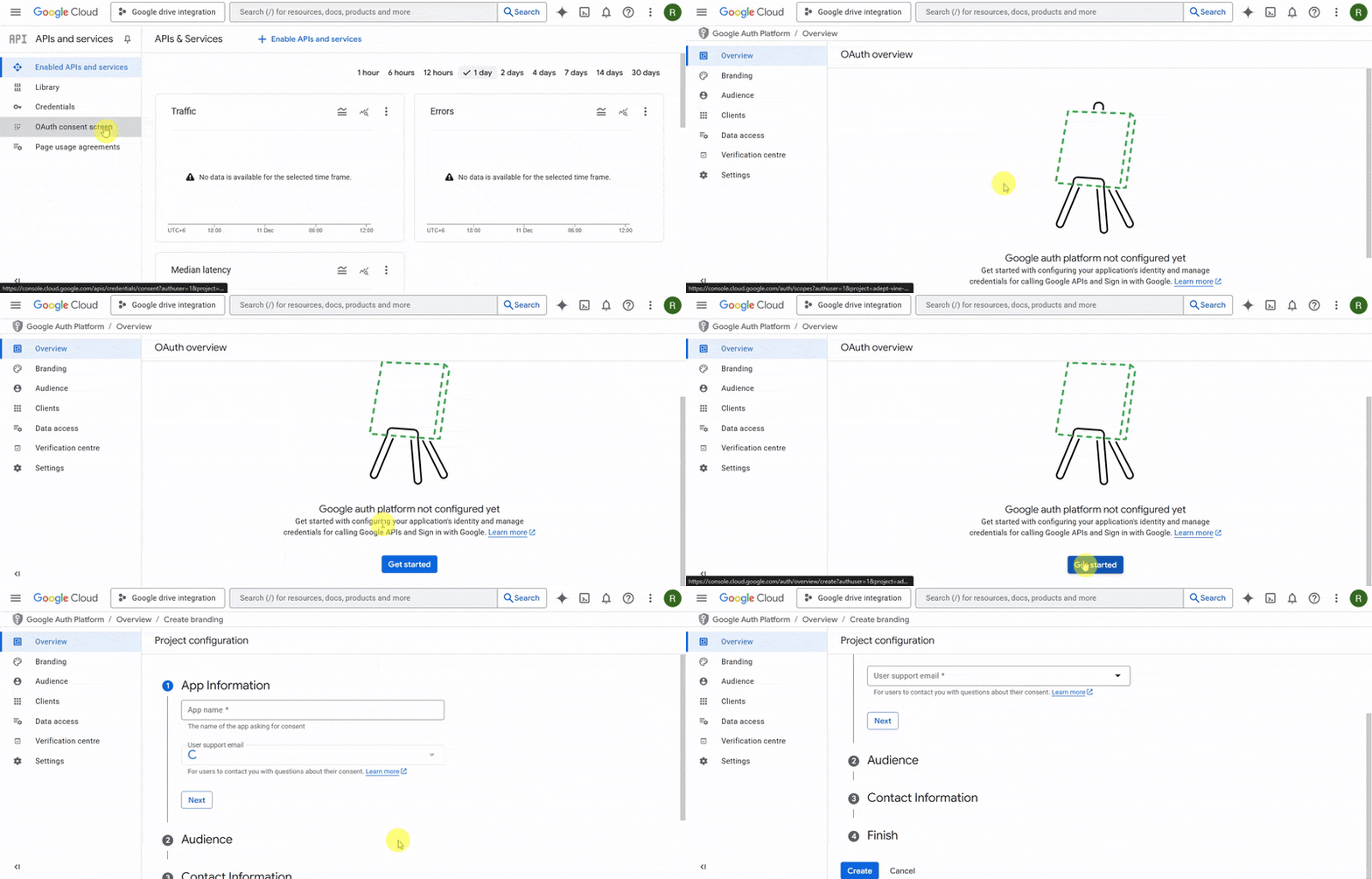
- App Information
Set a App name and provide support email, then click Next.

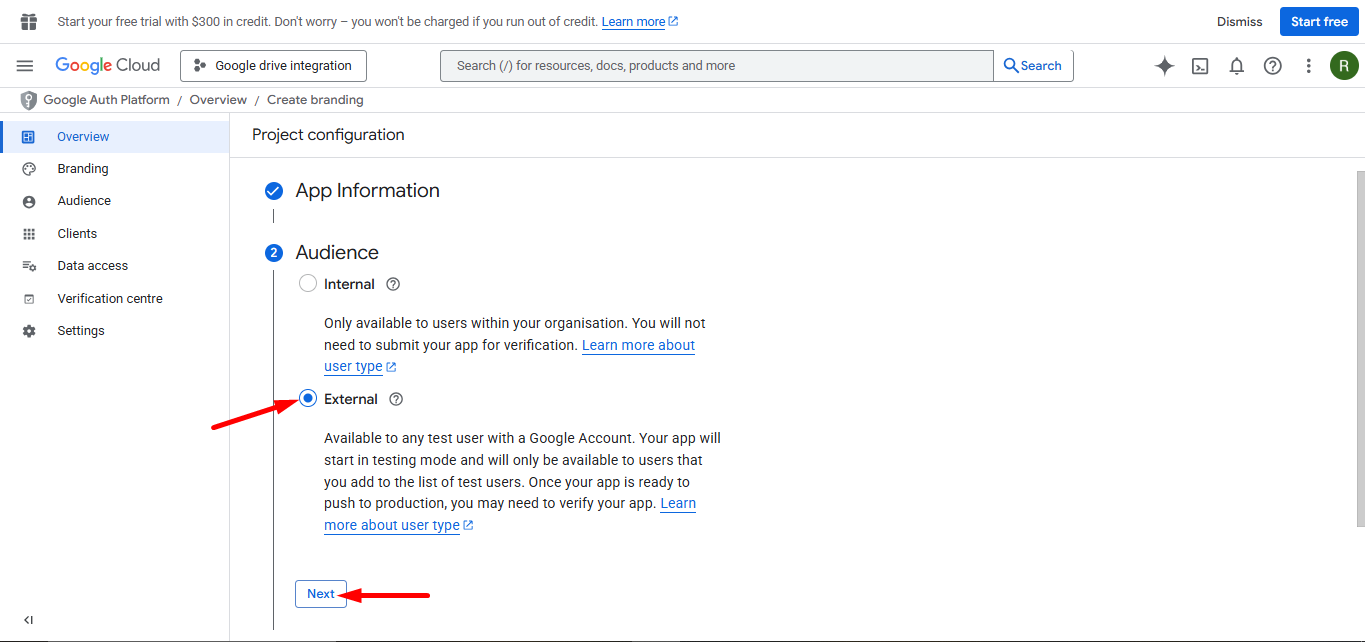
2. Audience
Stellen Sie die ein audience to External, and then click Nächste to continue.
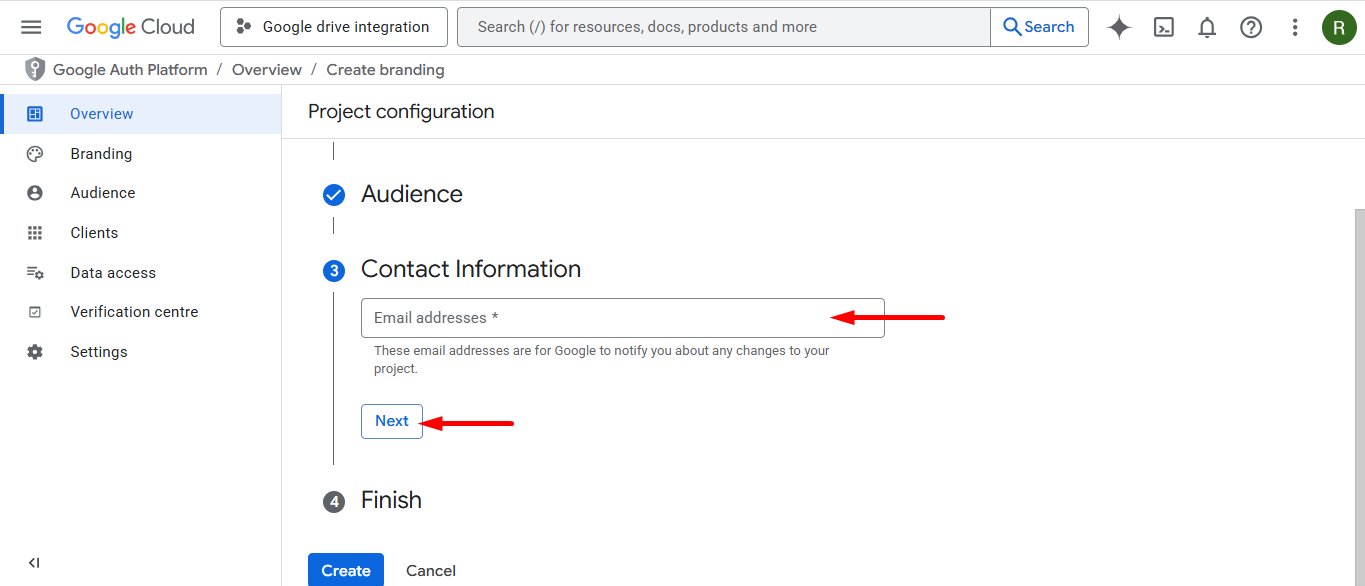
3. Contact Information
Enter an email ID in the field. Google will use this address to send important notifications regarding changes to your project.
4. Finish
Once you have agreed to the required policies, drücke den Erstellen Taste.

Step 2: Access your WordPress dashboard #
Log in to your WordPress dashboard and –
- Navigate to MetForm’s settings
- Go to Google Integration tab
- Find and copy the Valid OAuth redirect URIs
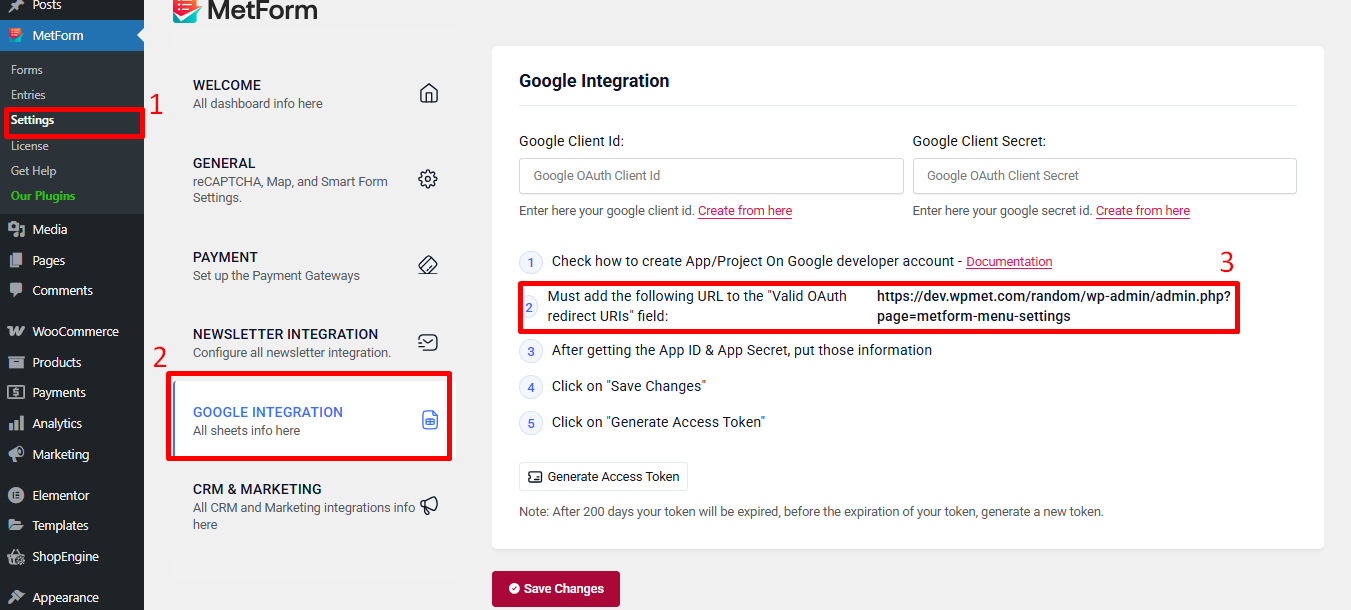
Step 3: Return to Google Console #
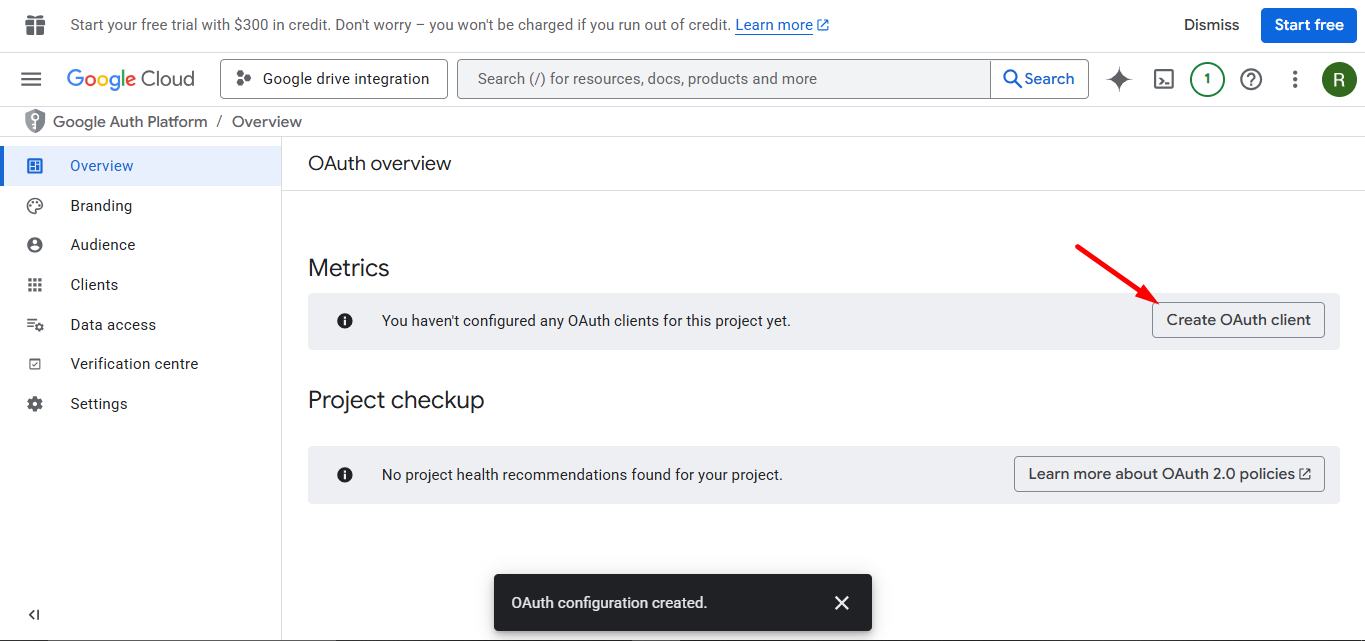
Klick auf das Create OAuth client.
Creating OAuth client to get the Ids
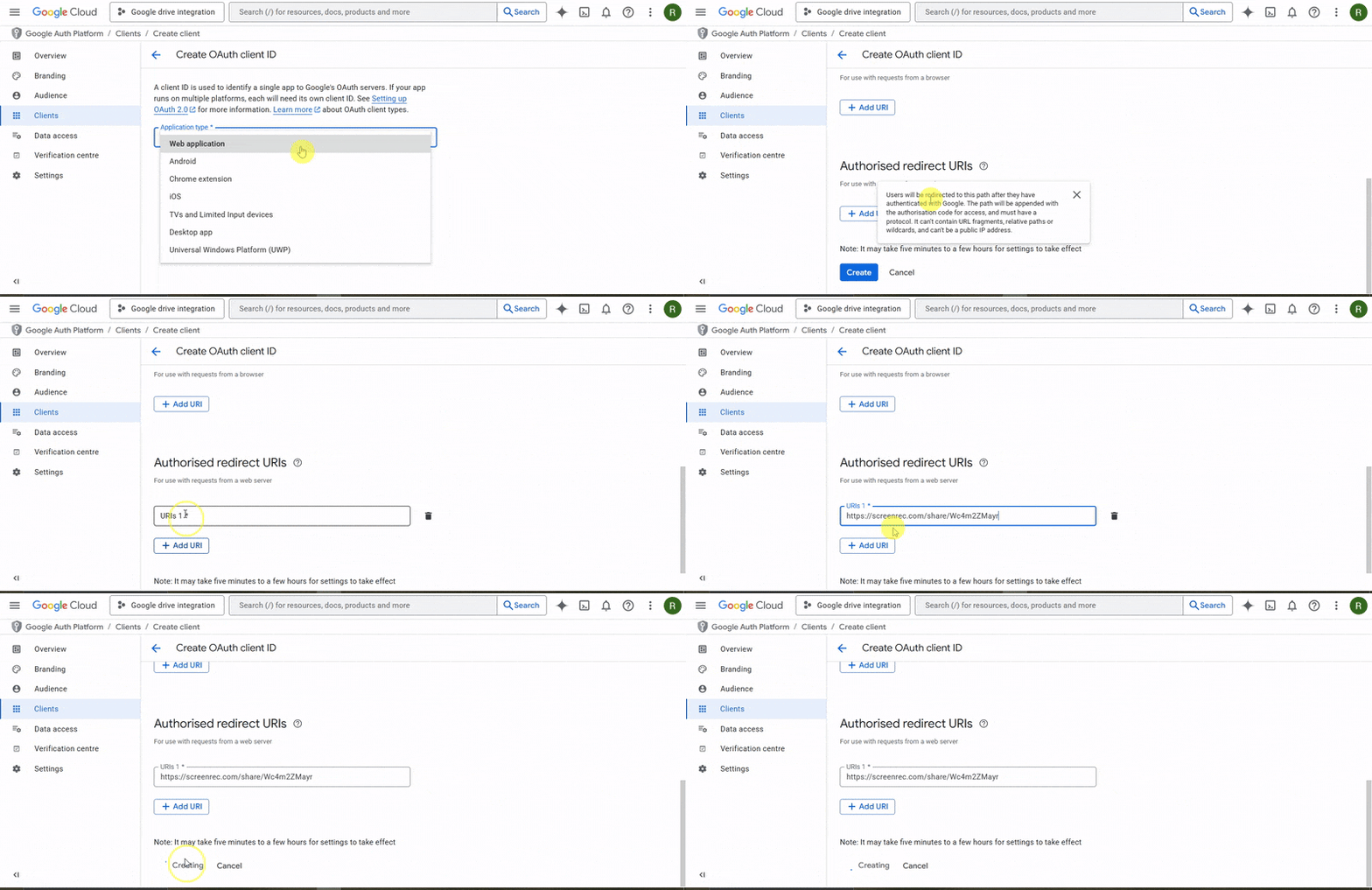
The client ID and secret are ready, copy them.

Now, go back to step 2 and insert the copied Client ID and Client secret to the respective fields.
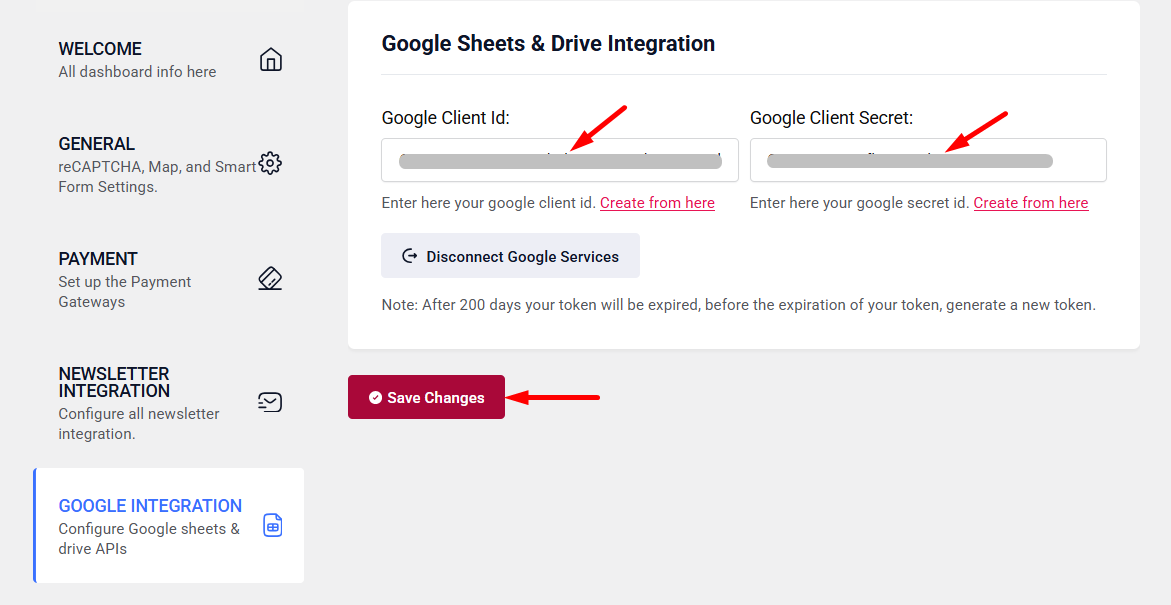
Step 4: Choose a MetForm form #
Choose any form and click edit
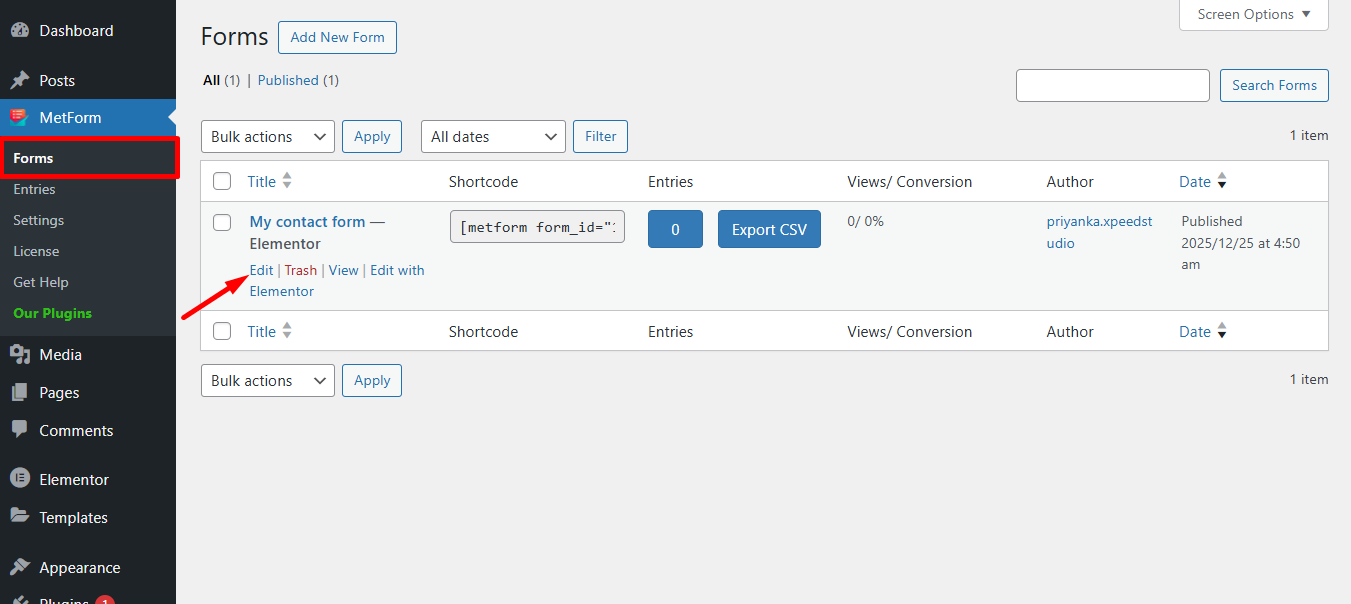
In the form settings window, navigate to Integration tab.
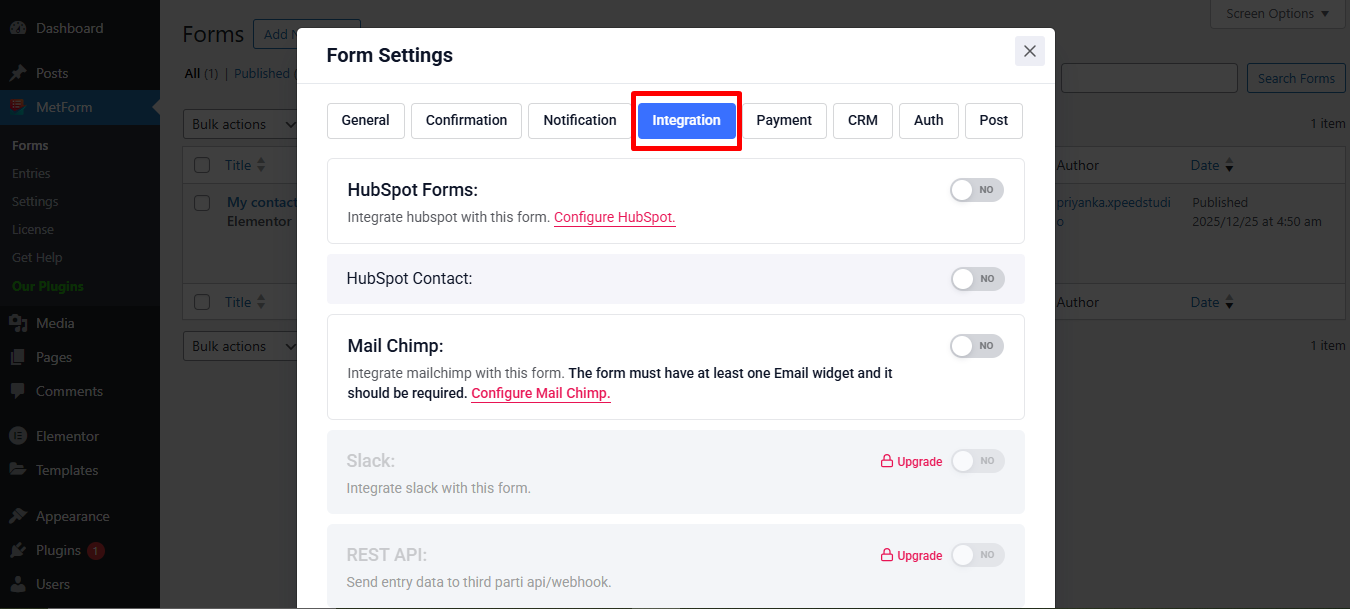
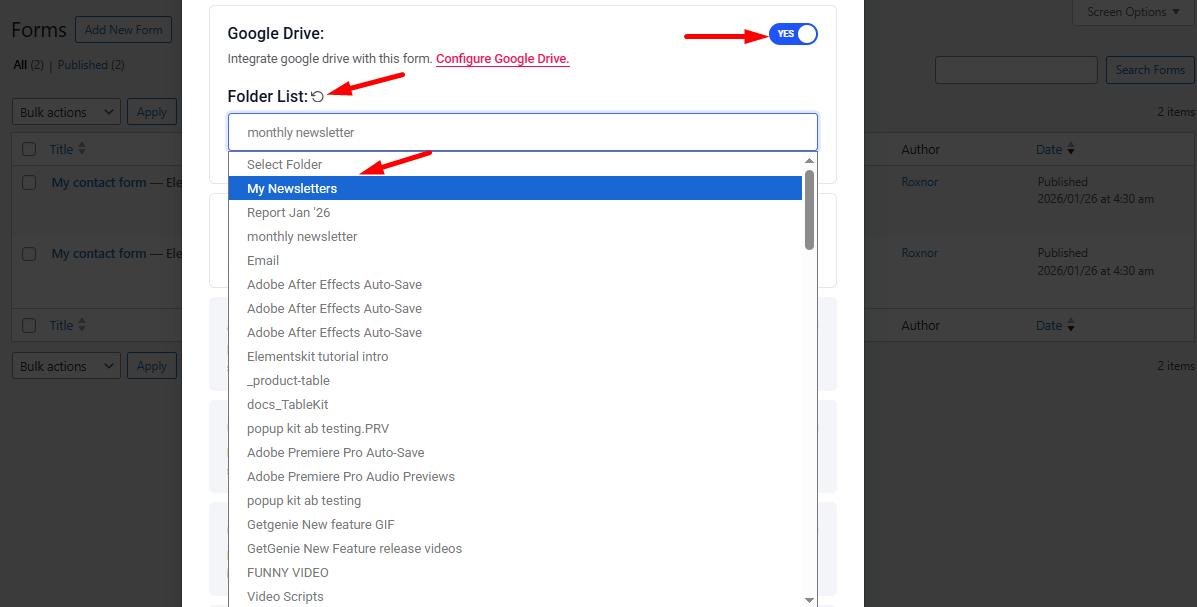
Jetzt, find Google Drive button –
- Enable Google drive button
- Reload Folder List
- And select a folder; otherwise, the Google Drive file won’t be updated.
- Scroll down and save the changes.
Next, open the form in Elementor and add a Datei-Upload field. Save or publish the form and view it.

Finally, choose a file and submit the form.
File upload complete. You can now find it in your Google Drive account.