Mailchimp integrates with different form tools to automatically collect and update subscriber data when a form is submitted. These integrations usually work through secure connections such as API keys or authorized access.
Mailchimp integration options include:
- WordPress form plugins: Tools like MetForm, Fluent Forms, and WPForms allow direct integration with Mailchimp, making it easy to sync form submissions with audiences, tags, and custom fields, without third-party automation.
- Google Forms: Google Forms does not connect to Mailchimp natively. Services like Zapier are required to send form responses to Mailchimp automatically.
- Mailchimp native forms: Mailchimp offers its own built-in form builder that generates embeddable HTML forms, suitable for basic signup needs with limited design flexibility.
Important Before You Start #
Before creating or configuring any form, Mailchimp must be connected to your form builder. Without this connection, subscriber data won’t sync, no matter how well the form is designed.
See the Basic Setup Process (Using MetForm) #
Check the video for details:
Here is the steps for you:
- Generate a Mailchimp API Key: Log in to Mailchimp and go to Account → Extras → API Keys, then create a new API key.
- Connect Mailchimp to MetForm: In your WordPress dashboard, navigate to MetForm → Settings → Integrations, choose Mailchimp, and paste the API key to establish the connection.
- Create or Edit a Form: Gå til MetForm → Forms, create a new form, or open an existing one in the Elementor editor.
- Enable Mailchimp as a Submission Action: From the form settings, add Mailchimp as an action after submission.
- Select an Audience and Map Fields: Choose your Mailchimp audience and map required fields like email, name, and any custom fields or tags.
- Configure Subscriber Options: Enable features such as double opt-in, audience tags, or merge fields to better organize contacts.
- Publish and Test the Form: Publish the form and submit a test entry to confirm the subscriber appears correctly in Mailchimp.
For detailed procedure, check the documentation.
Forudsætning:
Metform Pro, install and activate the premium form builder plugin for Elementor.
Konfigurer Mailchimp #
Du skal oprette en formular med MetForm. Her skal du sørge for, at formen mindst en E-mail-widget og det burde være påkrævet
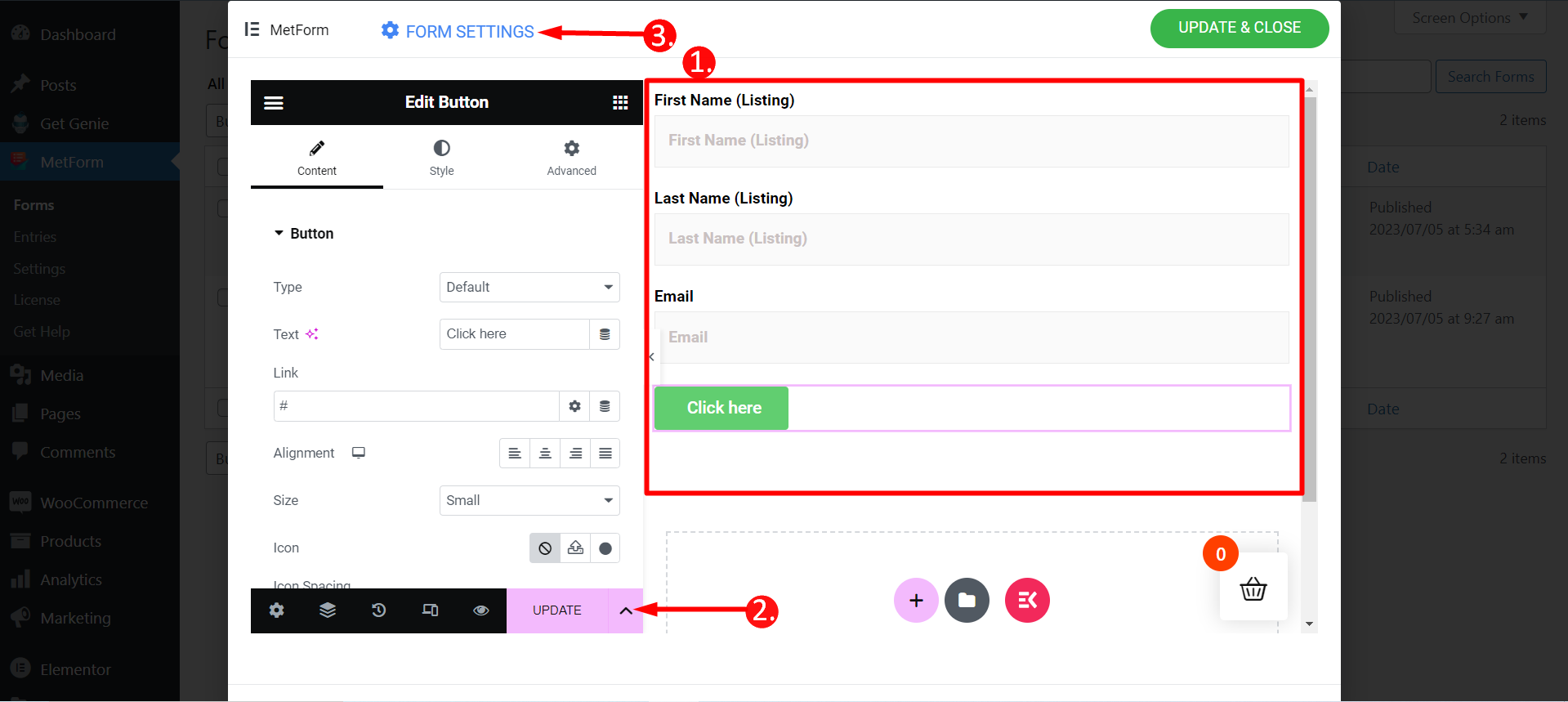
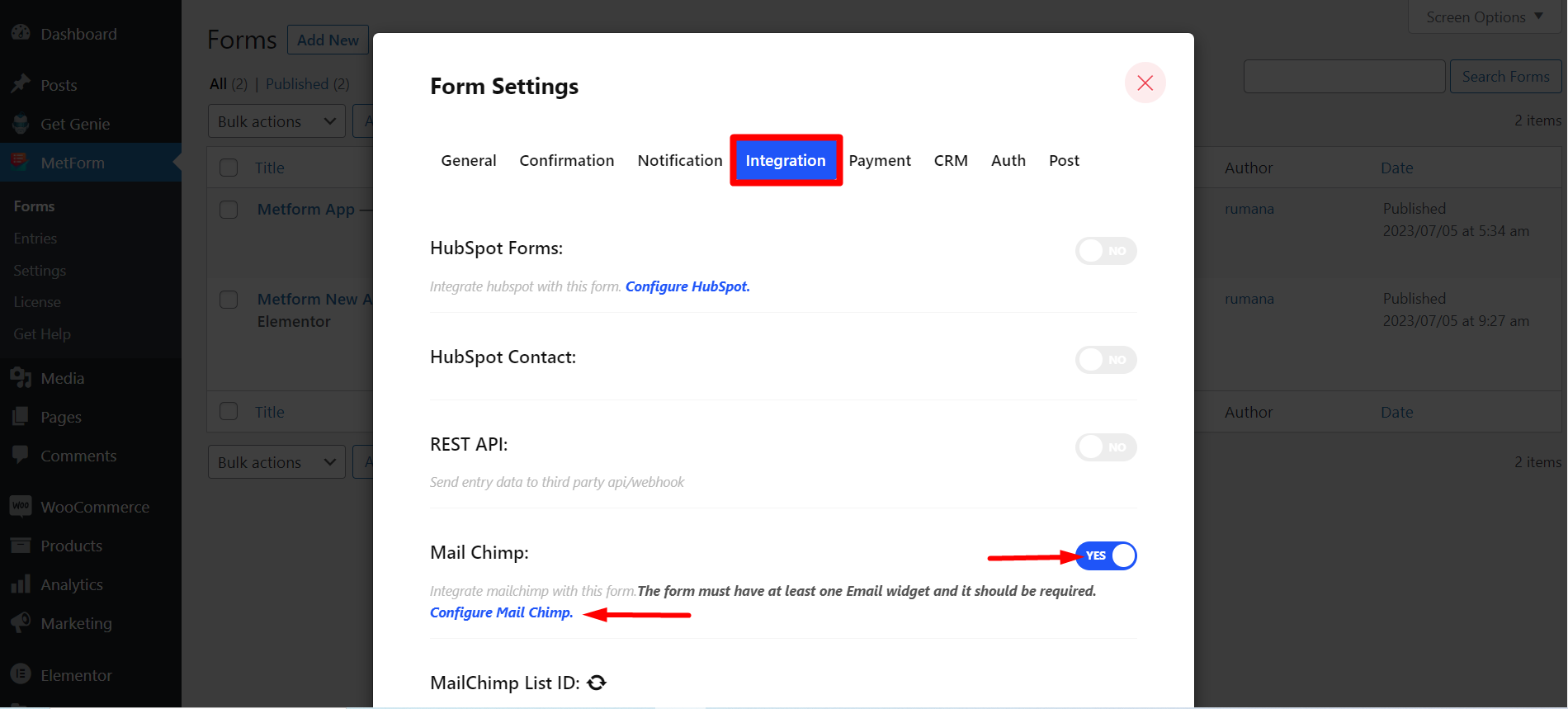
Trin=>1: Naviger til Formularindstillinger → Integration
- Skift til Mail Chimpanse mulighed
- Klik på Konfigurer Mail Chimp
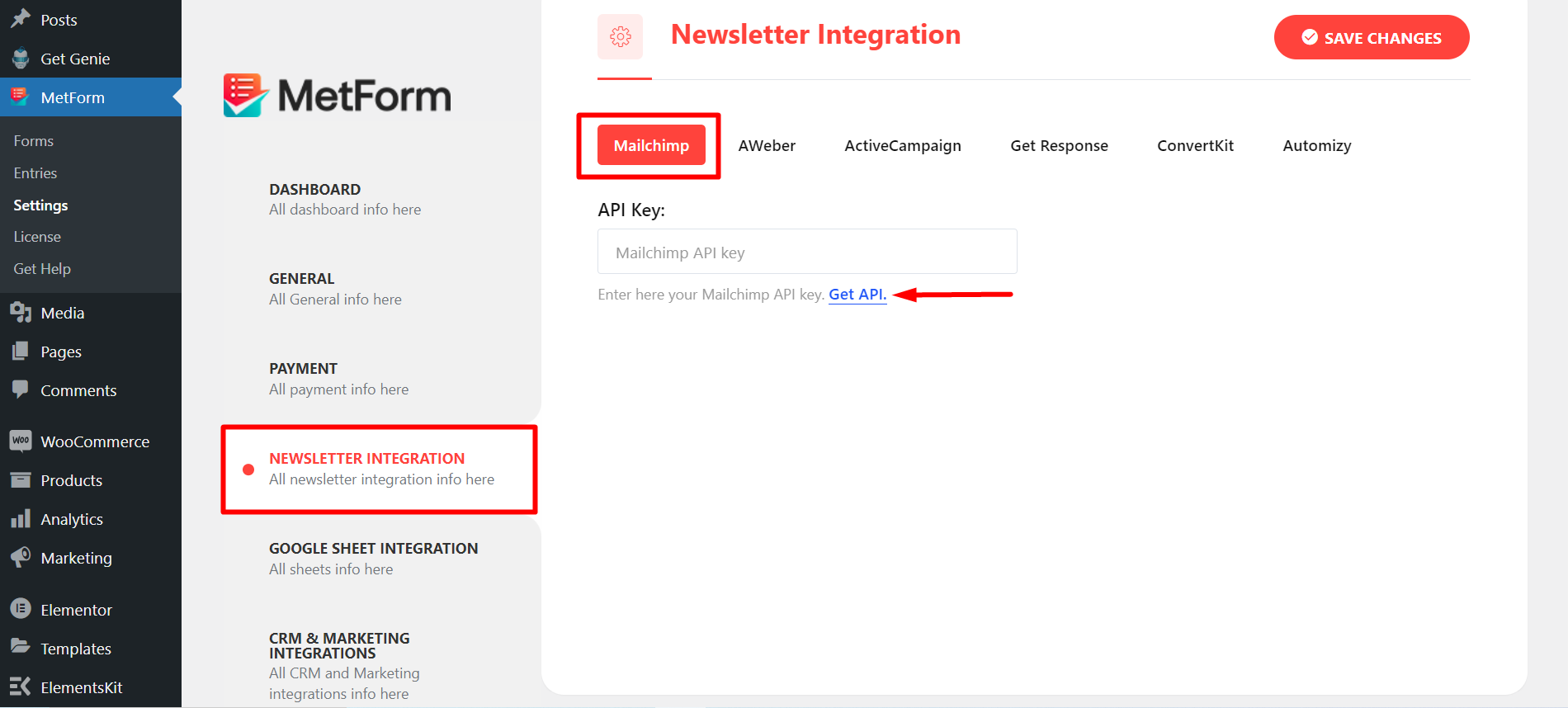
Trin=>2: Det vil flytte til MetForm=> Indstillinger side
- Klik på Mail integration
- Klik derefter på Hent API for at åbne siden i en ny fane og oprette/hente API-nøglen
Trin=>3: For at hente API-nøglen skab en Mailchimp-konto og log ind med din Brugernavn og adgangskode
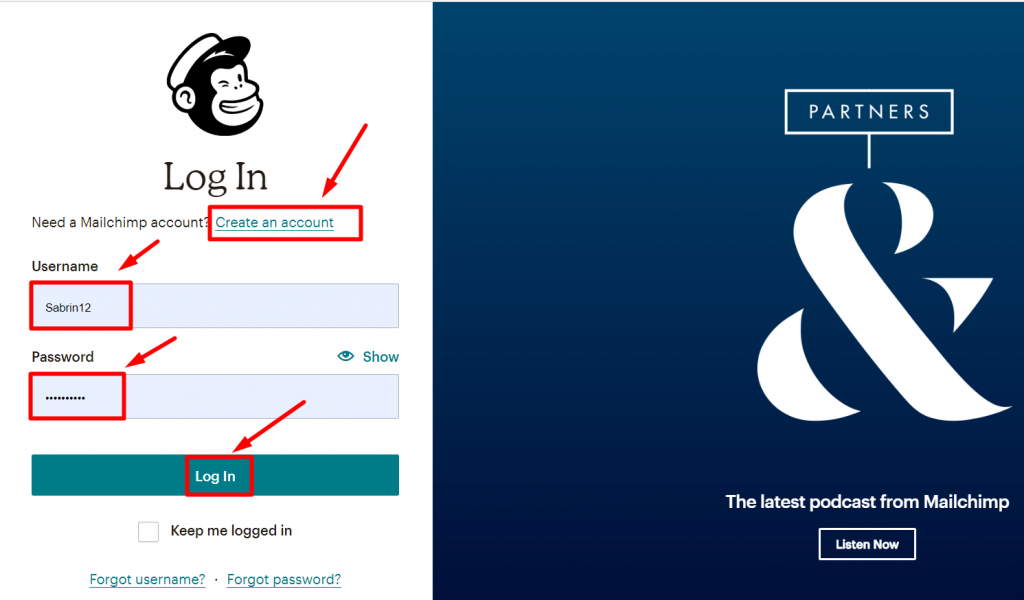
Gå til dit kontobillede, og klik på Konto og fakturering
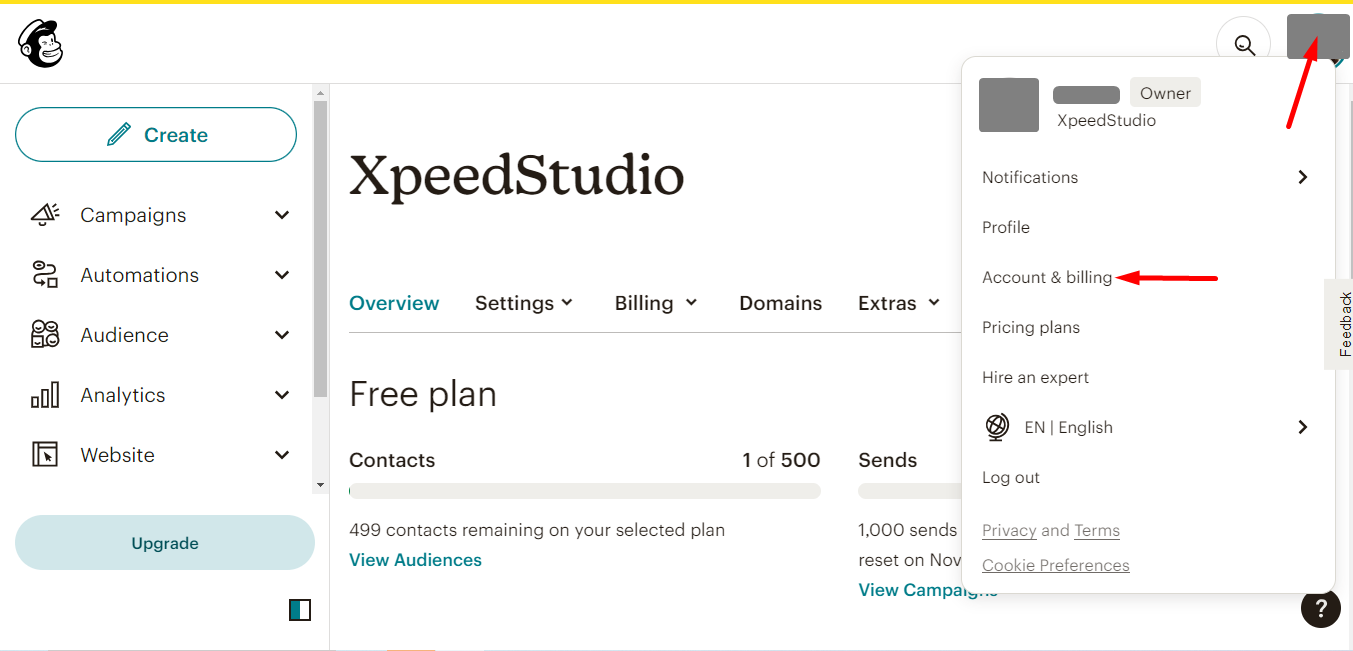
- Find ekstramateriale
- Click API keys
- Now, click Create A key
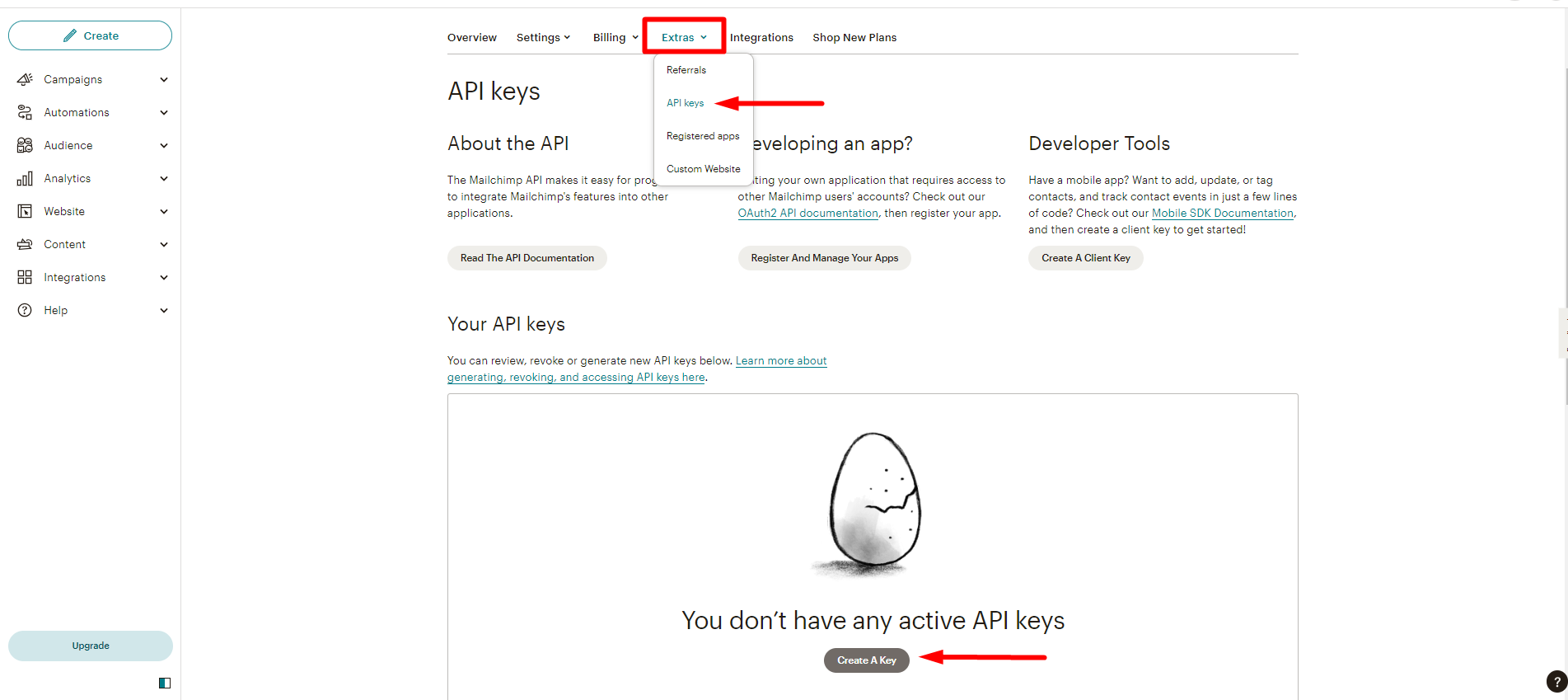
Next, copy the Key
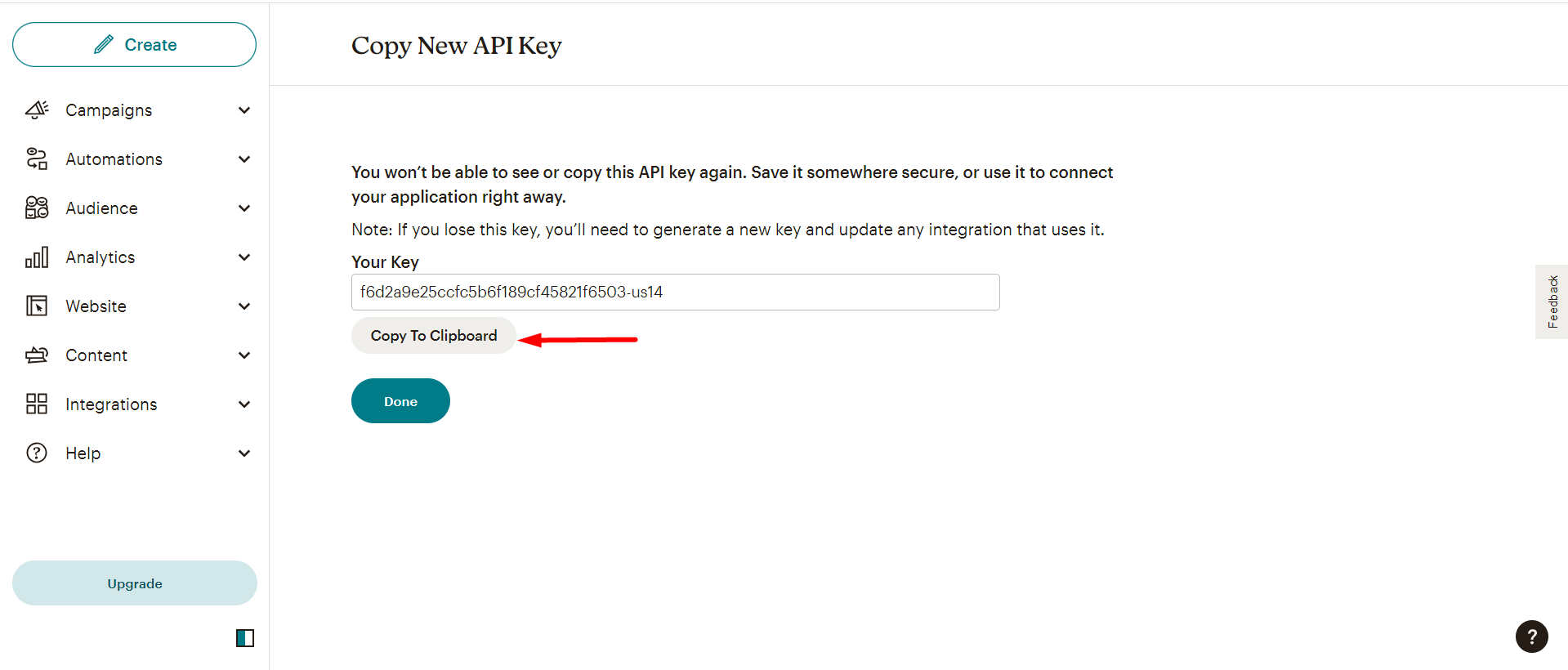
Du kan dog tjekke oprettet liste sådan her -
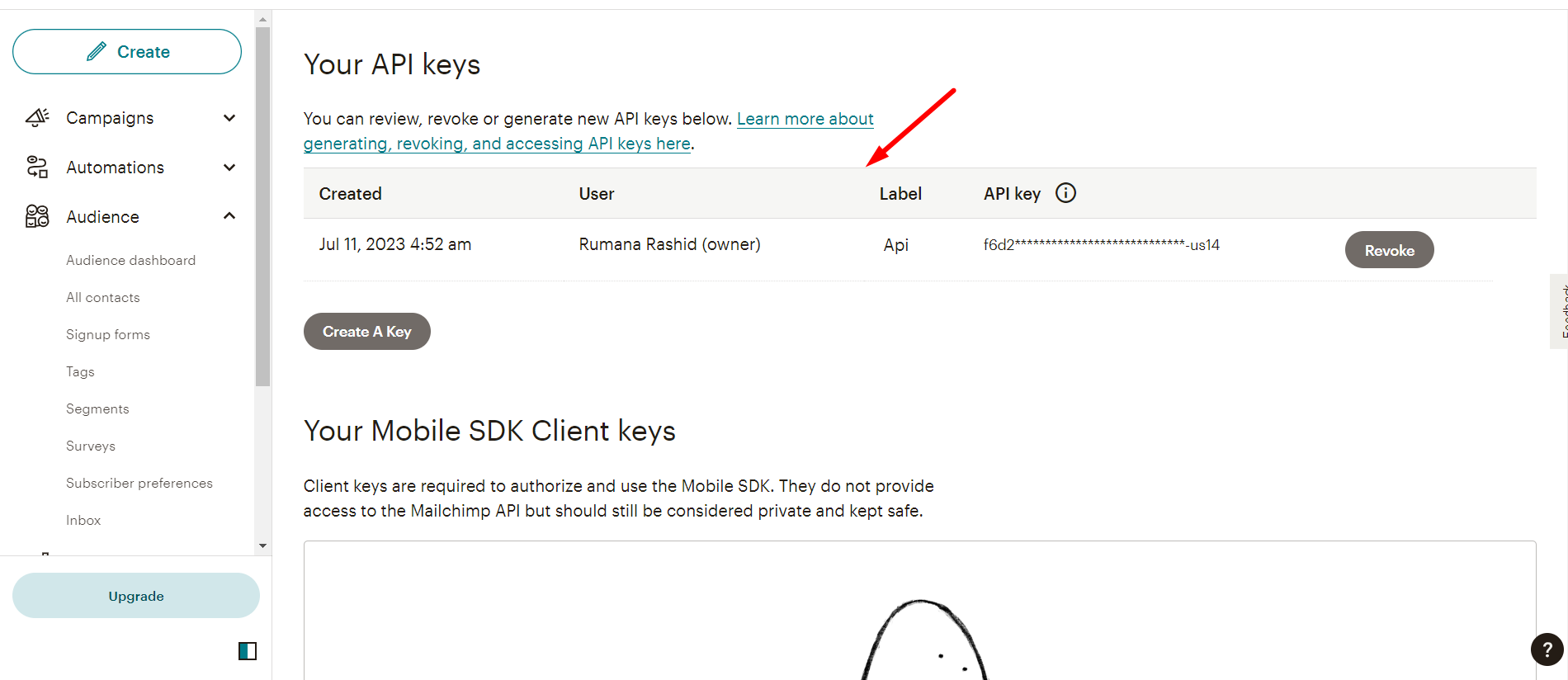
Trin=>4: Now, return back to Nyhedsbrev integration and utilize the copied Key
- Indsæt nøglen her
- Gem ændringer
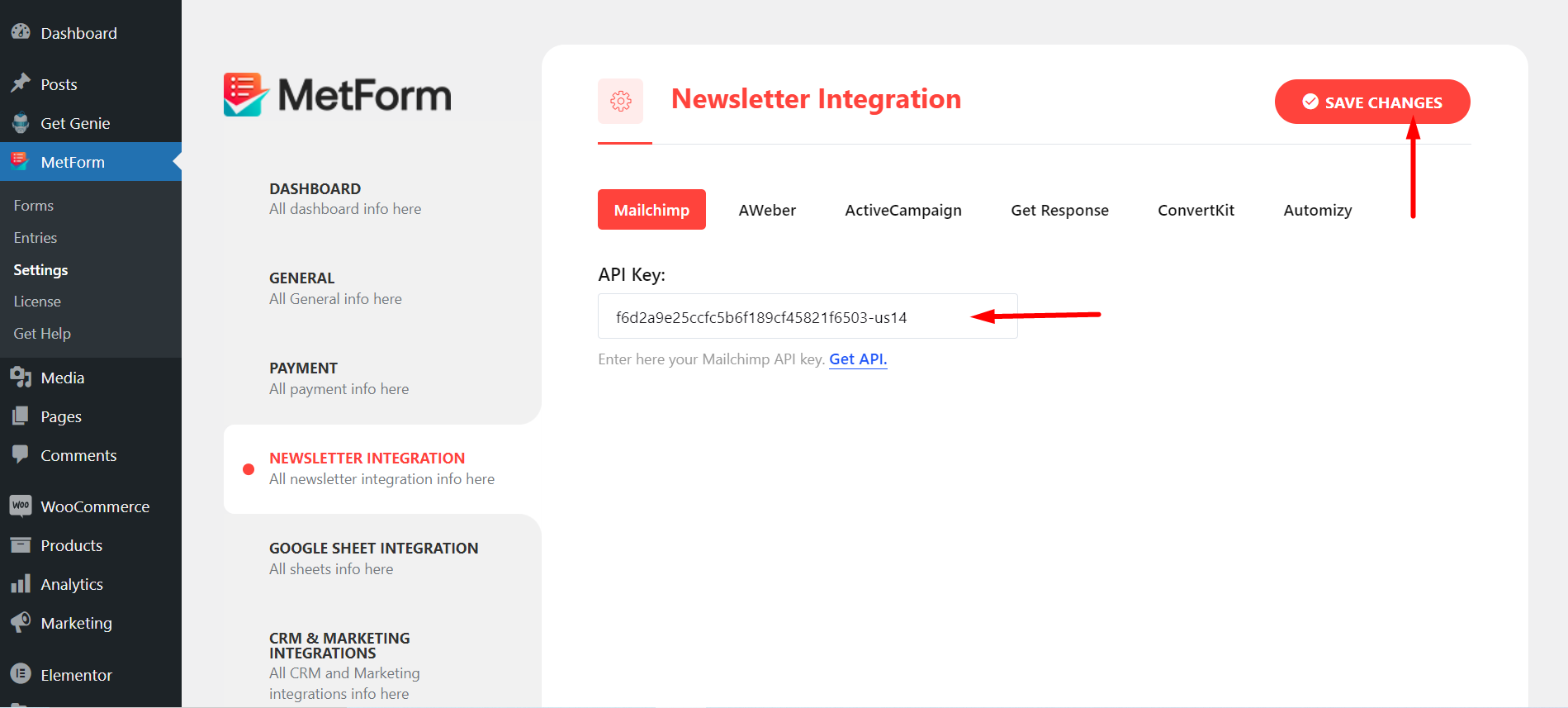
Trin=>5: Gå til Integration afsnit af din form
Opdater ved at klikke på Opdater ikon
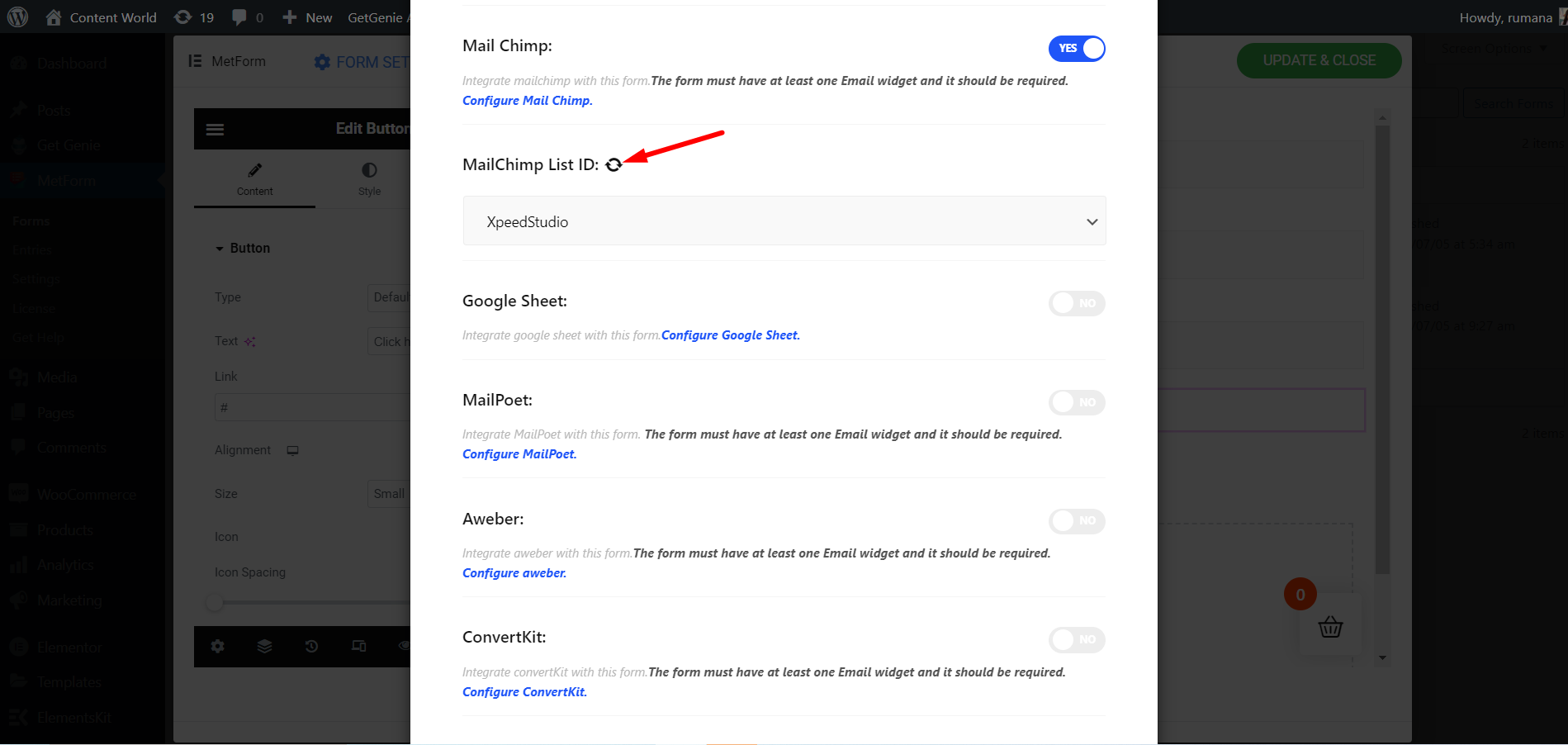
Gem til sidst formularen
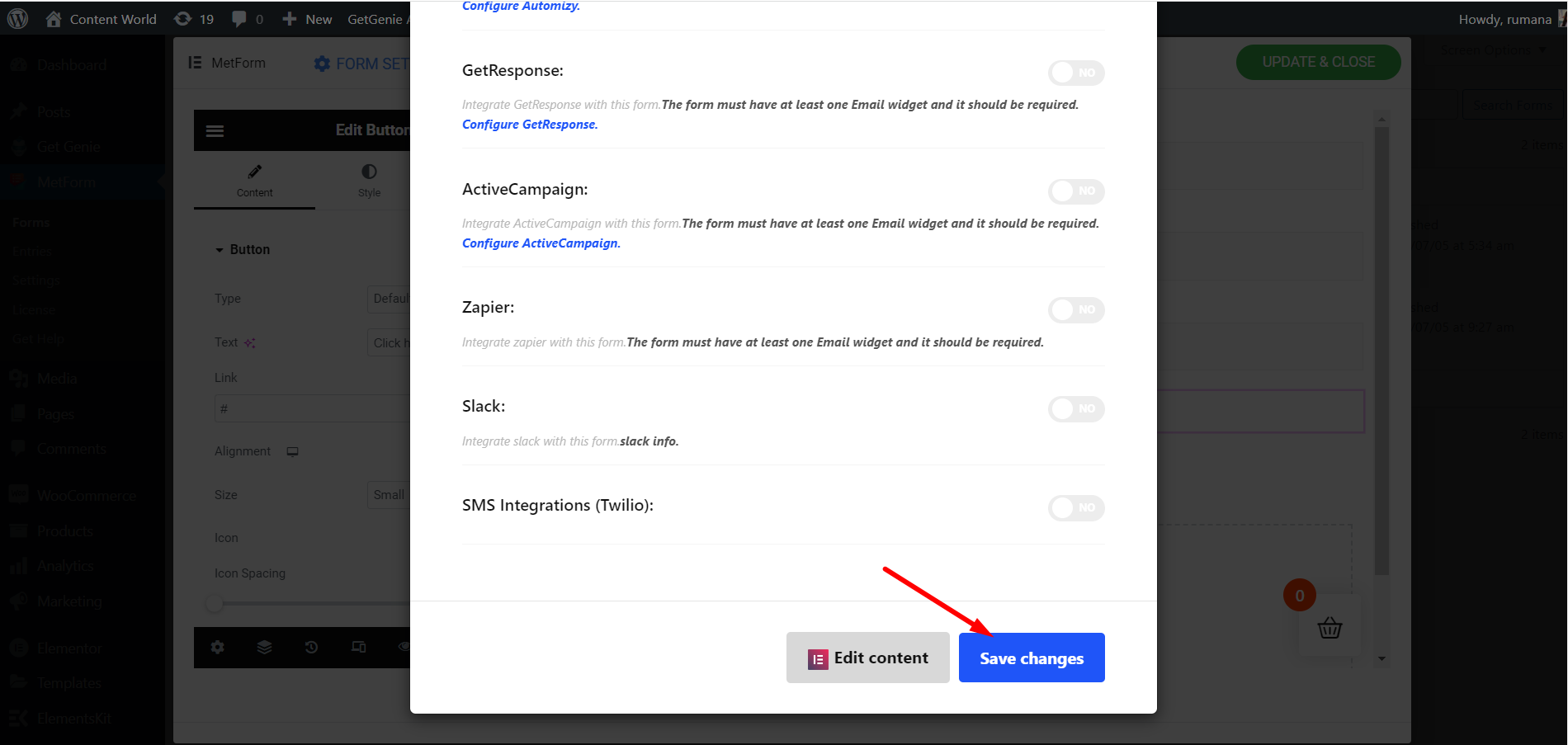
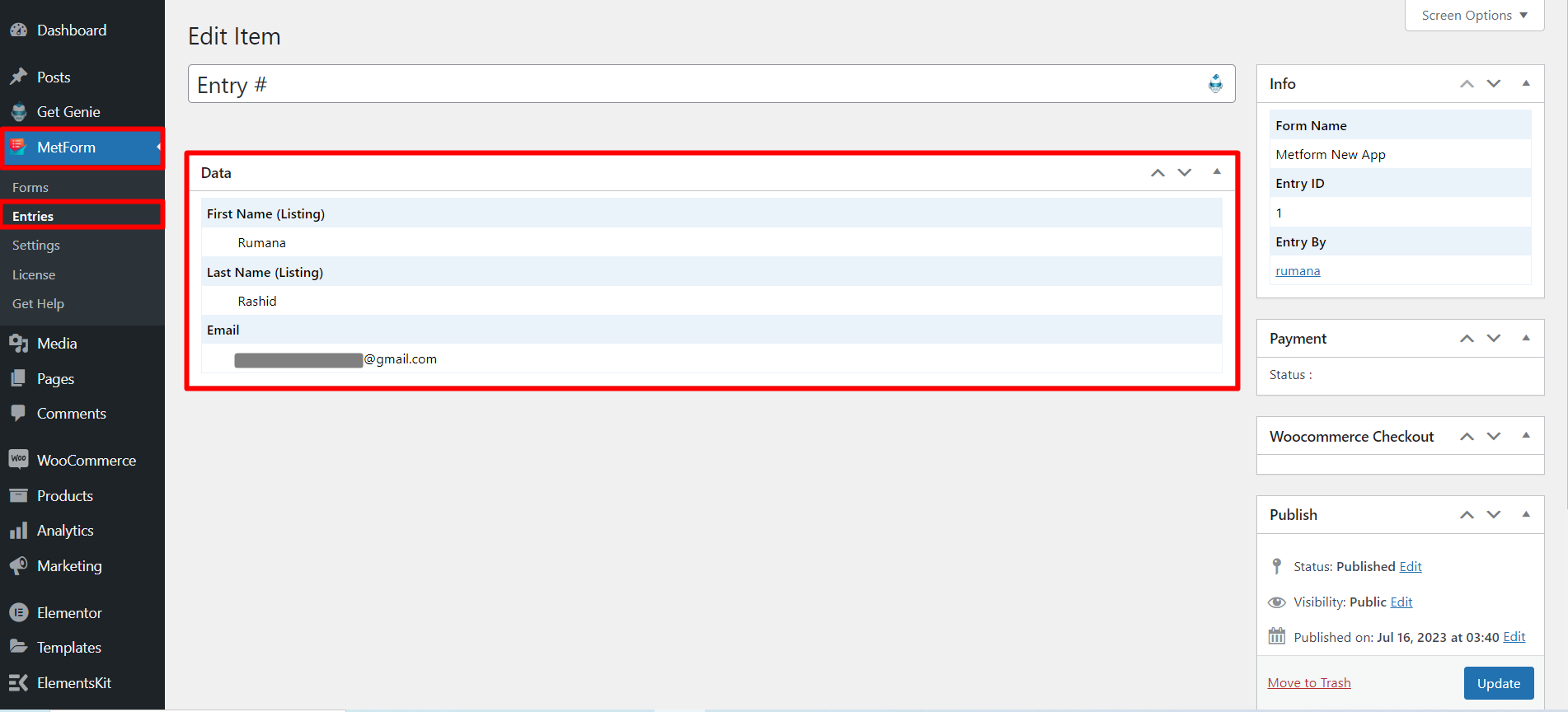
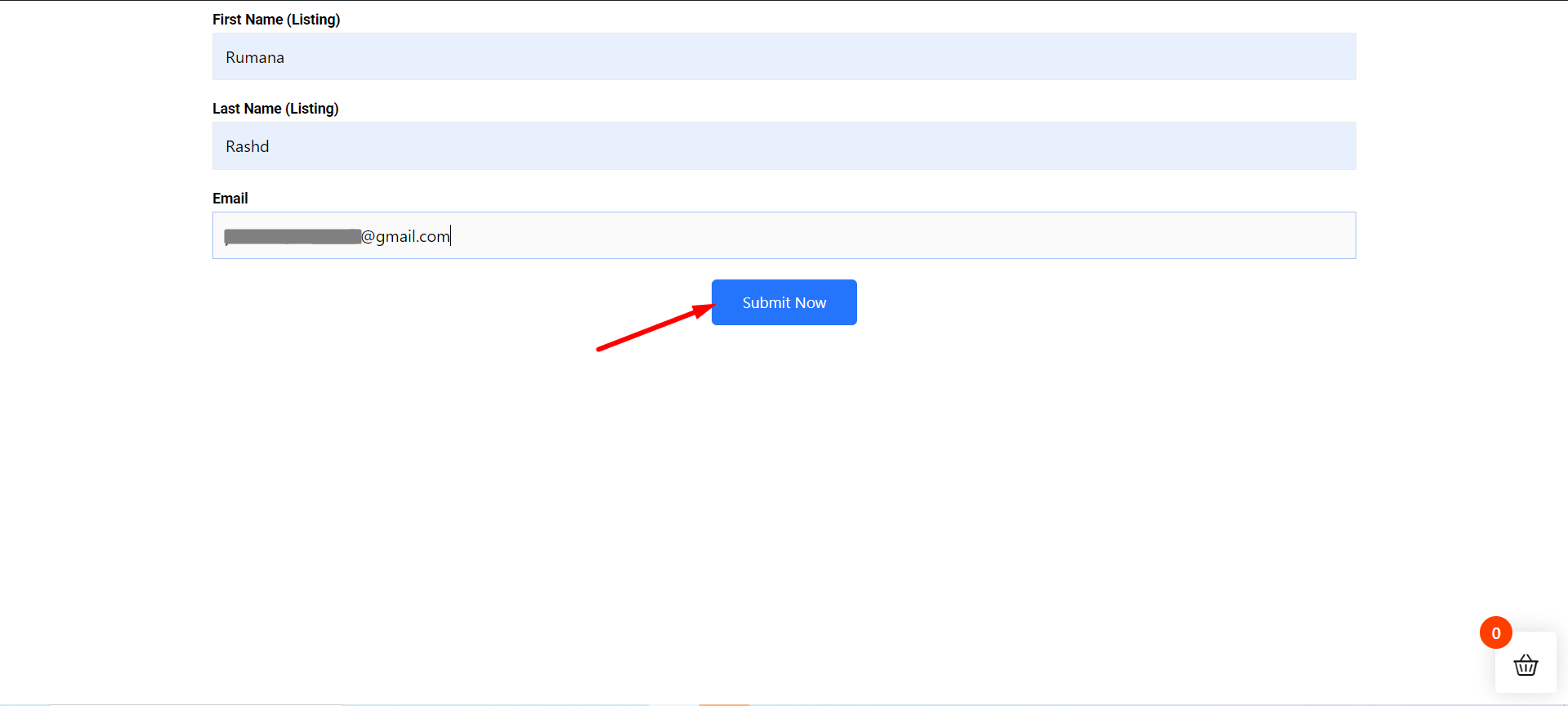
Gå til webstedet=> Udfyld formularen og klik på Indsend knap
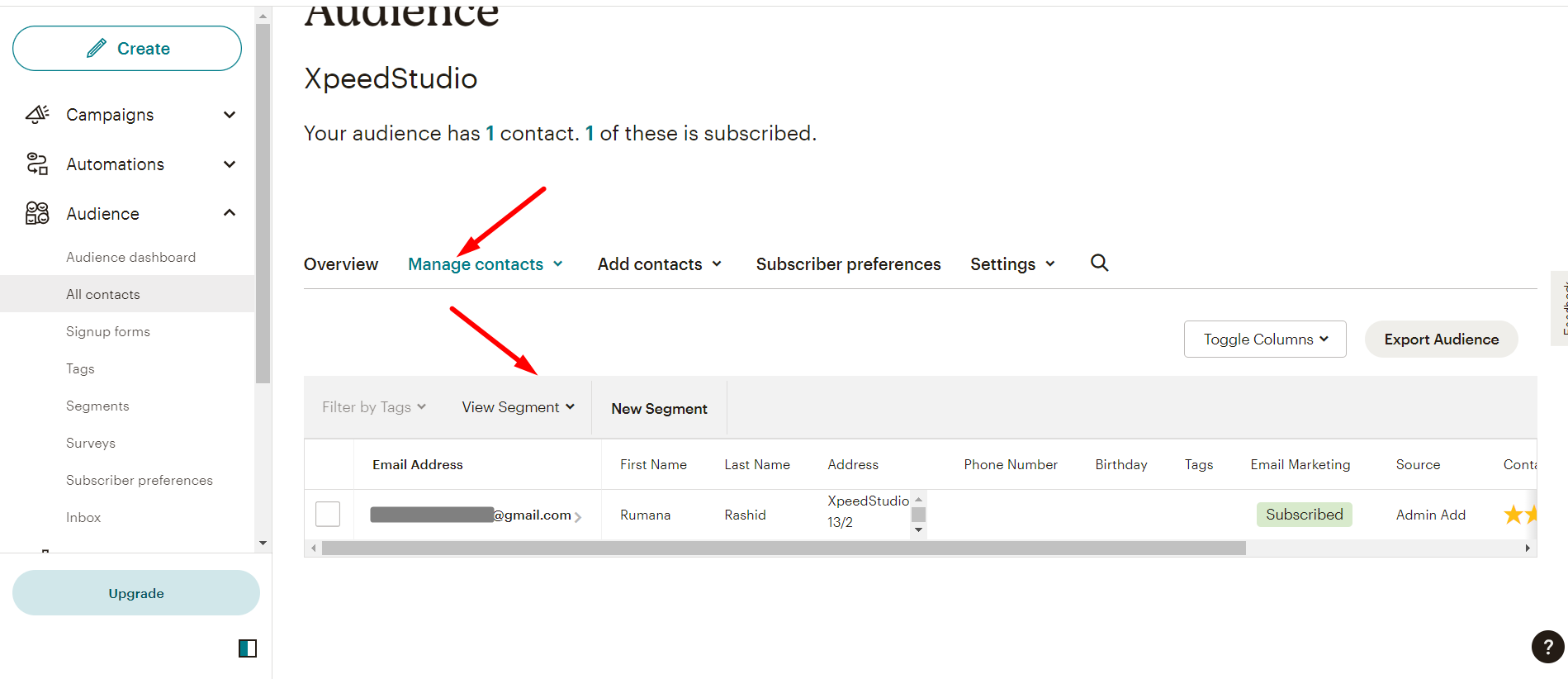
Viser de indsendte Metform-data i Mailchimp-målgruppelisten
Du kan også se Indsendte data i Metformen Entry List