


 English
  German
  Spanish
  Italian
  French
  Danish
  Portuguese
  Swedish
  Polish
  Korean
  Japanese
To make a content reader-friendly table of contents (TOC) is a great way to improve navigation and user experience. With the Gutenberg editor, adding a TOC is a simple and efficient solution.
In this tutorial blog post, we’ll explore how to add table of contents in Gutenberg to your WordPress content within less time.
The advantages of implementing a table of contents
A table of contents organizes your WordPress content, particularly the long content. Readers can scan the whole content through a TOC.
Let’s see the detailed benefits of implementing a table of contents.
🔰 Enhanced readability: For quick navigation and a better understanding of structure, you should implement a table of contents to your content.
🔰 Improved user experience: With a nice table of contents, users get faster access to information.
🔰 Better SEO: An organized TOC helps to improve search engine crawling and enhanced keyword optimization.
🔰 Increased accessibility: A table of contents makes it easier for screen readers and gives better accessibility for people with disabilities.
🔰 Professionalism: Additionally, a TOC gives a polished appearance and enhanced credibility to the content.
🔷 Easy technique to create columns and grids in Gutenberg
How to add table of contents in Gutenberg
Let’s dive into the process of adding a table of contents to the WordPress content using the Gutenberg editor.
Gutenberg offers a handy block to quickly add tables of contents to your WordPress content.
In your content, if you type ‘/’, the Gutenberg Table of Contents block will appear. You can simply click on the block and add TOC in Gutenberg editor.

Again, you can search the Gutenberg Table of Contents block by typing the name. Afterward, you can click on it or drag-and-drop it to the editor.

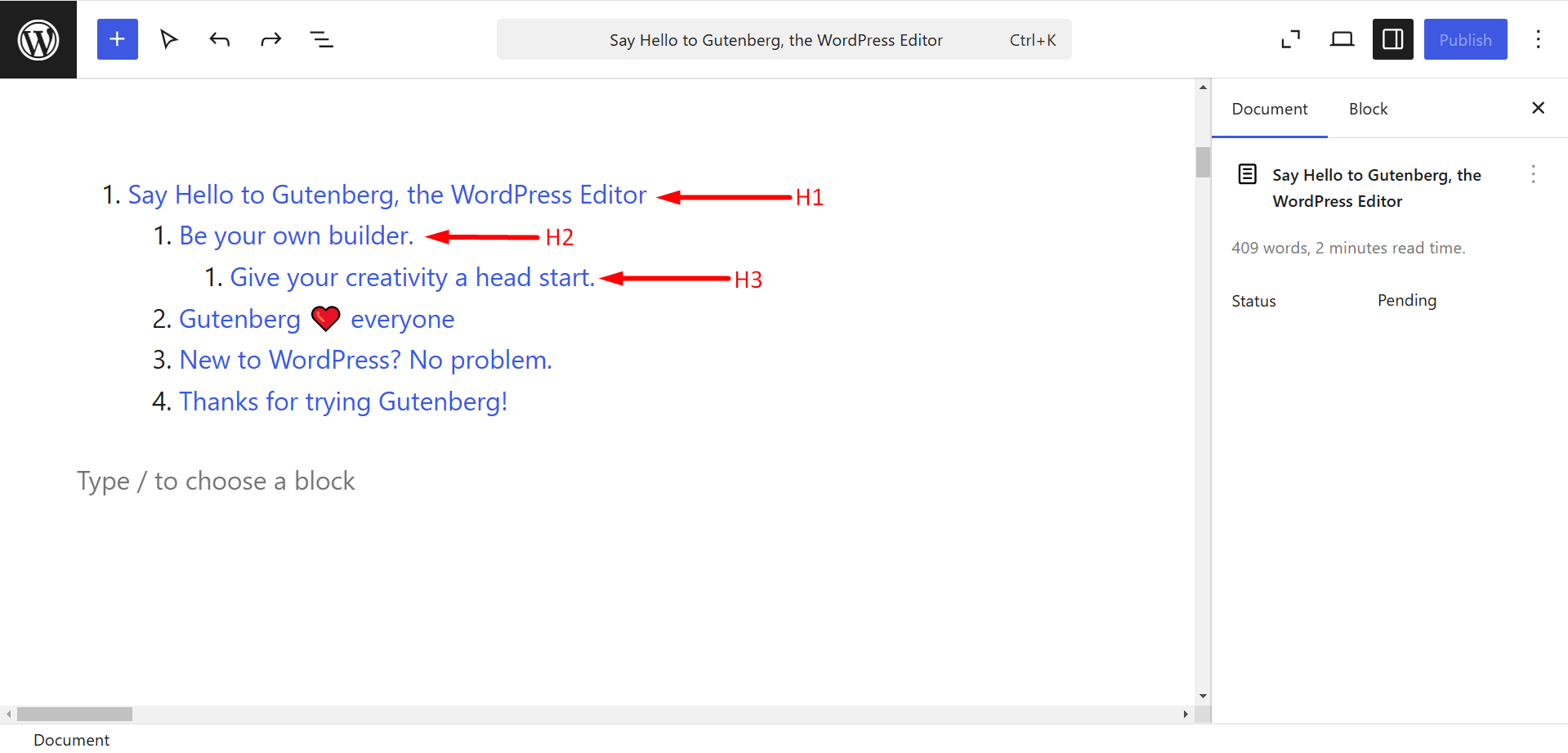
This is what the block looks like.

However, as you structure your content with headings in Gutenberg, the Table of Contents block dynamically updates, mirroring your post’s hierarchy. It neatly indents the subheadings, creating a clear and intuitive roadmap for your readers. The default settings are designed to work seamlessly, requiring no extra effort. Modify your headings, and the TOC automatically adjusts.
Limitations of the Gutenberg Table of Contents block
🤔 There is some lack of the latest features in the block. For example, automatic numbering, collapsible sections, or the ability to exclude specific headings from the TOC are currently unavailable.
🤔 The Table of Contents relies heavily on a well-structured hierarchy of headings. Any changes to the headings can disrupt the TOC’s accuracy.
🤔 For long posts with numerous headings, the Gutenberg TOC block might slightly impact page loading speed.
Create your Table of Contents in Gutenberg
So to make your long-form content more accessible and engaging, you must consider implementing a TOC. It’ll also help to elevate the overall quality of your WordPress website and attract visitors.
And, now that you know how to add table of contents in Gutenberg, you can do it yourself easily.

Leave a Reply