


 Portuguese
  English
  German
  Spanish
  Italian
  French
  Danish
  Swedish
  Polish
  Korean
  Japanese
 Página de agradecimento #
Após enviar o formulário com Pagamento, seja ele bem-sucedido ou com falha, o Metform irá redirecionar para a “Página de agradecimento”, onde o usuário pode ver os detalhes/status do pagamento.
Iniciar #
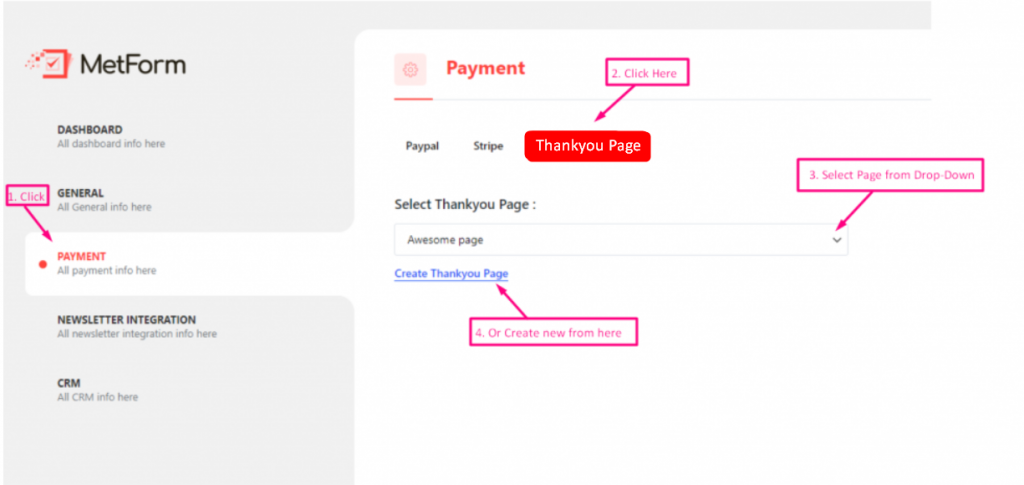
Vá para Metform=> Configurações=> Pagamento=>Página de agradecimento=> Selecione sua página no menu suspenso/ OU Clique em Criar página de agradecimento para criar novos
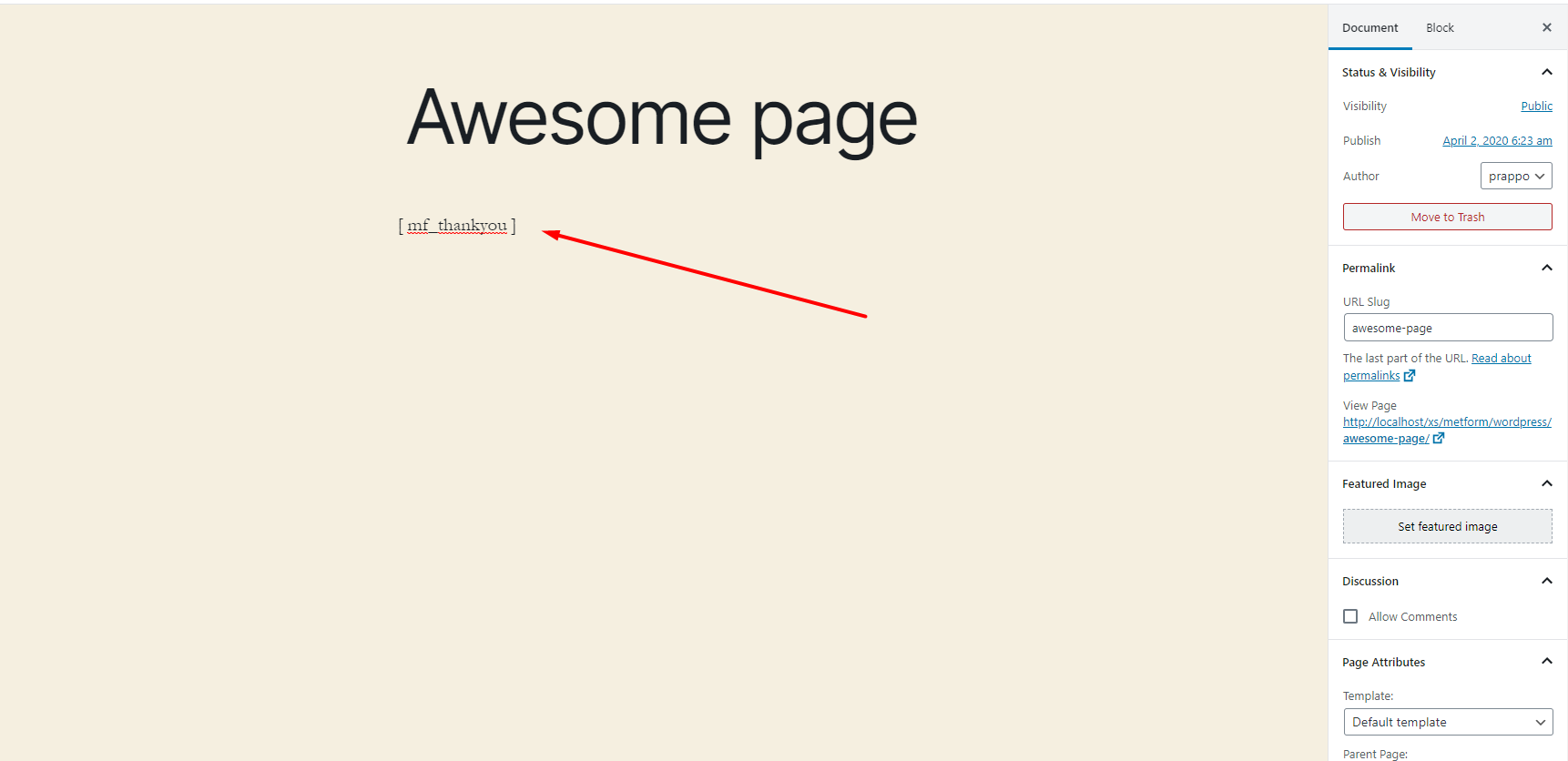
Adicionar código curto #
Adicionar código curto para a página que você selecionou para WordPress Obrigado página
Resultado #
Você pode ver o WordPress Página de agradecimento Após qualquer transação

Avançar #
- Você pode adicionar mais funcionalidades à sua página de agradecimento do WooCommerce. Aqui estão alguns códigos curtos que farão uma página de agradecimento incrível do WooCommerce.
Mensagem de agradecimento padrão #
Se você quiser mostrar o nome junto com o Mensagem de agradecimento padrão então passe o nome com o nome do campo para criar uma página de agradecimento personalizada para WooCommerce
Exemplo #
[mf_obrigado fname='fname_field']**Observação: fname_field o nome do campo vem do formulário Metform
Status do pagamento #
Se quiser mostrar o status do pagamento, você pode usar este código de acesso
Exemplo #
[mf_payment_status]ID da transação #
Se quiser mostrar um ID de transação, você pode usar este código de acesso.
Exemplo #
[mf_transaction_id]Mostrar dados/valor do campo #
Se você quiser mostrar algum dado/valor de campo do forma então siga este shortcode
Exemplo #
[mf campo='fnome']nomeé o nome do campo do formulário
.png?alt=media&token=d9a72de8-bf58-455b-b93f-6e018b36215e)


