Don't Miss the Biggest Wpmet Discount
.
AIO Bundle for only $799
00 DAY
:
00 HOUR
:
00 MIN
:
00 SEC
Save $4,102

WordPress 업데이트 실패 오류 수정 방법: 쉬운 단계별 가이드

WordPress Update Failed

시스템을 업데이트하거나 CMS 내에서 변경을 시도할 때마다 WordPress에서 "업데이트 실패" 또는 "게시 실패" 메시지를 표시하는 것에 지치셨나요? 글쎄, 이런 종류의 메시지로 인해 방문자가 페이지의 콘텐츠에 액세스하지 못할 수 있기 때문에 방문자에게는 문제가 될 수 있습니다.

초보자의 경우 이 오류 메시지가 메시지 자체보다 더 많은 것을 알려주지 않기 때문에 무엇이 잘못되었는지 알 수 없게 될 수 있습니다.

이 블로그 전체에서 실패한 업데이트에 대한 문제와 가능한 해결책을 다룰 것입니다. 또한 WordPress 웹사이트 업데이트의 중요성에 대해 이야기하겠습니다. 그것에 대해 자세히 알아보겠습니다!

How to Fix WordPress Update Failed Error?
There are some basic reasons for “WordPress update failed” error.

  • 서버 관련 문제
  • 플러그인 또는 테마 충돌
  • Incorrect file permissions
  • 인터넷 연결 문제
  • Corrupted update files or incomplete downloads
  • WordPress stuck in maintenance mode
  • Database errors
  • Insufficient disk space on the server
  • SSL/HTTPS misconfiguration
  • WordPress Multisite network complications

You can apply the following methods to fix the WordPress update error.
✅ Check internet connectivity and site URL: Ensure your internet connection and WordPress site URLs are correct and stable.
✅ Use WordPress Site Health to check REST API status: Check whether the REST API is enabled using the Site Health tool.
✅ Disable all installed plugins: Deactivate all plugins to identify conflicts causing update failures.
✅ Check the firewall services of your website: Firewall services like Cloudflare may block REST API requests during updates.
✅ Temporarily install and activate the Classic Editor plugin: Switching to the Classic Editor can bypass REST API-related update issues.
✅ Enable debugging mode and review PHP error logs: Turn on WordPress debug mode to identify errors from the log files.
✅ Clear cache data: Clear browser and website cache to remove outdated files causing conflicts.
✅ Manually delete the .maintenance file: Delete the leftover .maintenance file to restore access to your website.
✅ Increase the PHP memory limit: Raising the PHP memory limit can prevent update timeouts and failures in WordPress.

These are the fundamental steps to fix the WordPress Update Failed Error.

"WordPress 업데이트 실패" 오류의 원인은 무엇입니까?

WordPress 업데이트 실패와 같은 오류 메시지가 표시되면 해결해야 할 몇 가지 기본적인 이유가 있습니다. 몇 가지 이유는 다음을 포함하지만 이에 국한되지는 않습니다.

  • 서버 관련 문제
  • 플러그인 또는 테마 충돌
  • 파일 및 디렉터리 권한
  • 인터넷 연결 문제

One common problem is insufficient server resources, where your web hosting environment lacks the necessary memory or processing power to accommodate the WordPress update process. This can result in WordPress timeout updates or incomplete updates.

Additionally, compatibility issues with the PHP version can hinder the update, as WordPress relies on specific PHP functions. We recommend that your host support PHP 7.4 이상 워드프레스를 실행하기 위해서입니다.

2. 플러그인 또는 테마 충돌

플러그인과 테마는 WordPress 웹사이트의 필수 요소입니다. 이것이 바로 WordPress를 세계 최고의 다재다능한 콘텐츠 관리 시스템 중 하나로 만드는 이유입니다. 그러나 때로는 WordPress에 새 테마나 플러그인을 설치하면 업데이트 프로세스에 영향을 줄 수 있습니다.

설치된 플러그인이나 테마가 WordPress의 새 버전과 호환되지 않을 가능성이 있으며 이로 인해 업데이트가 실패할 수 있습니다.

3. 파일 및 디렉터리 권한

"WordPress 업데이트 실패" 오류의 또 다른 이유는 서버가 업데이트 중에 필요한 임시 파일을 만드는 데 어려움을 겪기 때문일 수 있습니다. /업그레이드/디렉토리. 이 파일을 만들려면 서버에 해당 폴더에 쓸 수 있는 권한이 있어야 합니다.

4. 인터넷 연결 문제

WordPress는 웹을 기반으로 하기 때문에 운영을 위해서는 안정적인 인터넷 연결이 필요합니다. 우리가 본 것처럼 대부분의 경우 연결 부족으로 인해 WordPress에서 게시 실패 오류가 발생합니다. 인터넷 연결이 약하거나 끊어지면 게시물/페이지를 게시하거나 편집하지 못할 수 있습니다.

5. Corrupted Update Files or Incomplete Downloads

If a download gets interrupted mid-way due to a server timeout or unstable connection, the update file becomes corrupted and WordPress can’t complete the process. Try the update again on a stable connection, or manually upload a clean WordPress copy via FTP.

6. WordPress Stuck in Maintenance Mode (The .maintenance File)

During updates, WordPress creates a .maintenance file that locks the site, if the update fails, this file stays behind and keeps your site in maintenance mode indefinitely. Simply delete it from your root directory via FTP or File Manager to restore access and solve WordPress not updating to the latest version.

7. Database Errors

WordPress updates often modify the database structure, and if the database is outdated, corrupted, or lacks proper user privileges, the update will break. Try running the built-in upgrade tool at yourdomain.com/wp-admin/upgrade.php, or contact your host to check database health.

8. Insufficient Disk Space on the Server

WordPress needs free server space to download, extract, and replace update files, if your hosting plan is nearly full, the update will fail silently. Check disk usage in your hosting control panel and free up space by removing old backups, unused plugins, or themes.

9. SSL/HTTPS Misconfiguration

A mismatch between http:// 그리고 https:// URLs, or an expired SSL certificate, can block REST API requests and cause update failures. Ensure both 워드프레스 주소 그리고 사이트 주소 ~에 Settings → General use https:// and that your SSL certificate is active.

10. WordPress Multisite Network Complications

In a Multisite setup, only the Super Admin can run updates — attempting it from a sub-site will fail. Always update from the Network Admin dashboard (/wp-admin/network/) and test on a staging site first before pushing changes network-wide.

How to fix WordPress update failed error (In 9 Steps)

다음은 WordPress 업데이트 실패 또는 게시 실패 오류를 방지하기 위해 따를 수 있는 6가지 기본 단계입니다.

1단계: 인터넷 연결 및 사이트 URL 확인

Wi-Fi나 인터넷이 끊기는 것은 업데이트 실패로 이어지는 가장 일반적인 문제입니다. 업데이트 프로세스 중에 연결이 안정적인지 확인하세요.

다음으로 확인할 것은 WordPress 사이트 URL 설정입니다. 대시보드에서 다음으로 이동하세요. 설정 ⇒ 일반. '사이트 주소' 그리고 '워드프레스 주소'가 올바르게 주어졌습니다. 대부분의 경우 두 상자 모두 동일한 URL을 가져야 합니다.

Step 2: Use WordPress site health to check REST API status

그 이후로 블록 편집기 출시되자 '게시 실패'라는 공통적인 문제가 발생했습니다. REST API 차단되어 비활성화되었습니다. 이 오류가 나타날 때마다 REST API 상태를 확인하는 것이 문제 해결을 시작하는 데 좋은 방법입니다.

다행히 WordPress에는 내장된 사이트 상태 도구, 이는 사이트의 보안 및 성능에 대한 중요한 정보를 보여줍니다. 다음으로 이동하면 됩니다. 도구 ⇒ 사이트 상태. 상태 탭을 확인하고 REST API를 사용할 수 있는지 확인하세요. 테스트 통과.

REST API가 비활성화된 경우 다시 활성화할 수 있는 방법이 있습니다. 이것들은:

  • 다음 사항을 확인하세요. 클라우드플레어 검사하여 REST API를 차단하고 있습니다. 규칙 세트.
  • *를 통해 REST API로 사이트를 인증합니다..htaccess 파일.
  • 오류가 서버와 관련된 것인지 확인하세요. 편집하다 웹.구성 필요하다면.

3단계: 설치된 모든 플러그인을 비활성화합니다.

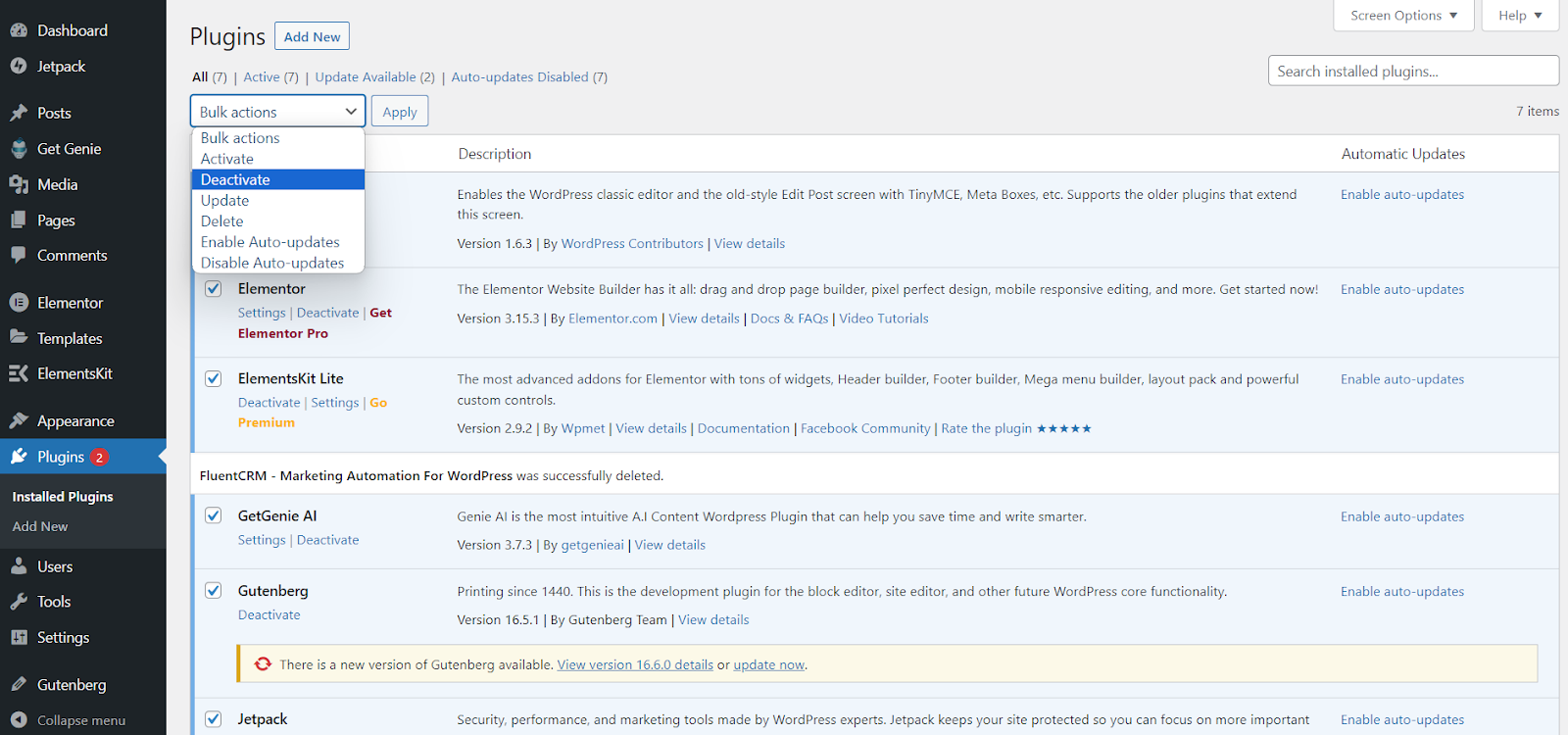
Sometimes the installed plugins cause WordPress “update failed” problems due to various reasons. If you feel like you’ve got some buggy plugins installed on your site, then that might be the reason for the “WordPress Updating Failed” message. Your best bet would be to disable all the plugins and try to update WordPress.

WordPress plugins bulk actions for not updating

과정은 매우 간단합니다. 그냥 가세요 플러그인 그리고 선택 설치된 플러그인. 모든 플러그인을 선택하려면 확인란을 선택하세요. 다음을 사용하여 한 번에 모두 비활성화합니다. 일괄 작업 드롭 다운 메뉴.

그 후에도 업데이트 또는 게시 오류가 계속 지속되는지 확인하세요. 그렇지 않은 경우 플러그인인지 확인할 수 있습니다. 이제 어느 것을 알아내야 할까요?

4단계: 웹사이트의 방화벽 서비스 확인

다음과 같은 방화벽 서비스를 사용하여 클라우드플레어 또는 수쿠리 REST API 요청을 차단할 수 있습니다. 귀하의 웹 사이트 IP 주소가 방화벽에서 의심스러운 경우 필터링을 시도하고 REST API도 차단할 수 있습니다.

If other methods fail, you can try temporarily disabling the firewall and see if the WordPress updating failed error occurs. You can normally disable it from the domain section of the hosting service dashboard.

예를 들어, 다음을 사용하는 경우 블루호스트, 다음에서 찾을 수 있습니다. 내 사이트 ⇒ 관리하다 ⇒ 성능 탭.

5단계: 클래식 편집기 플러그인 임시 설치 및 활성화

"WordPress 게시 실패" 오류가 지속되는 경우 문제 해결 단계는 클래식 편집기로 다시 전환하는 것입니다. 이 방법을 다루는 이유는 REST API에 의존하지 않는 이전 WordPress 편집기이기 때문입니다.

간단하게 설치하고 활성화하세요. 클래식 편집기 플러그인 이 모드를 활성화하려면 더 이상 오류 메시지가 표시되지 않기를 바랍니다.

6단계: 디버깅 모드 활성화 및 PHP 오류 로그 검토

다행히 WordPress는 로그의 모든 오류를 감시합니다. 비록 저장은 안되지만 REST API 오류가 발생하더라도 이 모드에서 다른 문제를 확인할 수 있습니다.

이제 FTP 또는 파일 관리자로 들어가야 합니다. 로그인 정보가 준비되어 있는지 확인하세요. FTP를 사용하면 호스팅 서버에 있는 웹 사이트 파일에 접근하여 서버 수준에서 변경할 수 있습니다.

FTP를 통해 서버에 액세스하고 "WordPress"라는 폴더를 찾으세요. 이 폴더 내에서 다음을 찾으십시오. wp-config.php 파일. 텍스트 편집기를 사용하여 wp-config.php 파일. 해당 파일에 다음 줄을 추가하기만 하면 됩니다.

// WP_DEBUG를 true로 변경합니다.

정의( 'WP_DEBUG', true );

// WordPress 오류 로그를 유지합니다.

정의( 'WP_DEBUG_LOG', true );

변경 사항을 저장하고 파일을 서버에 다시 업로드합니다. 이제 업데이트 또는 게시 오류를 재현해 보세요.

그 후, 다음을 통해 호스팅 계정으로 이동하세요. FTP 클라이언트 그리고 로 가세요 /wp-내용/폴더. 여기에서 간단히 다운로드하세요. 디버그.로그 파일을 컴퓨터에 저장하세요.

열어서 오류를 확인해보세요. 힌트는 전문가에게 문의하세요.

Step 7: Clear cache data

The web caching method stores specific website elements or entire page components. It helps the browser quickly load the page on repetitive visits. That doesn’t mean browsers don’t show updates to the web page. On some occasions, technical glitches can occur that still show old versions and cause website code conflicts.

After updating the WordPress software to a new version, you should clear all device and browser cache files. Doing this will help you to fix the WordPress update failed error.

Step 8: Manually delete the .maintenance file

If your site is stuck showing “Briefly unavailable for scheduled maintenance. Check back in a minute” even after the update attempt is long over, WordPress has left behind a hidden .maintenance file in your root directory.

Here’s how to remove it:

  1. Connect to your server using an FTP 클라이언트 (like FileZilla) or your hosting’s 파일 관리자.
  2. Navigate to your WordPress root directory — the same folder where wp-config.php lives.
  3. Look for a file named .maintenance (you may need to enable “show hidden files” in your FTP client).
  4. Right-click and 삭제 the file.

Once deleted, reload your site. It should be back to normal immediately. This is one of the quickest fixes in WordPress troubleshooting and takes less than two minutes.

Step 9: Increase the PHP Memory Limit

WordPress memory limit is the maximum amount of server memory (RAM) that a WordPress site is allowed to use while executing PHP scripts.

WordPress update processes require a certain amount of server memory to run. If your hosting plan has a low PHP memory limit, the update can time out or fail halfway through, often without a clear error message.

To increase the memory limit, you can apply the following methods:

  • Increase WordPress memory limit via wp-config.php.
  • Edit your PHP.ini file to increase WP memory limit.
  • Edit your .htaccess 파일.
  • 메모리 확장 플러그인을 사용하세요.
  • Through the hosting provider.
  • Upgrade hosting service.

You can use any of these methods to increase the PHP memory limit of your WordPress site. Our detailed guide on increasing the WordPress memory limit explains each method step by step, helping you choose the one that best fits your hosting environment and technical comfort level.

WordPress 업데이트의 중요성 이해

모든 종류의 소프트웨어에 대해 업데이트는 필수입니다. 이는 개발자가 직접 소프트웨어의 향상된 버전으로 제공됩니다. 워드프레스에서도 마찬가지입니다.

업데이트는 이전 빌드의 많은 취약점, 주소, 버그 수정으로부터 보호하고 최신 플러그인 및 테마에 대한 호환성을 생성하여 웹 사이트의 보안 강화를 보장합니다.

That’s why we recommend you always keep WordPress updated with the latest version. However, many times we see complaints like, “WordPress update broke my site!”, or questions like, “Why do my WordPress updates keep failing?”

때때로 웹사이트를 업데이트할 때 "WordPress 업데이트 실패" 오류 메시지가 나타나서 방금 무슨 일이 일어났는지 알 수 없게 됩니다. '워드프레스 업데이트 실패' 문제를 확인해보겠습니다.

아직도 업데이트할 수 없나요? 호스팅을 확인하고 도움을 요청하세요

If all the steps are failing, you may want to look at the hosting service, as the problem might lie there. It will be best to contact the hosting services and address the issues. Be sure to send them logs and tell them what you did to fix WordPress not updating to the latest version.

특히 사용자 지원이 약하거나 없는 플러그인에 대해서는 WordPress 포럼에서 지원을 요청할 수도 있습니다. 일부 무료 플러그인은 지원이 부족한 경향이 있으며 WordPress 지원 포럼은 도움을 받기에 좋은 곳입니다.

향후 WordPress 업데이트 실패 방지

향후 업데이트 실패를 방지하려면 항상 다음 규칙을 따르십시오. 이는 종종 간과되는 몇 가지 표준 절차 및 조치입니다. 다음 사항을 기억하세요.

  • 정기적인 웹사이트 유지관리
  • 플러그인, 테마 및 WordPress 코어를 최신 상태로 유지
  • 준비 사이트에서 업데이트 테스트

FAQs for WordPress update failed error

Is it safe to update WordPress while my site is live?

It’s generally safe, but best practice is to take a full backup before running any update. For extra safety, test the update on a staging site first, especially for major WordPress core version jumps, before applying it to your live site.

Will updating WordPress delete my content, themes, or plugins?

No. A WordPress core update only replaces core files like wp-admin 그리고 wp-includes. Your content, media, themes, and plugins are stored in wp-콘텐츠 and the database, which are never touched during a standard update.

What’s the difference between “Update Failed” and “Publishing Failed”?

“Update Failed” usually refers to WordPress core, plugin, or theme updates failing. “Publishing Failed” is specific to the Block Editor (Gutenberg) and almost always points to a blocked or disabled REST API. Both are different symptoms that require different fixes.

How do I know which plugin is causing the update to fail?

Deactivate all plugins at once via Plugins → Installed Plugins → Bulk Actions, then attempt the update. If it succeeds, reactivate plugins one by one and test after each, the one that triggers the error again is your culprit.

How much PHP memory does WordPress need to update successfully?

WordPress recommends a minimum of 64MB, but 256MB is the practical standard for most sites running plugins and themes. If your host allows it, setting WP_MEMORY_LIMIT 에게 256M ~에 wp-config.php prevents most memory-related update failures in WordPress.

마지막 말

WordPress 업데이트 실패 오류 및 게시 실패 오류를 해결하는 기본 단계를 보여 드렸습니다. 이와 함께 우리는 이러한 문제의 가능한 원인을 밝혀냈습니다.

We hope that the WordPress update problems will be resolved with these six steps. We encourage you to always be proactive in addressing these issues and to talk on the WordPress support forums. Also, remember the benefits of a healthy and well-maintained WordPress website with up-to-date plugins and core.


Ataur Rahman 아바타

아타우르 라만

With over a decade in the WordPress industry, the founder of Wpmet is a true WordPress veteran who has seen everything from the beginning. Through hands-on experience building products used by thousands, he shares exclusive insights, practical strategies, and real-world lessons for WordPress users, developers, and business owners.

코멘트

답글 남기기

이메일 주소는 공개되지 않습니다. 필수 필드는 *로 표시됩니다

목차