




You can integrate Google services like Google Sheets and Drives to your WordPress forms. For that you need to connect the MetForm with your Google Cloud Console.
Here is how to integrate Google services with MetForm:
Pre-requirements: #
- You will need a Google Cloud Console account, either you have to open a new account or log in to your exisiting account.
- Since MetForm is an Elementor form builder, you need to have Elementor plugin installed and activated on your website.
- Elementore: Scarica plugin
- MetForm Pro: Ottieni il plugin
👑 Google integration in only available with MetForm Premium version.
Step 1: Set up a project in the Google Cloud Console #
You will need APIs to connect the Google Sheet with WordPress form. For that, login to your Google Cloud console acoount. After that,
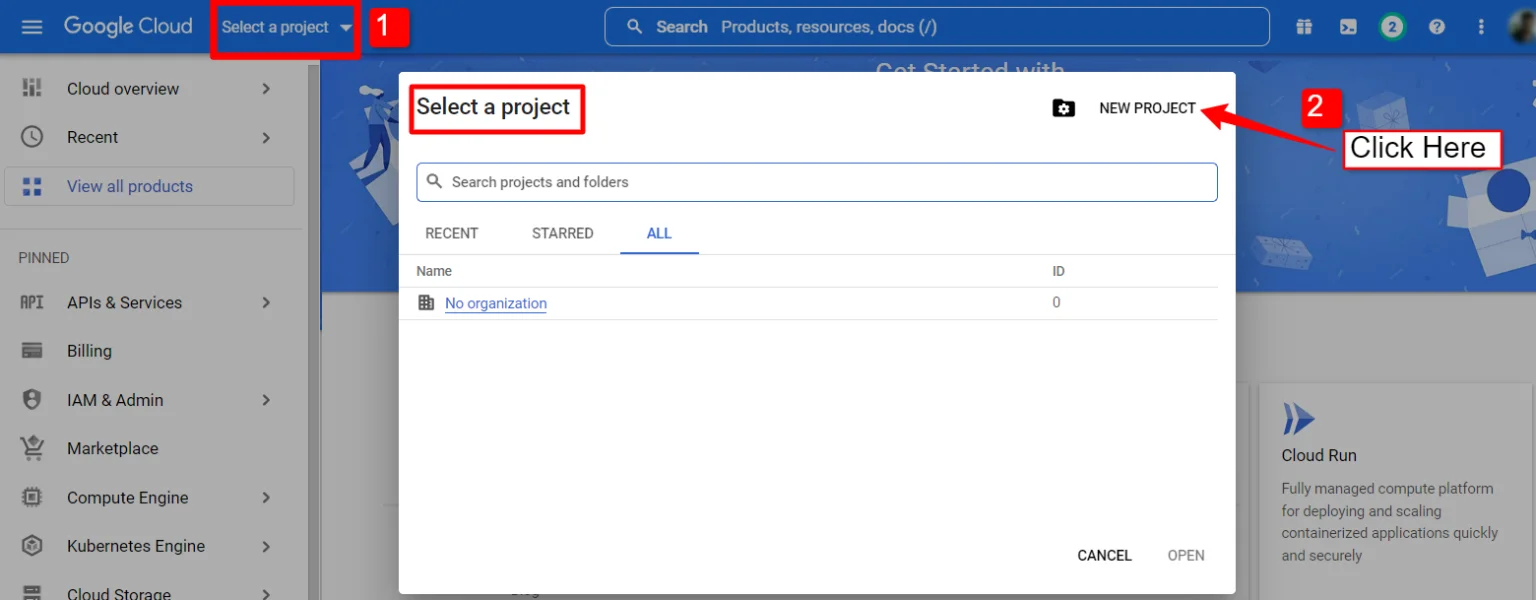
1. Click on the Select a project cadere in picchiata.
2. A popup will appear, there click on the Nuovo progetto opzione.
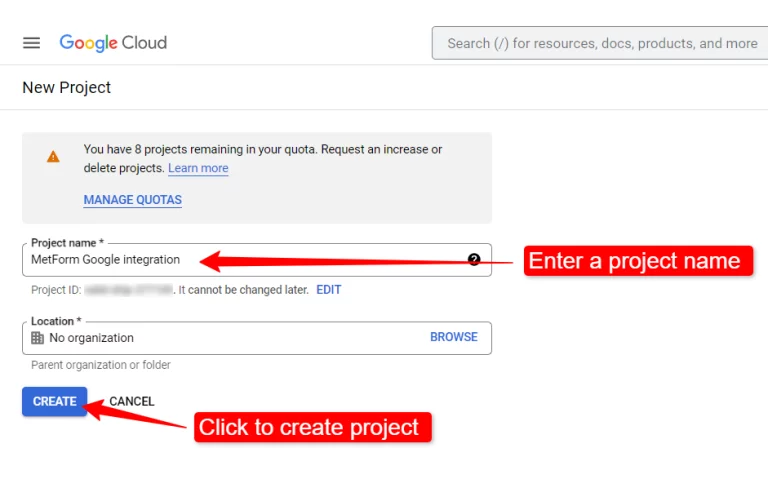
Per creare un nuovo progetto, inserisci a Nome del progetto E posizione (se applicabile) e fare clic su Pulsante Crea.
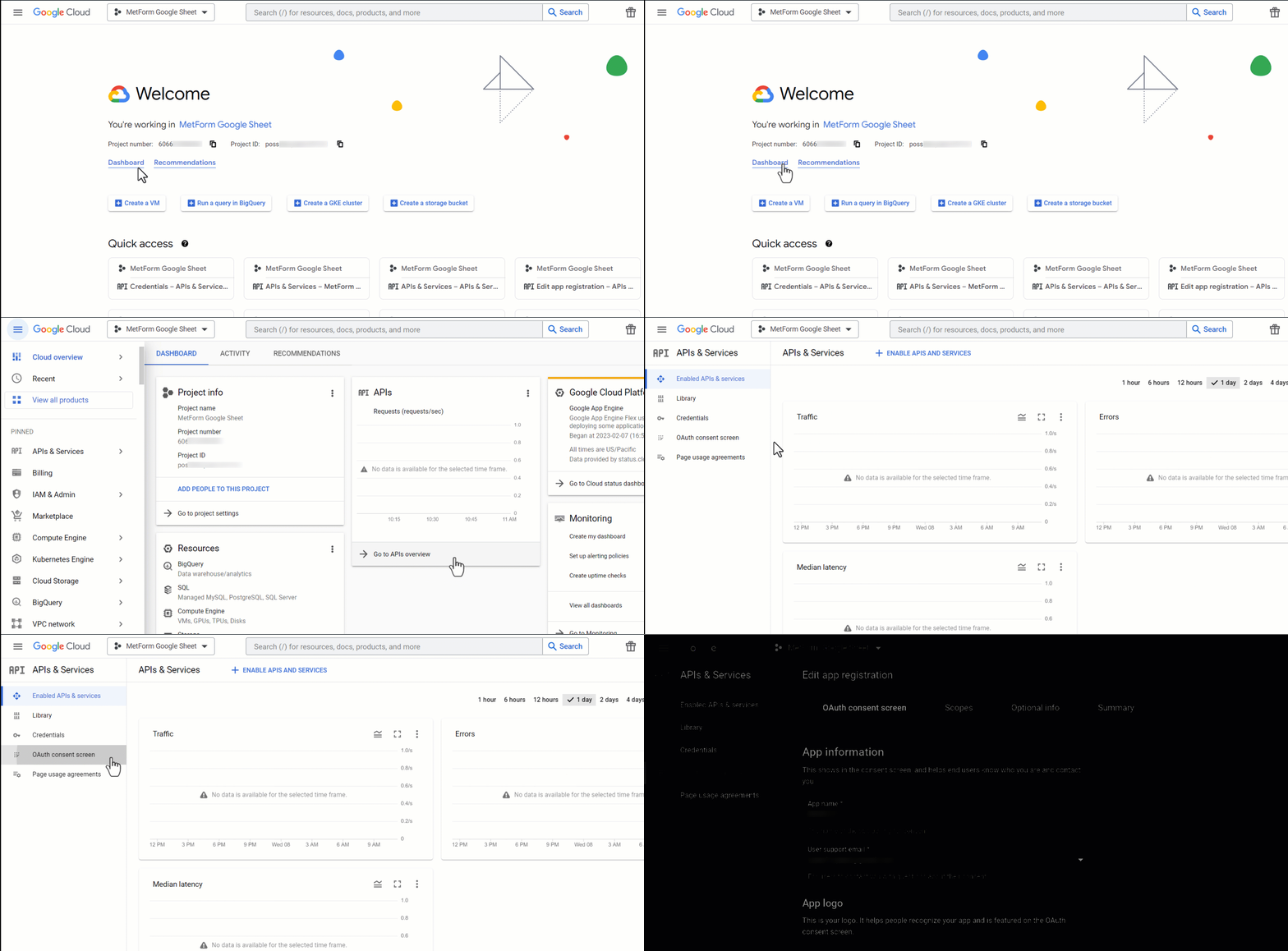
Then go to your project dashboard, and navigate to APIs overview >> OAuth consent screen.
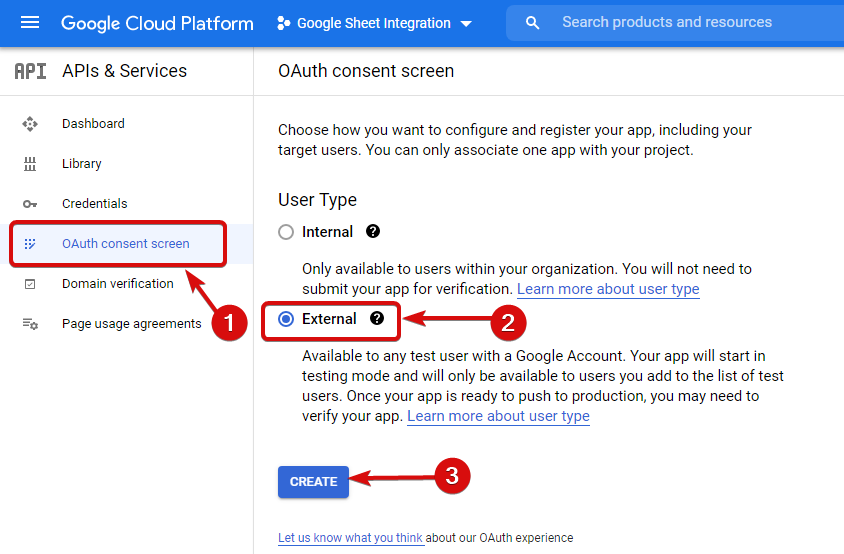
On the OAuth consent screen select the Tipo utente su Esterno e procedere cliccando sul pulsante “Crea”.
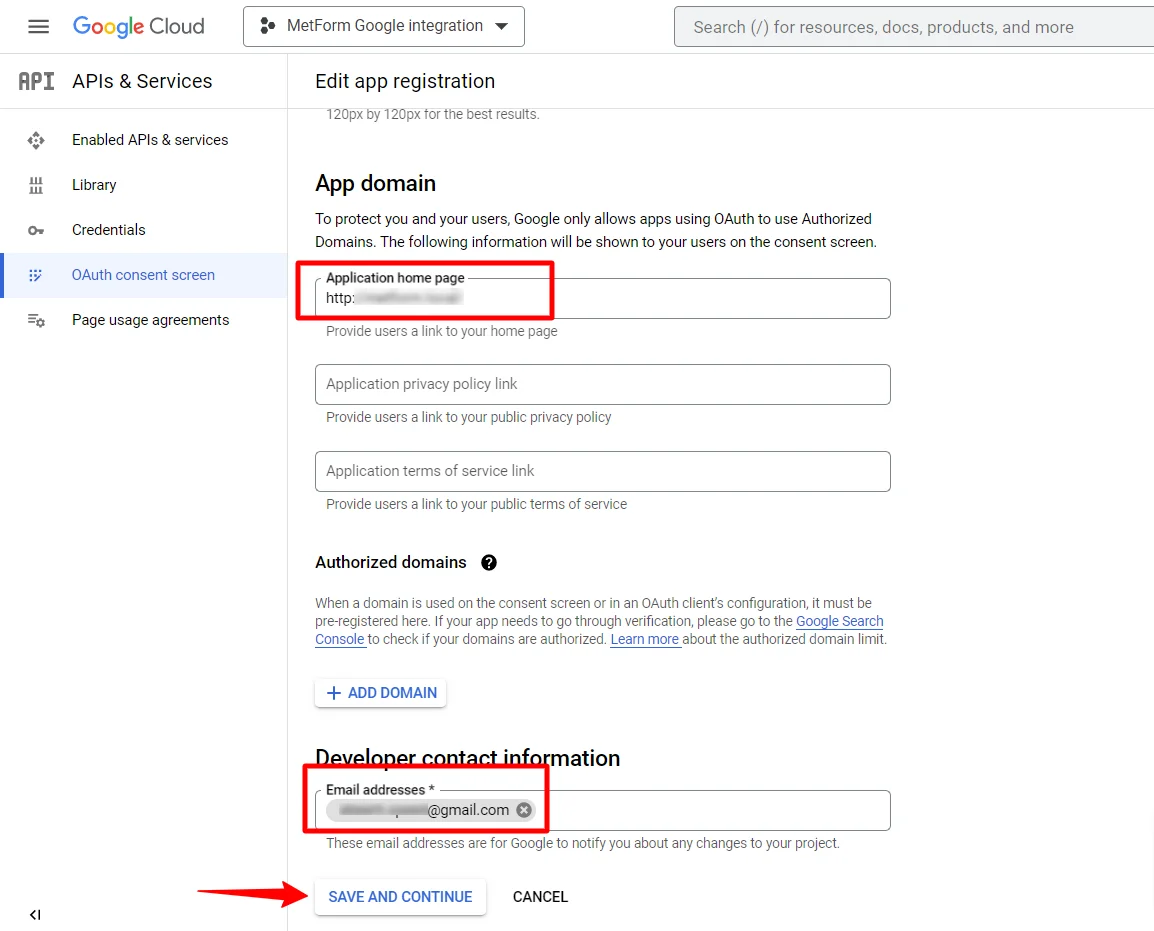
On the next screen, enter your App information including:
- Nome dell'applicazione
- E-mail di supporto utente
- Domini autorizzati
- Developer contact
Infine, fare clic su Salva e continua
Vai alla Panoramica delle API
- Vai alla pagina della schermata di consenso OAuth
- Seleziona il tipo di utente esterno
- Premi il pulsante Crea
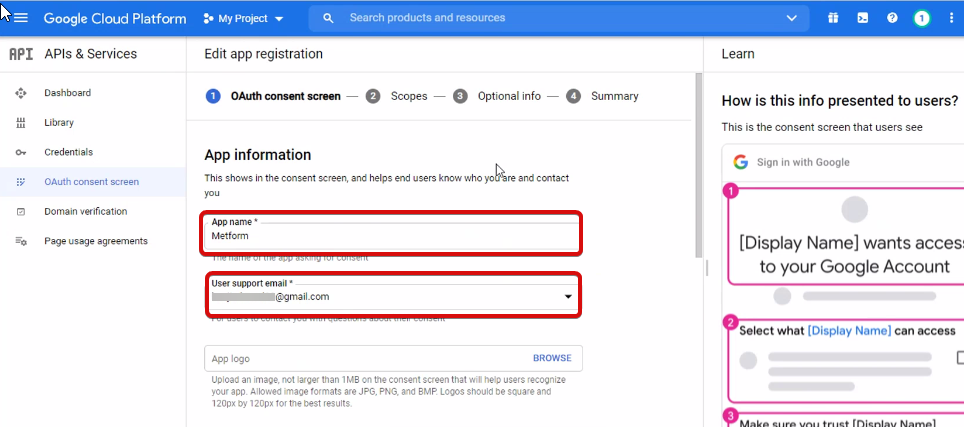
Fornisci le informazioni sulla tua app, guarda l'immagine qui sotto –
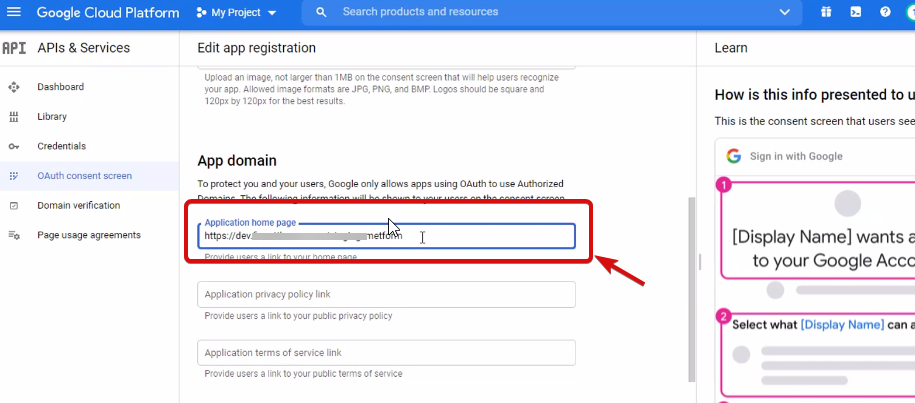
Adesso devi farlo add App domain. If your site is on the live server then you need to authorize the domain. An authorized domain does not allow subdomain names and any protocol. However, you can use this Google project for websites created with your subdomain. For localhost, you do not need to authorize the domain.
Quindi, salva e continua.
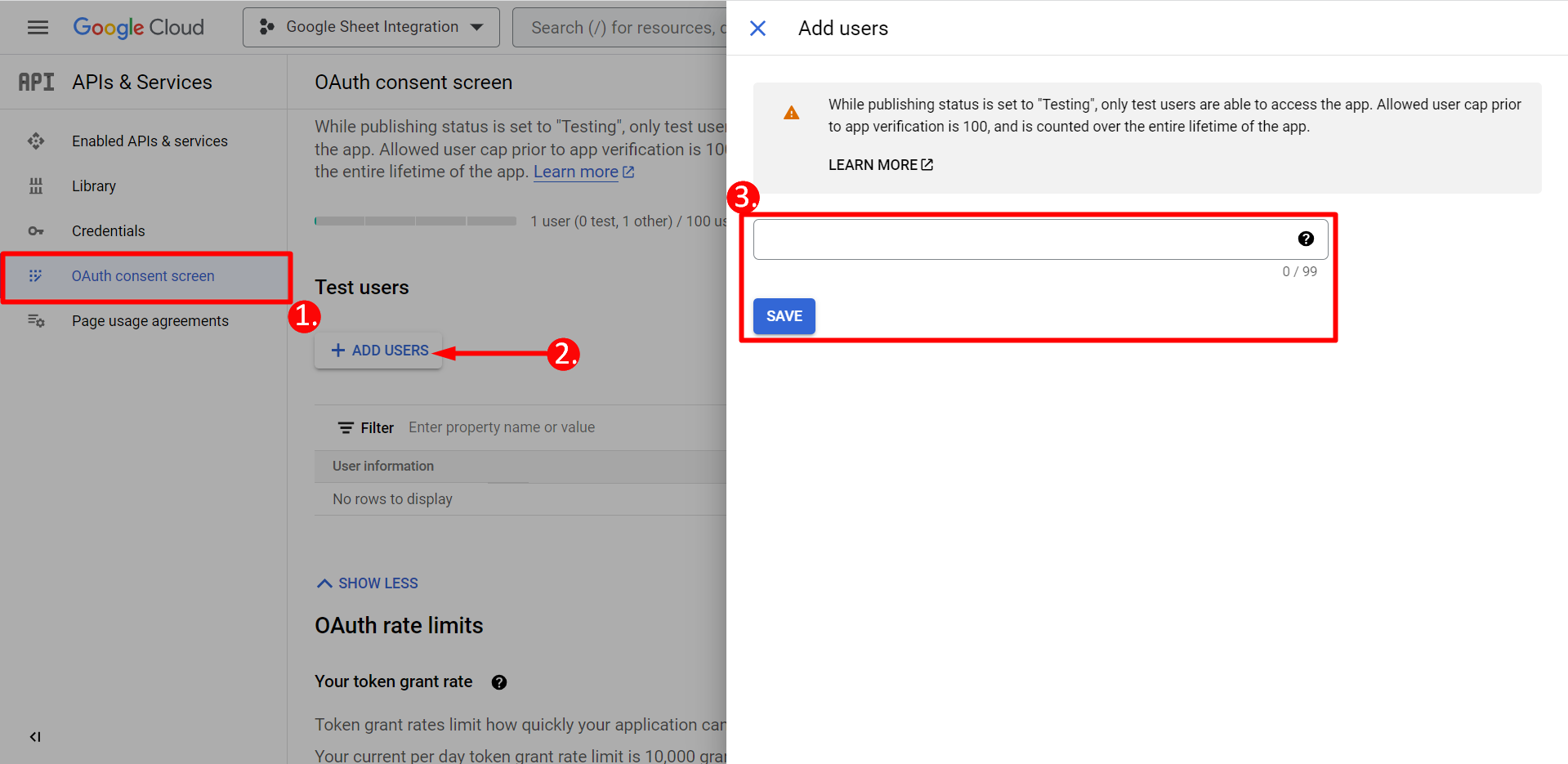
- Dalla schermata di consenso OAuth
- Fai clic su Aggiungi utenti
- Add your email address and save it
Fare clic sul pulsante Torna al dashboard
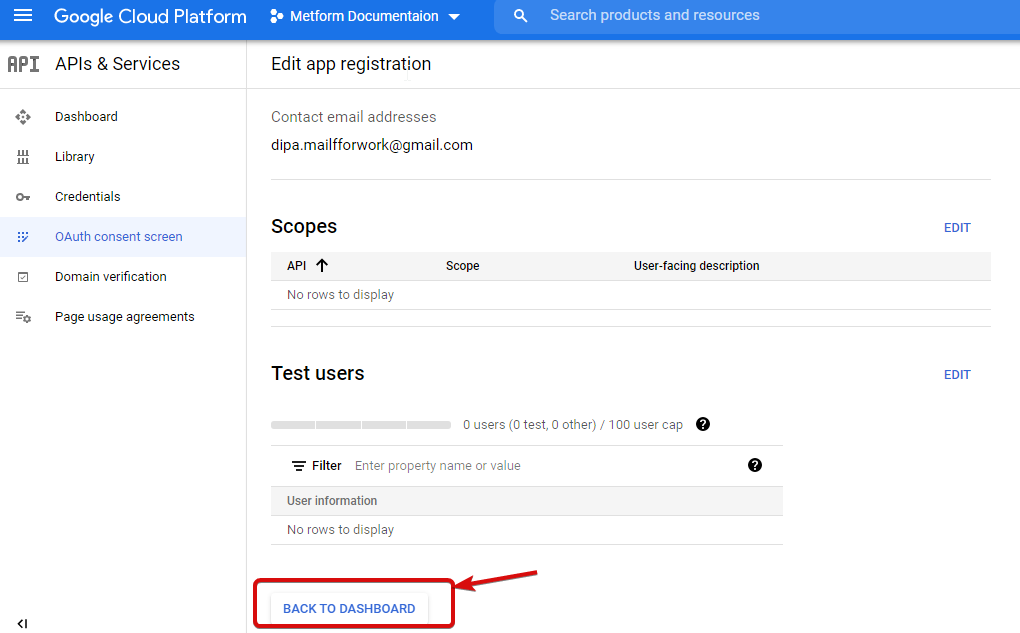
Fai clic sul pulsante Pubblica app e vai alla pagina delle credenziali. Se il tuo sito web è su localhost, non è necessario fare clic sul pulsante per pubblicare l'app. Basta andare alla pagina delle credenziali.
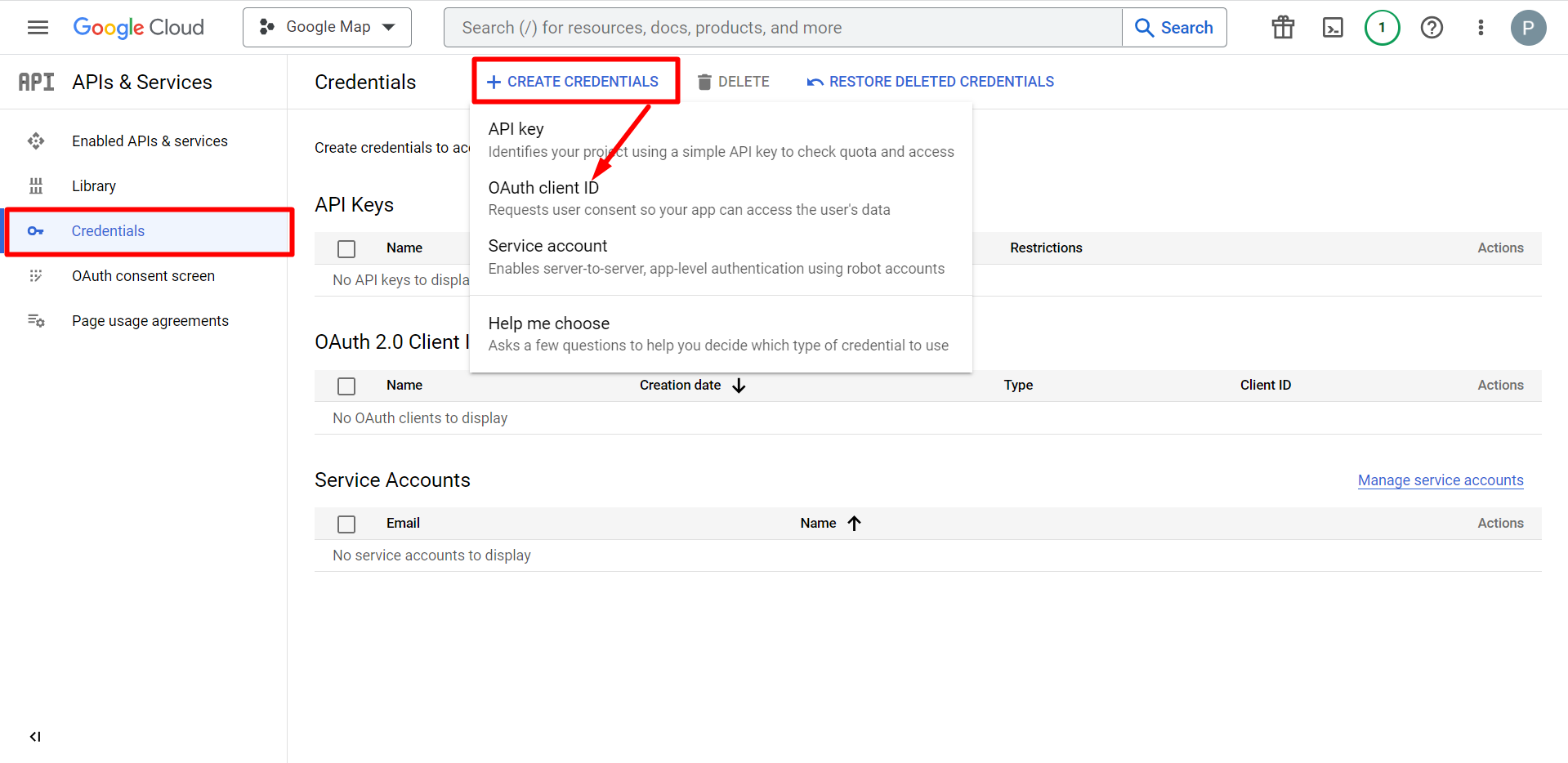
- Vai a Credenziali
- Crea credenziali
- Seleziona l'ID client OAuth
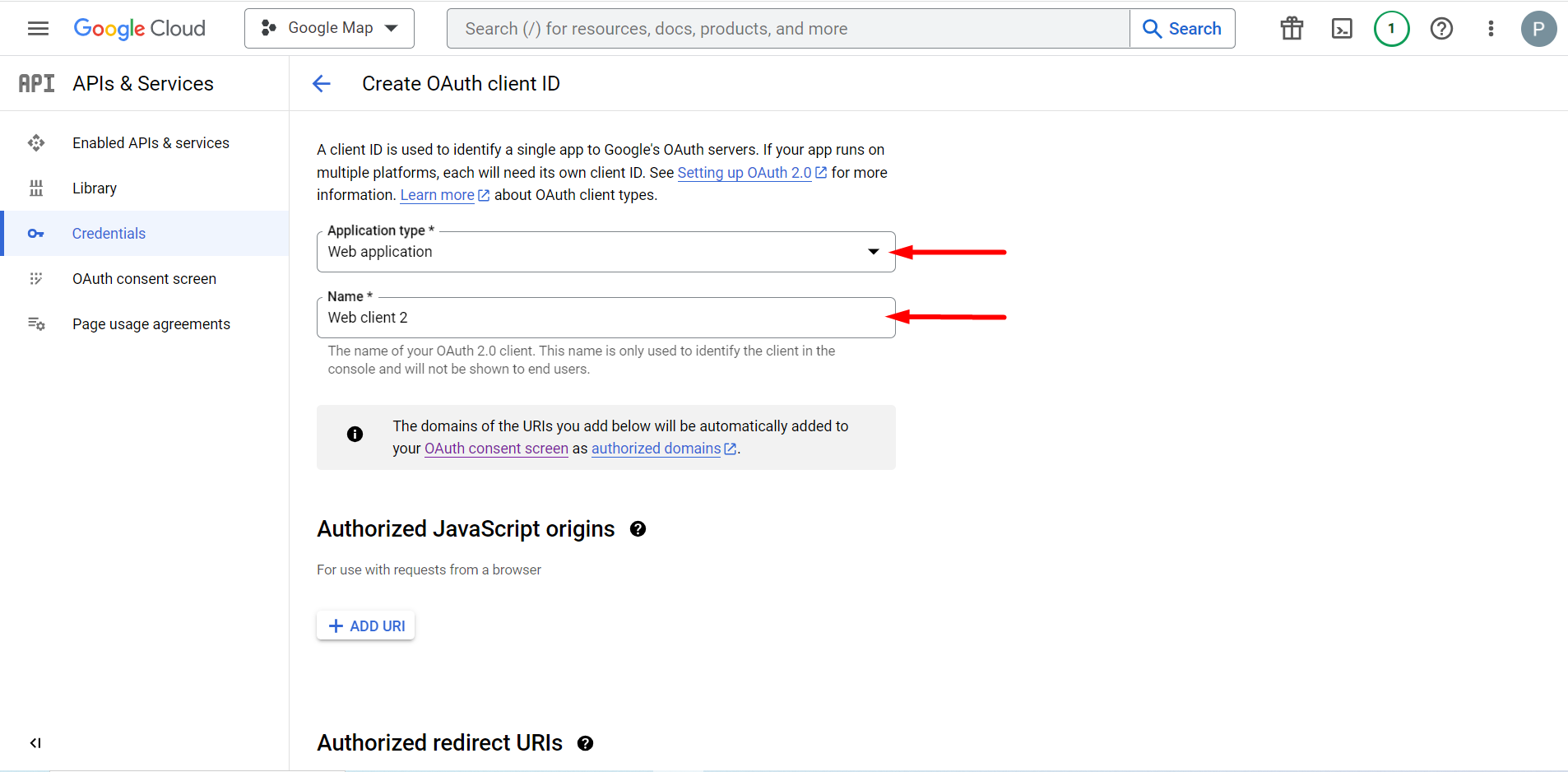
Il tipo di applicazione selezionato è un'applicazione web, compila il campo di immissione del nome
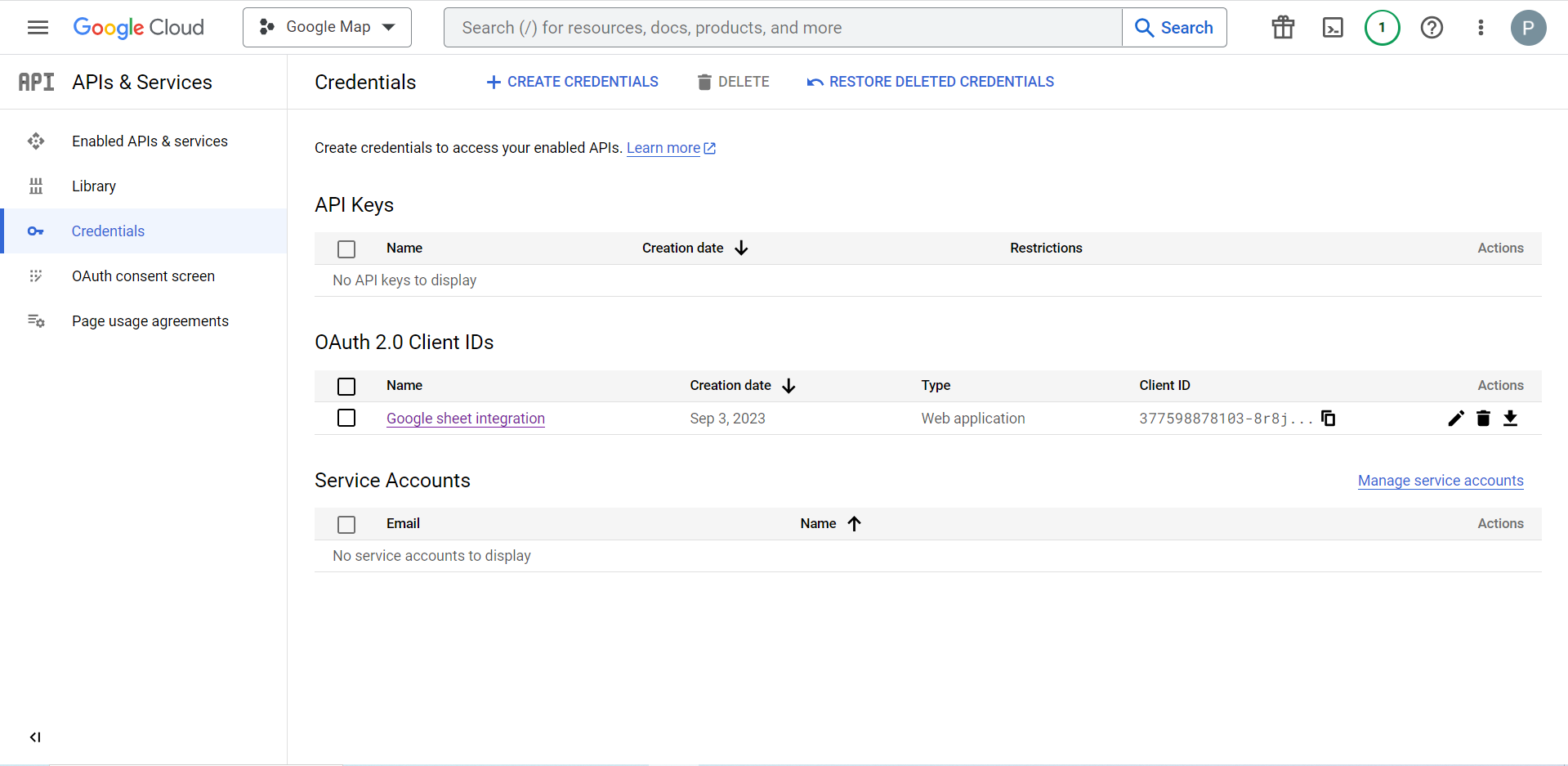
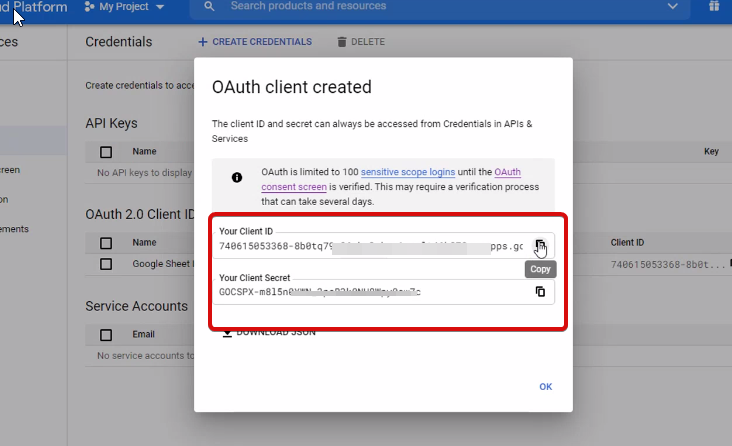
Ora puoi controllare l'ID del tuo cliente, verrà aggiunto alle Credenziali
Now you will get the client ID and client secret, just copy them from here.
Step 2: Copy the URL From Metform’s Google Integration Tab #
In questo passaggio è necessario aggiungere un URI di reindirizzamento autorizzato. Otterrai l'URI di reindirizzamento nelle impostazioni di integrazione del foglio Google di MetForm.
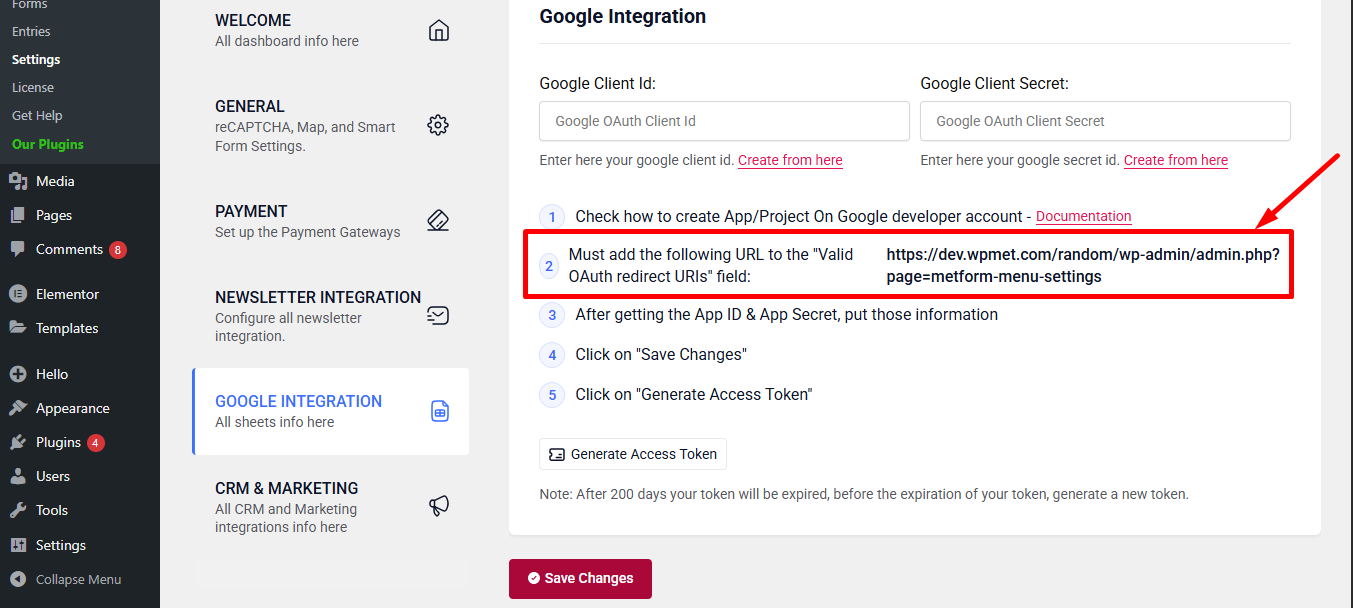
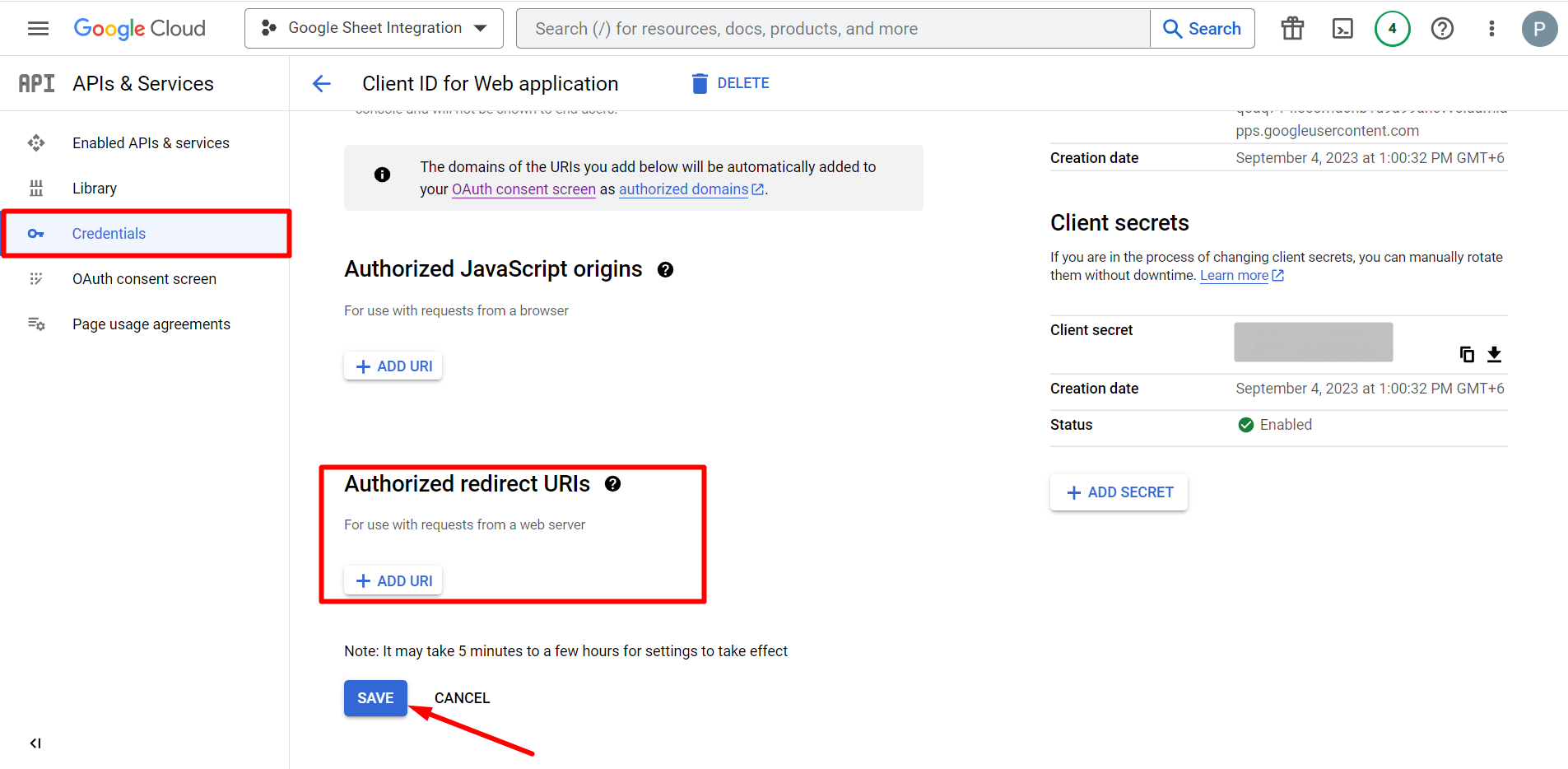
Quindi, spostati su Credentials again > find Authorized redirect URIs > Add URI that you have just copied from Metform’s Google Sheet Integration settings
Step 2: Insert the Copied Ids #
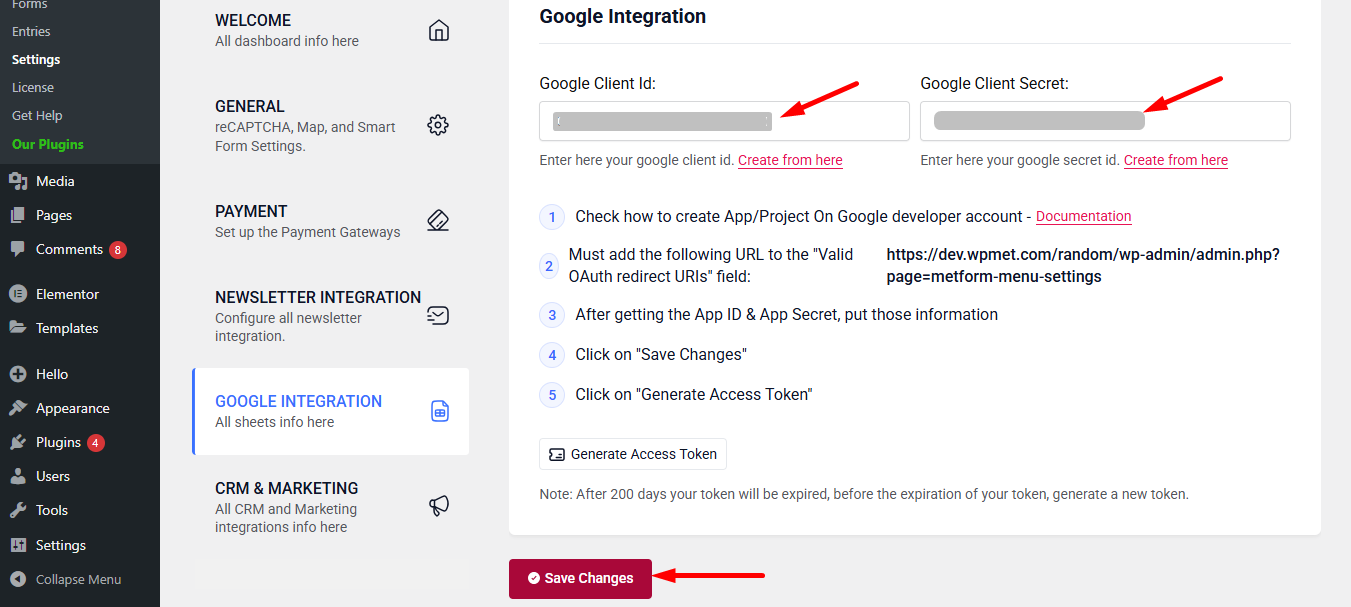
Now, return back to Metform’s Google Integration tab from your dashboard.
Here, you have to paste the copied Client ID and Client Secret in the fields and save changes.
Finally you can connet Google services with your WordPress form.
Leggi anche:


