

Comparaison d'images

Le Comparaison d'images widget lets you showcase transformation effects with an interactive, side-by-side slider. With ElementsKit, you can easily customize the layout and handle styles to create a seamless visual experience.

Image Comparison is a feature that lets you display two images side by side with a draggable slider, so users can easily compare differences (like before vs after).

Quick Steps:


✅ Insert the Image Comparison widget into your page
✅ Add both images (before and after)
✅ Choose the comparison layout (horizontal or vertical)
✅ Customize labels, slider handle, and styling as needed
✅ Preview and publish the page

Exemple: You can show a before-and-after photo of photo editing, skin retouching, or any of your products, users drag the slider to see the changes clearly.

Takeaway: Image Comparison helps present visual differences in a simple, interactive way, making your content more engaging and easy to understand.

Using ElementsKit Image Comparison #

From your WordPress dashboard, open the page or post where you want to use the ElementsKit Image Comparison.

Get ElementsKit Image Comparison Widget #

Search ElementsKit Image Comparison widget and drag and drop it.

Search ElementsKit Image Comparison widget and drag and drop it

Customize the Content Part #

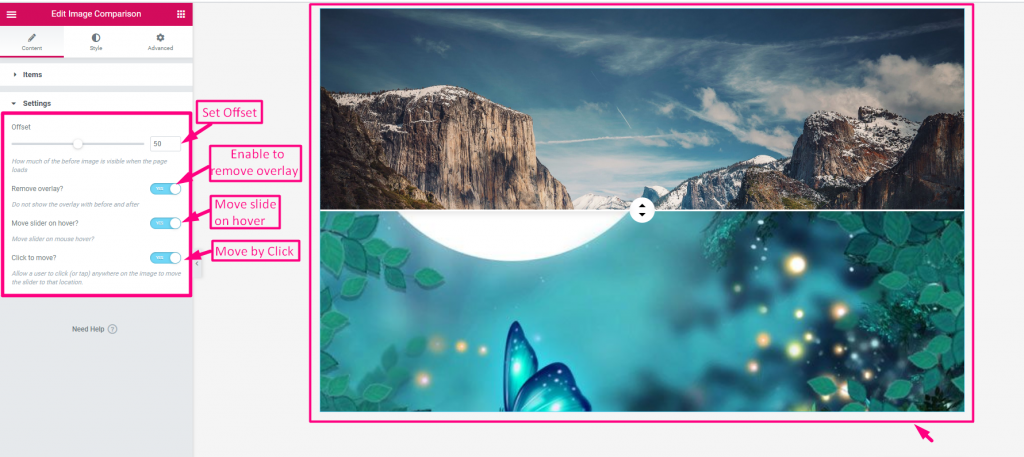
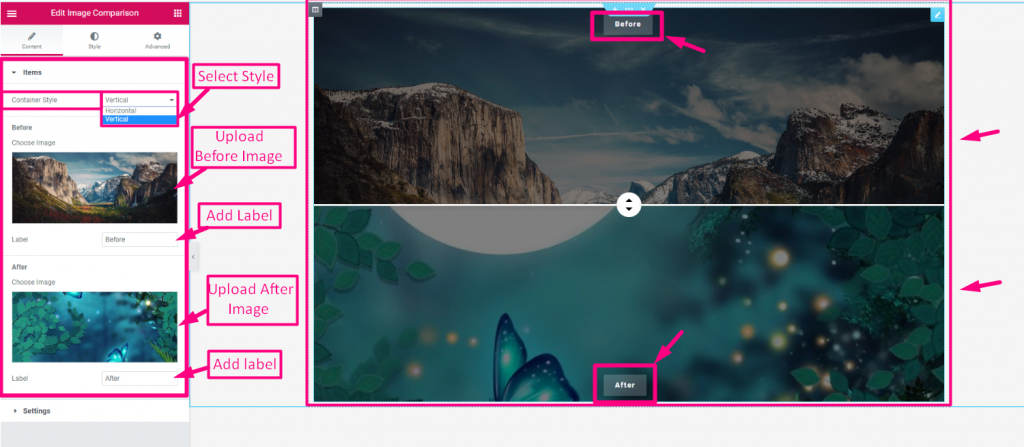
This part allows you to manage individual Articles (Before and After images) and configure the Paramètres for the slider’s layout and behavior.

Articles #

  • Container Style: Horizontal ou vertical
  • Télécharger avant l'image
  • Ajouter ou modifier Avant l'étiquette de l'image
  • Télécharger après l'image
  • Ajouter ou modifier Après l'étiquette de l'image
Paramètres #

  • Set Offset: Starting position of the slider handle.
  • Enable to Remove Overlay: Hides the “Before/After” labels.
  • Enable Moving on Hover: Slider follows your mouse cursor.
  • Enable to Move by Click: Slider snaps to where you click.
Image comparison settings

Customize the Style Part #

It lets you customize the visual appearance of the widget.

Général #

  • Border Type (None/Default): Allows you to adjust only the Rayon de frontière et Rembourrage for a clean look.
  • Border Type (Solid, Dotted, Dashed, etc.): Unlocks full control over Largeur de la bordure, Couleur, Rayon, Rembourrage, et Boîte ombre to fully style the frame.

Handle #

  • Control Width: Adjusts the horizontal size of the handle.
  • Hauteur: Sets the vertical size of the handle.
  • Type d'arrière-plan : Choose between a solid color or a gradient for the handle’s base.
  • Couleur: Sets the specific background color of the handle.
  • Image: Allows you to upload a custom graphic or icon for the handle.
  • Arrow Color: Changes the color of the directional arrows on the slider.
  • Boîte ombre: Adds a shadow effect around the handle for a 3D look.
  • Marge: Adjusts the spacing around the outer edges of the handle.
  • Rayon de bordure : Rounds the corners of the handle to make it circular or curved.
  • Handle Divider: Enables or disables the vertical line that splits the two images.
  • Divider Thickness: Controls the width of the vertical divider line.
  • Divider Color: Sets the specific color for the vertical divider line.
Style ElementsKit Image Comparison widget's handle parts

Quels sont tes sentiments

Updated on septembre 14, 2026