




HubSpot 통합으로 원활한 작업 보장 고객 관계 관리 고객의 연락처를 효율적으로 관리하여 MetForm의 HubSpot 통합으로 인해 고객이나 방문자가 제출한 양식이 손실되는 것에 대해 걱정할 필요가 없습니다. 고객의 모든 연락처 정보는 나중에 사용할 수 있는 HubSpot 계정에 저장됩니다.
주목:
We had API based connection before. If you have API based connection with HubSpot, then reconnect your HubSpot account to your site by following the process below using OAuth 2.0.
시작하다 #
sign up for a free HubSpot account
STEP 1: Connect HubSpot with MetForm #
Access your WordPress dashboard –
- Navigate to MetForm Settings
- Go to CRM & Marketing
- Select HubSpot and press the “Click Here To Connect Your HubSpot Account” button

It will redirect you to the HubSpot sign in page from where you can sign in or also sign up.
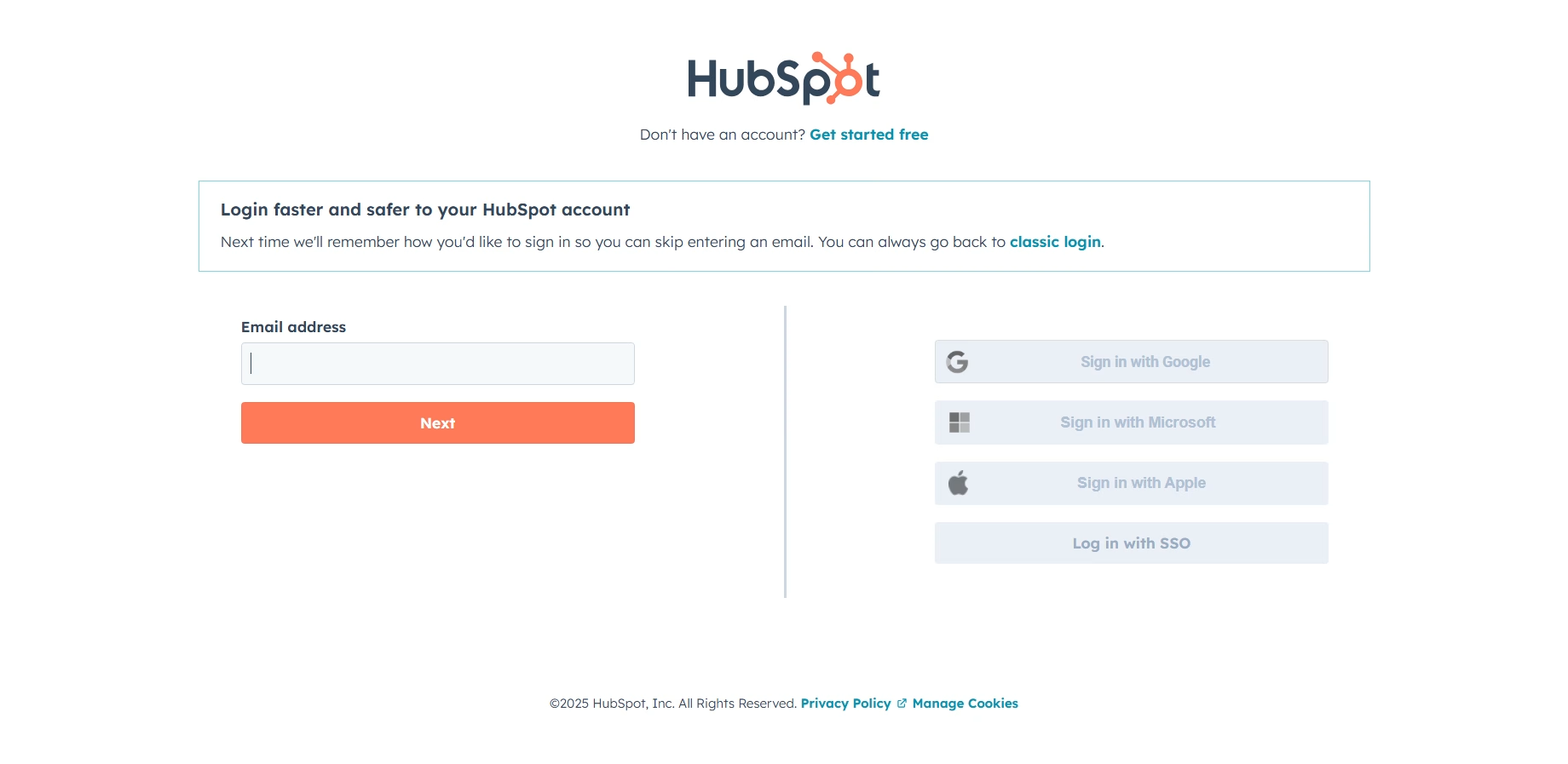
회원가입 또는 로그인 후, 귀하의 HubSpot 계정은 자동으로 연결됩니다 to MetForm using OAuth 2.0. Finally, go back to your WordPress dashboard > click on the"변경 사항을 저장하다" 단추.

NOTE:
이전에는 API 기반 연결이 있었습니다. HubSpot과 API 기반 연결이 있는 경우 OAuth 2.0을 사용하여 위 프로세스에 따라 HubSpot 계정을 사이트에 다시 연결하세요.
STEP 2: Create Hubspot Form #
이동 허브스팟=> 마케팅=> 클릭하세요 양식

클릭 양식 만들기=> Created form appeared

Now select a form editor style and click Next

Select a template to build your form

The HubSpot template is ready to edit. It shows the Hubspot Created Form Fields: Firstname, Lastname, Email.

STEP 3: Create a New Form #
From the dashboard, navigate to MetForm and click Add New Form.

Check out the MetForm form templates, select one or a blank one then import it.

Whether you choose a blank template or a ready one, you have to match the fields with the HubSpot Form Fields.
After editing the necessary things, click Publish.

NOTE: After creating the form this way, you can use it on any page using a shortcode or the MetForm widget.
STEP 3: MetForm Form settings #
이제 몇 가지 양식 설정을 수행해야 합니다. 그렇게 하려면 다음으로 이동하세요. 관리자 패널 그리고 방문하다 MetForm>> Forms. 그 다음에 양식을 편집하다 HubSpot을 추가하려는 항목입니다. 그 후 다음으로 이동합니다. 일반 탭 그리고 스토어 항목을 활성화합니다.
지금, HubSpot 양식 및 연락처 활성화 CRM 탭에서 찾을 수 있습니다. 그 다음에 HubSpot 양식 가져오기를 클릭하세요. 그리고 비슷한 형태를 선택하세요 HubSpot에서 만든 것입니다. 이제 주요 부분이 나옵니다.
왼쪽 필드는 사이트의 문의 양식에 추가한 양식의 추가 필드이고 오른쪽 필드는 HubSpot 문의 양식의 필드입니다. 당신은 오른쪽에서 정확한 HubSpot 필드 이름을 선택하세요. 예를 들어 HubSpot 양식에서 이름의 필드 이름이 이름(목록)인 경우 gif와 같이 이를 선택해야 합니다. 이와 같이 HubSpot 양식의 모든 필드 이름을 선택하십시오.

2. 이동 사이트=> 양식 작성 그리고 클릭하세요 제출 버튼

3. 이동 허브스팟=> 연락처를 클릭하세요

- 당신은 볼 수 있습니다 여기에 문의 양식을 제출했습니다..

👉 Checkout how to multiply leads with HubSpot integration.


