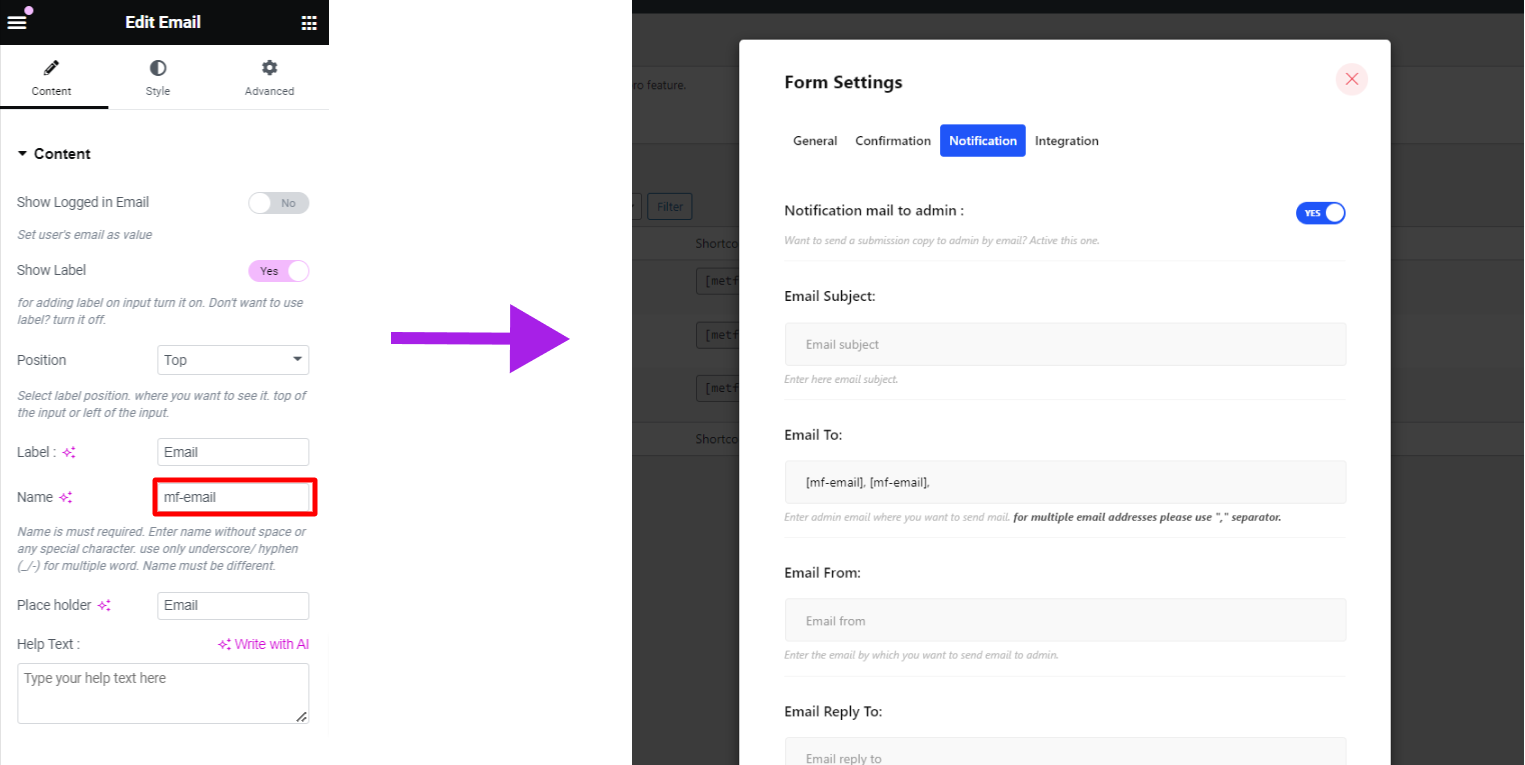
To set up email notifications, open your email app or access your inbox from a desktop browser and go to 설정. Select your email account and enable alerts for new messages. On mobile, manage sound or vibration options from 알림 설정, and on desktop, make sure browser notifications are allowed.
Enable Gmail Notifications (Mobile & Desktop)
- Android: Open Gmail → Menu > Settings > Account > Notifications → Select 모두 또는 High-priority emails.
- iPhone/iPad: Open Gmail → Menu > Settings > Email notifications → Choose your preferred notification level.
- Desktop:Open Gmail → Click Settings (gear icon) > See all settings → Scroll to Desktop notifications → Enable New mail 또는 Important mail alerts.
Troubleshooting Notification Issues
If notifications aren’t working properly, a few basic settings usually fix the problem. Check Gmail sync, battery optimization, and system-level notification permissions.
- 확실하게 하다 Sync Gmail is enabled
- Turn off Battery Saver / Power Saving mode
- Allow Gmail notifications in your device’s system settings
Set Up Automated Email Notifications (Forms & Services)
Automated notifications notify you instantly when someone submits a form. Most form builders support this through built-in email settings or add-ons.
- Google Forms: 설치하다 Email Notifications for Forms from the Marketplace to receive submission alerts
- MetForm: 이동 Form Settings > Notifications, provide the details, customize the notification content and save the changes.
최고의 폼 빌더 MetForm을 사용하면 WordPress 폼 이메일 알림을 쉽게 설정할 수 있습니다. 여기서 공유한 단계를 따르기만 하면 됩니다.
Set up Notification Email with Metform #
Click the Edit option of the form where you want to set up notification email.
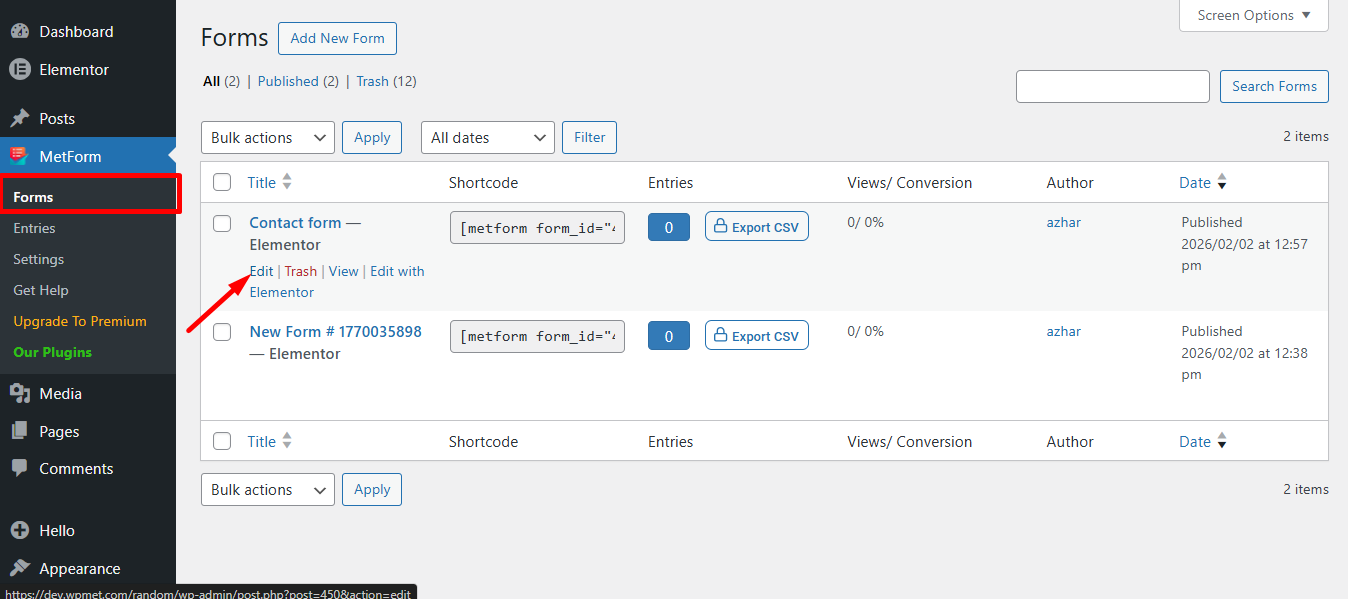
Also, you can open a new form if you need. follow the 비디오 스크린캐스트:
Setting Notification Email #
You can send a submission copy to the admin by email. You can also set different WordPress forms email notifications for separate Forms. 영상 화면 캐스트를 따라가세요
Or follow the step-by-step process
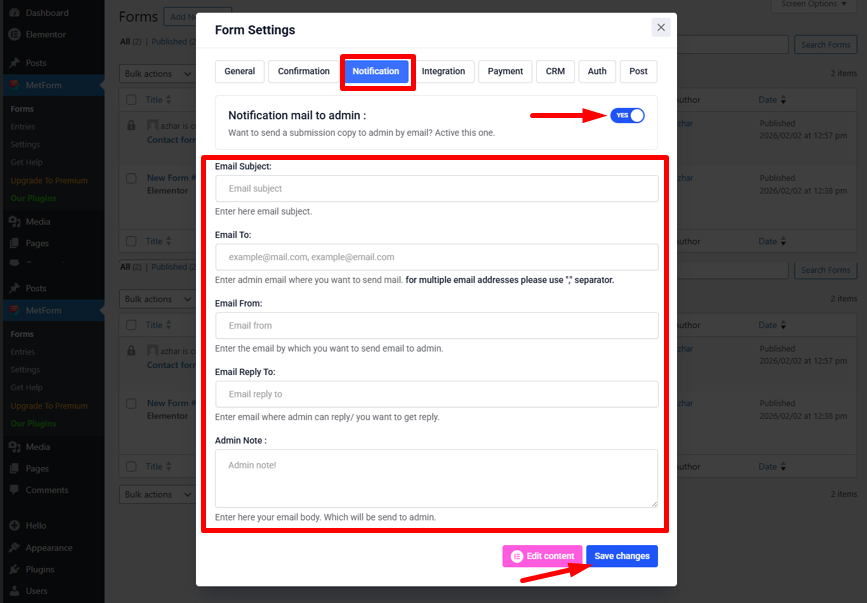
로 이동 양식 설정 → 알림 탭
- 알림 메일을 관리자에게 전환 옵션: 사용자 제출이 완료되거나 모든 유형의 고객 데이터가 처리된 후 관리자에게 알립니다.
- 메일 제목: 이메일의 제목을 입력하세요.
- 받는 사람 : 메일을 보내고 싶은 관리자 이메일을 입력하세요. 여러 이메일 주소의 경우 구분 기호인 ","를 사용하세요.
- 이메일 보낸 사람: 관리자에게 이메일을 보내고 싶은 이메일을 입력하세요.
- 이메일 답장: 관리자가 답변할 수 있는 이메일 주소나 답변을 받고 싶은 이메일을 입력하세요.
- 관리자 메모: 관리자에게 전송할 이메일 내용을 여기에 입력하세요.
- 변경 사항 저장.
조건부 관리자 이메일 라우팅 #
This MetForm feature is dynamic and conditional admin settings for your email form. You can set conditional admin email routing that allows you to send the form to a different email address based on the selections made on the form.
Get tags from different widgets like dropdowns, checkboxes, buttons, text widgets, etc. and assign these tags to “받는 사람” 필드를 사용하여 자동으로 적절한 팀에 양식을 전송합니다.
예를 들어, 구매와 관련된 모든 양식은 영업팀에 전달해야 하고, 기술적 문제와 관련된 양식은 지원팀에 보내야 합니다.