

Don't Miss the Biggest Wpmet Discount
.
AIO Bundle for only $799
00 DAY
:
00 HOUR
:
00 MIN
:
00 SEC
Save $4,102

WooCommerce 빈 장바구니 오류를 해결하는 방법

How to solve wooCommerce cart issue

당신은 직면하고 있습니까? WooCommerce 장바구니가 비어 있습니다. 문제?

WooCommerce turns online shopping into a smooth ride. But unfortunately, you may sometimes face technical issues like “the cart is empty" 또는 "your WooCommerce cart is currently empty“. Such issues can cause you to lose customers, and as a result, you may end up losing money in your online business.

If you are facing the empty cart issue, then no worries. You have come to the right place. In this blog, I have put together all the possible issues that may be causing WooCommerce empty cart errors and ways to solve them.

시작하자…

Why is the WooCommerce cart showing empty after adding products?
The WooCommerce empty cart issue happens when products are added to the cart but are not stored or retrieved properly. In most cases, this is caused by cache conflicts, session problems, plugin incompatibility, or incorrect WooCommerce settings.

How to identify the cause of the WooCommerce empty cart issue

The moment when the cart becomes empty often helps identify the root cause.

If the cart becomes empty…Most likely cause
After refreshing the pageCaching or session issues
After logging inSession migration problems
After applying a couponPlugin or AJAX conflicts
Only for guest usersCookie restrictions
On specific devices or browsersBrowser cookie settings
Randomly during checkoutSession expiration or plugin conflicts

How to fix WooCommerce empty cart issue
✅ Configure WordPress, server-side, and CDN caching correctly.
✅ Check WooCommerce System Status and page setup.
✅ Clear WooCommerce sessions and transients.
✅ Verify checkout endpoint settings.
✅ Update WordPress, WooCommerce, themes, and plugins.
✅ Reset permalinks.
✅ Test for plugin conflicts.
✅ Switch temporarily to a default WordPress theme.

요약

The WooCommerce empty cart issue is usually caused by caching, session handling problems, or plugin conflicts. Identifying when the cart becomes empty can help you find the correct solution faster.

WooCommerce 빈 장바구니 문제란 무엇인가요?

Empty cart issue arises when you add products to your online WooCommerce shopping cart, but somehow find your cart saying “your cart is currently empty”. This is not the normal “your cart is empty” message this is a technical issue that’s stopping your cart to update when you add products.

Most common causes of WooCommerce empty cart problems

Although the WooCommerce empty cart issue can have multiple causes, the following are responsible for most cases:

  1. Incorrect cache configuration
  2. Expired WooCommerce sessions
  3. Plugin conflicts
  4. Theme compatibility issues
  5. Cookie restrictions
  6. Checkout endpoint errors
  7. Outdated WooCommerce versions
  8. Server-side caching conflicts

If you are unsure where to start, checking these areas first can help identify the issue more quickly.

How to Diagnose The WooCommerce Empty Cart Issue Before You Start Fixing

Before jumping into solutions, you need to ask the right diagnostic questions, otherwise you could spend hours applying the wrong fix. Use these quick checks to pinpoint the likely cause in under 5 minutes.

Step 1: Ask, does the cart empty immediately after adding a product, or after a page refresh/navigation?

  • Empties immediately → The “Add to Cart” AJAX request is likely failing. Open your browser’s developer tools (press F12), go to the Console tab, and look for red JavaScript errors. Also check the Network tab for failed POST requests to ?wc-ajax=add_to_cart.
  • Empties after refresh or navigating to the cart page → A session or cookie problem is most likely the cause. This is often a caching issue or a cookie being blocked.

Step 2: Ask does the cart work for logged-in users but not for guests?

  • 만약에 예 → WooCommerce is failing to save guest sessions to the wp_woocommerce_sessions database table. This is a specific session-handling bug (see Solution #2 and the Cookie section below).
  • 만약에 no (broken for everyone) → The problem is more likely caching, a plugin conflict, or a site-wide configuration error.

Step 3: Ask, when did the problem start?

Think back: Did you recently install or update a plugin, theme, or WordPress itself? The timing of the break almost always points to the culprit. If you have a changelog, compare it against the date the cart issue began and undo that change first before trying anything else.

Step 4: Ask, does the cart work in a private/incognito browser window with no extensions?

  • If it works in incognito → A browser extension (ad blocker, privacy tool) is blocking WooCommerce’s session cookies. The fix is on the visitor’s end, but you can make your site more robust (see Cookie section below).
  • If it still fails in incognito → The problem is server-side (caching, session configuration, SSL).

Step 5: Check the WooCommerce logs

이동 WordPress Dashboard → WooCommerce → Status → Logs and look at wc-session-handler.log. Any entries there will point directly to where WooCommerce is failing to read or write session data.

Also read, how to add WooCommerce Mini Cart button in Elementor

WooCommerce 빈 장바구니 오류를 해결하는 방법

With customer feedback and my own experiences, I have found there are about 10 reasons that can cause the cart to show empty despite adding products.  Let’s check the problems and how you can solve those one by one to get rid of “your cart is empty” error or WooCommerce add to cart page not working:

솔루션 #1: WooCommerce 시스템 상태 및 WooCommerce 페이지 설정 확인

WooCommerce 시스템 상태는 WooCommerce 기능과 충돌할 수 있는 웹사이트 환경의 모든 문제를 지적하기 위해 빨간색 기호를 제공합니다. 따라서 첫 번째 작업은 wooCommerce가 위험 신호를 표시하는지 확인하는 것입니다.

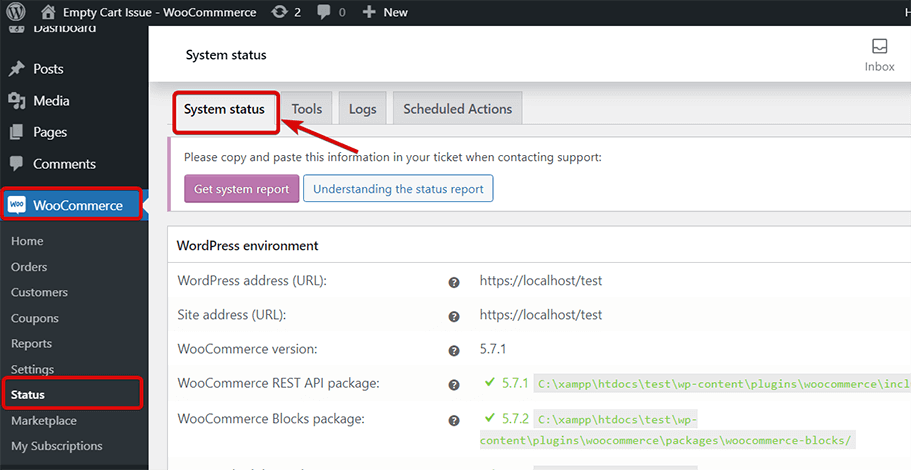
이동 WordPress 대시보드 → WooCommerce → Status 빨간색 경고로 모든 문제를 해결하세요(해당되는 경우).

WooCommerce Empty Cart - Woo Status Page

또한 모든 wooCommerce 페이지가 올바르게 설정되어 있고 테마가 기본 장바구니 페이지를 재정의하지 않는지 확인하세요. 재정의해도 문제가 발생하지 않습니다.
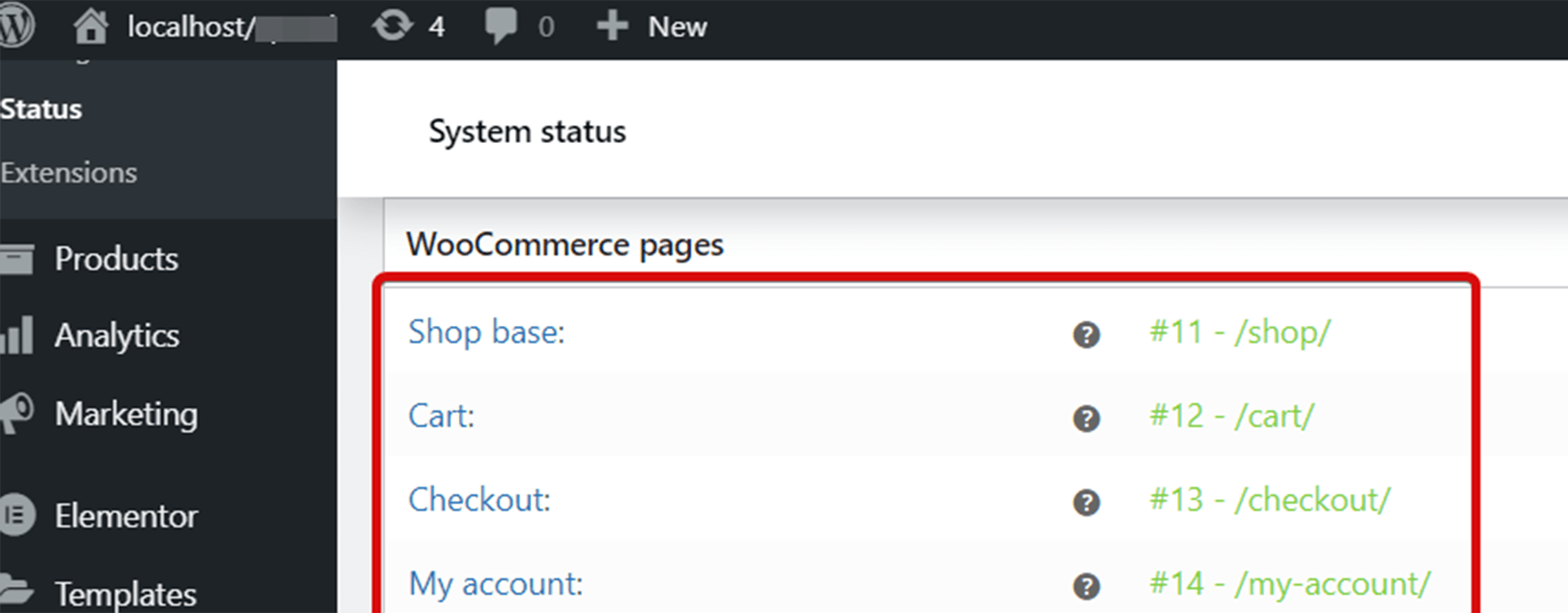
WooCommerce Empty Cart - Woo Pages Status Page

🤷 Elementor 웹사이트에 사용자 정의 CSS를 추가하고 싶으십니까? 

블로그에서 Elementor에 사용자 정의 CSS를 추가하는 다양한 방법을 확인하세요.
👉👉 Elementor에 사용자 정의 CSS를 추가하는 방법: 4가지 쉬운 방법

솔루션 #2: WooCommerce 도구에서 세션 및 임시 항목 지우기

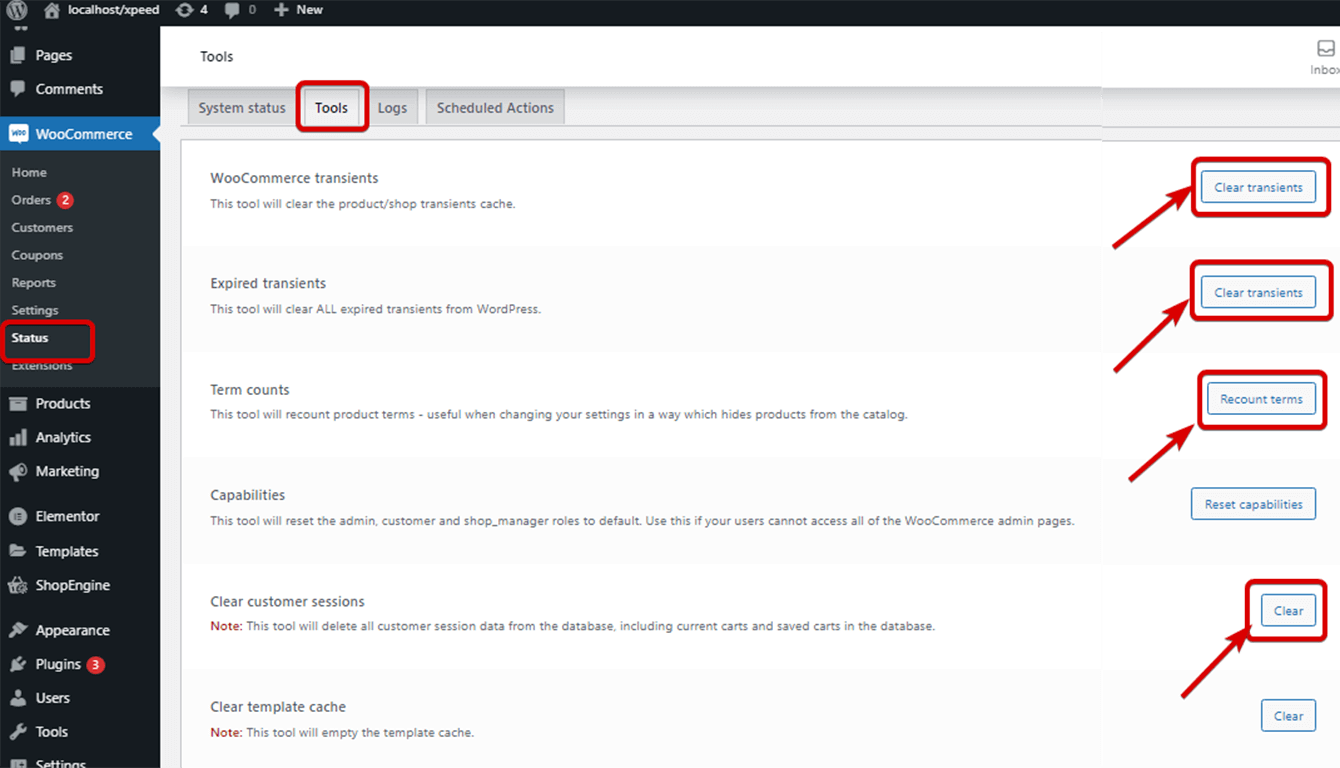
WooCommerce 임시 항목 지우기, 만료된 임시 항목 지우기, 기간 수 재설정, 고객 세션 지우기 등을 통해 빈 장바구니 문제를 해결할 수도 있습니다. 이동  WordPress Dashboard → WooCommerce → Status → Tools and follow the screenshot below to reset and clear all the mentioned options.

Why clearing sessions can fix the issue

WooCommerce stores cart information using customer sessions.

When a customer adds a product to the cart, WooCommerce temporarily stores that information and retrieves it while the customer continues browsing your store.

If the session expires unexpectedly or becomes corrupted, WooCommerce may fail to load the cart contents and display an empty cart instead.

Clearing customer sessions and transients helps WooCommerce generate fresh session data and often resolves the issue.

해결 방법 #3: Checkout 엔드포인트에 공간이 없는지 확인하세요.

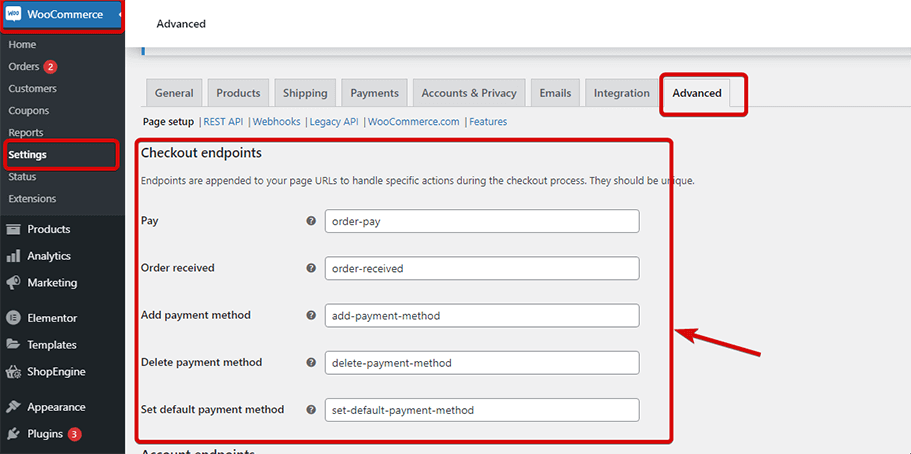
이동 WordPress Dashboard → WooCommerce → Settings → Advanced tab 체크아웃 엔드포인트에 공간이 없는지 확인하세요.

WooCommerce Empty Cart - Woo Checkout End Points

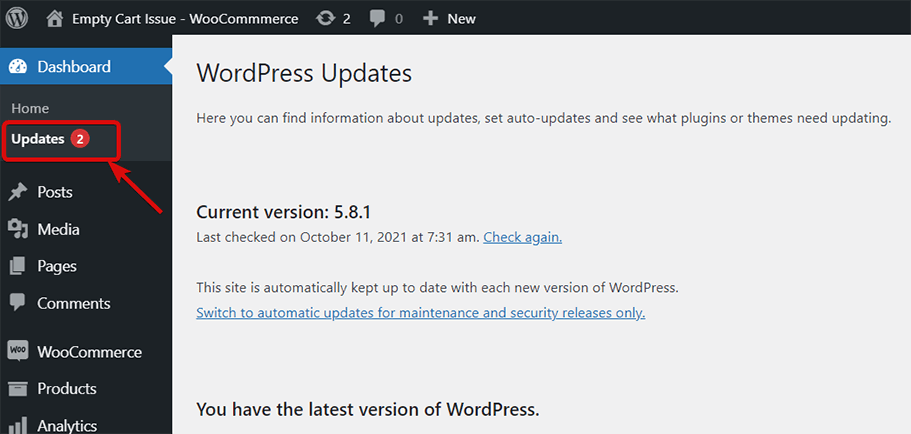
솔루션 #4: 웹사이트의 WordPress 및 WooCommerce 업데이트

오래되고 오래된 버전이 있는 경우 워드프레스 또는 WooCommerce로 인해 이 문제가 발생할 수 있습니다. 따라서 사이트에 WordPress 및 WooCommerce의 최신 버전이 있는지 확인해야 합니다.

You can check from the dashboard if your WordPress or WooCommerce needs to update and update if required. You can also re-install the existing version if you think files have been corrupted.

WooCommerce Empty Cart - Update as needed

솔루션 #5: 테마 및 플러그인 업데이트

WordPress와 WooCommerce뿐만 아니라 테마와 플러그인도 정기적으로 업데이트해야 합니다. 따라서 사용 중인 테마와 플러그인을 업데이트해야 하는지 확인하고 필요한 경우 업데이트하세요. 이는 WooCommerce 빈 장바구니 문제를 해결할 수도 있습니다.

메모: 모든 것(WordPress, WooCommerce, 테마, 플러그인)을 맹목적으로 업데이트하는 것도 좋은 생각이 아닙니다. 업데이트된 모든 버전이 서로 호환되는지 확인해야 합니다.

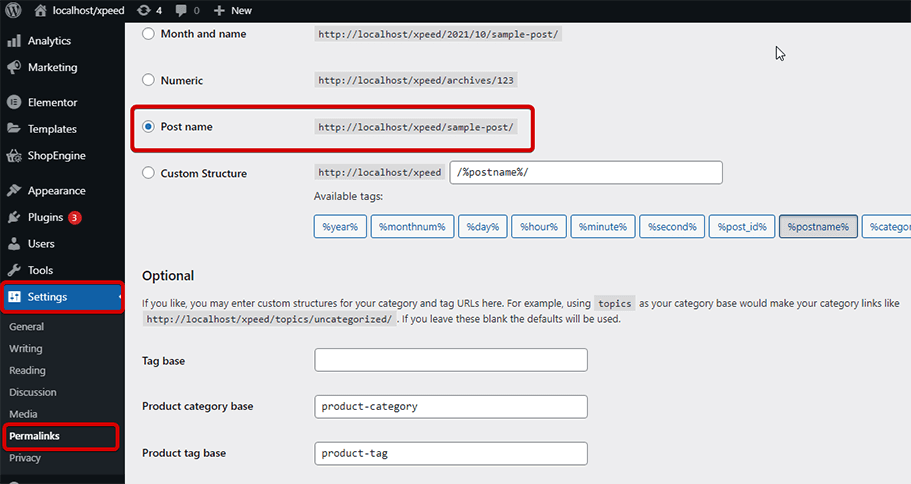
해결 방법 #6: 영구 링크 재설정

WordPress 영구 링크를 재설정하면 빈 카트 문제를 해결할 수 있습니다. 재설정하려면 다음으로 이동하세요. WordPress 대시보드 → 설정 → Choose the Permalinks → Click Save changes.

해결 방법 #7: WooCommerce를 일시적으로 허용하는 모든 플러그인을 비활성화합니다.

이는 매우 기본적인 문제 해결 기술이지만 WooCommerce 장바구니가 비어 있음 오류를 해결하는 데도 도움이 될 수 있습니다. 다른 플러그인을 비활성화하면 WooCommerce 빈 장바구니 문제가 해결되는 경우 웹사이트의 WooCommerce에 아무런 문제가 없음을 확인하고 문제를 일으키는 플러그인을 수정할 수 있습니다.

🤷 Elementor에서 서버 오류 400 잘못된 요청을 겪은 적이 있나요? 이 서버 오류를 해결하는 다양한 방법을 확인하세요.
👉👉 Elementor에서 서버 오류 400 잘못된 요청을 수정하는 방법

해결 방법 #8: 일시적으로 WP 기본 테마로 전환

플러그인과 마찬가지로 테마가 WooCommerce와 충돌을 일으킬 가능성이 있으므로 일시적으로 기본 WordPress로 전환하여 문제가 해결되는지 확인할 수 있습니다. 문제가 해결되면 문제를 알게 되며 테마 제공업체에 문의하여 충돌을 해결할 수 있습니다.

해결 방법 #9: WordPress 플러그인과 서버 측 모두에서 적절한 캐시 설정을 지정합니다.

As the cart displays dynamic contents, it should not be cached.

Pages that should never be cached

WooCommerce cart issues often occur when dynamic pages are cached.

To avoid this problem, always exclude the following pages from caching:

  • 장바구니 페이지
  • 결제 페이지
  • 내 계정 페이지

These pages display customer-specific information. If cached versions are served to visitors, WooCommerce may fail to display the correct cart contents.

So, always use a WordPress cache plugin that has cache exclusion URLs. Not just WordPress plugins, some hosting provides also use their own cache systems such as Varnish which is also applied on the website.

따라서 빈 카트 문제를 해결하려면 호스팅 회사에 문의하여 적절한 서버측 캐시 설정을 지정해야 합니다.

솔루션 #10: 기본 .htaccess 규칙을 따라야 합니다.

.htaccess file is usually used to put instructions on how user requests are handled. Check if you are using the standard .htaccess rule that WordPress provides. If not, fix the file to get the default .htaccess configuration. This can also solve the WooCommerce 장바구니 페이지 is empty problem.

보너스 팁

Apart from the empty cart issue, having a boring-looking cart page can also lead to customers leaving your website without completing the order. However, now you can reduce the cart page’s abundant rate by customizing your WooCommerce cart page to make it more attractive.

ShopEngine WooCommerce 세계의 혁신적인 플러그인입니다. 장바구니 페이지 사용자 정의뿐만 아니라 ShopEngine은 다음과 같은 모든 WooCommerce 페이지를 사용자 정의할 수 있는 기능을 제공합니다. 제품 페이지, 카테고리 페이지, 다단계 체크아웃 페이지, 감사 페이지 등 .

또한 60개 이상의 위젯과 다음과 같은 10개 이상의 매우 유용한 모듈을 제공합니다. 선주문, 이월 주문, 부분결제, 판매 통지, 플래시 세일 카운트다운, 통화 전환기, 제품 비교, 그리고 더 많은.

✨✨ ShopEngine의 유연한 사용자 정의 옵션을 사용하여 추가 기능을 추가하는 방법을 확인하세요. WooCommerce 결제 페이지의 고급 사용자 정의 필드.


✨✨ WooCommerce 매장을 개선하기 위해 장바구니 플러그인이 필요하십니까? 우리 블로그를 확인해 보세요
WooCommerce에 가장 유용한 장바구니 플러그인

자주 묻는 질문

How to know when your cart is empty?

You can easily find out whether your cart is empty or not by checking the cart page. It will notify you with an alert message “Your cart is empty” if there is no products added. Whenever you will add a product, this notification will be removed.

How does the empty cart button help your customers?

Empty cart button facilitates customers to remove all add to cart products with a single click. Therefore, your customers don’t need to delete products one-by-one that consumes extra time and effort.

Is it possible to save add to cart products for later purchase?

Yes, WooCommerce plugins allows you to save add to cart products for later purchase. But, this feature doesn’t come by default. You need to use a separate plugin like ShopEngine to enable this feature in WooCommerce.

What to do when your shopping cart is empty?

Whenever you face WooCommerce cart page not working error, clear browser cache. Also, lost shipping cart can show due to disable cookies. So, ensure your browser cookies are enabled.

How do I know if a plugin is causing my WooCommerce cart to empty?

Solution #7 says “disable all plugins” but doesn’t walk through the isolation process step by step. This FAQ would give a tighter, more actionable answer to the most common conflict-testing question.

Why does my WooCommerce cart empty after I apply a coupon code?

Very specific and heavily searched sub-issue. Coupon application triggers a cart recalculation and page reload — if sessions or caching aren’t configured correctly, the cart can wipe at exactly that moment. Not mentioned anywhere in the blog.

Why does my cart page show empty but the cart icon still shows items?

Your cart page is being cached. The cart icon updates in real time via AJAX and always shows the true count, but the cart page itself is returning a static cached version that was saved when the cart was empty — so the two fall out of sync.
To fix it, exclude /cart/ from your caching plugin’s settings. In WP Rocket, go to Settings → Advanced Rules → Never Cache URL(s) 그리고 추가하세요 /cart/. In Cloudflare, set a Page Rule to “Bypass” cache for yourdomain.com/cart/*. Once done, flush all cache layers and test again.

Why does WooCommerce cart become empty after page refresh?

This usually happens because WooCommerce cannot retrieve the latest cart data. Cache settings, customer sessions, and cookie restrictions are the most common causes. Excluding cart and checkout pages from caching often resolves the issue.

Why does WooCommerce cart become empty after login?

This can happen when WooCommerce fails to transfer cart data between guest sessions and logged-in user sessions. Session conflicts, outdated plugins, and customization issues are common causes.

How do I know if the WooCommerce empty cart issue is fixed?

Open your store in an incognito window, add products to the cart, refresh the page, and proceed to checkout. If the products remain in the cart throughout the shopping process, the issue has been resolved successfully.

WooCommerce에서 장바구니의 마지막 단어가 비어 있음 오류

So, you have found out all the measures to fix WooCommerce empty cart error. Hope this blog helped you to solve your WooCommerce empty cart page issue in no time. If you have any questions or confusion about any of the steps, leave a message in the comment box.


Mainul Kabir Aion 아바타

Mainul Kabir Aion

Mainul Kabir Aion is a Product Marketing Strategist and Chief Product Officer specialising in WordPress products, AI-driven SEO, and inbound growth. He works at the intersection of product strategy, user behaviour, and search visibility, with hands-on experience scaling SaaS and WordPress businesses. His work focuses on Agile marketing, Answer Engine Optimisation (AEO), AI search visibility, and product-led growth.

코멘트

  1. Arif 아바타
    아리프

    솔루션 #2가 저에게 효과적이었습니다. 정말 감사합니다.

답글 남기기

이메일 주소는 공개되지 않습니다. 필수 필드는 *로 표시됩니다

목차