Early Bird LTD: Rox Appointment Booking

— 3 Licenses for $59

WP Social Posts Count

WP Social Posts Count feature lets you show how many posts you have on your social media profiles. Displaying the count can make your brand appear more active and socially connected.

With WP Social Posts counter, you can display the total number of social posts or shares on your content. It helps highlight content popularity and increases audience trust and engagement.

Quick Steps

Enable Counter

– Go to WP Social → Social Counter
– Open the 공급자
– Enable Posts Count

Configure Settings
– Open 설정
– Set the default count, label text, and save changes

Display & Test
– Copy the shortcode from 카운터 설정
– Add a Shortcode block to any page/post
– Paste the shortcode and save
– Preview the page and check the posts counter display

WP Social Posts Count #

You can activate the feature by following these quick steps.

Step 1:  Enable the WP Social Posts Count #

To enable the WP Social Post Count –

  1. 이동 WP Social > Social Counter from WordPress dashboard
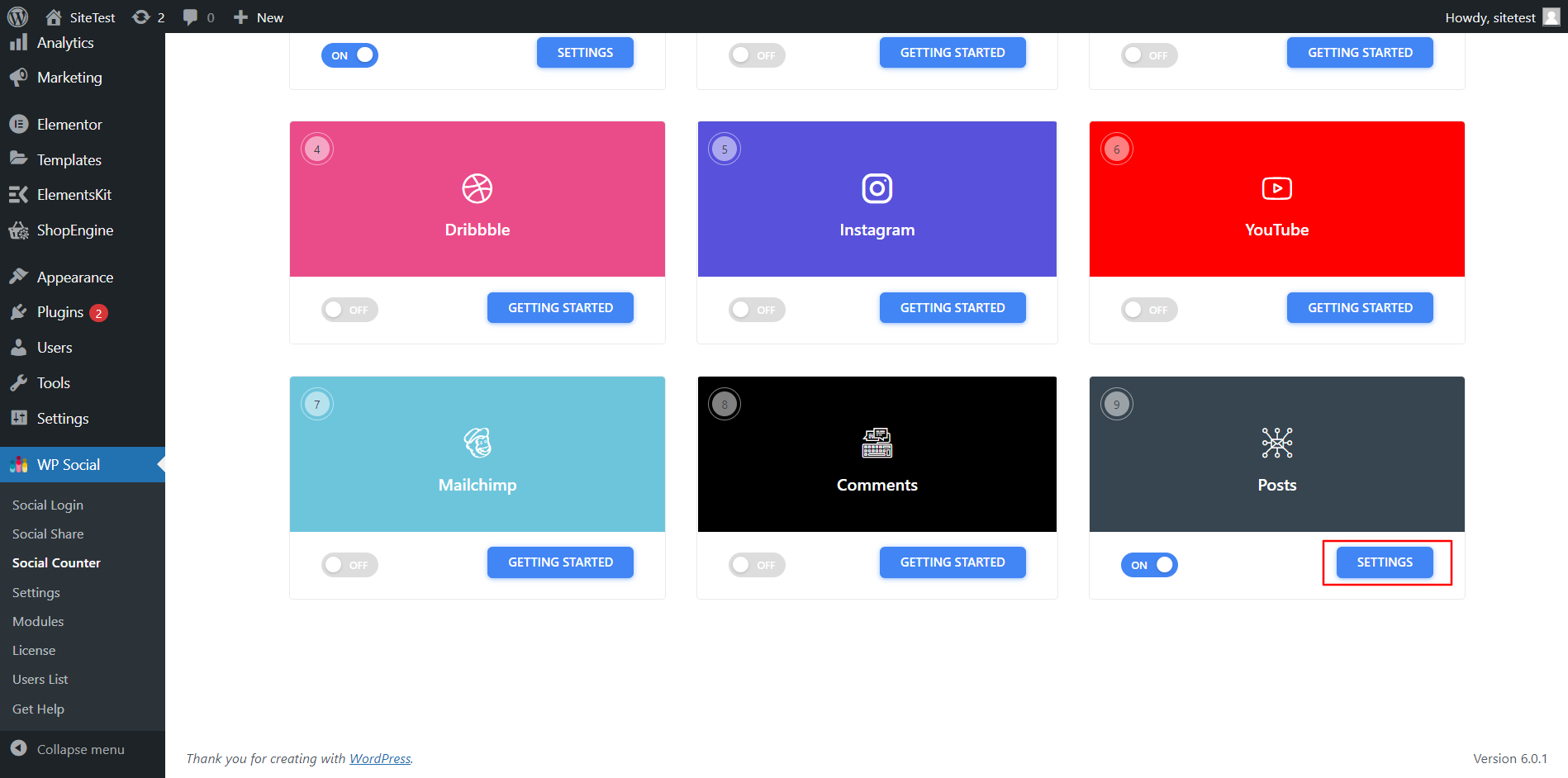
  2. 로 이동 공급자 tab and scroll down to Posts
  3. On the toggle button for Posts
Find posts from WP Social's counter tab and toggle the button to enable it

Step 2: Adjust the Settings for WordPress Social Posts #

To configure the Posts setting, click 설정.

    Click Settings of Post
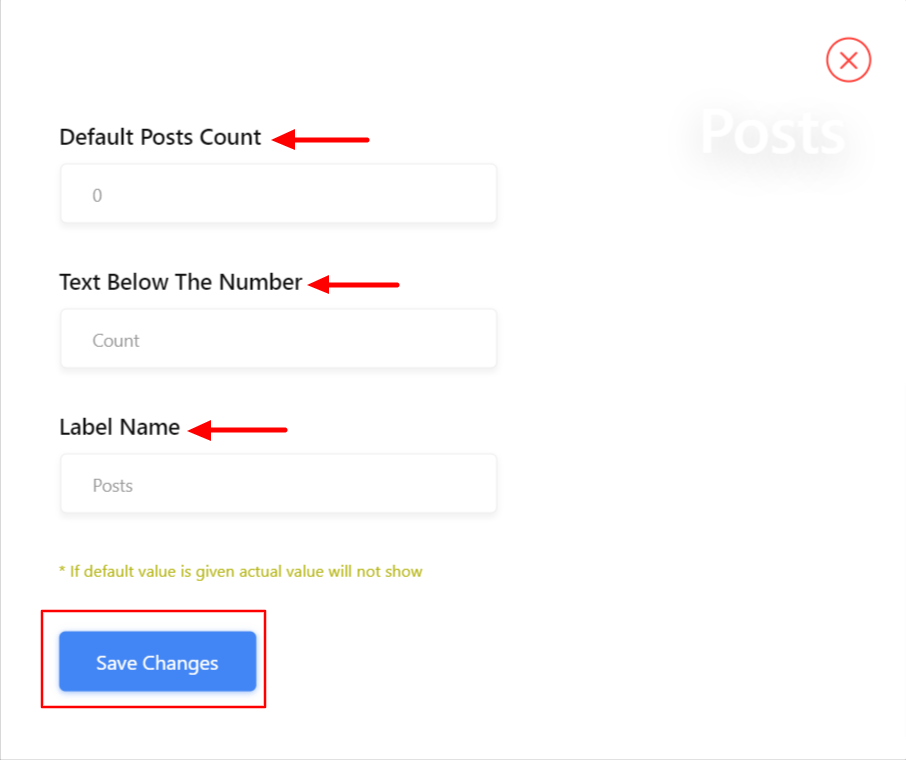
    • 설정에서 기본 게시물 수 number to show
    • 설정 숫자 아래 텍스트
    • 을 추가하다 라벨 이름
    • 변경 사항 저장
    Settings of WP Social Posts Count

    Step 3: Get Shortcode for Social Posts Counter #

    Grab the shortcode from the Counter Settings section.

    Copy shortcode from counter settings tab

    Add a Shortcode block to any page, paste the code, and save it.

    take a shortcode block and paste the code

    Setup complete! Open your post/page to verify the WP Social posts count is displaying properly.

    Test WP Social posts count after setup

    Finally, your website is ready to display the post count from your social media profiles like Facebook, YouTube, Dribble, Instagram, and more.

    당신의 감정은 무엇입니까?

    Updated on 5월 11, 2026