
Don't Miss the Biggest Wpmet Discount
.
AIO Bundle for only $799
00 DAY
:
00 HOUR
:
00 MIN
:
00 SEC
Save $4,102

Rox Booking

+ 12 Premium Plugins. $799 for life. No Renewals.

Ending In:

Discount Still Available for You

이미지 모핑

Morphing means to change or morphs one image or shape into another. It is a special effect in motion pictures and animations to give them a flawless transition. To add some special effect to your website image ElementsKit is presenting you a fully customizable widget name 이미지 모핑.

With ElementsKit, you can easily create interactive image transitions by utilizing an 이미지 모핑 widget. It lets you customize effects, direction, and animation controls with flexibility.

Quick Steps:

1. Enable the ElementsKit Image Morphing widget.
2. Open a page with Elementor and drag & drop the Image Morphing widget.
3. Customize content: choose effect type, add image, and adjust morphing settings (style, direction, duration, etc.).
4. Style the design by adjusting image size, opacity, filters, and shape settings.

5. Click Publish/Update to apply the morphing effect on your site.

ElementsKit Image Morphing #

First, install and activate ElementsKit 찬성 plugin on your WordPress dashboard.

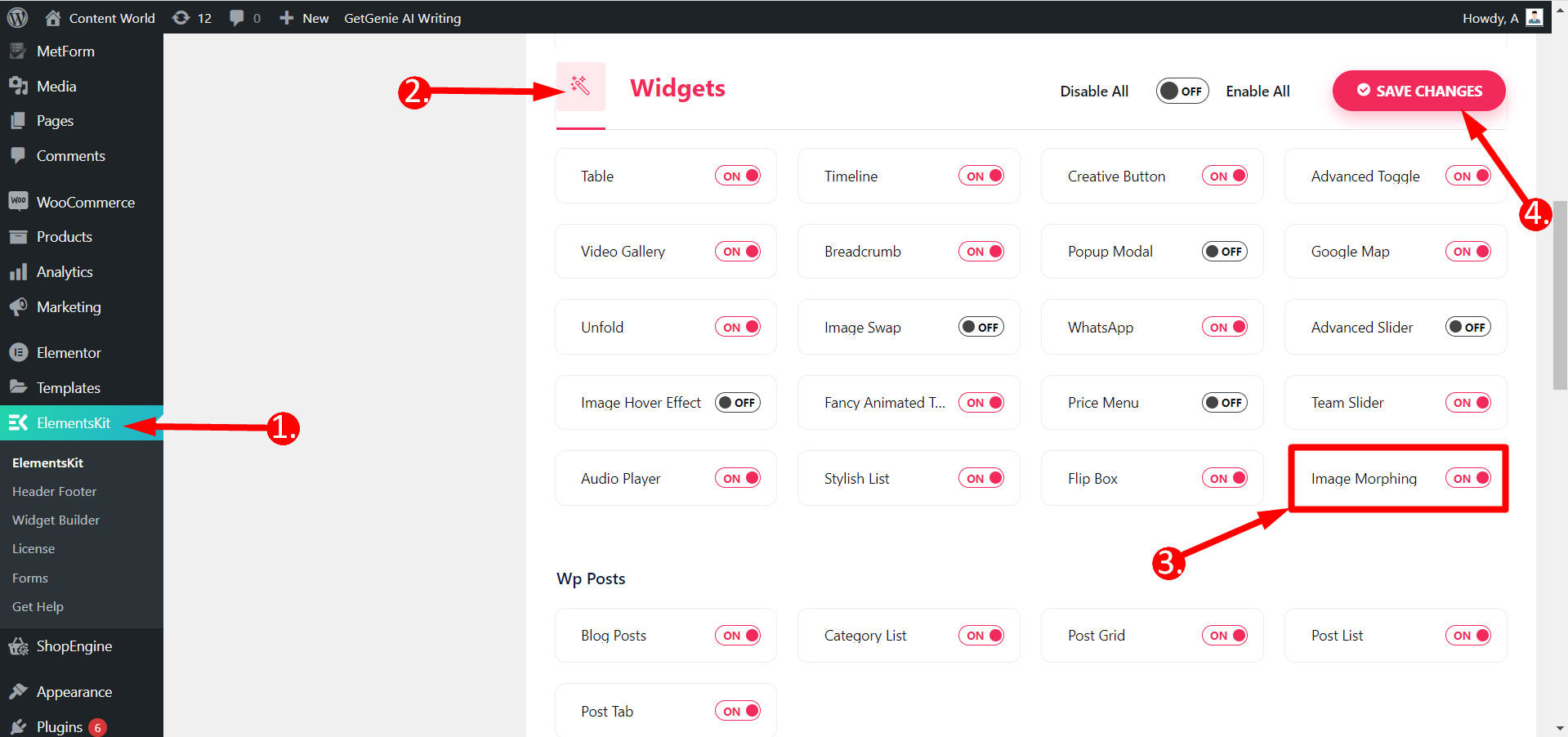
STEP 1: Enable the Widget #

  • Go to your WordPress Dashboard
  • Find ElementsKit
  • Click Widgets
  • Turn ON the Image Morphing widget
  • 변경 사항 저장
Turn ON Image Morphing

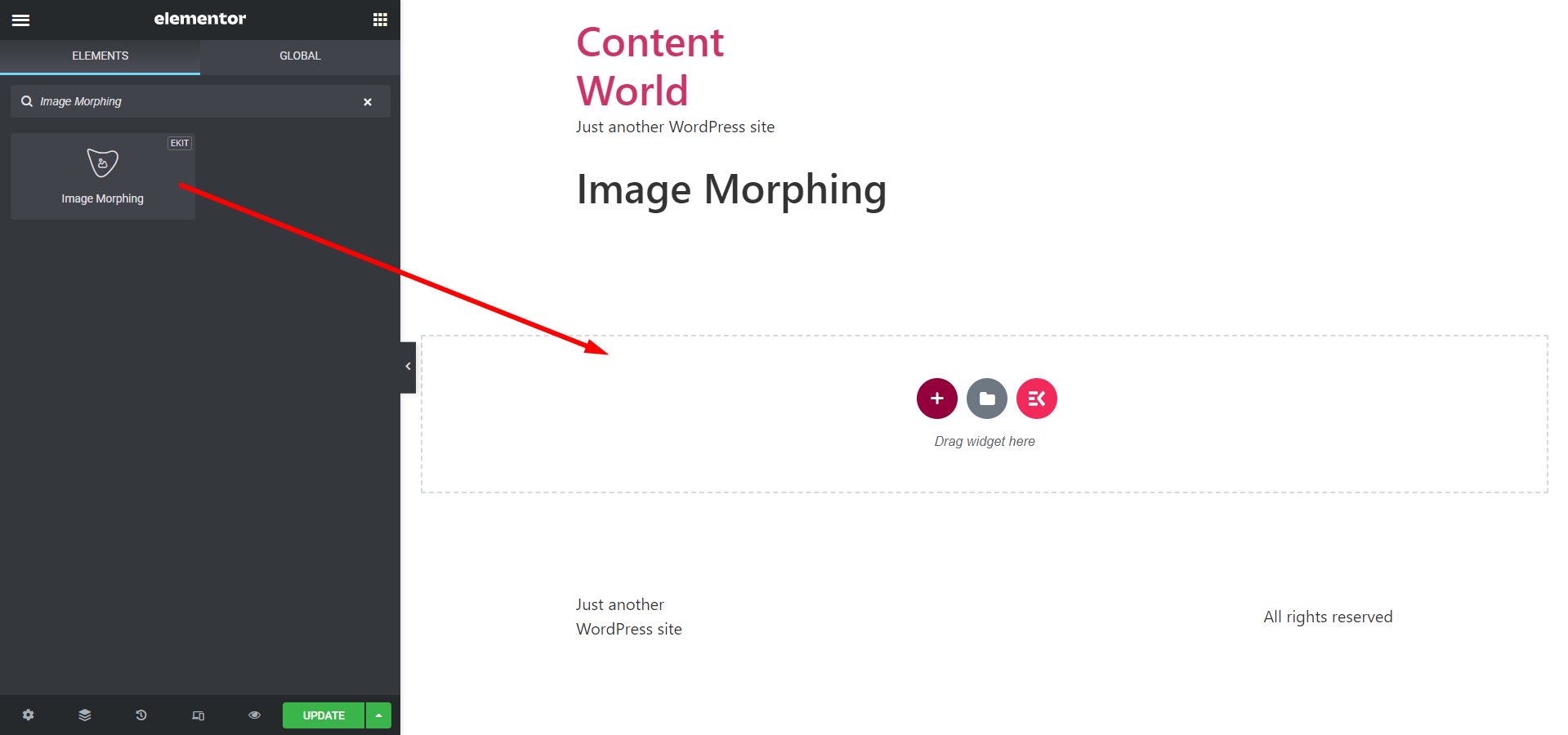
STEP 2: Edit a Page with Elementor #

Select a page where you need to apply image morphing and edit it with Elementor.

  • Search Image Morphing widget
  • Drag and Drop it simply
Drag and drop ElementsKit Image Morphing widget

STEP 3: Customize ElementsKit Image Morphing widget #

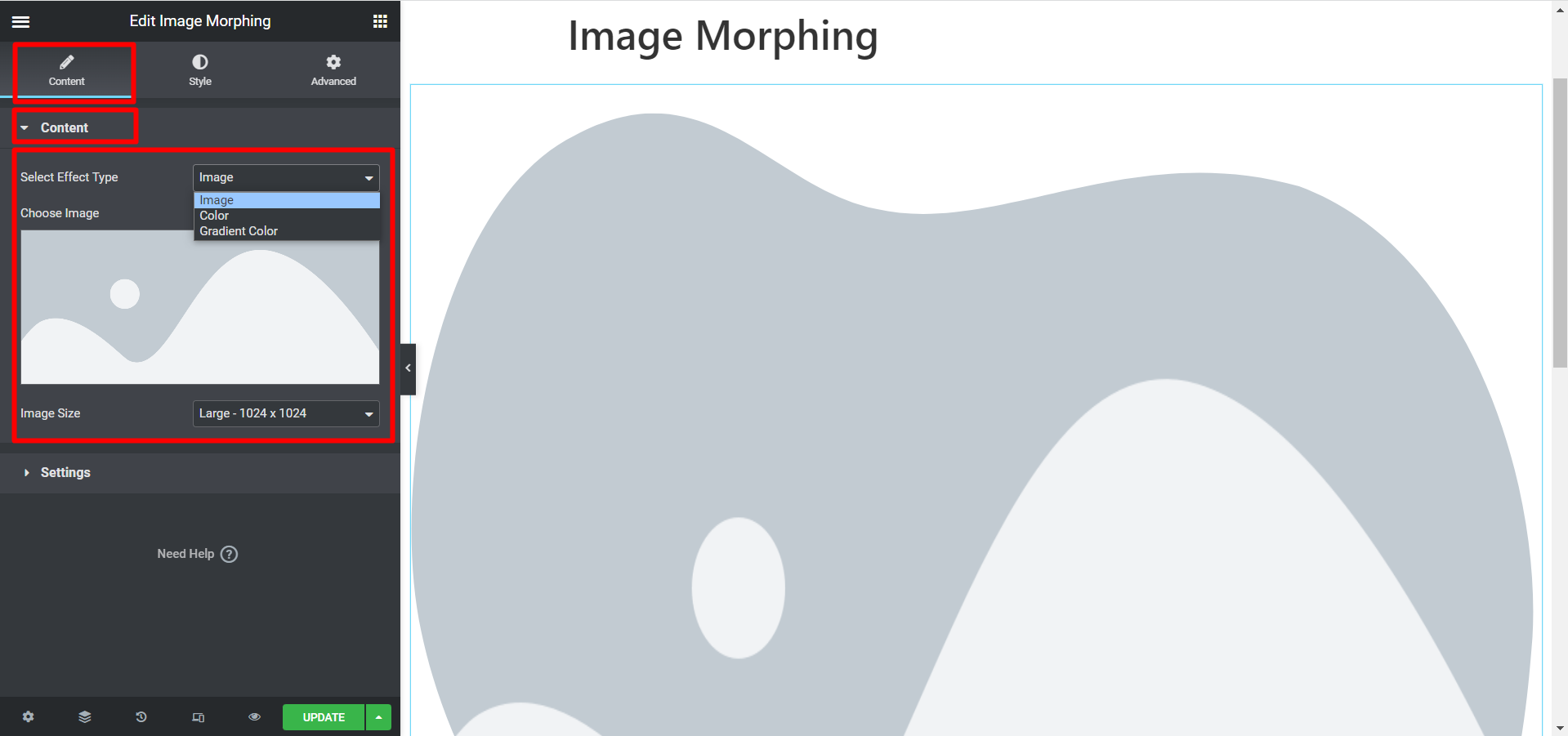
효과 유형 선택- 에서 효과를 선택하세요. 이미지, 색상 및 그라데이션 색상 옵션.

ElementsKit Image Morphing widget

콘텐츠 #

효과 유형 선택- 에서 효과를 선택하세요. 이미지, 색상 및 그라데이션 색상 옵션.

Image Effect

  • Choose Image- Upload an image
  • 이미지 크기- It will allow you to adjust the image size
  • 영상 Resolution- You can adjust the image resolution from te options.
Image effect of ElementsKit image morphing widget

Color Effect:

스트로크 표시- 만약 너라면 색상을 선택하세요 그러면 이 필드를 통해 다음을 수행할 수 있습니다. 획 표시 또는 숨기기.
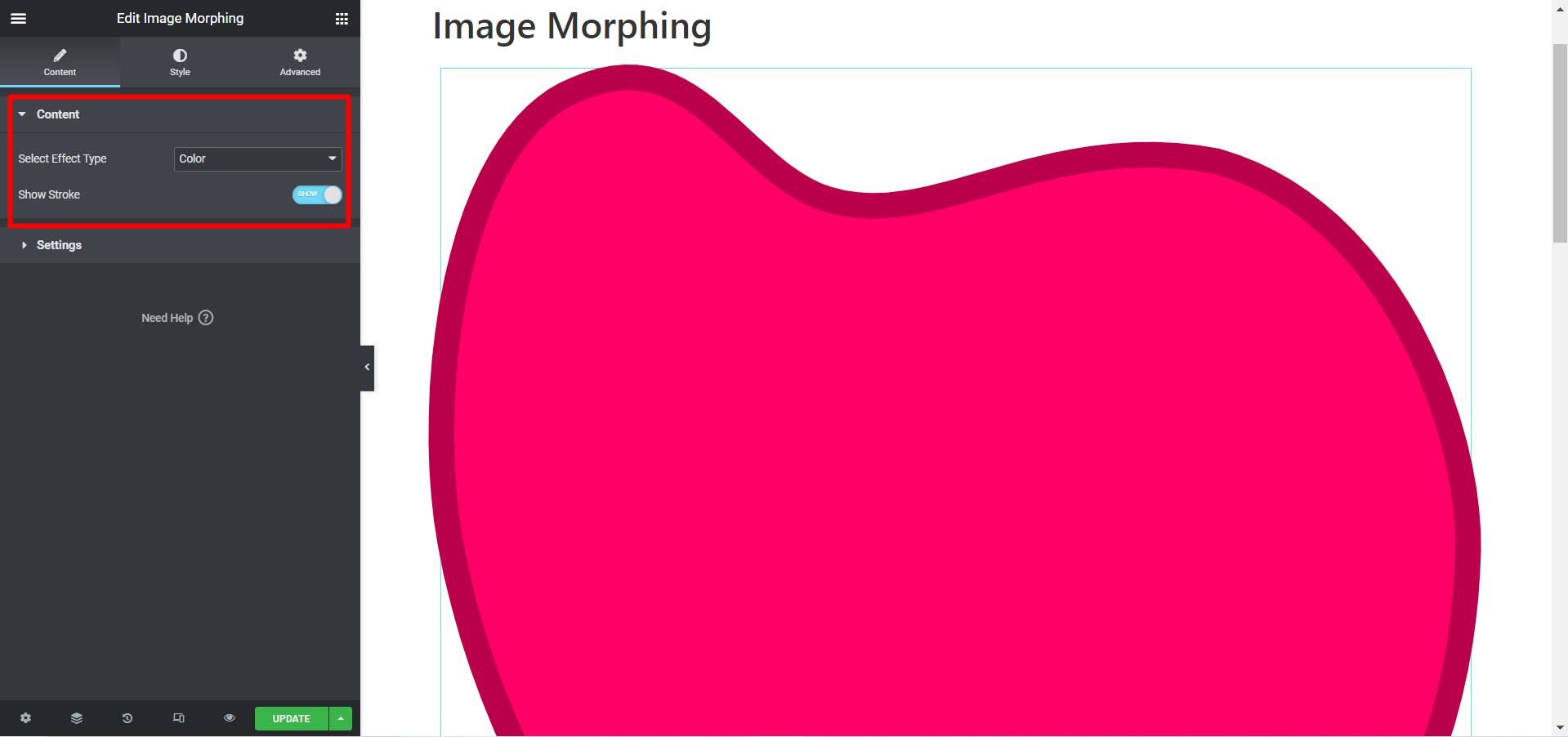
Color effect of ElementsKit image morphing widget

Gradient Color Effect:

만약 너라면 그라데이션 색상을 선택하세요 효과 유형으로 위치 조정 옵션이 제공됩니다. 위치 X1, 위치 X2, 위치 Y1 및 위치 Y2.
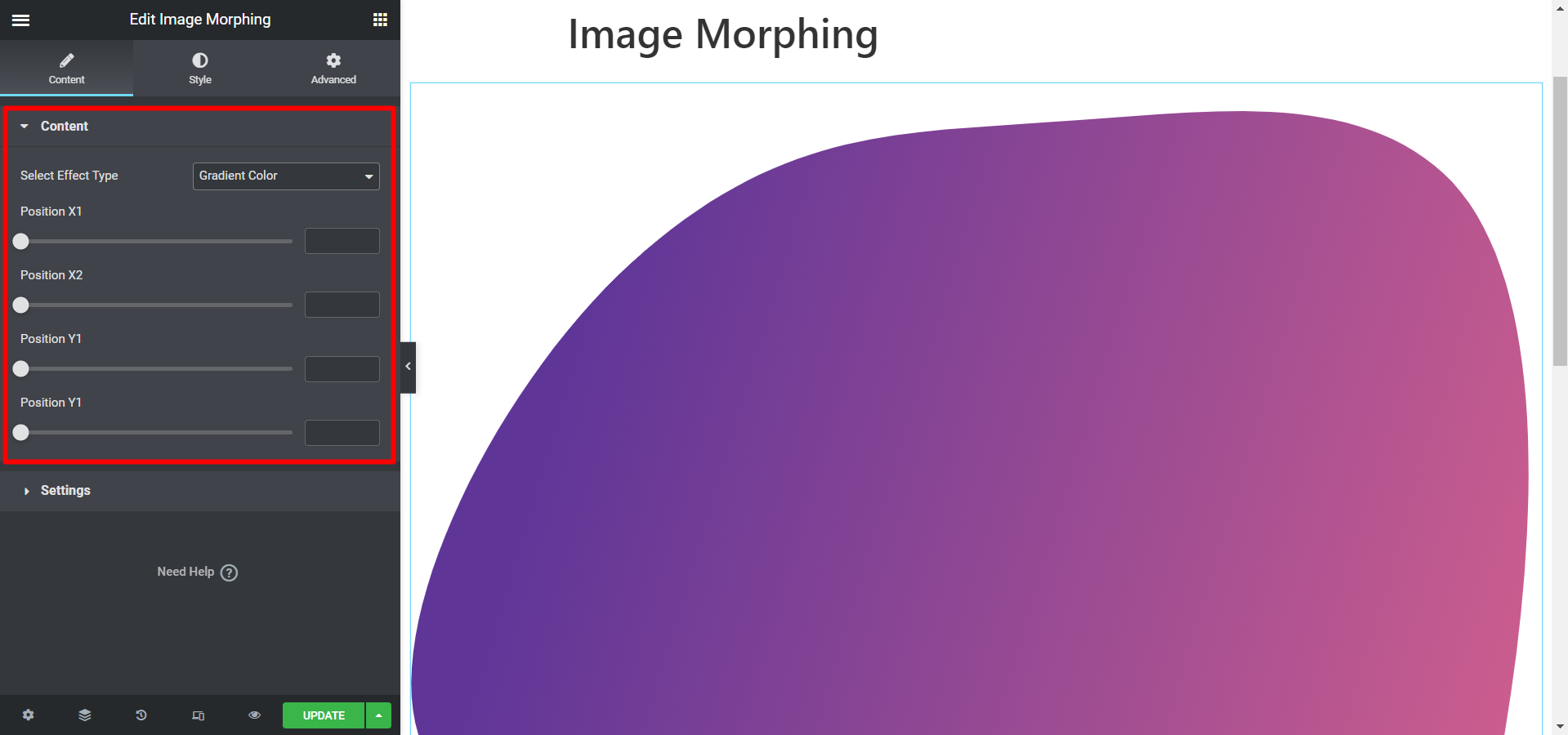
gradient color effect of ElementsKit image morphing widget

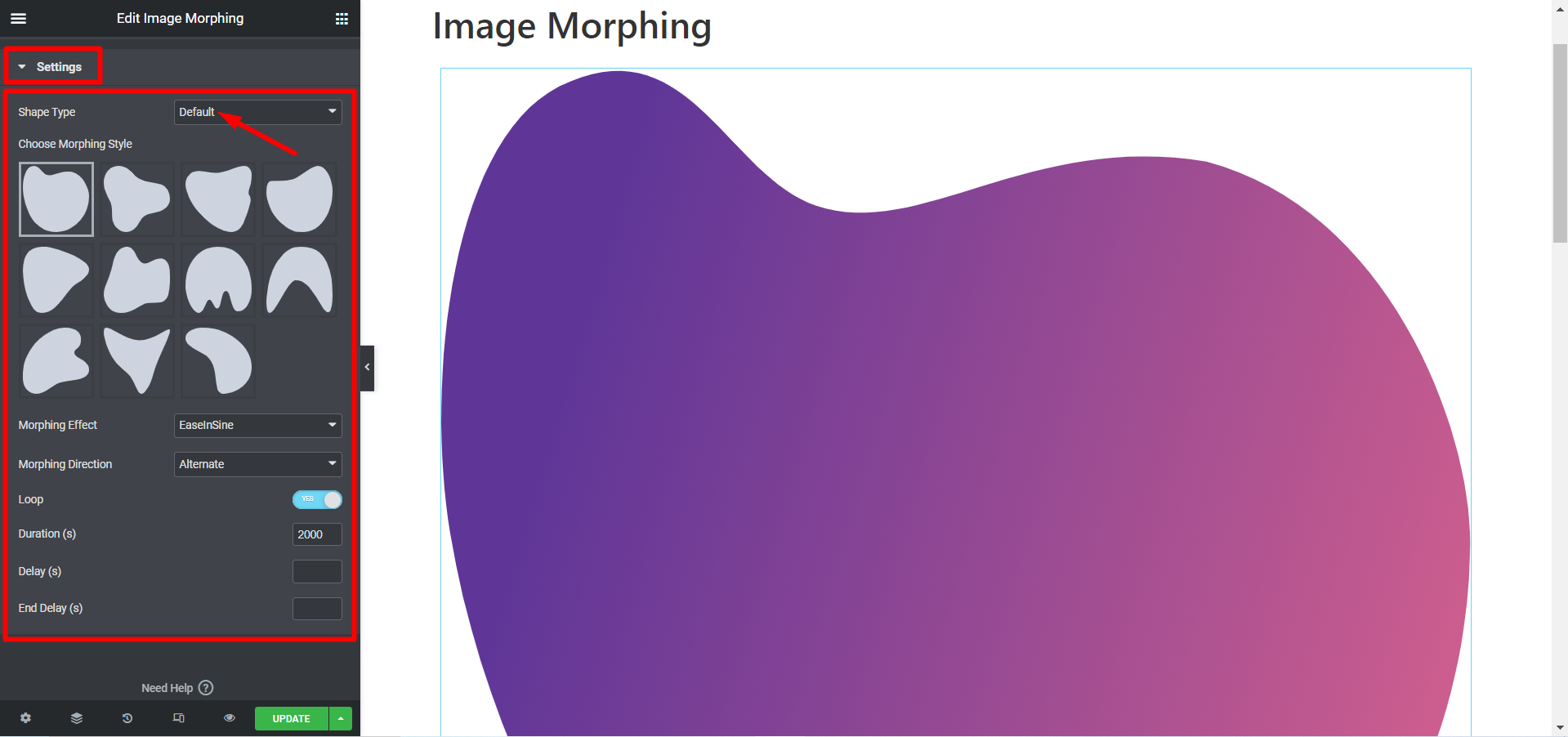
설정:

모양 유형- Select Default then you will see the customization options below:

  • Morphing Effect: Controls the easing and pacing of the transformation (e.g., Linear, EaseOutInQuad, EaseInCirc, etc.).
  • Morphing Direction: Defines the sequence and order in which the SVG shapes transition into one another. Three options are- Normal, Reverse, and Alternate.
  • 고리: Dictates whether the animation plays just once or repeats continuously.
  • Duration(s): Sets the total time in seconds that it takes for one shape to fully morph into the next.
  • Delay(s): Sets a pause in seconds before the morphing animation begins for the first time.
  • End Delay(s): Sets a pause in seconds on the final shape before the animation loops or stops.
ElementsKit Image Morphing default shape

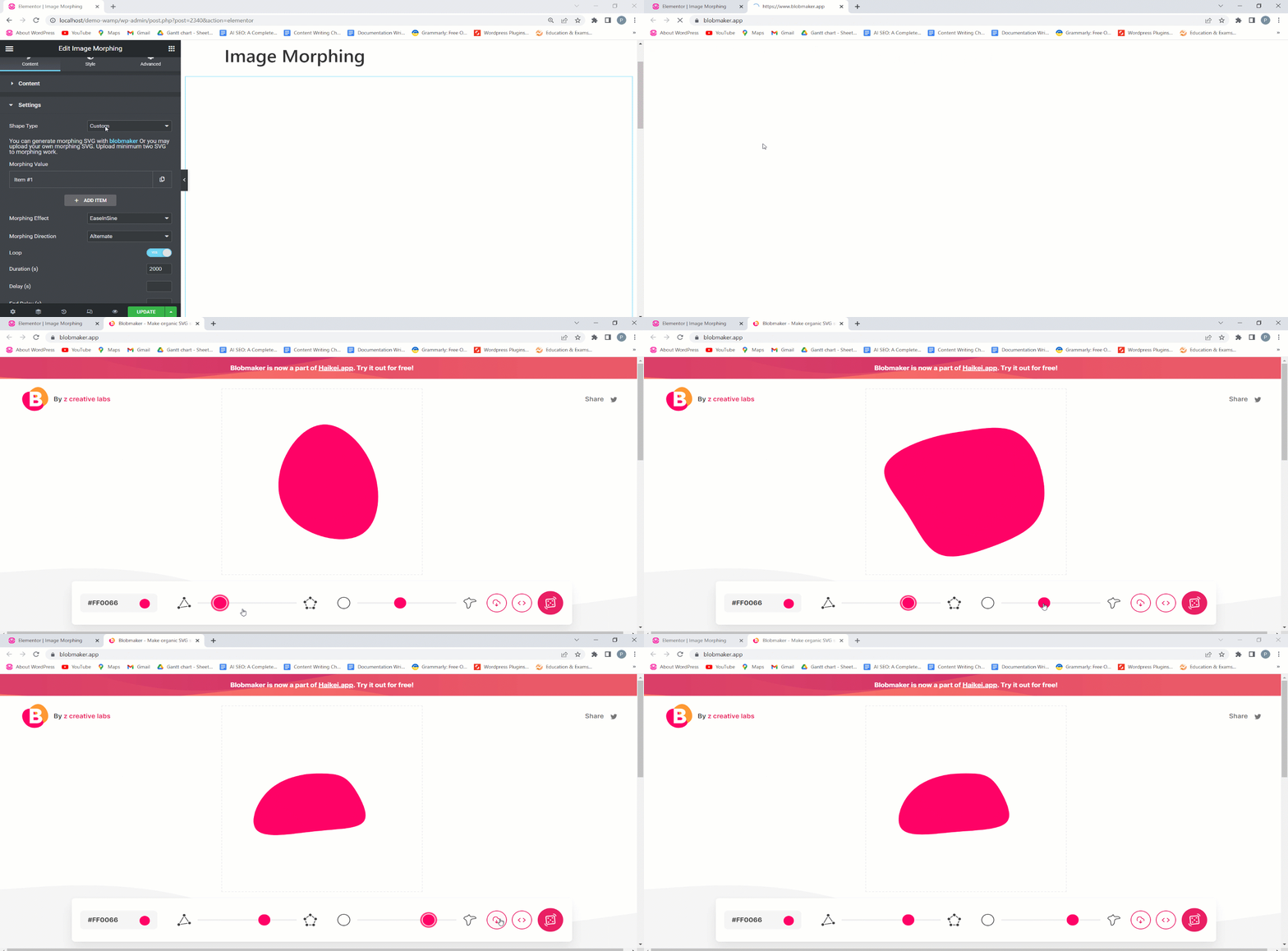
그러나 선택하면 맞춤 스타일 then you can generate a morphing SVG with blobmaker.

generate morphing SVG with blobmaker

또한, 나만의 모핑 SVG. 참고로 업로드해야 합니다. 최소 2개의 SVG 모핑 작업을 합니다.
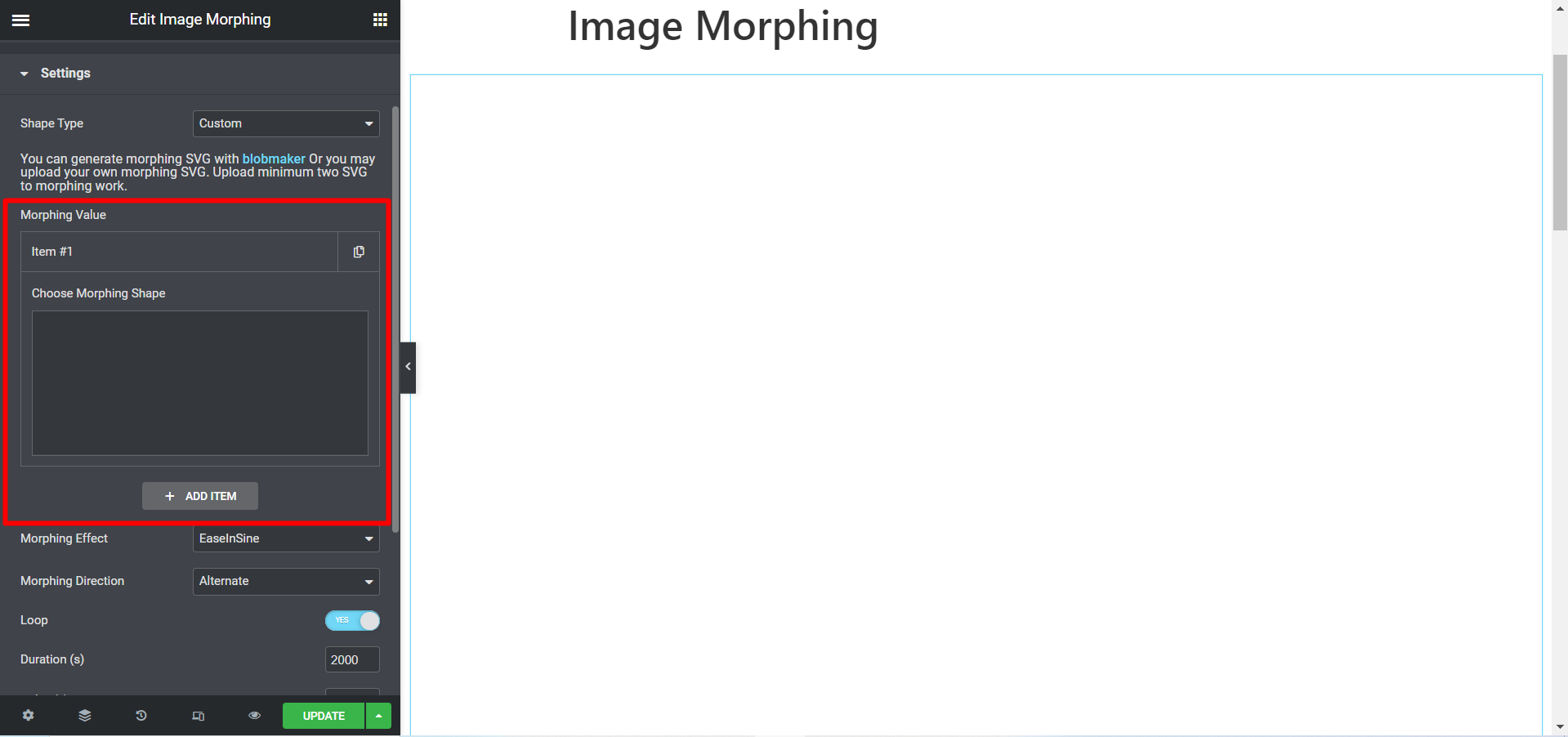
Image morphing custom shape customization

스타일 #

스타일 옵션은 이미지, 색상 및 그라데이션 효과에 사용할 수 있습니다.

이미지 스타일

이 섹션에서는 이미지 너비, 높이, 불투명도, CSS 필터, 이미지 확대/축소, 이미지 위치를 수평 방향 및 수직 방향으로 조정할 수 있습니다.
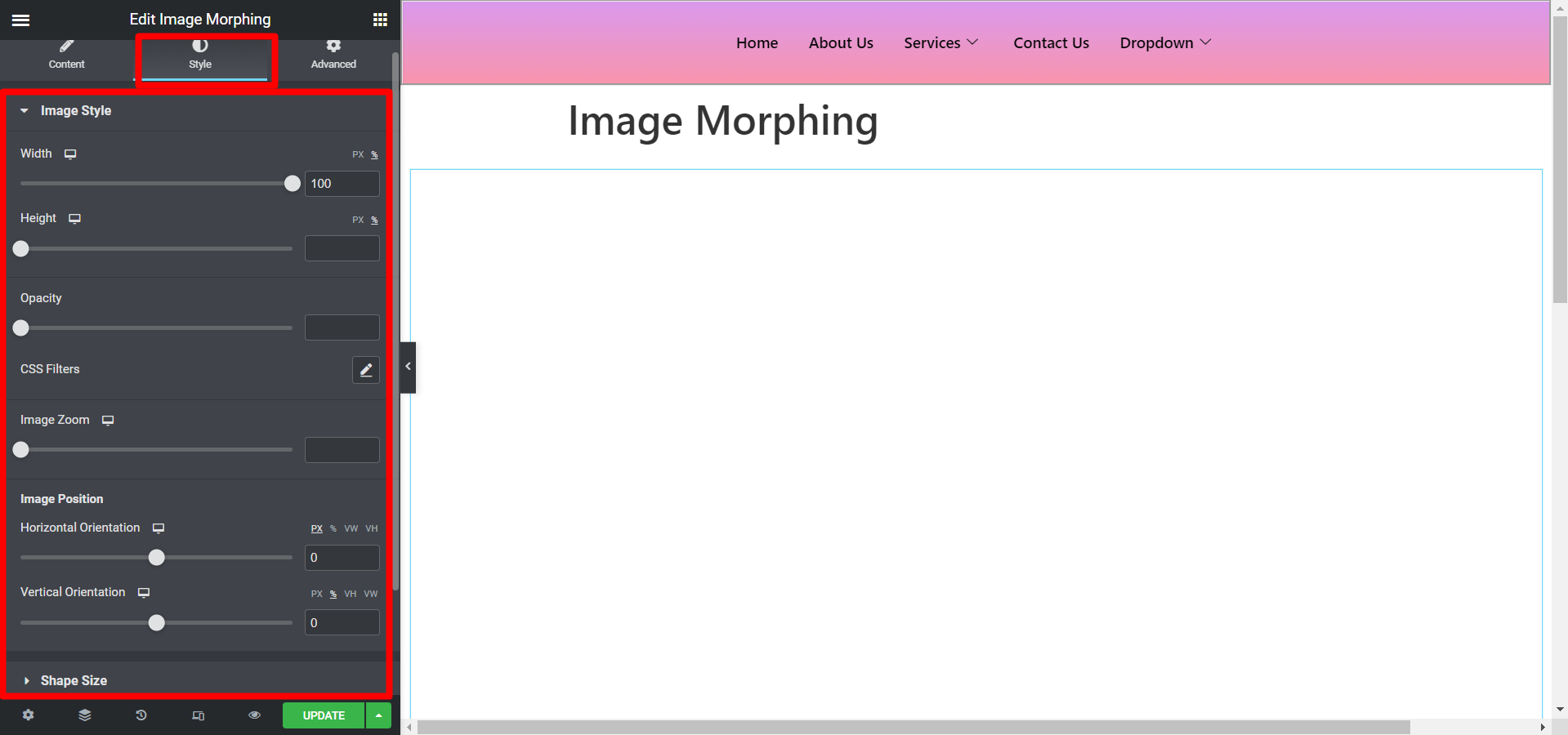
Image morphing image style

색상 스타일

색상 효과 유형의 경우 다음과 같은 옵션이 있습니다. SVG 색상 사용자 정의.
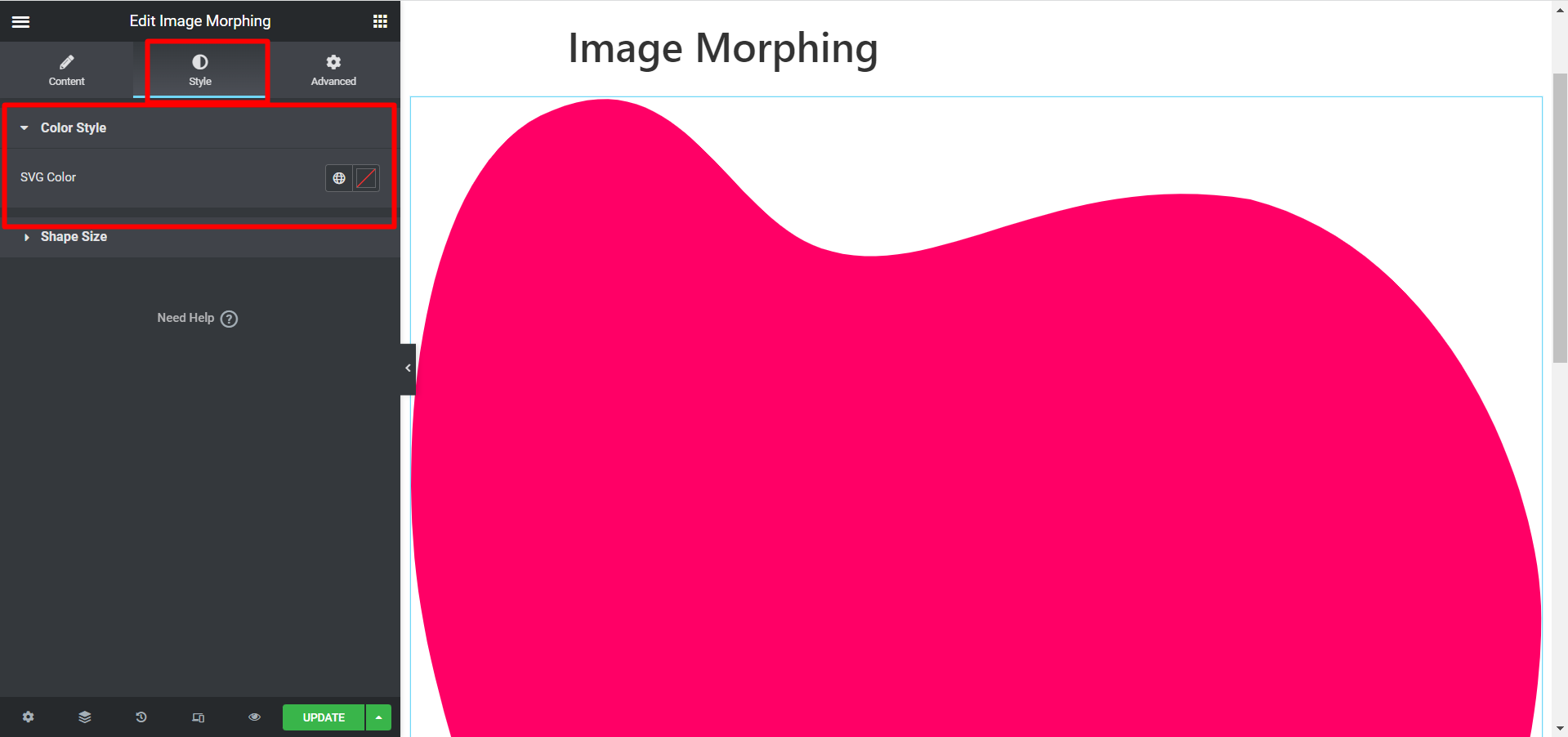
Image morphing color style

그라데이션 스타일

있다 두 가지 색상 옵션, 그에 따라 선택하고 오프셋도 조정해야 합니다.
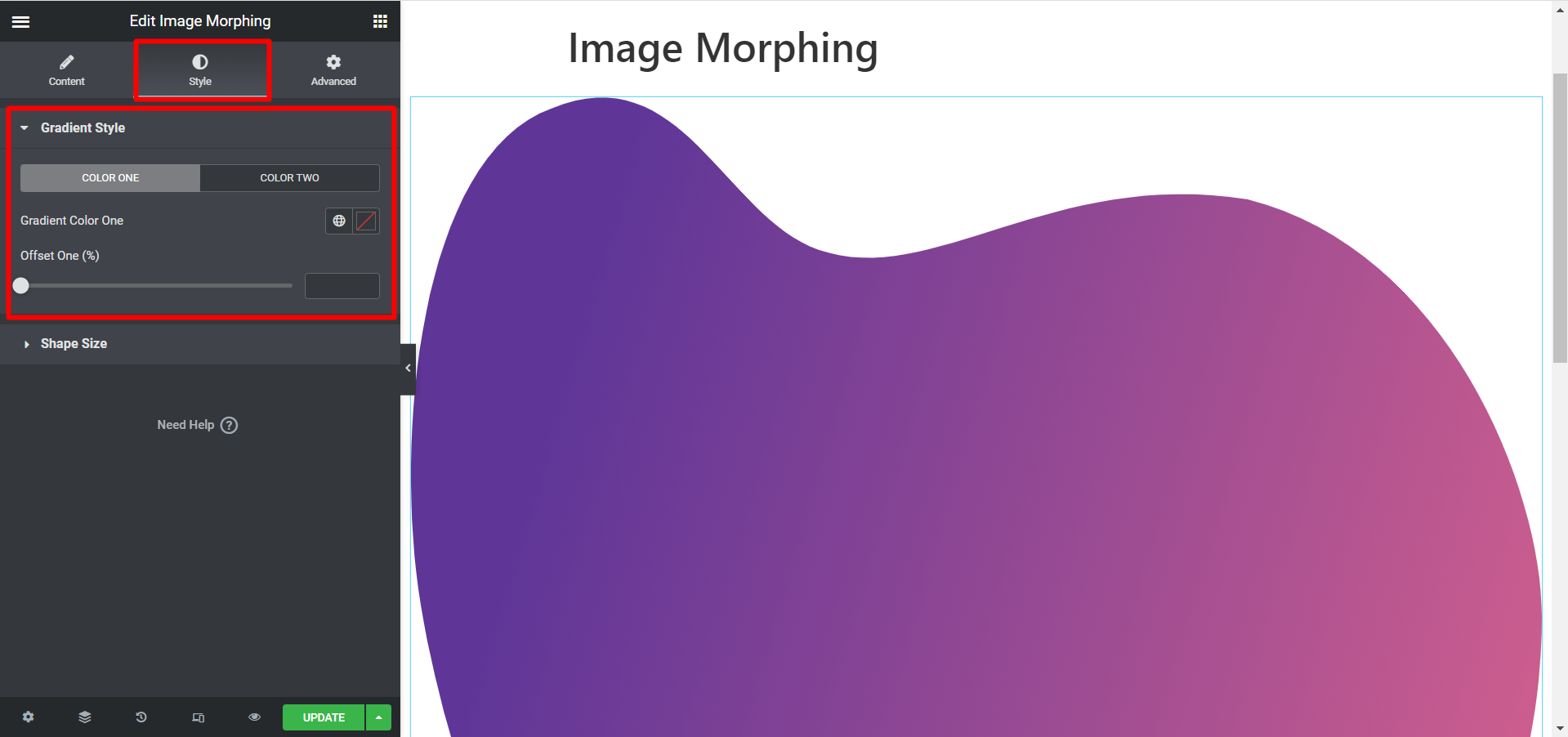
Image morphing gradient style

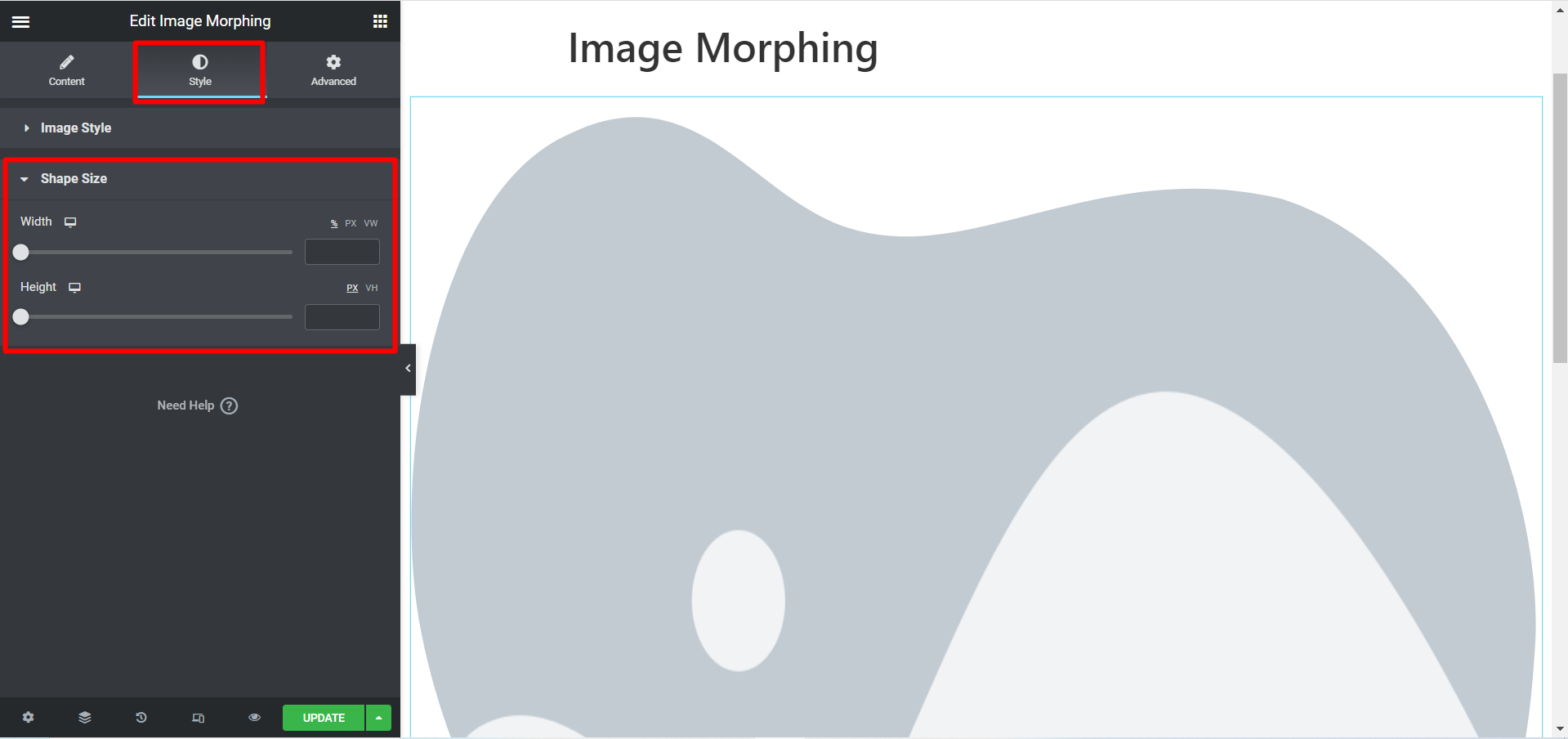
세이프 크기

This option is common for all the effect type. You can adjust the width and the height of the effects based on your needs.

Adjust shape of Image Morphing

이것은 우리가 귀하를 위해 맞춤화한 이미지 모핑의 예입니다.

ElementsKit 이미지 모핑 위젯을 사용하여 동영상 이미지를 놀랍게 모핑합니다.

애니메이션과 흔하지 않은 효과를 통해 매력적인 방식으로 다양한 이미지를 선보이려면 ElementsKit Image Morphing 위젯이 최선의 선택입니다.

당신의 감정은 무엇입니까?

Updated on 5월 2, 2026