
 Japanese
  English
  German
  Spanish
  Italian
  French
  Danish
  Portuguese
  Swedish
  Polish
  Korean
あなたは直面していますか WooCommerce カートは空です 問題?
ウーコマース turns online shopping into a smooth ride. But unfortunately, you may sometimes face technical issues like “the cart is empty" または "your WooCommerce cart is currently empty”。このような問題により顧客を失う可能性があり、その結果、オンライン ビジネスで損失を被る可能性があります。
カートが空になる問題に直面している場合でも、心配はいりません。あなたは正しい場所に来ました。このブログでは、WooCommerce のカートが空になるエラーの原因となる可能性のあるすべての問題と、その解決方法をまとめました。
始めましょう…
WooCommerce の空のカート問題とは何ですか?
空のカートの問題は、オンラインの WooCommerce ショッピング カートに商品を追加したのに、なぜかカートに「カートは現在空です」と表示される場合に発生します。これは通常の「カートは空です」というメッセージではなく、商品を追加したときにカートが更新されない技術的な問題です。
WooCommerce の空のカート問題を解決する 10 の方法
With customer feedback and my own experiences, I have found there are about 10 reasons that can cause the cart to show empty despite adding products. Let’s check the problems and how you can solve those ones by one to get rid of “your cart is empty” error or WooCommerce add to cart not working:
解決策 #1: WooCommerce システム ステータスと WooCommerce ページ設定を確認する
WooCommerce システム ステータスには、WooCommerce 機能と競合する可能性のある Web サイト環境のすべての問題を示す赤いサインが表示されます。したがって、最初の仕事は、wooCommerce が危険信号を出しているかどうかを確認することです。
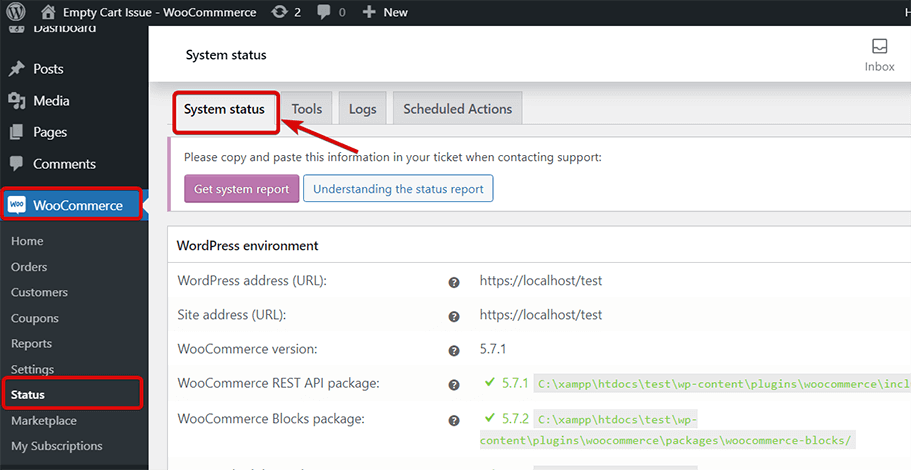
に行く WordPress ダッシュボード => WooCommerce => ステータス そして、赤色の警告が表示されるすべての問題を修正します (警告が表示された場合)。
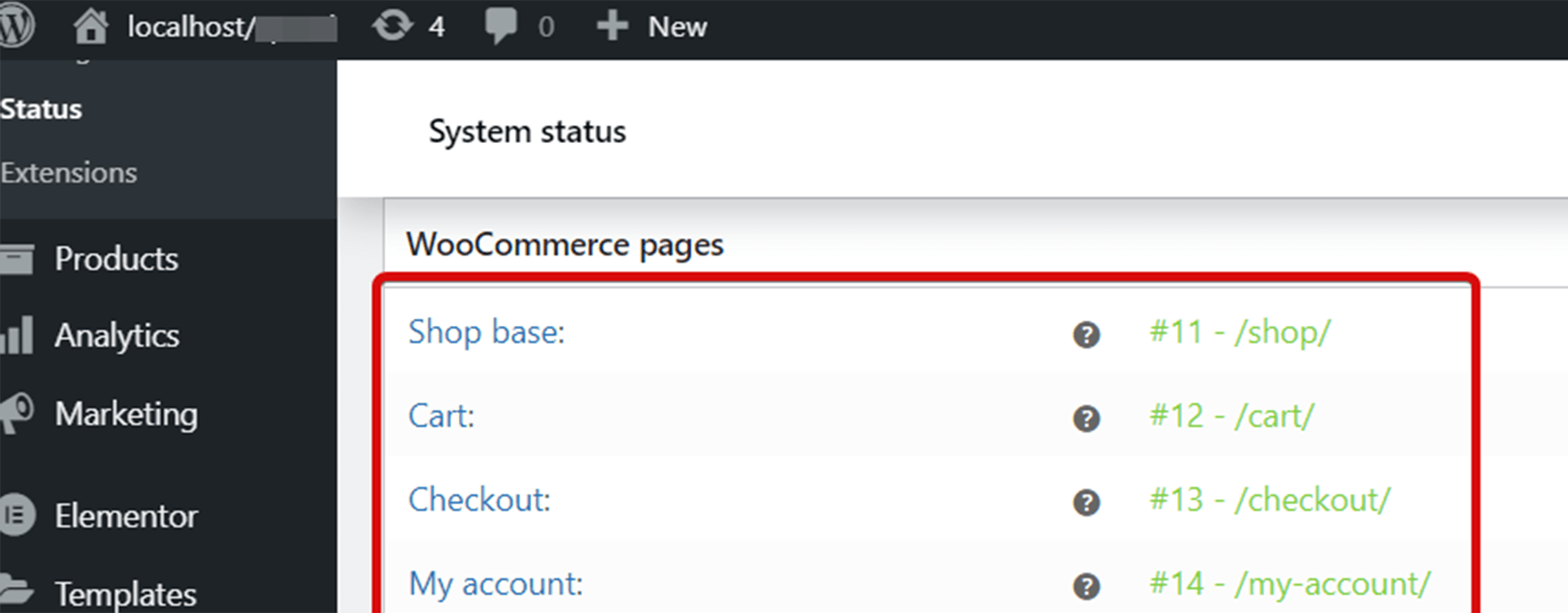
また、すべての wooCommerce ページが適切に設定されており、テーマがデフォルトのカート ページをオーバーライドしていないか、オーバーライドしても問題が発生していないことを必ず確認してください。
🤷 Elementor Web サイトにカスタム CSS を追加したいですか?
Elementor にカスタム CSS を追加するさまざまな方法をブログで確認してください
👉👉 Elementor にカスタム CSS を追加する方法: 4 つの簡単な方法
解決策 #2: WooCommerce ツールでセッションとトランジェントをクリアする
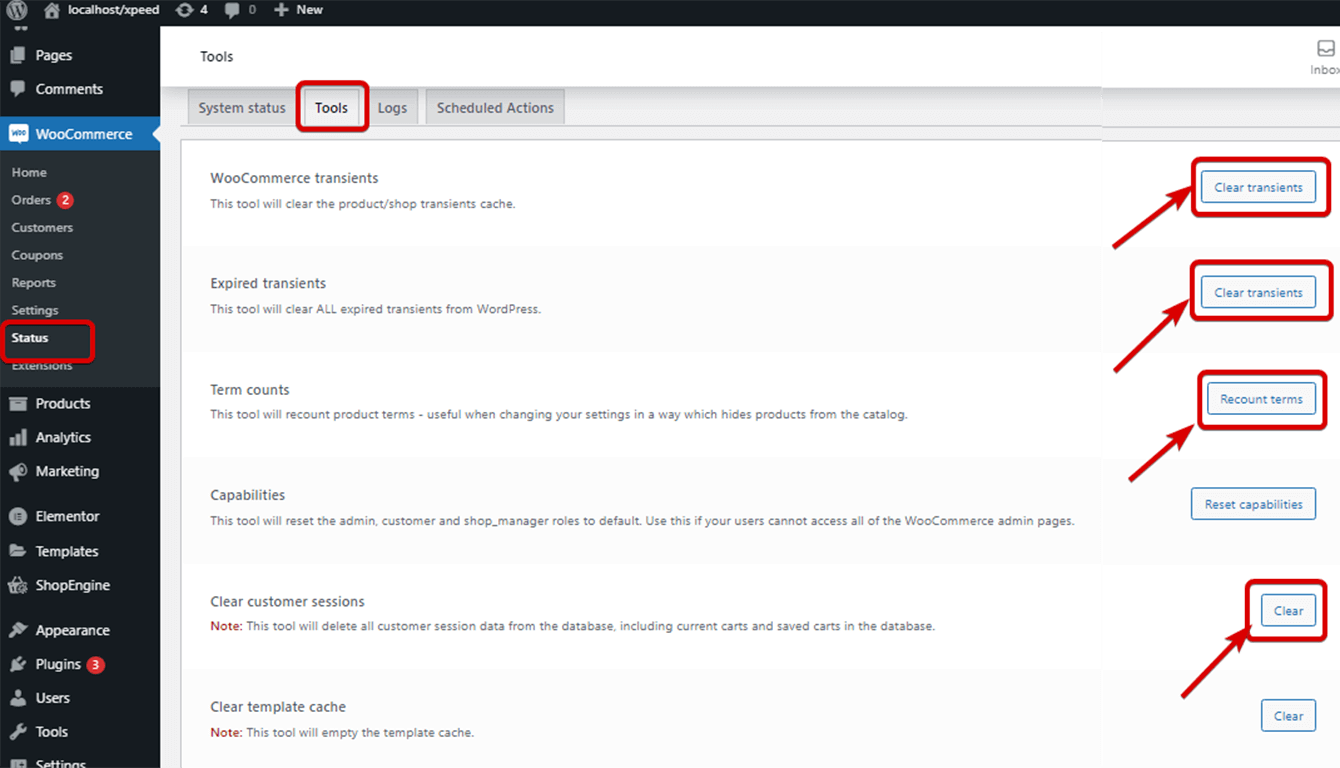
WooCommerce トランジェント、期限切れのトランジェントをクリアし、期間カウントをリセットし、顧客セッションをクリアすると、カートが空になる問題も解決できます。に行く WordPress ダッシュボード => WooCommerce => ステータス => ツール そして 以下のスクリーンショットに従って、前述のオプションをすべてリセットしてクリアします。
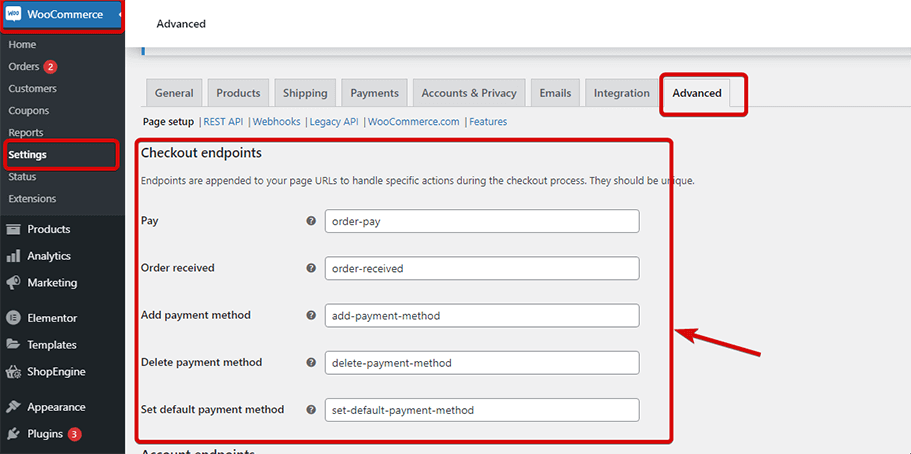
解決策 #3: チェックアウト エンドポイントにスペースがないことを確認します。
に行く WordPress ダッシュボード => WooCommerce => 設定 => 詳細タブ チェックアウト エンドポイントにスペースがないことを確認します。
私たちのブログもチェックしてください WooCommerceに通貨スイッチャーを追加する方法
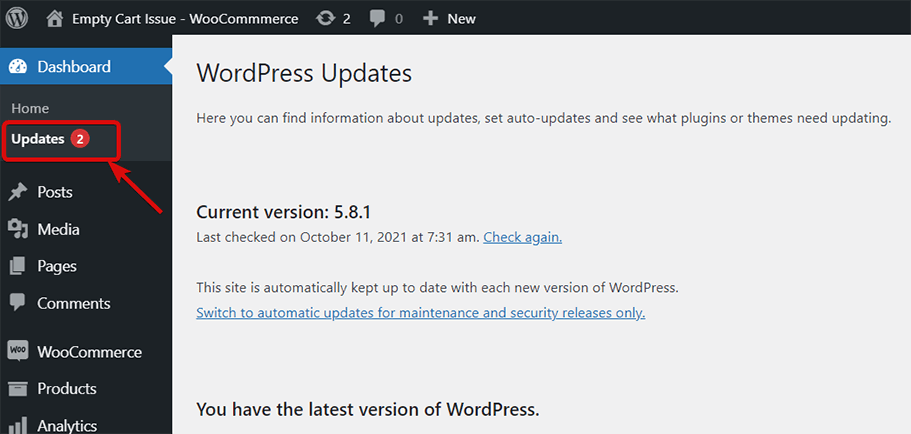
解決策 #4: ウェブサイトの WordPress と WooCommerce を更新する
古くて古いバージョンを持っている ワードプレス または WooCommerce がこの問題を引き起こす可能性があります。したがって、サイトに WordPress と WooCommerce の最新バージョンがインストールされていることを確認する必要があります。
WordPress または WooCommerce を更新する必要があるかどうかをダッシュボードから確認し、必要に応じて更新できます。
解決策 #5: テーマとプラグインを更新する
WordPress や WooCommerce だけでなく、テーマやプラグインも定期的に更新する必要があります。したがって、使用しているテーマとプラグインを更新する必要があるかどうかを確認し、必要に応じて更新してください。これにより、WooCommerce の空のカートの問題も解決できます。
注記: すべて(WordPress、WooCommerce、テーマ、プラグイン)をやみくもに更新するのも良い考えではありません。すべての更新バージョンが相互に互換性があることを確認する必要があります。
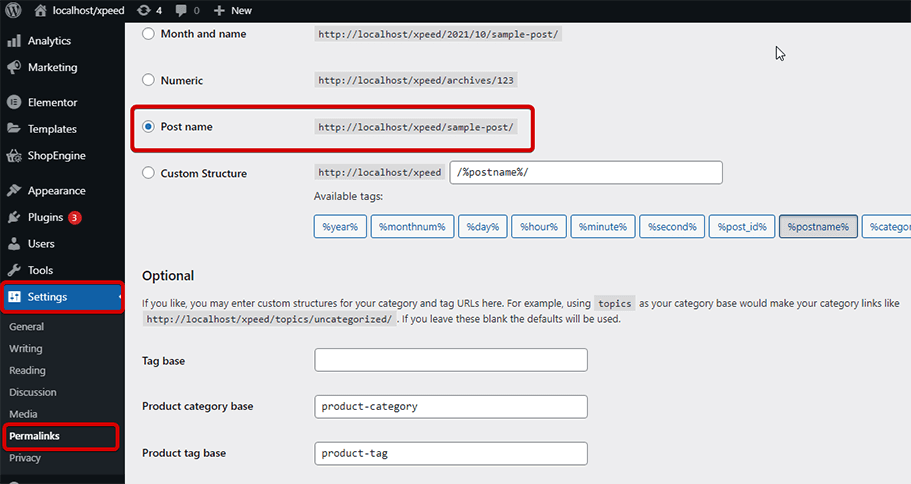
解決策 #6: パーマリンクをリセットする
WordPress パーマリンクをリセットすると、カートが空になる問題を解決できます。リセットするには、次の場所に移動します WordPress ダッシュボード => 設定 => パーマリンクを選択 => 変更を保存 をクリックします。
解決策 #7: WooCommerce を受け入れるすべてのプラグインを一時的に無効にする
これは非常に基本的なトラブルシューティング手法ですが、WooCommerce カートが空のエラーを解決するのにも役立ちます。他のプラグインを無効にすることで WooCommerce のカートが空になる問題が解決する場合は、Web サイト上の WooCommerce に問題がないことを確認し、問題の原因となっているプラグインを修正できます。
🤷 Elementorでサーバーエラー400 Bad Requestに遭遇したことがありますか?このサーバーエラーを解決するさまざまな方法を確認してください
👉👉 Elementor でサーバー エラー 400 Bad Request を修正する方法
解決策 #8: WP のデフォルトのテーマに一時的に切り替える
プラグインと同様に、テーマが WooCommerce と競合している可能性があります。そのため、一時的にデフォルトの WordPress に切り替えて、問題が解決するかどうかを確認できます。問題が解決した場合は、問題がわかっているので、テーマ プロバイダーに相談して競合を解決できます。
解決策 #9: WordPress プラグインとサーバー側の両方で適切なキャッシュ設定をセットアップする
カートには動的なコンテンツが表示されるため、キャッシュしないでください。したがって、キャッシュ除外 URL を持つ WordPress キャッシュ プラグインを常に使用してください。 WordPress プラグインだけでなく、一部のホスティングプロバイダーは、Web サイトにも適用される Varnish などの独自のキャッシュ システムも使用します。
したがって、空のカートの問題を解決するには、ホスティング会社に相談して適切なサーバー側キャッシュ設定をセットアップする必要があります。
解決策 #10: デフォルトの .htaccess ルールに従う必要がある
.htaccess file usually is used to put instructions on how user requests are handled. Check if you are using the standard .htaccess rule that WordPress provides. If not, fix the file to get the default .htaccess configuration. This can also solve WooCommerce cart page is empty problem.
ボーナスヒント
カートが空になる問題とは別に、退屈なカート ページがあると、顧客が注文を完了せずに Web サイトを離れる可能性があります。ただし、WooCommerce カート ページをカスタマイズしてより魅力的なものにすることで、カート ページの豊富な割合を減らすことができるようになりました。
ショップエンジン は WooCommerce の世界における革命的なプラグインです。カート ページのカスタマイズだけでなく、ShopEngine を使用すると、次のようなすべての WooCommerce ページをカスタム構築できます。 商品ページ, カテゴリーページ, 複数ステップのチェックアウトページ, サンキューページなど。
さらに、60 個以上のウィジェットと 10 個以上の非常に便利なモジュールが提供されます。 予約注文, 取り寄せ, 一部支払い, 販売のお知らせ, フラッシュセールカウントダウン, 通貨スイッチャー, 製品比較, などなど。
✨✨ ShopEngine の柔軟なカスタマイズ オプションを使用して追加する方法を確認してください WooCommerce チェックアウト ページの高度なカスタム フィールド.
✨✨ WooCommerce ストアを強化するためにショッピング カート プラグインが必要ですか?私たちのブログをチェックしてください
WooCommerce で最も便利なショッピング カート プラグイン
よくある質問
You can easily find out whether your cart is empty or not by checking the cart page. It will notify you with an alert message “Your cart is empty” if there is no products added. Whenever you will add a product, this notification will be removed.
Empty cart button facilitates customers to remove all add to cart products with a single click. Therefore, your customers don’t need to delete products one-by-one that consumes extra time and effort.
Yes, WooCommerce plugins allows you to save add to cart products for later purchase. But, this feature doesn’t come by default. You need to use a separate plugin like ShopEngine to enable this feature in WooCommerce.
WooCommerce での「カート上の最後の言葉が空です」エラー
So, you have found out all the measures to fix WooCommerce empty cart error. Hope this blog helped you to solve your WooCommerce empty cart page issue in no time. If you have any questions or confusion about any of the steps, leave a message in the comment box.


コメントを残す