
 Japanese
  English
  German
  Spanish
  Italian
  French
  Danish
  Portuguese
  Swedish
  Polish
  Korean
 最高のフォームビルダー MetForm を使用すると、WordPress フォームの電子メール通知を簡単に設定できます。ここで共有した手順に従ってください。
- 設定する 通知メール、 初め フォームを作成する
フォームの作成方法 #
フォローしてください ビデオスクリーンキャスト:
Or Follow the Step By Step Process
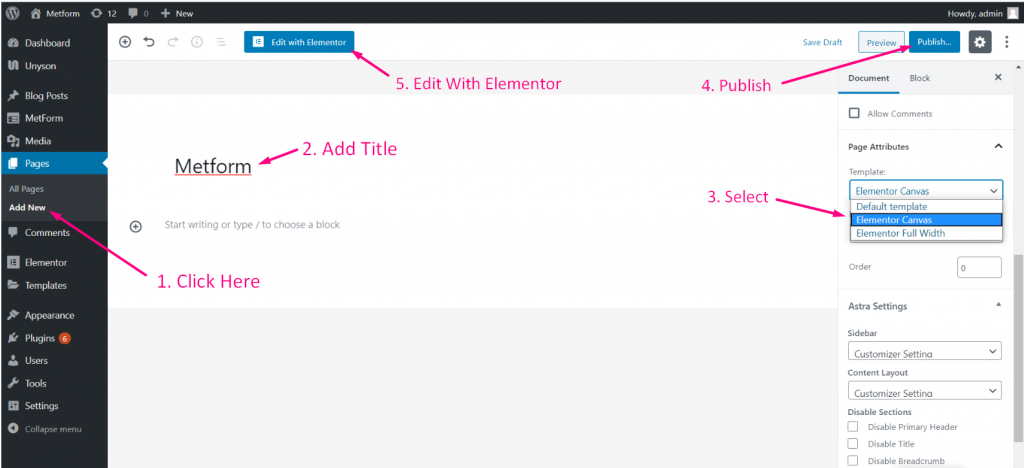
ステップ=>1: に行く ダッシュボード=> ページ=> 新しく追加する=>
- 追加 ページタイトル
- テンプレートの選択 エレメンターキャンバス
- クリック 公開
- Elementorで編集する
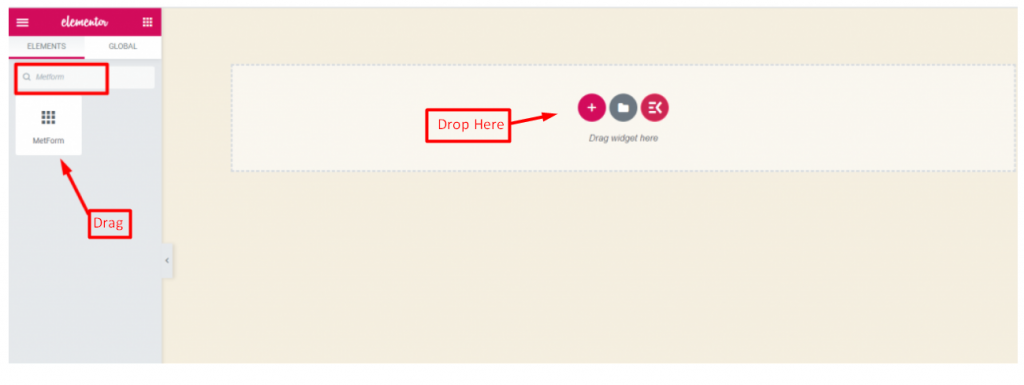
- ステップ=>2: 検索する メットフォーム=> ドラッグアンドドロップ
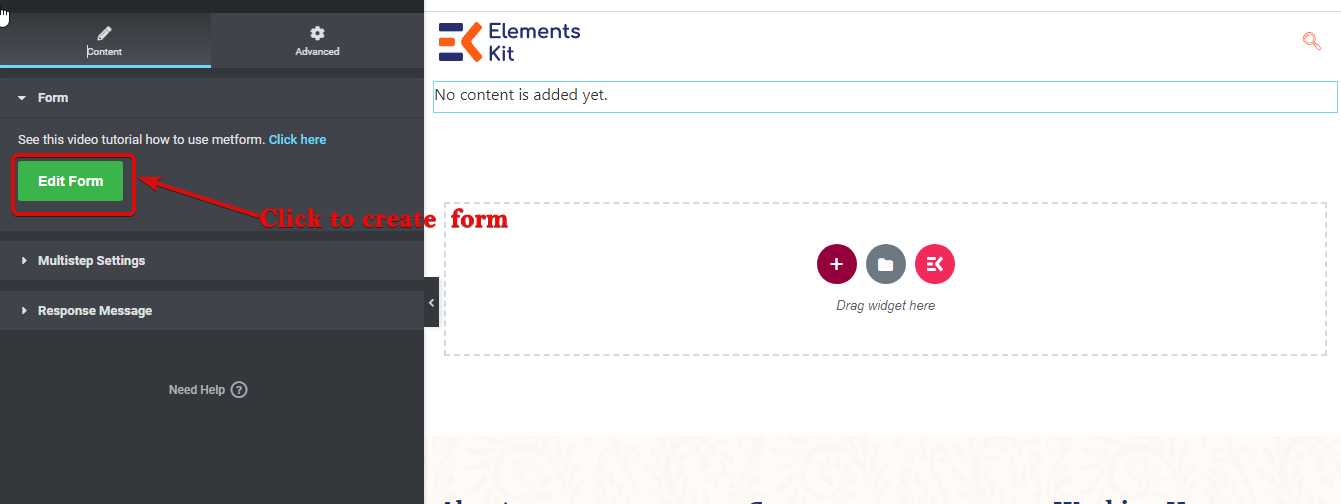
- ステップ=>3: 選択したアイコンをクリックします
- ステップ=>4: 以前に作成したフォームからフォーム オプションを選択します
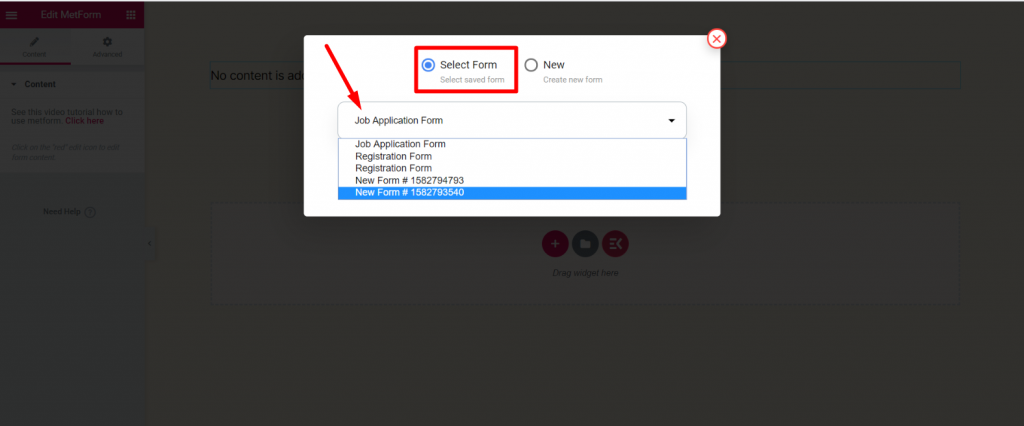
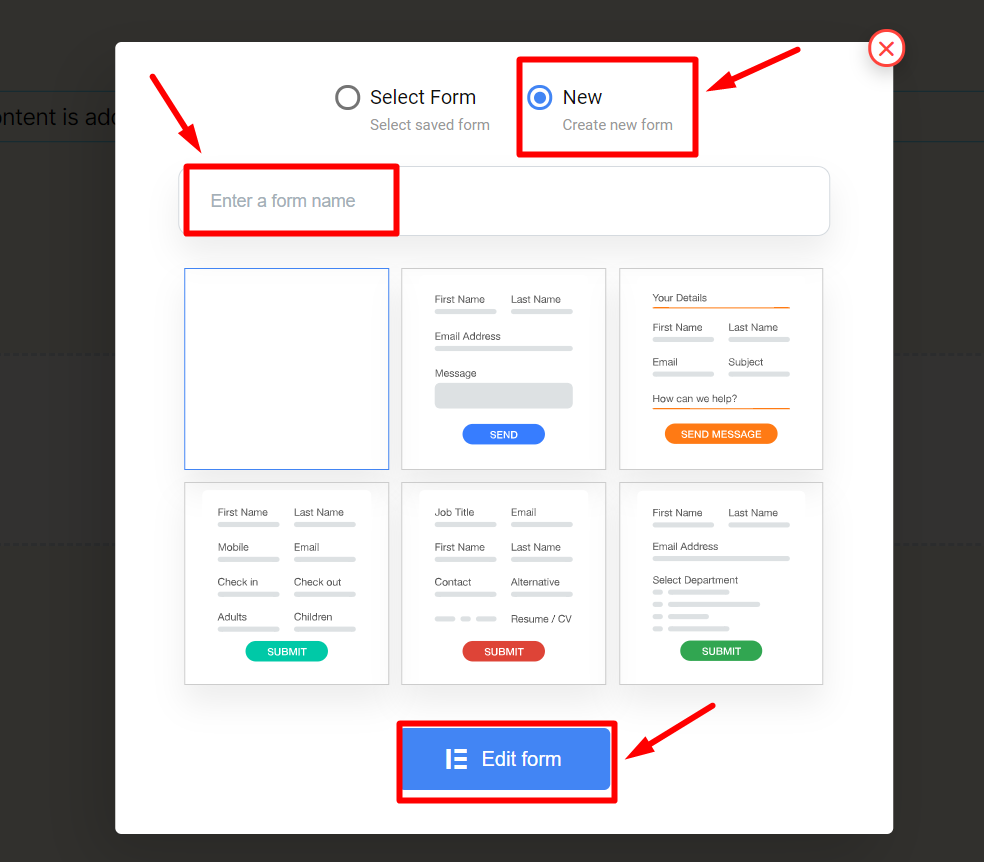
- または選択できます 新しい=> を入力してください フォーム名=> をクリック フォームの編集
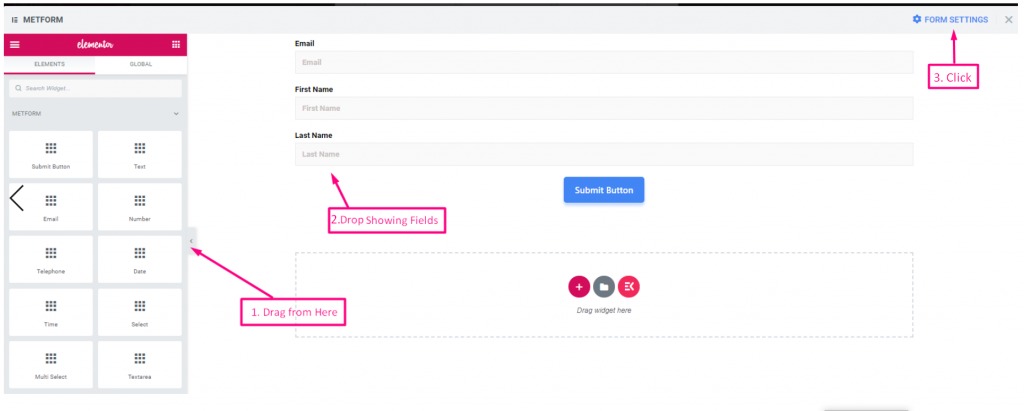
- の 作成されたフォーム が表示されます=> をクリックします フォーム設定
フォーム設定 #
に行く フォーム設定=> 通知メール
通知メール #
提出コピーを電子メールで管理者に送信できます。個別のフォームに対して異なる WordPress フォームの電子メール通知を設定することもできます。
- ビデオをフォローする スクリーンキャスト
または、段階的なプロセスに従ってください
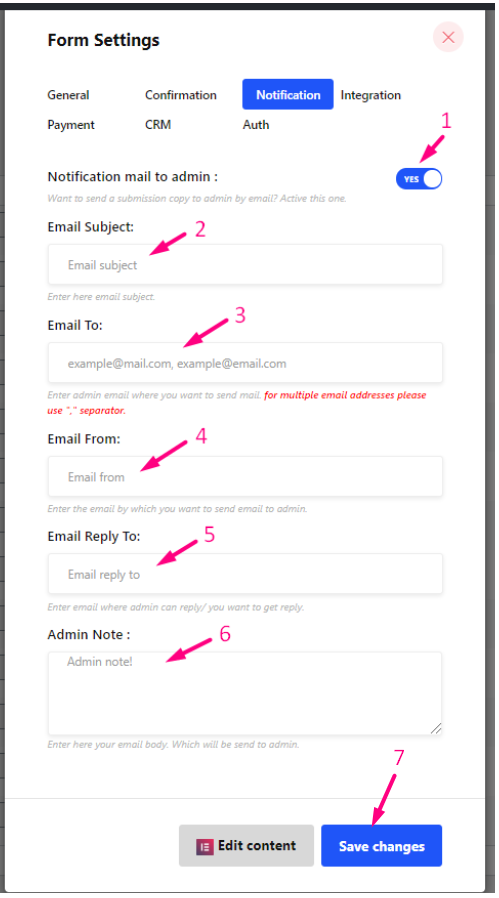
ステップ=>1: 案内する フォーム設定→通知
- 通知メールを管理者に切り替えます オプション: ユーザーの送信が完了した後、またはあらゆる種類の顧客データが処理された後、管理者に通知します。
- メールの件名: 電子メールの件名を入力します。
- メールアドレス: メールの送信先となる管理者の電子メールを入力します。 複数のメールアドレスを使用する場合は、「,」区切り文字を使用してください。
- メール送信元: 管理者にメールを送信する際に使用するメールアドレスを入力します。
- メールの返信先: 管理者が返信できる電子メール、または返信を受け取りたい電子メールを入力します。
- 管理者メモ: 管理者に送信されるメール本文をここに入力します。
- 変更を保存します.
条件付き管理者メールルーティング #
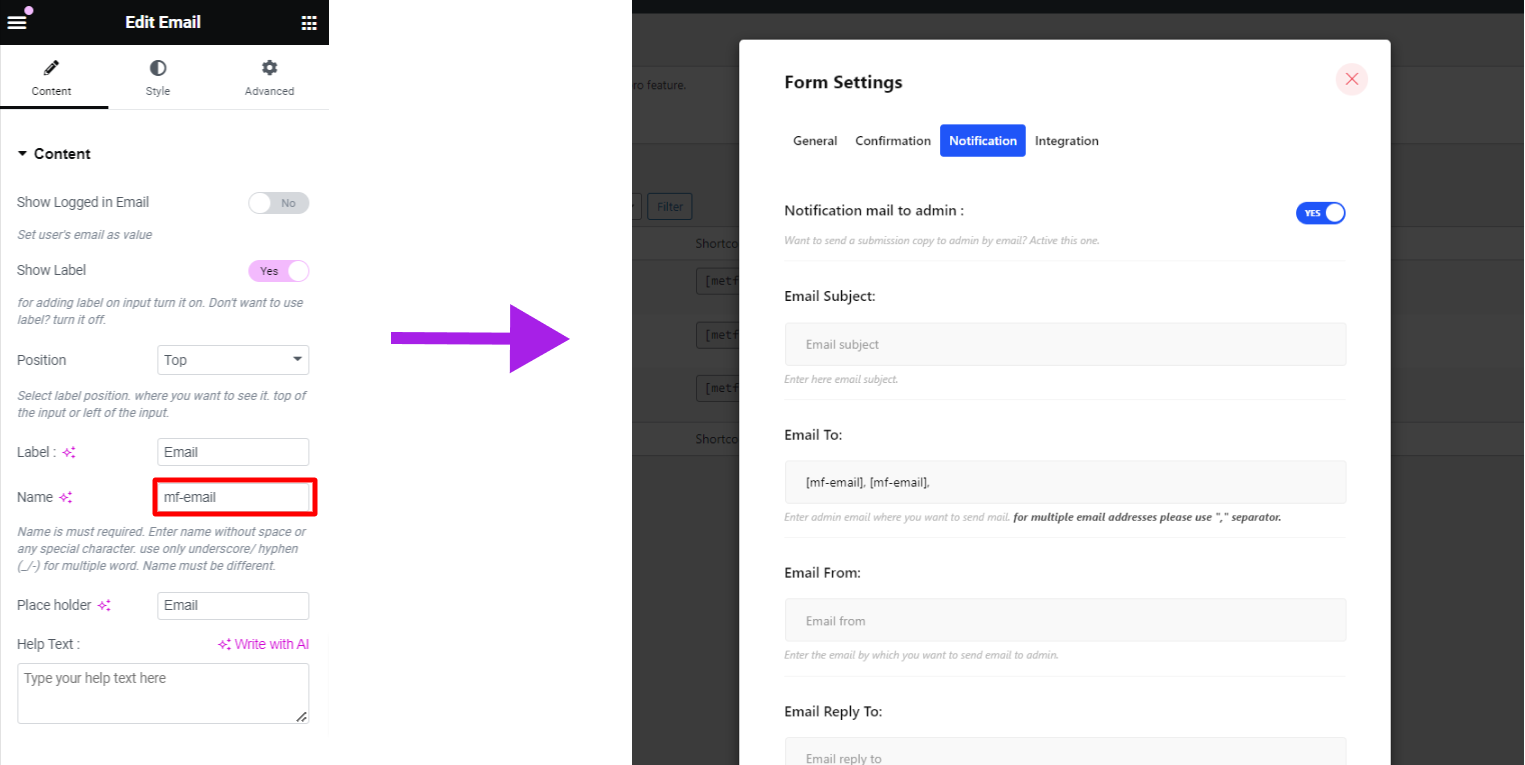
MetForm の新機能の 1 つは、メールフォームの動的で条件付きの管理設定です。条件付きの管理メールルーティングを設定すると、フォームでの選択に基づいてフォームを別のメールアドレスに送信できます。ドロップダウン、チェックボックス、ボタン、テキストウィジェットなどのさまざまなウィジェットからタグを取得し、これらのタグを「メールアドレス” フィールドを使用して、フォームを適切なチームに自動的に送信します。
たとえば、購入関連のフォームはすべて営業チームに送信し、技術的な問題に関連するフォームはサポート チームに送信する必要があります。



