派手なアニメーションテキスト

Fancy-designed texts catch viewers’ attention the most. Marketers style their marketing messages by applying fancy effects. ElementsKit has brought such a wonderful widget with advanced features. It helps to make animated and attractive texts easily.

使い方を学びましょう ElementsKit ファンシー テキスト ウィジェット 以下の手順に従ってください。

Fancy texts let you easily create captivating headlines. With ElementsKit Fancy Text widget, you’ll get full control over dynamic text and SVG animations to refine the fancy text style with custom colors, typography, padding, etc.

Quick Steps:
有効にする ElementsKit ファンシー テキスト ウィジェット.
Open the page and get the widget to the editor.
Customize content and style the fancy animation texts according to your wish.
Update/publish your page

ElementsKit を使用して派手なアニメーション テキストを追加する #

Watch the video guide.

Follow the detailed process below.

STEP 1: Turn ON ElementsKit Fancy Animated Text widget #

Enable the Fancy Animated Text widget from ElementsKit in your WordPress dashboard.

Turn ON ElementsKit Fancy Animated Text widget

STEP 2: Get the Widget to the Elementor Editor #

Select any Page or Post and click edit with ElementsKit.

  • Search ElementsKit Fancy Animation Text widget
  • ウィジェットをドラッグ アンド ドロップする
Drag and drop ElementsKit Fancy Animated Text widget

STEP 3: Customize the ElementsKit Fancy Text Widget #

The widget offers extensive Content and Style customization.

コンテンツタブ #

Here, you will see the ファンシーテキスト part, which contains the following fields.

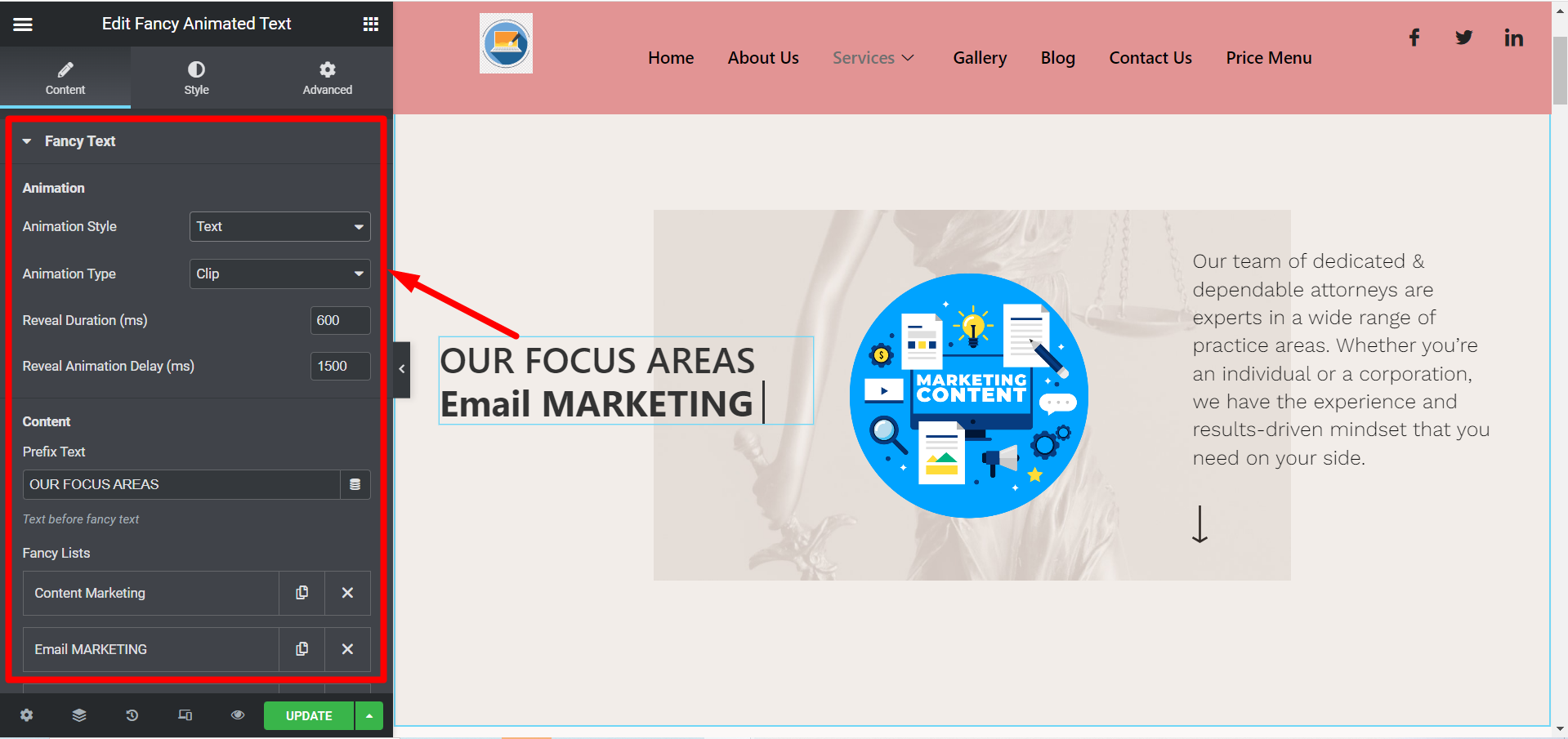
アニメーション:

  • アニメーションスタイル - 選択できます テキストまたはSVG さまざまなアニメーション スタイルに対応します。
  • アニメーションの種類– アニメーションのタイプに基づいて、ここではさまざまな選択肢が表示されます。
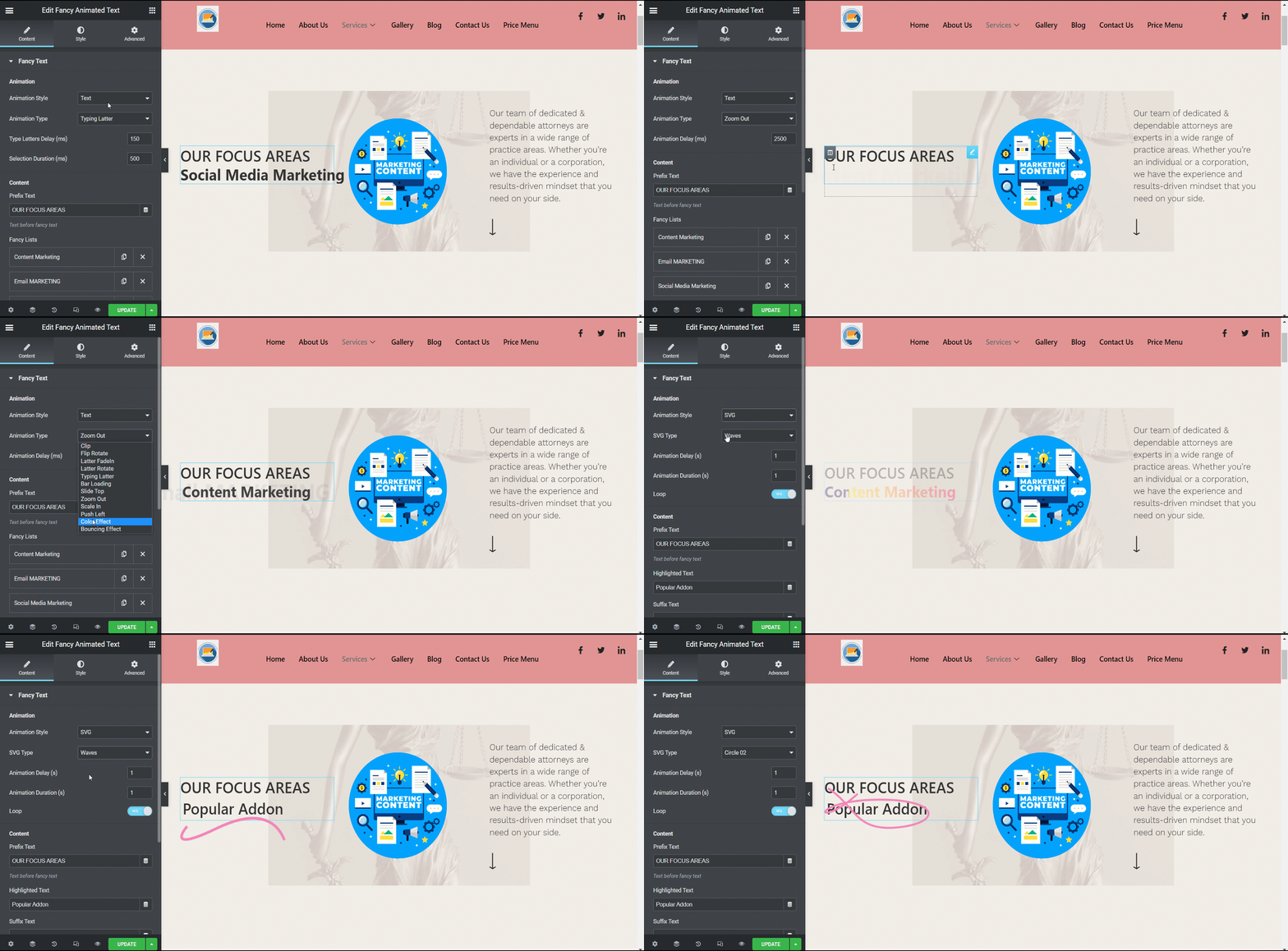
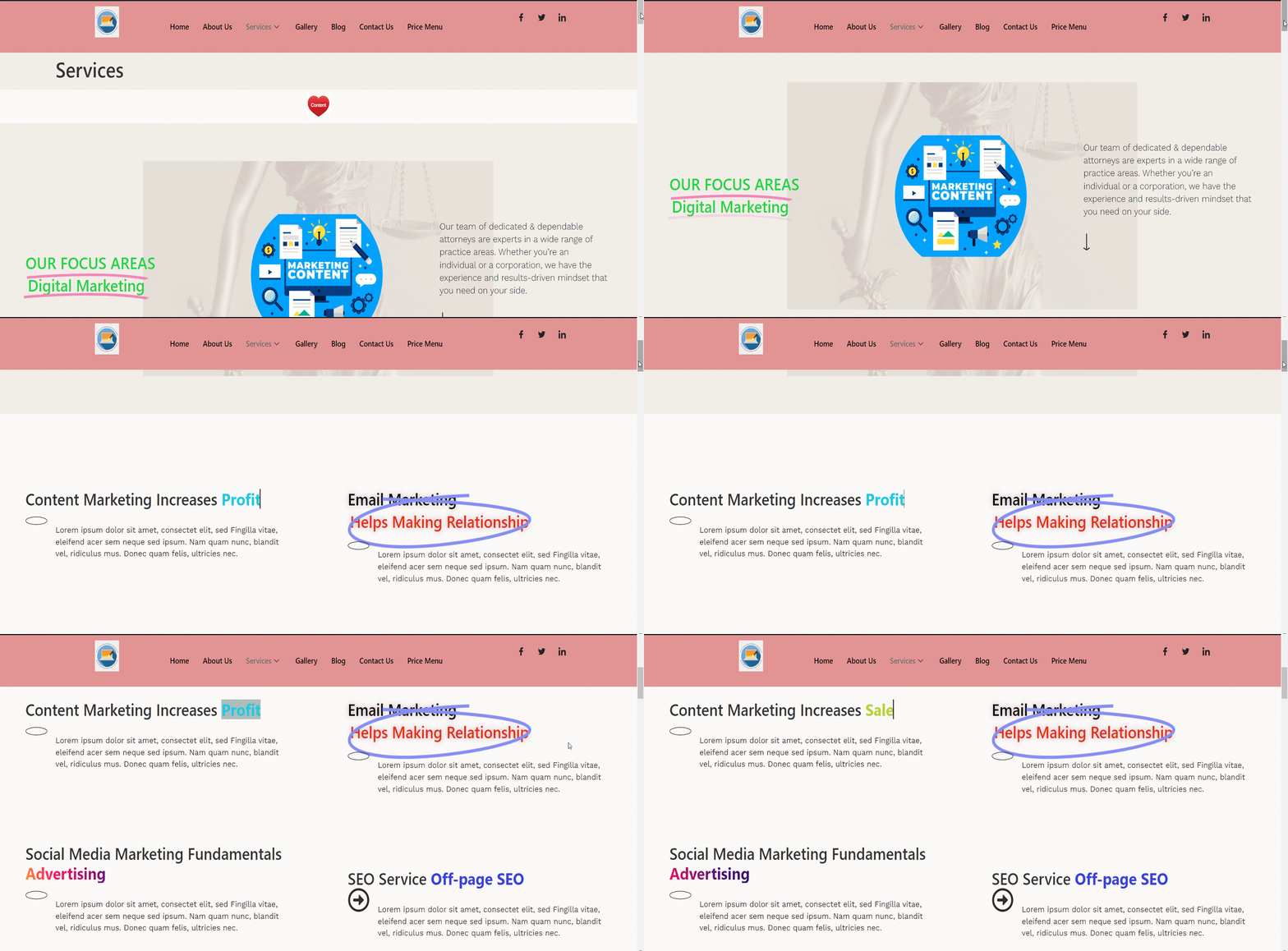
Enhance your text with eye-catching effects using fancy animated styles
  • Reveal Duration (ms)/ Type Letters Delay (ms)/ Animation Delay etc.- アニメーションのスタイルとタイプに応じて、継続時間を調整する必要があります。
  • Reveal アニメーション遅延 (ms)/選択期間 (ms)/文字遅延 (ms) など- このフィールドはアニメーションのスタイルとタイプにも関連付けられます。

コンテンツ:

  • プレフィックステキスト Write the prefix content you want to display. It means it will be written before the fancy animation.
  • ファンシーリスト Add items here for fancy animation.
Customize the content of ElementsKit Fancy Animated Text
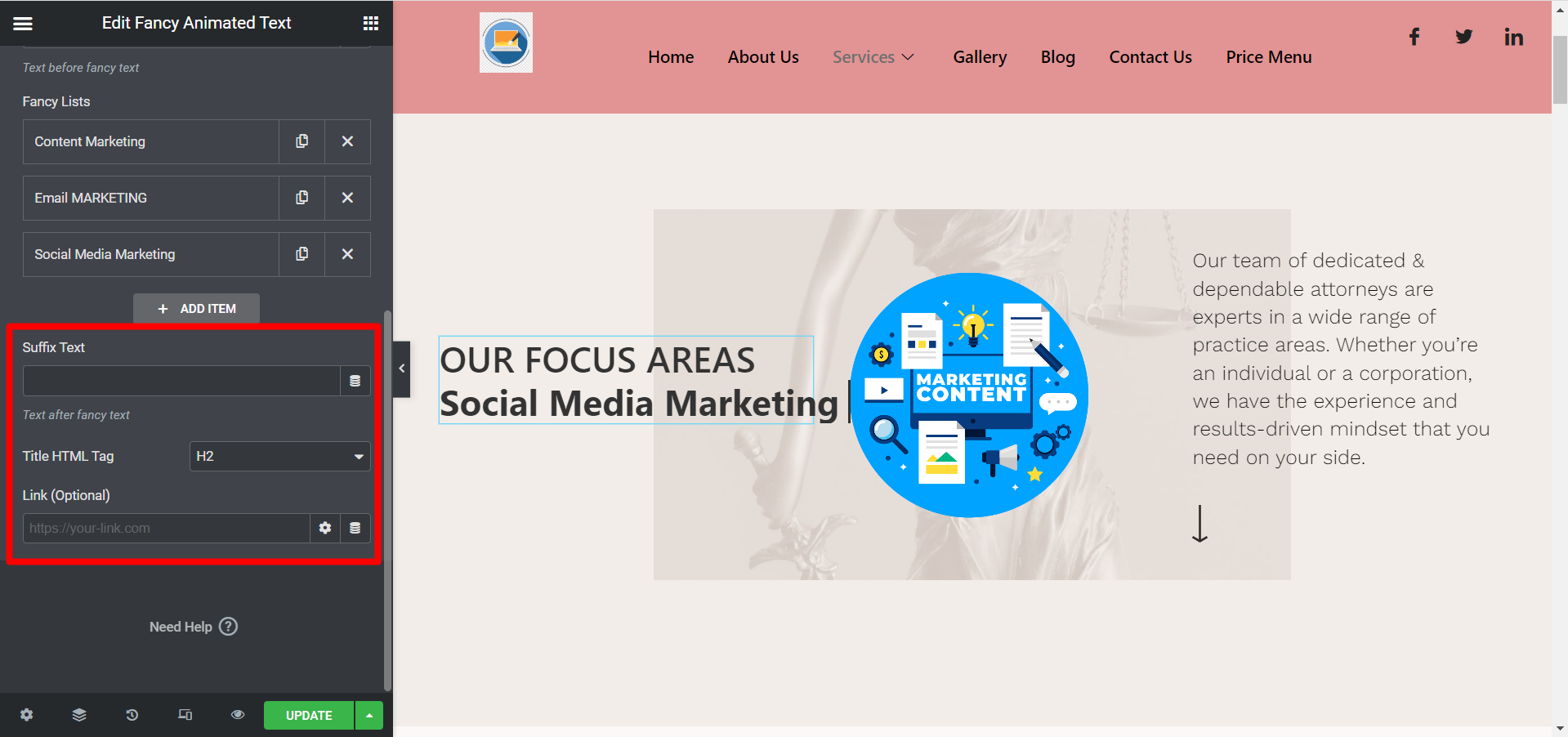
  • サフィックス 文章 - Write the suffix content you want to display. It means it will be written after the fancy animation.
  • Title HTML Tag – Select the HTML tag of the content here.
  • Link (Optional) – Add any link if you want the users to redirect to any other location.
Use suffix with fancy animated text

Style the Fancy Animated Text Widget #

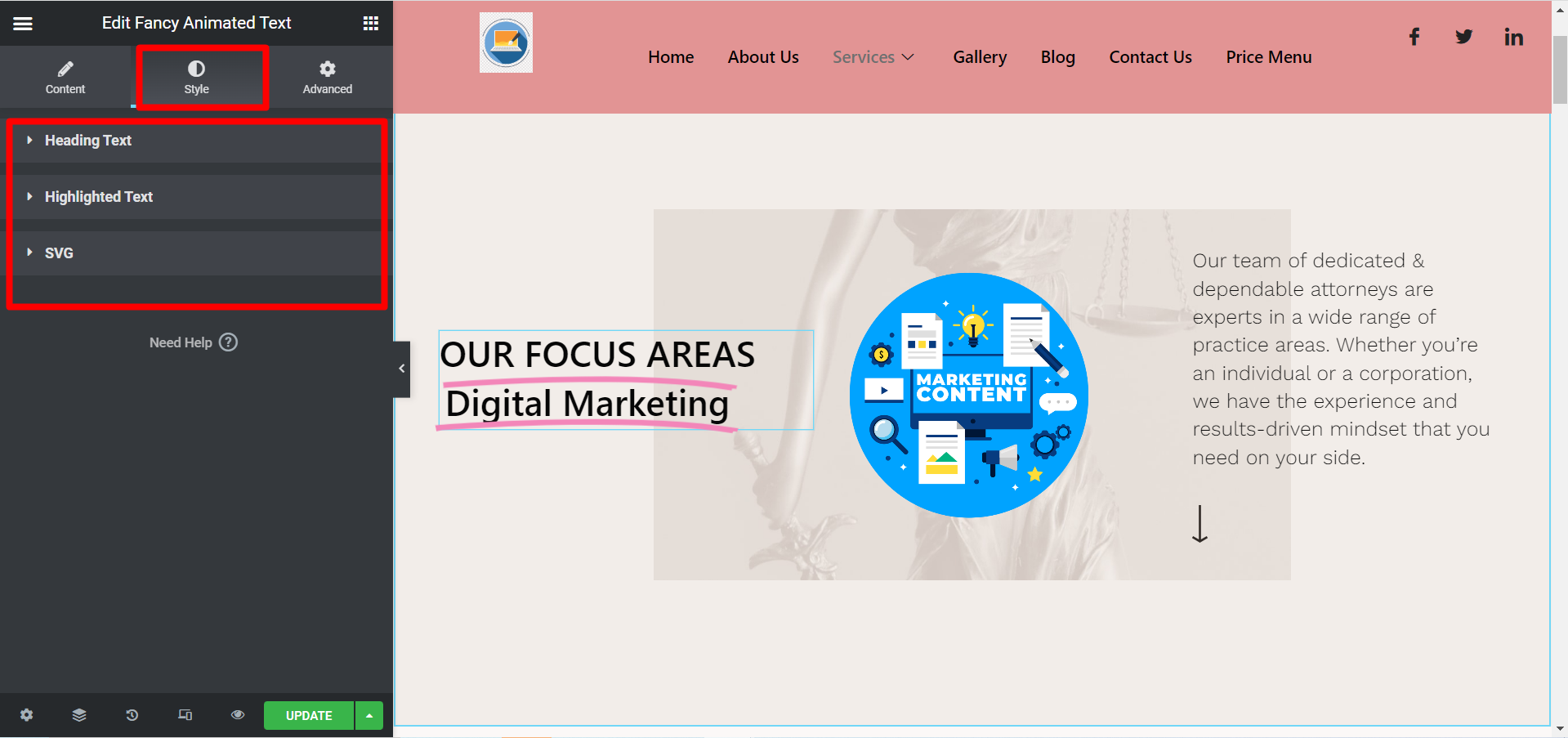
  • Heading Text – ここでは、配置、タイポグラフィ、色などを調整できます。
Style heading text of fancy animated text
  • Fancy Text Lists – It lets you style animated text with custom typography, colors, and backgrounds. You can also adjust spacing, borders, and enable effects like Liquid Glass to highlight dynamic content.
  • Style Fancy Cursor – To style the cursor, you can change the color, width, and height.
Style fancy cursor

However, when you select SVG as your animation style in the Content tab, you can customize the following settings.

  • Highlighted Text – For highlighted text, you can try different typography, color, and padding.
Style highlighted text
  • SVG – Select stroke color, weight and position here.

すぐに使える、体系的な便利なツールを今すぐお使いください。 ElementsKit ファンシー テキスト ウィジェットを使用してコンテンツをカスタマイズすることで、重要な見出しや宣伝文をより目を引くものにすることができます。

あなたの気持ちは

Updated on 5月 3, 2026