
 Japanese
  English
  German
  Spanish
  Italian
  French
  Danish
  Portuguese
  Swedish
  Polish
  Korean
 サンキューページ #
支払いが成功したか失敗したかにかかわらず、フォームを送信すると、Metform はユーザーが支払いの詳細/ステータスを確認できる「ありがとうページ」にリダイレクトします。
始めましょう #
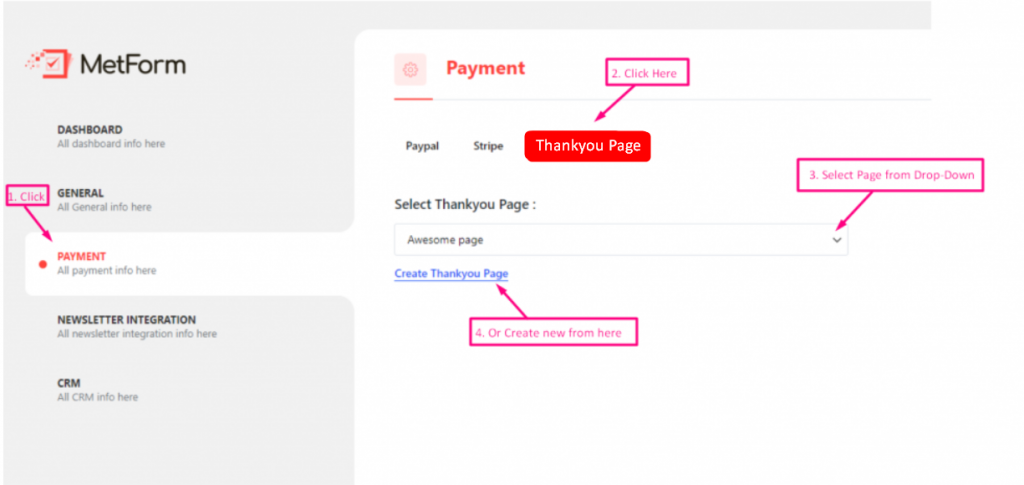
に行く メットフォーム=> 設定=> 支払い=>サンキューページ=> 選択 ドロップダウンからページ/ またはクリック ありがとうページを作成する 新しいものを作る
ショートコードを追加 #
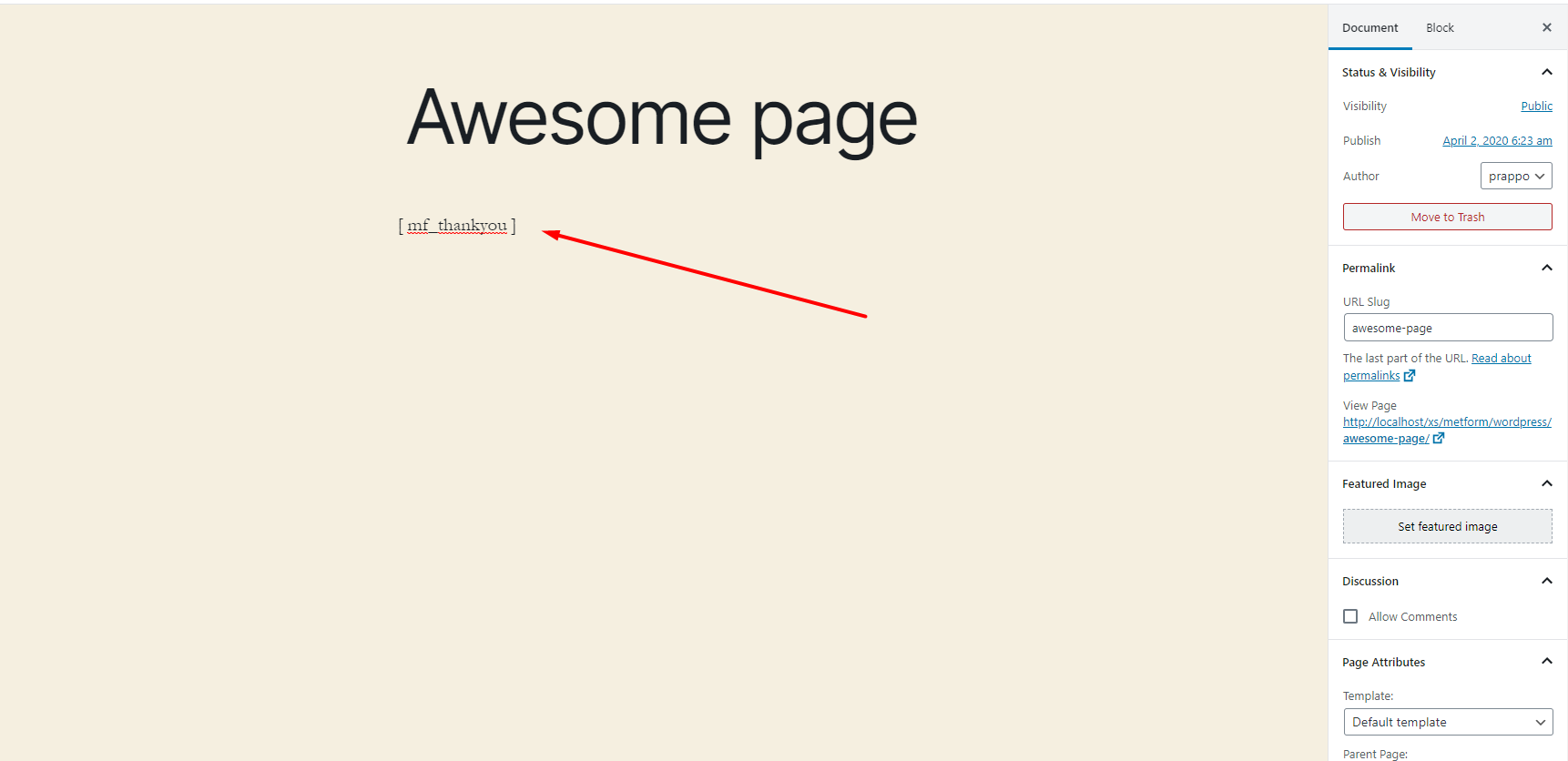
ショートコードを追加 WordPress用に選択したページに ありがとう ページ
結果 #
WordPressを見ることができます サンキューページ 取引後

前進 #
- WooCommerce のサンキュー ページにさらに多くの機能を追加できます。ここでは、すばらしい WooCommerce のサンキュー ページを作成するためのショート コードをいくつか紹介します。
デフォルトの感謝メッセージ #
名前を一緒に表示したい場合は デフォルトの感謝メッセージ 次に 名前 フィールド名を使用して、WooCommerceのカスタムサンキューページを作成します
例 #
[mf_thankyou fname='fname_field']**注記: fname_field フィールド名は メットフォーム
支払い状況 #
支払いステータスを表示したい場合は、このショートコードを使用できます。
例 #
[mf_支払いステータス]取引ID #
トランザクション ID を表示する場合は、このショートコードを使用できます。
例 #
[mf_トランザクションID]フィールドデータ/値を表示 #
フィールドデータ/値を表示したい場合は、 形状 このショートコードに従ってください
例 #
[mf フィールド = 'fname']名前フォームのフィールド名です
.png?alt=media&token=d9a72de8-bf58-455b-b93f-6e018b36215e)


