






If you’re building a WordPress website with Elementor, you know how powerful visuals are. It can extremely improve user experience. An icon is one that can improve visuals.
Icons are small, but they can make a big difference in design, navigation, and even branding. Elementor comes with a built-in icon library, but sometimes a plugin offers more versatility that can truly reflect a unique style that can represent a brand.
In this guide, we’ll explore what custom icons are, the types you can use, and how to add custom icons in Elementor with the help of ElementsKit.
Quick Overview: How to Add Custom Icons in Elementor
Adding custom icons in Elementor is very easy with the use of Elementor Addons like ElementsKit. This method allows you to select the icons from the ElementsKit icon pack.
The process includes:
✅ Install and activate ElementsKit – Add the plugin in WordPress and enable the Icon Pack module from the ElementsKit settings.
✅ Edit your page with Elementor – Open the page or section where you want to place the icon.
✅ Choose an icon from the library – Open the Elementor Icon Library and select an icon from the ElementsKit pack.
✅ Customize the icon style – Adjust size, color, alignment, spacing, and hover effects using Elementor controls.
Example
On a Services page, you might see a Contact Us button. Right beside the button text, there can be a small envelope symbol. That symbol is called an icon that visually indicates that the button is related to contacting or sending a message.
Summary
Custom icons in Elementor are personalized graphic symbols used to visually represent actions or features on a website. By adding icon packs or uploading formats like SVG, icon fonts, or PNG, you can extend Elementor’s default icon library and create a more distinctive, branded user interface.
Overview of Elementor Custom Icon
What are custom icons?
Custom icons are personalized graphical symbols used to represent actions, features, or concepts on your website. Instead of relying only on default icon libraries like Font Awesome, you can upload or import your own icon sets that best represent your unique brand.
They are usually tailored to fit the overall look of your website. They help visitors to better understand your content. For example, a restaurant may use a food icon such plate, fork and spoon, or even a food like a burger.
In short, they add both functionality and aesthetic value to your website.
Importance of Elementor custom icons
Since we already know what custom icons are, it’s time that we know their importance:
👍 Brand consistency: Custom icons align with your visual identity and help strengthen branding.
👍 Unique design: Stand out from competitors by moving beyond generic icons.
👍 Better user experience: Clear and visually appealing icons guide users and improve navigation.
👍 Scalability: With formats like SVG, custom icons remain sharp across all devices.
⭐️ Bonus guide: How to create creative button in WordPress.
Types of Custom Icons
When working with WordPress and Elementor, you can add different types of icons depending on your needs. Here are the 3 types of icons:
1. Icon Fonts
Icon fonts replace traditional letter with symbols or icons. Commonly used icon fonts sets include Font Awesome or IcoMoon. They are commonly
Icon fonts are vector-based, meaning they scale well and easy to style with CSS (size, color, hover effects).
2. SVG (Scalable Vector Graphics)
SVG icons are graphics built with code (XML). This allows users to scale to any size without losing clarity.
SVG icons are perfect for animations and maintain a website’s good performance due to their lightweight structure. They’re fully customizable with CSS and animations.
SVGs are text-based, and search engines like Google can read them easily. Additionally, they are compatible with the Web Accessibility Initiative (WAI) guidelines. This makes them accessible to screen readers and improves usability for all visitors.
3. PNG (Portable Network Graphics)
PNG icons are pixel-based images, making them suitable for detailed graphics. However, unlike SVGs, they cannot scale without losing quality.
PNG icons are generally larger in size, hence, it is expected that your website might slow down. They are preferred options for complex designs and are useful for logos or unique shapes.
However, compared to SVGs, they are not that scalable because they become blurry when resized.
How to Add Custom Icons in Elementor [Step-by-Step Guide]
The easiest way to add custom icons in Elementor is by using the ElementsKit plugin, which extends Elementor’s functionality with additional widgets and features.
Step 1: Enable the ElementsKit Icon Pack Module
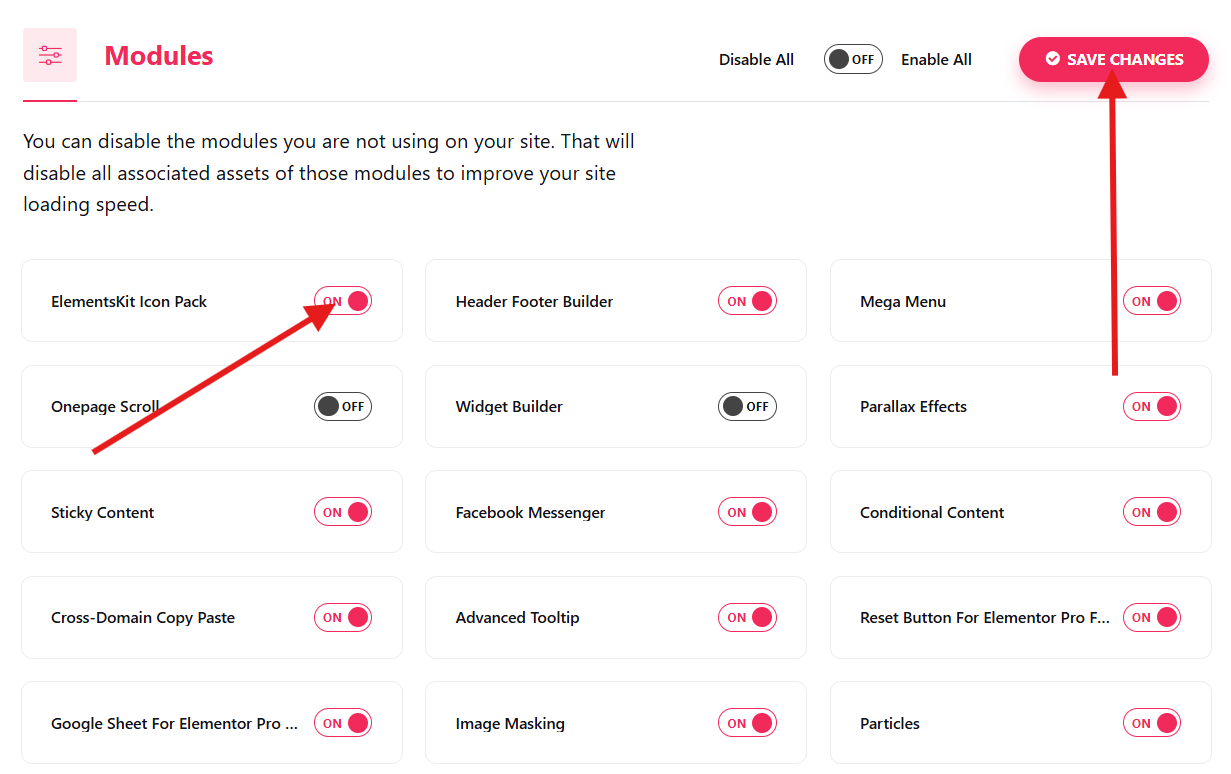
Navigate to your WordPress dashboard and go to ElementsKit. Open Modules to select ElementsKit Icon Pack.
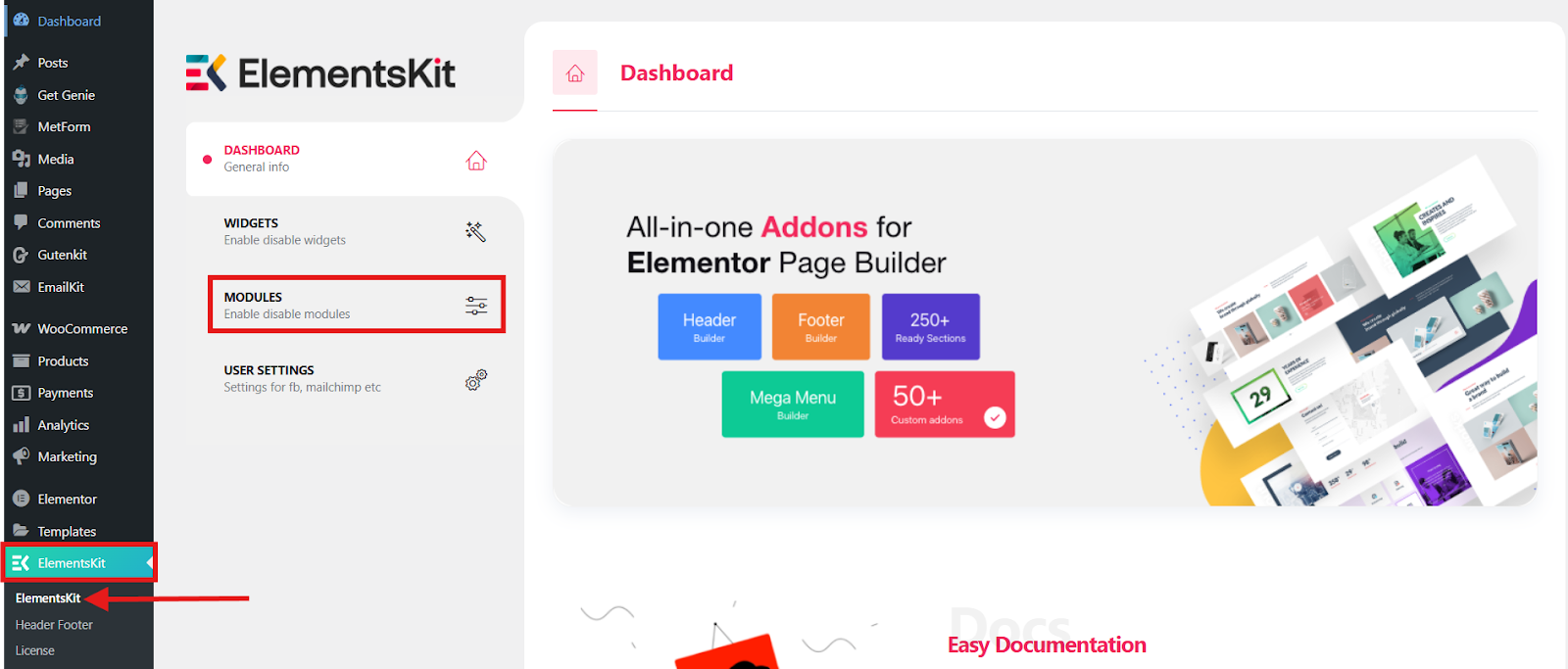
Enable the module and save changes.
Step 2: Add Icons from the ElementsKit Icon Pack
Now, it’s time to add icons. Open any existing pages or a new page in Elementor where you want to add an icon. In this tutorial, we’ll make use of an existing page.
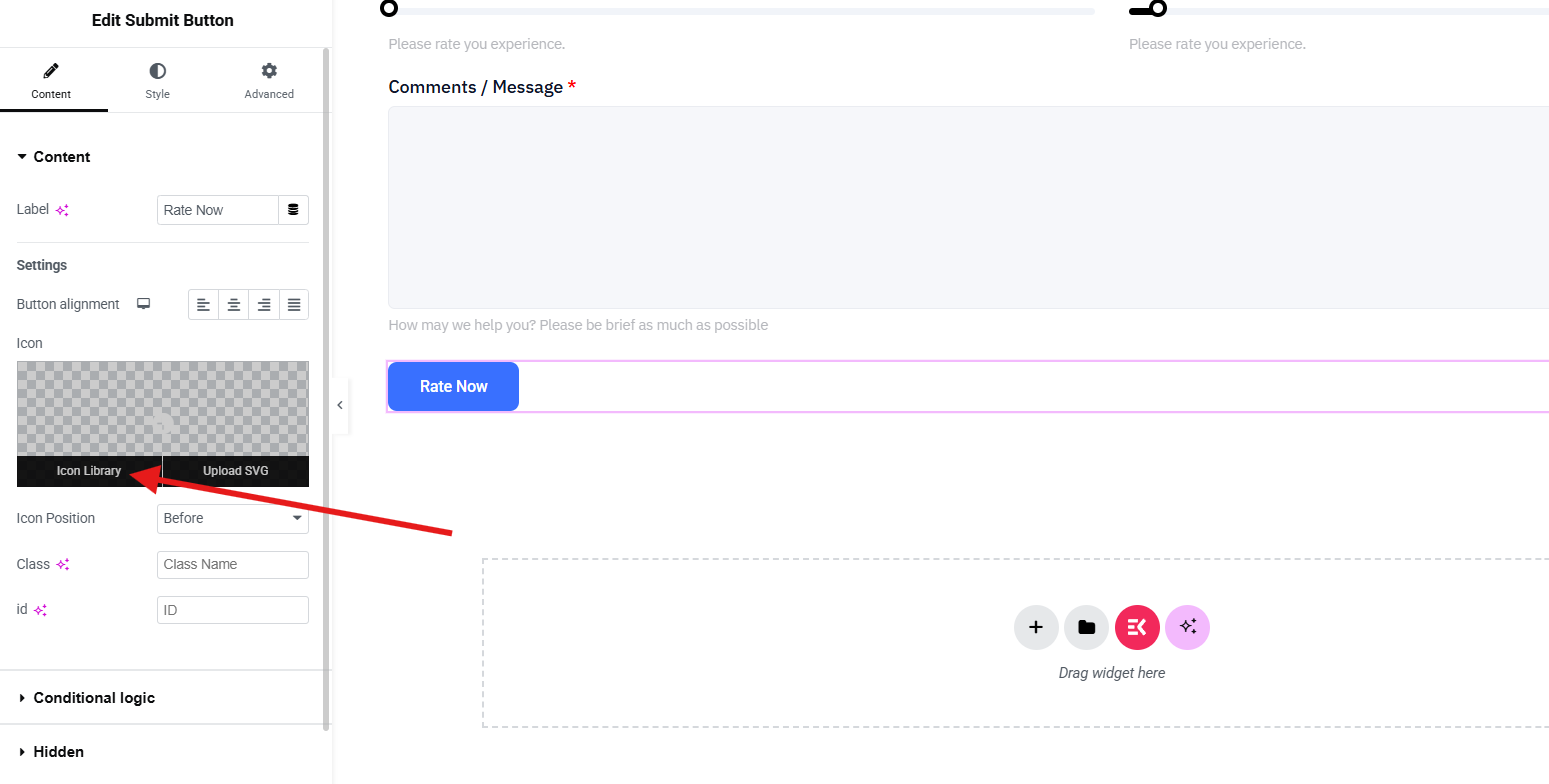
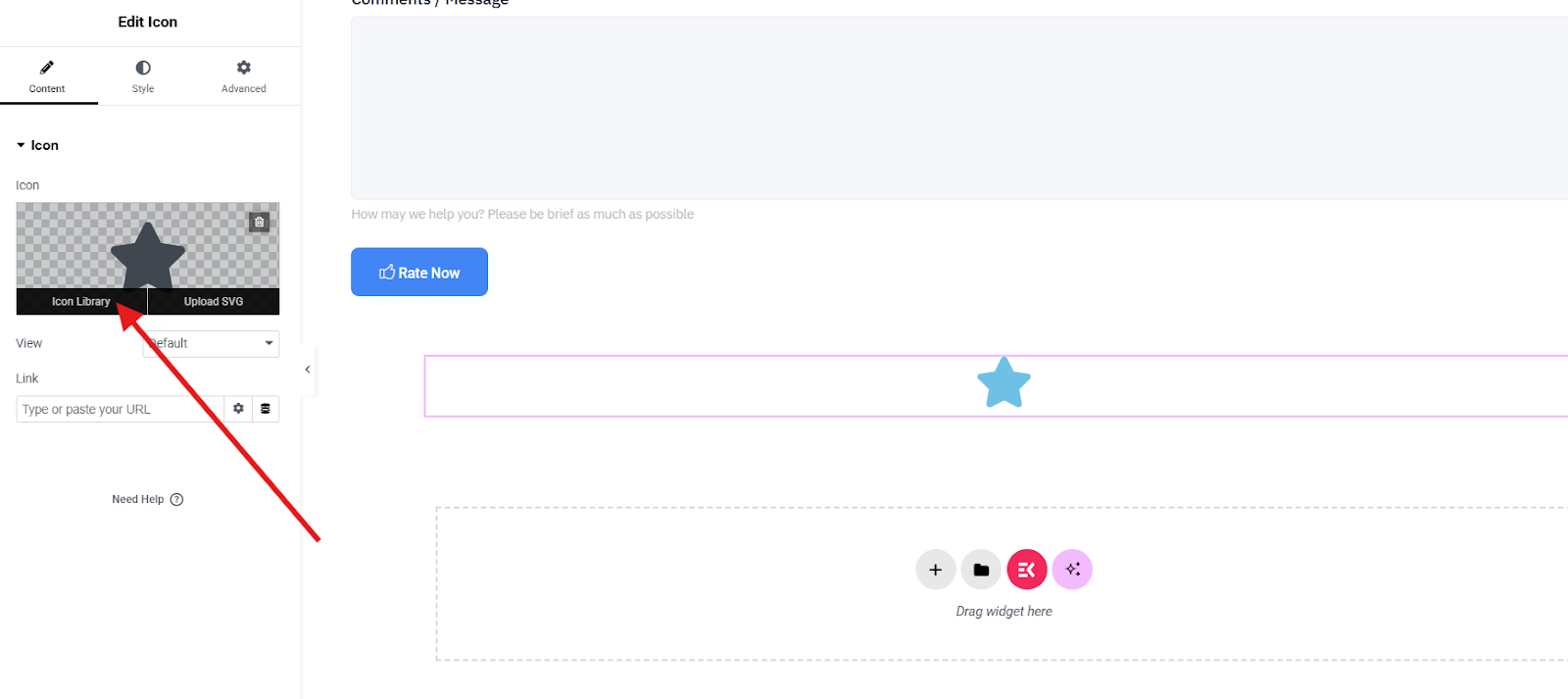
For instance, in the image below, you wish to add an icon to the Rate Now button.
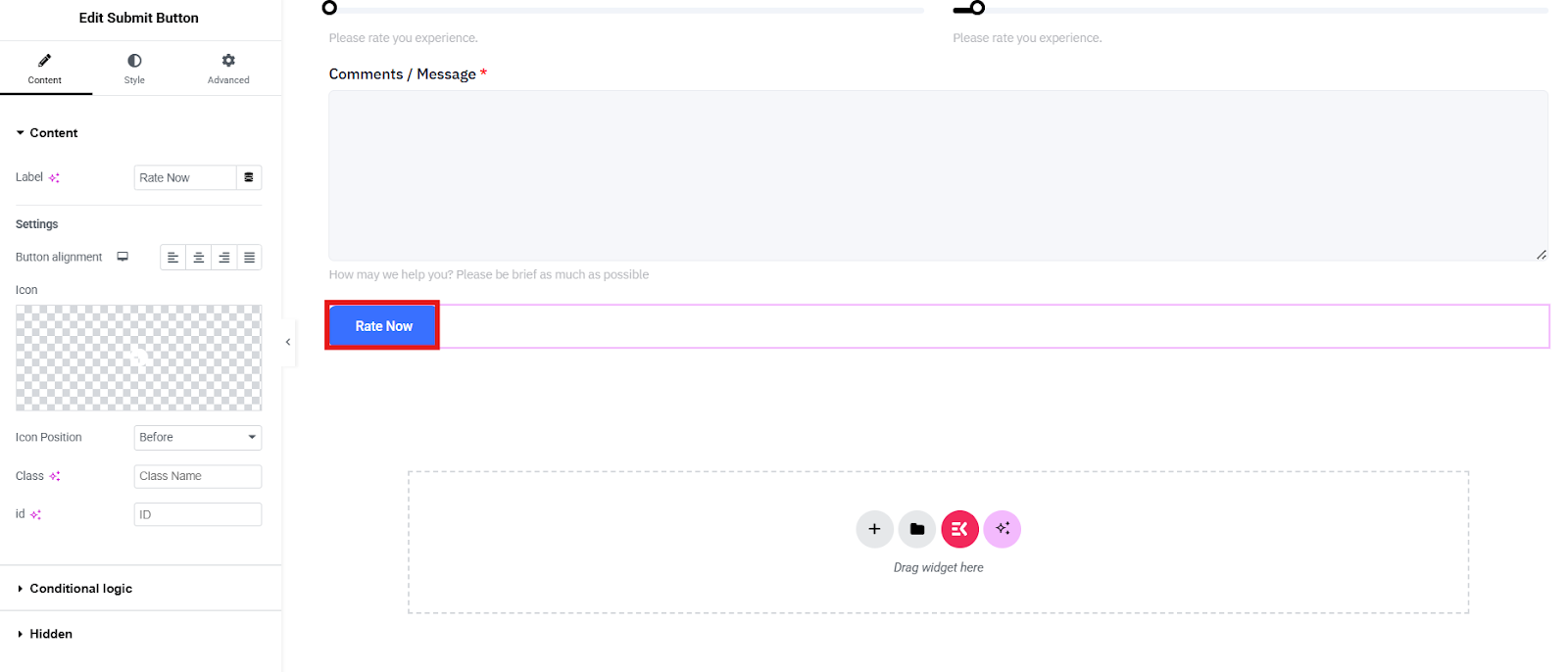
Simply click on that section and click on the Icon Library on the left side of your screen.
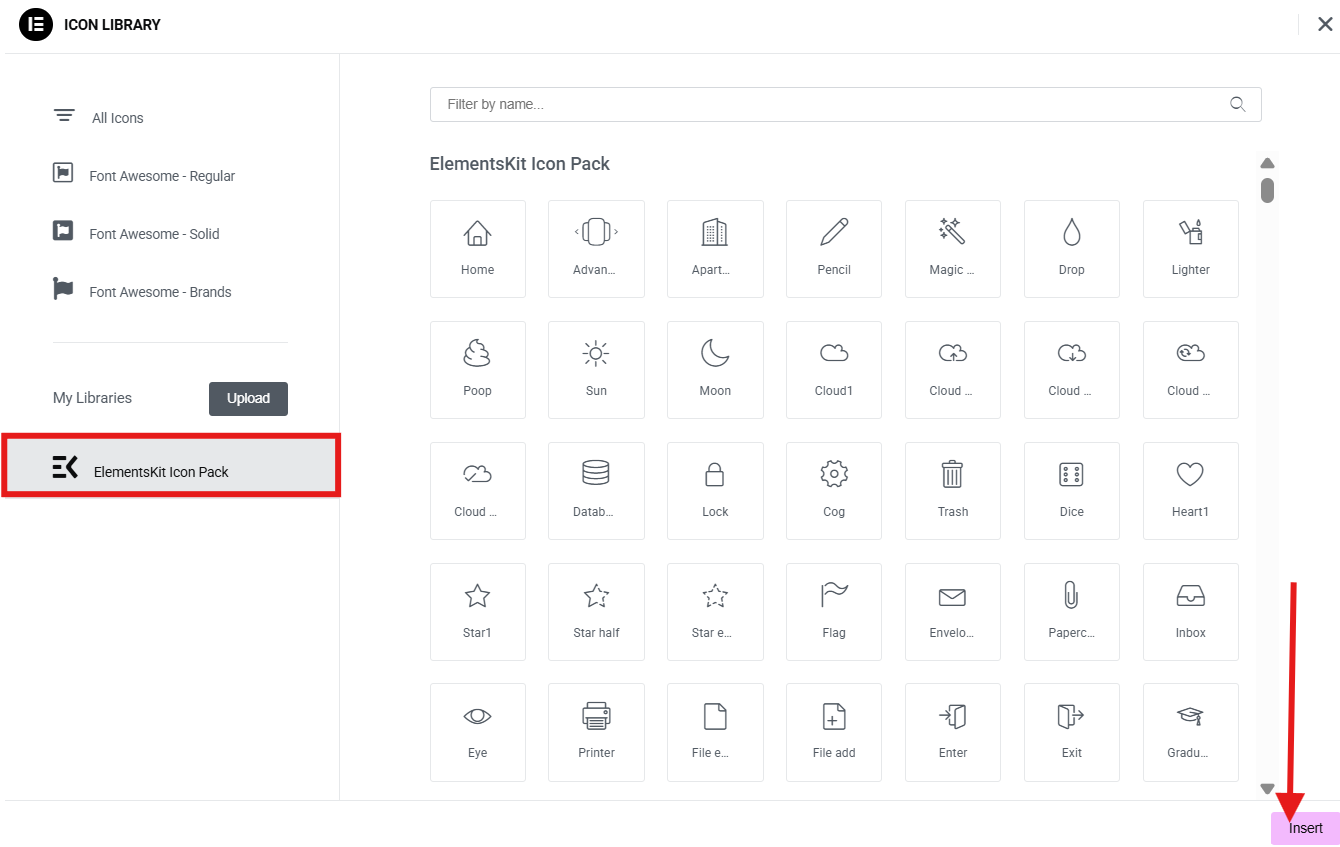
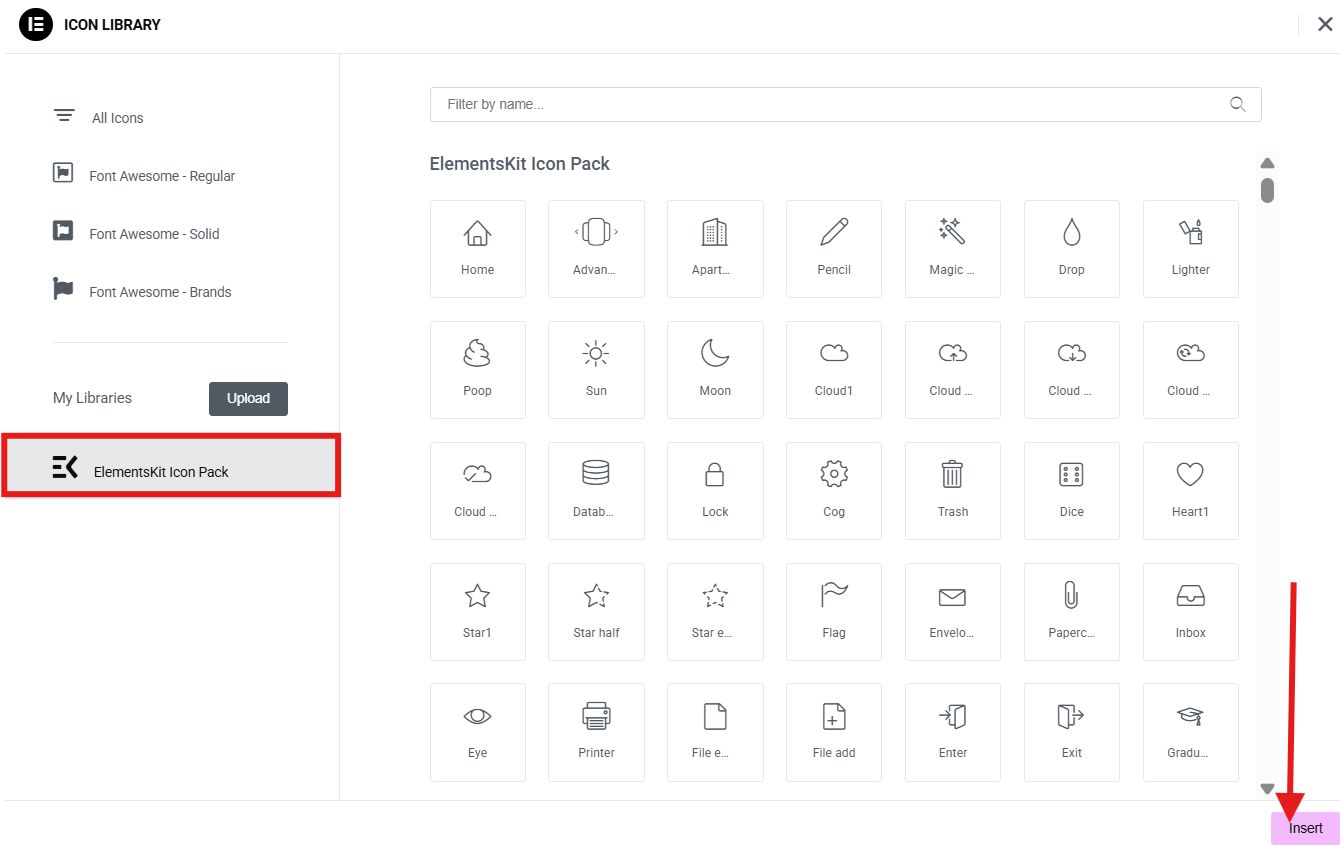
Then, click on the ElementsKit Icon Pack to select the icon you desired. Once decided, click on the icon and click Insert.
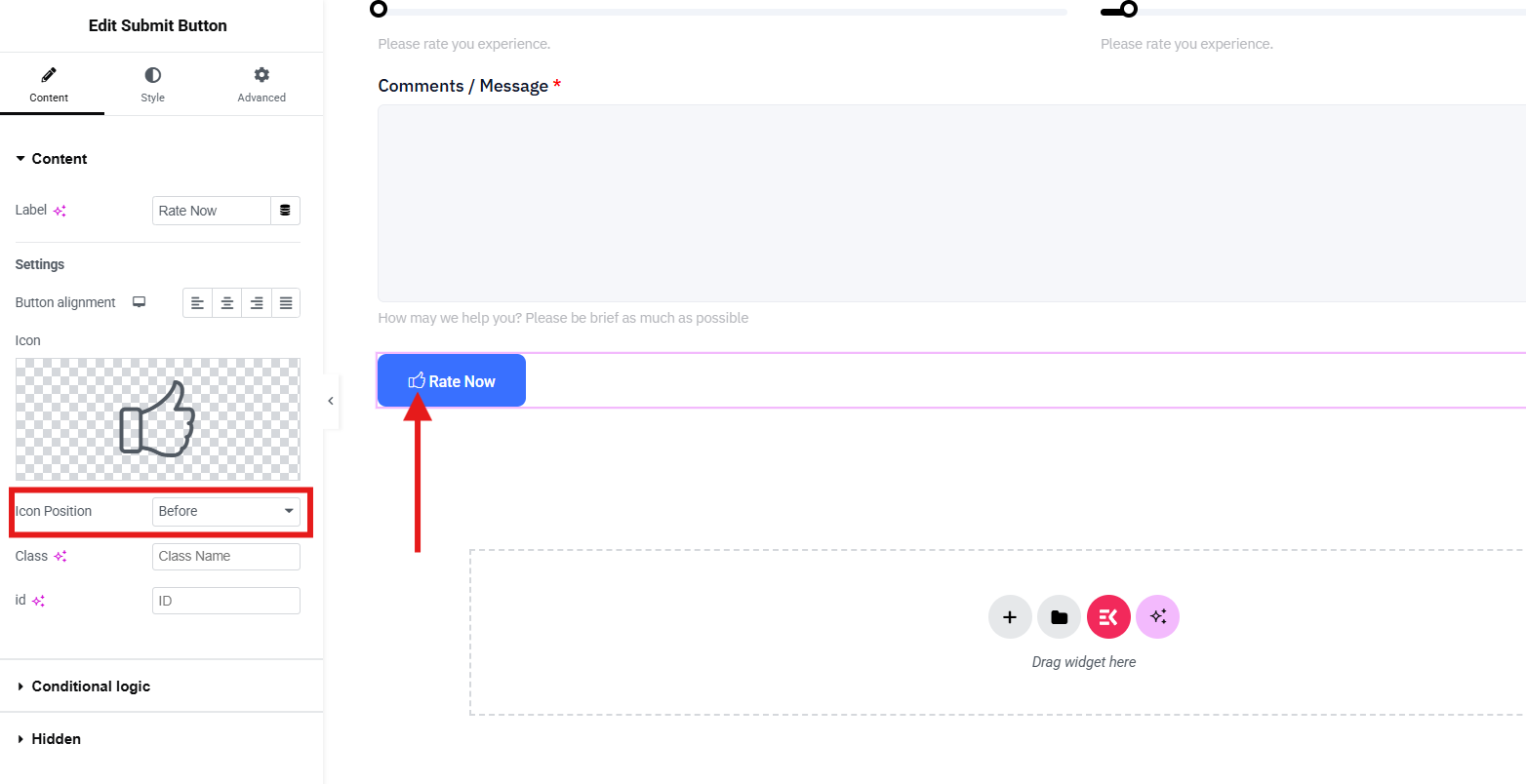
The process doesn’t stop there. You can arrange the position of your icon to either before or after.
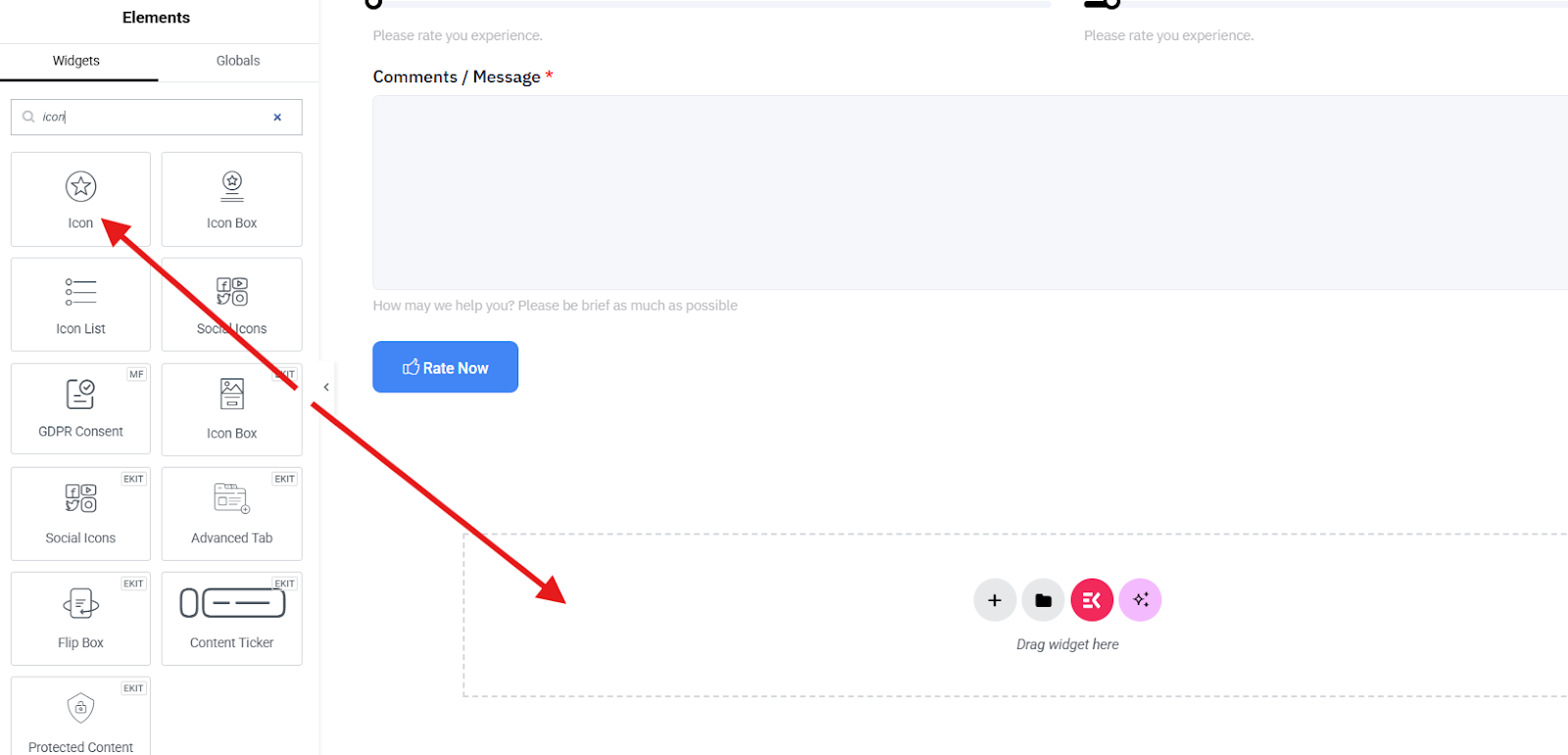
But if you want to add an icon in a separate section, simply search for the icon widget and drag-and-drop it to the center.
Next, click on the Icon Library.
Then select ElementsKit Icon Pack and choose the icon you prefer to insert.
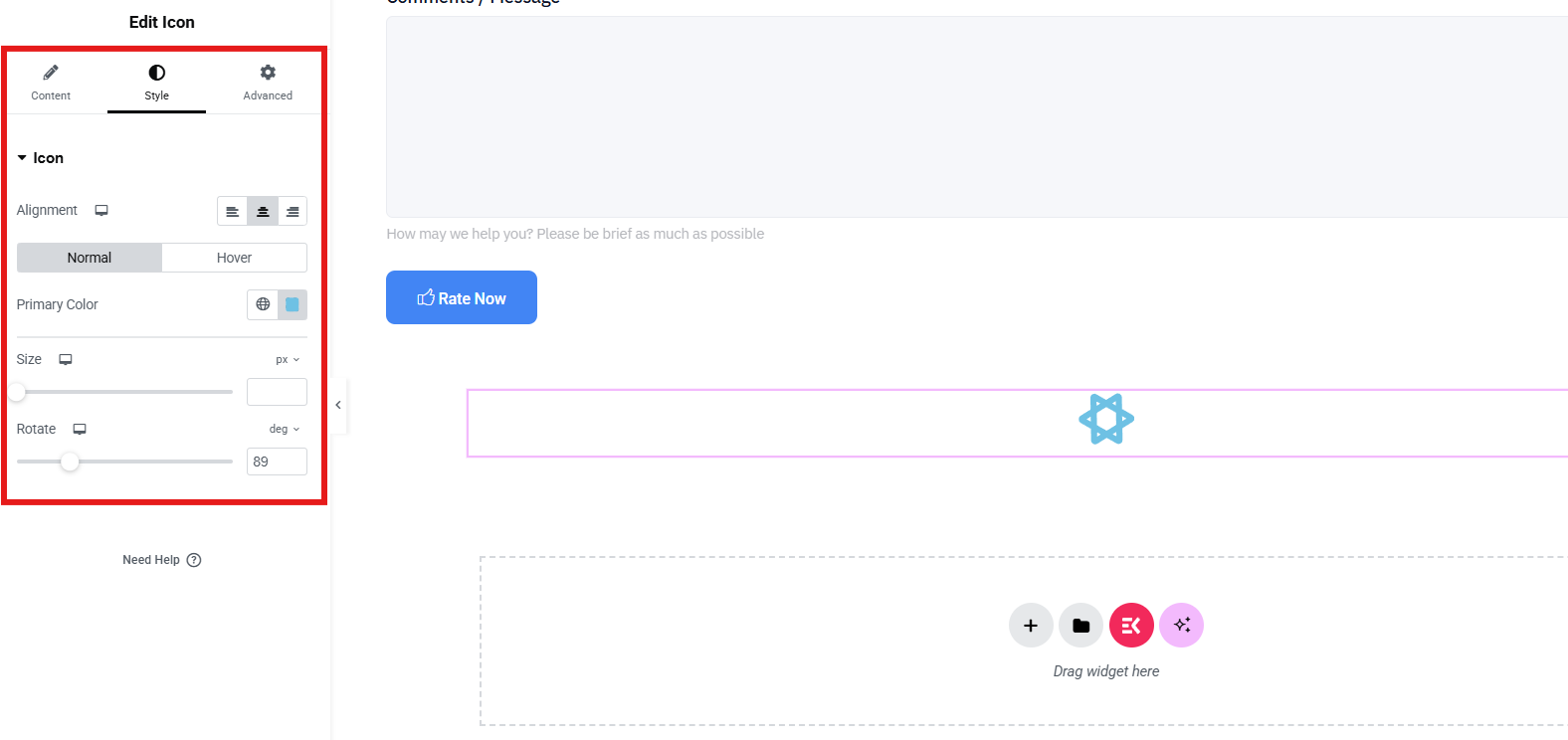
Drag and drop the Icon widget onto your section. In this method, you can customize and design your icon through the style and advanced settings section.
In the style section, you can adjust the alignment of your icon and choose from normal or hover. You can also select the color of your icon, change the size, and even rotate its position.
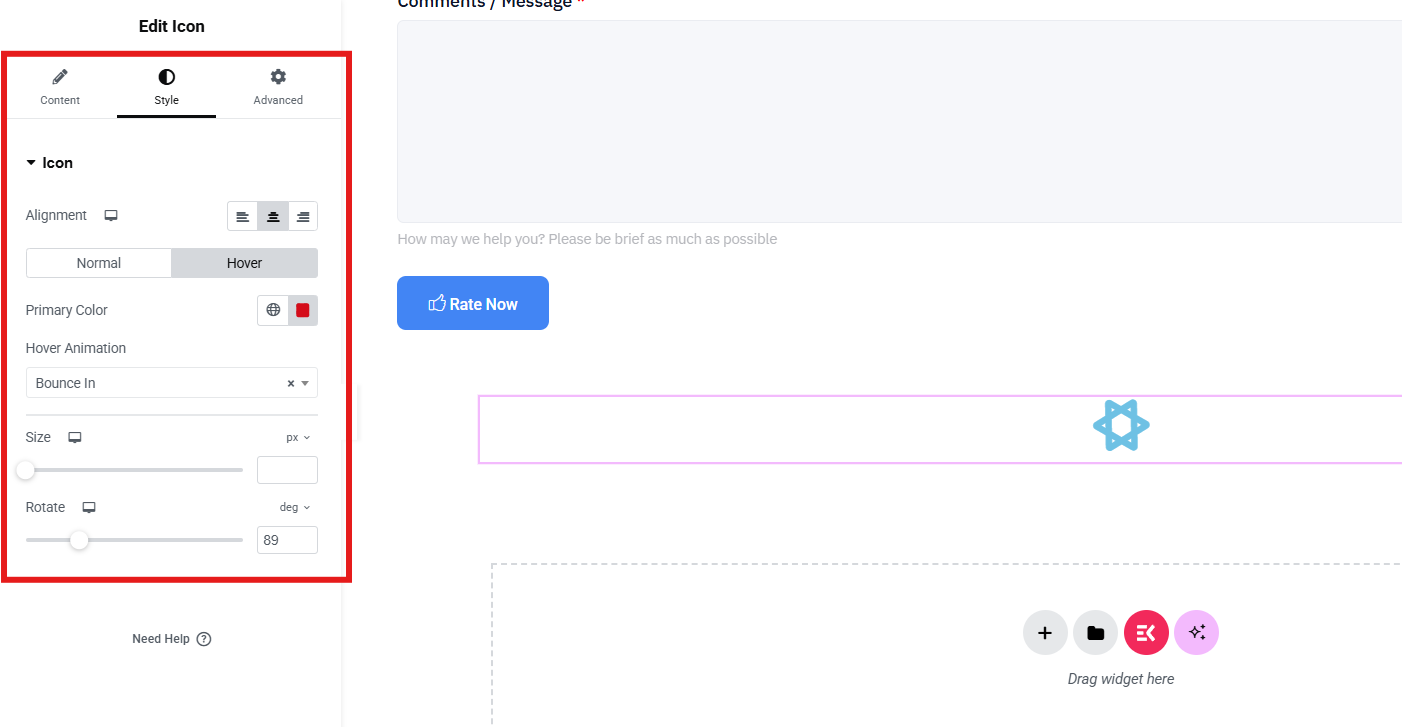
In hover style, you can select the hover animation you want and select the color when the hover is on.
Lastly, if you want to bring your icon to the next level, advanced settings will give you full control. You can adjust the layout, add background, border, motion effects, and etc.
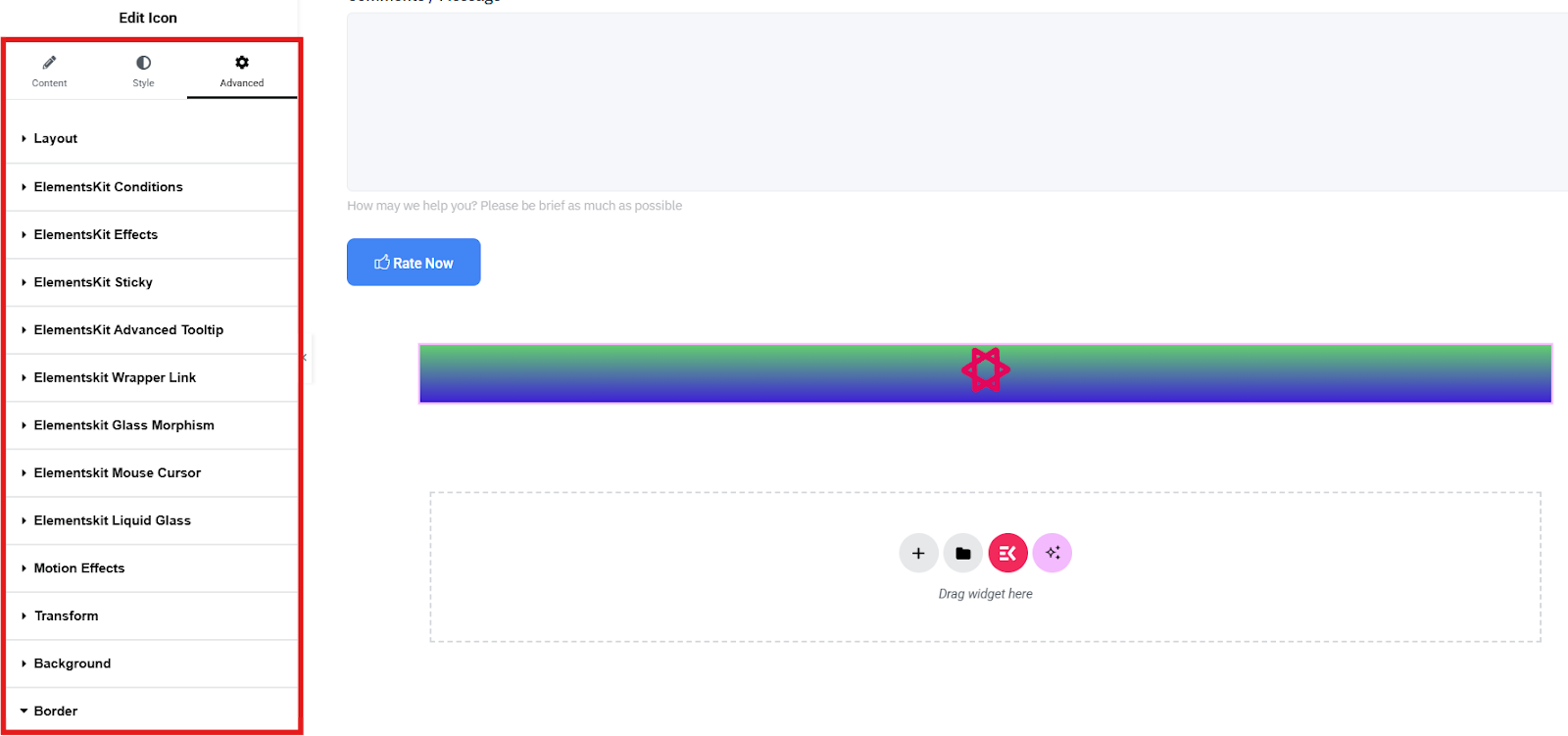
Finally, preview your design to see if you need adjustments and click Publish once satisfied.
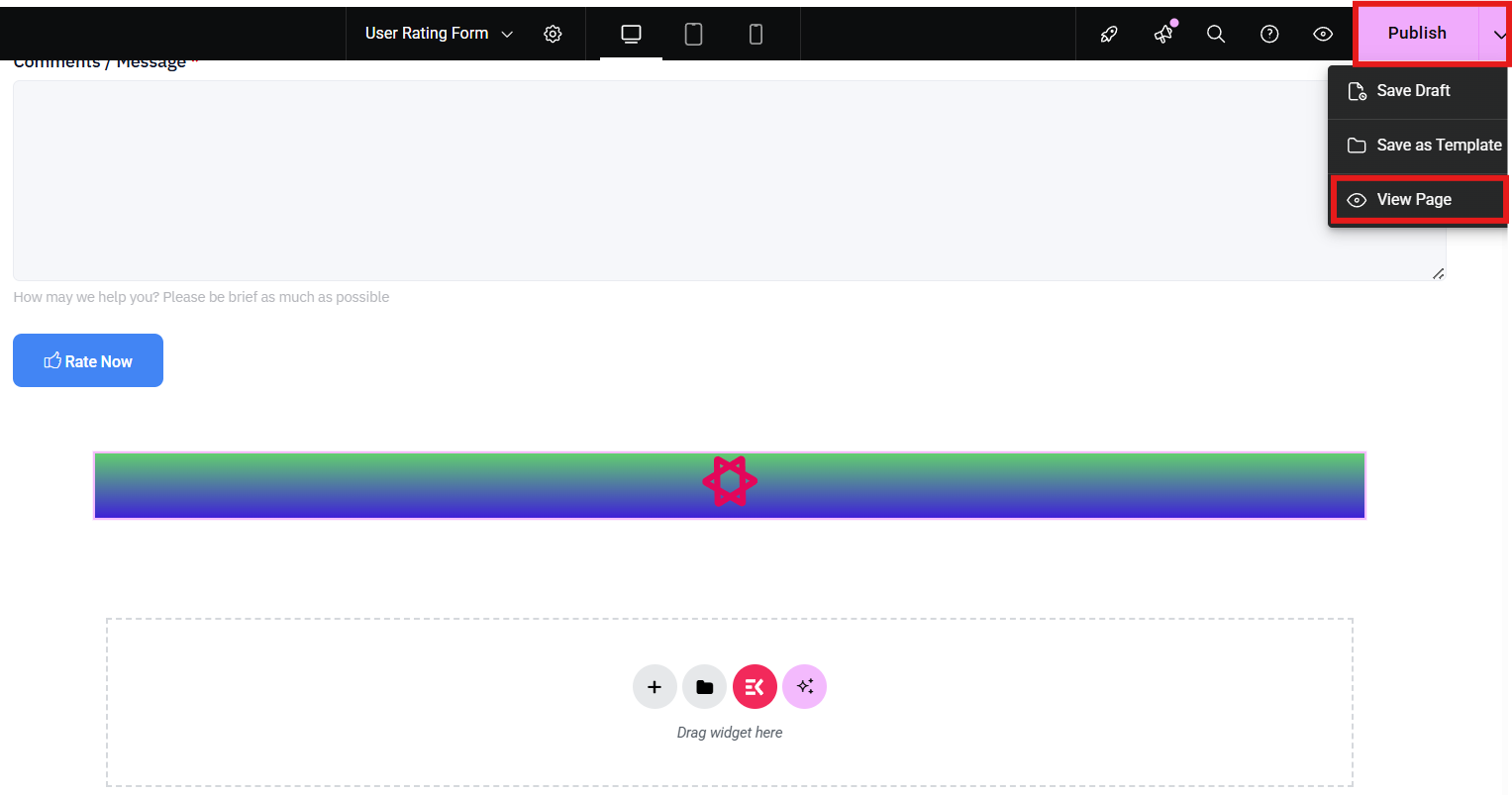
With this method, you can easily enhance your Elementor designs with fresh icons beyond the default options.

Common Errors and Troubleshooting When Adding Custom Icons in Elementor
While adding custom icons in Elementor is usually straightforward, users may sometimes face technical issues. Below are the most common errors and their solutions.
1. Custom Icons Not Showing in Elementor
Possible causes include:
- CSS files not regenerated
- Browser or site cache issues
- Incorrect icon library upload
- Plugin conflicts
To fix it:
- Go to WordPress Dashboard → Elementor → Tools
- Click Regenerate CSS & Data
- Clear your website cache (plugin/CDN)
- Refresh the Elementor editor.
If the issue persists, try temporarily disabling other plugins to check for conflicts.
2. Uploaded Icon Library Not Appearing in the Icon Library
Sometimes the icon pack uploads successfully, but does not appear in Elementor due to:
- Incorrect ZIP file structure
- Missing font files
- Unsupported icon generator
To fix it, make sure the ZIP file contains files such as:
- CSS stylesheet
- font files (.woff, .woff2, .ttf)
- configuration files
It’s recommended to generate icon packs using reliable tools like IcoMoon or Fontello.
3. SVG Icons Not Uploading in WordPress
By default, WordPress blocks SVG uploads for security reasons. You can enable SVG uploads using a plugin.
Steps:
- Install an SVG plugin such as Safe SVG or SVG Support
- Activate the plugin
- Upload your SVG files through the Media Library.
Always ensure your SVG files are sanitized to avoid security risks.
4. Icons Appear as Blank Squares
This usually happens when the icon font is not loaded correctly due to:
- Font files are missing from the icon pack
- Incorrect CSS prefix
- Corrupted icon font file
To fix it, simply:
- Regenerate the icon pack
- Ensure the font files are included in the ZIP
- Use a unique CSS prefix when creating the icon library.
5. Icons Display in Editor but Not on the Live Website
If icons appear inside Elementor but disappear on the live site, caching or optimization settings may be the cause.
You can easily fix it by doing these:
- Clear your cache plugin
- Clear your CDN cache
- Regenerate Elementor CSS
- Disable aggressive optimization plugins temporarily.
6. Icon Colors Cannot Be Changed
Sometimes users cannot change the icon color inside Elementor due to:
- The icon is a PNG image
- The SVG has hard-coded colors
To fix it:
- Use SVG icons instead of PNG
- Remove fill attributes inside the SVG file
- Use Elementor’s Style settings to apply colors.
7. Custom Icons Not Loading on Mobile Devices
Some mobile browsers fail to load icon fonts due to caching or file loading issues.
It can easily be fixed by:
- Regenerate CSS files
- Clear CDN cache
- Check if your theme blocks external fonts
- Test using another mobile browser.
8. Elementor Rejects the Custom Icon ZIP File
If Elementor rejects the uploaded ZIP file, the icon pack might not be structured correctly.
But it can easily be fixed by making sure the zip files include font files (.woff, .woff2, .ttf), CSS file, and the correct folder structure. Or, you can recreate the icon pack using an icon generator.
FAQs
1. Can You Upload Your Own SVG Icons Into Elementor?
Yes. Elementor Pro supports SVG uploads directly. Just make sure SVG uploads are enabled in WordPress for security reasons.
2. Is ElementsKit free?
Yes, ElementsKit Lite is free and includes the Icon Pack module. For more advanced features, there’s also a Pro version.
3. Will adding custom icons slow down my website?
If you use optimized formats like SVG, your site will remain lightweight. Avoid uploading oversized PNG files to keep performance smooth.
4. Can I create animated SVG icons for Elementor?
Yes. SVG icons support animations using CSS or JavaScript. Animated SVG icons can enhance engagement, but they should be optimized to avoid affecting website performance.
5. Can I reuse the same custom icon pack on multiple websites?
Yes. Once you generate an icon pack ZIP file, you can upload the same file to multiple Elementor websites through Elementor → Custom Icons.
Time to Decide
Custom icons may seem like a small detail, but they play a big role in making your WordPress website stand out. By adding personalized icons, you enhance both branding and user experience. With Elementskit alongside Elementor, you can easily enhance your website designs with fresh icons beyond the default options.
So, are you ready to ditch the generic icons and bring your unique style to life? Install ElementsKit today and start transforming your Elementor designs with custom icons.


Leave a Reply