




You can integrate Google services like Google Sheets and Drives to your WordPress forms. For that you need to connect the MetForm with your Google Cloud Console.
Here is how to integrate Google services with MetForm:
Pre-requirements: #
- You will need a Google Cloud Console account, either you have to open a new account or log in to your exisiting account.
- Since MetForm is an Elementor form builder, you need to have Elementor plugin installed and activated on your website.
- Elementor: Ladda ner plugin
- MetForm Pro: Skaffa plugin
👑 Google integration in only available with MetForm Premium version.
Step 1: Set up a project in the Google Cloud Console #
You will need APIs to connect the Google Sheet with WordPress form. For that, login to your Google Cloud console acoount. After that,
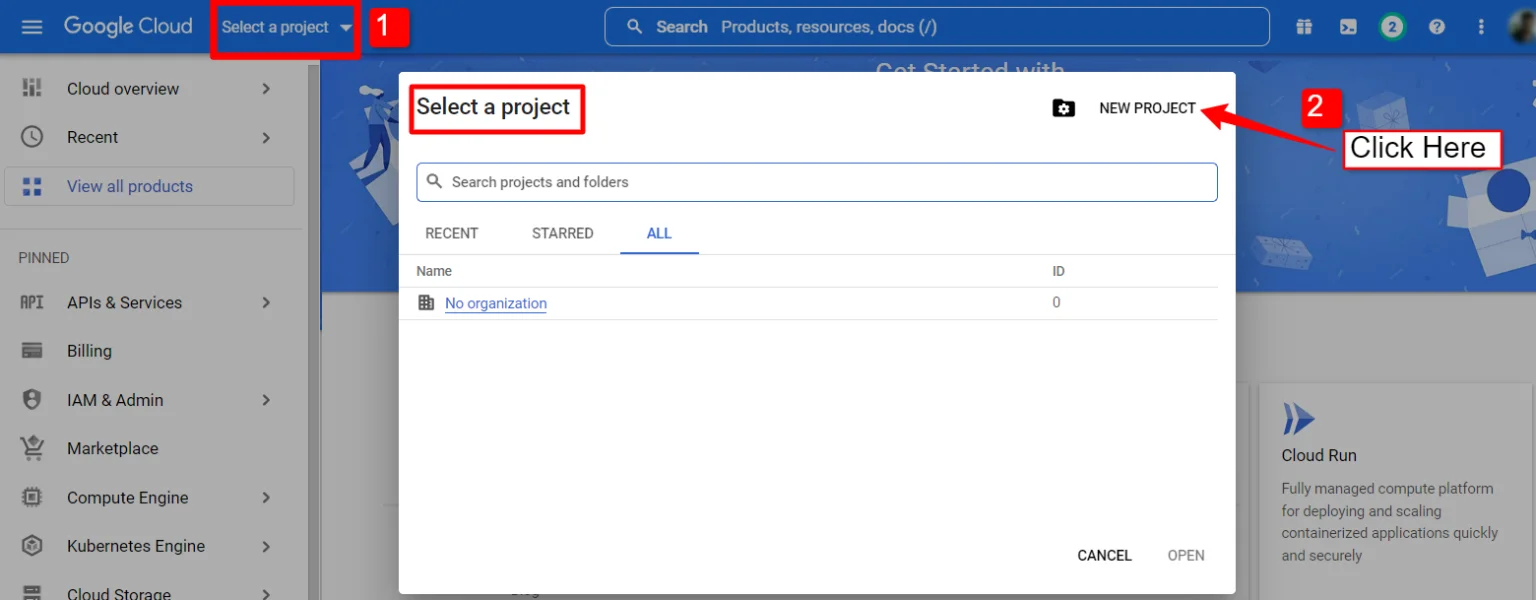
1. Click on the Select a project falla ner.
2. A popup will appear, there click on the Nytt projekt alternativ.
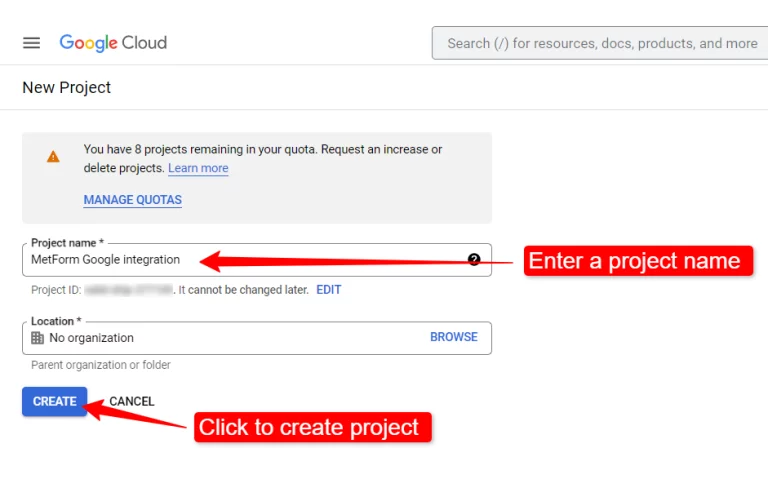
För att skapa ett nytt projekt anger du a Projektnamn och plats (om tillämpligt) och klicka på Skapa knapp.
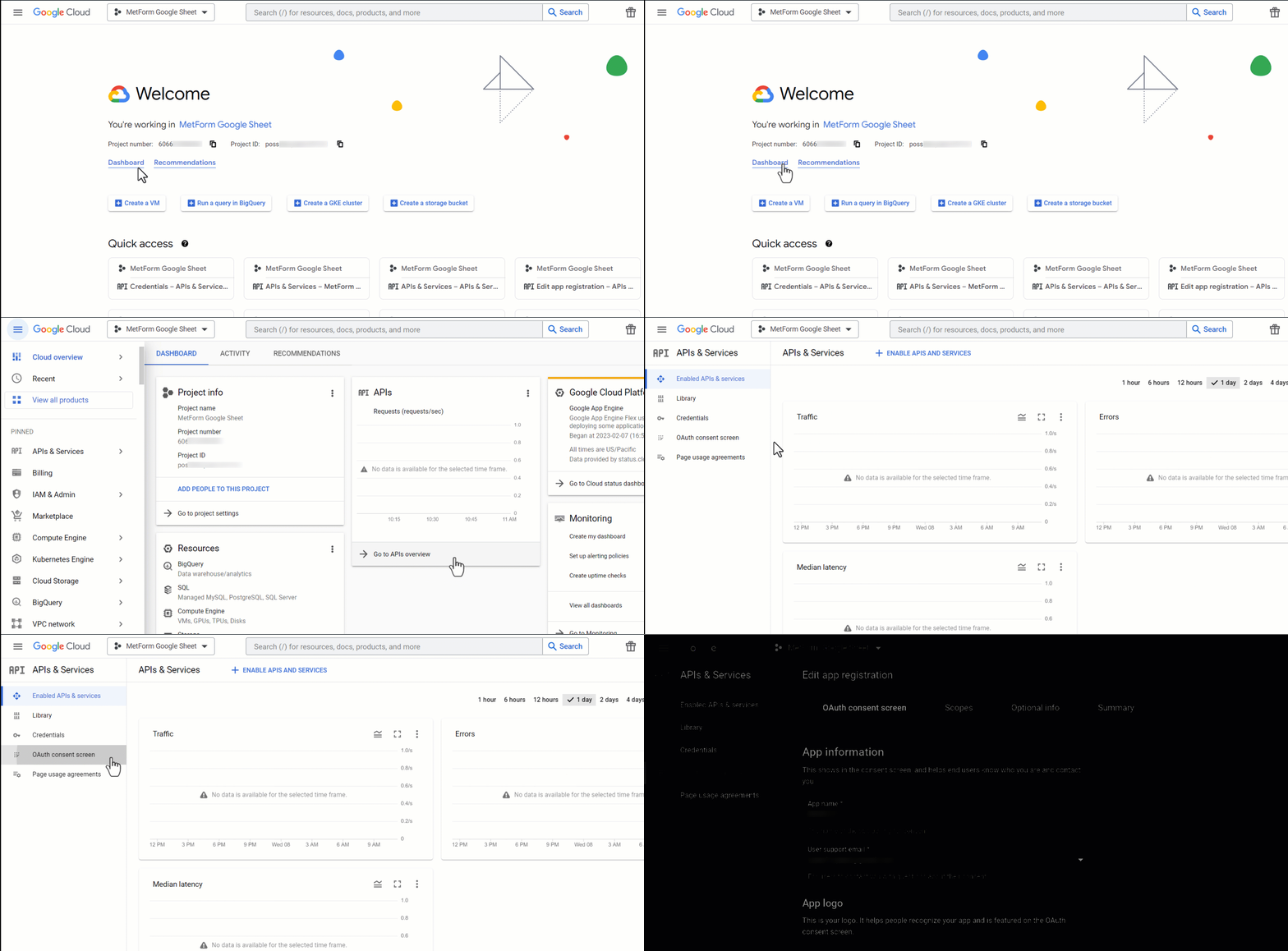
Then go to your project dashboard, and navigate to APIs overview >> OAuth consent screen.
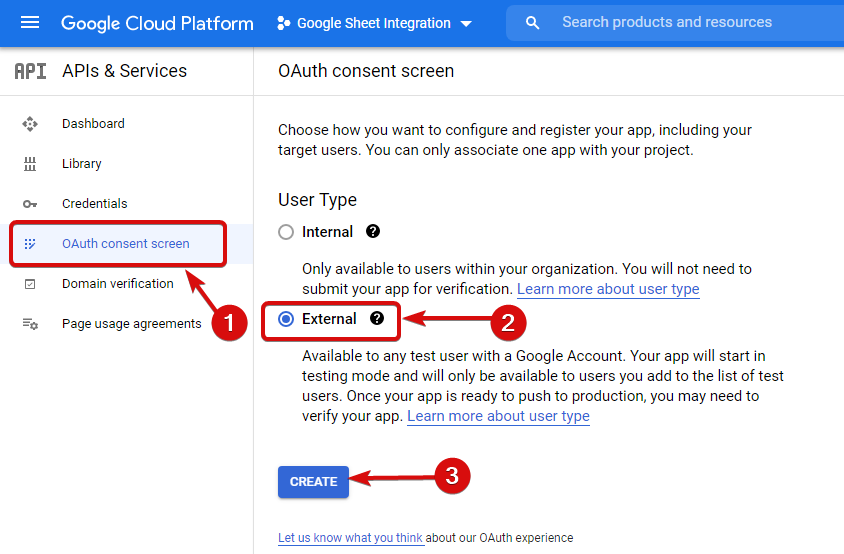
On the OAuth consent screen select the Användartyp till Extern och fortsätt genom att klicka på knappen "Skapa".
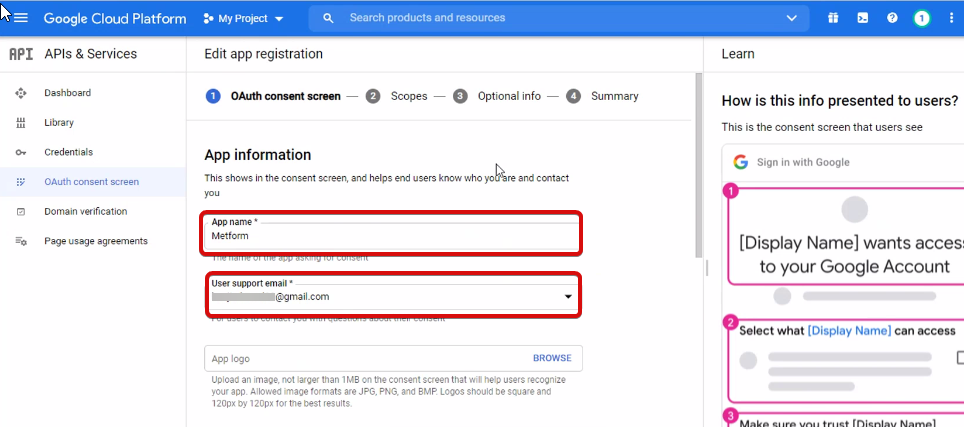
On the next screen, enter your App information including:
- App-namn
- Användarsupport e-post
- Auktoriserade domäner
- Developer contact
Slutligen, klicka på Spara och fortsätt
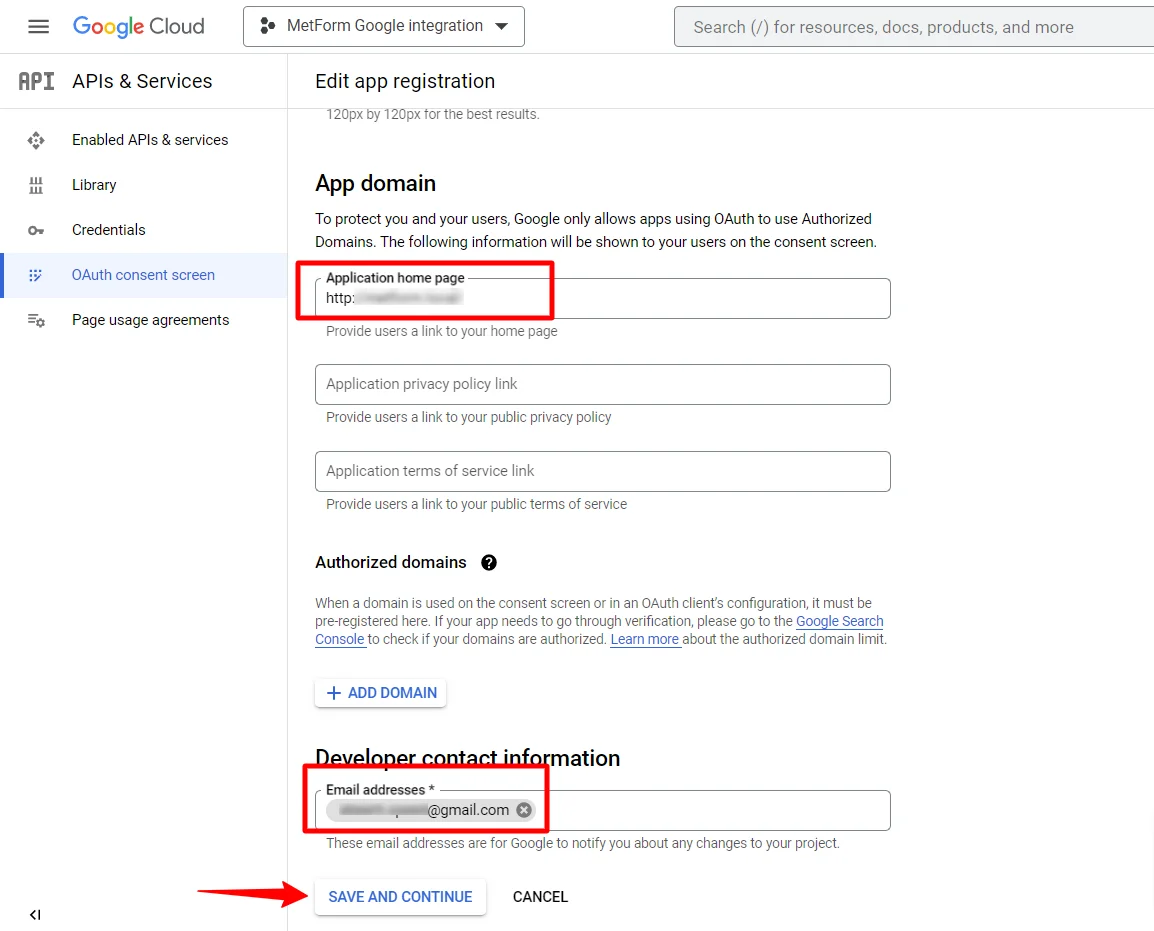
Gå till API-översikt
- Gå till sidan för OAuth-samtyckesskärmen
- Välj extern användartyp
- Tryck på skapa-knappen
Ange din appinformation, se bilden nedan –
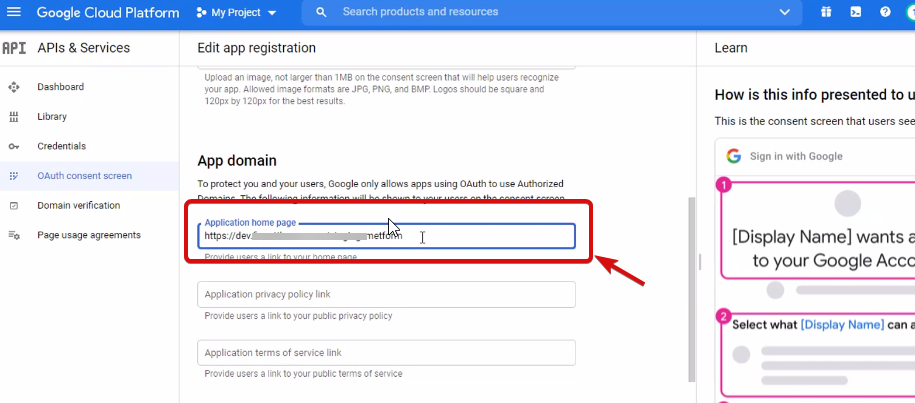
Nu måste du add App domain. If your site is on the live server then you need to authorize the domain. An authorized domain does not allow subdomain names and any protocol. However, you can use this Google project for websites created with your subdomain. For localhost, you do not need to authorize the domain.
Spara sedan och fortsätt.
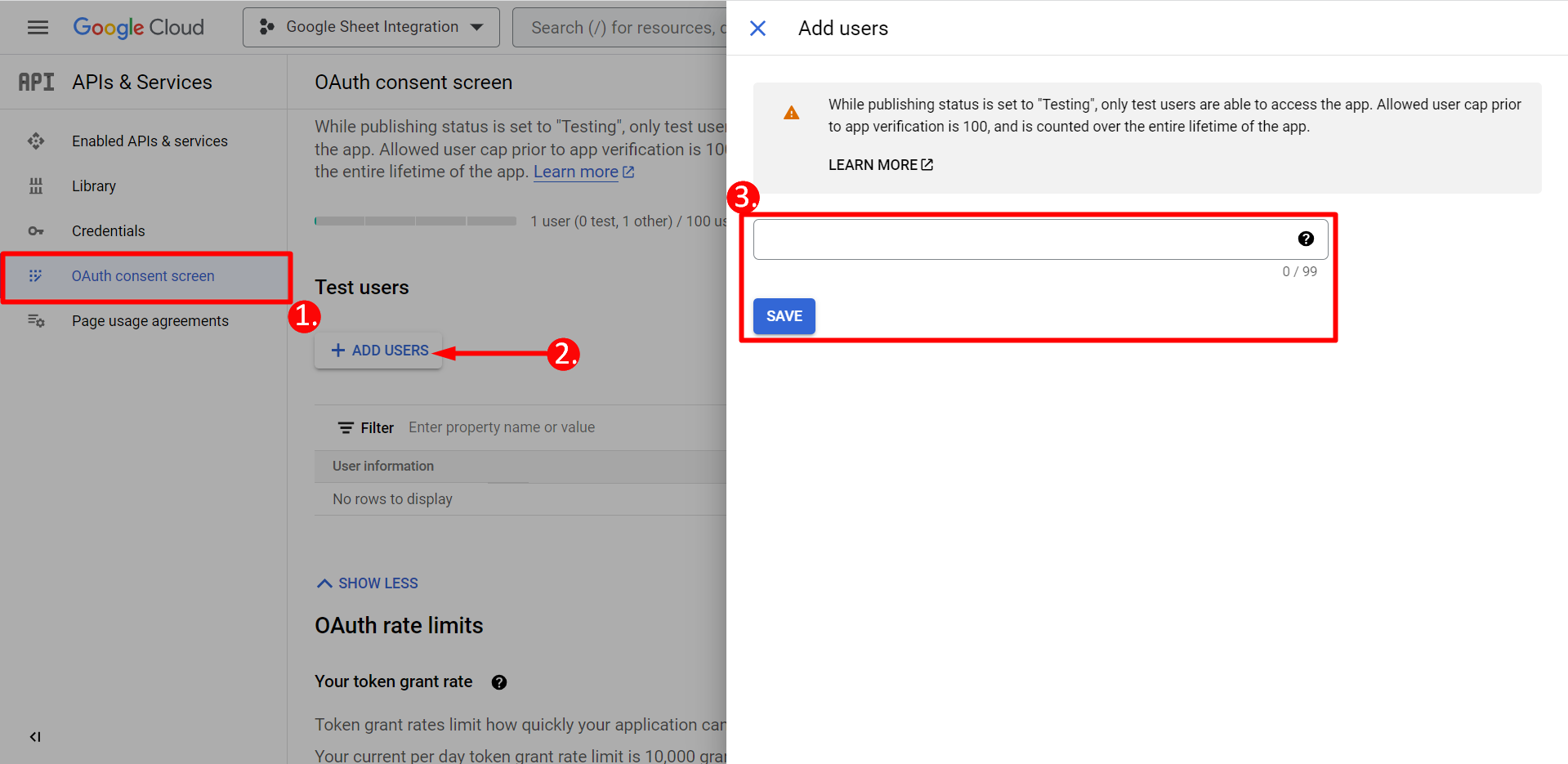
- Från OAuth-samtyckesskärmen
- Klicka på Lägg till användare
- Add your email address and save it
Klicka på knappen tillbaka till instrumentpanelen
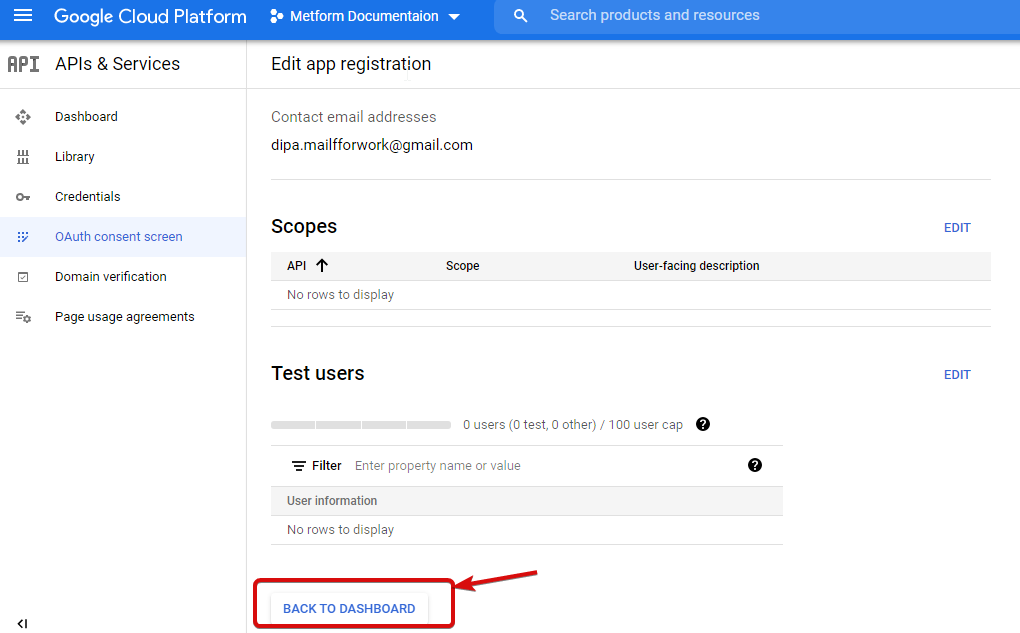
Klicka på publicera app-knappen och gå till sidan med användaruppgifter. Om din webbplats finns på localhost behöver du inte klicka på knappen för att publicera app. Gå bara till sidan med inloggningsuppgifter.
- Gå till inloggningsuppgifter
- Skapa autentiseringsuppgifter
- Välj OAuth-klient-ID
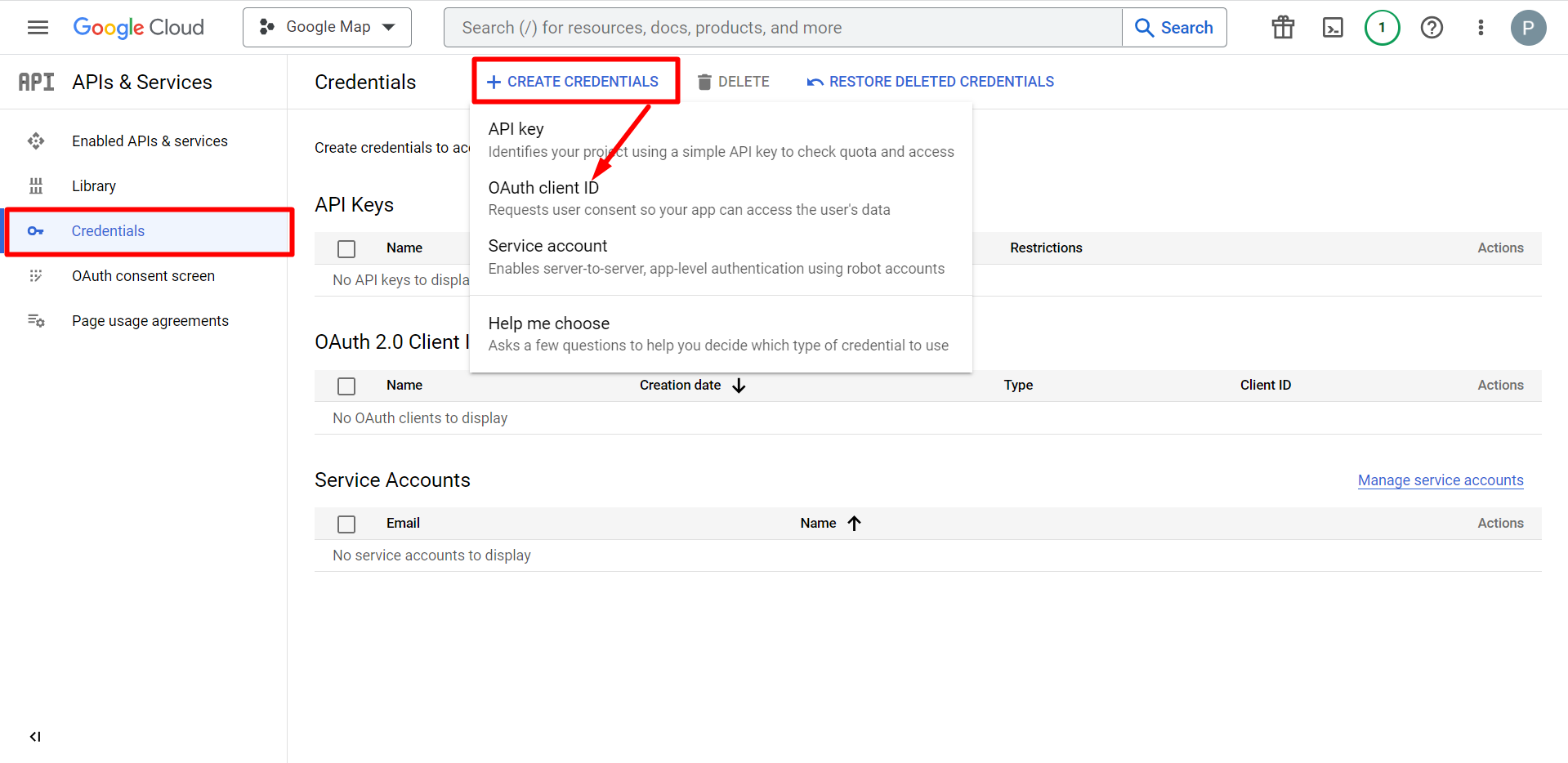
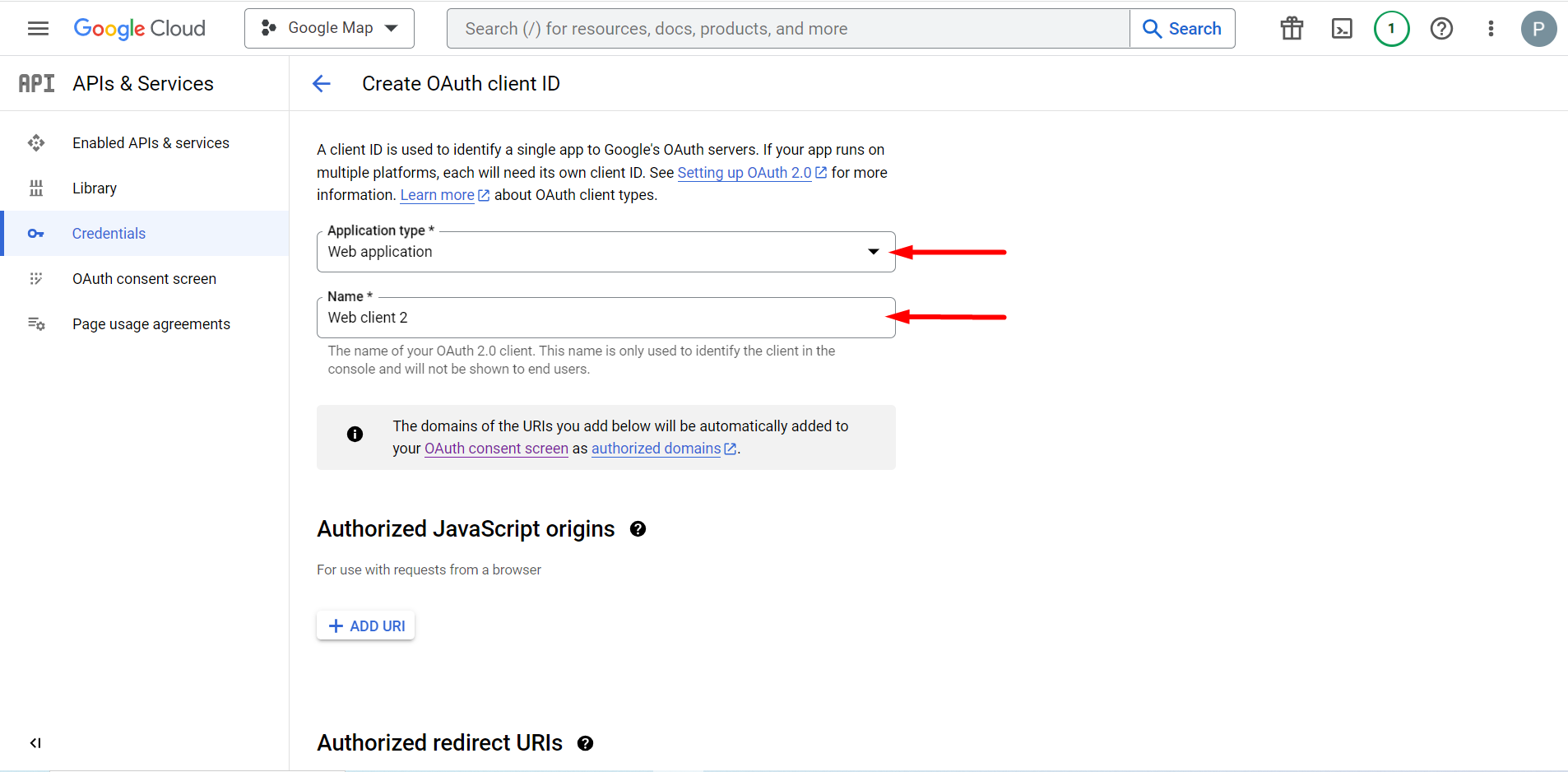
Den valda applikationstypen är en webbapplikation, fyll i namninmatningsfältet
Du kan nu kontrollera din klients ID, det läggs till i inloggningsuppgifterna
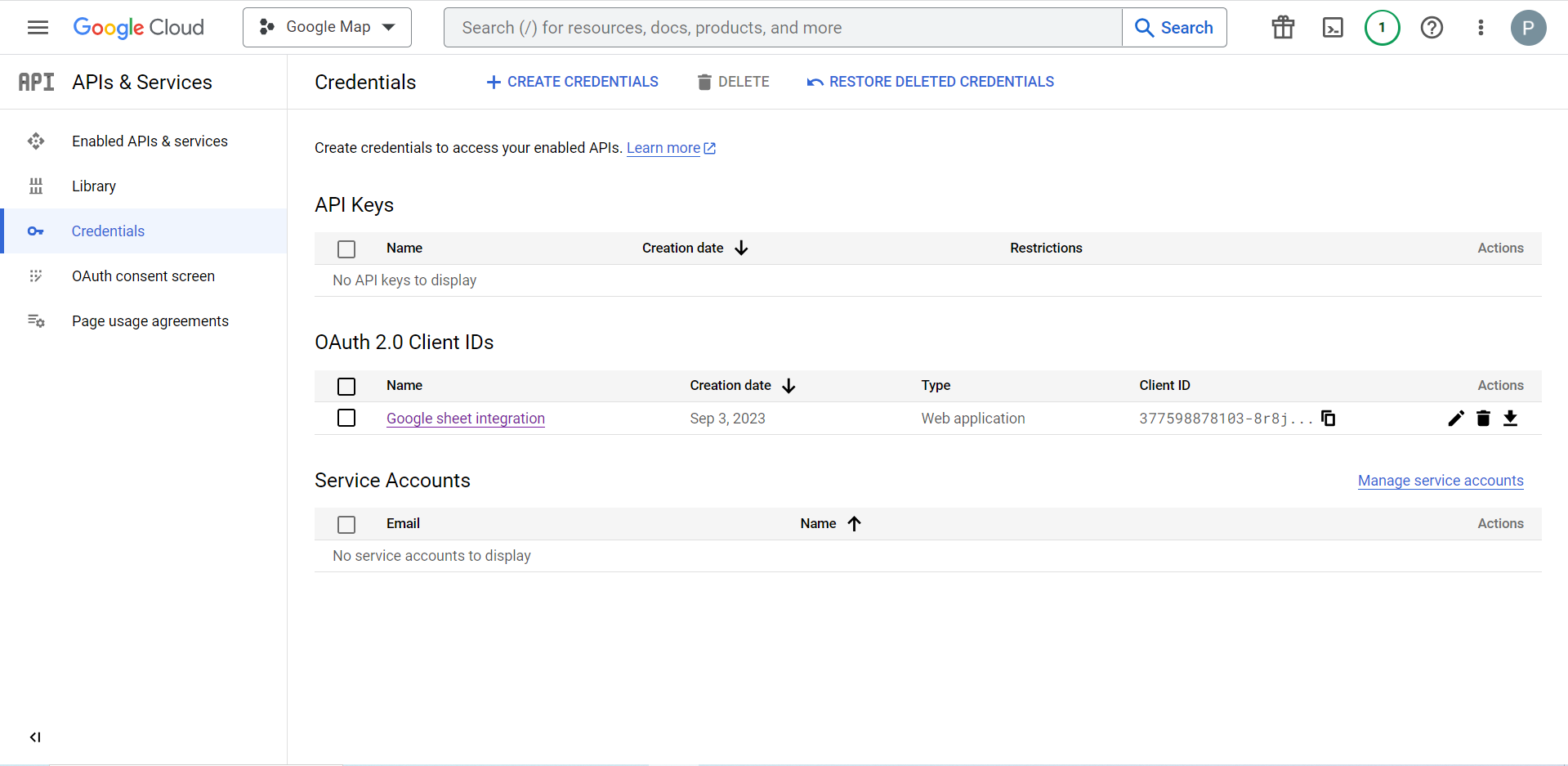
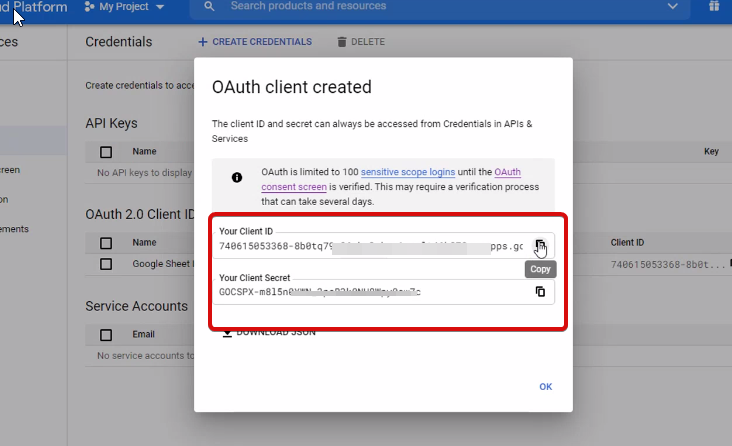
Now you will get the client ID and client secret, just copy them from here.
Step 2: Copy the URL From Metform’s Google Integration Tab #
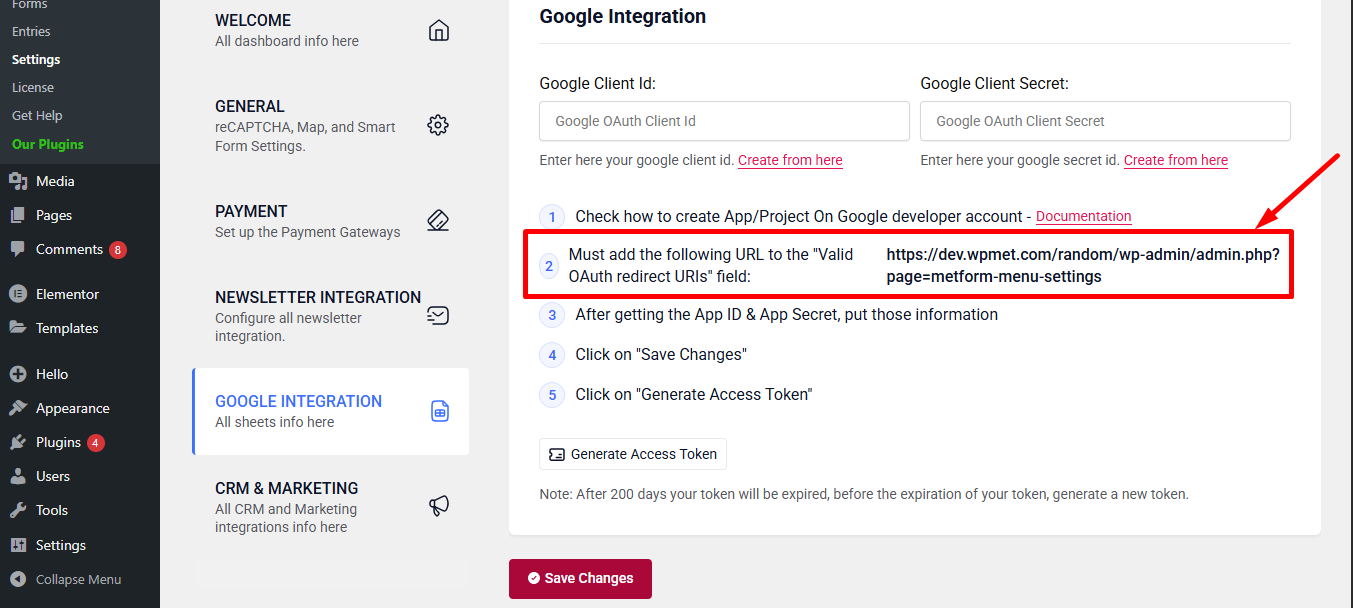
I det här steget måste du lägga till en auktoriserad omdirigerings-URI. Du kommer att få omdirigerings-URI i din MetForms Google Sheet Integration-inställningar.
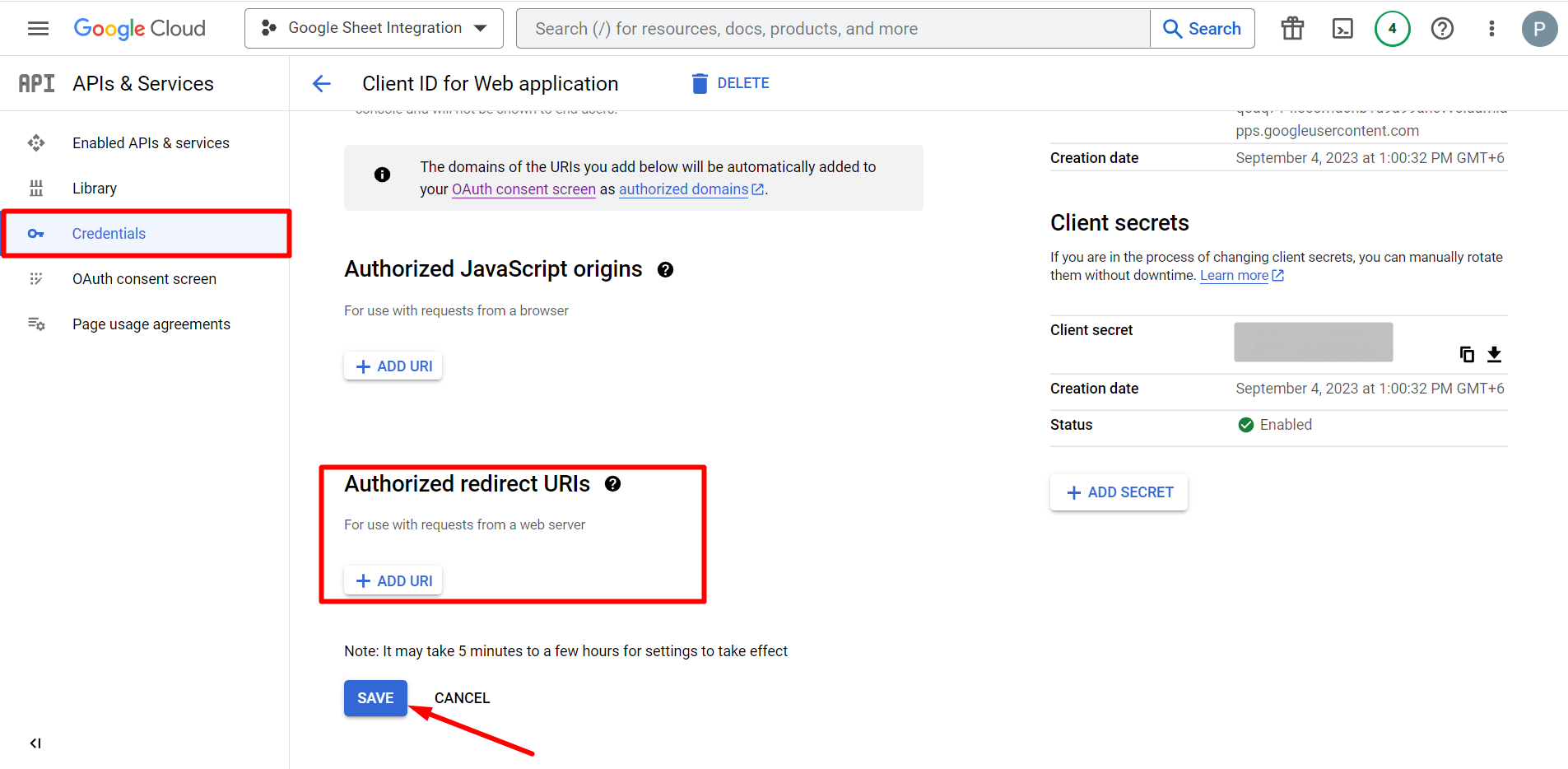
Gå sedan till Credentials again > find Authorized redirect URIs > Add URI that you have just copied from Metform’s Google Sheet Integration settings
Step 2: Insert the Copied Ids #
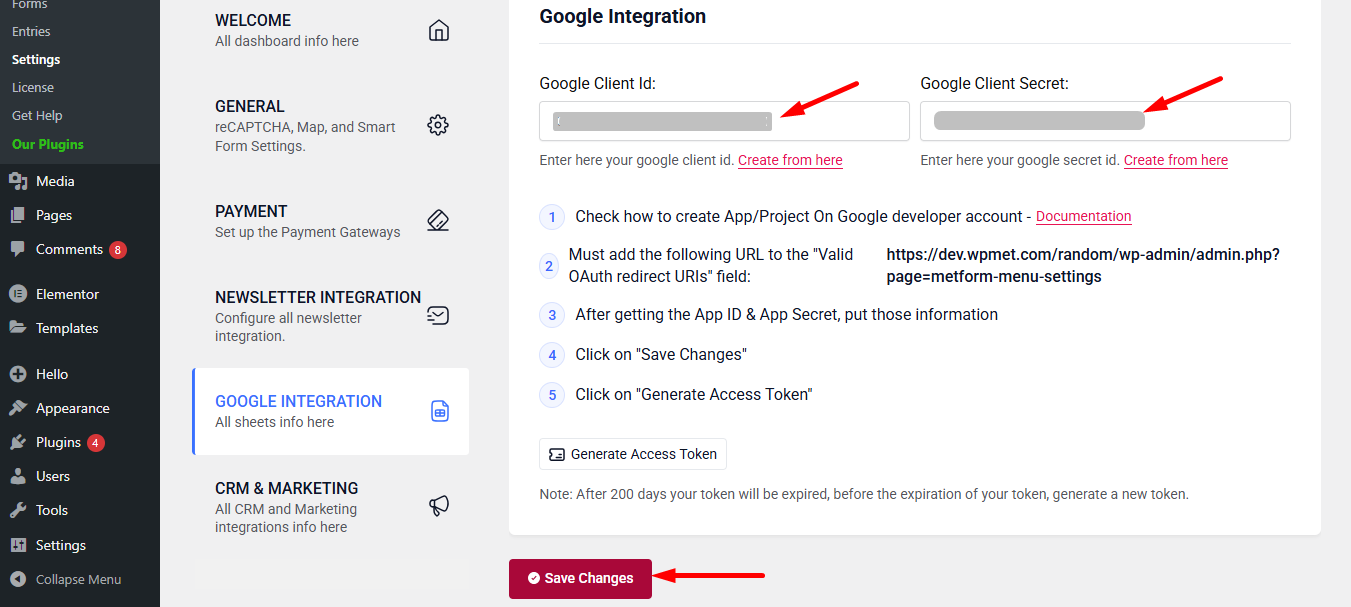
Now, return back to Metform’s Google Integration tab from your dashboard.
Here, you have to paste the copied Client ID and Client Secret in the fields and save changes.
Finally you can connet Google services with your WordPress form.
Läs även:


