




You can integrate Google services like Google Sheets and Drives to your WordPress forms. For that you need to connect the MetForm with your Google Cloud Console.
Here is how to integrate Google services with MetForm:
Pre-requirements: #
- You will need a Google Cloud Console account, either you have to open a new account or log in to your exisiting account.
- Since MetForm is an Elementor form builder, you need to have Elementor plugin installed and activated on your website.
- Elemento: Baixar plug-in
- MetForm Pro: Obtenha o plug-in
👑 Google integration in only available with MetForm Premium version.
Step 1: Set up a project in the Google Cloud Console #
You will need APIs to connect the Google Sheet with WordPress form. For that, login to your Google Cloud console acoount. After that,
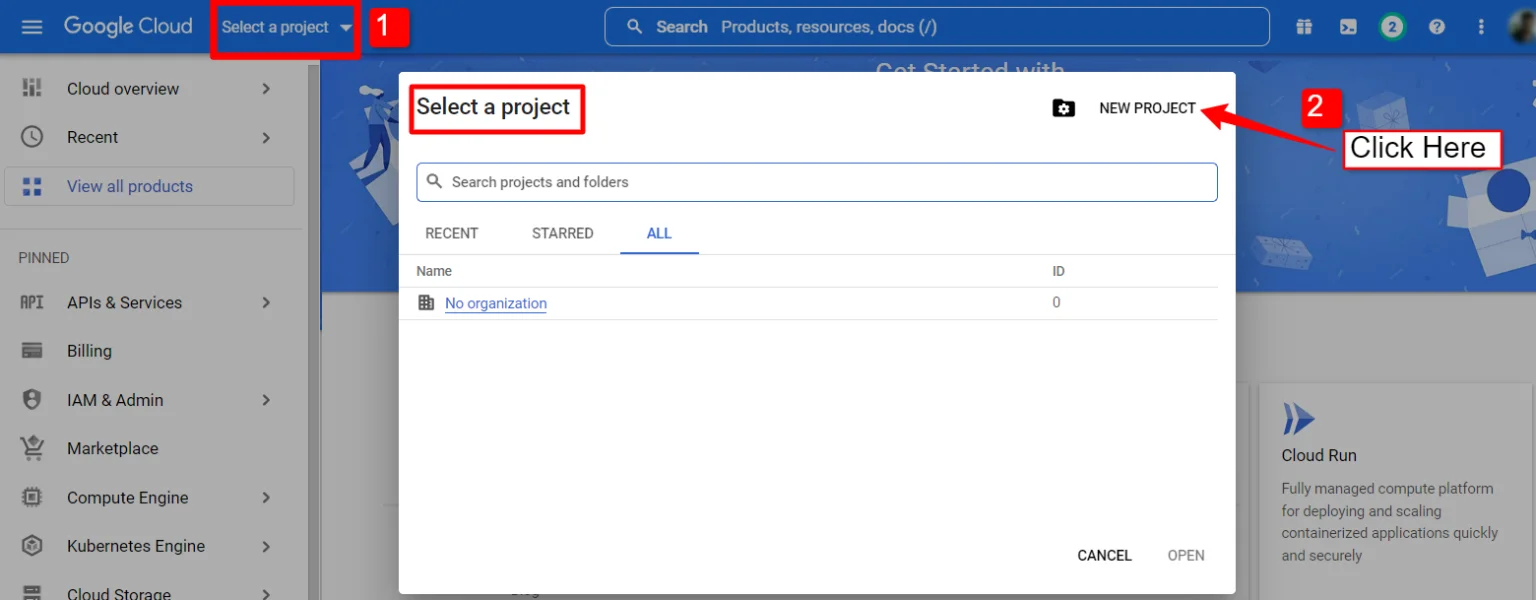
1. Click on the Select a project suspenso.
2. A popup will appear, there click on the Novo projeto opção.
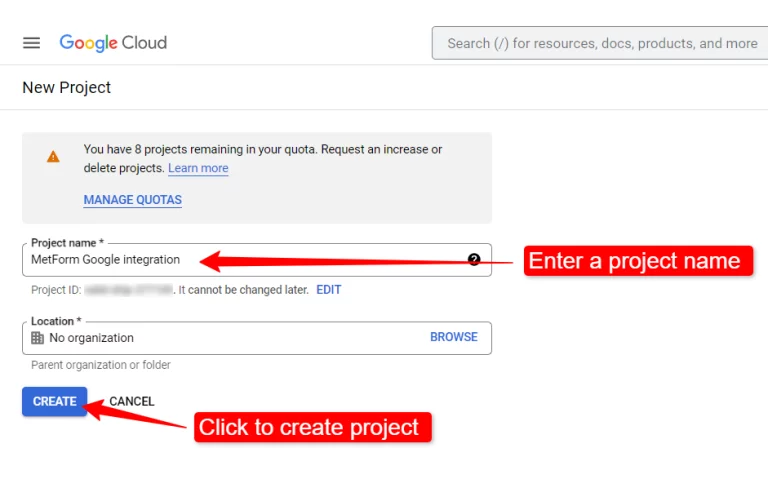
Para criar um novo projeto, insira um Nome do Projeto e localização (se aplicável) e clique no botão Botão Criar.
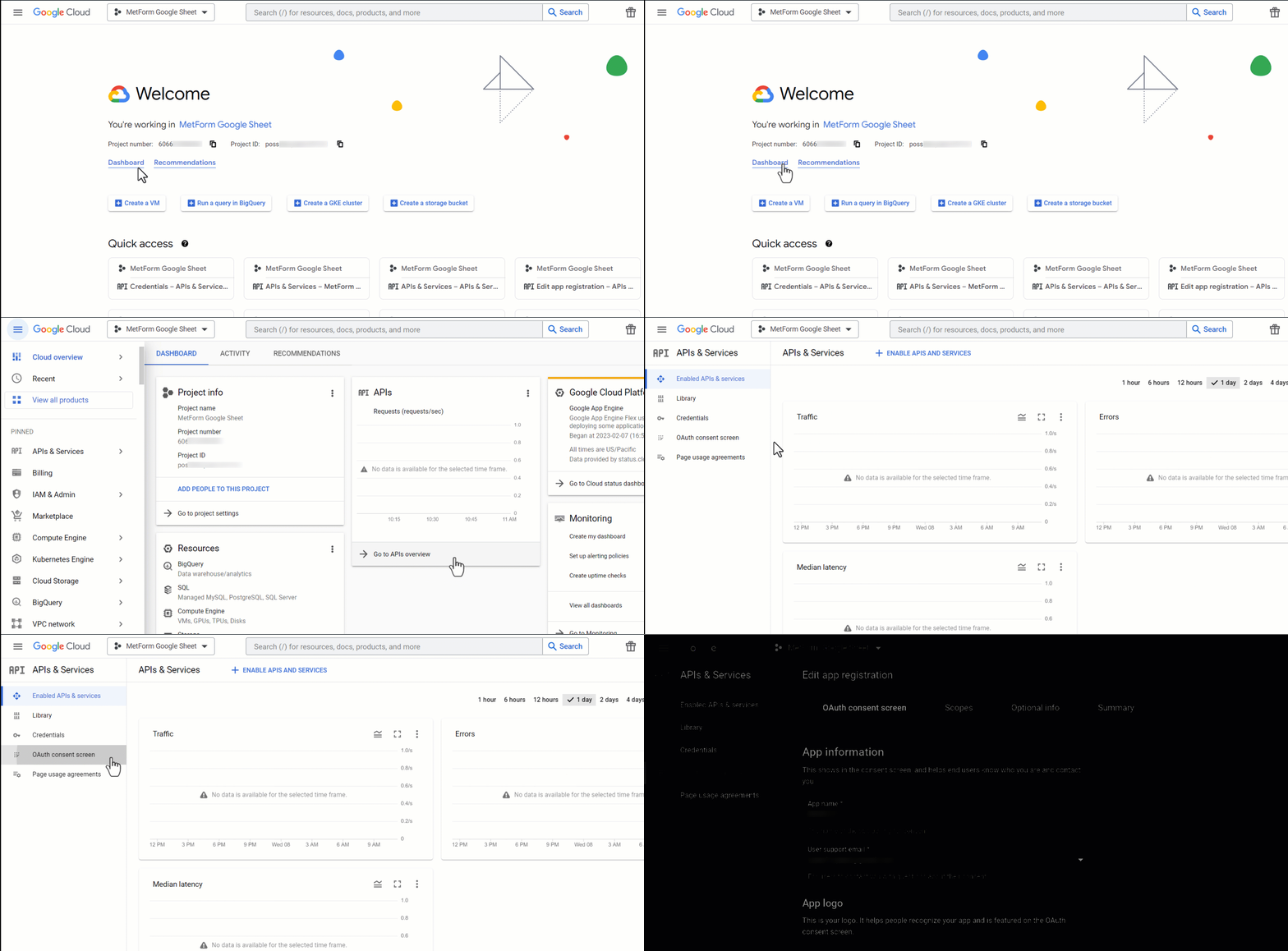
Then go to your project dashboard, and navigate to APIs overview >> OAuth consent screen.
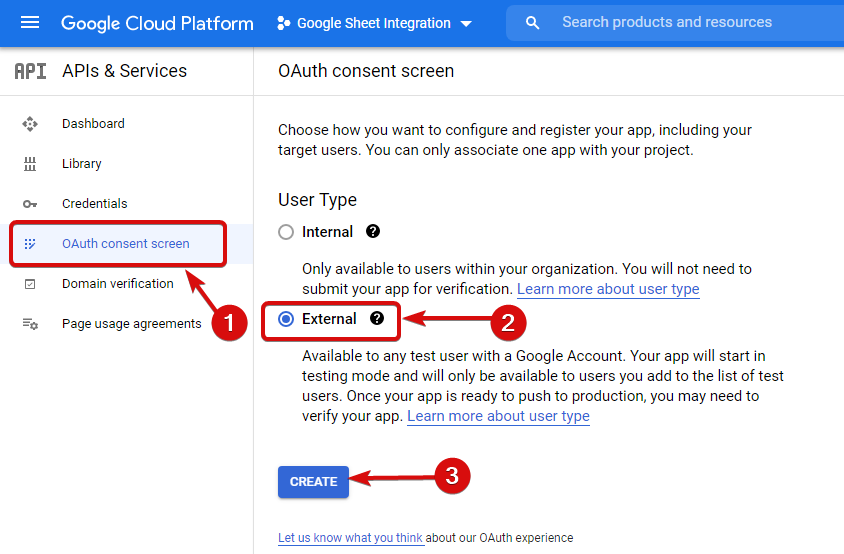
On the OAuth consent screen select the Tipo de usuário para externo e prossiga clicando no botão “Criar”.
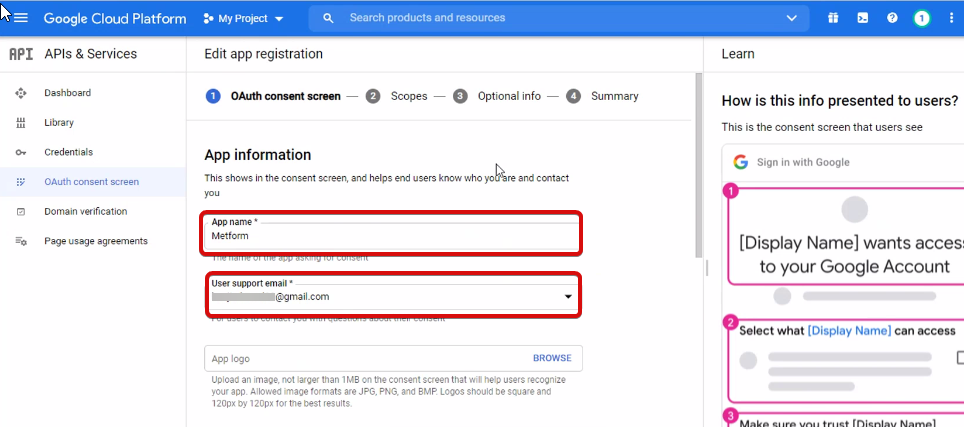
On the next screen, enter your App information including:
- Nome do aplicativo
- E-mail de suporte ao usuário
- Domínios autorizados
- Developer contact
Por fim, clique em Salve e continue
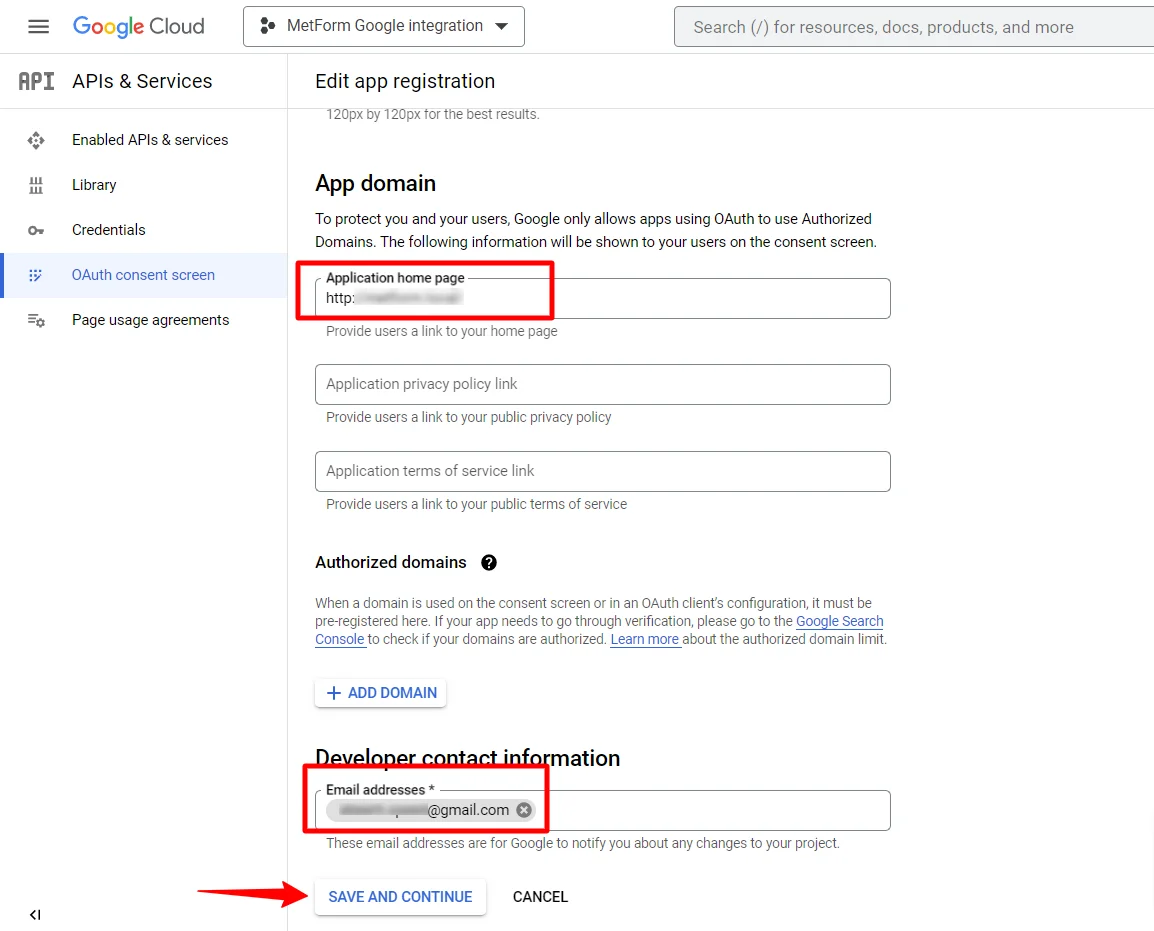
Acesse Visão geral das APIs
- Vá para a página da tela de consentimento do OAuth
- Selecione o tipo de usuário externo
- Pressione o botão criar
Forneça as informações do seu aplicativo, veja a imagem abaixo –
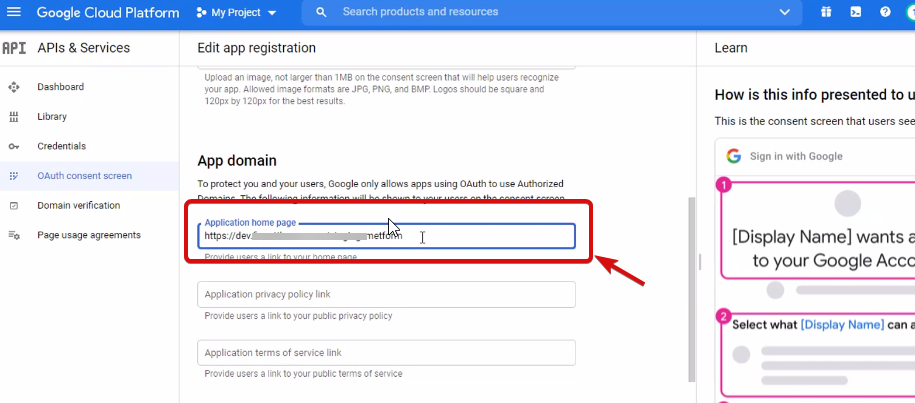
Agora, você tem que add App domain. If your site is on the live server then you need to authorize the domain. An authorized domain does not allow subdomain names and any protocol. However, you can use this Google project for websites created with your subdomain. For localhost, you do not need to authorize the domain.
Em seguida, salve e continue.
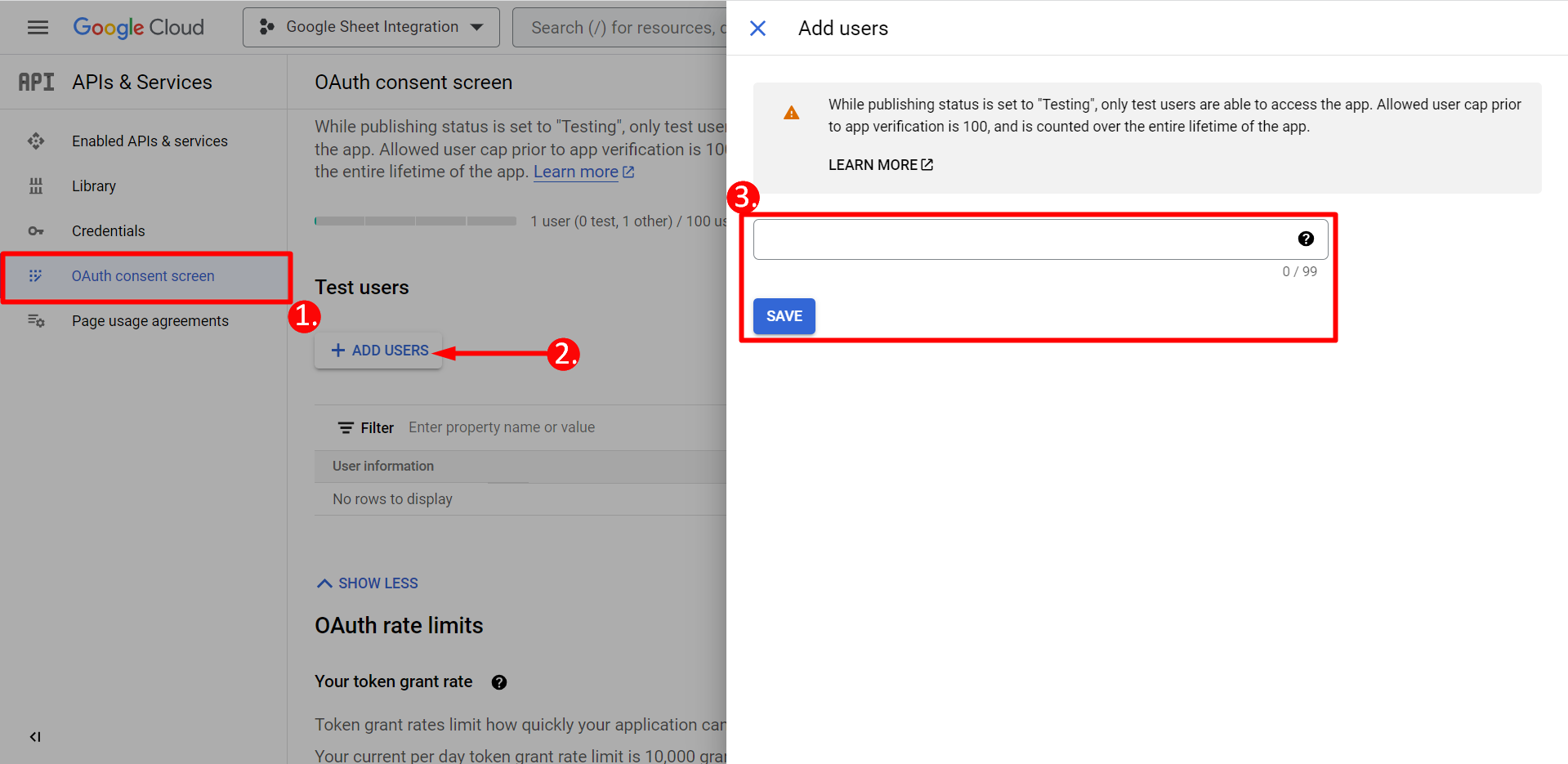
- Na tela de consentimento do OAuth
- Clique em Adicionar usuários
- Add your email address and save it
Clique no botão voltar ao painel
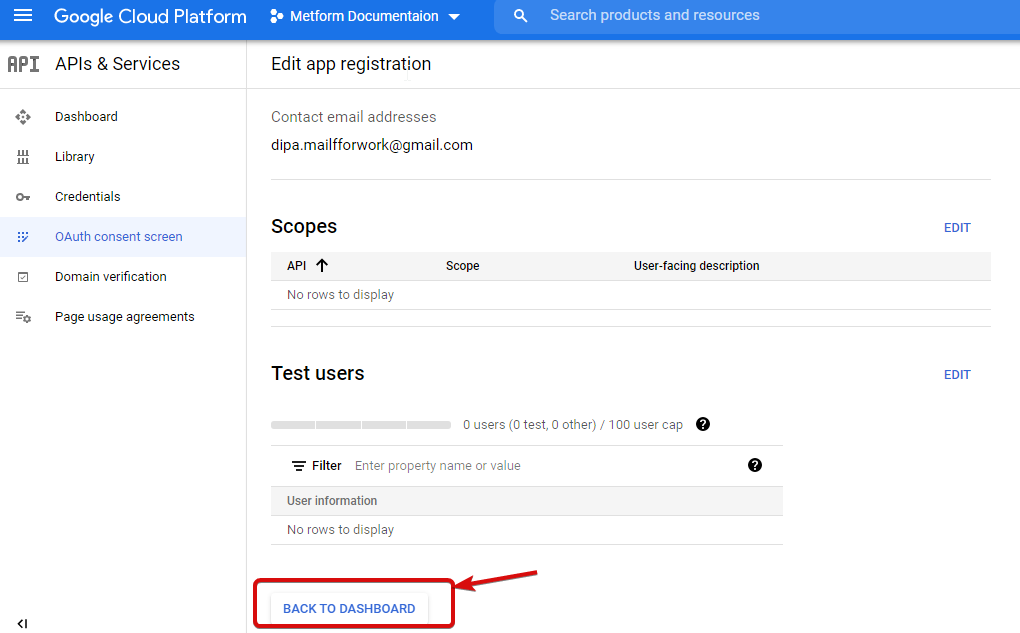
Clique no botão publicar aplicativo e vá para a página de credenciais. Se o seu site estiver em localhost, você não precisará clicar no botão para publicar o aplicativo. Basta ir para a página de credenciais.
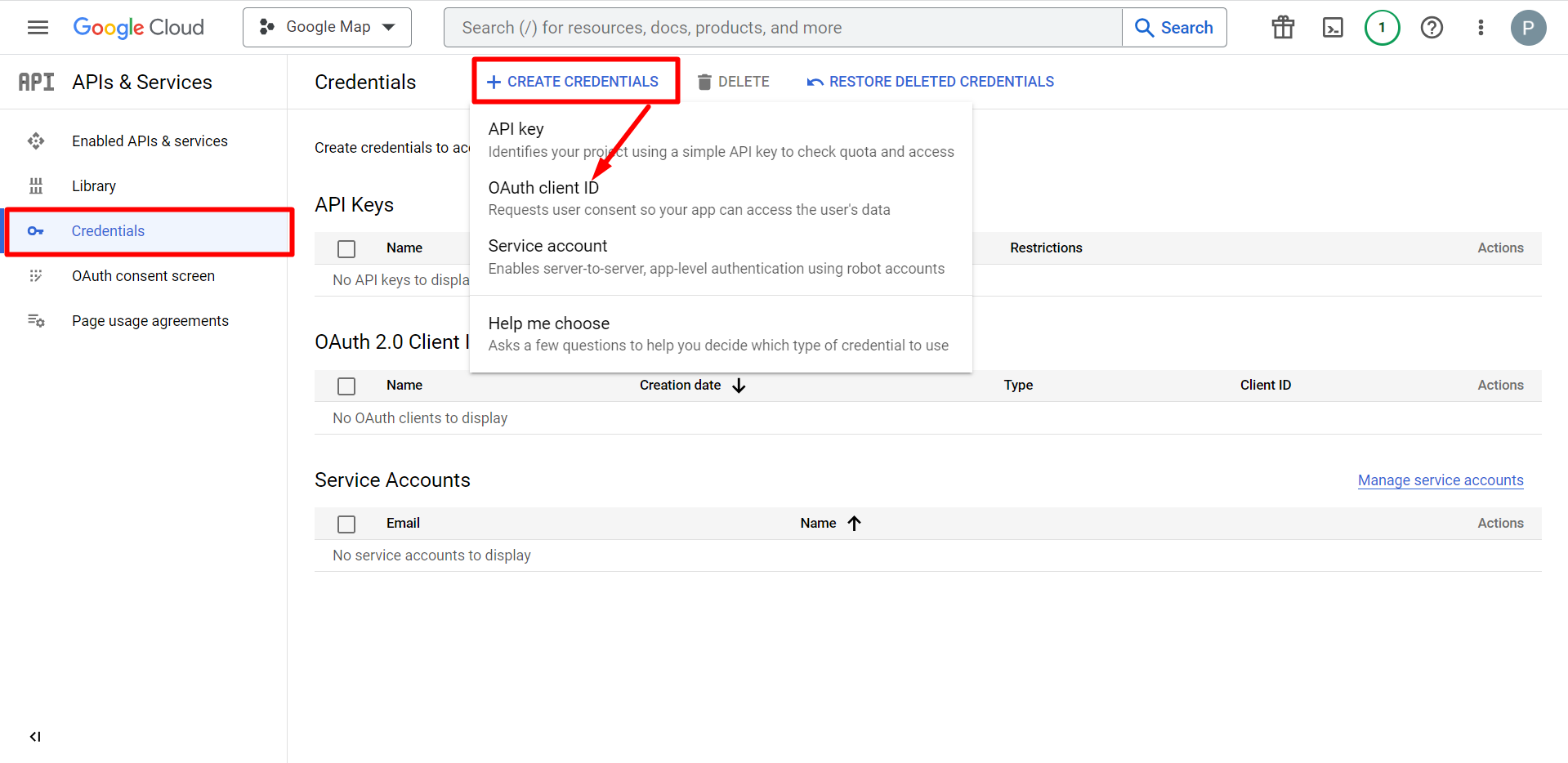
- Vá para Credenciais
- Criar credenciais
- Selecione o ID do cliente OAuth
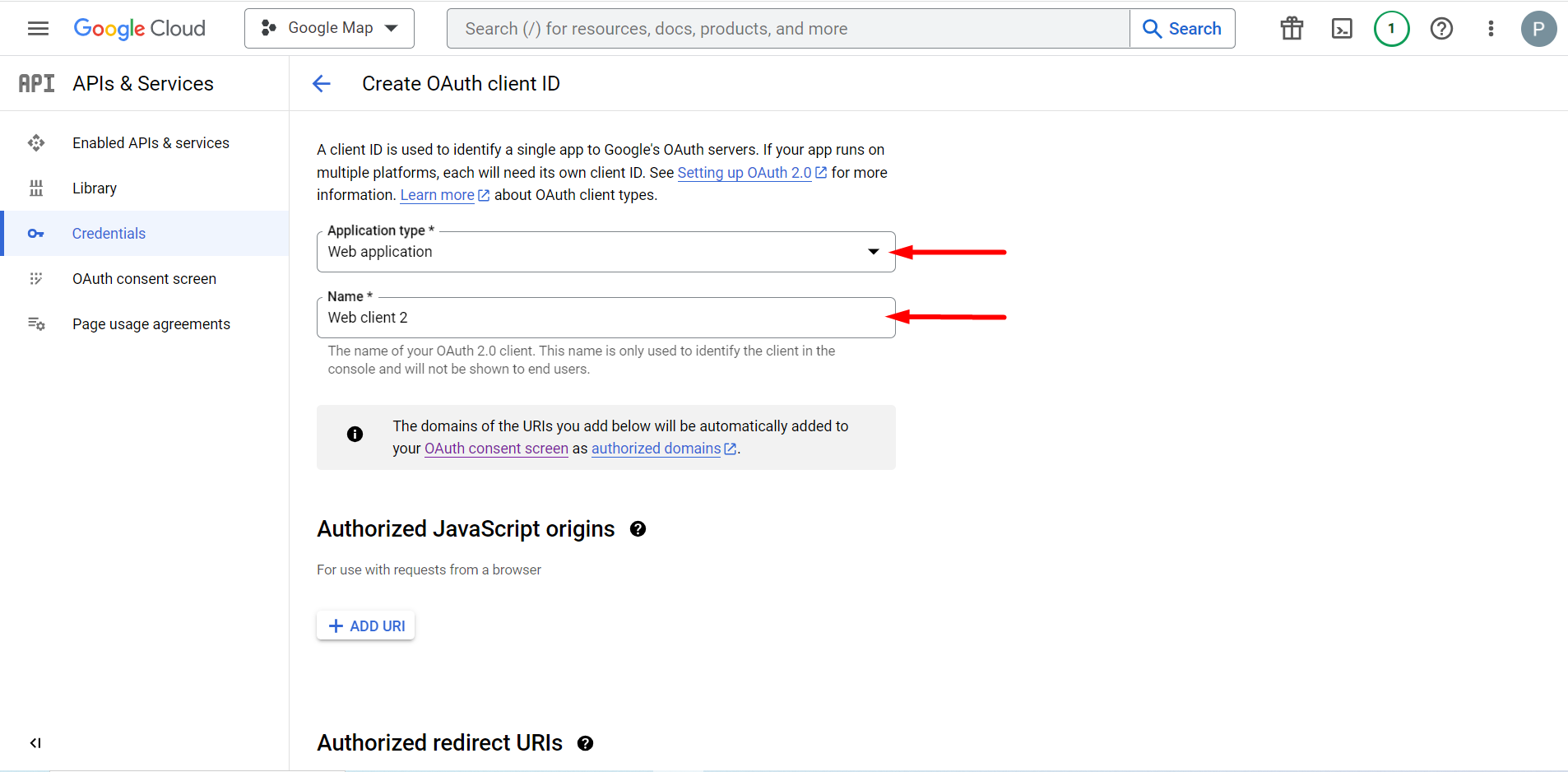
O tipo de aplicativo selecionado é um aplicativo da web, preencha o campo de entrada do nome
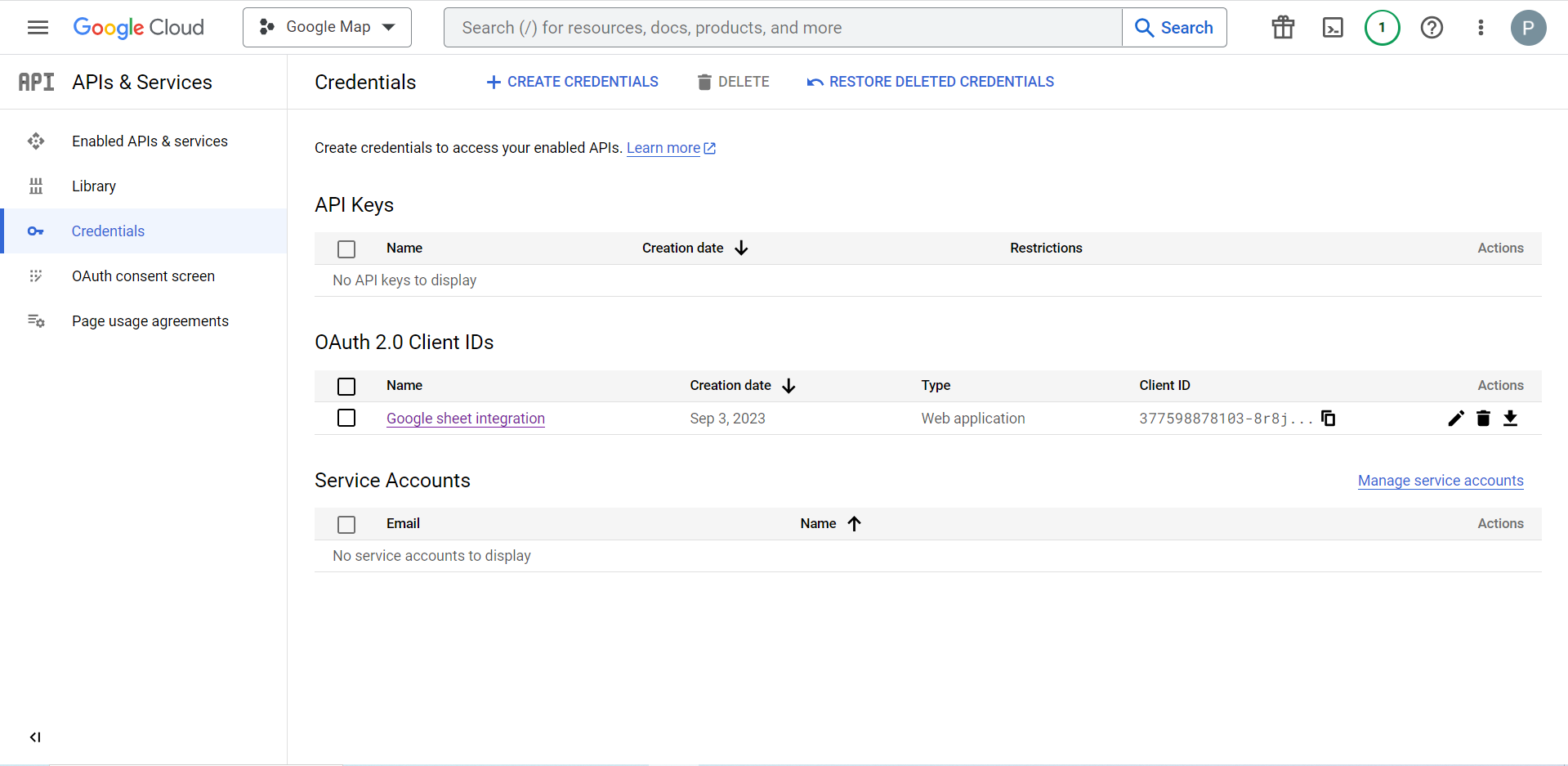
Agora você pode verificar o ID do seu cliente, ele é adicionado às Credenciais
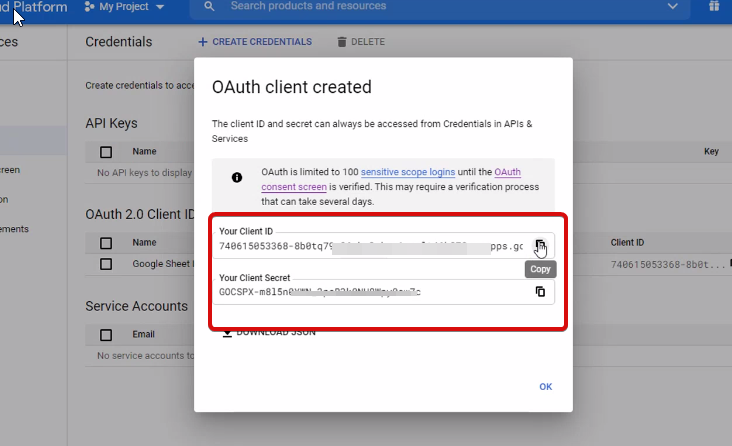
Now you will get the client ID and client secret, just copy them from here.
Step 2: Copy the URL From Metform’s Google Integration Tab #
Nesta etapa, você precisa adicionar um URI de redirecionamento autorizado. Você obterá o URI de redirecionamento nas configurações de integração do Google Sheet do MetForm.
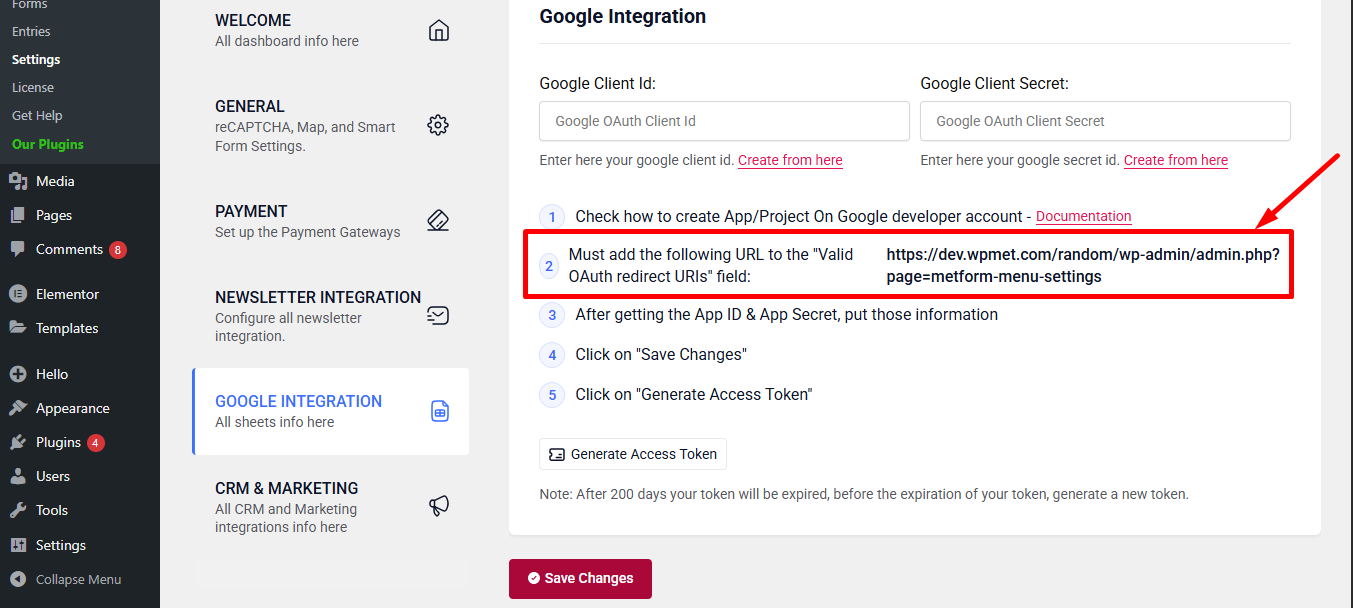
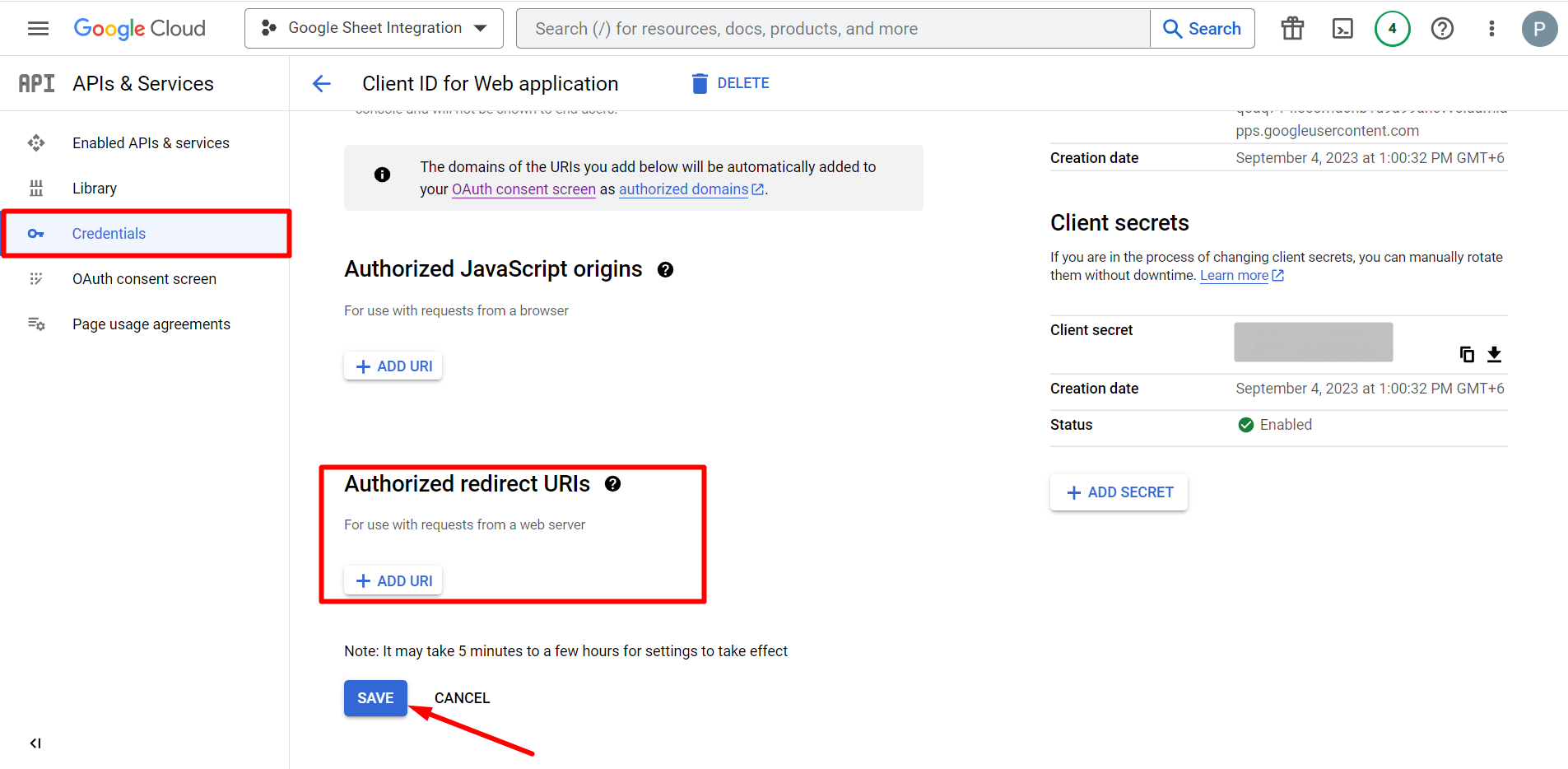
A seguir, vá para Credentials again > find Authorized redirect URIs > Add URI that you have just copied from Metform’s Google Sheet Integration settings
Step 2: Insert the Copied Ids #
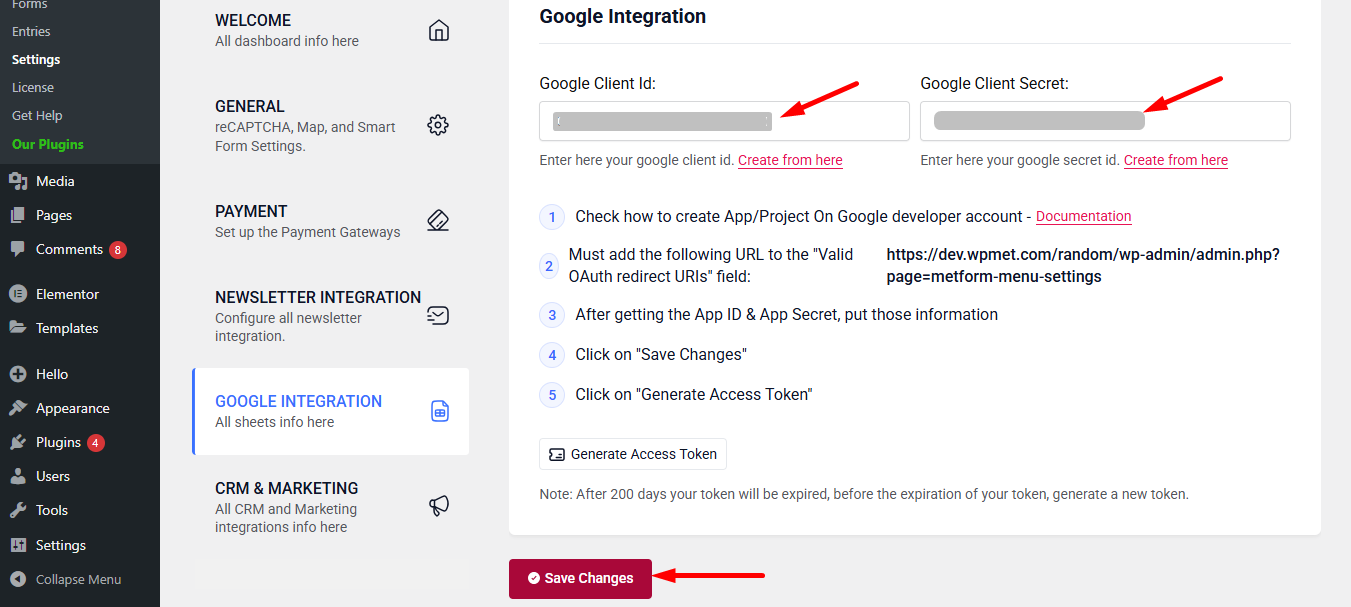
Now, return back to Metform’s Google Integration tab from your dashboard.
Here, you have to paste the copied Client ID and Client Secret in the fields and save changes.
Finally you can connet Google services with your WordPress form.
Leia também:


