



나는 양식을 작성하는 것을 싫어합니다! 당신은 어떤가요?
양식 작성도 싫어하시나요?
그럼 우리 둘이 있어요!
Facebook login lets users sign in to a WordPress website using their Facebook account instead of creating yet another username and password.
And no, we are not alone in feeling this way. 연구에 따르면 5명 중 4명(86%)은 웹사이트에 등록할 때 새 계정을 만들어야 하는 불편함을 겪고 있습니다.
동일한 연구에서 발견된 더 놀라운 점은 10명 중 9명(90%)이 보안 질문에 대답하거나 비밀번호를 재설정하는 대신 비밀번호나 로그인 정보를 잊어버린 경우 웹사이트를 떠났다고 인정한다는 것입니다!
로그인 페이지에서 이탈률이 높은 웹사이트 소유자이신가요? 아마도 웹사이트에 Facebook 로그인을 통합하면 이를 크게 줄일 수 있을 것입니다.
WordPress 웹사이트에 Facebook을 추가하는 방법을 정확히 알고 싶으시다면 올바른 페이지에 오신 것입니다.
이 글에서는 WordPress 사이트에 Facebook 로그인을 통합해야 하는 몇 가지 이유를 설명하고 WordPress에 Facebook 로그인을 추가하는 단계를 안내합니다. 재미있을 것 같나요? 그럼 계속합시다.
Quick Overview
This guide explains how to add Facebook login to a WordPress website.
It covers Facebook App setup, plugin-based integration, alternative methods, and common issues such as redirect URI mismatches.
For most WordPress sites, plugin-based login is recommended because it is easier to maintain and more secure.
Ways to Add Facebook Login on a WordPress Website
There are three common ways to add Facebook login to a WordPress website. The right approach depends on how much control you need and how comfortable you are with ongoing maintenance.
- The most common option is using a social login plugin. This method handles authentication, permissions, and API changes for you. It is suitable for most WordPress websites.
- Another option is manual integration using Facebook’s SDK. This approach requires custom development and direct handling of app credentials, redirect URLs, and user data.
- Some websites also rely on third-party identity providers that sit between Facebook and WordPress. These services simplify setup but add an external dependency.
In this guide, the focus is on the plugin-based method using WP Social, which works well for most WordPress use cases.
Why Should You Add Facebook Login on Your WordPress Website?
Most people already have Facebook accounts. That is not the real reason Facebook login works.
WordPress 웹사이트에 'Facebook으로 로그인' 버튼을 통합하는 것은 여러 가지 이유로 현명한 조치입니다. 사용자가 Facebook을 사용하여 WordPress 사이트에 로그인하도록 허용하면 비밀번호 피로 그렇지 않으면 그들은 겪게 될 일입니다.
게다가 방문자는 또 다른 로그인/등록 양식을 작성할 필요가 없으므로 귀중한 시간을 절약하여 웹사이트를 더 탐색하는 데 투자할 수 있습니다.
When users log in with Facebook, they do not need to remember passwords or fill out long registration forms. This saves time and makes the login process smoother, especially for first-time visitors.
However, Facebook login is not a universal solution.
In practice, we have seen Facebook login improve access on content-driven and community sites, while causing drop-offs on email-first or compliance-heavy setups.
While it improves convenience, it also introduces dependency on a third-party platform. That tradeoff matters and should be considered before enabling it on your site.
그러나 이제는 WordPress 웹사이트에 Facebook 로그인을 추가하여 얻을 수 있는 이점에 대해 궁금하실 것입니다. 이제 저는 귀하의 웹사이트에 Facebook을 통합하는 몇 가지 주요 이유에 대해 이야기하겠습니다.
- You can get to know the full name of the users from Facebook. It can enable you to send personalized newsletters and updates.
- 많은 사용자가 가짜 이메일을 사용하여 웹사이트에 가입하는 반면, Facebook에 등록된 사용자의 이메일은 진짜일 가능성이 더 높습니다.
- 웹사이트에 Facebook 로그인을 추가하면 방문자의 위치, 성별, 연령을 파악하는 데도 도움이 됩니다. 개인화된 데이터로 보다 정확한 마케팅 계획을 수립할 수 있습니다.
- Tracking the “Likes” of the users, you can offer a more tailored service to them. Additionally, accessing their Facebook friend lists can enable you to recommend them the products or services their friends are using.
Recommendation:
Use Facebook login as an optional shortcut, not a replacement for email login. This keeps flexibility without dependency.
그래서, 당신은 무엇을 기다리고 있습니까? WordPress 웹사이트에 Facebook 로그인을 추가하기 위해 따라야 할 모든 단계를 알아보려면 이 게시물을 끝까지 읽으세요.
Before You Continue: Is Facebook Login Right for Your Site?
Before moving forward, it is important to decide whether Facebook login actually fits your website.
Facebook login works well if your site targets general users, communities, or content-based platforms where quick access matters more than strict user qualification.
However, if email ownership is critical to your business, or if your site operates under strict compliance requirements, relying too much on social login may create issues later.
If your audience values speed and convenience, continue with the setup.
If control and data ownership matter more, use Facebook login for WordPress carefully and always keep alternatives available.
필요한 것은 다음과 같습니다.
If you do not have deep coding knowledge, it is better for you to choose a social login plugin to add a Facebook login to your site.
Wp Social is one of the best social media plugins for WordPress that can help you achieve your goal. The decision-making and setup principles explained in this guide apply regardless of the plugin you choose. Apart from letting you add a Facebook login button at any place on your website, it also features social share and social count options. So, if you get Wp Social, you are actually getting a 3-in-1 plugin. The video below walks through the same setup process visually on how to add social login for WordPress.
WordPress 웹사이트에 Facebook 로그인을 추가하는 방법(단계별)
If you want to know how to integrate the Facebook login on your WordPress website seamlessly with a plugin, I am going to give you a step-by-step detailed guideline now using Wp 소셜. Follow the steps properly and add Facebook to WordPress for login.
계속해보자:
Step 1: Install a Facebook Login Plugin for WordPress
To install the Facebook login plugin for WordPress:
● WordPress 웹사이트의 관리자 패널 영역에 로그인합니다.
● 플러그인으로 이동 ➔ 새로 추가
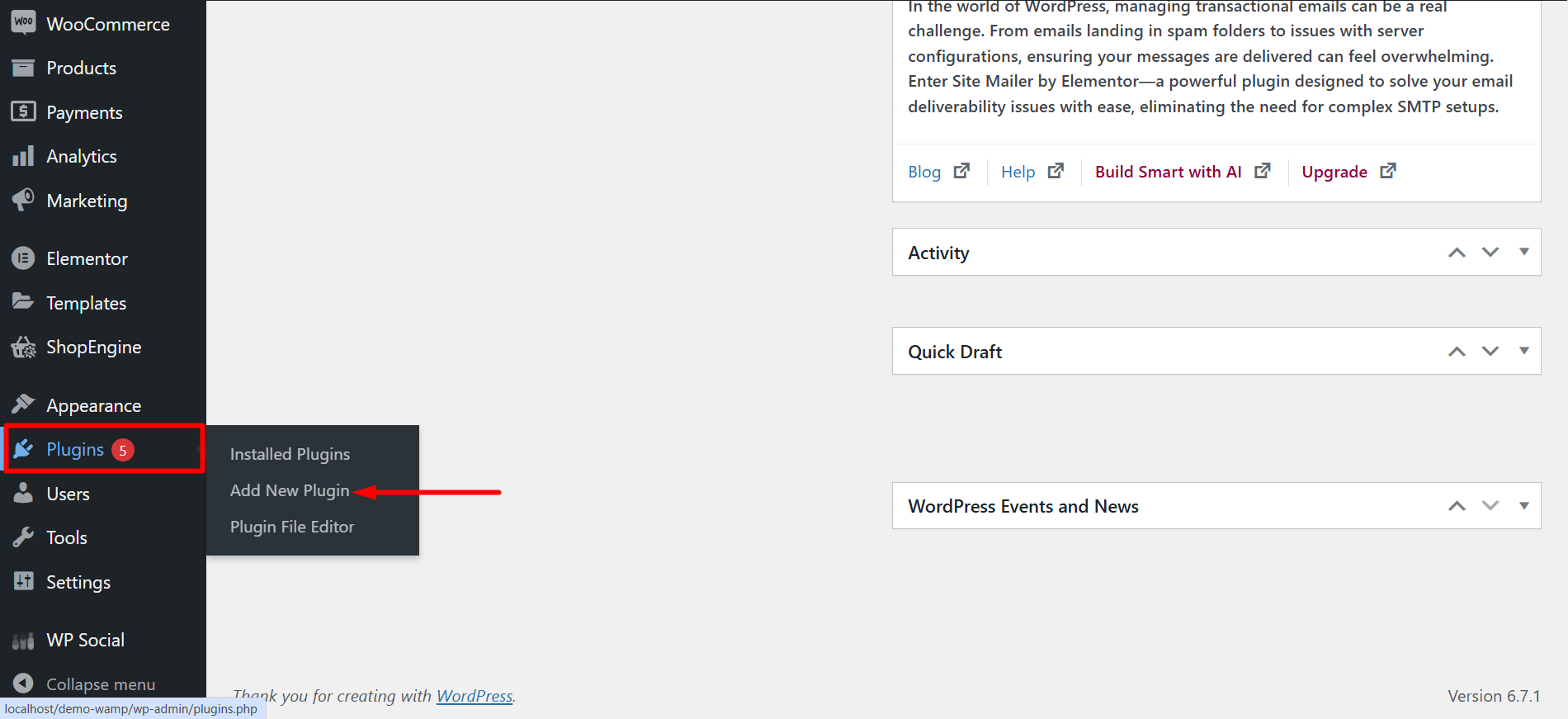
● 검색창에 'Wp Social'을 입력하세요.

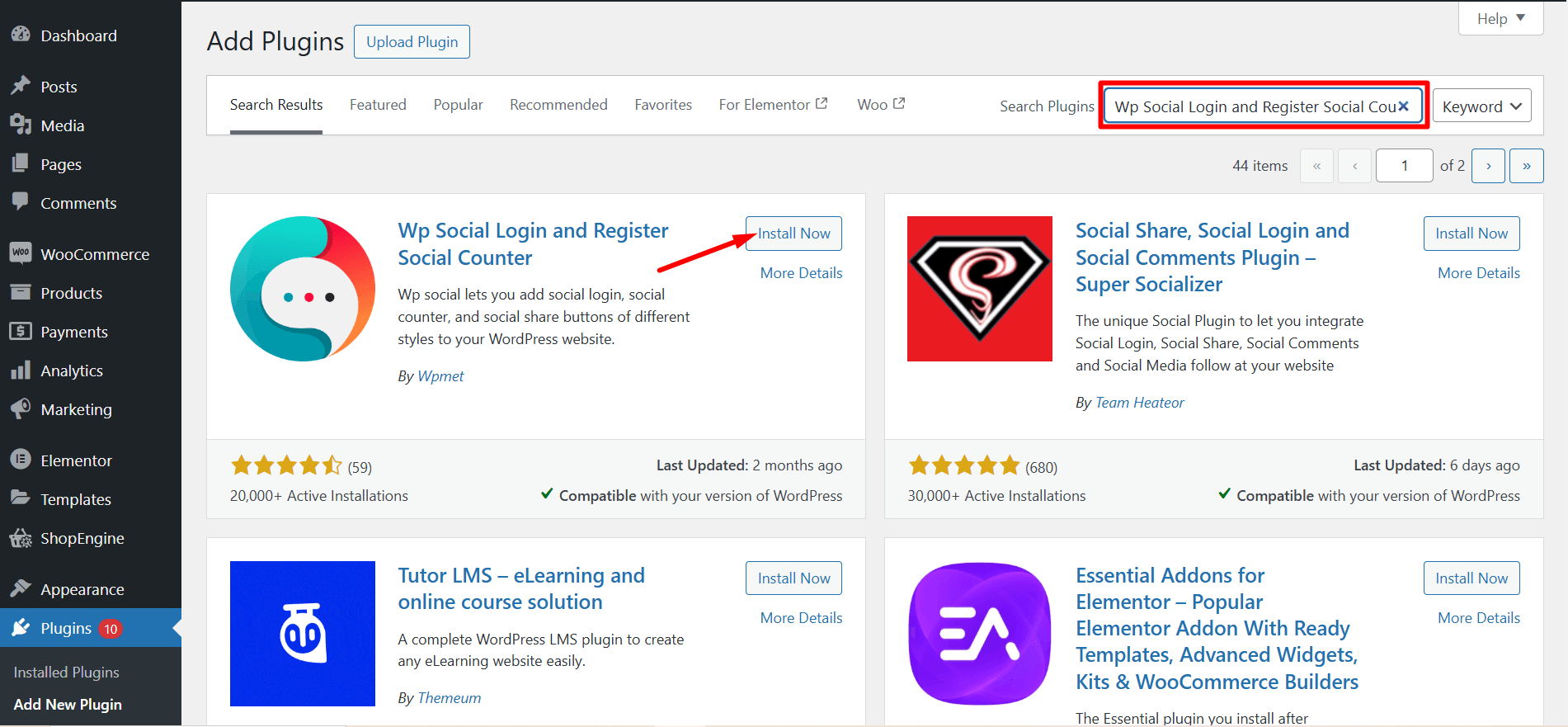
- “를 찾으세요.Wp Social-Social 로그인 및 등록, 소셜 공유, 소셜 카운터” 검색 결과에서. 이제 "지금 설치"를 클릭하세요.
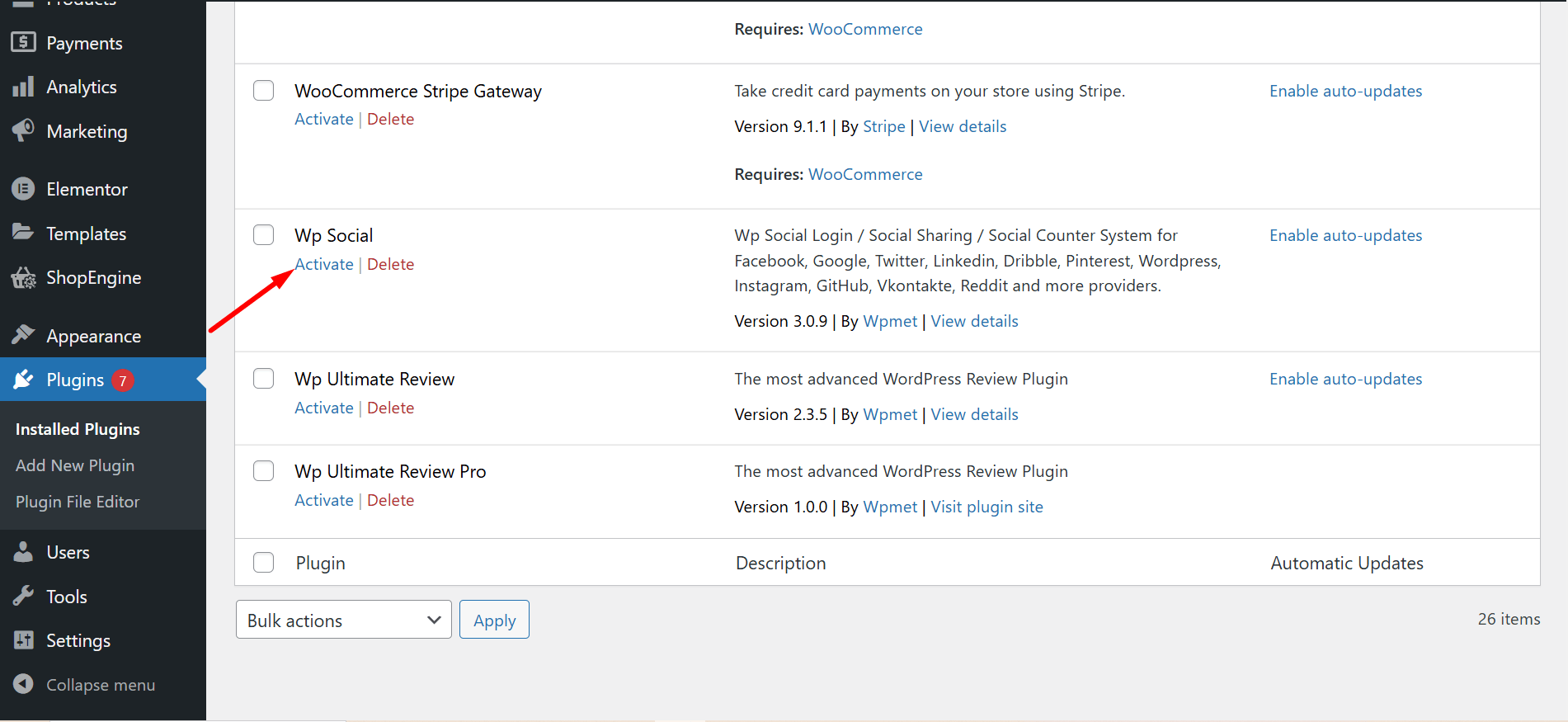
- After the end of the installation process, activate the plugin.
2단계: Facebook 개발자 계정 만들기
- 로 이동 https://developers.facebook.com/apps/
- Login to your Facebook account If you are logged out.
- Click on the “Get Started” section to start creating your developer’s account. Follow the instructions step-by-step to complete your registration process for a Facebook developer account.
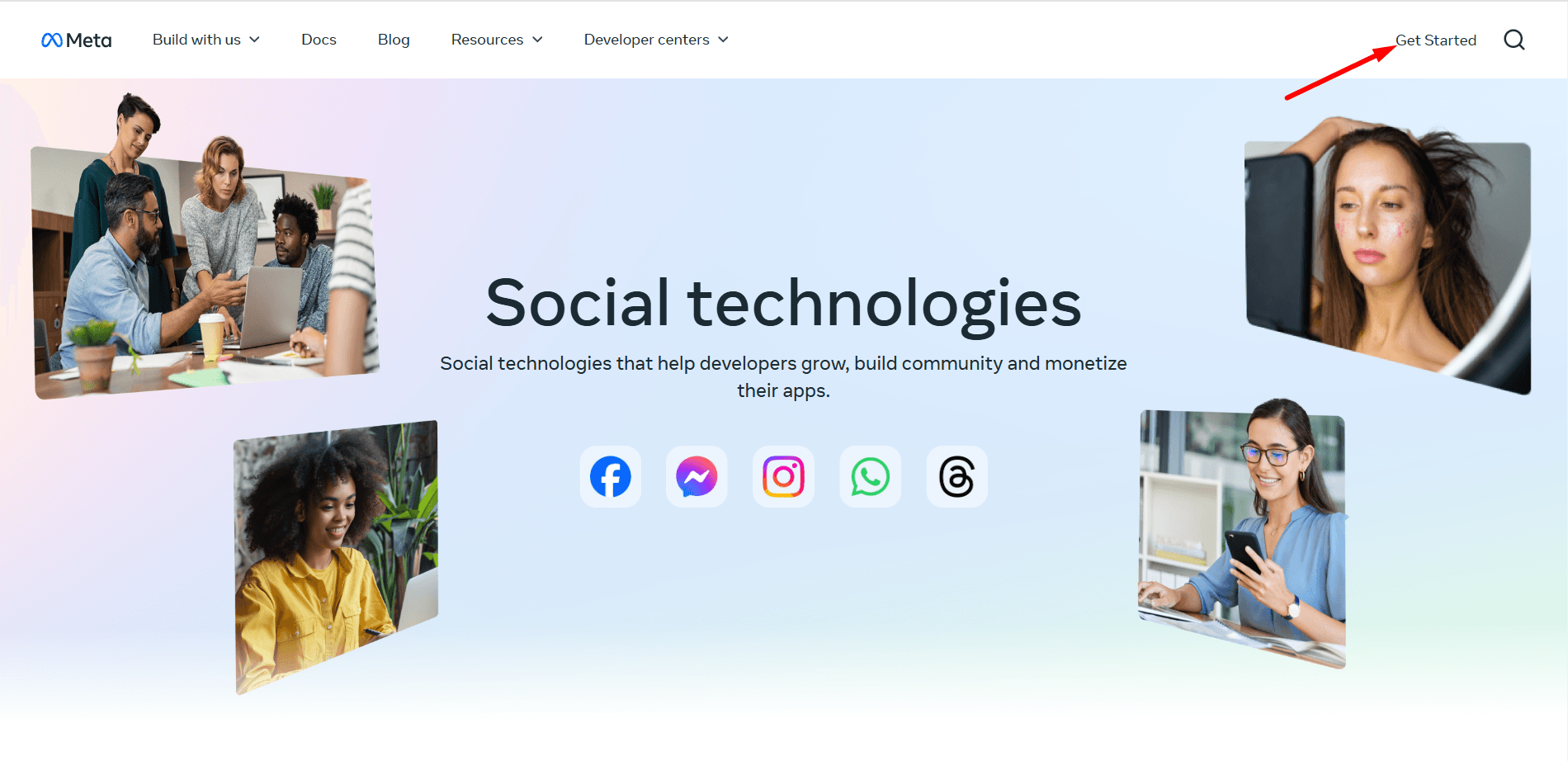
3단계: Facebook 앱 만들기
- After completing your registration as a developer, you’ll be redirected to the Facebook app creation page. Click on “앱 만들기"계속해서
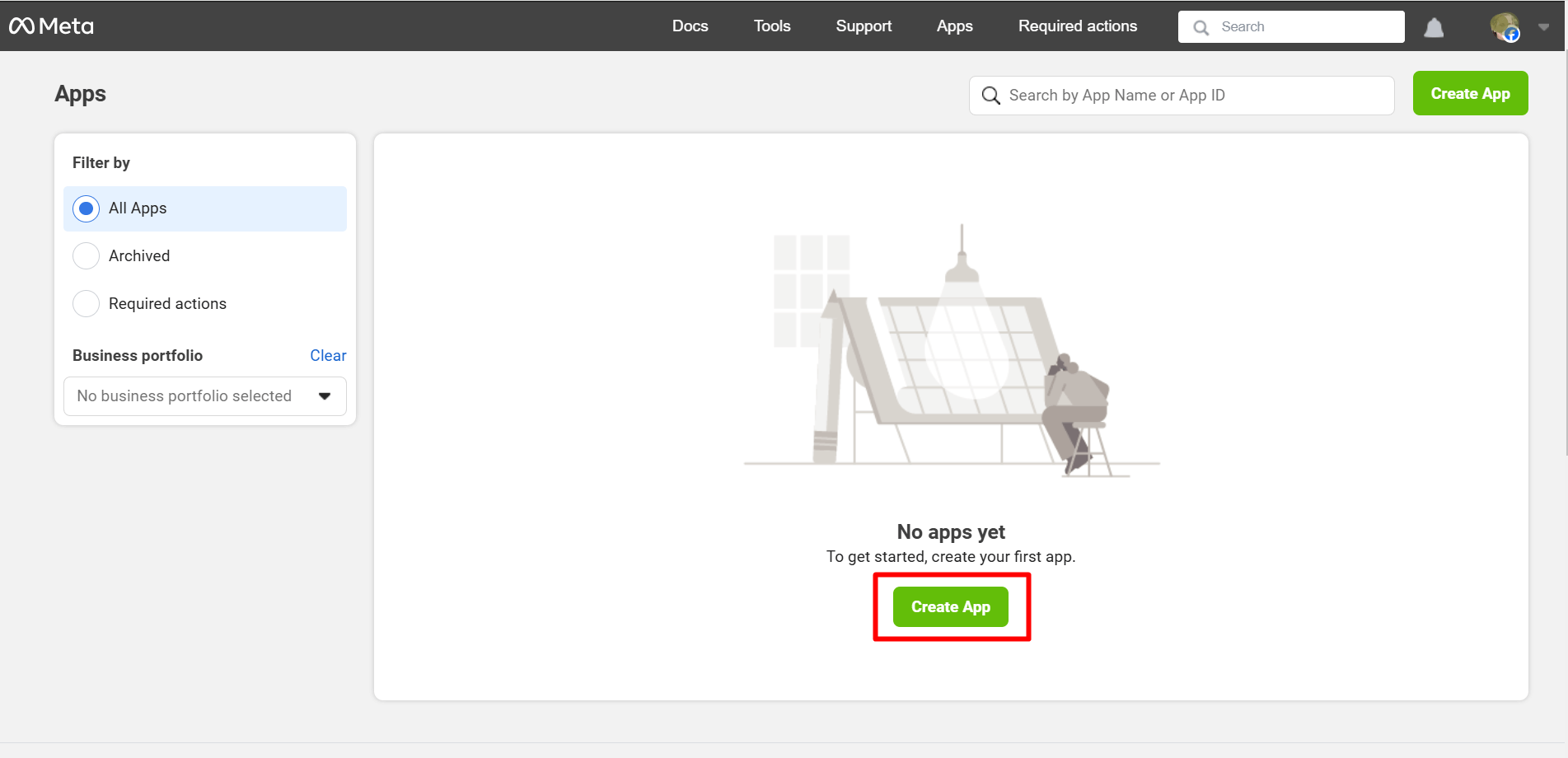
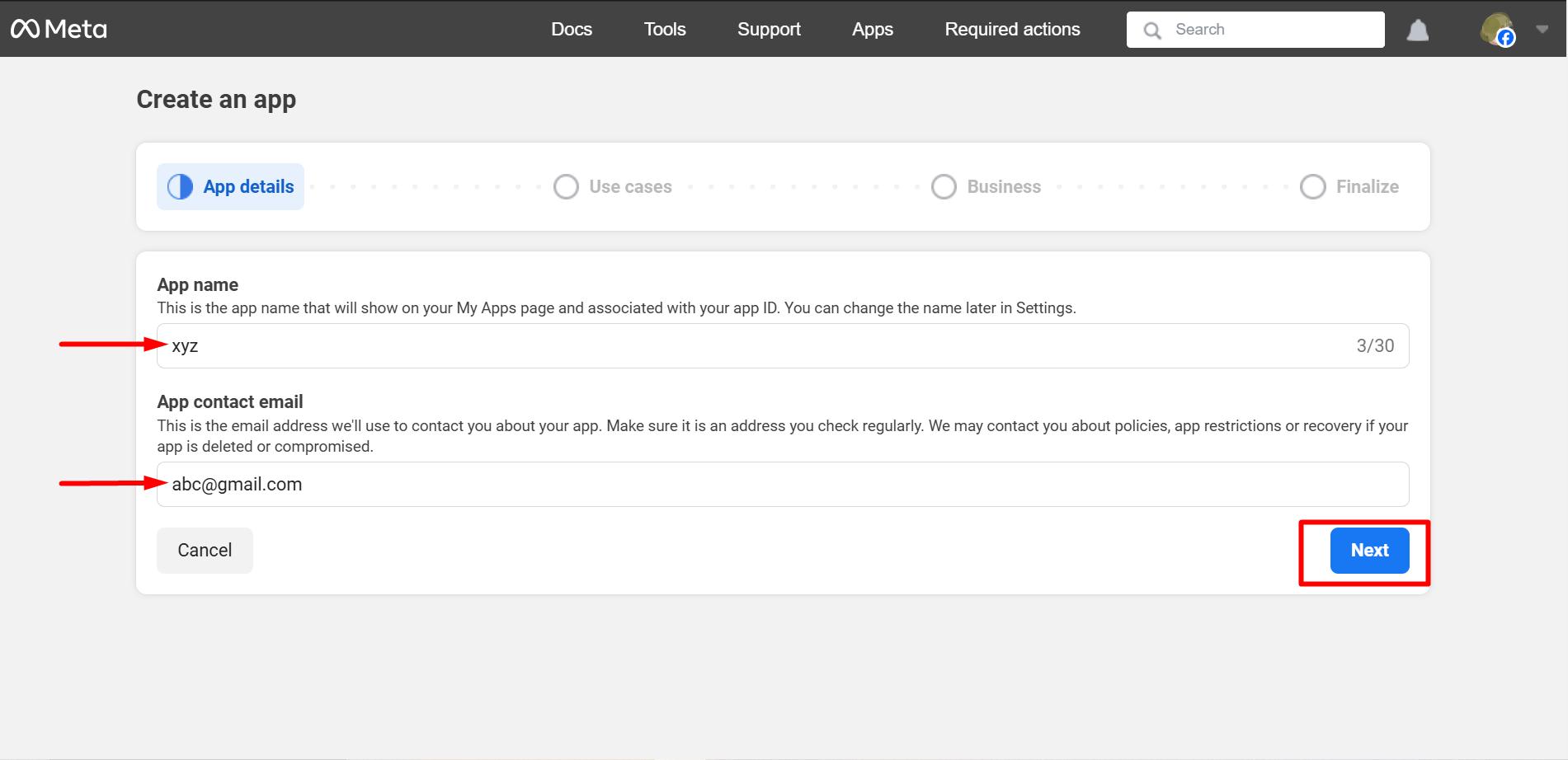
- At this step of app creation, set a meaningful App Name and Add contact email. After that, click on “Next”.
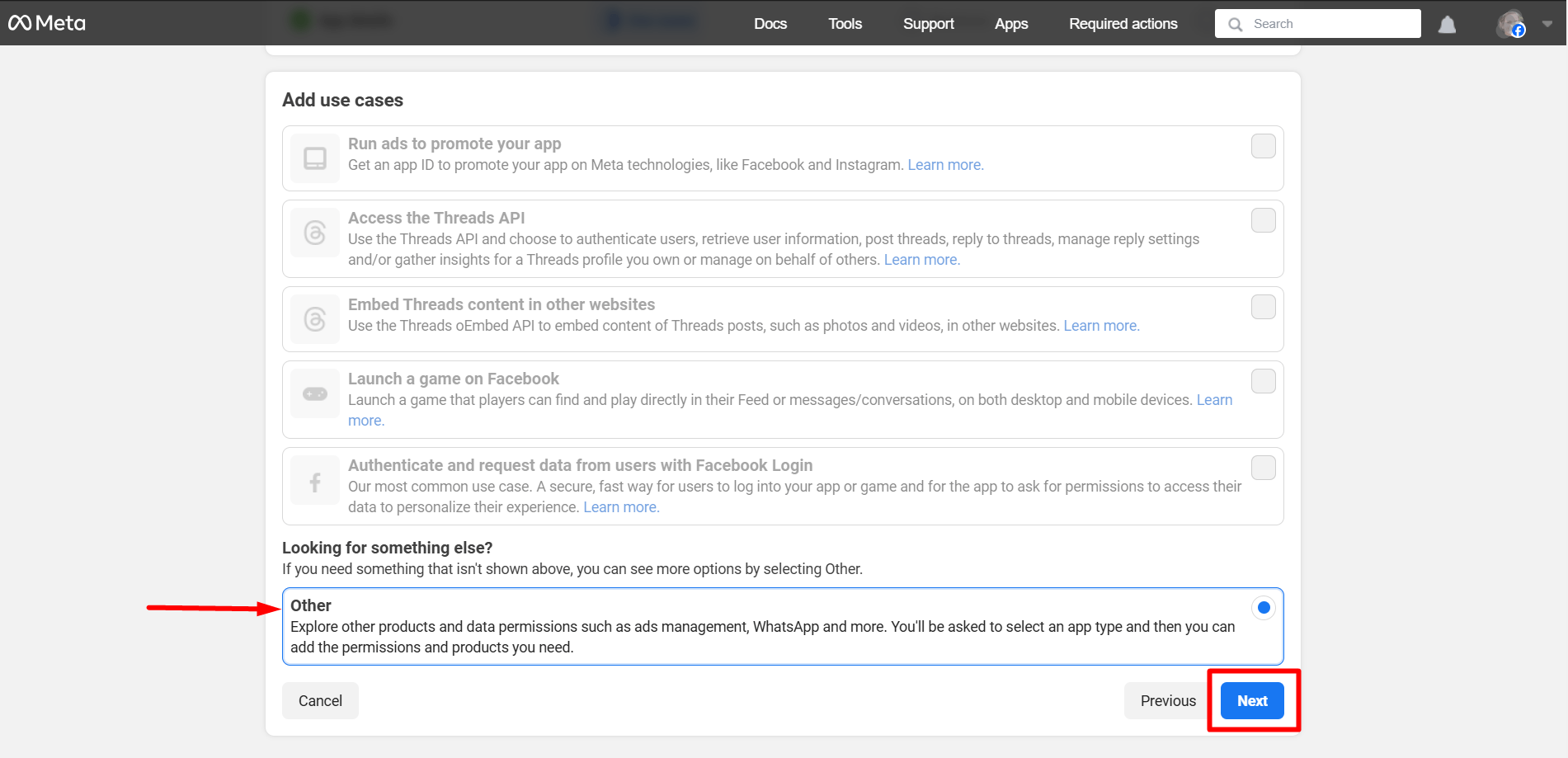
- You must select ‘Other’ as the use case here. Click on ‘Next’ when you are done.
Now, select Consumer and press the ‘Next’ button.
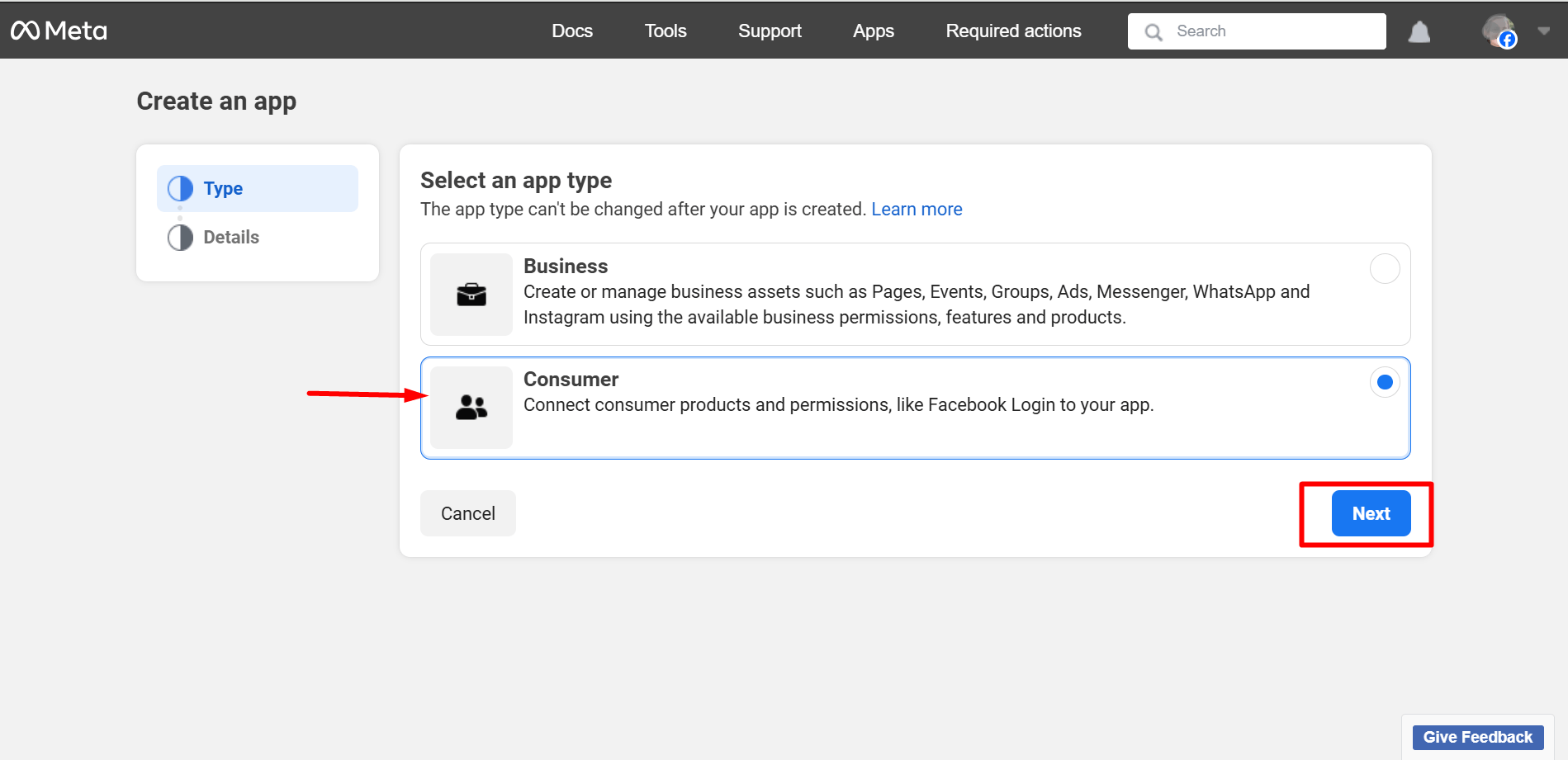
In this step, you can check the whole details again and press the ‘Next’ button.
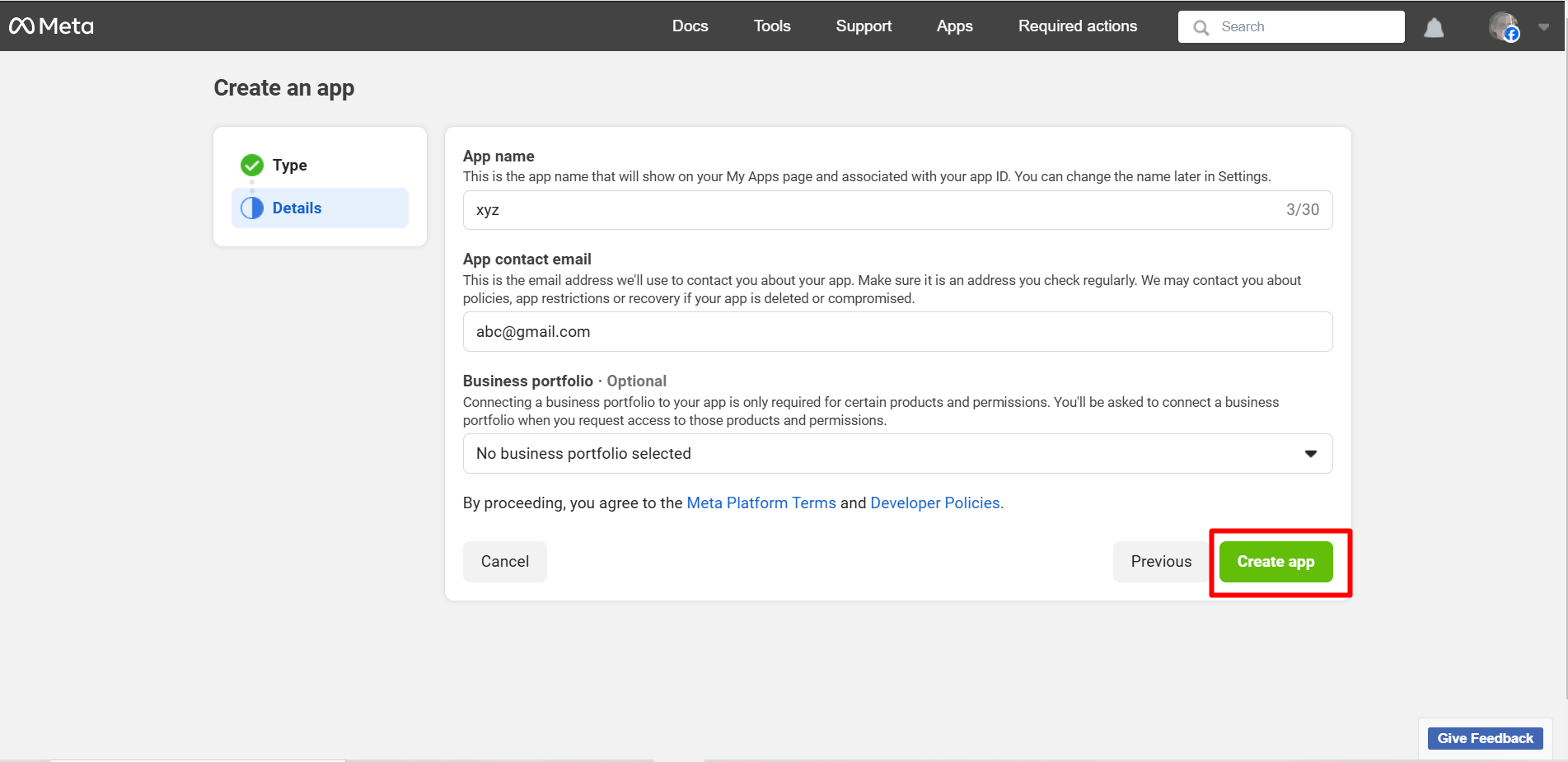
After that, you may be required to log in to your Facebook account again.
4단계: Facebook 로그인 구성
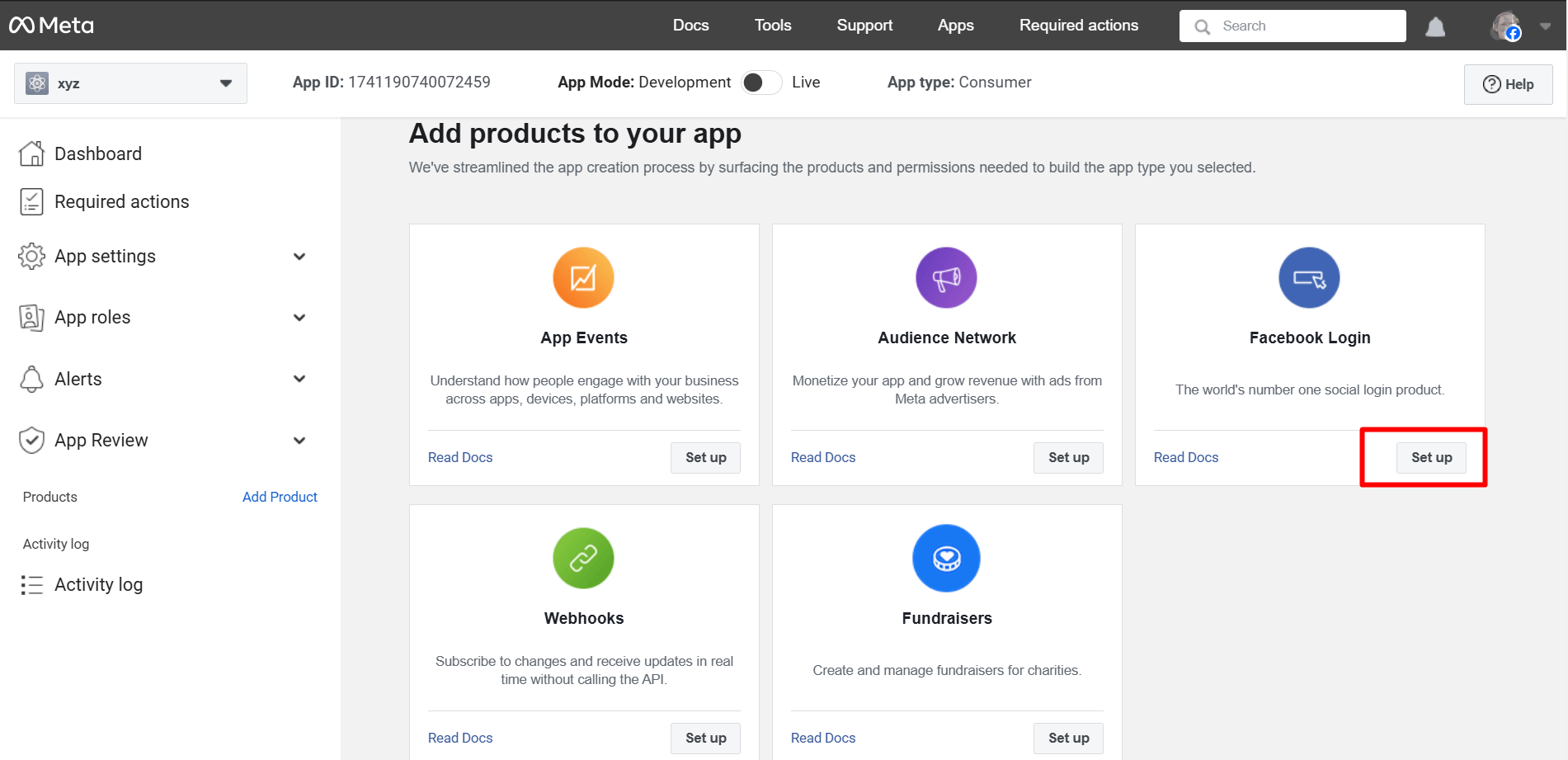
Finally, here is your App dashboard and
After the process mentioned above, you’ll be taken to the ‘Products’ page located under Dashboard. Click on the ‘+’. Find out ‘Facebook Login’ from the list and click on ‘Set Up’.
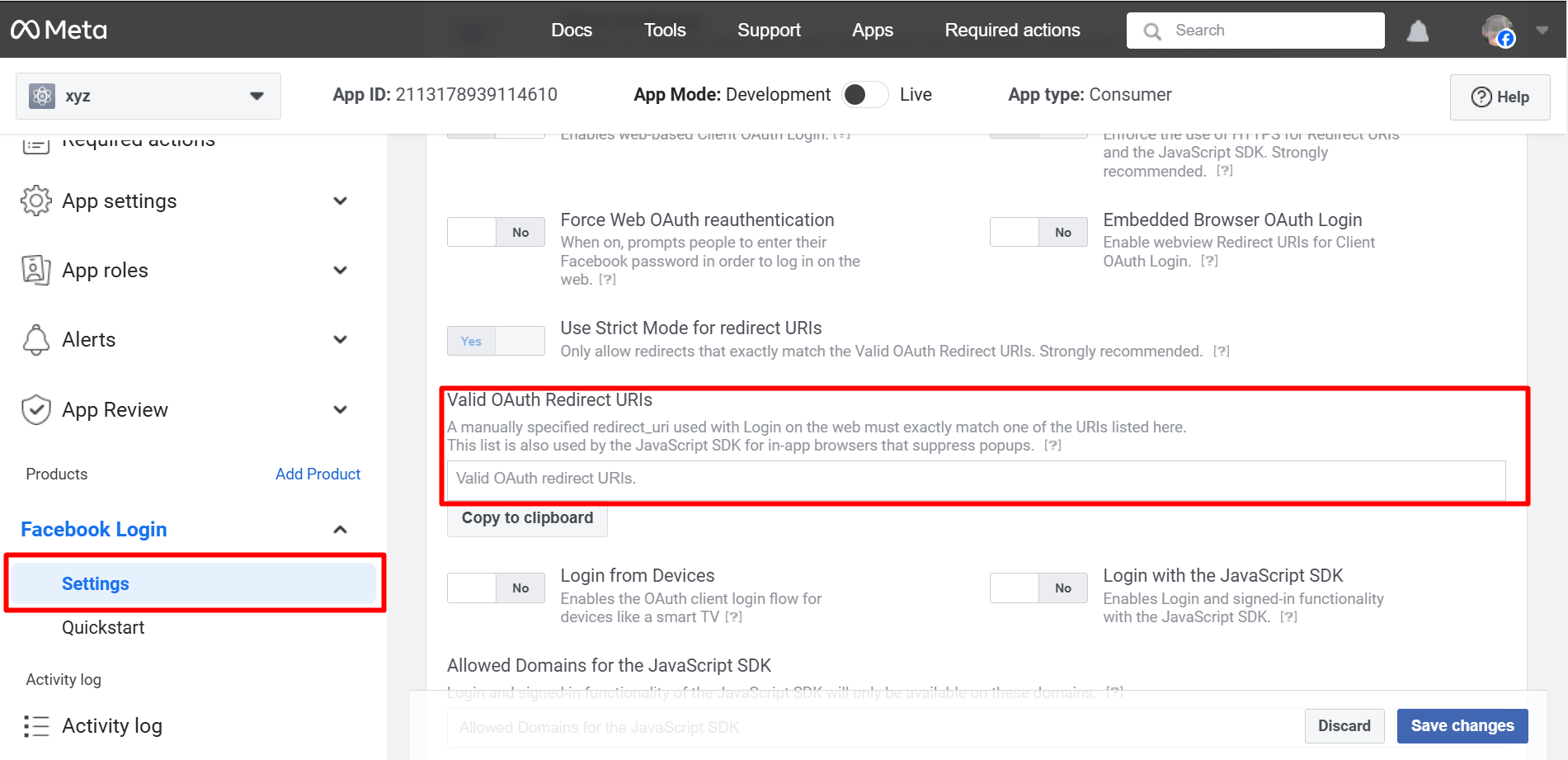
Go to Settings under the Facebook Login app. You have to enter Valid OAuth Redirect URIs under Client OAuth Settings.
To get the Valid OAuth Redirect URIs, you have to go to your WordPress admin area.
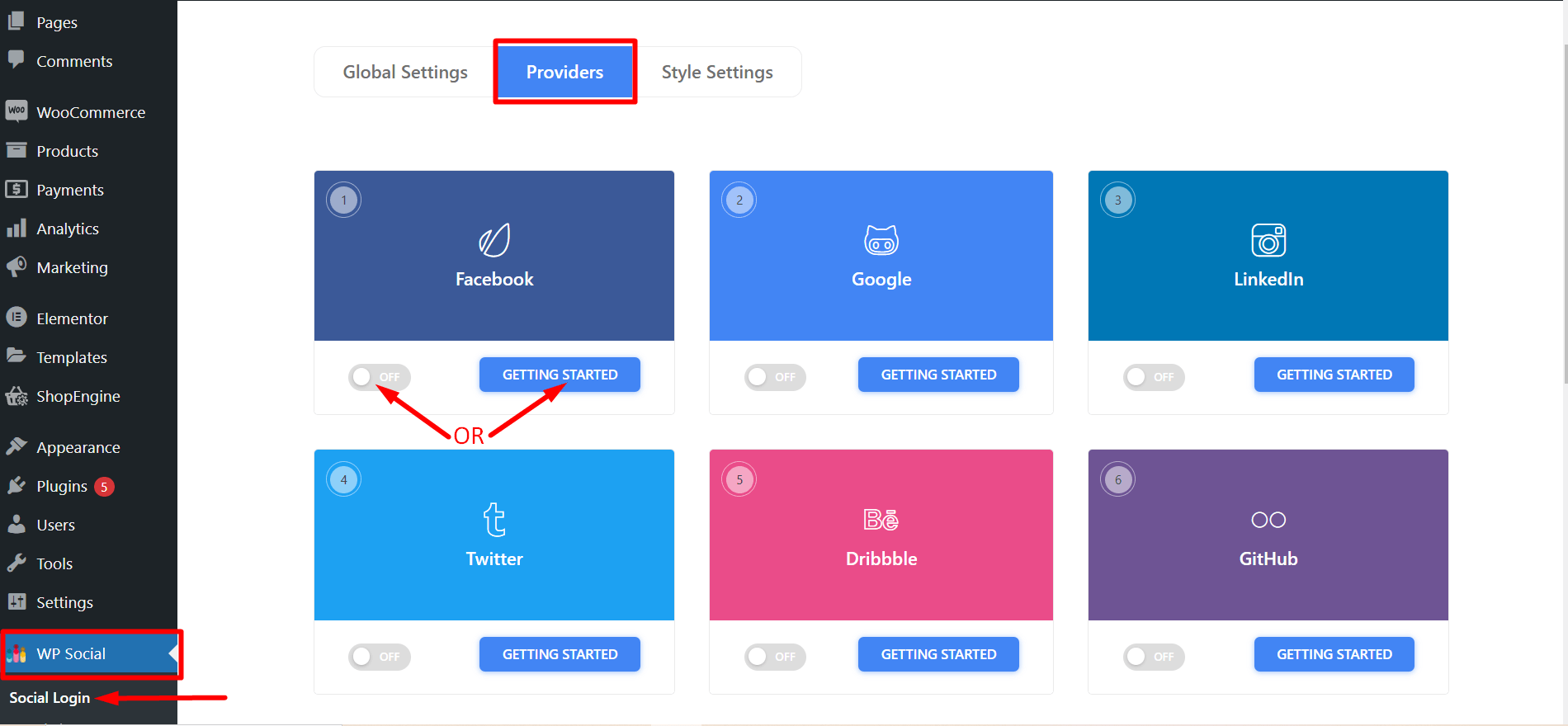
Navigate to WP Social ➔ Social Login ➔ Providers➔ Facebook➔ Click on the toggle button or Getting Started.
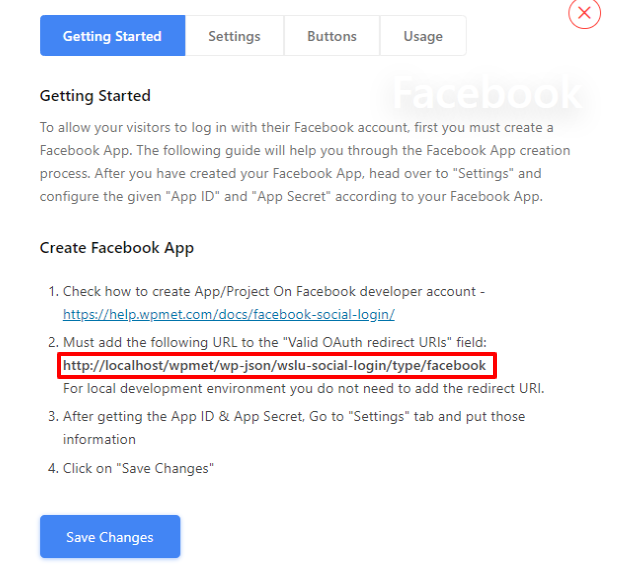
- You’ll now see a link to be used as Valid OAuth Redirect URIs. Copy it and go back to Facebook Login app settings to paste that on the ‘Valid OAuth Redirect URIs’ field.
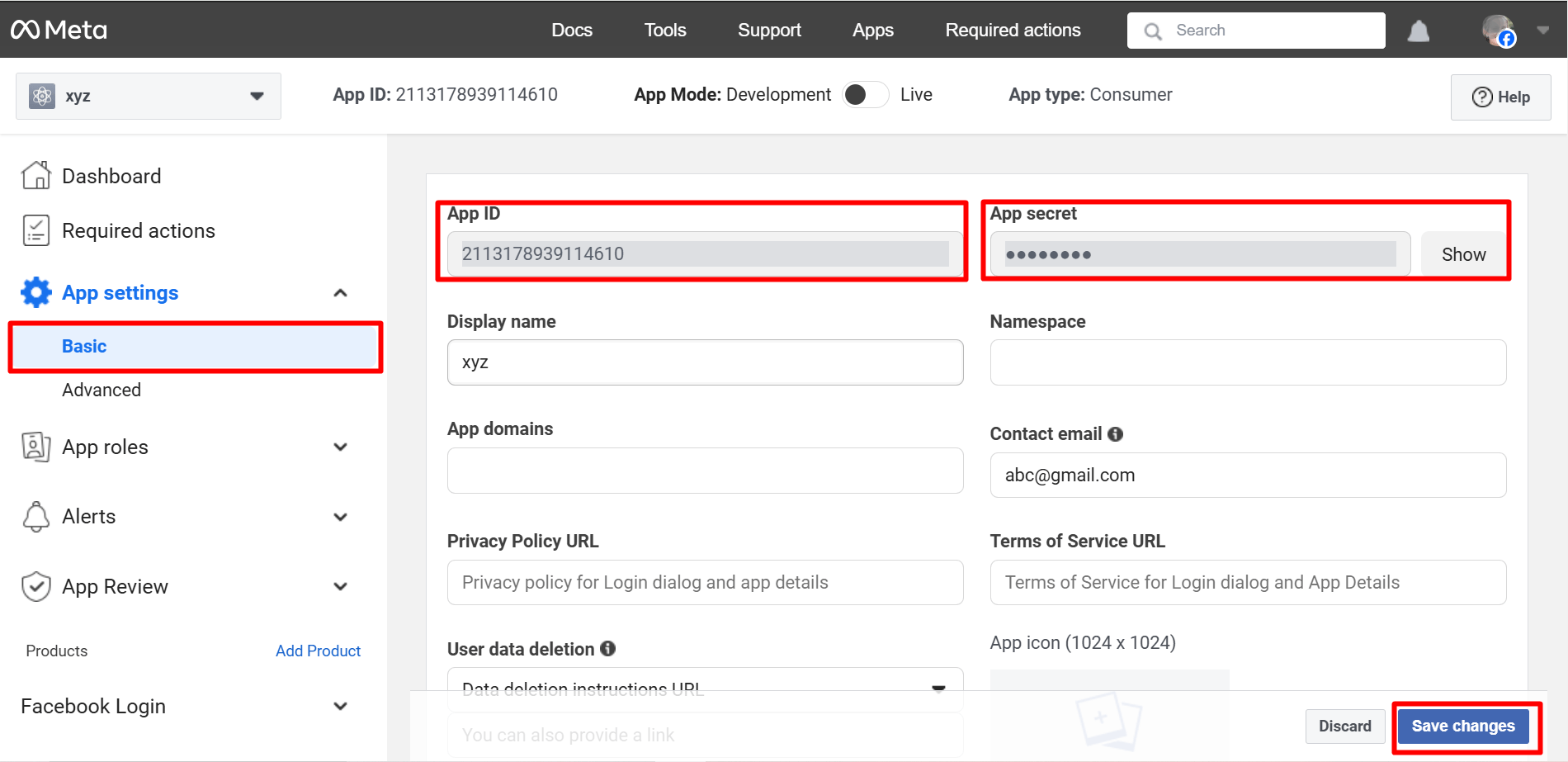
- Now, go to the ‘Basic’ submenu under Settings. Copy the App ID and App Secret for using those in the Wp Social app. Fill up other fields and click on ‘Save Changes’ when you are done.
Important Setup Insight (Often Missed)
Many Facebook login setups appear to work but fail in real usage.
This usually happens because of small configuration issues that are easy to overlook. For example, a mismatched OAuth redirect URI or unnecessary permission requests can silently break the login process.
Always make sure that:
- Your Facebook app is set to 라이브 모드
- The OAuth redirect URI matches exactly
- Only the required permissions are requested
A visible login button does not always mean the login flow is working correctly. Testing matters more than installation.
5단계: Wp Social에서 앱 ID 및 앱 비밀 사용
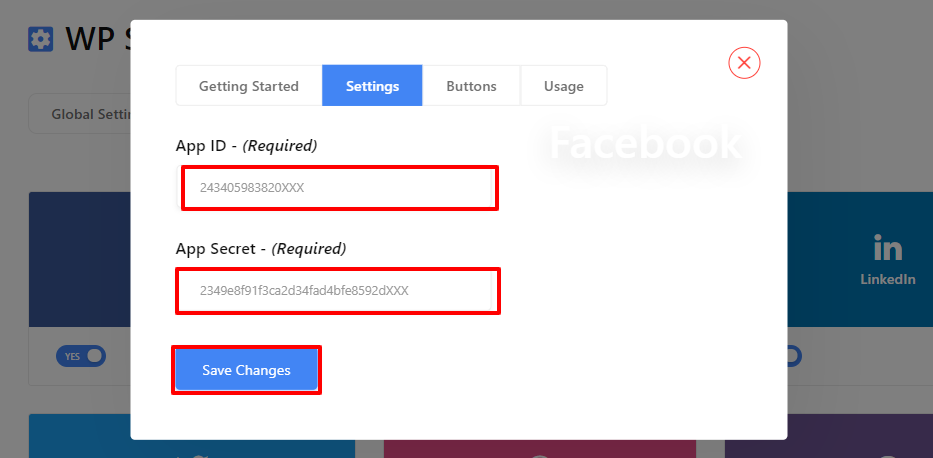
- Once you’ve completed creating an app on Facebook, go to the WP Social login from the WordPress dashboard. Navigate to Social Login ➔ Providers. Switch the left button below Facebook ‘ON’ and then click ‘Settings’.
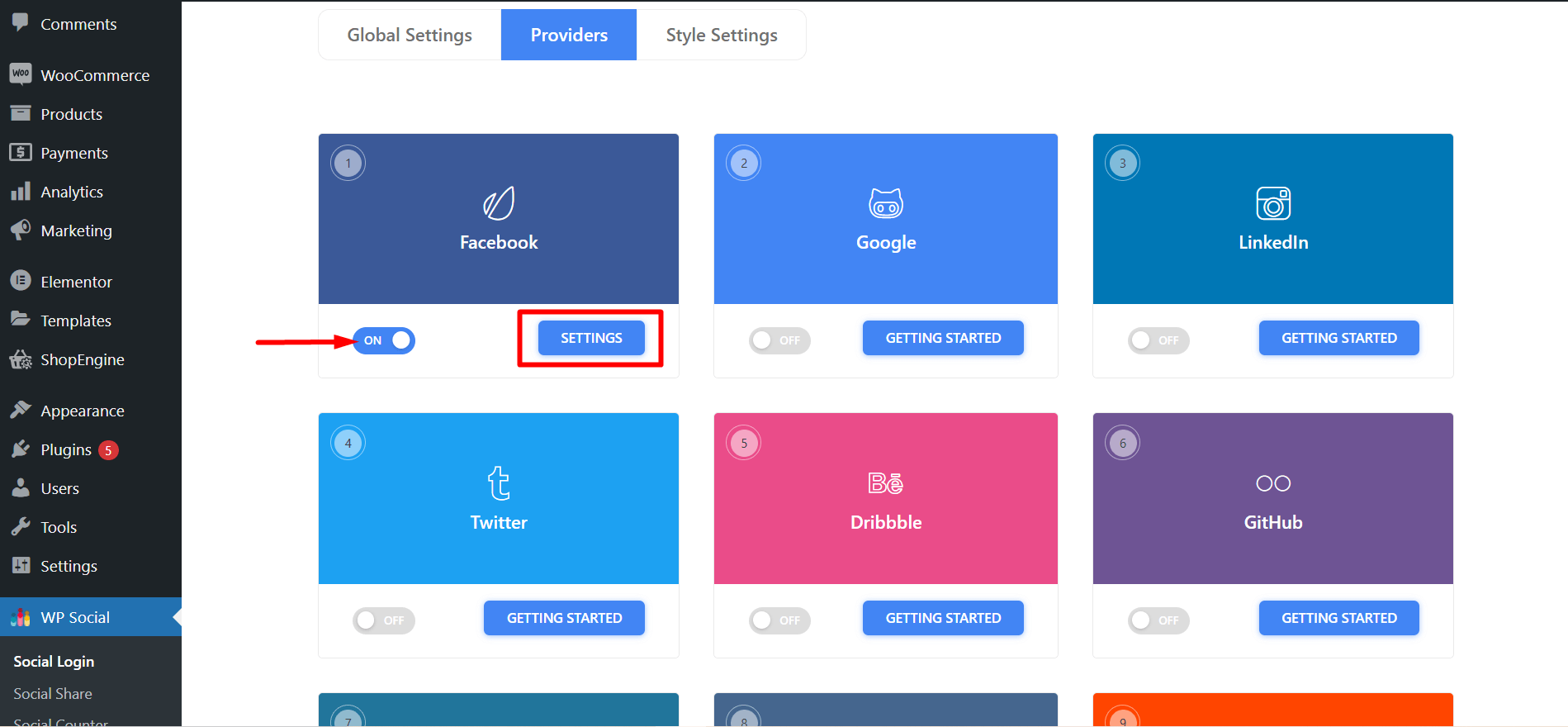
- Enter on the Settings tab and paste the App ID and App Secret received from Facebook. Once you are done, click on ‘Save Changes’.
6단계: WP Social 플러그인 설정 구성
- ● 소셜 로그인의 전역 설정으로 이동하여 Facebook 로그인을 배치할 페이지와 위치를 선택합니다. 완료되면 변경 사항을 저장합니다.
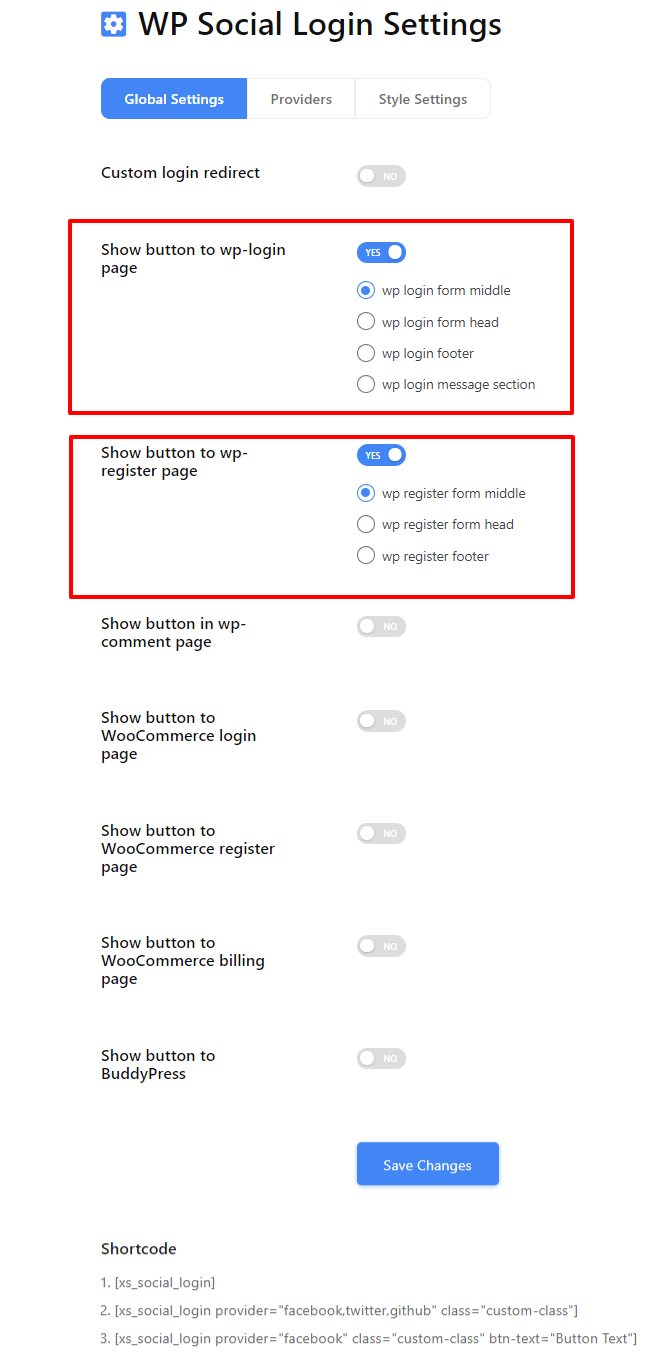
WordPress 웹사이트의 다른 곳에서 사용할 수 있는 소셜 로그인 단축 코드 목록도 제공됩니다.
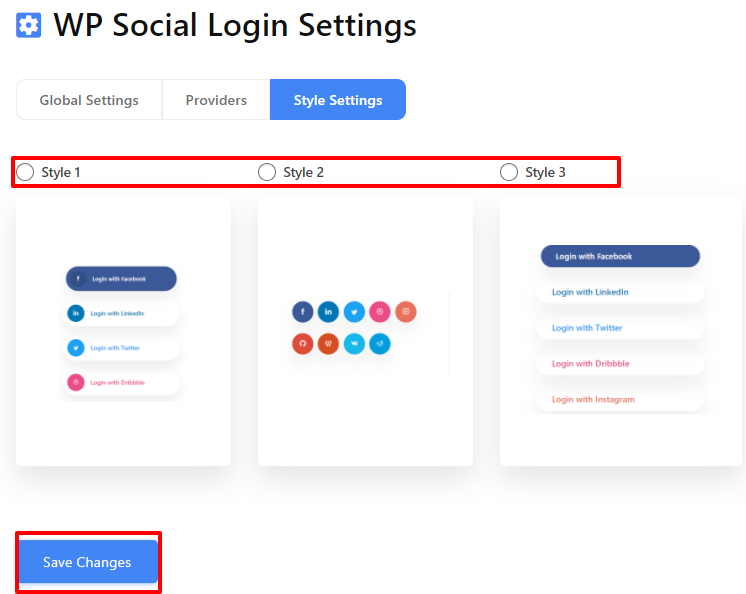
● 다음으로 스타일 설정으로 이동하여 원하는 스타일을 선택하고 '를 클릭하세요.변경 사항을 저장하다' 당신의 선택을 구현합니다.
How to Know Your Facebook Login Is Working
After completing the setup, do not stop at seeing the login button.
You should test whether:
- New users can log in and get WordPress accounts created
- Existing users can log in again without errors
- Facebook login works properly on mobile browsers
- Logout and re-login works as expected
When configured correctly, Facebook login usually results in faster first-time access and fewer abandoned registrations. If login numbers increase but engagement drops, placement and usage should be reviewed.
그게 다야. 이제 WordPress 웹사이트에서 원하는 스타일로 정확히 원하는 위치에서 Facebook 로그인을 볼 수 있습니다. 이제 몇 가지 간단한 단계를 통해 WordPress에 Facebook을 추가하는 방법에 대한 아이디어를 얻었습니다. 이제 웹사이트에 소셜 로그인을 추가하려면 다음을 수행하세요. 이 게시물을 참조하세요.
Manual Facebook Login Integration (Advanced Method)
Facebook login can also be added manually without using a plugin. This approach is typically used when a site needs full control over the authentication flow.
Manual integration requires working directly with Facebook’s JavaScript or PHP SDK. You must configure the App ID and App Secret securely, set correct redirect URIs, and manage permission scopes such as public profile and email.
This method also requires ongoing maintenance. Facebook API changes, permission reviews, and security updates must be handled manually.
Because of this complexity, manual integration is generally recommended only for developers or highly customized WordPress setups.
Common Facebook Login Issues and Fixes
Facebook login on WordPress issues are often caused by configuration mismatches rather than plugin errors.
A redirect URI mismatch usually occurs when the callback URL in Facebook Developer settings does not exactly match the WordPress login URL.
If login works only for admins, the Facebook app may still be in development mode and not publicly available.
Some users may not receive an email address if the email permission is not approved or available on their Facebook account.
Login buttons may not appear if page caching or CDN settings block dynamic scripts.
Facebook login on WordPress also requires HTTPS. Sites without a valid SSL certificate may fail authentication.
마지막 생각들
Facebook login can reduce friction. It can also create dependency. So, it is always highly recommended to use it intentionally.
However, here are some key points that you should keep in mind –
- Keep email login available
- Request minimal permissions
- Test every login scenario
Finally, when Facebook Login is used as a shortcut, it improves access.
However, when used blindly, it creates silent drop-offs.
So, choose based on your audience, not trends.
Now that you know how to integrate Facebook social login on your website, it is time to check and try. Follow the steps mentioned above and you’ll get things done. Hope that you’ll be successful in adding a Facebook login for WordPress. The exact plugin may change over time, but the decision factors and setup checks covered here remain the same.
Frequently Asked Questions (FAQ) on Login with Facebook on WordPress
PHP를 사용하여 WordPress 웹사이트에 Facebook을 추가할 수 있나요?
예, 충분한 기술 지식이 있다면 PHP를 사용하여 WordPress 웹사이트에 Facebook 로그인을 추가할 수도 있습니다. 하지만 프로젝트에 PHP용 Facebook SDK를 설치해야 하므로 시간이 많이 걸립니다.
다행히도 그렇습니다! Wp Social은 WordPress 웹사이트 어디에서나 Facebook 로그인 버튼을 사용할 수 있는 단축 코드를 제공합니다.
Is Facebook login still relevant today?
Yes, but it should be used selectively. It works best as a secondary login option rather than the primary one.
What happens if Facebook is blocked or down?
Users will not be able to log in with Facebook. That is why email or username-based login should always remain available.
Is Facebook login safe?
Yes, when configured correctly. However, you should request minimal permissions and clearly inform users about what data is being accessed.
Can the same Facebook App be used on multiple WordPress websites?
Yes. A single Facebook App can be used on multiple websites as long as all domains are added to the app settings and the redirect URIs are configured correctly.
What permissions are required for Facebook login?
At minimum, Facebook login requires access to the public profile. Email permission is commonly requested but may require review and is not guaranteed for all users.
Does Facebook login work with WooCommerce or membership plugins?
Yes. Facebook login works with WooCommerce and most membership plugins as long as user registration is enabled and the plugin supports standard WordPress authentication.

답글 남기기