




ShopEngine의 빈 장바구니 템플릿을 사용하면 장바구니에 제품이 없을 때 장바구니 페이지의 내용과 모양을 제어할 수 있습니다. WooCommerce 카트가 비어 있을 때 카트 페이지에 대한 사용자 정의 템플릿을 디자인할 수 있습니다.
Key Steps to Design Empty Cart Page
- 이동 ShopEngine → Builder Templates WordPress 대시보드에서.
- 딸깍 하는 소리 새로운 걸 더하다 to create a new template.
- 설정 Template Name, Type to “Empty Cart”, enable the button to “Active”, and click Elementor로 편집.
- Design the empty cart layout as you wish, and 게시 그 페이지.
Check out this detailed documentation on how to use the ShopEngine Empty Cart Template on your website.
STEP 1: Create a template for the empty cart page #
- 로 이동 ShopEngine > Templates WordPress 대시보드에서.
- 다음을 클릭하세요. 새 템플릿을 생성하려면 새로 추가 버튼을 클릭하세요.
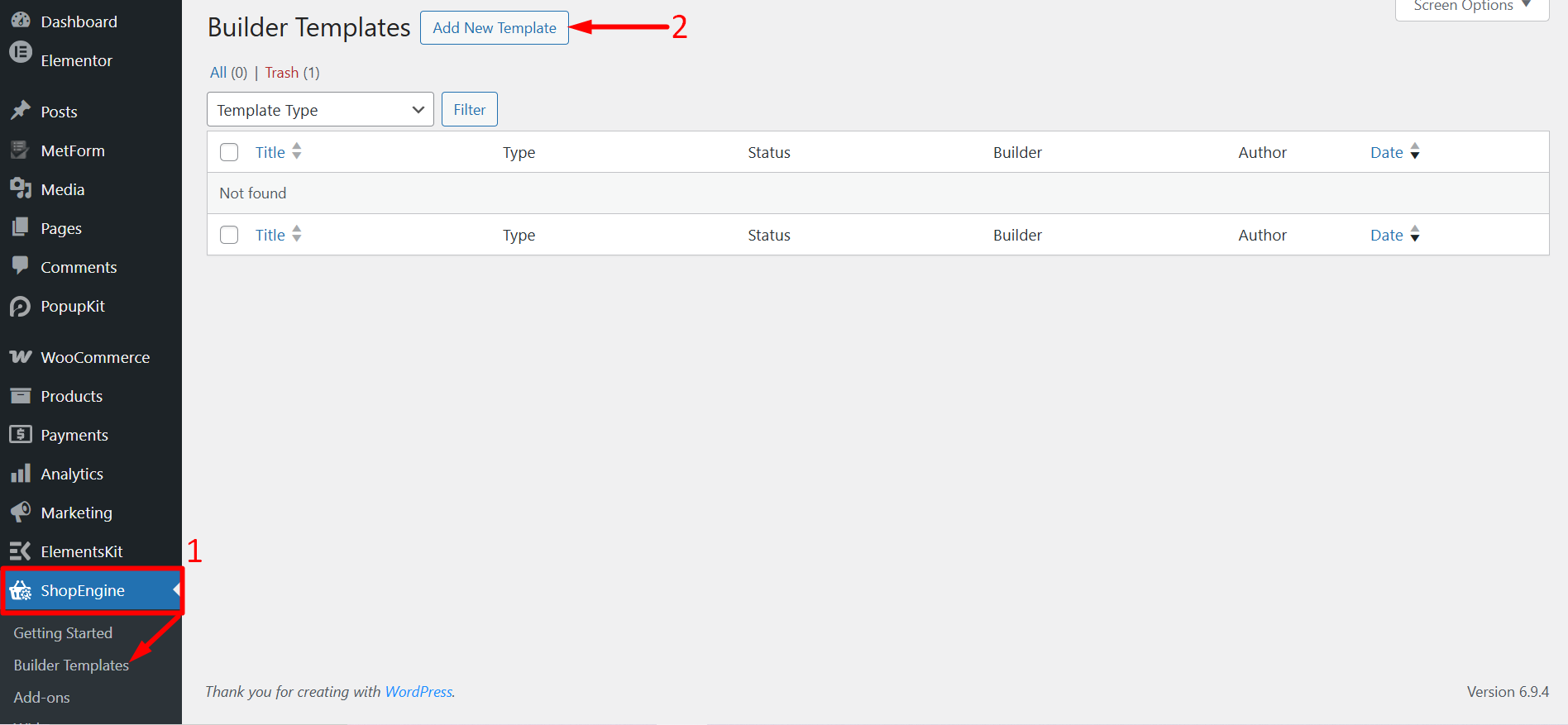
After that, an off-canvas window will show up for template settings. In the Template Settings –
- 템플릿을 입력하세요 이름.
- 다음을 선택하세요. 주형 유형 처럼: 빈 카트.
- Enable the button to “Active”.
- Check the sample design is selected.
- 마지막으로 다음을 클릭하세요. Elementor로 편집 (or Save the changes and edit) to open the editor.
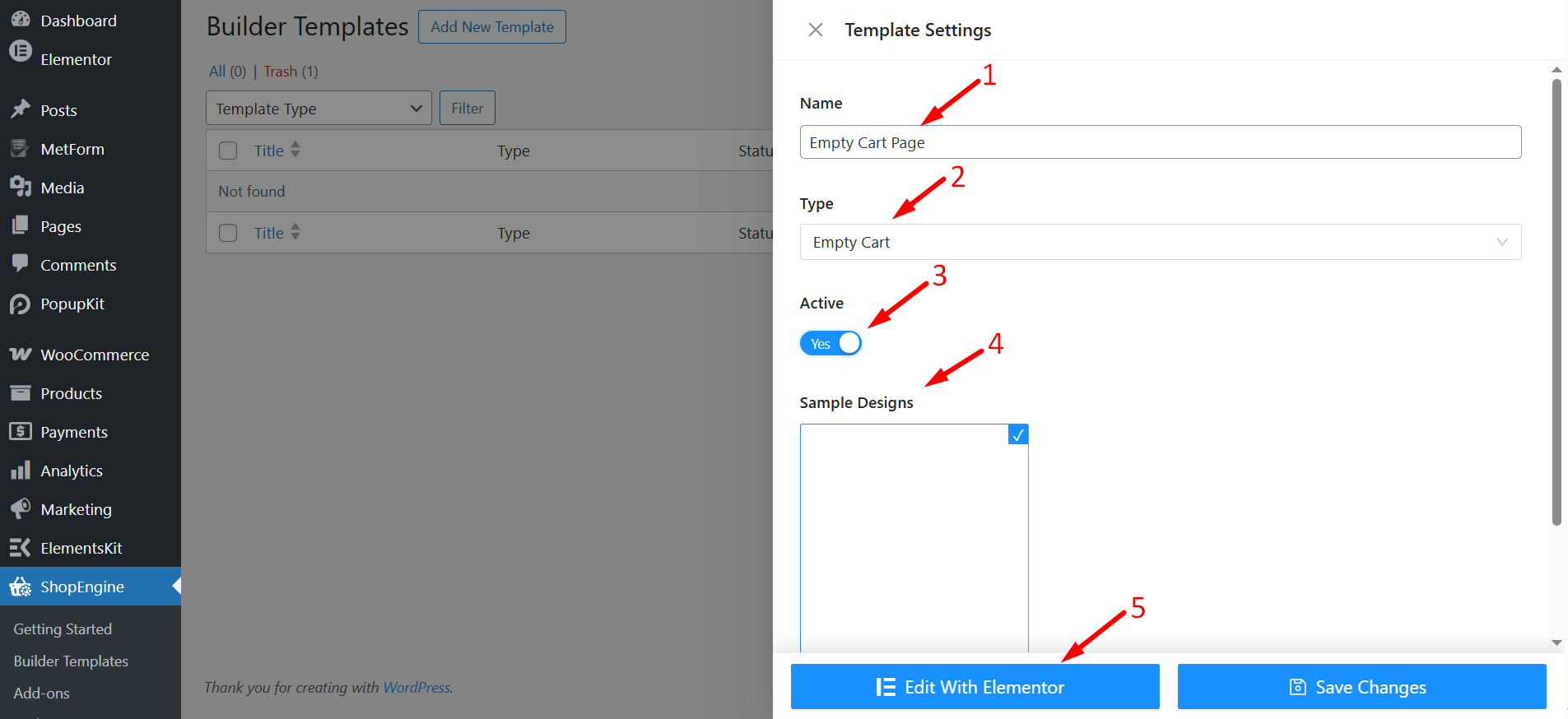
이제 편집기에서 페이지 디자인을 사용자 정의하십시오.
STEP 2: Design an empty cart page #
편집기 페이지에서는 빈 장바구니 페이지를 원하는 방식으로 디자인할 수 있습니다. 여기에서 데모를 보여드리기 위해 WooCommerce 빈 장바구니 페이지에 대한 샘플 템플릿을 디자인했습니다.
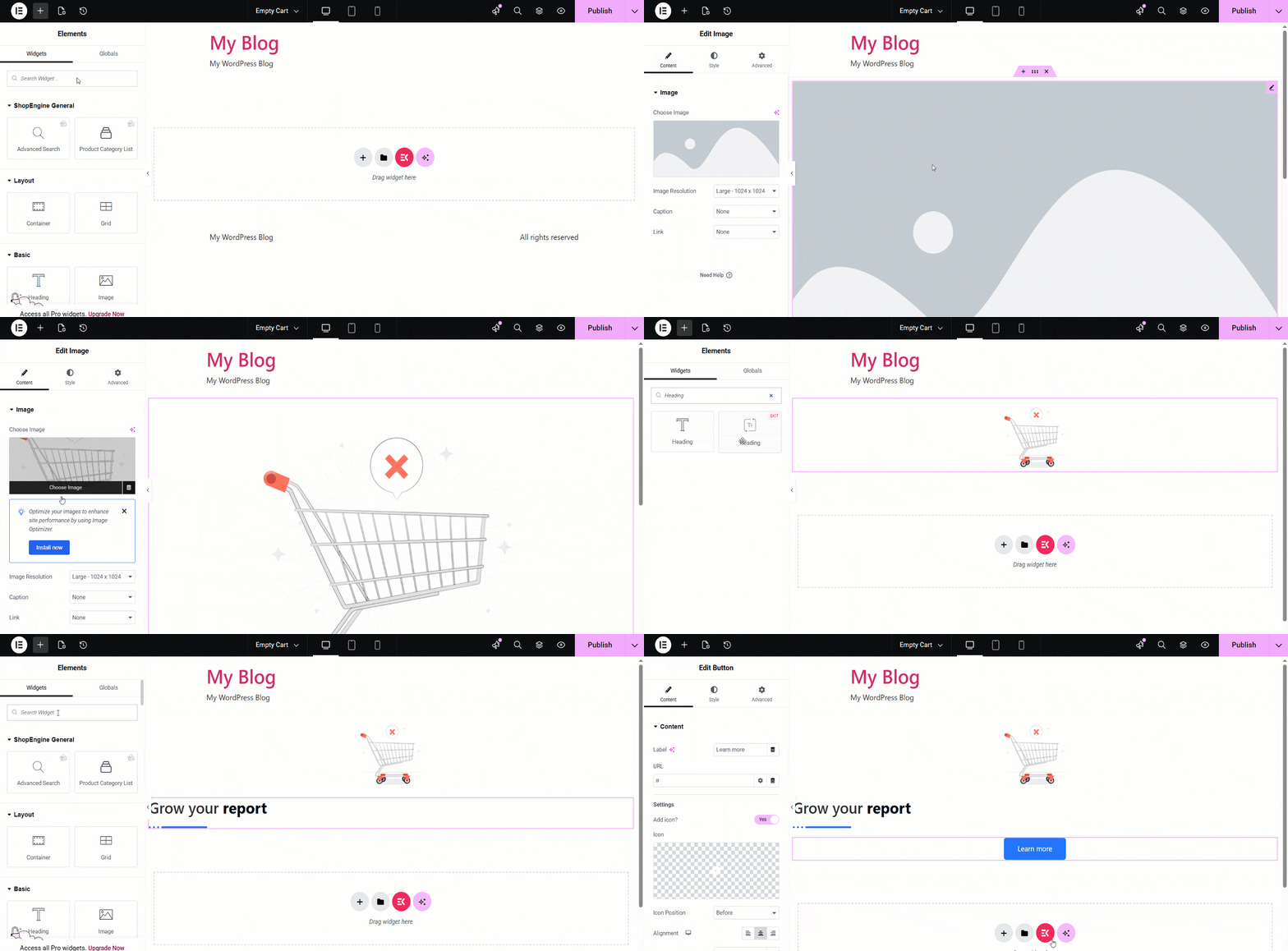
마지막으로 hit the publish button to complete the customization. Now you can improve the user experience of your website with a sophisticated design even when the WooCommerce cart is empty.
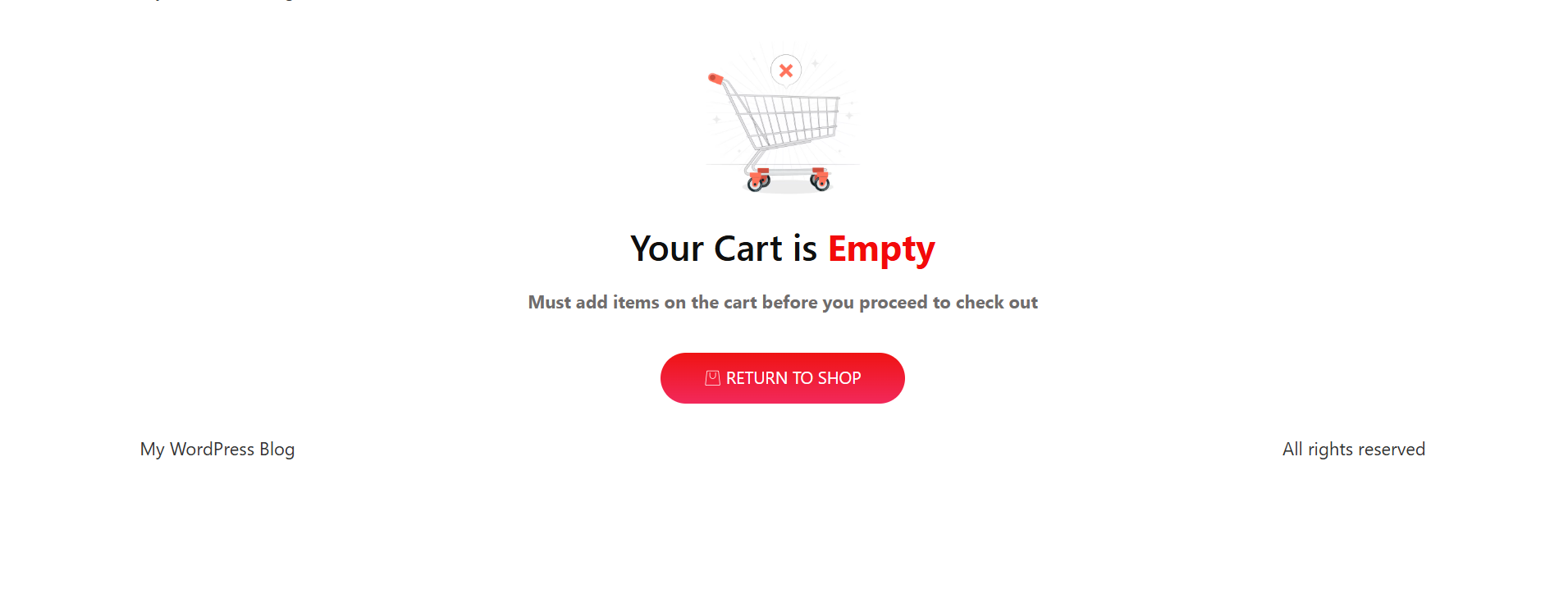
Creating an Empty Cart template with ShopEngine lets you customize the page shown when the cart is empty. You can add a message and helpful elements to guide customers back to shopping.


