

 Korean
  English
  German
  Spanish
  Italian
  French
  Danish
  Portuguese
  Swedish
  Polish
  Japanese
 ElementsKit 조건부 콘텐츠 모듈 시작하기 #
ElementsKit 조건부 콘텐츠 모듈 다양한 조건에 따라 페이지의 여러 부분의 콘텐츠를 숨기거나 표시할 수 있습니다. 브라우저, 장치, 로그인 상태, 사용자 역할, 날짜, 요일 및 시간을 기준으로 콘텐츠의 가시성을 설정할 수 있습니다.
동일한 콘텐츠에 대해 여러 조건을 설정할 수 있습니다. 모든 조건이 충족/참이거나 그 중 하나라도 충족되면 콘텐츠를 표시할 수 있습니다.
이 모듈의 가장 큰 장점은 모든 콘텐츠, 내부 섹션 및 위젯에 조건을 적용할 수 있다는 것입니다.
ElementsKit 조건부 콘텐츠 모듈을 사용하는 방법 #
다음을 사용하여 3단계로 웹사이트 콘텐츠에 조건부 가시성을 적용하는 방법을 알아보세요. ElementsKit 조건부 콘텐츠 모듈 .
1단계: ElementsKit의 조건부 콘텐츠 모듈 켜기 #
웹사이트에서 ElementsKit의 조건부 콘텐츠 모듈을 활용하려면 먼저 이를 활성화해야 합니다.
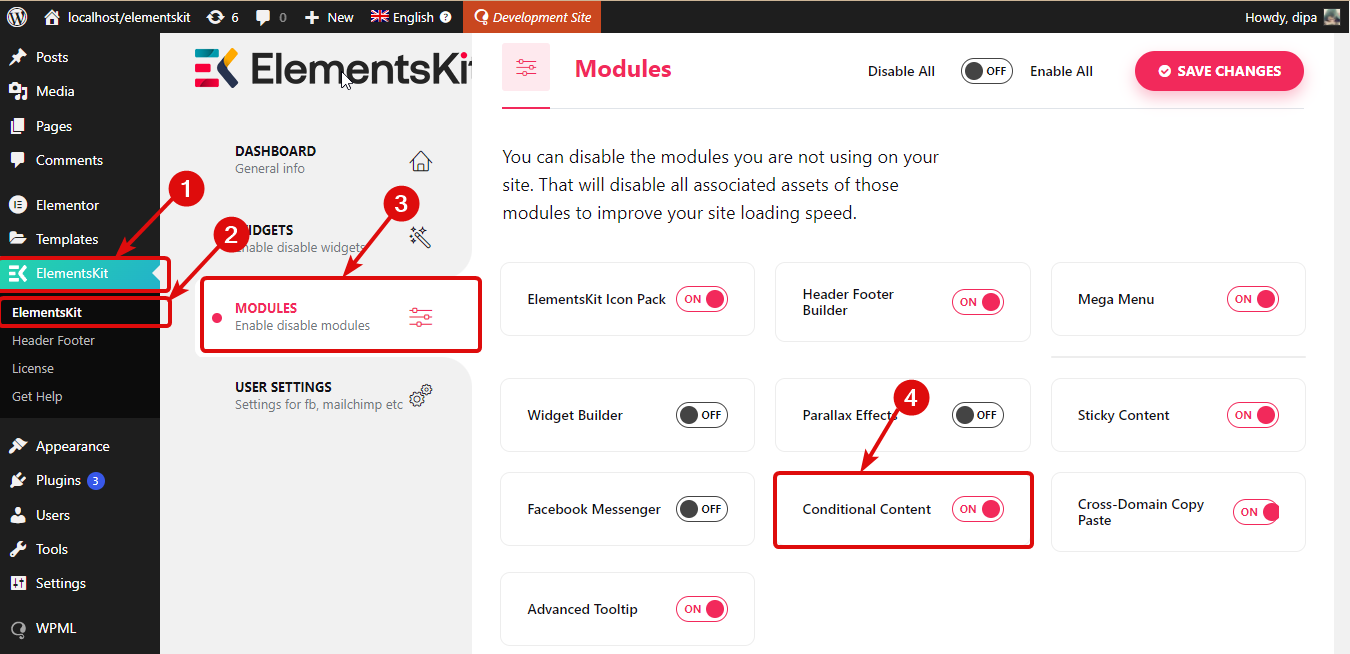
모듈을 켜려면, ElementsKit ⇒ 모듈 ⇒ 조건부 콘텐츠로 이동하세요. 토글 옵션을 확인하십시오 조건부 콘텐츠가 켜져 있고 변경 내용 저장을 클릭합니다.o 상태를 업데이트하세요.
2단계: ElementsKit에 조건부 콘텐츠 활성화 #
이 콘텐츠는 작은 콘텐츠, 이미지, 위젯에 적용할 수 있지만, 이 문서에서는 내부 섹션에 조건부 콘텐츠를 적용하겠습니다.
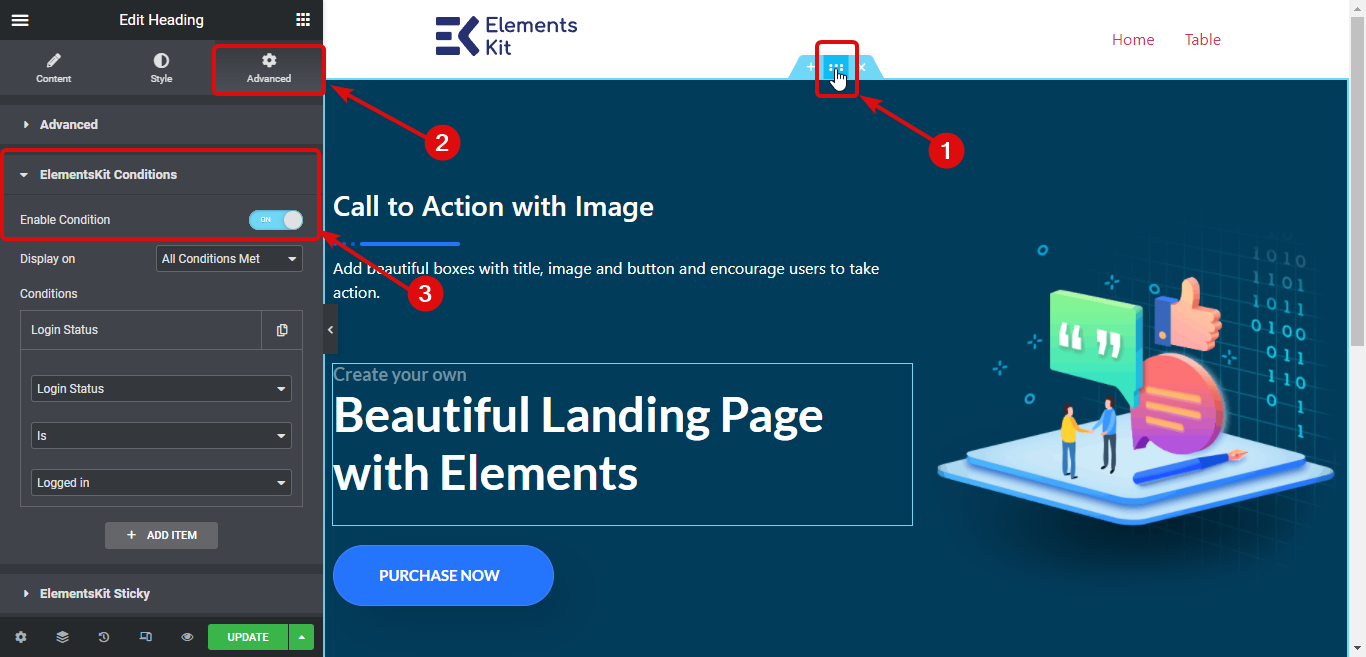
이를 위해 6개의 점을 클릭하여 해당 내부 섹션의 설정으로 이동하세요. 그런 다음 고급 탭 그리고 아래로 스크롤하여 ElementsKit 조건 부분. 조건 활성화 옵션을 켭니다.
3단계: 조건 적용 #
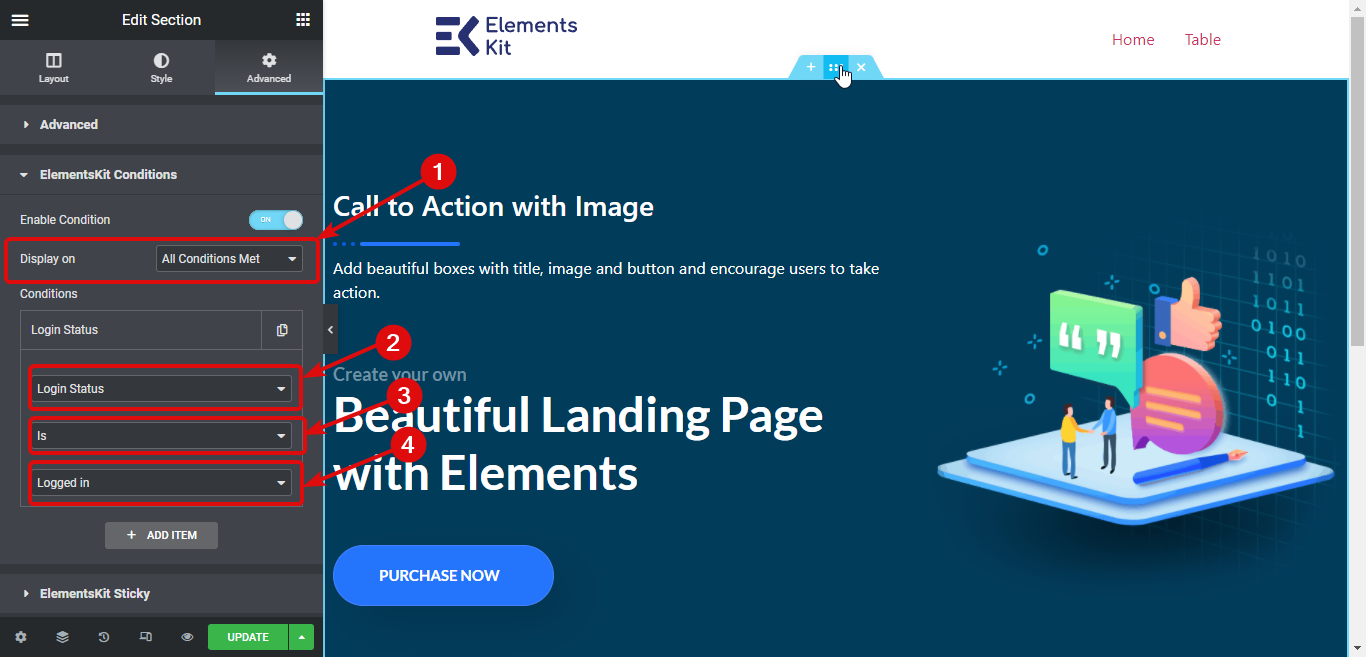
조건을 활성화하면 두 가지 옵션이 표시됩니다. 표시 및 조건.
- 표시 대상: 모든 조건이 충족되는 경우에만 모든 콘텐츠가 표시되도록 하려면 모든 조건 충족을 선택합니다. 반면, 추가한 조건 중 하나라도 true일 때 콘텐츠가 표시되도록 하려면 모든 조건 충족을 선택하세요.
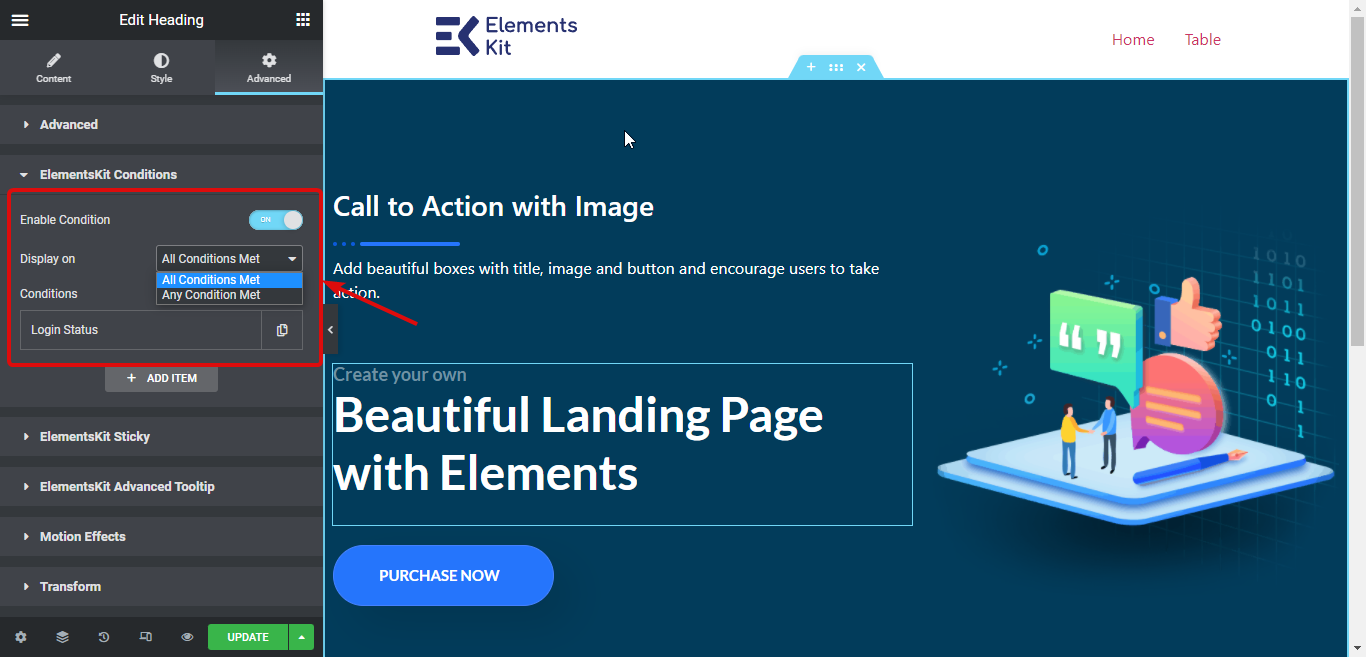
- 조건: 조건을 선택하려면 세 가지 옵션을 설정해야 합니다.
- 작업을 선택하세요 로그인 상태, 사용자 역할, 브라우저 등
- 같음/아님을 선택하세요.
- 세 번째 드롭다운에서 다음을 수행해야 합니다. 작업에 대한 값을 선택합니다. 첫 번째 드롭다운에서 선택한 작업과 관련된 값 옵션을 찾을 수 있습니다.
메모: 새 조건을 추가하려면 + 항목을 추가하세요. 원하는 만큼 콘텐츠를 추가할 수 있습니다.
예를 들어 여기서는 디스플레이를 선택하겠습니다. “모든 조건 충족”. 그런 다음 "로그인 상태" "다음" "로그인됨"을 선택합니다. 따라서 해당 콘텐츠는 로그인한 사용자에게만 표시됩니다.
3단계: 업데이트 및 미리보기 #
조건을 설정한 후 업데이트를 클릭하여 모든 변경 사항을 저장하세요. 이제 해당 페이지에서 설정한 조건이 표시됩니다.
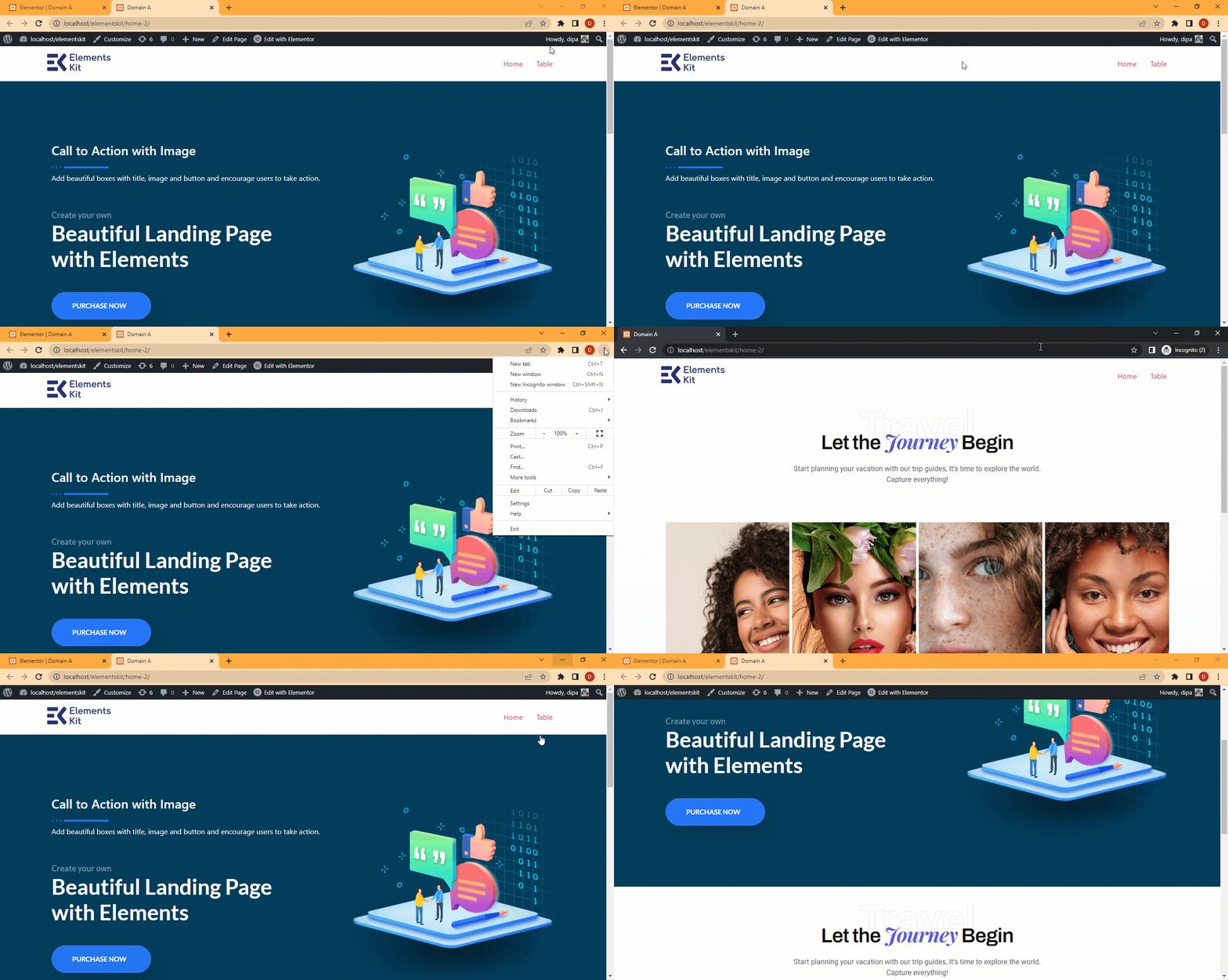
여기 데모가 있습니다.