




 Korean
  English
  German
  Spanish
  Italian
  French
  Danish
  Portuguese
  Swedish
  Polish
  Japanese
 디자인에 Glass Morphism을 사용하는 것은 최근 몇 년 동안 점점 더 인기를 얻고 있습니다. 반투명 유리 모양을 사용하여 요소에 대화형 모양과 느낌을 줄 수 있습니다. 그만큼 ElementsKit 유리 형태 모듈 Elementor 기반 페이지나 웹사이트에 유리 형태 스타일을 쉽게 적용할 수 있습니다.
이 게시물에서는 Elementor 위젯에 Glass morphism 효과를 추가하는 방법을 배웁니다.
Elementor 위젯에 Glass Morphism 효과를 추가하는 방법 #
아래 단계에 따라 Elementor 웹 사이트에 유리 같은 스타일을 가져오는 방법을 완벽하게 살펴보세요.
1단계: Glass Morphism 모듈 활성화 #
시작하려면 Glass Morphism 모듈을 수동으로 활성화해야 합니다. 이를 위해 WordPress 대시보드에서
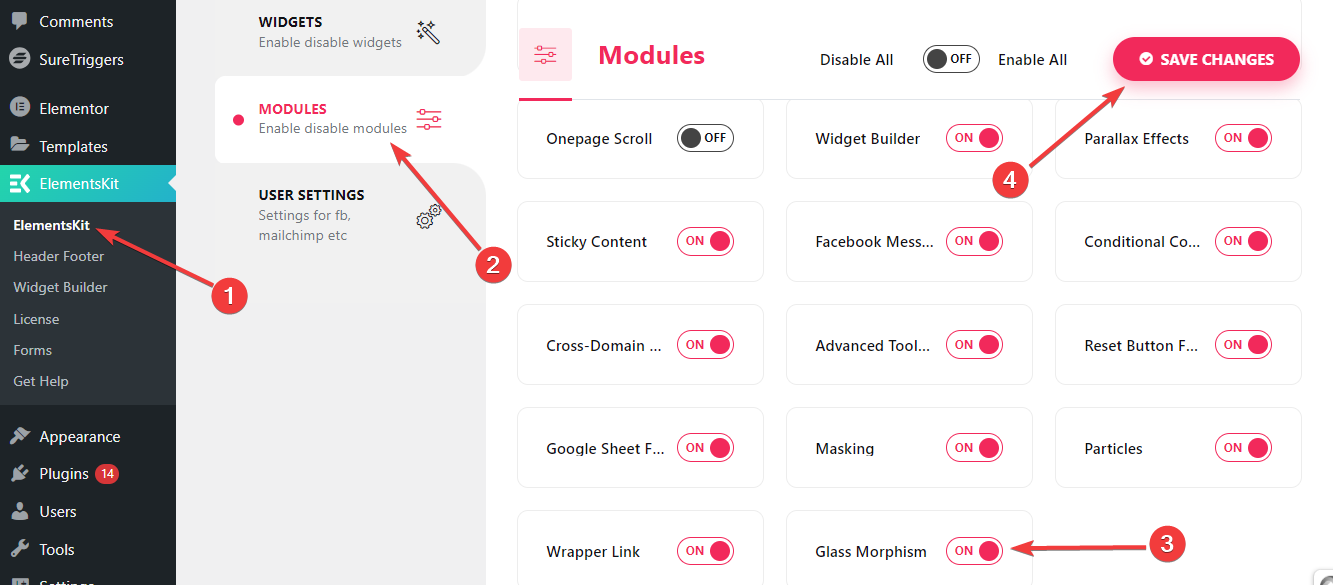
- 따르다 ElementsKit > 모듈.
- 찾기 유리 형태 기준 치수.
- 옆에 있는 토글 버튼을 활성화하세요.
- 그런 다음 “변경 사항을 저장하다” 버튼을 오른쪽 상단에 있습니다.
이제 위젯이나 열의 고급 탭에 Glass Morphism 기능이 표시됩니다.
2단계: 유리 형태 효과 추가 #
제품 항목 스타일링, 이미지 갤러리, 가격 섹션, 비교 등을 위해 Glass Morphism 효과를 추가할 수 있습니다.
이것을하기 위해,
- 페이지나 게시물을 추가하고 Elementor로 편집하세요.
- 그런 다음 열이나 위젯을 삽입하세요.
- 이제 고급 설정 탭으로 이동하세요.
- 그리고 “ElementsKit 유리 형태론” 설정.
- 편집 아이콘을 클릭하면 Glass Morphism 스타일링의 모든 기능이 표시됩니다.
이 기능이 어떻게 작동하는지 살펴보겠습니다 👇
흐림 #
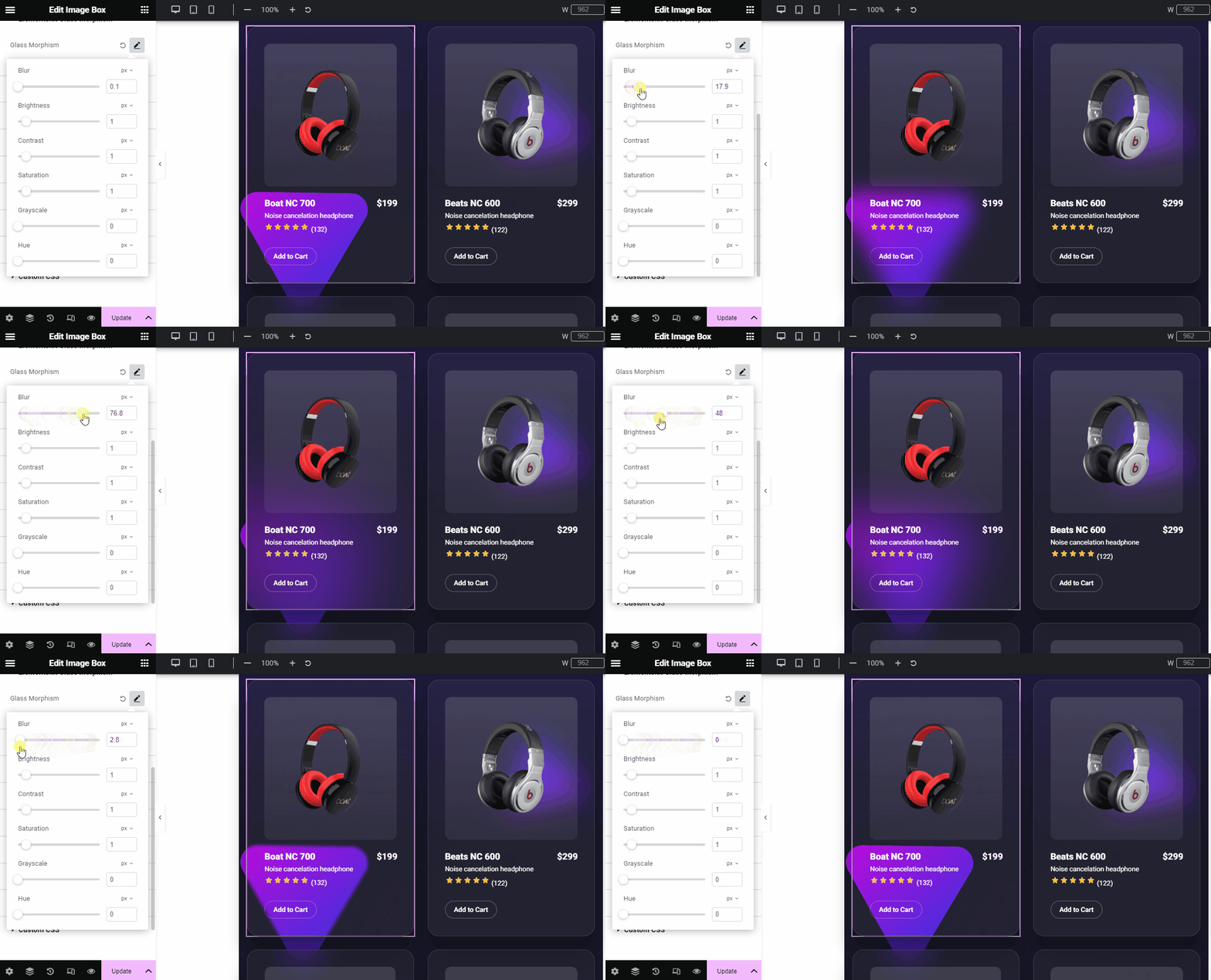
디자인에 원하는 표면의 블러 정도에 따라 블러 값을 정의합니다. 흐림 효과는 디자인 요소 사이에 다채롭고 투명한 레이어를 추가하여 디자인에 유리와 같은 미학을 더해줍니다. 따라서 디자인에 다층적인 모습을 보여줍니다.
명도 #
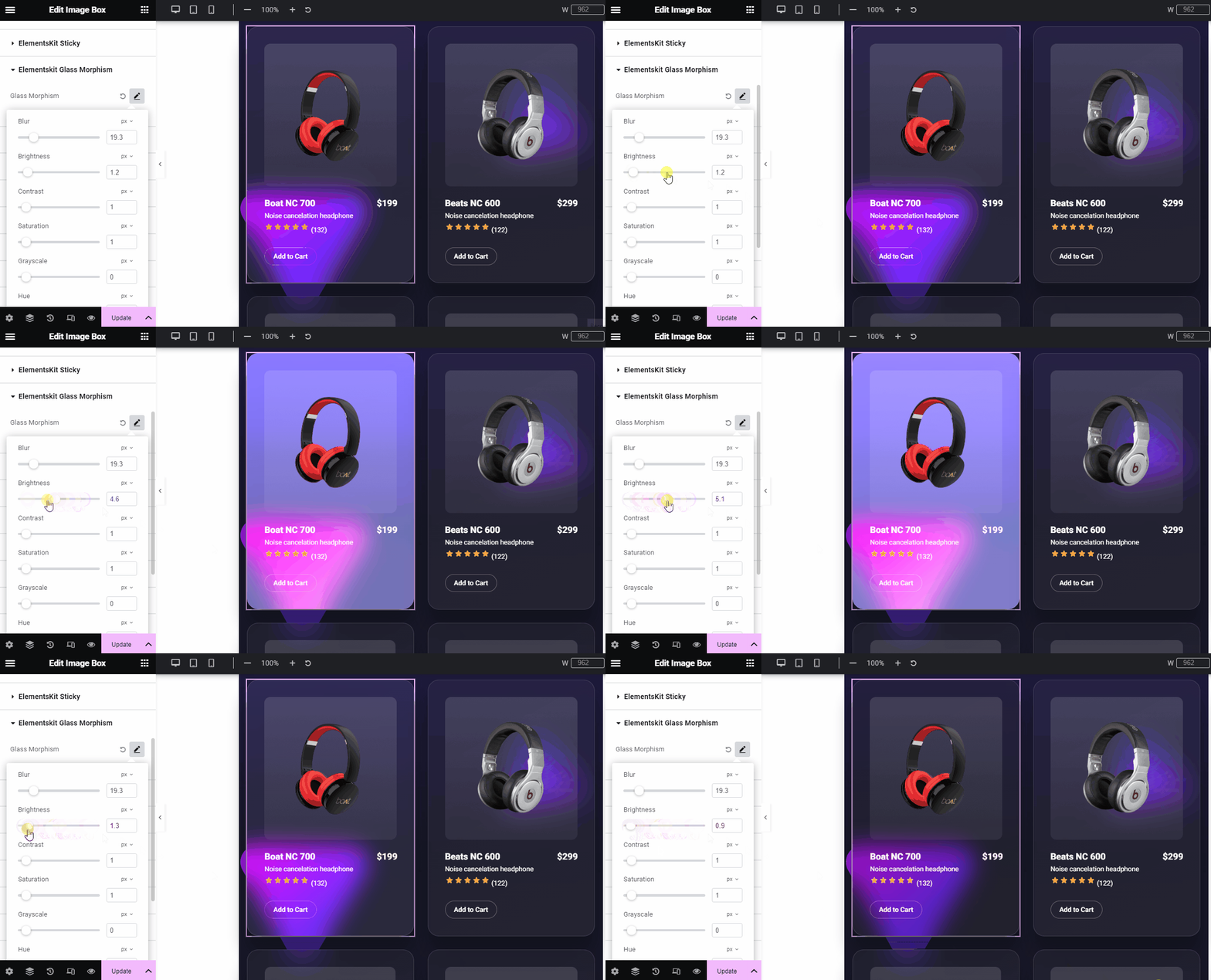
슬라이더를 사용하거나 사용자 정의 값을 추가하여 유리 형태 디자인의 밝기를 조정합니다.
차이 #
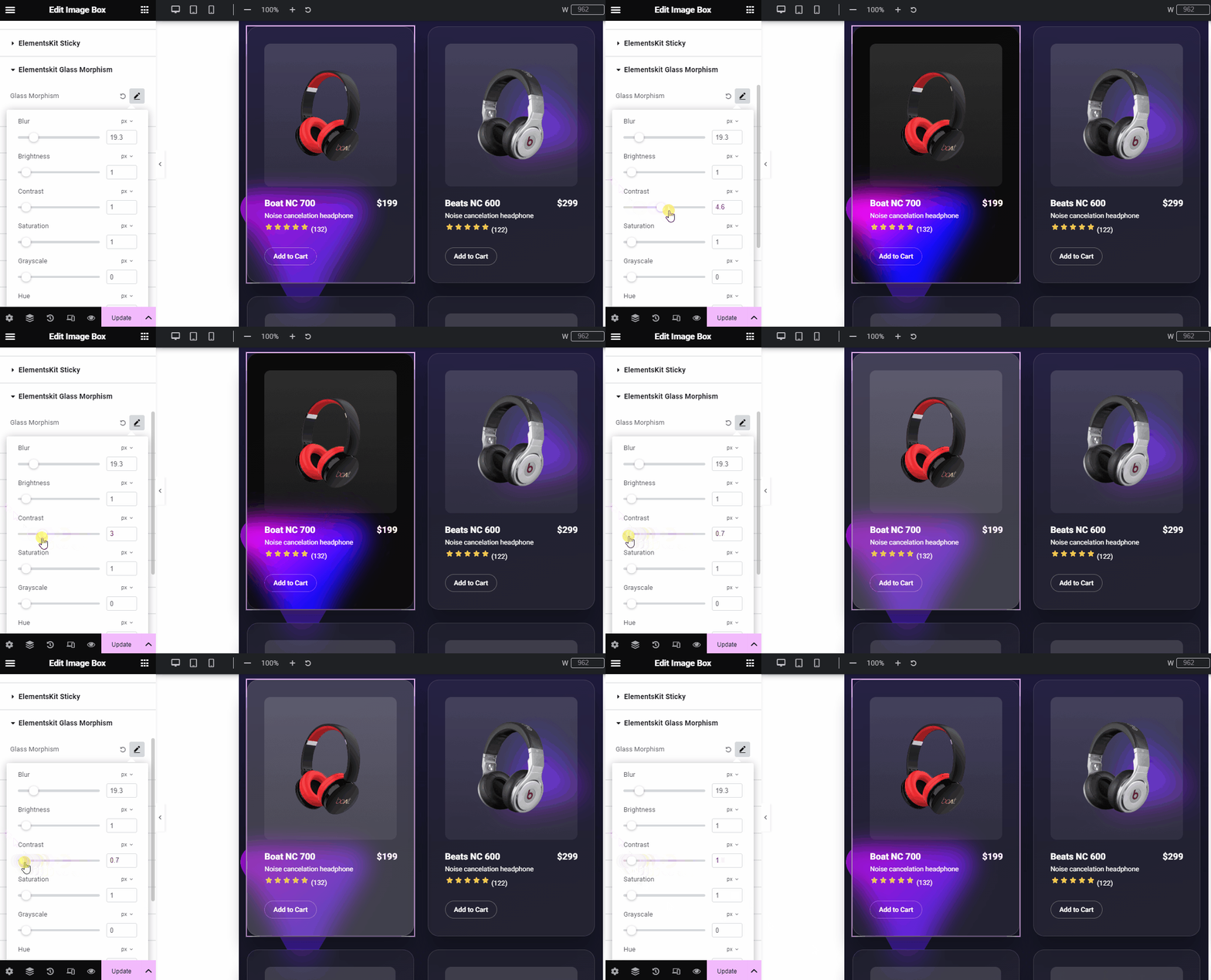
대비 정도를 정의합니다. 여러 디자인 요소를 동시에 사용하면서 시각적 계층 구조를 유지하는 데 도움이 됩니다.
포화 #
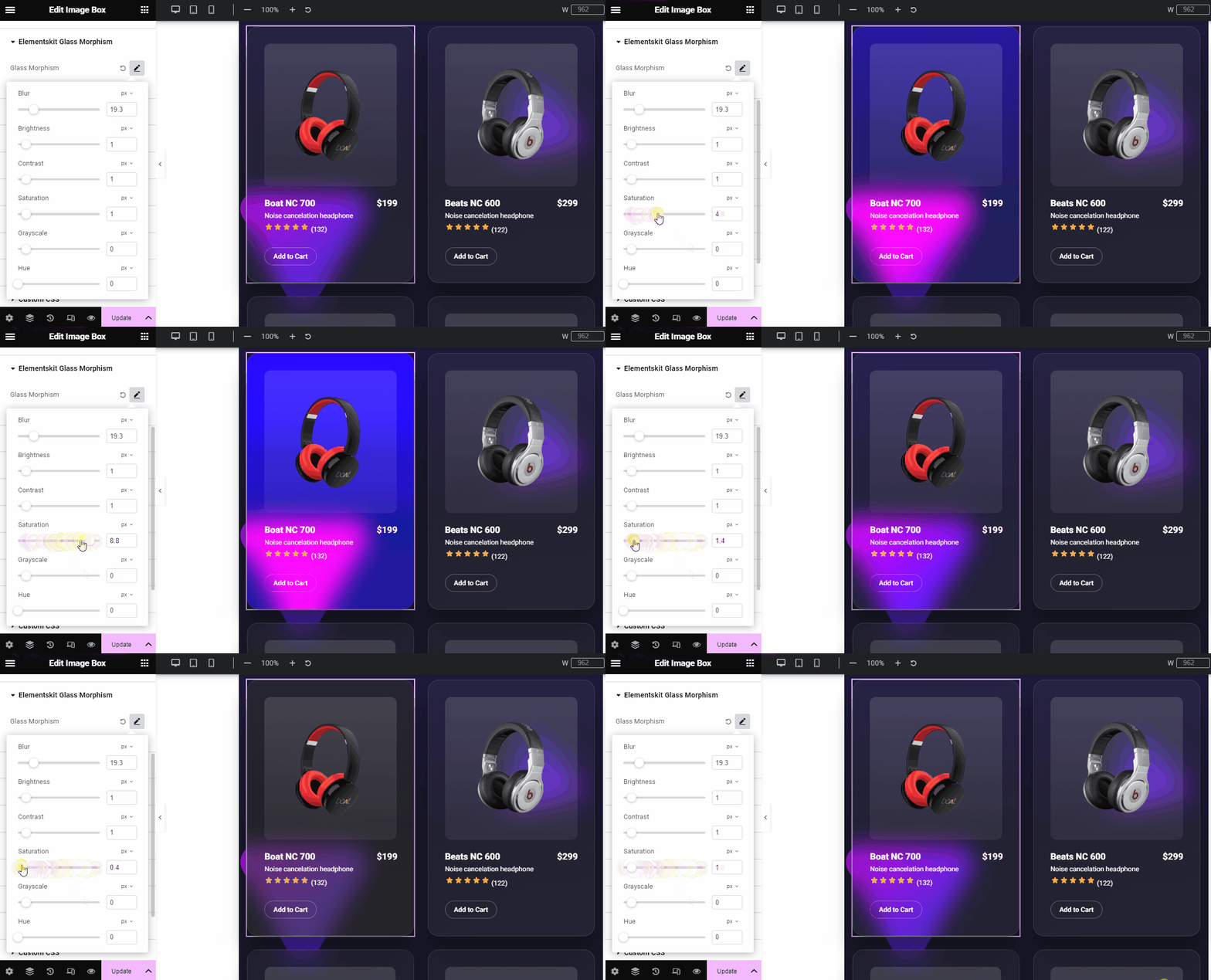
이 슬라이더를 사용하거나 사용자 정의 값을 제공하여 요소 색상의 회색 수준을 제어합니다. 채도를 높이면 색상이 더욱 선명해집니다. 반대로 채도를 낮추면 색조가 칙칙해집니다.
그레이스케일 #
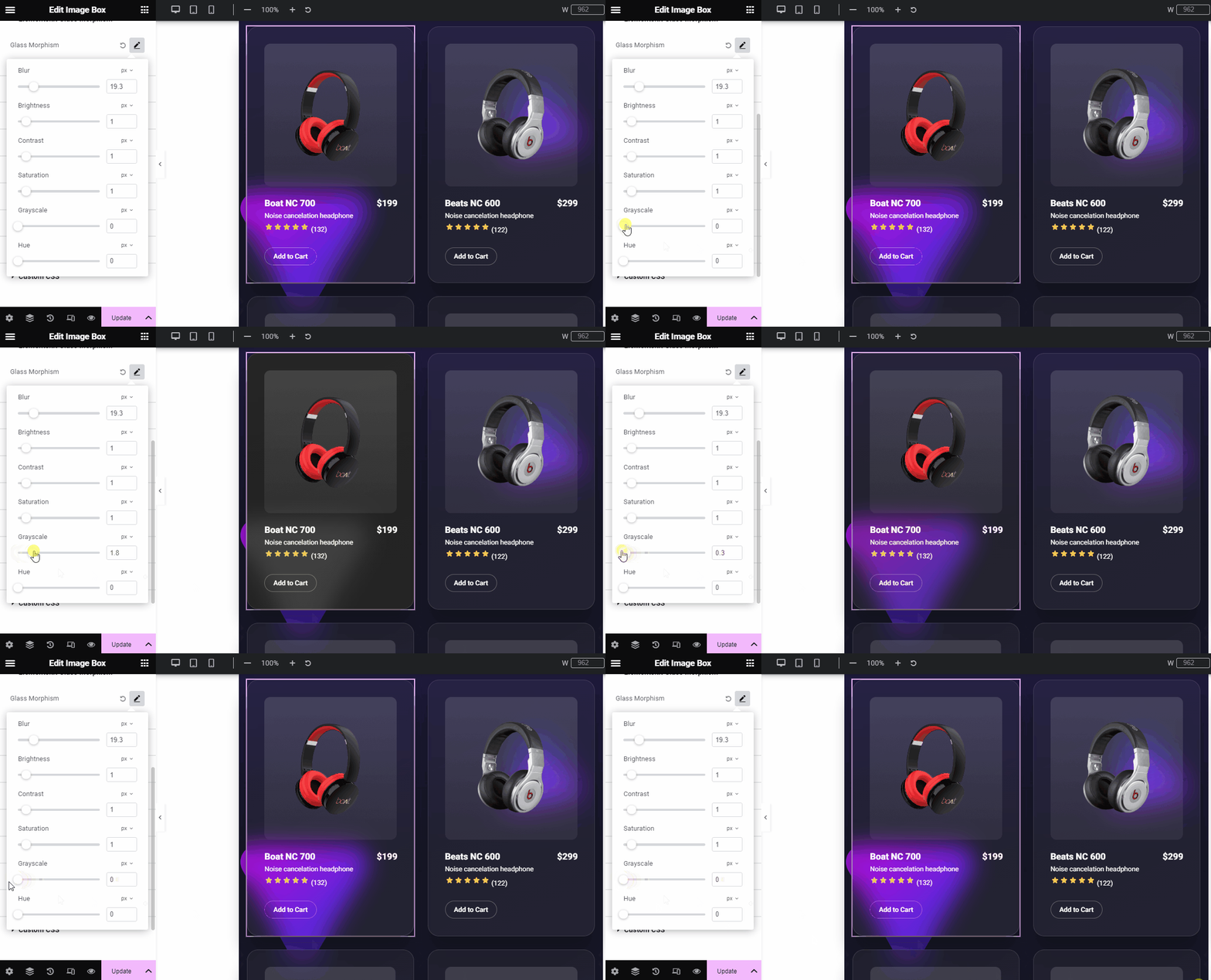
여기에서 디자인에 회색 음영을 적용할 수 있습니다. 디자인이 회색 음영으로 얼마나 밝거나 어두울지 결정합니다. 더 높은 범위를 선택하면 디자인의 가장 어두운 버전이 나타납니다. 반면, 더 낮은 값을 입력하면 디자인이 밝아집니다.
색조 #
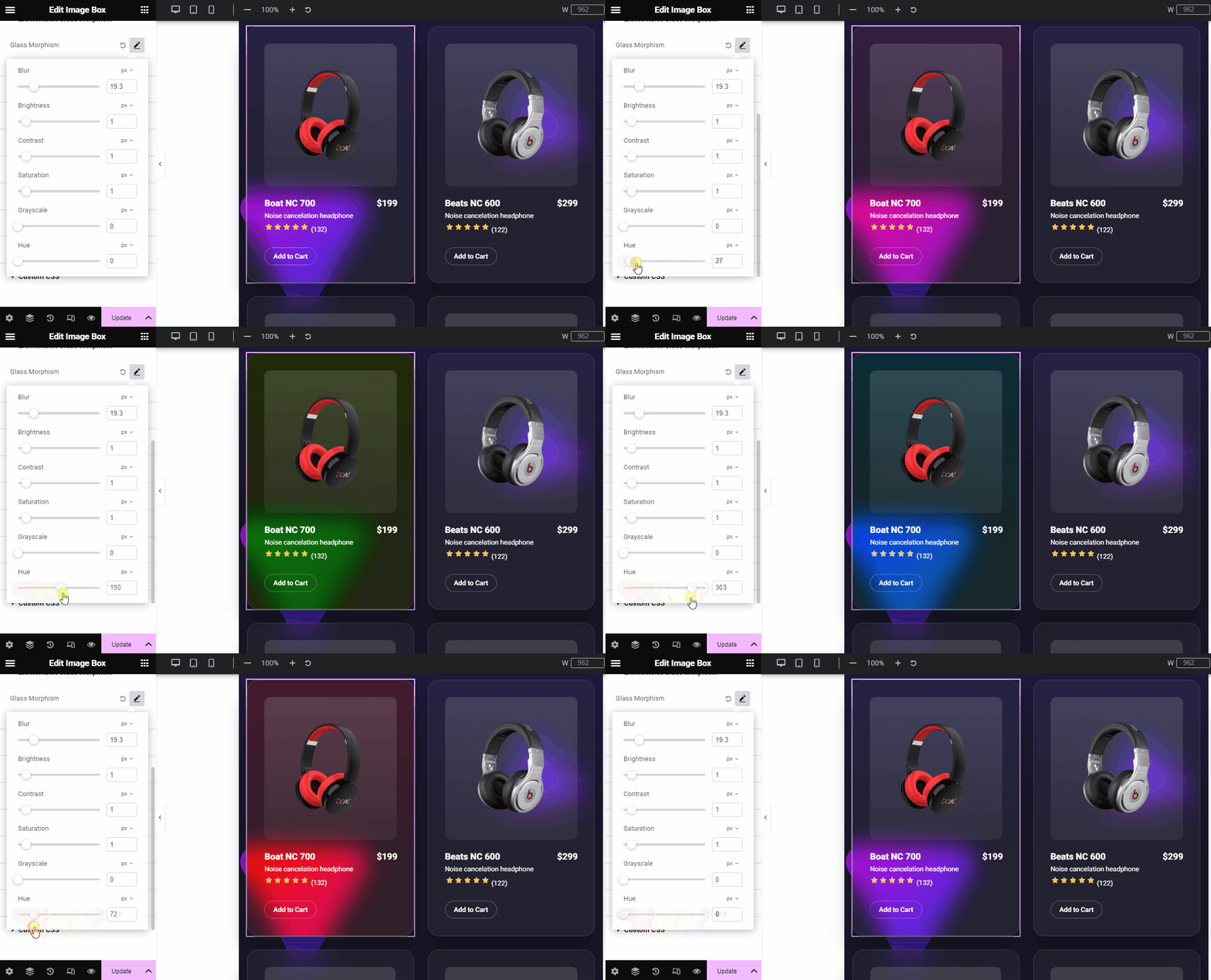
색조(Hue)는 두 색상 간의 혼합 강도를 설명하는 데 사용되는 용어입니다. 여기서는 기본 색상을 변경하는 것이 아니라 해당 색상에 대한 밝기만 조정하는 것입니다.
예를 들어 빨간색과 분홍색이라는 두 가지 색상을 추가하면 디자인에는 두 가지 색상이 있습니다. 그리고 슬라이더를 사용하면 두 색상의 강도를 변경할 수 있습니다.
이 설정은 0부터 360까지의 색상환을 기준으로 합니다. 여기서는
- 0은 빨간색을 나타냅니다.
- 120은 녹색을 의미합니다.
- 240은 파란색을 의미합니다.
이제 당신 차례입니다. Elementor 웹 사이트 어디에서나 ElelmentsKit Glass Morphism 기능을 모두 사용하여 매력적인 반투명 유리 모양을 만드는 방법을 보여 주었습니다.


