Gutenberg에 목차를 추가하는 방법

Gutenberg에 목차를 추가하는 방법

독자 친화적인 목차(TOC)를 만드는 것은 탐색 및 사용자 경험을 개선하는 좋은 방법입니다. Gutenberg 편집기를 사용하면 TOC를 추가하는 것이 간단하고 효율적인 솔루션입니다.
이 튜토리얼 블로그 게시물에서는 짧은 시간 안에 Gutenberg에서 WordPress 콘텐츠에 목차를 추가하는 방법을 살펴보겠습니다.

Gutenberg has a built-in Table of Contents block that automatically generates a TOC from your post’s headings. It improves navigation and readability for long posts.

Quick Steps:
Step 1 Get the block
In the Gutenberg editor, click the “+” button, search for “Table of Contents,” and add it to your post. It automatically pulls in all the headings from your content.
2 단계: Customize the block
설정: Choose heading levels and toggle current-page-only for paginated posts.
Styling: Adjust color, font size, border, spacing, and more from the sidebar.

Just add the Gutenberg TOC block, pick your heading levels, and style it; it’s quick.

The Advantages of Implementing a Table of Contents

목차는 WordPress 콘텐츠, 특히 긴 콘텐츠를 정리하는 데 사용됩니다. 독자는 TOC를 통해 전체 내용을 검토할 수 있습니다..
목차를 구현하면 어떤 이점을 얻을 수 있는지 자세히 살펴보겠습니다.

🔰 향상된 가독성: 빠른 탐색과 구조에 대한 더 나은 이해를 위해 콘텐츠에 목차를 구현해야 합니다.

🔰 향상된 사용자 경험: 잘 정리된 목차를 통해 사용자는 정보에 더 빨리 접근할 수 있습니다.

🔰 더 나은 SEO: 조직된 목차 검색 엔진 크롤링을 개선하고 키워드 최적화를 강화하는 데 도움이 됩니다.

🔰 접근성 향상: 목차는 화면 판독기의 판독을 보다 쉽게 만들고 장애가 있는 사용자의 접근성을 높여줍니다.

🔰 전문성: 또한, TOC는 콘텐츠에 세련된 느낌을 주고 신뢰성을 높여줍니다.

Gutenberg에 목차를 추가하는 방법

Gutenberg 편집기를 사용하여 WordPress 콘텐츠에 목차를 추가하는 과정을 살펴보겠습니다.

Gutenberg offers a handy block to add a table of contents to your WordPress content quickly.

STEP 1: Get the Block

귀하의 콘텐츠에서, 만약 당신이 '/'를 입력하면 Gutenberg 목차 블록이 나타납니다.. You can simply click on the block and add TOC in the Gutenberg editor.

Add Gutenberg Table of Contents block by typing slash

다시 말해서, 당신은 할 수 있습니다 이름을 입력하여 Gutenberg 목차 블록을 검색합니다.그런 다음, 해당 항목을 클릭하거나 편집기로 끌어다 놓을 수 있습니다.

Search for GutenbergTable of Contents blog

블록의 모습은 이렇습니다.

Gutenberg Table of Contents

STEP 2: Customize the Block

그러나 Gutenberg에서 제목을 사용하여 콘텐츠를 구성하면 목차 블록이 동적으로 업데이트됩니다., 게시물의 계층 구조를 반영합니다. 소제목을 깔끔하게 들여쓰기하여 독자에게 명확하고 직관적인 로드맵을 만듭니다. 기본 설정은 원활하게 작동하도록 설계되어 추가 노력이 필요하지 않습니다. 제목을 수정하면 TOC가 자동으로 조정됩니다.
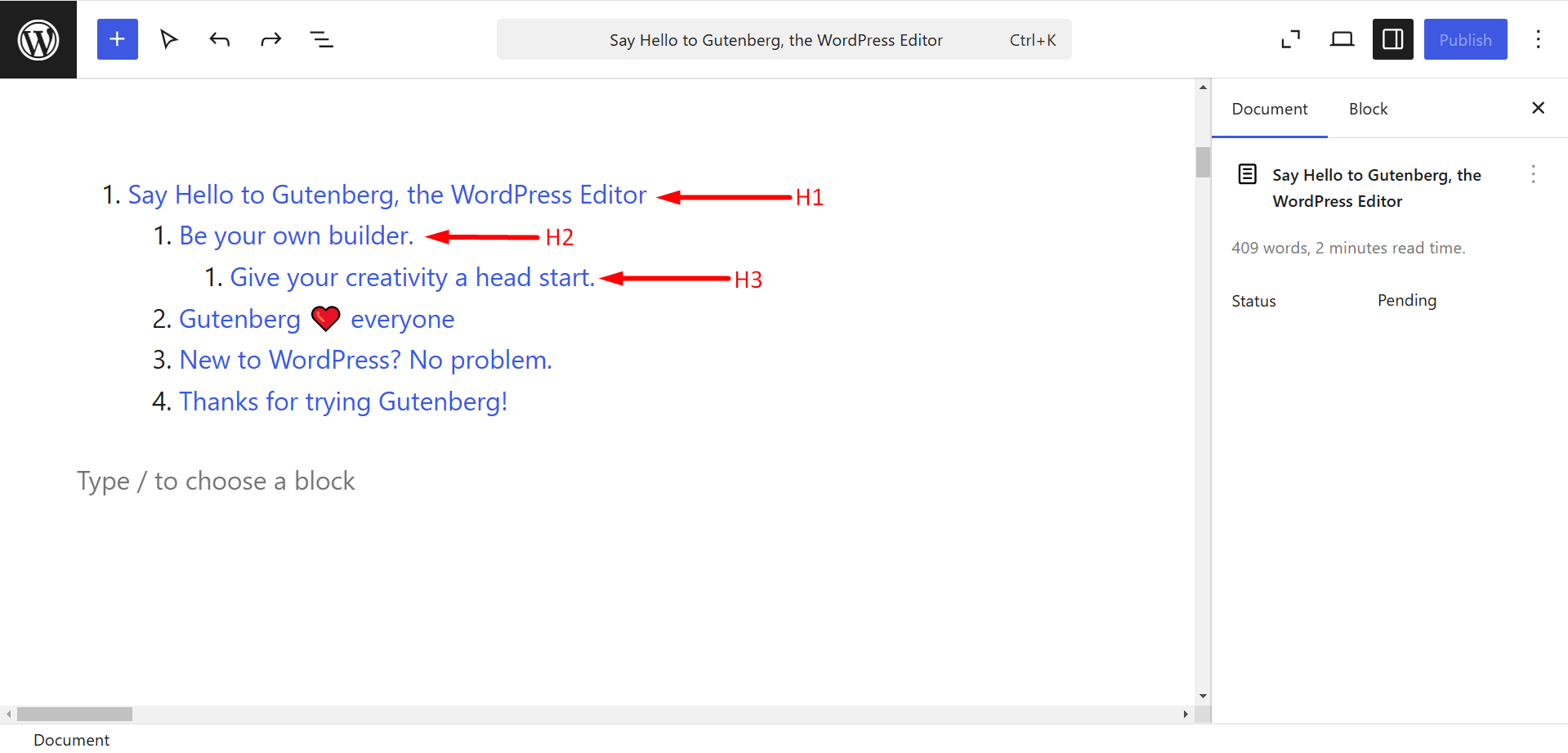
Settings of Gutenberg Table of Contents

  • Only include current page: When your post is split into multiple pages, this toggle allows you to decide what the Table of Contents shows. Off (default) → headings from all pages. On → only headings from the current page. If your post isn’t paginated, this setting does nothing.
  • Include headings down to level: It lets you control how deep the Table of Contents goes. For example, set to H2 → only top-level headings appear, set to H4 → it also picks up H3s and H4s underneath them.

Style the Gutenberg Table of Contents Block

You can tweak a few basic styles of the block. You can change text color, font size, padding, margin, border, radius, and typography, etc.

Style Gutenberg Table of Contents

구텐베르크 목차 블록의 한계

🤔 There is a lack of the latest features in the block. For example, automatic numbering, collapsible sections, or the ability to exclude specific headings from the TOC are currently unavailable.
🤔 목차는 잘 구성된 제목 계층 구조에 크게 의존합니다. 제목을 변경하면 TOC의 정확성이 떨어질 수 있습니다.
🤔 제목이 여러 개인 긴 게시물의 경우, Gutenberg TOC 블록이 페이지 로딩 속도에 약간의 영향을 미칠 수 있습니다.


👉 보너스 가이드: How to add custom fields to Gutenberg.

Gutenberg에서 목차 만들기

따라서 긴 형식의 콘텐츠를 더 접근하기 쉽고 매력적으로 만들려면 TOC를 구현하는 것을 고려해야 합니다. 또한 WordPress 웹사이트의 전반적인 품질을 높이고 방문자를 유치하는 데 도움이 됩니다.

이제 Gutenberg에서 목차를 추가하는 방법을 알았으니 직접 쉽게 추가할 수 있습니다. 


Priyanka 아바타

프리얀카

WordPress Plugin Specialist, Product Documentation Expert, Gutenberg Editor Specialist

코멘트

답글 남기기

이메일 주소는 공개되지 않습니다. 필수 필드는 *로 표시됩니다

목차