誤って削除してしまった WooCommerce ページを再生成する方法が心配ですか?心配しないでください。ここでは、不足しているデフォルトの WooCommerce ページを取得する方法を説明します。
デフォルトのページは非常に一般的で汎用的なものであるため、人々は常にデフォルトのページよりもカスタマイズされたページを好みます。ただし、これらのデフォルト ページが必要な場合は、いつでもそれらを取り戻すことができます。
ここでは、このチュートリアルで説明します 失われた WooCommerce ページを取り戻す方法.
How to regenerate WooCommerce pages
WooCommerce automatically creates essential store pages during installation, such as the Shop, Cart, Checkout, and My Account pages. If these pages are accidentally deleted or lost during customization, you can regenerate all default WooCommerce pages from the WooCommerce → Status → Tools section in the dashboard.
Steps to Regenerate WooCommerce Pages:
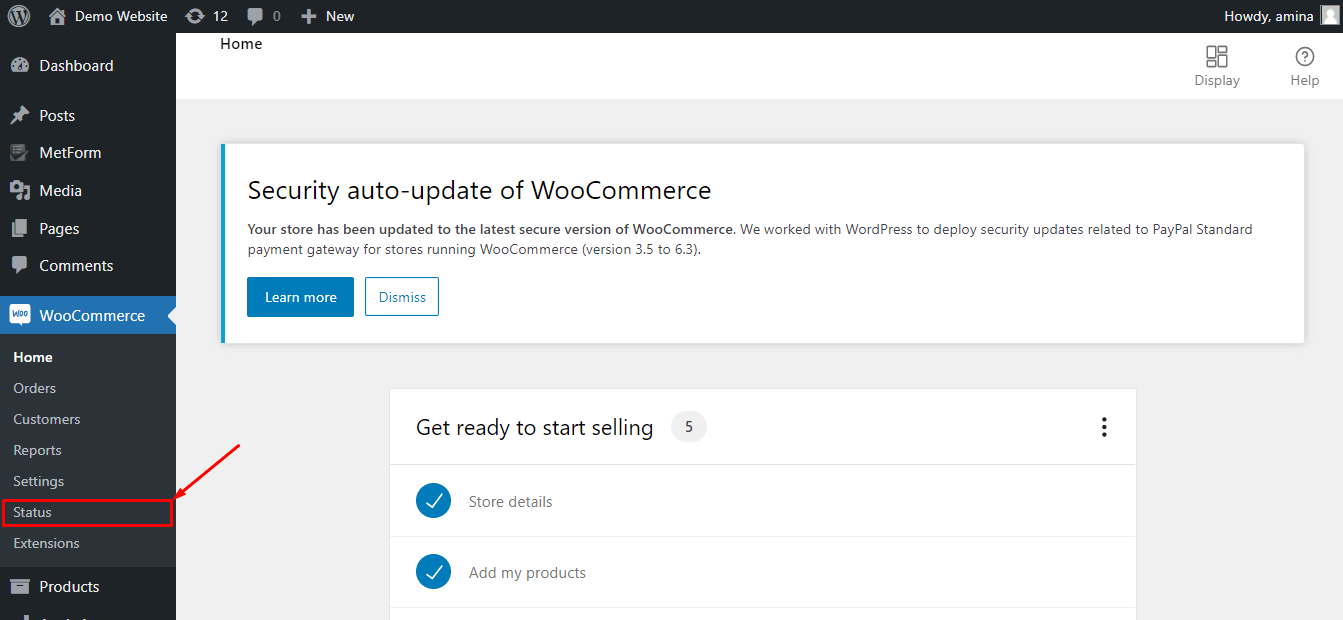
ステップ1: Go to your WordPress dashboard and navigate to WooCommerce → Status.
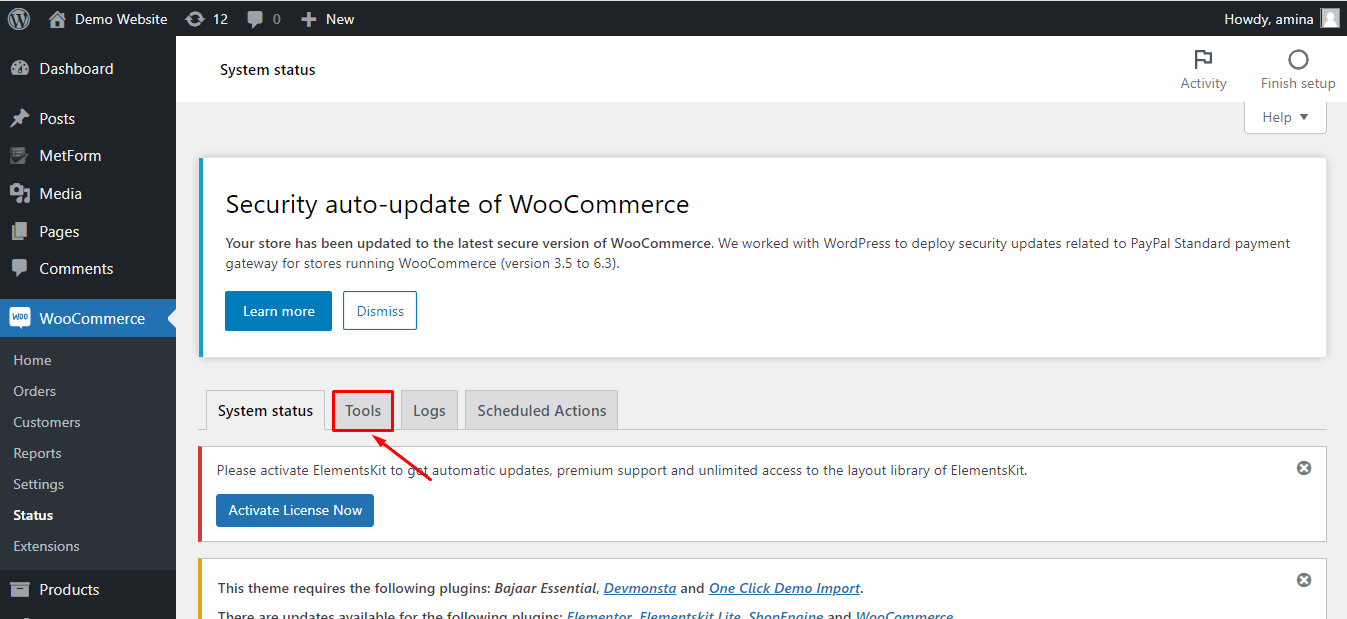
ステップ2: 開く ツール tab inside the WooCommerce system status page.
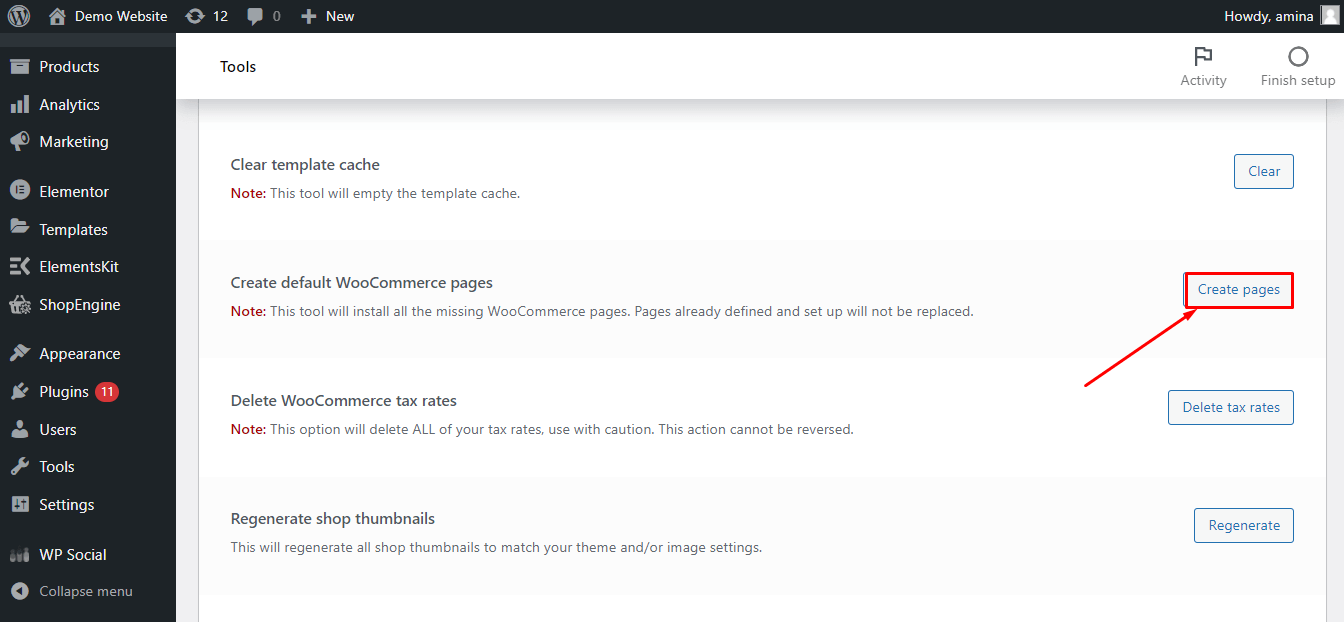
ステップ 3: Scroll down until you find the option Create default WooCommerce pages.
ステップ 4: クリック Create pages button to regenerate the missing WooCommerce pages automatically.
例
If a store owner deletes the チェックアウトページ while customizing layouts with a page builder or WooCommerce template plugin, they can restore it by using the Create default WooCommerce pages option in the WooCommerce tools section.
まとめ
WooCommerce default pages are essential for running an online store. If they are accidentally deleted or lost during customization, you can quickly restore them using WooCommerce system tools to ensure your shop, cart, checkout, and account pages function properly again.
デフォルトの WooCommerce ページは何ですか?
デフォルトの WooCommerce ページは、WooCommerce のインストール中に取得されるページです。簡単に言うと、WooCommerce automatically creates shop, カート, チェックアウト、 そして 私のアカウント ページ あなたのサイトのためにそれを使用して セットアップウィザード.
これらのデフォルト ページを使用することも、顧客にとってより魅力的なものにするための要件としてこれらのページをカスタマイズすることもできます。
デフォルトの WooCommerce ショップ、製品、アカウント、チェックアウト ページをカスタマイズしたいですか? 「はい」の場合は、次のブログをチェックすることを忘れないでください。
1. カスタマイズされた WooCommerce ショップ ページを作成する方法.
2. カスタマイズされた WooCommerce カート ページの作成ガイド.
3. アカウントページをカスタマイズする方法.
4. カスタマイズされた WooCommerce チェックアウト ページを作成する方法.
WooCommerce ページを復元する必要があるのはどのような場合ですか?

ウーコマース is an open-source eCommerce platform that allows you to build your eCommerce site without investing much effort since it generates default pages after installation. If you have customized these default pages using WooCommerce ビルダー or shortcodes like ショップエンジン場合によっては、これらのページが失われる可能性があります。
例を挙げてみましょう。を使用してショップページをカスタマイズしているとします。 ShopEngine の事前構築済みショップ ページ テンプレート これらのテンプレートを使用すると、カスタマイズされたショップ ページの構築が非常に簡単になるためです。または、WooCommerce ショップ ページのショートコードを介してカスタマイズされたショップ ページを作成しています。
これを行うときに、次のようなことが考えられます。 誤って削除してしまう あなたの デフォルトのページ WooCommerce によって提供されます。その時点で、何らかの理由でそれらのページを元に戻したい場合は、次のことを行う必要があります。 WooCommerce の欠落ページを再インストールする。 WooCommerce には、数秒もかからずにデフォルトのページを復元する簡単なオプションがあります。復元しないと、デフォルトのページを取り戻すことはできません。
WooCommerce ページを再生成する方法に興味がある場合は、次のセクションをお見逃しなく。
Common reasons WooCommerce pages go missing
WooCommerce pages can disappear for several reasons besides accidental deletion. Since these pages are connected with plugins, themes, databases, and store settings, even a small change can sometimes remove or disconnect them from your store setup.
Here are some of the most common reasons why WooCommerce pages go missing:
1. Theme or Plugin Conflicts
Conflicts between WooCommerce and third-party plugins or themes can override page assignments or break page visibility. This usually happens after updating themes, WooCommerce extensions, or page builder plugins.
For example, some plugins may automatically reset WooCommerce settings, including shop page assignments, checkout settings, or permalink structures.
2. Migration or Staging Errors
If you migrate your website to a new hosting provider or push changes from a staging site to a live site, WooCommerce page IDs may not sync properly. As a result, pages like Cart, Checkout, or My Account may become disconnected or disappear entirely.
3. Import/Export Mistakes
Improper product or site imports can overwrite existing WooCommerce settings. Sometimes users accidentally replace important WooCommerce pages while importing demo content, templates, or backup files.
4. Database Restoration Issues
Restoring an old database backup may remove recently created WooCommerce pages or reset WooCommerce page assignments. This often happens when the database backup and media files are not synchronized properly.
5. Page Builder Overwrites
Using page builders such as Elementor or WooCommerce template builders can occasionally overwrite default WooCommerce page content or shortcodes. If a template replaces the original page structure, the page may stop functioning correctly.
6. WooCommerce Setup Wizard Interruptions
WooCommerce normally creates default pages during its setup wizard. If the installation process is interrupted or skipped midway, some pages may never be generated in the first place.
数秒で WooCommerce ページを再生成する方法
WooCommerce ページの再生成は非常に簡単です。次の手順に従うだけで、WooCommerce のデフォルト ページが目の前に表示されます。
まず、WooCommerce ページを復元するには、管理ダッシュボードにアクセスする必要があります。それから WooCommerce のステータスに移動します。 WooCommerce システム設定に移動します。

今、あなたがする必要があるのは、 「ツール」をクリックします それはシステムステータスのすぐ横にあります。

その後、ページ上でマウスを下にスクロールして、 「デフォルトの WooCommerce ページの作成」を見つけます。最後に、次のことを行う必要があります。 「ページの作成」をクリックします 以下に追加した画像のように。これにより、デフォルトのページがすべて再生成されます。

Troubleshooting after regeneration of missing WooCommerce pages
After regenerating WooCommerce pages, you may still notice issues such as broken checkout functionality, missing layouts, or shortcode errors. In that case, follow these troubleshooting steps:
1. Reassign WooCommerce Pages
に行く WooCommerce → Settings → Advanced. Then manually assign the correct pages for Cart, Checkout, My Account, and Terms and Conditions.
Sometimes WooCommerce creates the pages successfully, but the page assignments remain empty.
2. Check WooCommerce Shortcodes
Ensure the regenerated pages contain the correct shortcodes:
- Cart page → [woocommerce_cart]
- Checkout page → [woocommerce_checkout]
- My Account page → [woocommerce_my_account]
Without these shortcodes, the pages may appear blank or non-functional.
3. Flush Permalinks
After regenerating pages, go to Settings → Permalinks. 次にクリックします 変更内容を保存 without modifying anything. This refreshes WordPress rewrite rules and fixes many page loading problems.
4. Disable Plugin Conflicts
Temporarily deactivate plugins except WooCommerce and check whether the pages work correctly. If the issue disappears, reactivate plugins one by one to identify the conflicting plugin.
5. Clear Cache
If you use caching plugins or server-side caching, clear all caches after regenerating WooCommerce pages. Cached versions may still display broken or deleted pages.
6. Verify Theme Compatibility
Switch temporarily to a default WordPress theme like Storefront to determine whether your current theme is causing WooCommerce page issues.
よくある質問
What happens if you delete WooCommerce pages?
If you delete WooCommerce pages such as Cart or Checkout, important store functions will stop working properly. Customers may not be able to complete purchases, access their accounts, or view cart details.
Can WooCommerce recreate checkout pages?
Yes, WooCommerce can automatically recreate missing checkout pages from:
WooCommerce → Status → Tools → Create default WooCommerce pages
How do you restore WooCommerce shortcodes?
You can manually restore WooCommerce shortcodes by editing the affected page and inserting the required shortcode, such as:
- [woocommerce_cart]
- [woocommerce_checkout]
- [woocommerce_my_account]
Why is WooCommerce checkout not working after regeneration?
The checkout page may still fail due to missing shortcodes, incorrect page assignments, permalink issues, caching problems, or plugin conflicts. Reassigning the checkout page and clearing caches usually resolves the issue.
まとめ
Congratulations! Now you can reinstall the missing WooCommerce pages any time you want by visiting your WooCommerce system status. As a result, you can now customize your WooCommerce pages と ショップエンジン以前のデフォルトページを失う心配なく、あらかじめ構築されたテンプレート.



コメントを残す