

 Japanese
  English
  German
  Spanish
  Italian
  French
  Danish
  Portuguese
  Swedish
  Polish
  Korean
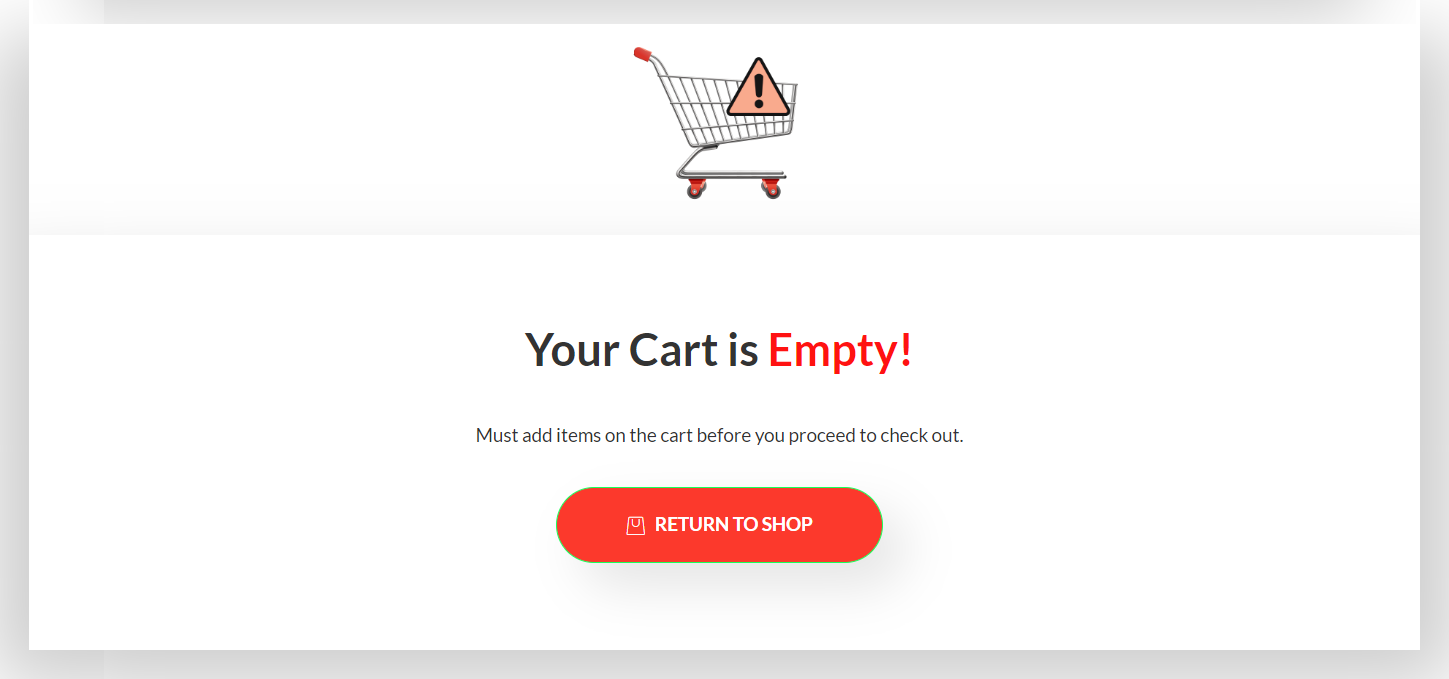
 ShopEngine は、カスタマイズ可能なオプションを最大限活用して WooCommrece Web サイトを作成および設計する究極の機能を提供します。製品ページ、ショップ ページ、チェックアウト ページからカート ページまで、ほぼすべてのページをカスタマイズできます。これには、WooCommerce カートが空のときのカート ページのカスタマイズも含まれます。
WooCommerce カートが空のときのカスタマイズ #
ShopEngine の Empty Cart テンプレートを使用すると、カートに商品がない場合のカート ページのコンテンツと外観を制御できます。WooCommerce カートが空のときのカート ページのカスタム テンプレートを設計できます。
ShopEngine の空のカート テンプレートを Web サイトで使用する方法については、このドキュメントをお読みください。
ステップ1: 空のカートページのテンプレートを作成する #
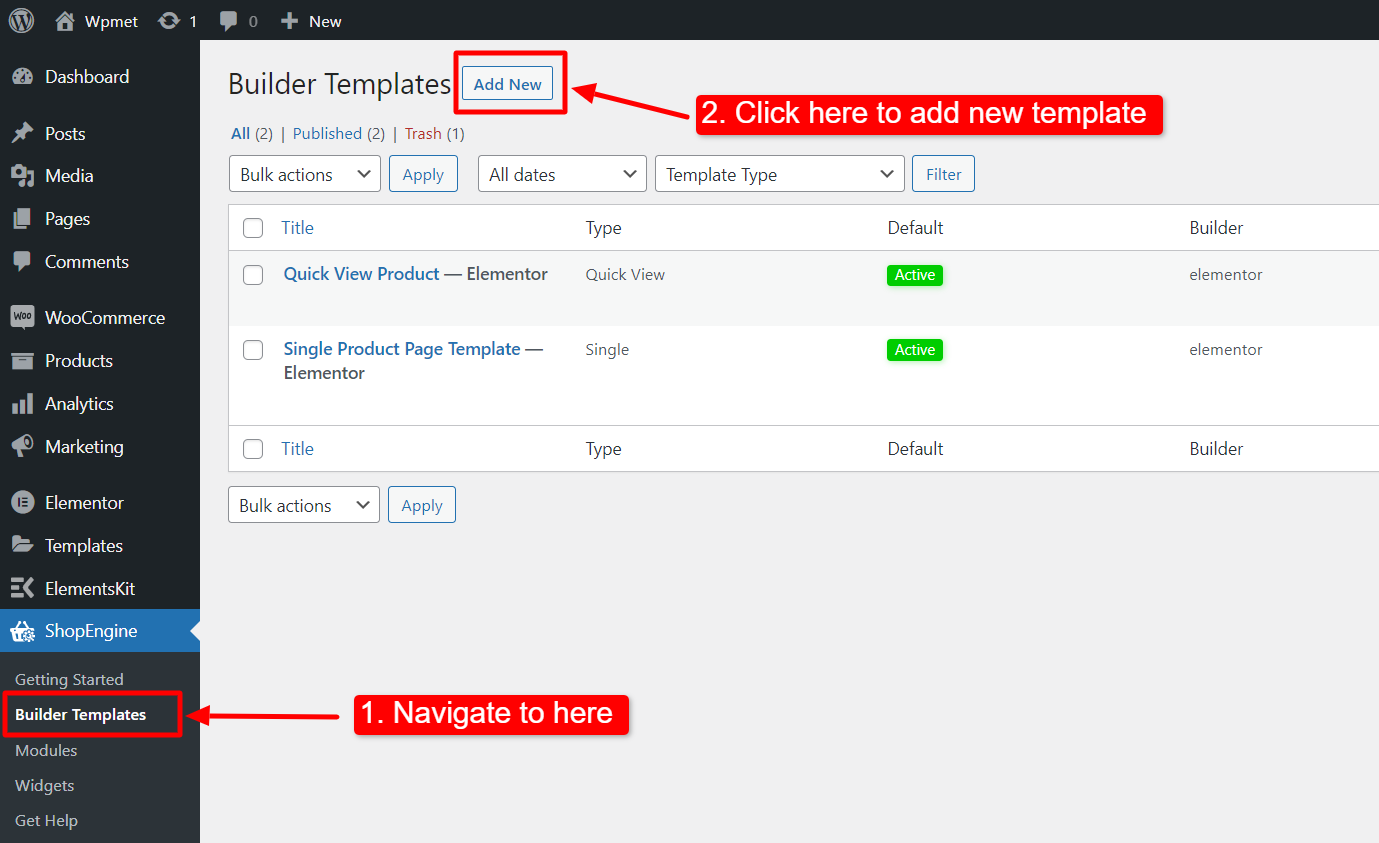
- 案内する ShopEngine > テンプレート WordPress ダッシュボードから。
- クリックしてください 新しいテンプレートを作成するには、[新規追加] ボタンを使用します。
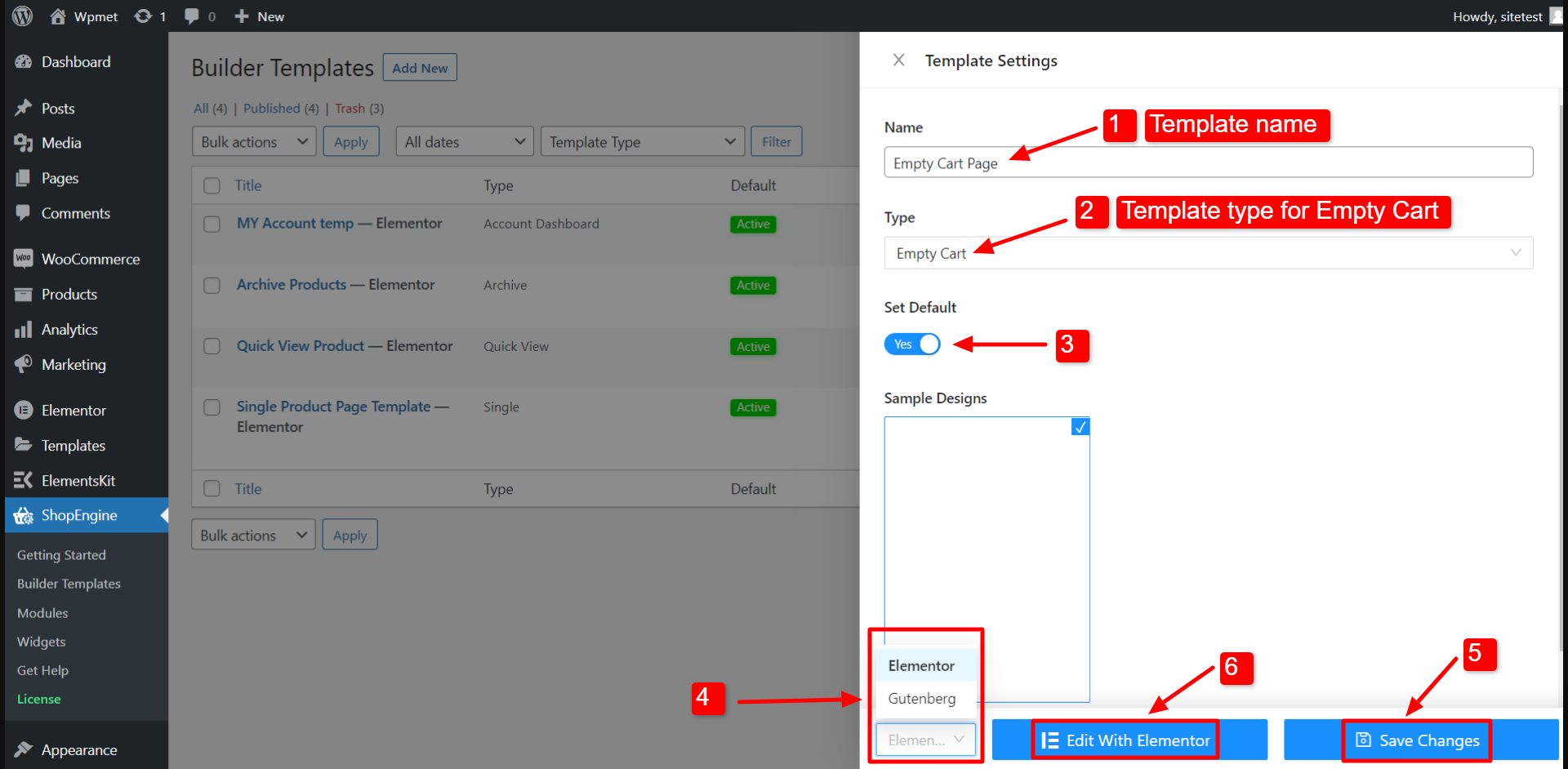
その後、テンプレート設定のためのオフキャンバスウィンドウが表示されます。テンプレート設定で、
- テンプレートを入力してください 名前.
- テンプレートを選択 タイプ として: 空のカート.
- 有効にする デフォルトの設定 テンプレートをデフォルトの空のカート ページとして設定するオプション。
- ページを編集するかどうかを選択します エレメンター または グーテンベルク.
- 今すぐクリックしてください 変更内容を保存.
- 最後に、をクリックします Elementorで編集する (または「Gutenberg で編集」) をクリックしてエディターを開きます。
次に、エディターでページのデザインをカスタマイズします。
ステップ2: 空のカートページをデザインする #
エディター ページでは、空のカート ページを好きなようにデザインできます。ここでデモをお見せするために、WooCommerce の空のカート ページのサンプル テンプレートをデザインしました。
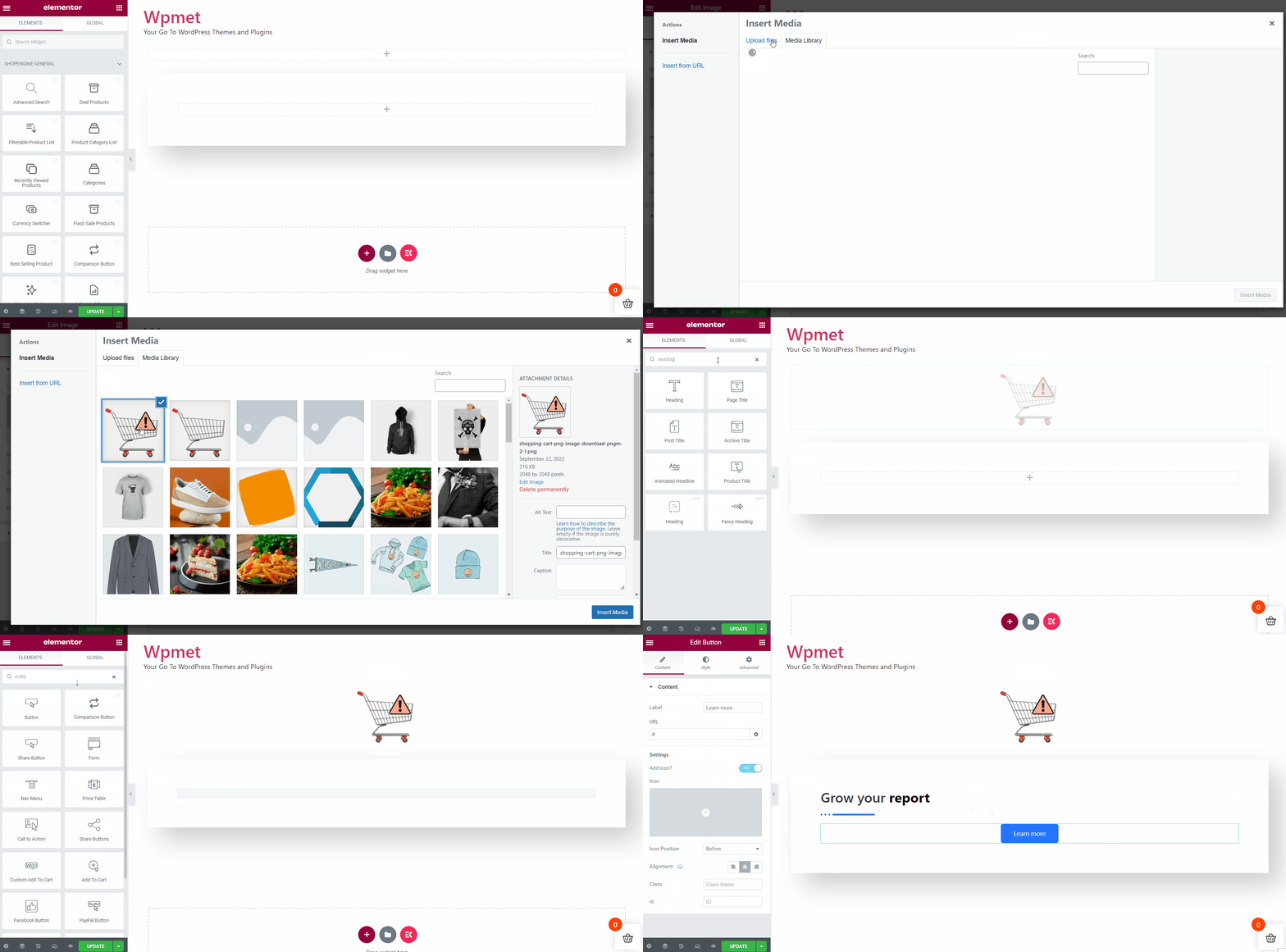
最後に更新ボタンを押してカスタマイズを完了します。これで、WooCommerce カートが空の場合でも、洗練されたデザインで Web サイトのユーザー エクスペリエンスを向上させることができます。