


 Japanese
  English
  German
  Spanish
  Italian
  French
  Danish
  Portuguese
  Swedish
  Polish
  Korean
 ユーザーが Web サイトやビジネス概要情報をすぐに見つけられるようにしたい場合は、 ElementsKit ヘッダー情報ウィジェット 素晴らしい選択です。重要な情報を追加したり、ヘッダーの外観をスタイルしたり、重要なリンクをカスタマイズしたりするのに役立ちます。したがって、Web サイト訪問者は、あまりスクロールせずに連絡先番号、住所、電子メール ID などを確認できます。
ヘッダー情報の追加 #
Web サイトのヘッダーに見出し情報を追加する必要があります。既存のヘッダーに追加することも、新しいヘッダーを作成することもできます。
ダッシュボード -> ヘッダーに移動 -> 編集 -> ヘッダー情報ウィジェットを検索 -> ドラッグ アンド ドロップして編集を開始
ここでは、ヘッダー情報ウィジェットをスティッキー ヘッダーに追加しました。スティッキーヘッダーは便利で、見た目も魅力的です。
ヘッダー情報 #
- 「コンテンツ」フィールドをクリックして展開します
- アイコン- アップロードアイコン
- 文章- ヘッダー情報の追加または編集
- リンク– リダイレクトリンクを提供する
- 必要に応じて新しいアイテムを追加

スタイル #
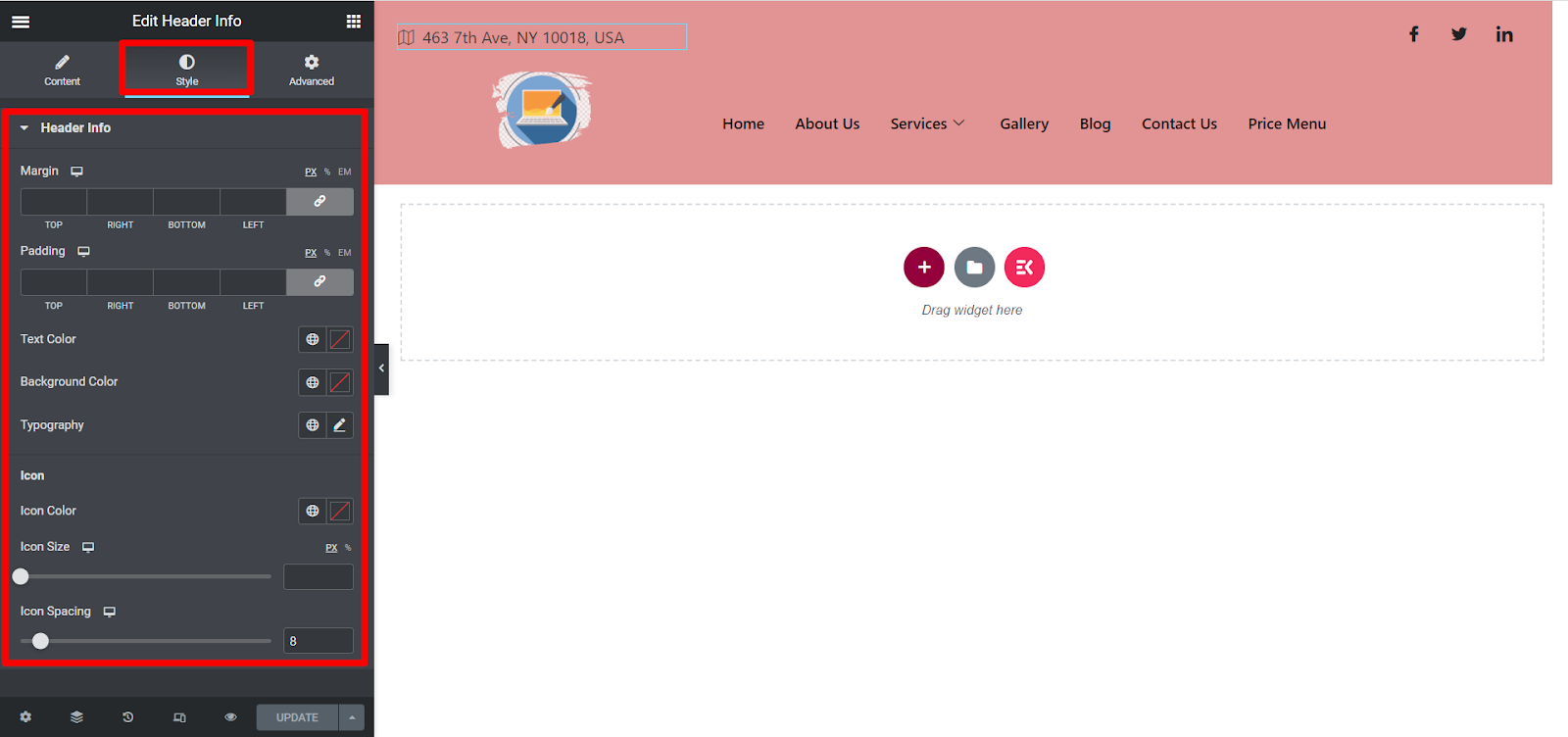
ここには、好みに応じて余白、パディング、テキストの色、背景色、タイポグラフィ、アイコンの色、アイコンのサイズ、アイコンの間隔をカスタマイズするオプションがあります。
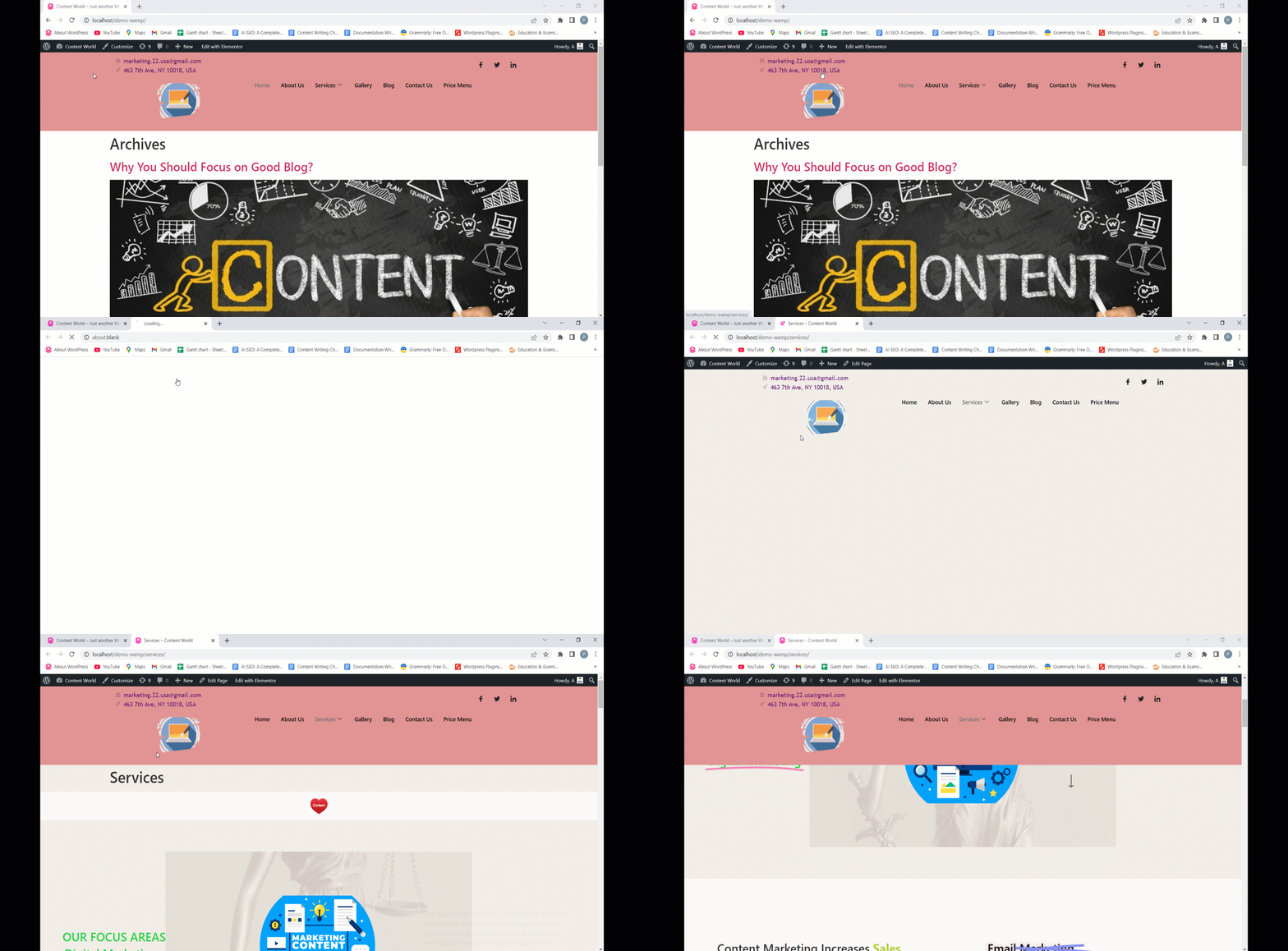
これがヘッダー情報のカスタマイズの最終出力です。
ElementsKit は常に簡単な設定を提供して、労力を軽減します。このウィジェットが便利で、ヘッダー情報のカスタマイズを楽しんでいただければ幸いです。


