
 Japanese
  English
  German
  Spanish
  Italian
  French
  Danish
  Portuguese
  Swedish
  Polish
  Korean
 両方あります 無料 そして プロ入力フィールド for you. Here we’ll discuss the free input field, let’s start.
自由入力フィールド #
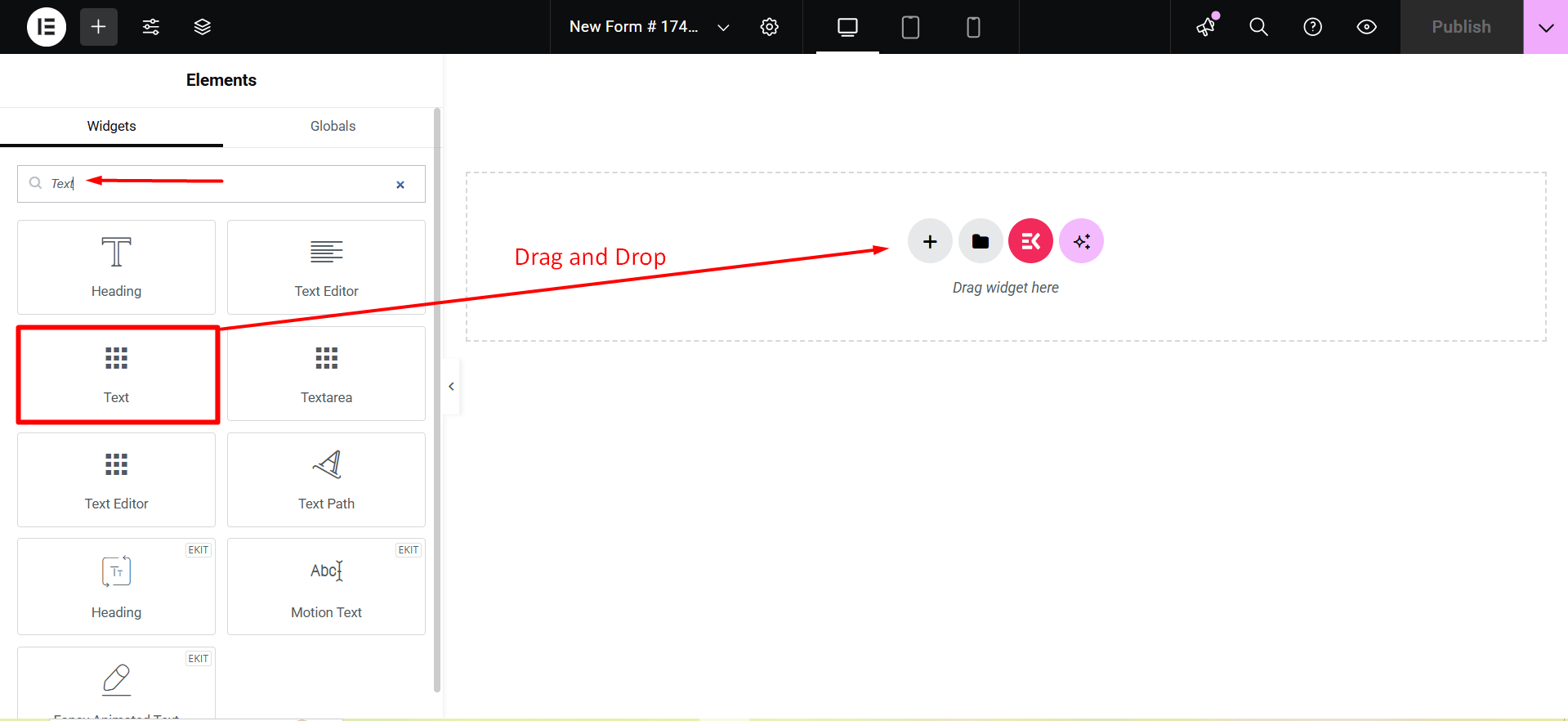
To make any form with Metform’s Free Input Fields open the page/post you want to add the form. After that, start editing with Elementor.
文章 #
Add Text field to input Name or any type of text.
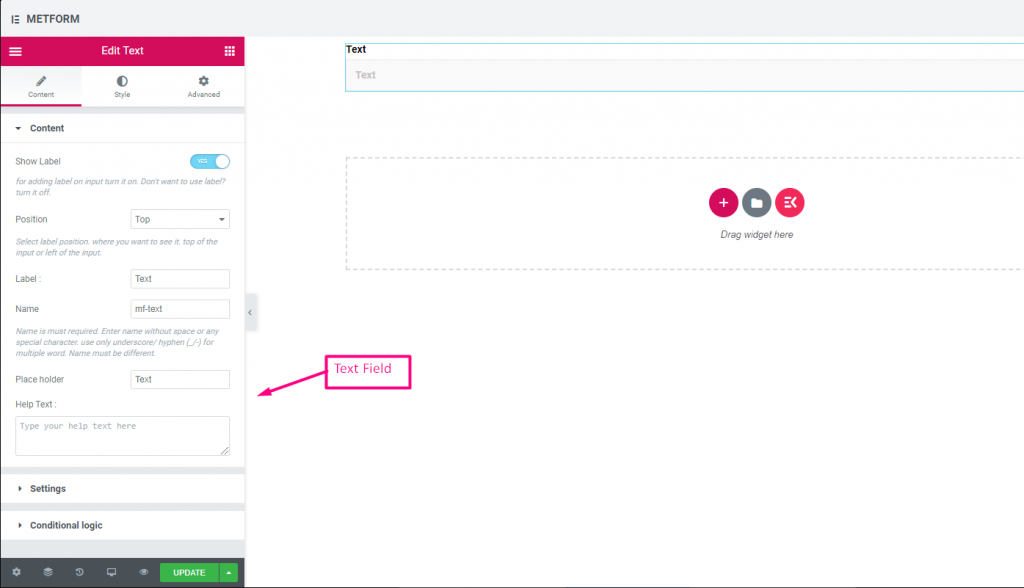
Content Part –
ラベルを表示: You can turn it ON or keep it OFF.
位置: Select the label position where you want to see it, either at the Top or Left of the input.
ラベル: ラベルのテキストを入力します。
名前: A name is required. Enter a name without spaces or special characters—use only an underscore (_) or hyphen (-) for multiple words. The name must be unique.
プレースホルダー: Use a placeholder to show some dummy text and help users input the correct text.
ヘルプテキスト: ウィジェットの下に表示するテキストを入力します。
設定 -
必須: Toggle this option to make it required. Users can’t submit the form without filling in the required fields.
Validation Type: Select a validation type from the drop-down.
条件付きロジック part –
Enable: Enable or disable this option to control whether the field should be shown or hidden based on certain conditions. This helps in creating dynamic forms where fields appear only when specific criteria are met.
Check out our ライブデモはこちら.
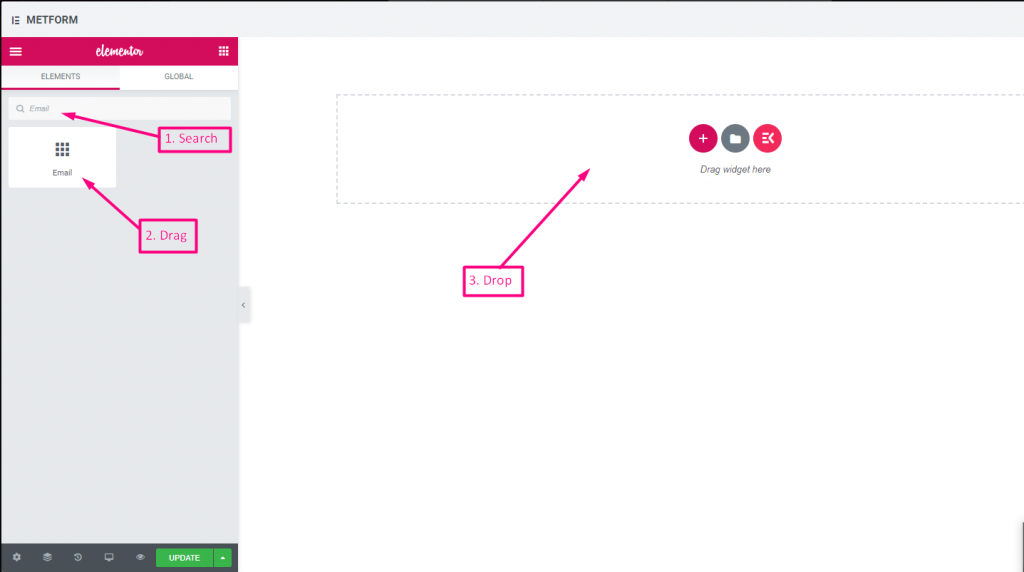
Eメール #
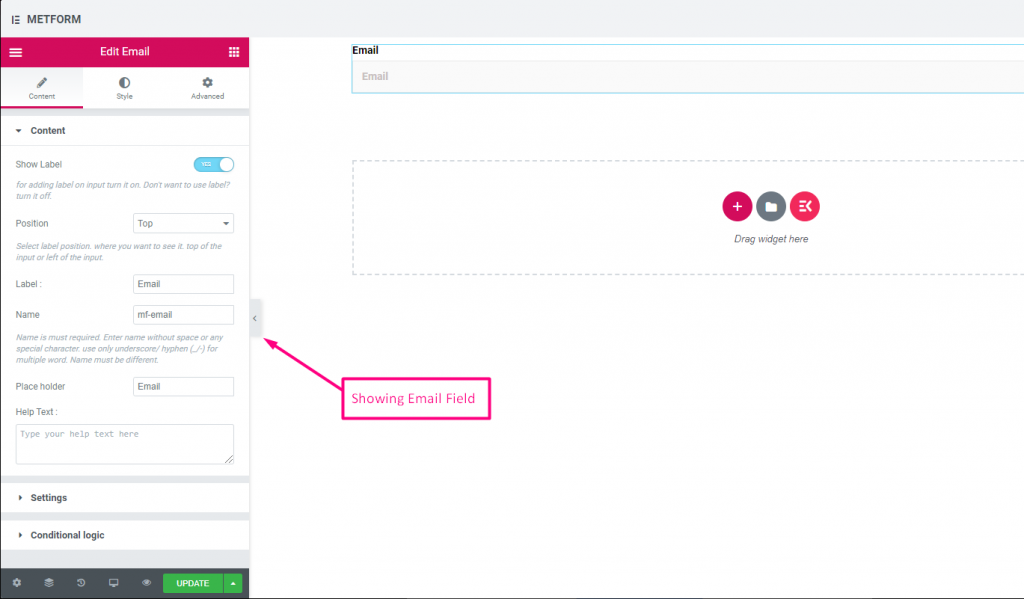
ユーザーがメール入力フィールドのあるフォームに有効なメール アドレスを入力していることを確認します。
Check out our ライブデモはこちら
| オプション | 説明 |
|---|---|
| ラベルを表示 | ラベルをオン/オフにします。 |
| 位置 | デフォルト: 上 ラベルの位置を選択します。見たい場所に。入力の上部または左。 |
| ラベル | ラベルのテキストを入力します。 |
| 名前 | 名前は必須です。スペースや特殊文字を含まない名前を入力します。複数の単語にはアンダースコア/ハイフン (_/-) のみを使用します。名前は違うはずです。 |
| プレースホルダー | プレースホルダーを使用してダミーテキストを表示し、ユーザーが正しいテキストを入力できるようにします。 |
| ヘルプテキスト | ウィジェットの下に表示するテキストを入力します。 |
| 必須 | デフォルト: いいえ このオプションを必須にするには、このオプションを切り替えます。ユーザーは必須フィールドに入力しないとフォームを送信できません。 |
| 検証タイプ | ドロップダウンから検証タイプを選択します。 文字数による 文字数で選択してテキストの最小文字数と最大文字数を設定します 入力が無効な場合は警告メッセージも表示する 単語の長さで 単語の長さで選択して、テキストの最小および最大の単語の長さを設定します。入力が無効な場合は警告メッセージも表示されます。 表現ベース 式に基づいて検証を設定するには、式に基づいて選択します。 入力が無効な場合は警告メッセージも表示する デフォルトを選択しますか? (デフォルト: いいえね) このオプションをデフォルトで選択する |
| 条件付きロジック | 特定の基準に基づいてこのフィールドを表示/非表示にします。 |
番号 #
この入力フィールドにより、ユーザーは数値入力で有効な数値を入力できるようになります。
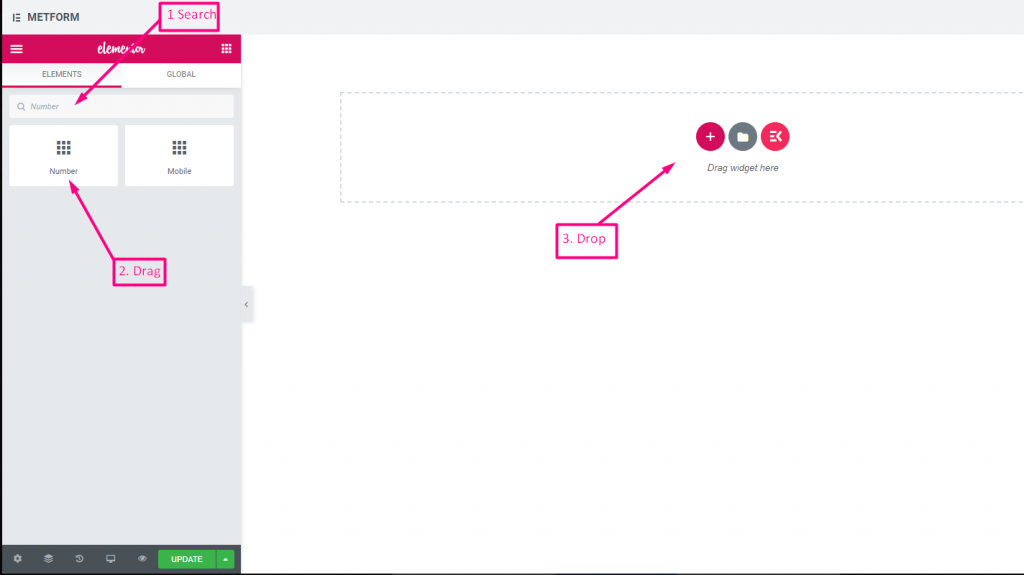
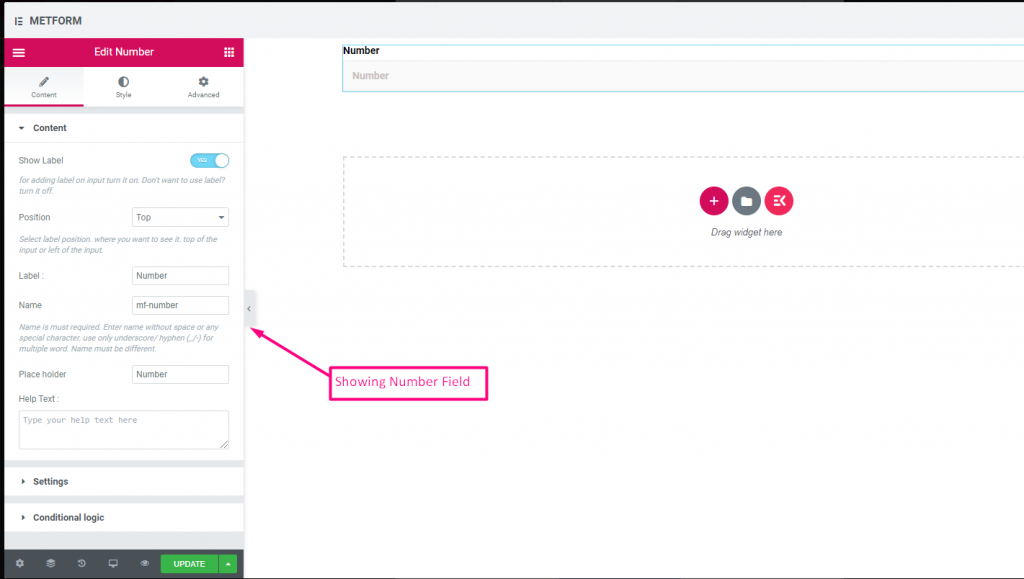
Check out our ライブデモはこちら
| オプション | 説明 |
|---|---|
| ラベルを表示 | ラベルをオン/オフにします。 |
| 位置 | デフォルト: 上 ラベルの位置を選択します。見たい場所に。入力の上部または左。 |
| ラベル | ラベルのテキストを入力します。 |
| 名前 | 名前は必須です。スペースや特殊文字を含まない名前を入力します。複数の単語にはアンダースコア/ハイフン (_/-) のみを使用します。名前は違うはずです。 |
| プレースホルダー | プレースホルダーを使用してダミーテキストを表示し、ユーザーが正しいテキストを入力できるようにします。 |
| ヘルプテキスト | ウィジェットの下に表示するテキストを入力します。 |
| 必須 | デフォルト: いいえ このオプションを必須にするには、このオプションを切り替えます。ユーザーは必須フィールドに入力しないとフォームを送信できません。 |
| 検証タイプ | ドロップダウンから検証タイプを選択します。 文字数による 文字数で選択してテキストの最小文字数と最大文字数を設定します 入力が無効な場合は警告メッセージも表示する 単語の長さで 単語の長さで選択して、テキストの最小および最大の単語の長さを設定します。入力が無効な場合は警告メッセージも表示されます。 表現ベース 式に基づいて検証を設定するには、式に基づいて選択します。 入力が無効な場合は警告メッセージも表示する デフォルトを選択しますか? (デフォルト: いいえね) このオプションをデフォルトで選択する |
| 条件付きロジック | 特定の基準に基づいてこのフィールドを表示/非表示にします。 |
電話 #
ユーザーが有効な電話番号を入力して接続できるようにします。
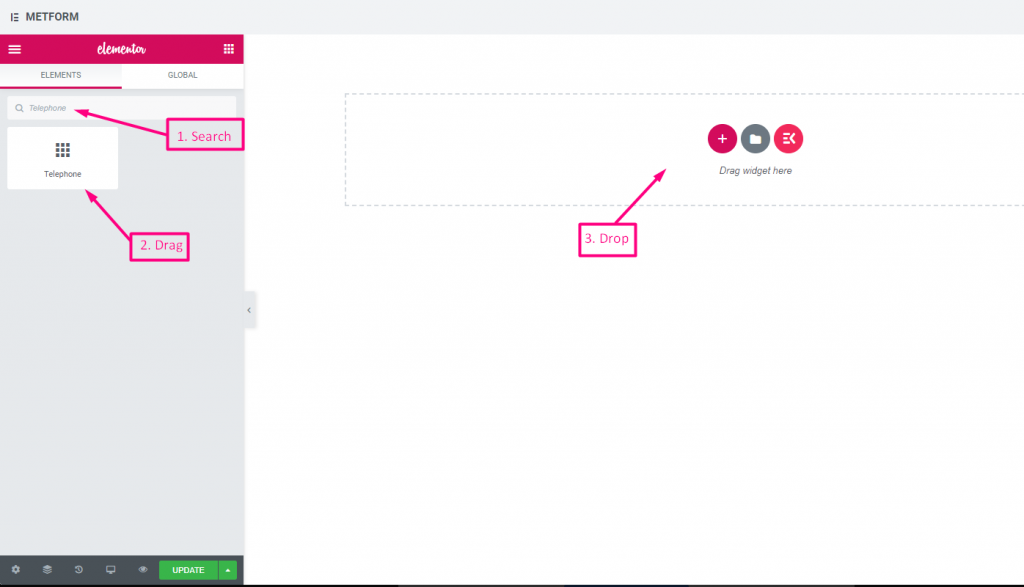
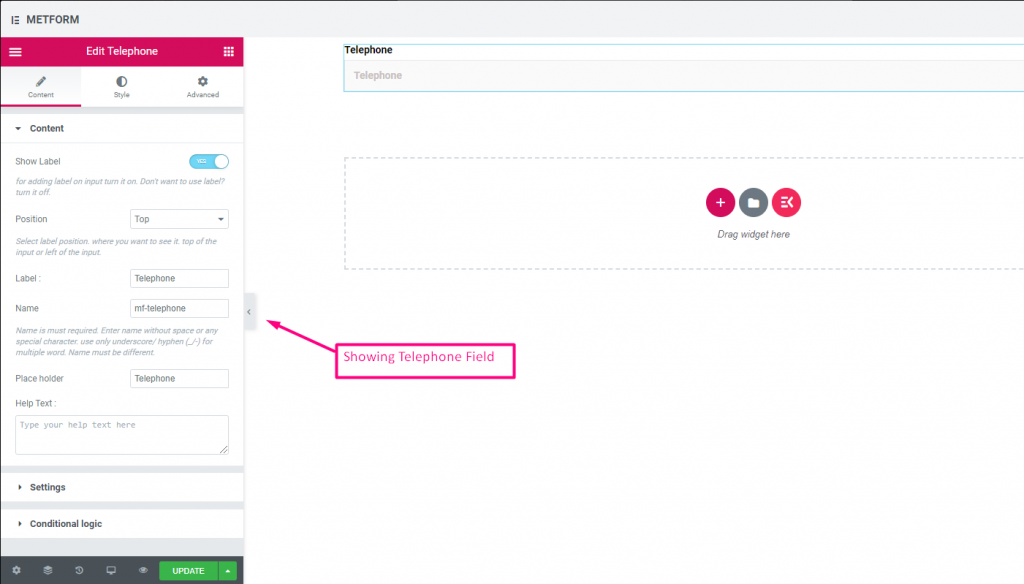
Check out our ライブデモはこちら
| オプション | 説明 |
|---|---|
| ラベルを表示 | ラベルをオン/オフにします。 |
| 位置 | デフォルト: 上 ラベルの位置を選択します。見たい場所に。入力の上部または左。 |
| ラベル | ラベルのテキストを入力します。 |
| 名前 | 名前は必須です。スペースや特殊文字を含まない名前を入力します。複数の単語にはアンダースコア/ハイフン (_/-) のみを使用します。名前は違うはずです。 |
| プレースホルダー | プレースホルダーを使用してダミーテキストを表示し、ユーザーが正しいテキストを入力できるようにします。 |
| ヘルプテキスト | ウィジェットの下に表示するテキストを入力します。 |
| 必須 | デフォルト: いいえ このオプションを必須にするには、このオプションを切り替えます。ユーザーは必須フィールドに入力しないとフォームを送信できません。 |
| 検証タイプ | ドロップダウンから検証タイプを選択します。 文字数による 文字数で選択してテキストの最小文字数と最大文字数を設定します 入力が無効な場合は警告メッセージも表示する 単語の長さで 単語の長さで選択して、テキストの最小および最大の単語の長さを設定します。入力が無効な場合は警告メッセージも表示されます。 表現ベース 式に基づいて検証を設定するには、式に基づいて選択します。 入力が無効な場合は警告メッセージも表示する デフォルトを選択しますか? (デフォルト: いいえね) このオプションをデフォルトで選択する |
| 条件付きロジック | 特定の基準に基づいてこのフィールドを表示/非表示にします。 |
時間 #
ユーザーがポップダウン タイマーから希望の時間を選択できるようにします。
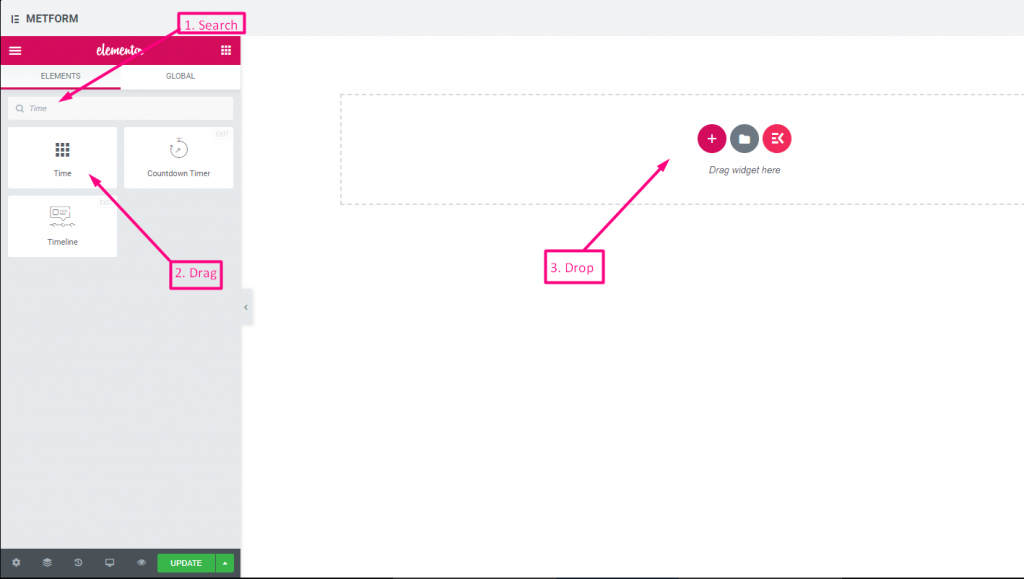
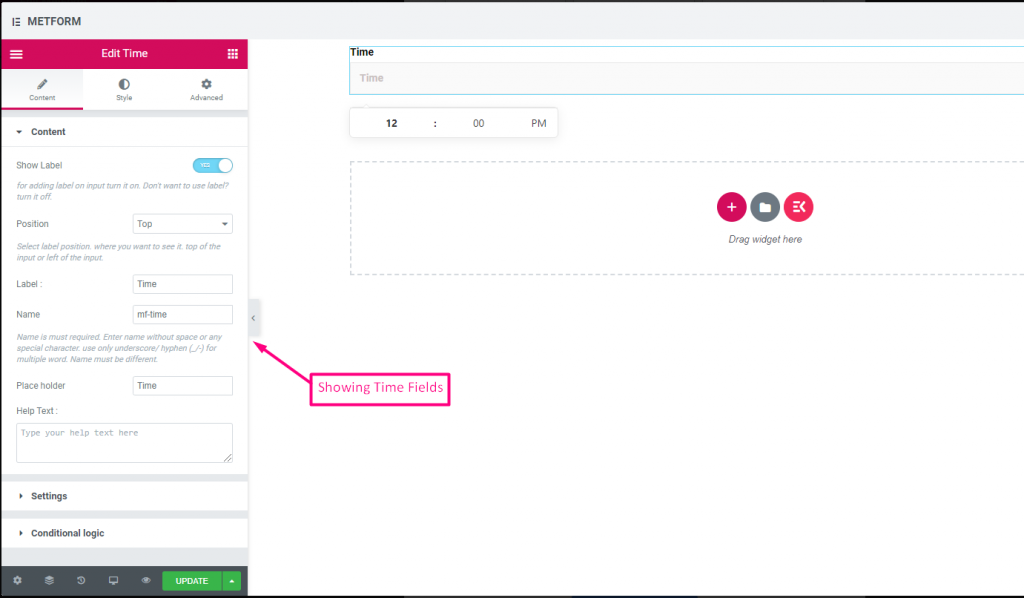
Check out our ライブデモはこちら.
| オプション | 説明 |
|---|---|
| ラベルを表示 | ラベルをオン/オフにします。 |
| 位置 | デフォルト: 上 ラベルの位置を選択します。見たい場所に。入力の上部または左。 |
| ラベル | ラベルのテキストを入力します。 |
| 名前 | 名前は必須です。スペースや特殊文字を含まない名前を入力します。複数の単語にはアンダースコア/ハイフン (_/-) のみを使用します。名前は違うはずです。 |
| プレースホルダー | プレースホルダーを使用してダミーテキストを表示し、ユーザーが正しいテキストを入力できるようにします。 |
| ヘルプテキスト | ウィジェットの下に表示するテキストを入力します。 |
| 必須 | デフォルト: いいえ このオプションを必須にするには、このオプションを切り替えます。ユーザーは必須フィールドに入力しないとフォームを送信できません。 |
| 使用時間 24時間 | 24時間形式の時刻を有効または無効にする |
| 条件付きロジック | 特定の基準に基づいてこのフィールドを表示/非表示にします。 |
24時間形式 #
Check out our ライブデモはこちら
日付 #
この入力フィールドを使用して、ポップダウン カレンダーからフォームの日付を選択し、ユーザー フレンドリなフォームにします。
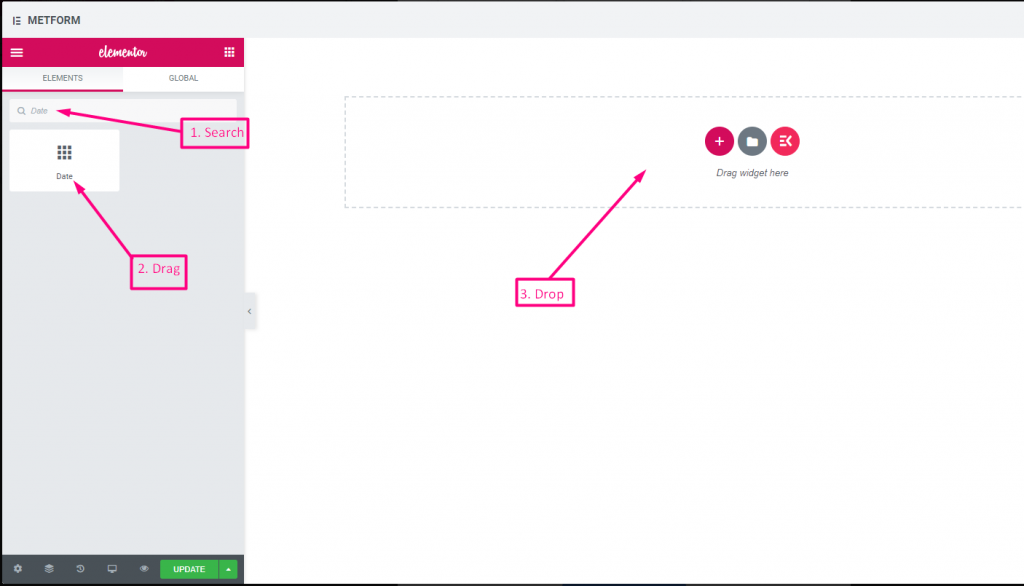
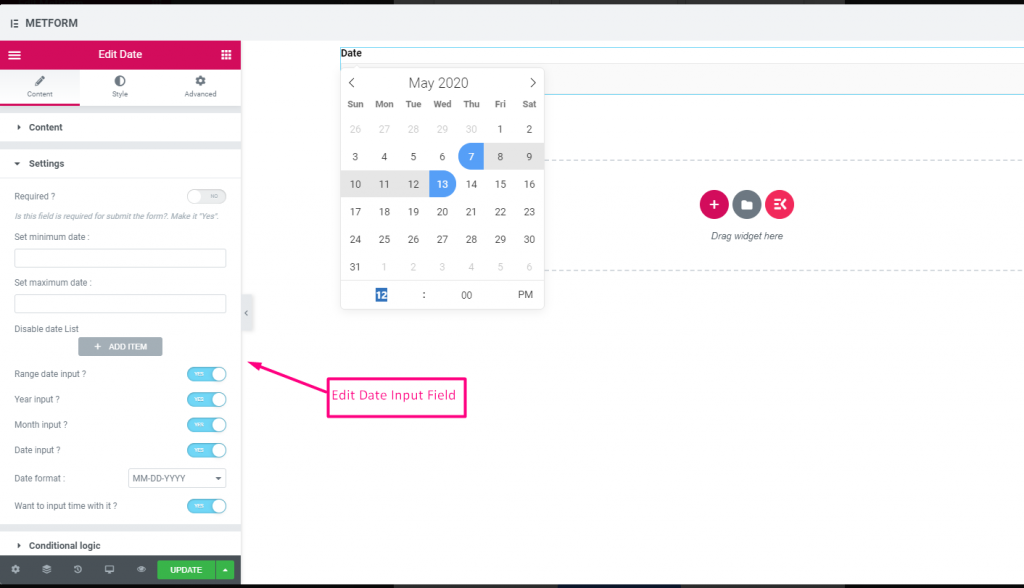
Check out our ライブデモはこちら
日付範囲の入力 #
Check out our ライブデモはこちら
時刻入力で日付を選択 #
Check out our ライブデモはこちら
| オプション | 説明 |
|---|---|
| ラベルを表示 | ラベルをオン/オフにします。 |
| 位置 | デフォルト: 上 ラベルの位置を選択します。見たい場所に。入力の上部または左。 |
| ラベル | ラベルのテキストを入力します。 |
| 名前 | 名前は必須です。スペースや特殊文字を含まない名前を入力します。複数の単語にはアンダースコア/ハイフン (_/-) のみを使用します。名前は違うはずです。 |
| プレースホルダー | プレースホルダーを使用してダミーテキストを表示し、ユーザーが正しいテキストを入力できるようにします。 |
| ヘルプテキスト | ウィジェットの下に表示するテキストを入力します。 |
| 必須 | デフォルト: いいえ このオプションを必須にするには、このオプションを切り替えます。ユーザーは必須フィールドに入力しないとフォームを送信できません。 |
| 最小または最大の日付を設定する | 最小日付と最大日付を入力してください |
| 無効化日 | 休業日または無効日を入力してください |
| 範囲日付入力 | 範囲の日付入力を有効にする 日付範囲の入力、日付単位、年単位、月単位での日付入力を有効または無効にします。 日付形式: ドロップダウンから日付形式を選択します。例: DD-MM-YYYY |
| 入力時間 | 日付とともに時間を追加できます。 |
| 条件付きロジック | 特定の基準に基づいてこのフィールドを表示/非表示にします。 |
選択する #
ユーザーが選択できるオプションのドロップダウン リストを追加し、ウィジェットを名前で検索して、ウィジェットを目的の場所にドラッグ アンド ドロップします。
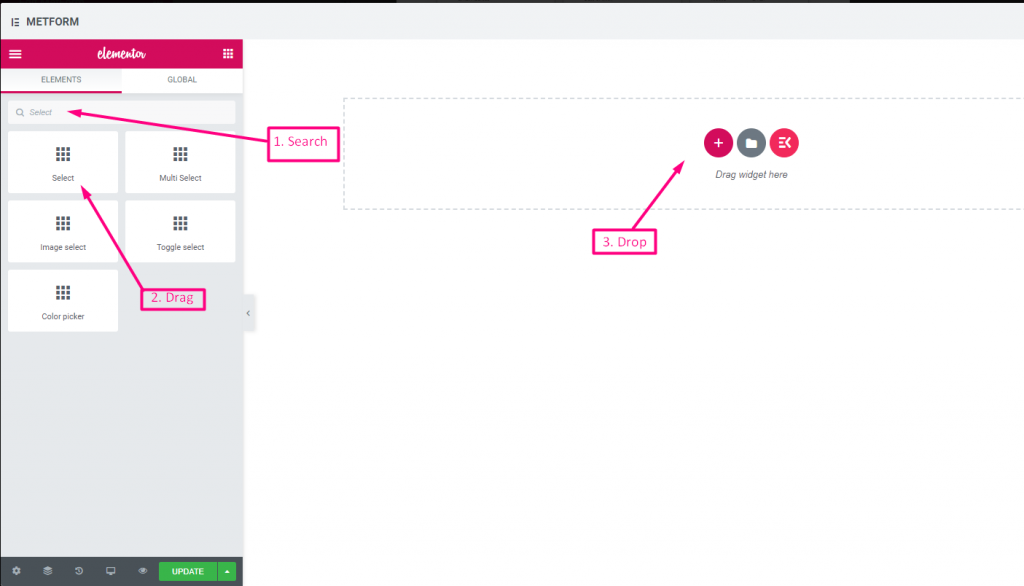
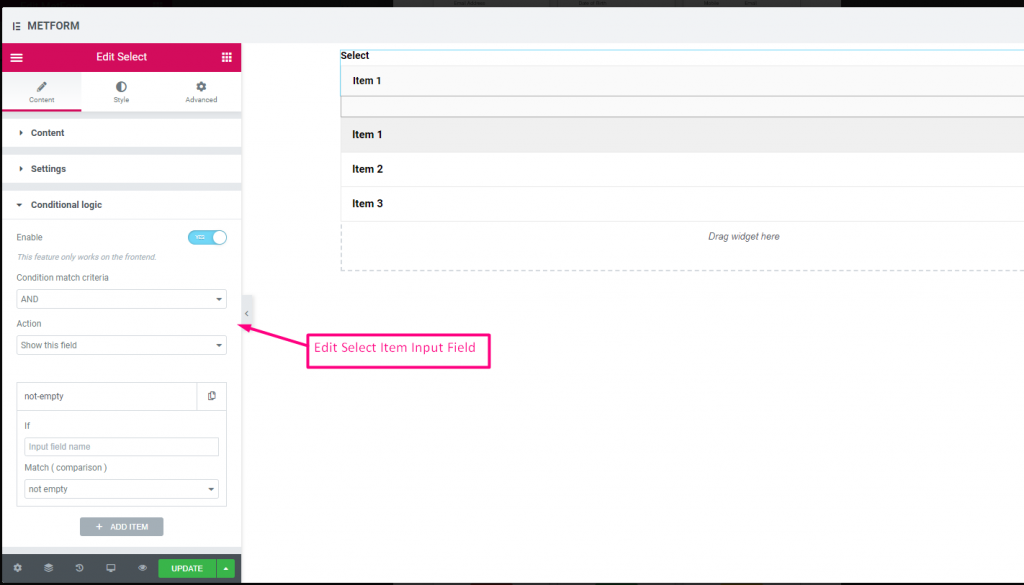
Check out our ライブデモはこちら
ラベルとしての検索オプション #
Check out our ライブデモはこちら
| オプション | 説明 |
|---|---|
| ラベルを表示 | ラベルをオン/オフにします。 |
| 位置 | デフォルト: 上 ラベルの位置を選択します。見たい場所に。入力の上部または左。 |
| ラベル | ラベルのテキストを入力します。 |
| 名前 | 名前は必須です。スペースや特殊文字を含まない名前を入力します。複数の単語にはアンダースコア/ハイフン (_/-) のみを使用します。名前は違うはずです。 |
| ヘルプテキスト | ウィジェットの下に表示するテキストを入力します。 |
| ドロップダウンリスト | ドロップダウンにオプションを追加/編集/複製/削除します。 入力フィールドテキスト ユーザーに表示されるリストテキストを選択します。 入力フィールド値 希望する人に保存/メールで送信するリスト値を選択します。 状態 (デフォルト: 有効にする) オプションを付けたいですか?オプションが表示されるが選択できないユーザー。無効にします。 デフォルトを選択しますか? (デフォルト: いいえ) このオプションをデフォルトで選択する |
| 必須 | デフォルト: いいえ このオプションを必須にするには、このオプションを切り替えます。ユーザーは必須フィールドに入力しないとフォームを送信できません。 |
| 条件付きロジック | 特定の基準に基づいてこのフィールドを表示/非表示にします。 |
複数選択 #
ドロップダウンから一度に複数の項目を選択します。
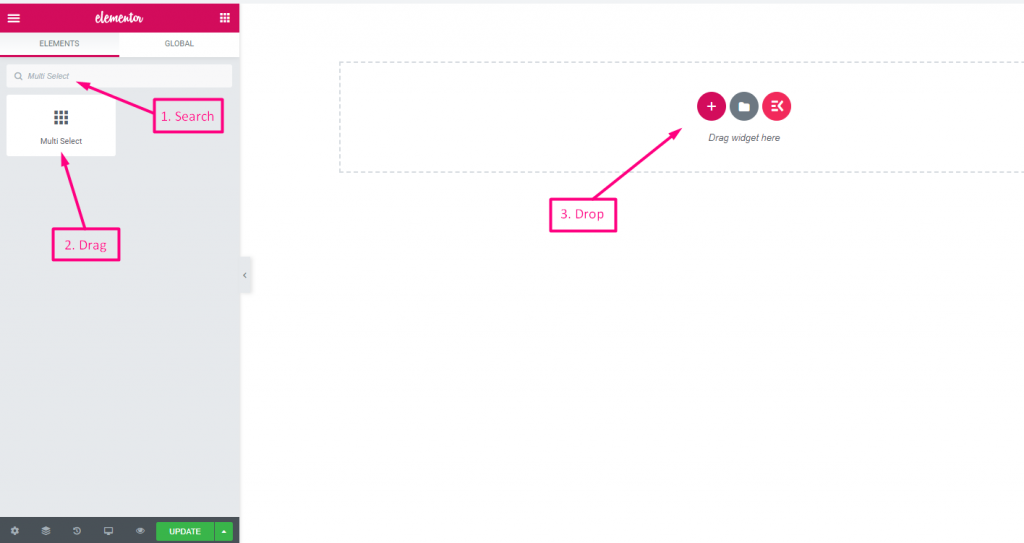
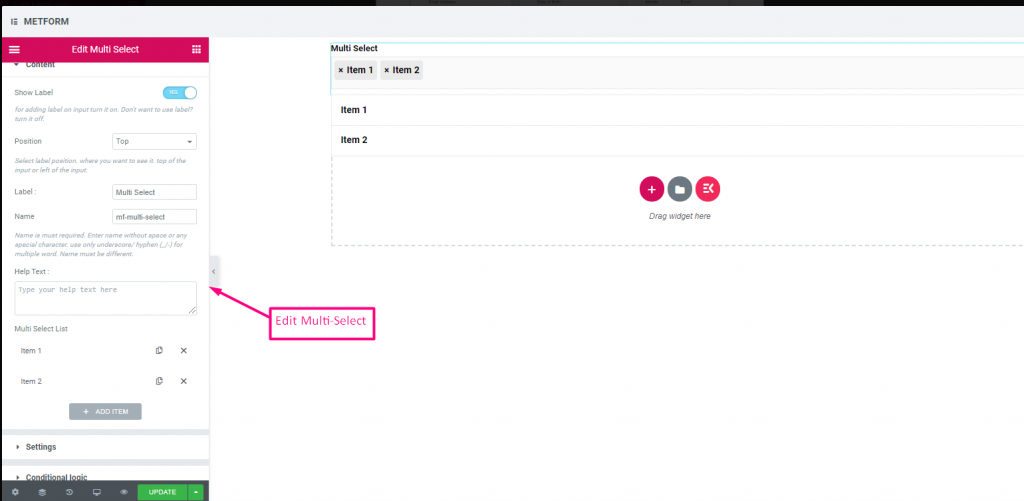
Check out our ライブデモはこちら
デフォルトで選択された値 #
Check out our ライブデモはこちら
| オプション | 説明 |
|---|---|
| ラベルを表示 | ラベルをオン/オフにします。 |
| 位置 | デフォルト: 上 ラベルの位置を選択します。見たい場所に。入力の上部または左。 |
| ラベル | ラベルのテキストを入力します。 |
| 名前 | 名前は必須です。スペースや特殊文字を含まない名前を入力します。複数の単語にはアンダースコア/ハイフン (_/-) のみを使用します。名前は違うはずです。 |
| ヘルプテキスト | ウィジェットの下に表示するテキストを入力します。 |
| ドロップダウンリスト | ドロップダウンにオプションを追加/編集/複製/削除します。 入力フィールドテキスト ユーザーに表示されるリストテキストを選択します。 入力フィールド値 希望する人に保存/メールで送信するリスト値を選択します。 状態 (デフォルト: 有効にする) オプションを付けたいですか?オプションが表示されるが選択できないユーザー。無効にします。 デフォルトを選択しますか? (デフォルト: いいえ) このオプションをデフォルトで選択する |
| 必須 | デフォルト: いいえ このオプションを必須にするには、このオプションを切り替えます。ユーザーは必須フィールドに入力しないとフォームを送信できません。 |
| 条件付きロジック | 特定の基準に基づいてこのフィールドを表示/非表示にします。 |
テキストエリア #
フォームに大量のコンテンツ、レビュー、コメントを追加するのに役立ちます。
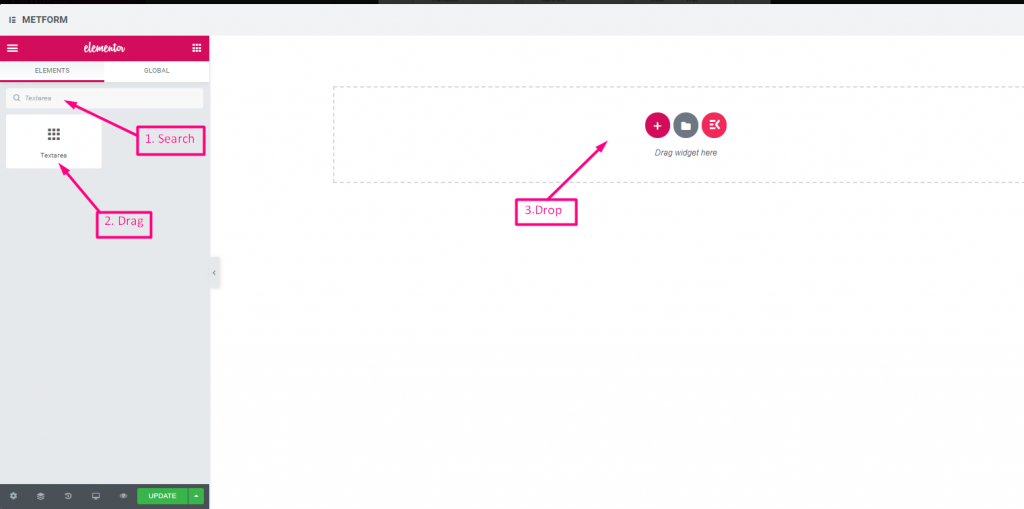
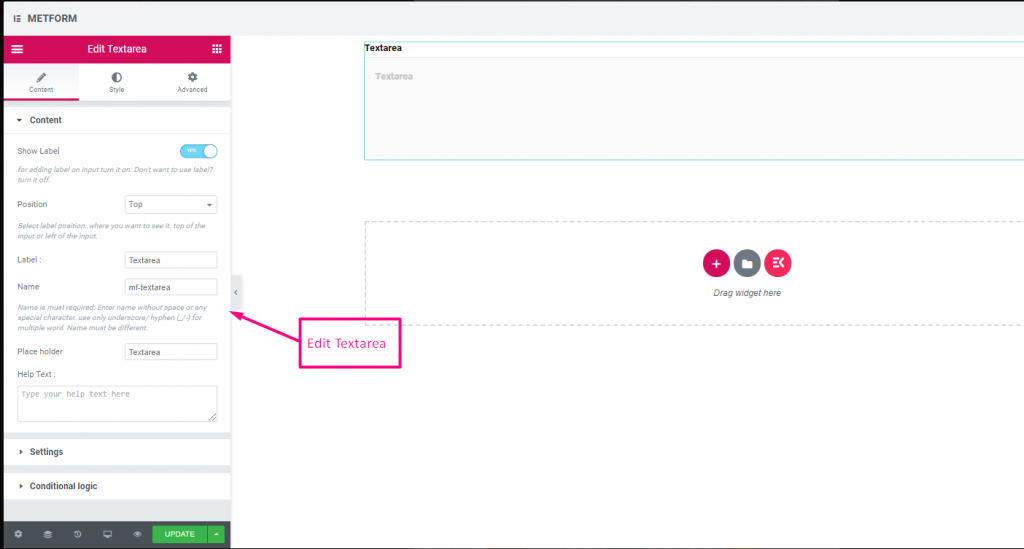
Check out our ライブデモはこちら
| オプション | 説明 |
|---|---|
| ラベルを表示 | ラベルをオン/オフにします。 |
| 位置 | デフォルト: 上 ラベルの位置を選択します。見たい場所に。入力の上部または左。 |
| ラベル | ラベルのテキストを入力します。 |
| 名前 | 名前は必須です。スペースや特殊文字を含まない名前を入力します。複数の単語にはアンダースコア/ハイフン (_/-) のみを使用します。名前は違うはずです。 |
| ヘルプテキスト | ウィジェットの下に表示するテキストを入力します。 |
| ドロップダウンリスト | ドロップダウンにオプションを追加/編集/複製/削除します。 入力フィールドテキスト ユーザーに表示されるリストテキストを選択します。 入力フィールド値 希望する人に保存/メールで送信するリスト値を選択します。 状態 (デフォルト: 有効にする) オプションを付けたいですか?オプションが表示されるが選択できないユーザー。無効にします。 デフォルトを選択しますか? (デフォルト: いいえ) このオプションをデフォルトで選択する |
| 必須 | デフォルト: いいえ このオプションを必須にするには、このオプションを切り替えます。ユーザーは必須フィールドに入力しないとフォームを送信できません。 |
| 検証タイプ | ドロップダウンから検証タイプを選択します。 文字数による 文字数で選択してテキストの最小文字数と最大文字数を設定します 入力が無効な場合は警告メッセージも表示する 単語の長さで 単語の長さで選択して、テキストの最小および最大の単語の長さを設定します。入力が無効な場合は警告メッセージも表示されます。 表現ベース 式に基づいて検証を設定するには、式に基づいて選択します。 入力が無効な場合は警告メッセージも表示する デフォルトを選択しますか? (デフォルト: いいえね) このオプションをデフォルトで選択する |
| 条件付きロジック | 特定の基準に基づいてこのフィールドを表示/非表示にします。 |
チェックボックス #
チェックボックスを使用して、ユーザーがフォームで一度に複数の項目を選択できるようにします。
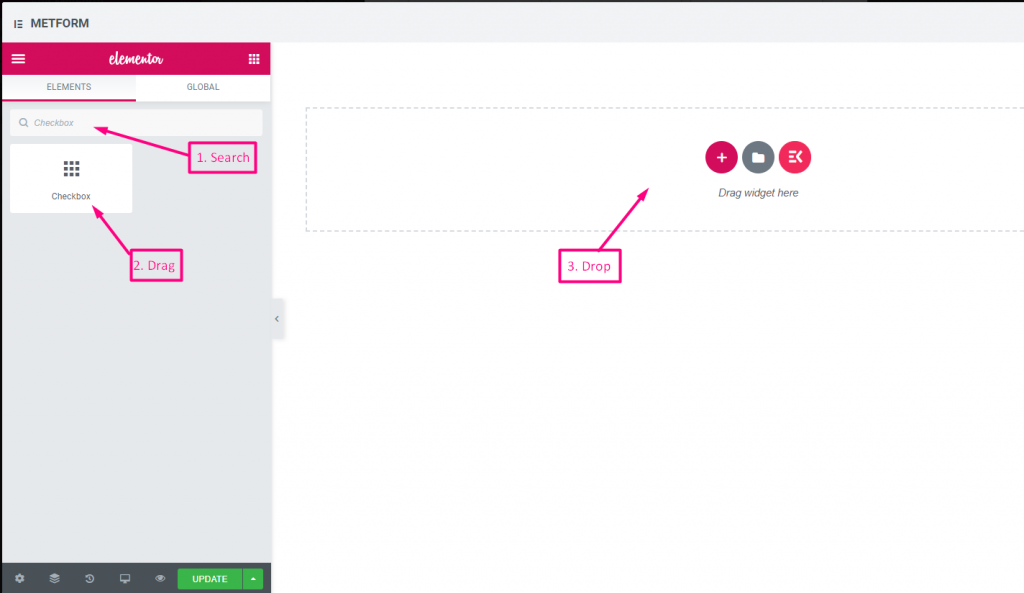
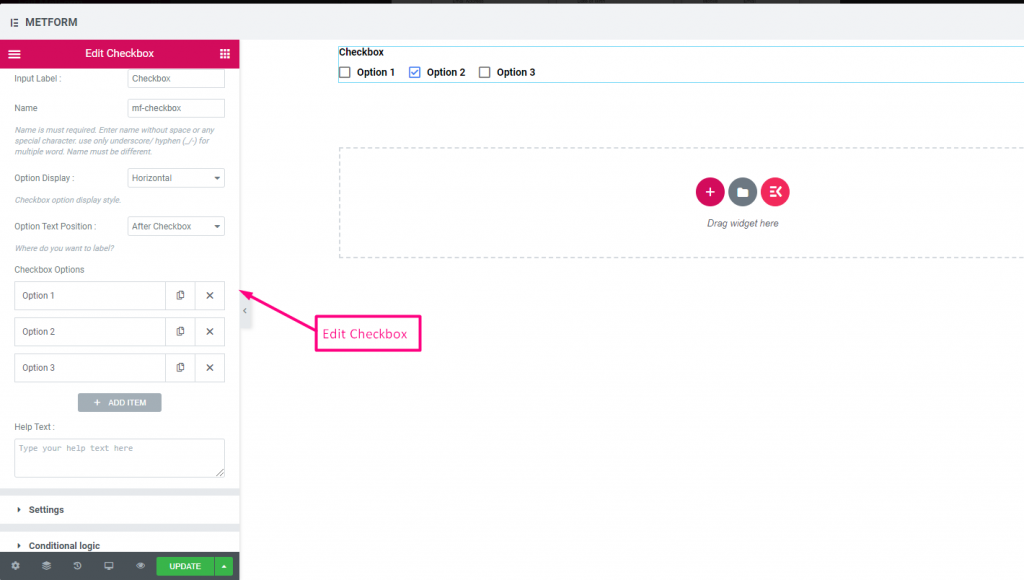
Check out our ライブデモはこちら
垂直 #
Check out our ライブデモはこちら
テキストの後のアイコンの位置 #
Check out our ライブデモはこちら
| オプション | 説明 |
|---|---|
| ラベルを表示 | ラベルをオン/オフにします。 |
| 位置 | デフォルト: 上 ラベルの位置を選択します。見たい場所に。入力の上部または左。 |
| ラベル | ラベルのテキストを入力します。 |
| 名前 | 名前は必須です。スペースや特殊文字を含まない名前を入力します。複数の単語にはアンダースコア/ハイフン (_/-) のみを使用します。名前は違うはずです。 |
| ヘルプテキスト | ウィジェットの下に表示するテキストを入力します。 |
| オプション表示 | 表示オプション 水平方向 または 垂直方向 |
| オプションテキストの位置 | 表示オプションのテキストの位置: チェックボックスの前 または チェックボックスの後 |
| チェックボックスオプション | ドロップダウンにオプションを追加/編集/複製/削除します。 チェックボックスオプションテキスト ユーザーに表示されるオプションテキストを選択します。 オプションの値 希望する人に保存/メールで送信するオプション値を選択します。 状態 (デフォルト: アクティブ) オプションを付けたいですか?オプションが表示されるが選択できないユーザー。無効にします。 |
| 必須 | デフォルト: いいえ このオプションを必須にするには、このオプションを切り替えます。ユーザーは必須フィールドに入力しないとフォームを送信できません。 |
| 条件付きロジック | 特定の基準に基づいてこのフィールドを表示/非表示にします。 |
無線 #
ユーザーが複数のオプションから 1 つの排他的なアイテムのみを選択できるようにします。
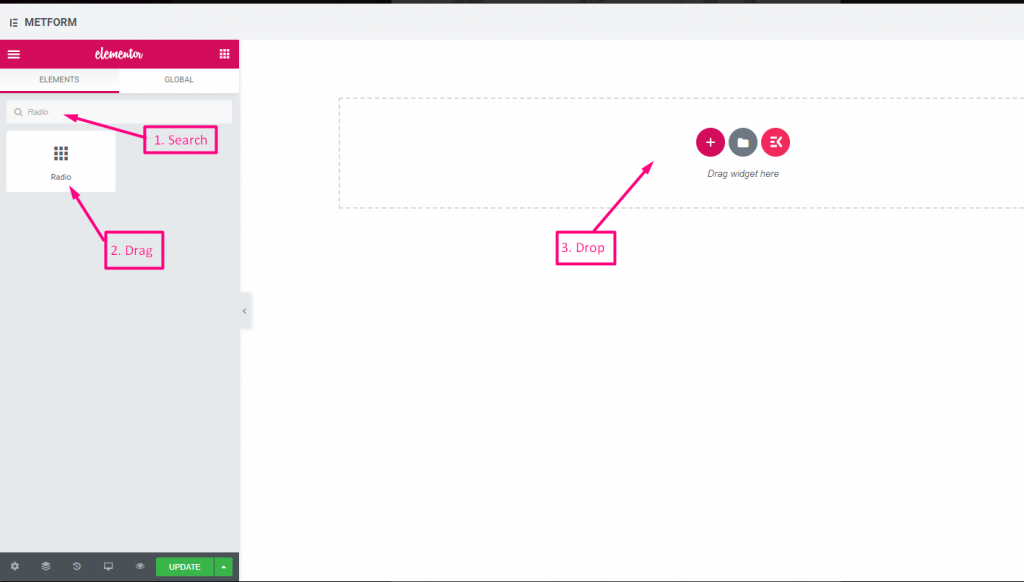
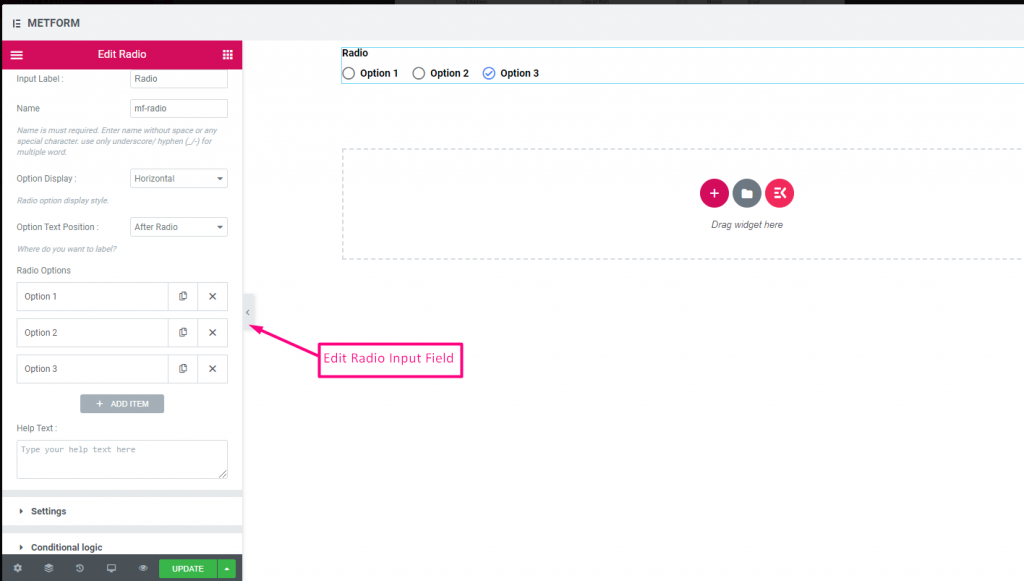
Check out our ライブデモはこちら
垂直 #
Check out our ライブデモはこちら
テキストの後のアイコンの位置 #
Check out our ライブデモはこちら
| オプション | 説明 |
|---|---|
| ラベルを表示 | ラベルをオン/オフにします。 |
| 位置 | デフォルト: 上 ラベルの位置を選択します。見たい場所に。入力の上部または左。 |
| ラベル | ラベルのテキストを入力します。 |
| 名前 | 名前は必須です。スペースや特殊文字を含まない名前を入力します。複数の単語にはアンダースコア/ハイフン (_/-) のみを使用します。名前は違うはずです。 |
| ヘルプテキスト | ウィジェットの下に表示するテキストを入力します。 |
| オプション表示 | ラジオオプションを表示 水平方向 または 垂直方向 |
| オプションテキストの位置 | ラジオオプションのテキストの位置を表示: 前に 無線 または 後 無線 |
| ラジオオプション | ドロップダウンにオプションを追加/編集/複製/削除します。 無線 オプションテキスト ユーザーに表示されるオプションテキストを選択します。 ラジオの価値 希望する人に保存/メールで送信するオプション値を選択します。 状態 (デフォルト: アクティブ) オプションを付けたいですか?オプションが表示されるが選択できないユーザー。無効にします。 |
| 必須 | デフォルト: いいえ このオプションを必須にするには、このオプションを切り替えます。ユーザーは必須フィールドに入力しないとフォームを送信できません。 |
| 条件付きロジック | 特定の基準に基づいてこのフィールドを表示/非表示にします。 |
名 (リスト) #
ユーザーがファーストネームを入力すると、メーリングリストのリストに表示できるようになります。例: Mailchimp
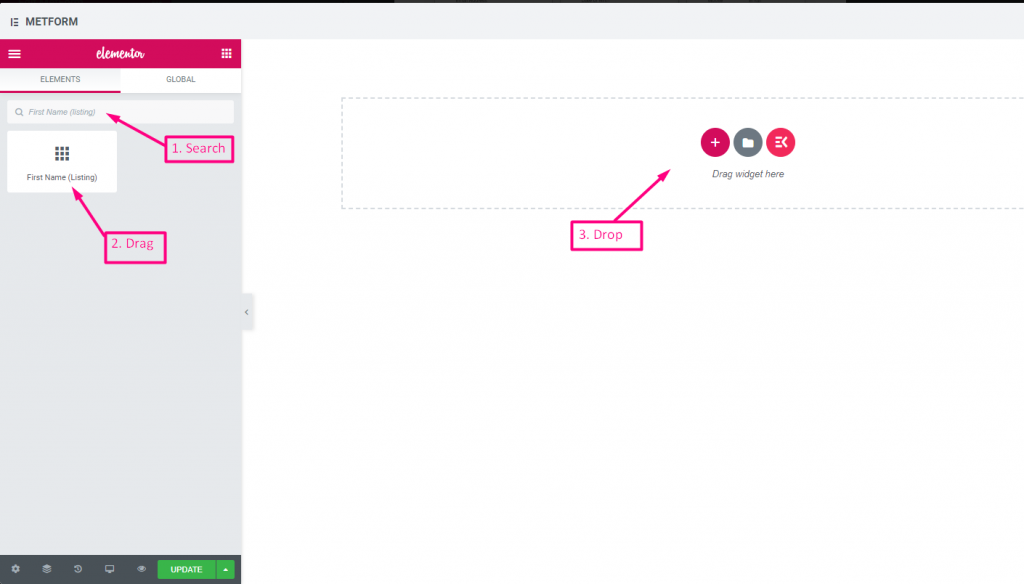
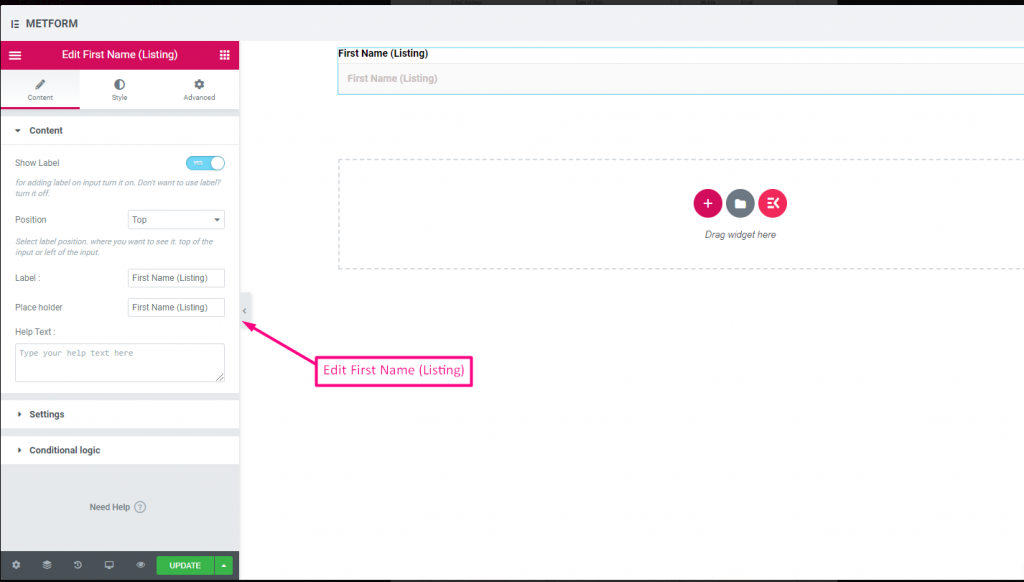
| オプション | 説明 |
|---|---|
| ラベルを表示 | ラベルをオン/オフにします。 |
| 位置 | デフォルト: 上 ラベルの位置を選択します。見たい場所に。入力の上部または左。 |
| ラベル | ラベルのテキストを入力します。 |
| プレースホルダー | プレースホルダーを使用してダミーテキストを表示し、ユーザーが正しいテキストを入力できるようにします。 |
| ヘルプテキスト | ウィジェットの下に表示するテキストを入力します。 |
| 必須 | デフォルト: いいえ このオプションを必須にするには、このオプションを切り替えます。ユーザーは必須フィールドに入力しないとフォームを送信できません。 |
| 検証タイプ | ドロップダウンから検証タイプを選択します。 文字数による 文字数で選択してテキストの最小文字数と最大文字数を設定します 入力が無効な場合は警告メッセージも表示する 単語の長さで 単語の長さで選択して、テキストの最小および最大の単語の長さを設定します。入力が無効な場合は警告メッセージも表示されます。 表現ベース 式に基づいて検証を設定するには、式に基づいて選択します。 入力が無効な場合は警告メッセージも表示する デフォルトを選択しますか? (デフォルト: いいえね) このオプションをデフォルトで選択する |
| 条件付きロジック | 特定の基準に基づいてこのフィールドを表示/非表示にします。 |
姓(リスト) #
ユーザーが姓を入力すると、メーリングリストのリストに表示できるようになります。例: Mailchimp
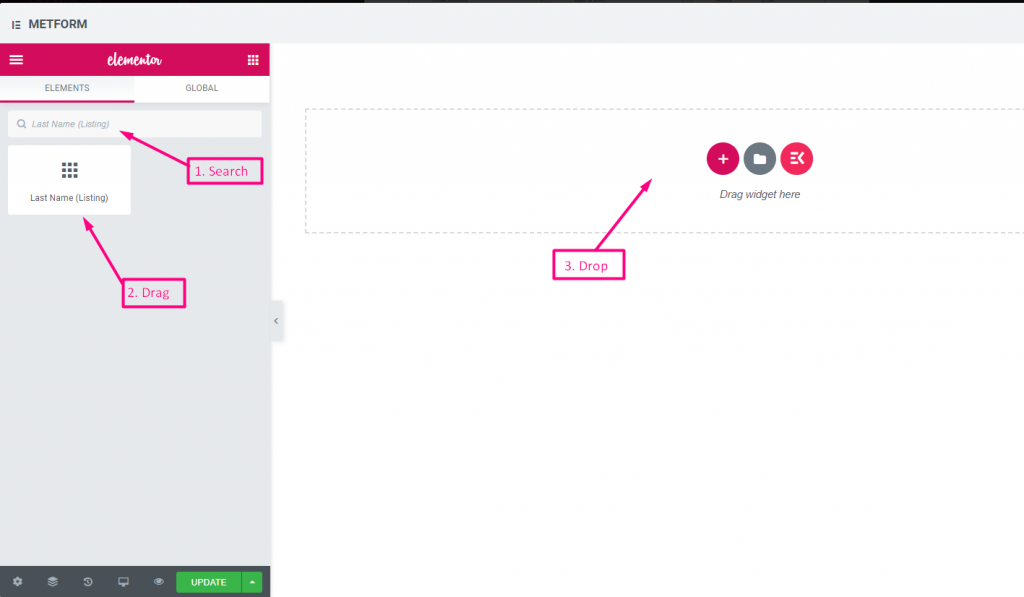
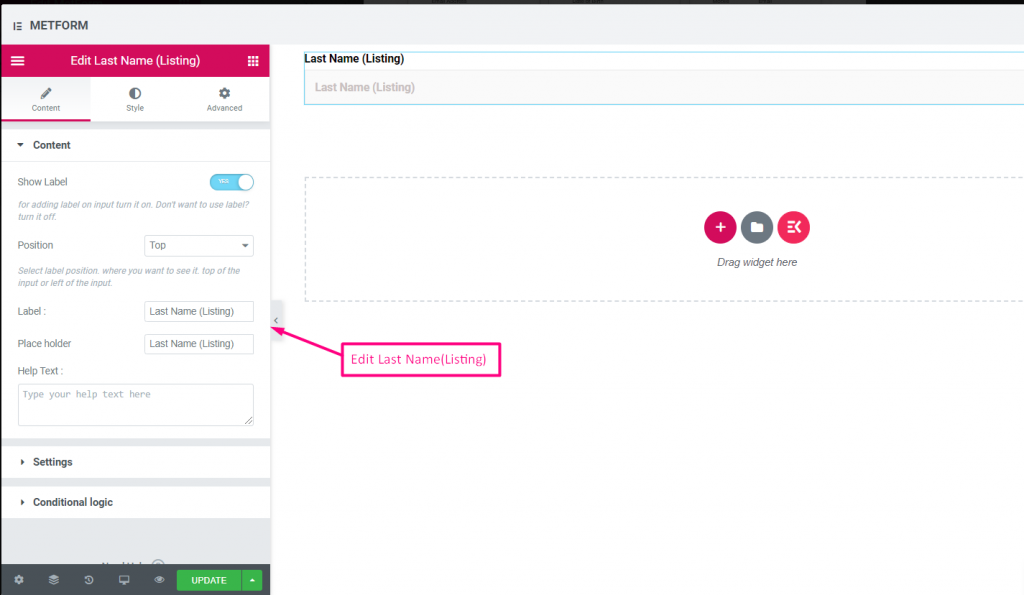
| オプション | 説明 |
|---|---|
| ラベルを表示 | ラベルをオン/オフにします。 |
| 位置 | デフォルト: 上 ラベルの位置を選択します。見たい場所に。入力の上部または左。 |
| ラベル | ラベルのテキストを入力します。 |
| プレースホルダー | プレースホルダーを使用してダミーテキストを表示し、ユーザーが正しいテキストを入力できるようにします。 |
| ヘルプテキスト | ウィジェットの下に表示するテキストを入力します。 |
| 必須 | デフォルト: いいえ このオプションを必須にするには、このオプションを切り替えます。ユーザーは必須フィールドに入力しないとフォームを送信できません。 |
| 検証タイプ | ドロップダウンから検証タイプを選択します。 文字数による 文字数で選択してテキストの最小文字数と最大文字数を設定します 入力が無効な場合は警告メッセージも表示する 単語の長さで 単語の長さで選択して、テキストの最小および最大の単語の長さを設定します。入力が無効な場合は警告メッセージも表示されます。 表現ベース 式に基づいて検証を設定するには、式に基づいて選択します。 入力が無効な場合は警告メッセージも表示する デフォルトを選択しますか? (デフォルト: いいえね) このオプションをデフォルトで選択する |
| 条件付きロジック | 特定の基準に基づいてこのフィールドを表示/非表示にします。 |
オプトインリスト #
フォームにオプトイン フィールドを使用し、「ニュースレターを購読する」チェックボックスをクリックして、ユーザーを購読済みの Mailchimp 連絡先ユーザーとして設定します。
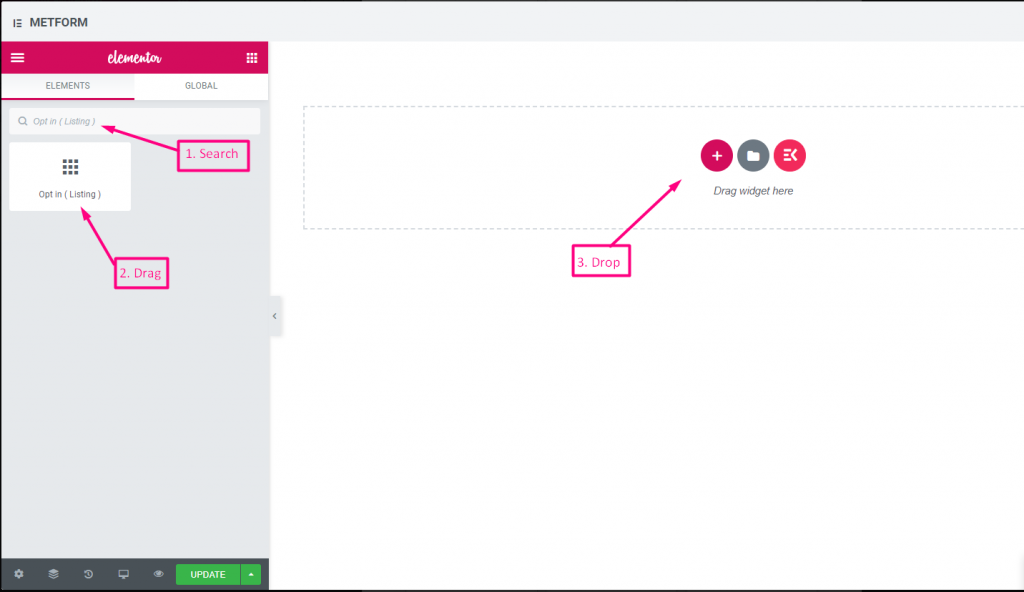
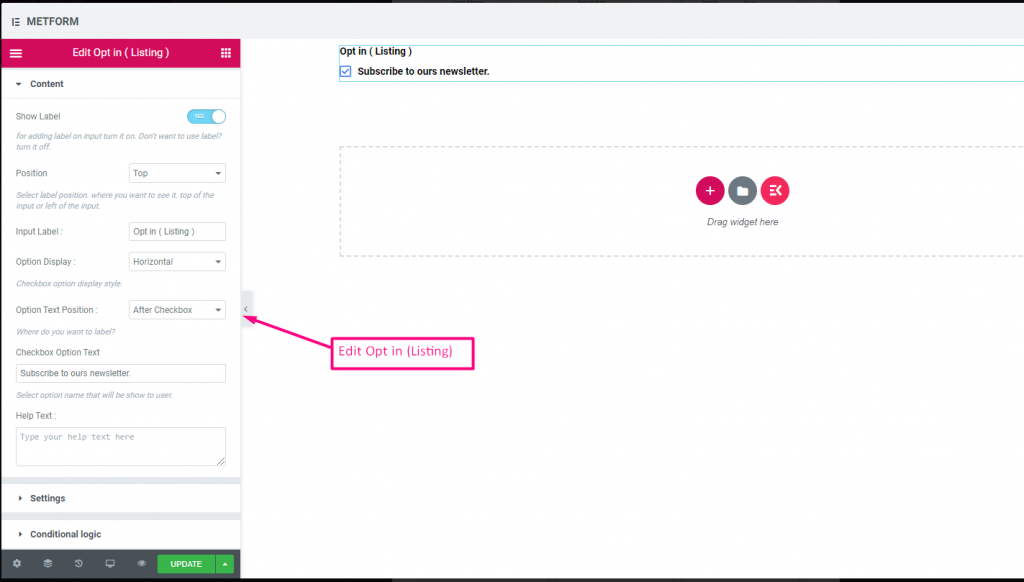
Check out our ライブデモはこちら
| オプション | 説明 |
|---|---|
| ラベルを表示 | ラベルをオン/オフにします。 |
| 位置 | デフォルト: 上 ラベルの位置を選択します。見たい場所に。入力の上部または左。 |
| 入力ラベル | ラベルのテキストを入力します。 |
| オプション表示 | オプトインリストオプションの表示 水平方向 または 垂直方向 |
| オプションテキストの位置 | オプトインリストオプションテキストの位置を表示: 前に チェックボックスまたは 後 チェックボックス |
| チェックボックスオプションテキスト | ユーザーに表示されるオプションについて簡単に説明します。例:「ニュースレターを購読する“ |
| ヘルプテキスト | ウィジェットの下に表示するテキストを入力します。ヘルプテキストを使用して、適切な相手にメッセージを簡単にターゲットにして配信できます。 |
| 必須 | デフォルト: いいえ このオプションを必須にするには、このオプションを切り替えます。ユーザーは必須フィールドに入力しないとフォームを送信できません。 |
| 条件付きロジック | 特定の基準に基づいてこのフィールドを表示/非表示にします。 |
GDPR への同意 #
ユーザーデータを収集する前に、フォームで GDPR (一般データ保護規則) の苦情を有効にしてください。これにより、法律の措置から安全を保つために通常ユーザーデータをどのように使用しているかが説明されます。
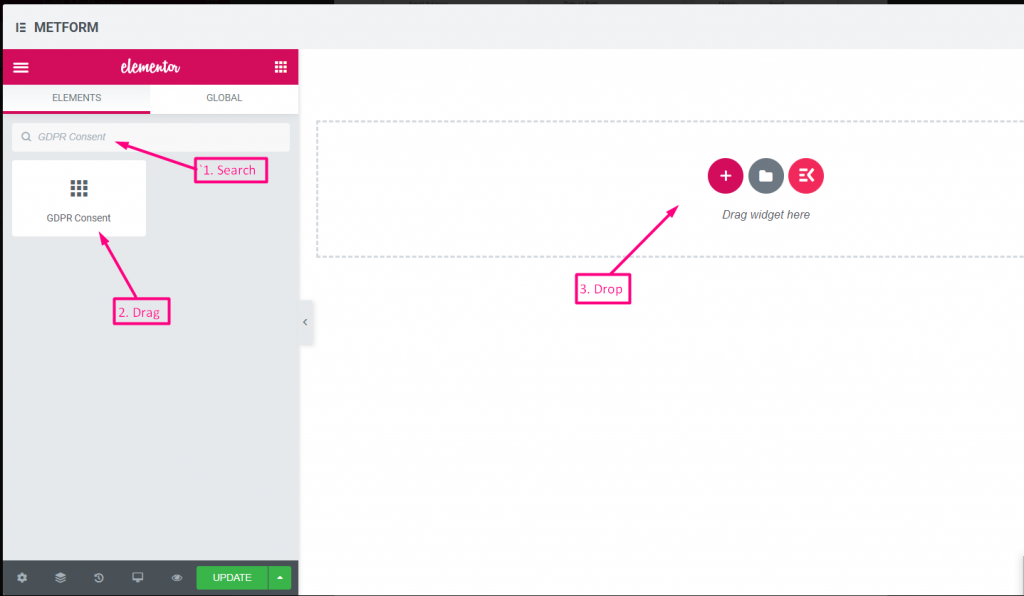
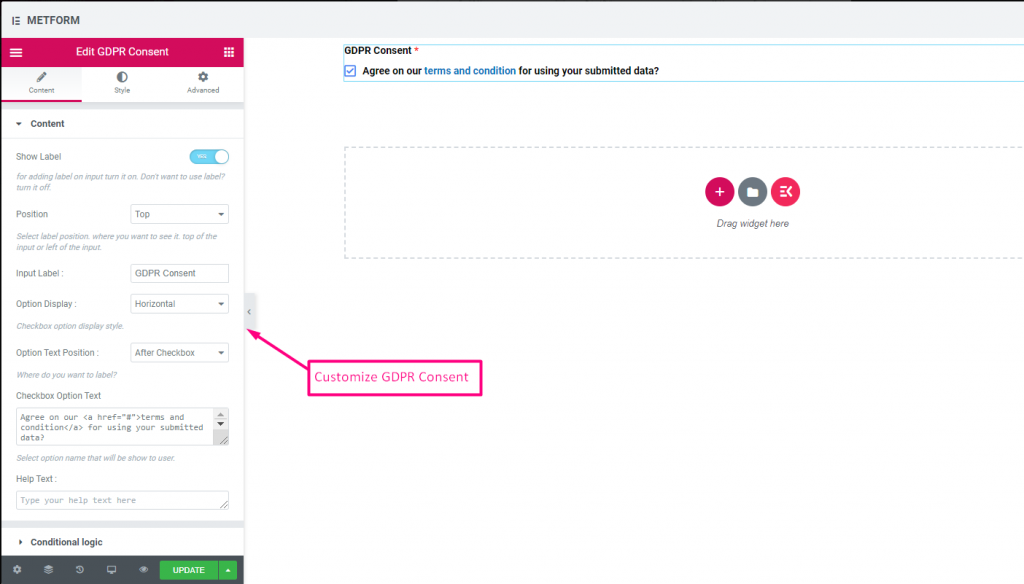
チェック out our ライブデモはこちら
テキストリンク付き #
チェック out our ライブデモはこちら
| オプション | 説明 |
|---|---|
| ラベルを表示 | ラベルをオン/オフにします。 |
| 位置 | デフォルト: 上 ラベルの位置を選択します。見たい場所に。入力の上部または左。 |
| 入力ラベル | ラベルのテキストを入力します。 |
| オプション表示 | GDPR同意オプションを表示する 水平方向 または 垂直方向 |
| オプションテキストの位置 | GDPR 同意オプションのテキストの位置を表示: 前に チェックボックスまたは 後 チェックボックス |
| チェックボックスオプションテキスト | ユーザーに表示されるオプションについて簡単に説明します。例: 「同意します」 利用規約 提出されたデータを使用することに同意しますか? |
| ヘルプテキスト | ウィジェットの下に表示するテキストを入力します。ヘルプテキストを使用して、適切な相手にメッセージを簡単にターゲットにして配信できます。 |
| 条件付きロジック | 特定の基準に基づいてこのフィールドを表示/非表示にします。 |
スイッチ #
ライトスイッチと同じように、はい/いいえまたはオン/オフの切り替えスイッチチェックボックス入力を簡単に制御できます。
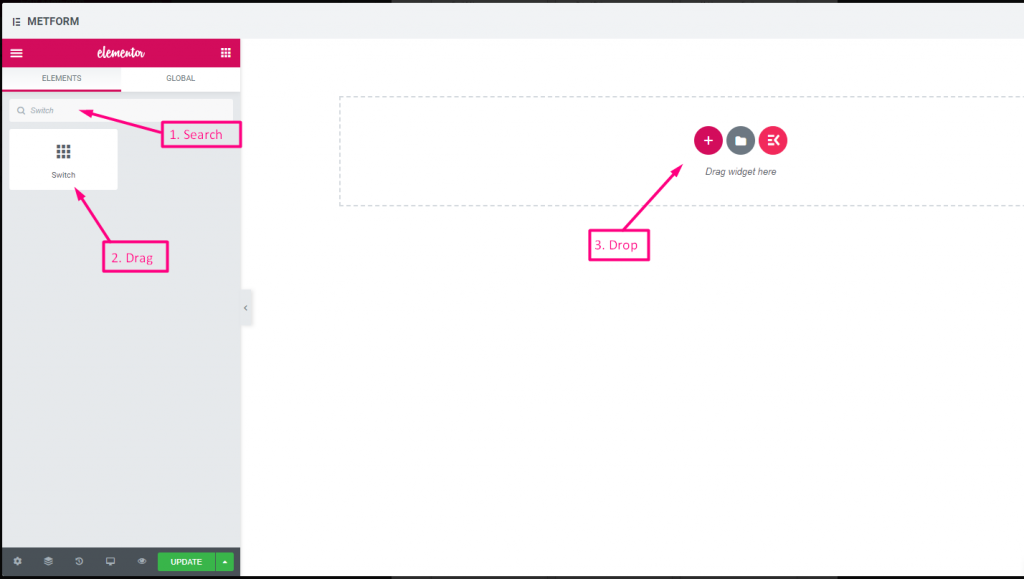
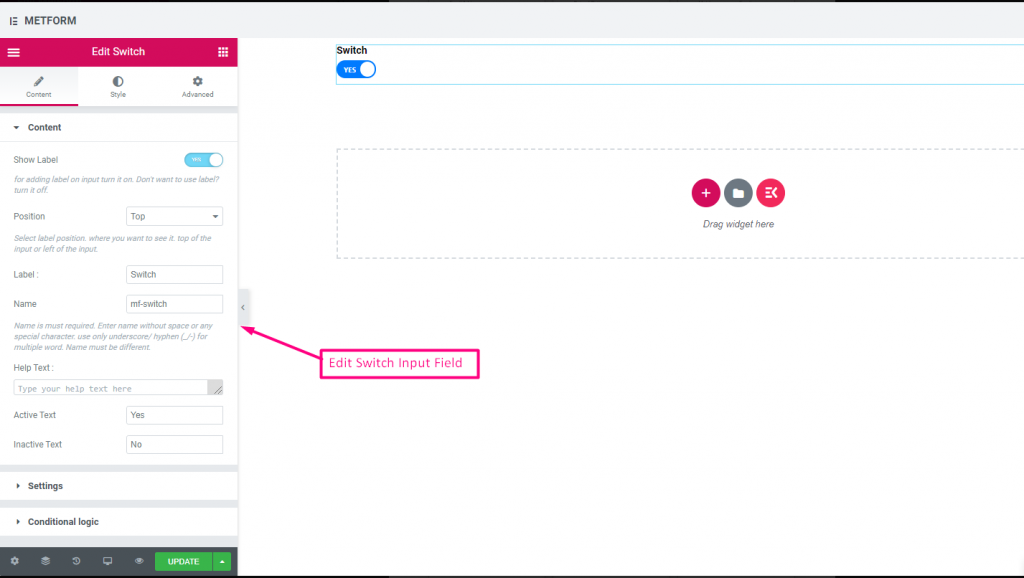
Check out our ライブデモはこちら
カスタムオプションテキスト #
Check out our ライブデモはこちら
| オプション | 説明 |
|---|---|
| ラベルを表示 | ラベルをオン/オフにします。 |
| 位置 | デフォルト: 上 ラベルの位置を選択します。見たい場所に。入力の上部または左。 |
| ラベル | ラベルのテキストを入力します。 |
| 名前 | 名前は必須です。スペースや特殊文字を含まない名前を入力します。複数の単語にはアンダースコア/ハイフン (_/-) のみを使用します。名前は違うはずです。 |
| ヘルプテキスト | ウィジェットの下に表示するテキストを入力します。 |
| アクティブまたは非アクティブテキスト | アクティブまたは非アクティブのテキストを入力します。例: はいまたはいいえ |
| 必須 | デフォルト: いいえ このオプションを必須にするには、このオプションを切り替えます。ユーザーは必須フィールドに入力しないとフォームを送信できません。 |
| 条件付きロジック | 特定の基準に基づいてこのフィールドを表示/非表示にします。 |
再キャプチャ #
Google reCAPTCHA を統合して、不要なスパムや不正なトラフィックからサイトを保護できます。
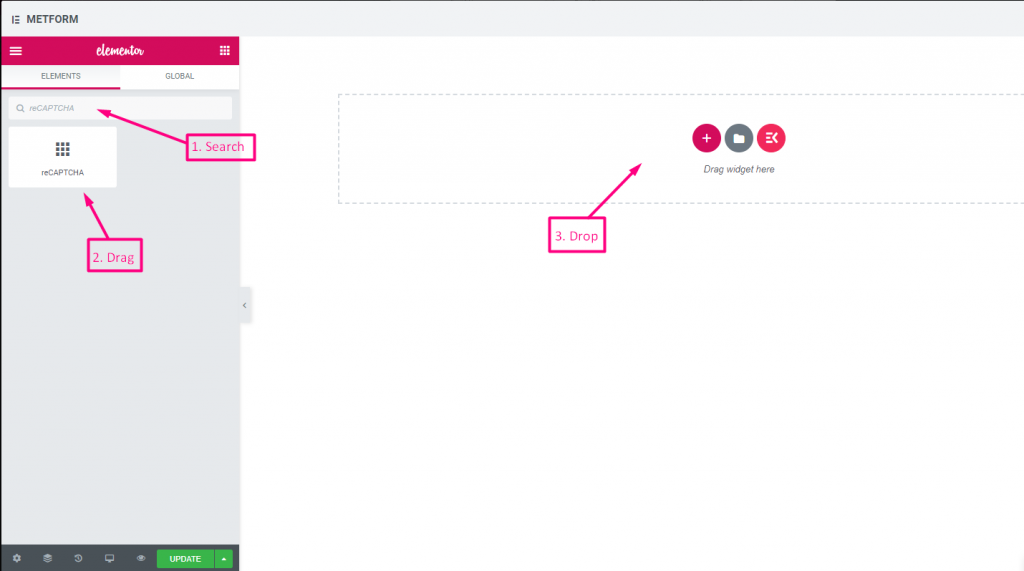
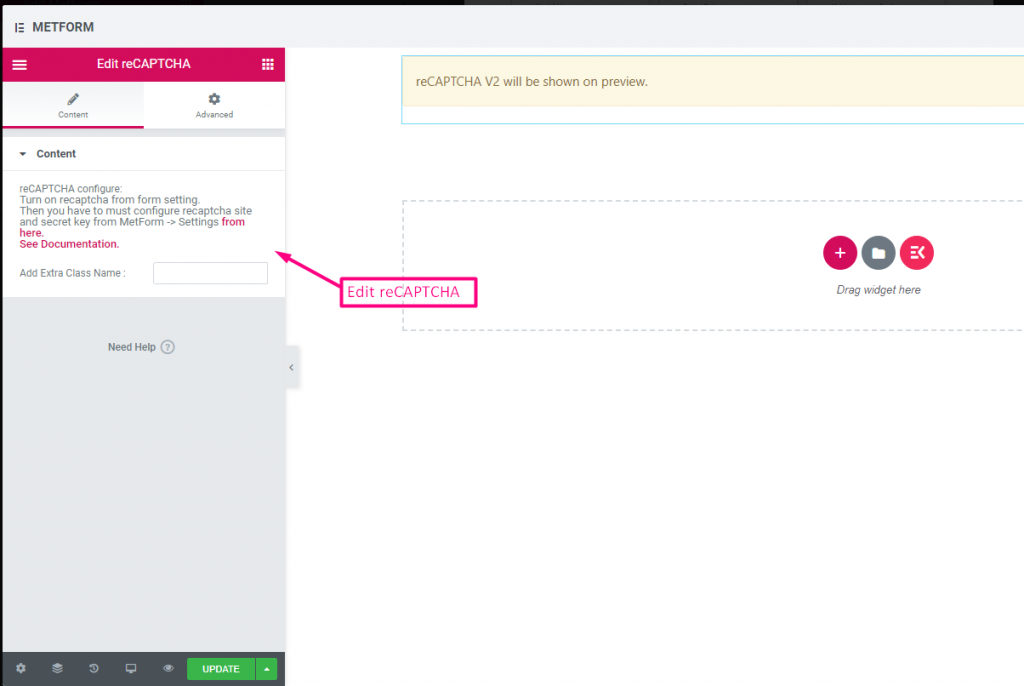
Check out our ライブデモはこちら
| オプション | 説明 |
|---|---|
| reCAPTCHAの設定 | 設定からreCAPTCHAをオンにします。その後、MetForm -> 設定からreCAPTCHAサイトと秘密キーを設定する必要があります。 ここから。 ドキュメントを参照してください。 |
シンプルな reCAPTCHA #
不要なボットやスパムからサイトを保護します。
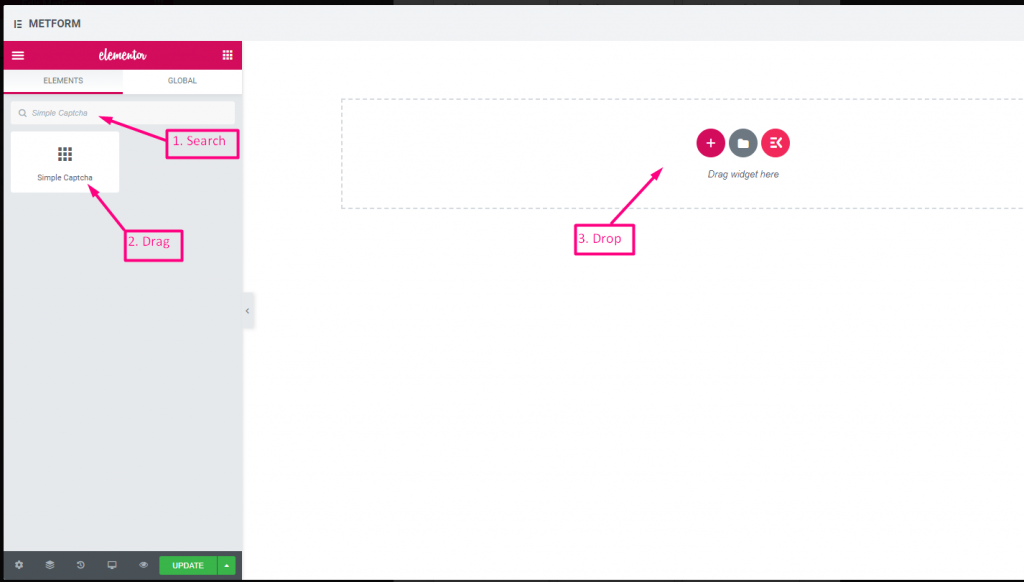
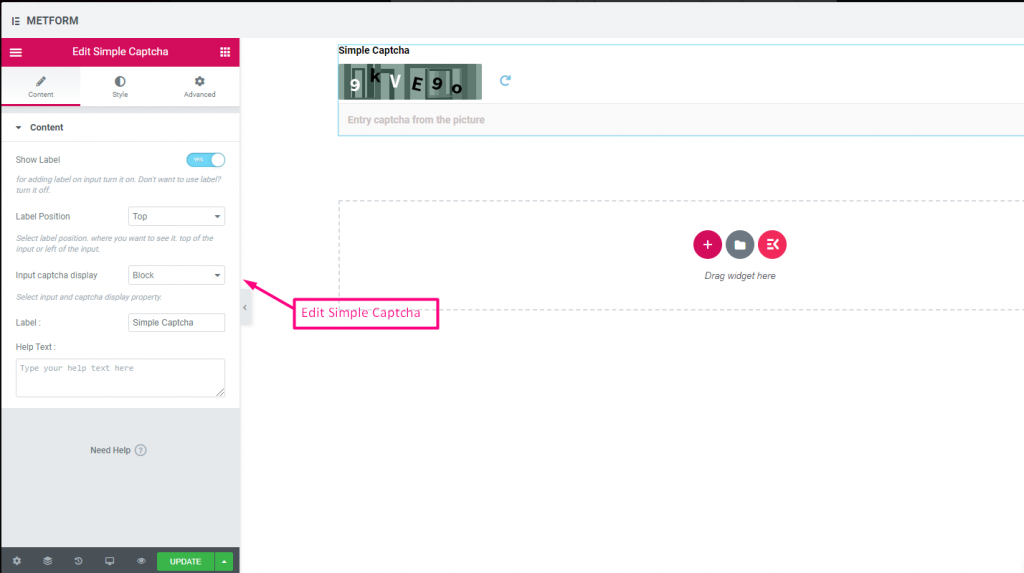
Check out our ライブデモはこちら
インラインオプション #
Check out our ライブデモはこちら
| オプション | 説明 |
|---|---|
| ラベルを表示 | ラベルをオン/オフにします。 |
| 位置 | デフォルト: 上 ラベルの位置を選択します。見たい場所に。入力の上部または左。 |
| CAPTCHA入力表示 | reCAPTCHA をブロックで入力するか、入力フィールドを行で表示します。 |
| ラベル | ラベルのテキストを入力します。 |
| ヘルプテキスト | ウィジェットの下に表示するテキストを入力します。 |
レンジスライダー #
非常に優れた範囲スライダーを使用して、フォームに最大または最小の範囲値を設定します。適切な値になるまで両端をドラッグするだけです。
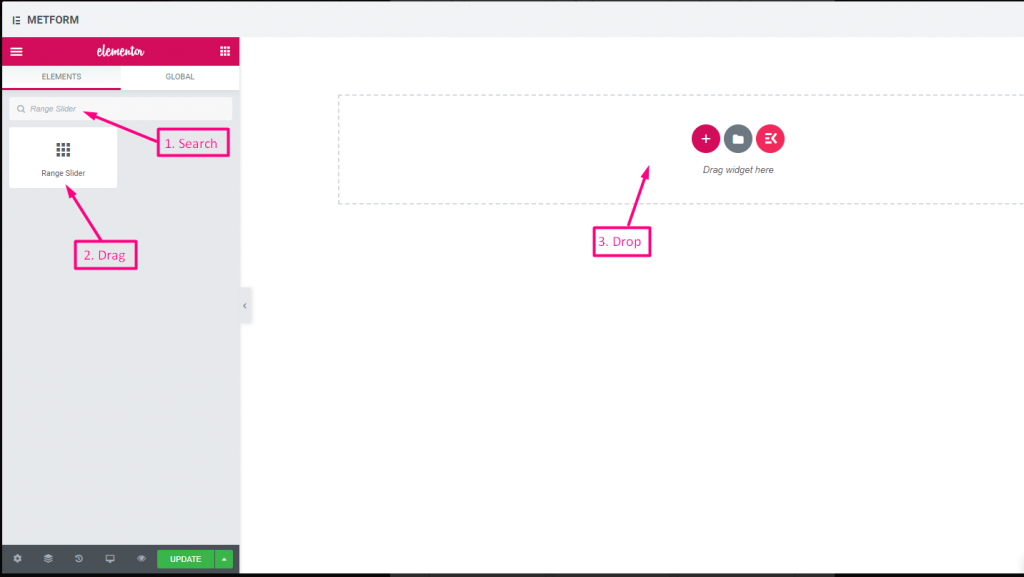
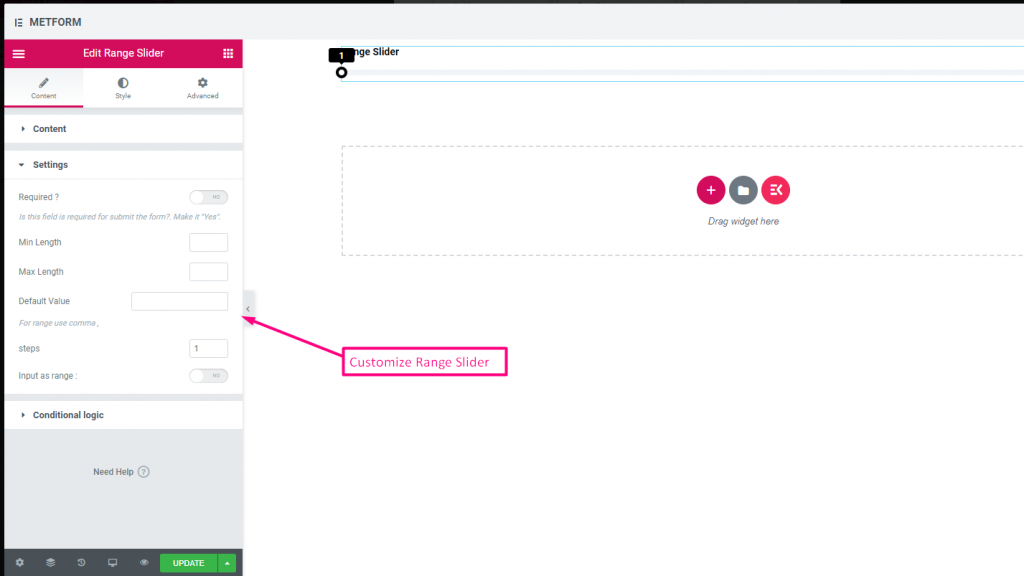
Check out our ライブデモはこちら
デフォルト値 #
チェック out our ライブデモはこちら
マルチレンジ入力 #
チェック out our ライブデモはこちら
| オプション | 説明 |
|---|---|
| ラベルを表示 | ラベルをオン/オフにします。 |
| 位置 | デフォルト: 上 ラベルの位置を選択します。見たい場所に。入力の上部または左。 |
| ラベル | ラベルのテキストを入力します。 |
| 名前 | 名前は必須です。スペースや特殊文字を含まない名前を入力します。複数の単語にはアンダースコア/ハイフン (_/-) のみを使用します。名前は違うはずです。 |
| ヘルプテキスト | ウィジェットの下に表示するテキストを入力します。 |
| 必須 | デフォルト: いいえ このオプションを必須にするには、このオプションを切り替えます。ユーザーは必須フィールドに入力しないとフォームを送信できません。 |
| 最小長さ | 最小範囲値を設定する |
| 最大長さ | 最大範囲の値を設定する |
| デフォルト値 | デフォルト値を設定します。範囲値を設定するにはコンマを使用します。 |
| ステップ | ステップごとに範囲を追加するには、ステップ値を追加します。 |
| 範囲として入力 | このオプションを切り替えて範囲の設定が必要かどうかを設定します |
| 条件付きロジック | 特定の基準に基づいてこのフィールドを表示/非表示にします。 |
URL #
URL 入力フィールドを使用して、フォームに URL を追加するだけです。これにより、ユーザーはフォーム フィールドに有効な URL を入力できるようになります。
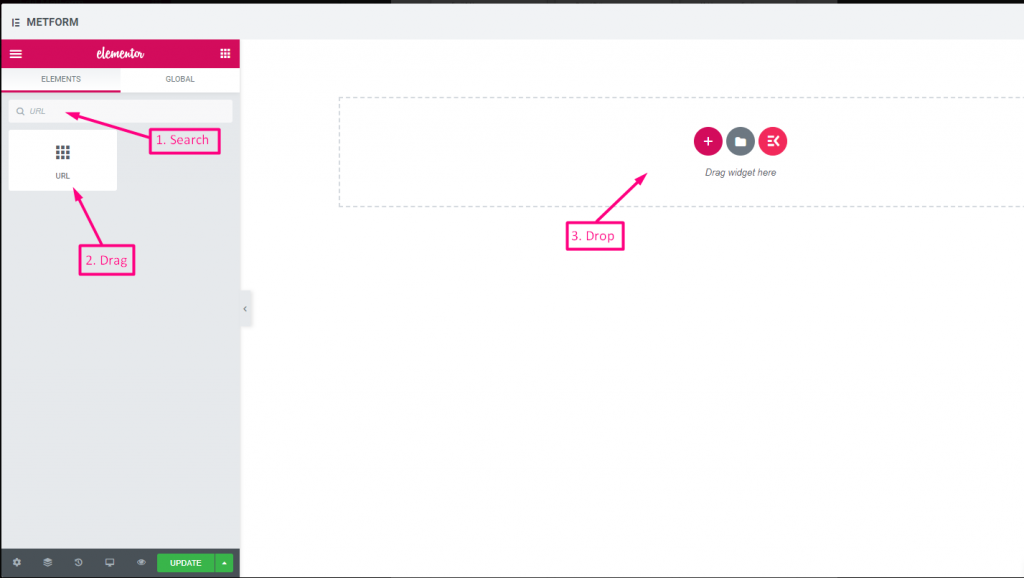
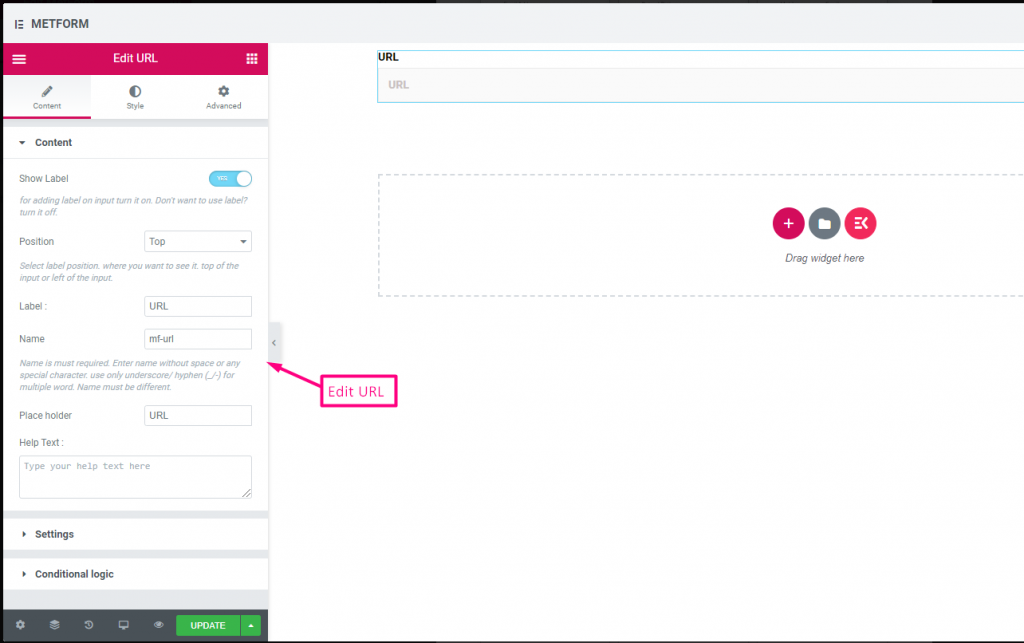
Check out our ライブデモはこちら
| オプション | 説明 |
|---|---|
| ラベルを表示 | ラベルをオン/オフにします。 |
| 位置 | デフォルト: 上 ラベルの位置を選択します。見たい場所に。入力の上部または左。 |
| ラベル | ラベルのテキストを入力します。 |
| 名前 | 名前は必須です。スペースや特殊文字を含まない名前を入力します。複数の単語にはアンダースコア/ハイフン (_/-) のみを使用します。名前は違うはずです。 |
| プレースホルダー | プレースホルダーを使用してダミーテキストを表示し、ユーザーが正しいテキストを入力できるようにします。 |
| ヘルプテキスト | ウィジェットの下に表示するテキストを入力します。 |
| 必須 | デフォルト: いいえ このオプションを必須にするには、このオプションを切り替えます。ユーザーは必須フィールドに入力しないとフォームを送信できません。 |
| 条件付きロジック | 特定の基準に基づいてこのフィールドを表示/非表示にします。 |
パスワード #
ユーザーに強力なパスワードを設定させたい場合は、パスワード入力フィールドを使用してください。これにより、ユーザーは保護されたパスワードを取得し、必要に応じてパスワードを変更できるようになります。
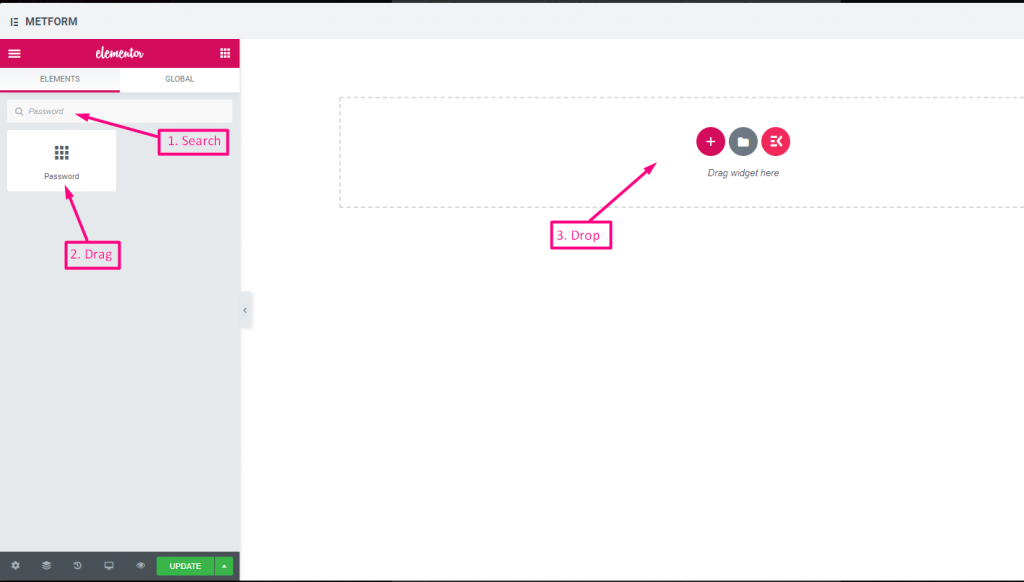
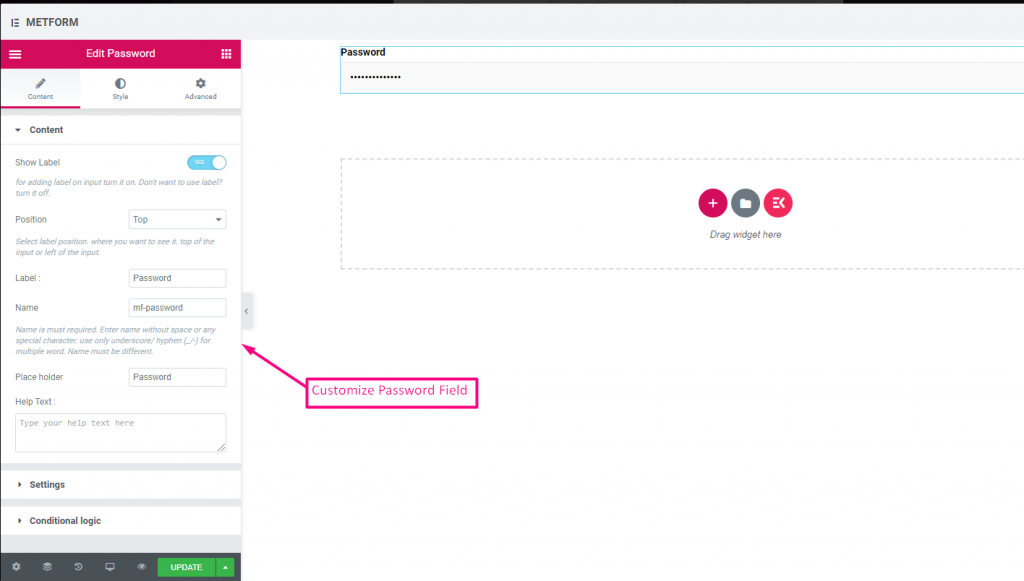
Check out our ライブデモはこちら
| オプション | 説明 |
|---|---|
| ラベルを表示 | ラベルをオン/オフにします。 |
| 位置 | デフォルト: 上 ラベルの位置を選択します。見たい場所に。入力の上部または左。 |
| ラベル | ラベルのテキストを入力します。 |
| 名前 | 名前は必須です。スペースや特殊文字を含まない名前を入力します。複数の単語にはアンダースコア/ハイフン (_/-) のみを使用します。名前は違うはずです。 |
| プレースホルダー | プレースホルダーを使用してダミーテキストを表示し、ユーザーが正しいテキストを入力できるようにします。 |
| ヘルプテキスト | ウィジェットの下に表示するテキストを入力します。 |
| 必須 | デフォルト: いいえ このオプションを必須にするには、このオプションを切り替えます。ユーザーは必須フィールドに入力しないとフォームを送信できません。 |
| 検証タイプ | ドロップダウンから検証タイプを選択します。 文字数による 文字数で選択してテキストの最小文字数と最大文字数を設定します 入力が無効な場合は警告メッセージも表示する 単語の長さで 単語の長さで選択して、テキストの最小および最大の単語の長さを設定します。入力が無効な場合は警告メッセージも表示されます。 表現ベース 式に基づいて検証を設定するには、式に基づいて選択します。 入力が無効な場合は警告メッセージも表示する デフォルトを選択しますか? (デフォルト: いいえね) このオプションをデフォルトで選択する |
| 条件付きロジック | 特定の基準に基づいてこのフィールドを表示/非表示にします。 |
応答メッセージ #
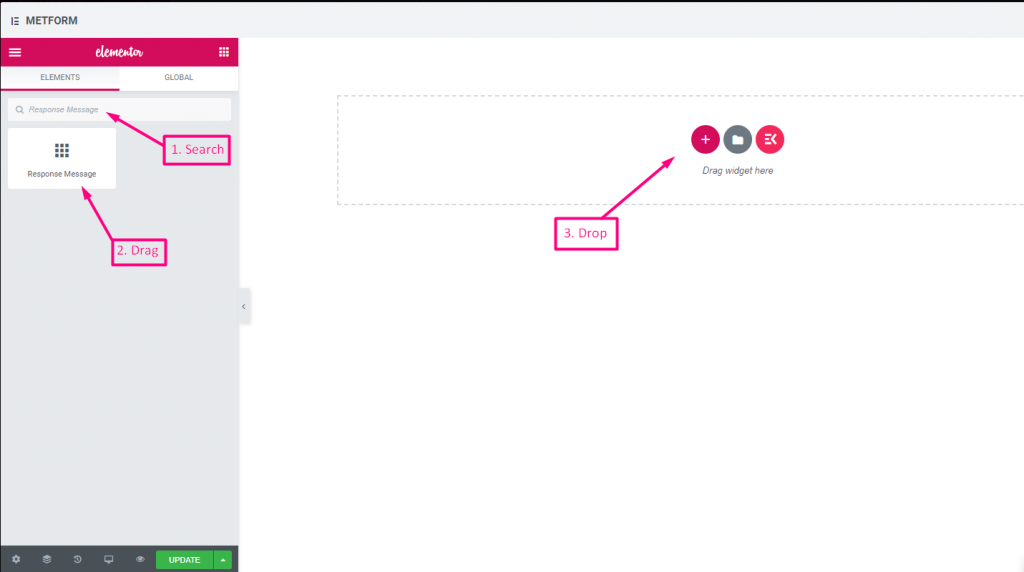
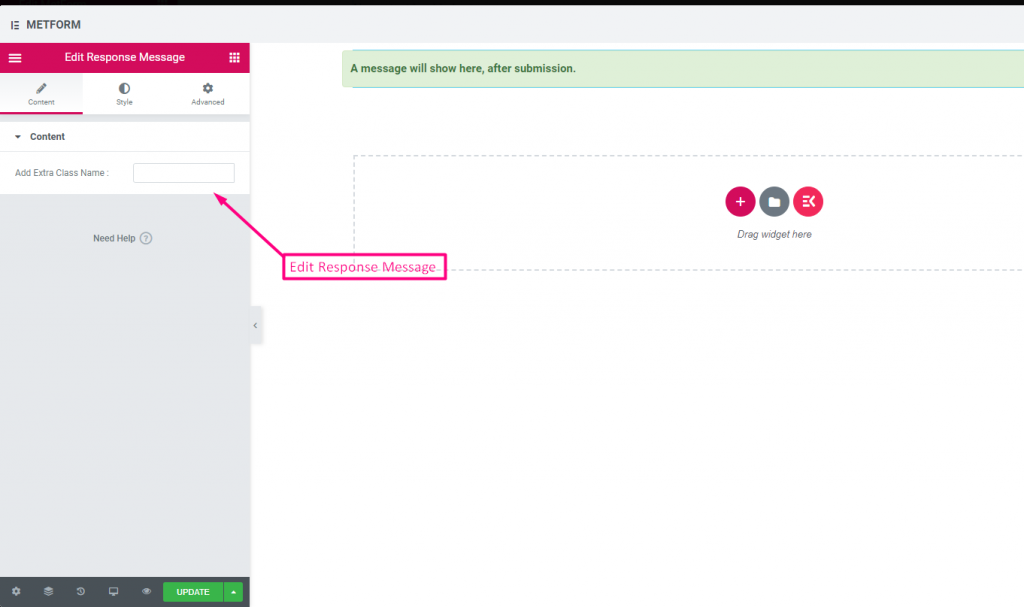
Check out our ライブデモはこちら:
| オプション | 説明 |
|---|---|
| 成功メッセージを追加 | フォーム送信後に成功メッセージを表示する |
評価 #
顧客からの評価を集める 評価 入力フィールドの場合は、入力フィールドを名前で検索し、入力フィールドを目的の場所にドラッグ アンド ドロップします。顧客のレビューを取得し、所有者と顧客の間に良好な関係を構築するのに役立ちます。
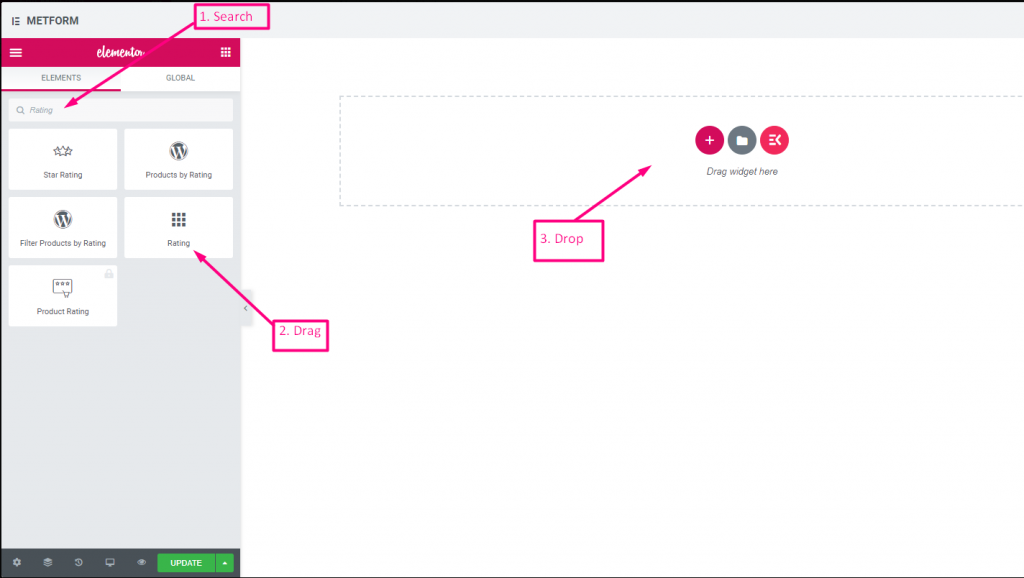
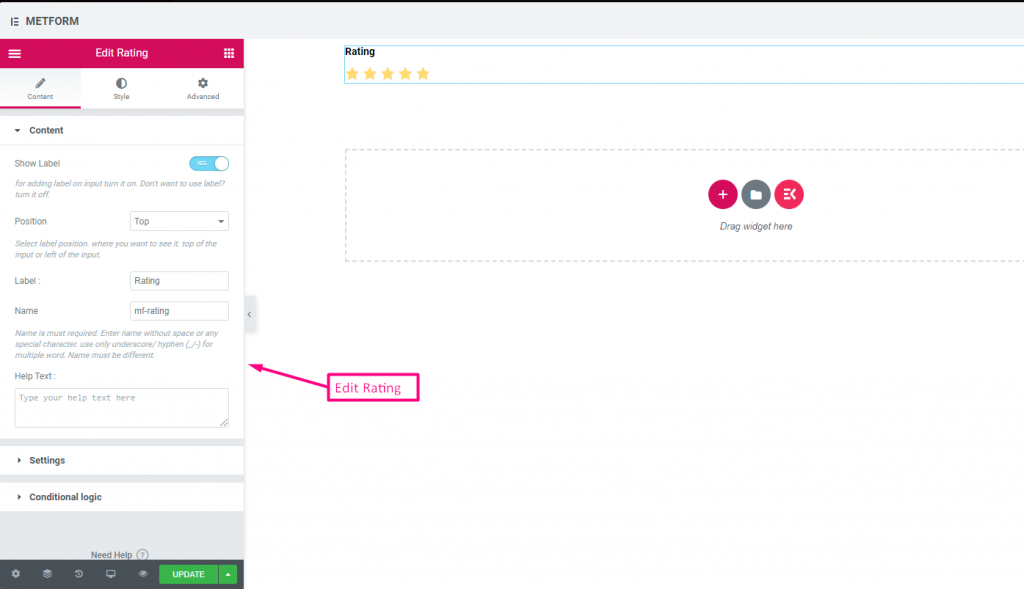
Check out our ライブデモはこちら:
星の数は何個でも #
Check out our ライブデモはこちら
| オプション | 説明 |
|---|---|
| ラベルを表示 | ラベルをオン/オフにします。 |
| 位置 | デフォルト: 上 ラベルの位置を選択します。見たい場所に。入力の上部または左。 |
| ラベル | ラベルのテキストを入力します。 |
| 名前 | 名前は必須です。スペースや特殊文字を含まない名前を入力します。複数の単語にはアンダースコア/ハイフン (_/-) のみを使用します。名前は違うはずです。 |
| ヘルプテキスト | ウィジェットの下に表示するテキストを入力します。 |
| 必須 | デフォルト: いいえ このオプションを必須にするには、このオプションを切り替えます。ユーザーは必須フィールドに入力しないとフォームを送信できません。 |
| 評価星の数 | 評価番号をカスタマイズします。デフォルト: 3 |
| 条件付きロジック | 特定の基準に基づいてこのフィールドを表示/非表示にします。 |
ファイルのアップロード #
メットフォームなら簡単に追加できる ファイルのアップロード ウィジェットをフォームに追加するには、入力フィールドを名前で検索し、入力フィールドを目的の場所にドラッグ アンド ドロップします。
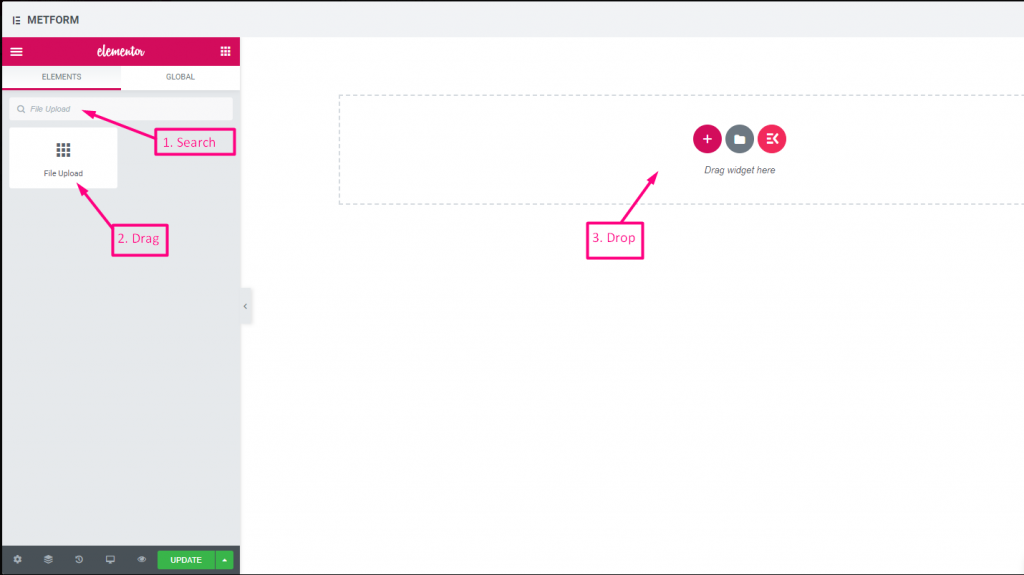
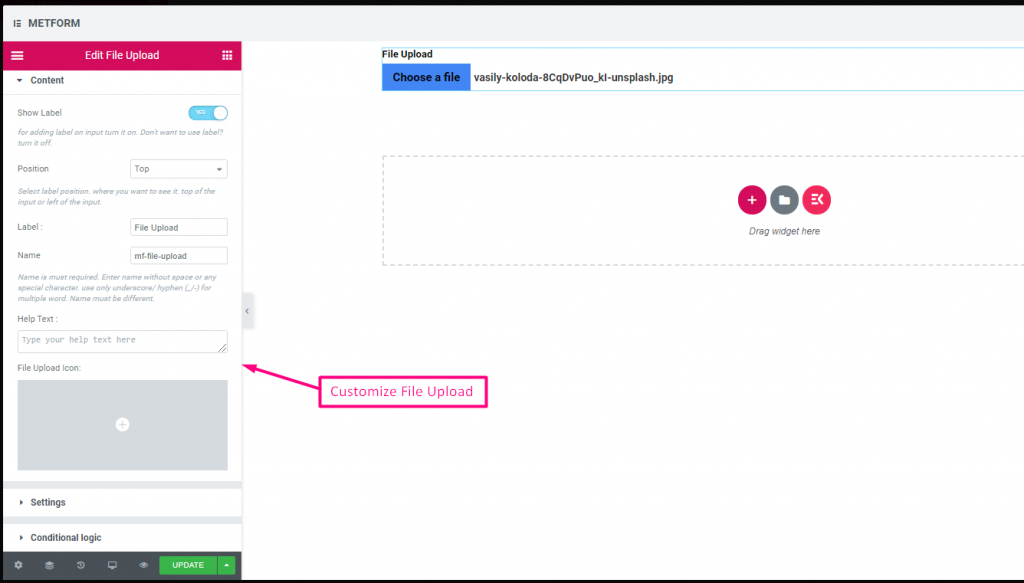
Check out our ライブデモはこちら
| オプション | 説明 |
|---|---|
| ラベルを表示 | ラベルをオン/オフにします。 |
| 位置 | デフォルト: 上 ラベルの位置を選択します。見たい場所に。入力の上部または左。 |
| ラベル | ラベルのテキストを入力します。 |
| 名前 | 名前は必須です。スペースや特殊文字を含まない名前を入力します。複数の単語にはアンダースコア/ハイフン (_/-) のみを使用します。名前は違うはずです。 |
| ヘルプテキスト | ウィジェットの下に表示するテキストを入力します。 |
| ファイルアップロードアイコン | アイコンライブラリからアップロードするか、SVGをアップロードすることができます。 |
| 必須 | デフォルト: いいえ このオプションを必須にするには、このオプションを切り替えます。ユーザーは必須フィールドに入力しないとフォームを送信できません。 |
| ファイルサイズ制限 | デフォルト: 128KB ファイルをアップロードするためのカスタム ファイル サイズを追加します。 |
| ファイルタイプ | デフォルト: .jpg, .jpeg, .gif, .png ドロップダウンからアップロードが許可されるファイルの種類を追加/編集します。 |
| 条件付きロジック | 特定の基準に基づいてこのフィールドを表示/非表示にします。 |
まとめ #
顧客との良好なコミュニケーションを構築するために、サブスクリプション前に概要を提供します。
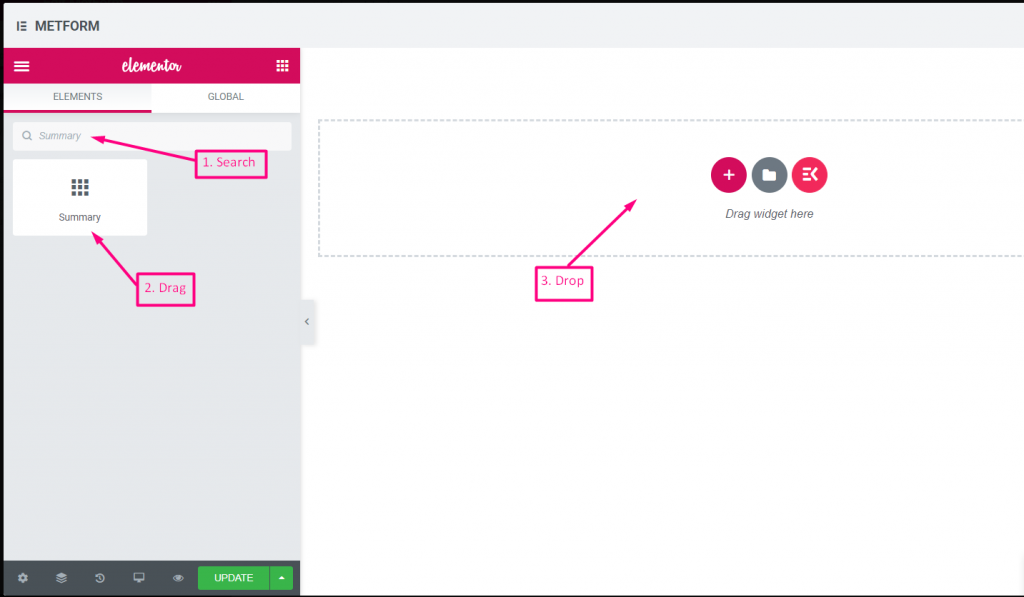
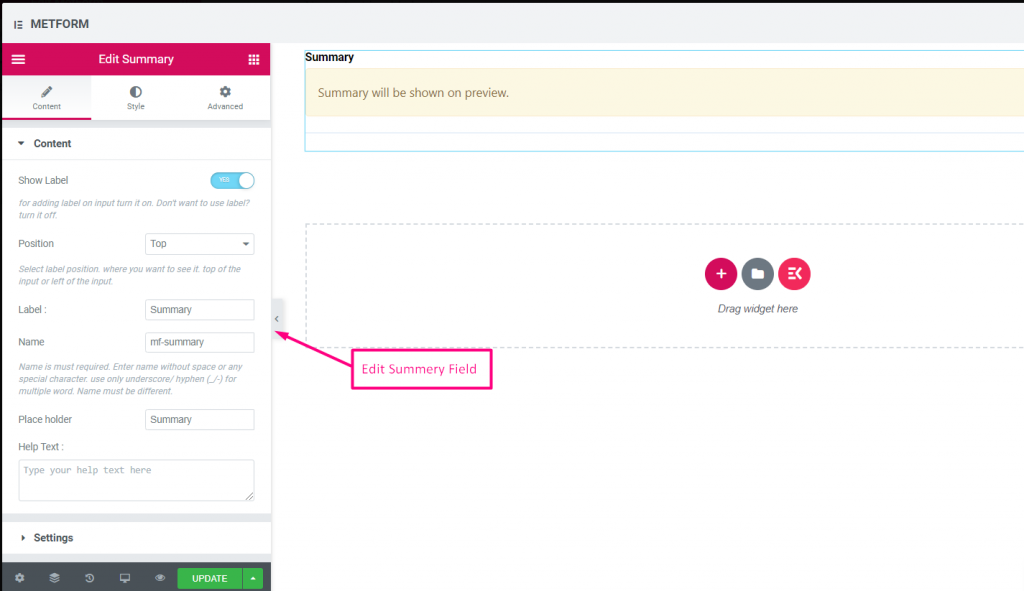
| オプション | 説明 |
|---|---|
| ラベルを表示 | ラベルをオン/オフにします。 |
| 位置 | デフォルト: 上 ラベルの位置を選択します。見たい場所に。入力の上部または左。 |
| ラベル | ラベルのテキストを入力します。 |
| 名前 | 名前は必須です。スペースや特殊文字を含まない名前を入力します。複数の単語にはアンダースコア/ハイフン (_/-) のみを使用します。名前は違うはずです。 |
| ヘルプテキスト | ウィジェットの下に表示するテキストを入力します。 |
| 必須 | デフォルト: いいえ このオプションを必須にするには、このオプションを切り替えます。ユーザーは必須フィールドに入力しないとフォームを送信できません。 |
送信ボタン #
このフィールドを使用してフォームを送信し、バックエンドにデータを保存します。
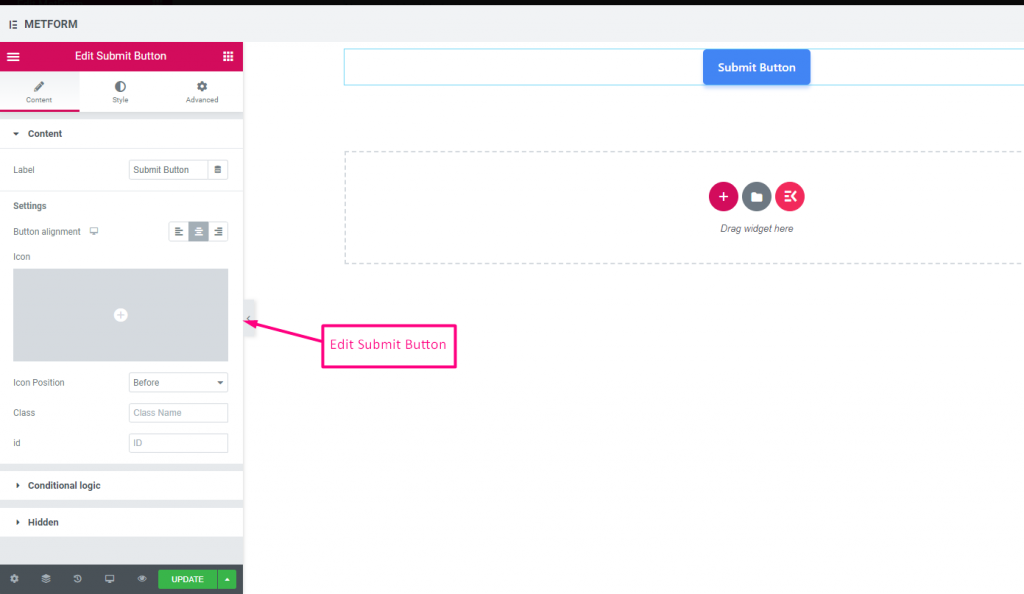
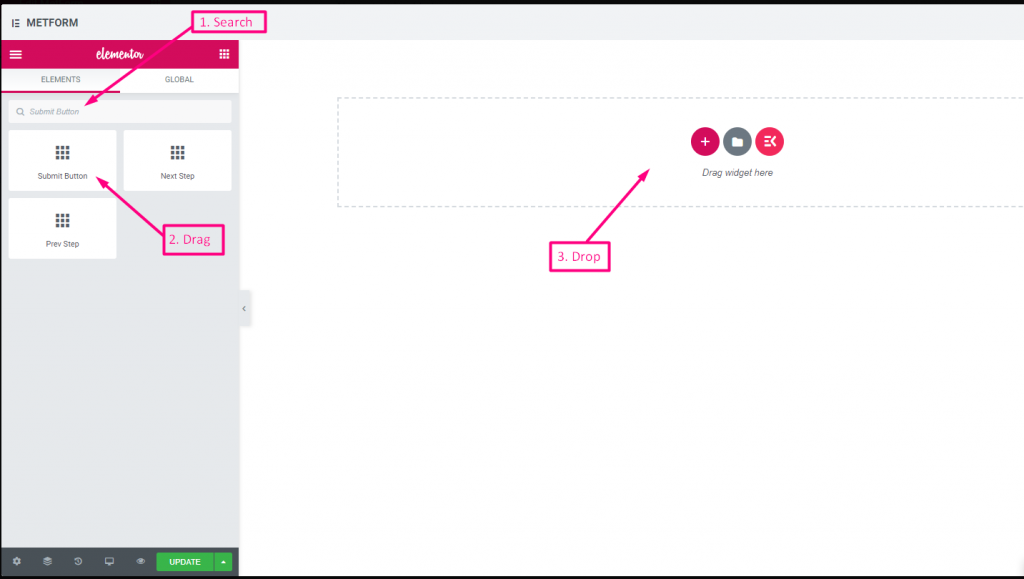
| オプション | 説明 |
|---|---|
| ラベル | ラベルのテキストを入力します。 |
| ボタンの配置 | ボタンの位置を選択します。フォーム内の左、中央、または右に表示したい場所です。 |
| アイコン | アイコンライブラリからアップロードするか、SVGをアップロードすることができます。 |
| アイコンの位置 | アイコンの位置を前または後から選択 |
| クラス | クラス名を入力してください |
| ID | クラスIDを入力してください |
| 条件付きロジック | 特定の基準に基づいてこのフィールドを表示/非表示にします。 |
| 隠れた | 非表示の入力リストはバックエンドに表示されます。入力値、入力名、入力クラス |



