




 Japanese
  English
  German
  Spanish
  Italian
  French
  Danish
  Portuguese
  Swedish
  Polish
  Korean
 Archive Products は、大量のカスタマイズを可能にする ShopEngine の便利なウィジェットです。ウィジェットの [レイアウト] タブと [スタイル] タブには、希望するアーカイブ製品の外観を引き出すために利用できる一連のオプションがあります。
背景色を調整し、製品タイトル、価格、カテゴリ、カートに追加ボタンなど、必要な要素をすべて追加できます。これらの必要な変更や調整をすべて行うことで、買い物客の注意を引くことができます。
製品アーカイブ ウィジェットはどのように機能しますか?
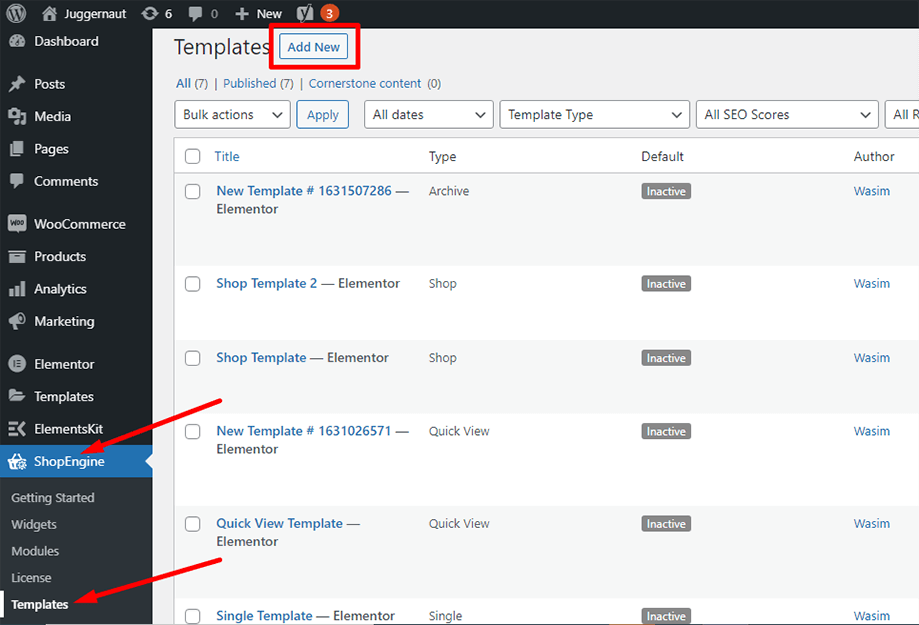
まず、管理パネルのダッシュボードに移動し、アイテムのリストから ShopEngine を見つけます。 [ShopEngine] をクリックし、ドロップダウン メニューから [テンプレート] を選択します。次に、「」をクリックします。新しく追加する右上のテキストの横にある「」ボタンテンプレート”。
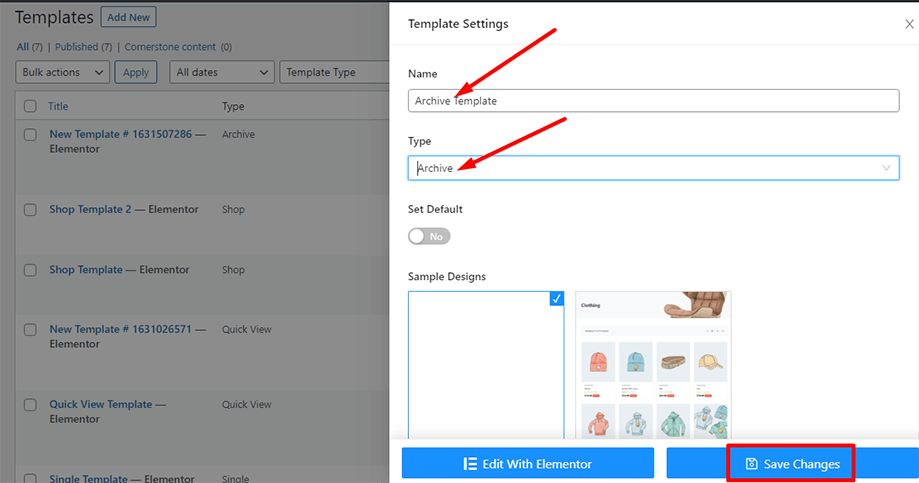
その直後、テンプレート設定用のポップアップウィンドウが表示されます。テンプレート名を 名前 フィールドを選択してタイプを選択します アーカイブ/ショップ あなたの目標は、アーカイブ製品ウィジェットをチェックアウトすることです。
また、デフォルトのサンプル デザインを選択することも、最初からデザインを開始することもできます。最後に「」を押します。変更内容を保存" ボタン。
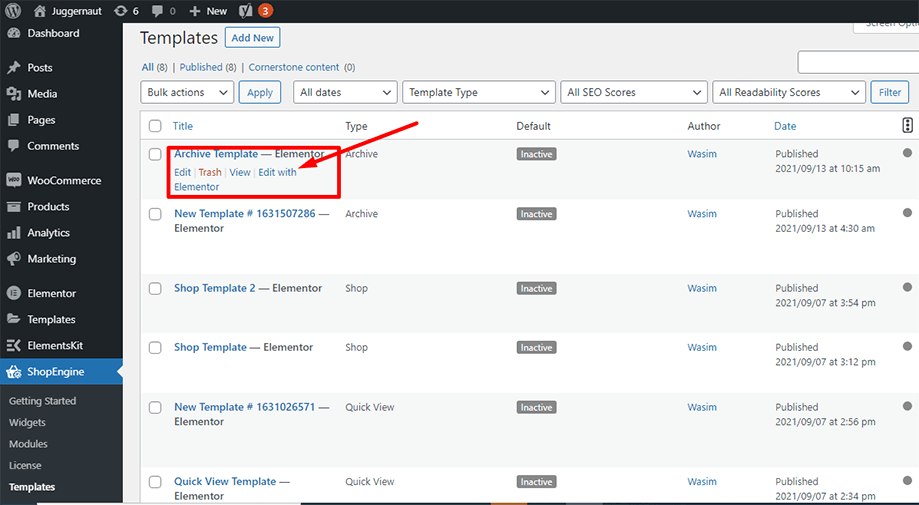
テンプレートが作成され、リストの一番上に表示されます。ここで、「」をクリックしてください。Elementorで編集する」をクリックしてElementorウィンドウに切り替えます。
このステップでは、左側に ShopEngine ウィジェットのリストを含むサイドバーが表示されます。 ShopEngine 製品アーカイブ セクションからアーカイブ製品ウィジェットを検索するか、通常は検索フィールドでウィジェットを検索できます。指定した領域にドラッグ アンド ドロップします。
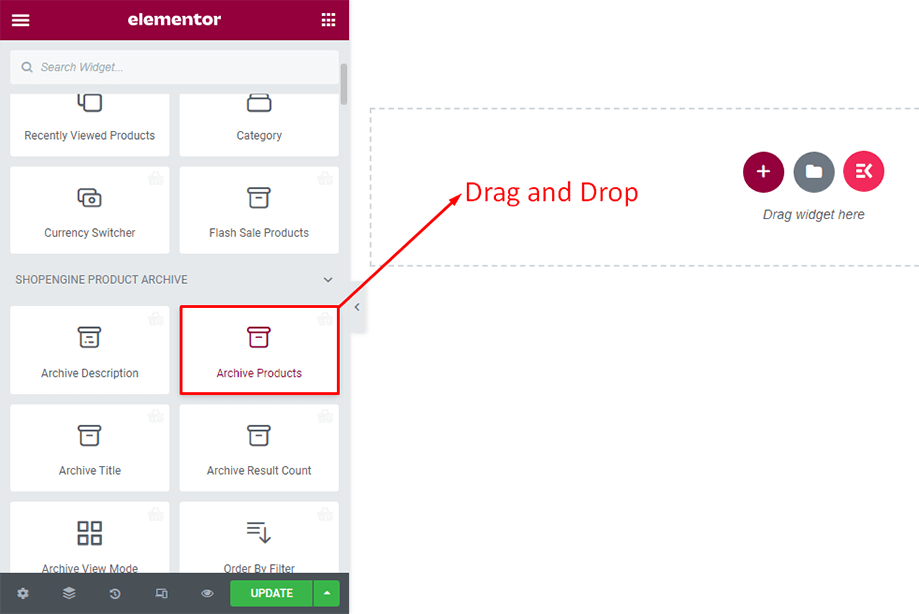
その後すぐにアーカイブ製品が表示されます。
注記: ShopEngine では、ショップ ページのレイアウト設定オプションが提供されなくなりました。
ただし、WooCommerce カスタマイズ オプションを使用してレイアウトを変更できます。フロントエンドからレイアウト オプションをカスタマイズするには、 ショップページへ ⇒ クリックしてください カスタマイズ (ショップページをカスタマイズするとアーカイブページのレイアウトも変わります)
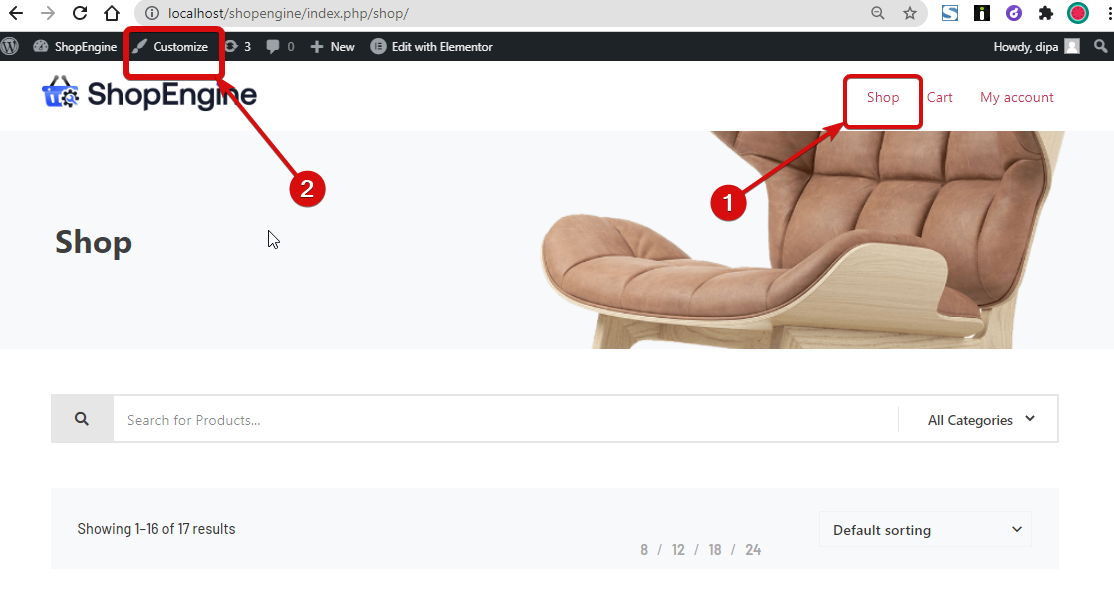
オプションが開いたら、次の場所に移動します。 WooCommerce ⇒ 製品カタログ。 ここで変更できます –
- 行ごとの製品
- ページあたりの行数
- モバイルの行ごとの商品
- タブレットの行ごとの製品
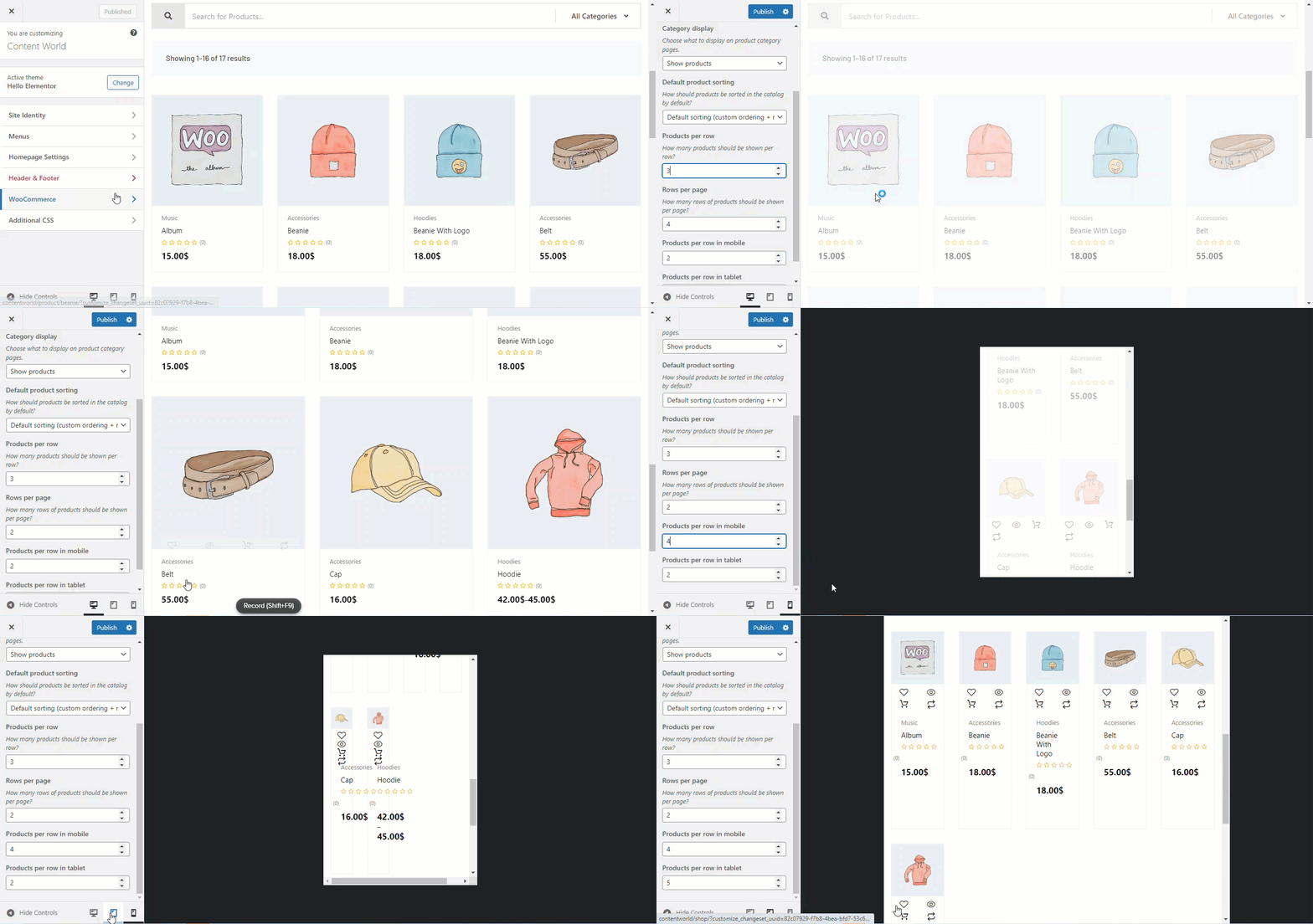
変更を加えたら、 「公開」をクリックします 保存する。
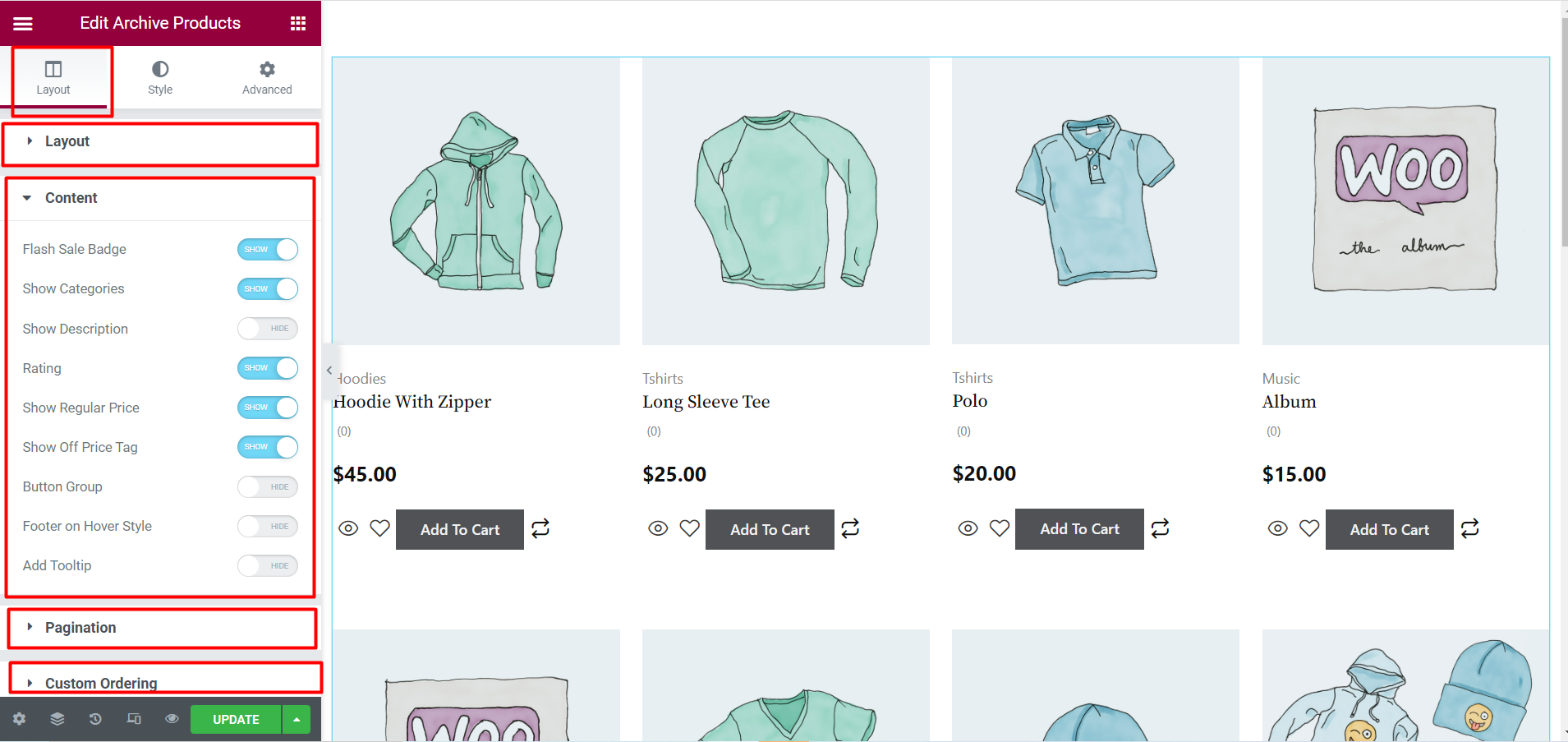
バックエンドで、編集オプションを操作できるようになりました。 アーカイブ製品ウィジェット。 「レイアウト」セクションの各オプションにはさまざまな要素があります。
- レイアウト- 上で示したように、このセクションではカスタマイザーから列と行の数を管理できます。
- コンテンツ- このセクションには、フラッシュ セール バッジ、カテゴリの表示、通常価格の表示、評価、ツールチップの追加などの要素があります。これらすべての要素には、表示オプションと非表示オプションがあります。それぞれをクリックして機能を確認し、それに応じて使用してください。
- ページネーション - ここには、さまざまなページネーションのスタイルとアイコンがあります。
- カスタムオーダー - ここで注文リストを有効にすると、クイック ビュー、比較、ウィッシュリスト、カートに追加のオプションが表示されます。
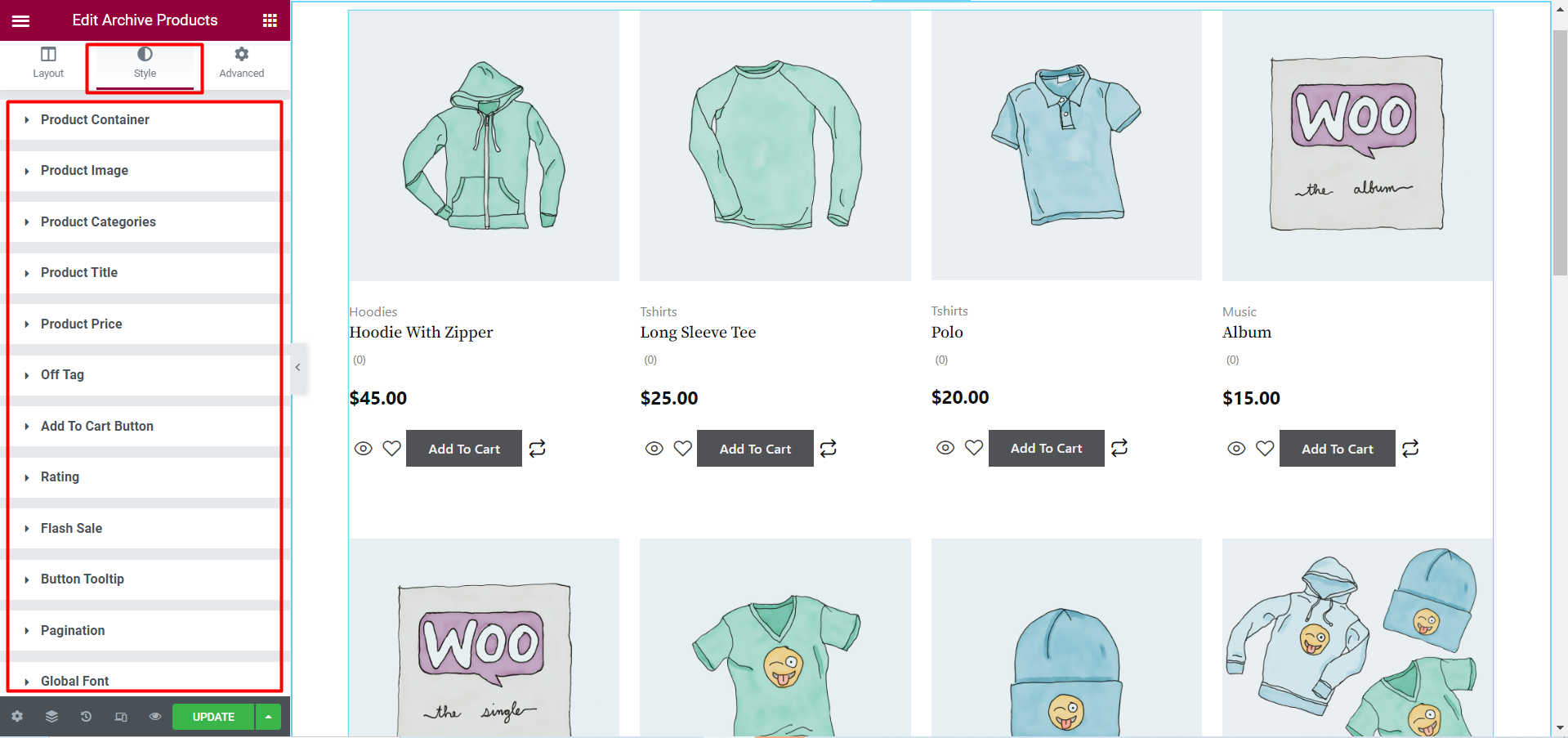
それに加えて、より多くのカスタマイズオプションがあります。 「スタイル」タブ 製品画像、製品タイトル、製品価格、カートに追加ボタンなど。これらの各オプションをクリックすると、さらに多くの調整や調整を行うことができます。
アーカイブ製品は、フロントエンドに以下のように表示されます。
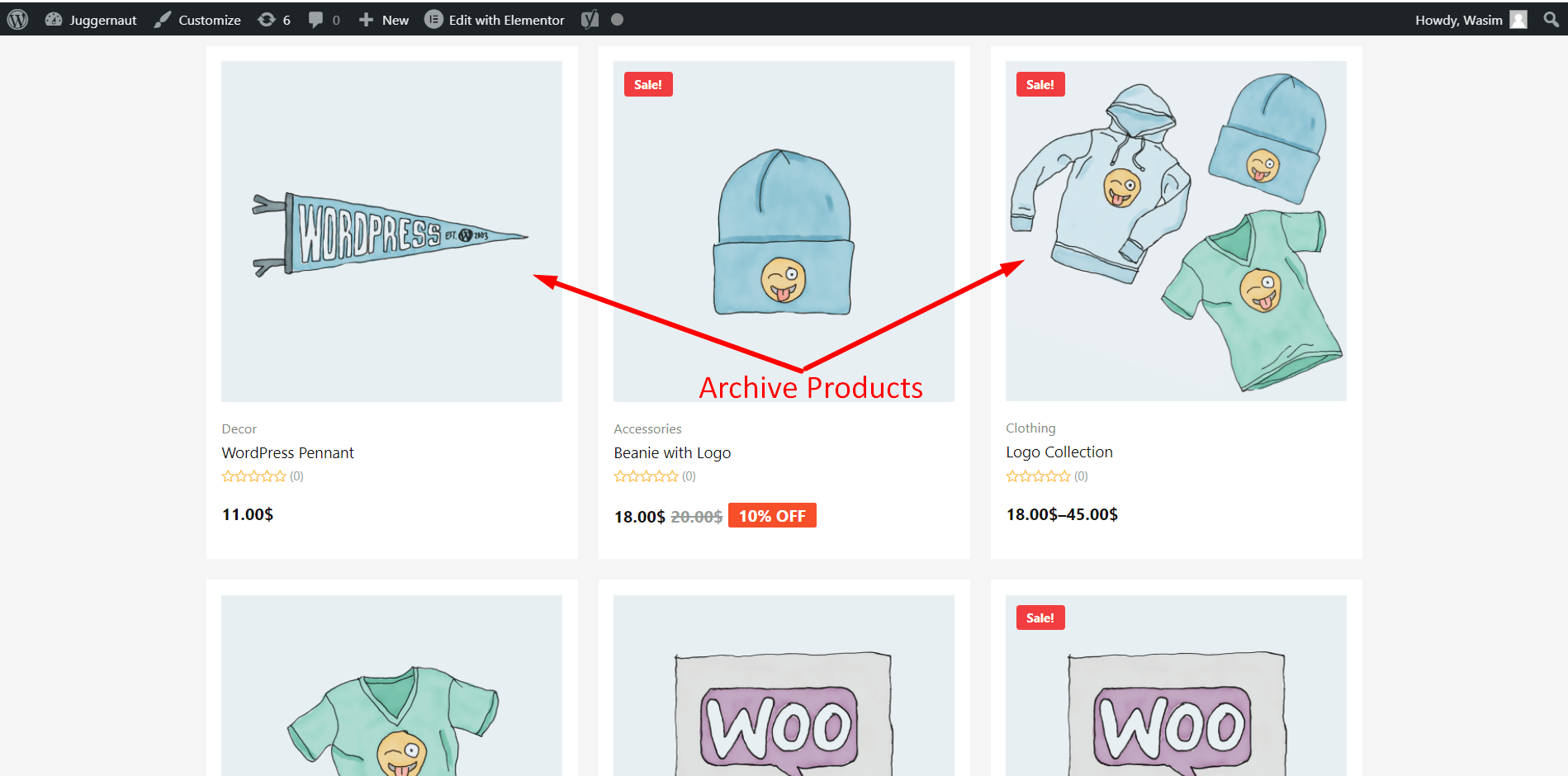
これは、ShopEngine のアーカイブ製品ウィジェットを展開する方法です。アーカイブ製品を Web サイト訪問者向けに配置したとおりに表示するのに役立ちます。


