


 Japanese
  English
  German
  Spanish
  Italian
  French
  Danish
  Portuguese
  Swedish
  Polish
  Korean
~する方法を探しています ElementorにカスタムCSSを追加しますか?
カスタム CSS を追加してすでに素晴らしい Elementor デザインを拡張すると、競合他社に対して無敵の優位性を得ることができます。
そこで、Elementor カスタム CSS を使用して、この競争の激しいデジタル世界で目立つのはいかがでしょうか?
そうすべきではない理由はありません。
しかし、ドラッグ アンド ドロップの Elementor ページ ビルダーにカスタム CSS を追加するにはどうすればよいでしょうか?
Elementor にはさまざまな方法でカスタム CSS を追加できます。さらに詳しく知りたい方は Elementor keepにカスタムCSSを追加する方法 読書中…
CSSとは何ですか?
CSS (Cascading Style Sheets) は、HTML や XML などのマークアップ言語で構築された Web ページのレイアウトや外観を変更するために使用するルールベースのスタイル シート言語です。 CSS の使用は、コンテンツとスタイルの両方を別のファイルに保持するため、Web デザインの効率的な方法であり、最も柔軟で使いやすくなります。
Elementor サイトにカスタム CSS を追加する理由?
まあ、強制ではないので、 エレメンター それ自体が、美しい Web サイトを作成するために必要なすべてのカスタマイズ オプションを提供します。ただし、コードの作成方法を知っていて、創造性を発揮してサイトの外観を向上させたい場合は、Elementor にカスタム CSS を追加できます。
- Elementor でカスタム CSS を使用すると、テーマのスタイルをオーバーライドして新しいスタイルを実装できます。テーマが提供するページ全体の外観は気に入っているが、あるセクションのレイアウトを少し変更したい場合は、Elementor カスタム CSS を利用してそれを行うことができます。
- 同様に、カスタム CSS コード スニペットを使用して、Elementor の事前に作成されたテンプレートのデザインをオーバーライドすることもできます。
- カスタム CSS コード スニペットを Elementor に追加することで、さまざまなデバイスで Web サイトが異なるように見えるようにカスタム デザインすることもできます。
👉👉 使い方を確認してください デバイスに優しい Web サイトを作成するための Elementor フレックスボックス コンテナー。
Where to put your CSS in Elementor
Elementor provides multiple ways to include custom CSS, each with its unique advantages depending on the scope of your styling needs. Here are the primary locations where you can put CSS in Elementor:
- Elementor Widgets: Add CSS using the Elementor HTML widget.
- Sections or Columns: Apply CSS to entire sections or columns in the 高度な → カスタムCSS タブ。
- Site-Wide CSS: Add global CSS in Elementor → Site Settings → Custom CSS (Pro only).
- WordPress Customizer: 使用 Appearance → Customize → Additional CSS for basic site-wide styles.
- Theme Files or External CSS: Add code to
style.cssor use an external.cssfile for advanced needs.
Elementor にカスタム CSS を追加する方法: 3 つの異なる方法
カスタム CSS の追加はまったく難しい作業ではありません。実際、さまざまな方法を使用して Elementor にカスタム CSS を追加できます。ここでは、Elementor カスタム CSS を追加する最も安全な 4 つの方法を紹介します。
1️⃣ Elementor のカスタム CSS コード スニペットを使用して CSS を追加する
Elementor は、セクション、列、ウィジェットにカスタム CSS を追加する高度なオプションを提供します。しかし、 このオプションは次の場合にのみ使用できます。 エレメンター プロ.
Elementor Web サイトの任意のセクション/内部セクションにカスタム CSS を追加するには、 6 つの点をクリックして編集モードに移動しますに移動します。 詳細タブ ⇒ カスタムCSS。ここで、[カスタム CSS] タブを展開し、カスタム コードを追加します。
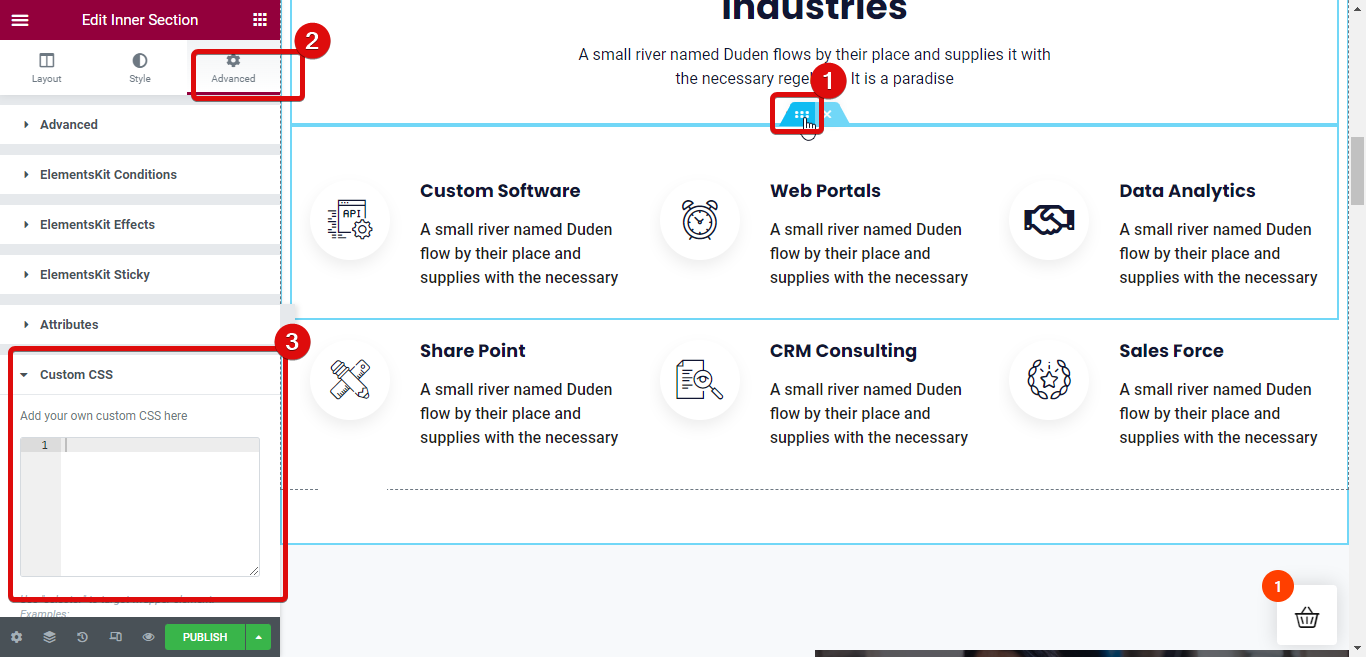
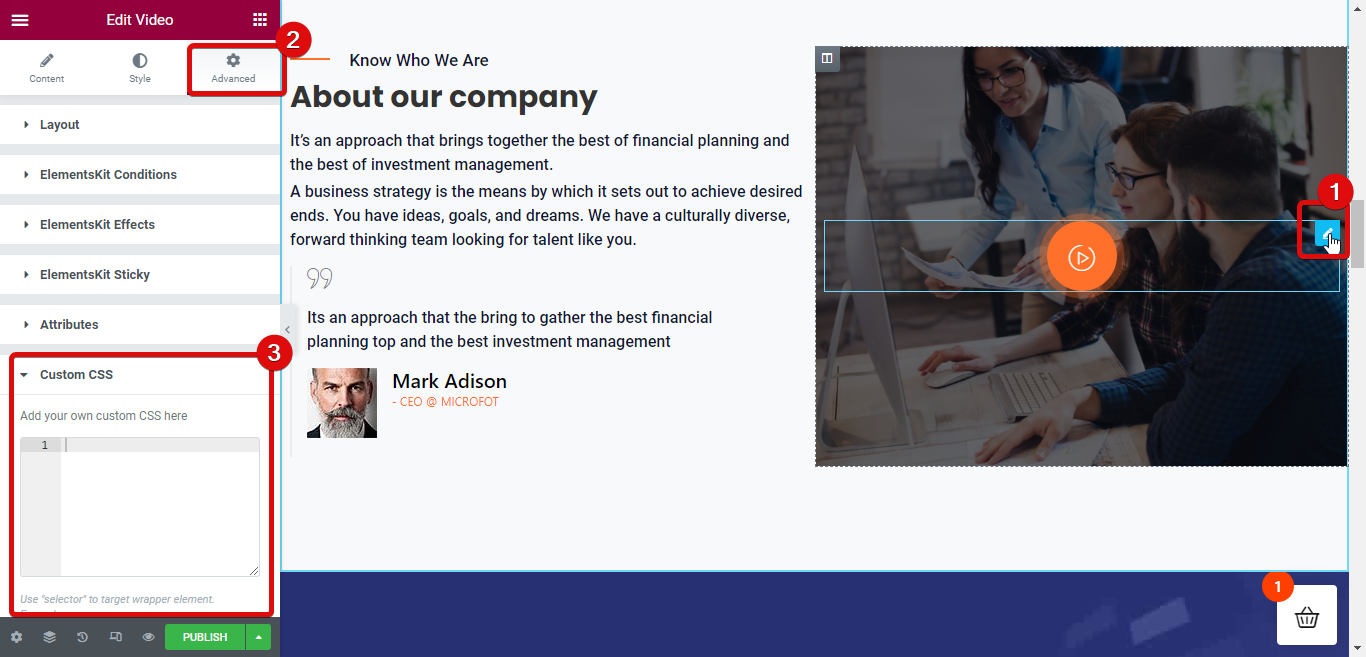
同様に、Elementor ウィジェットにもカスタム CSS を追加できます。そのためには、ウィジェットをクリックして編集モードに移動し、[詳細設定] タブ ⇒ [カスタム CSS] に移動します。ここで、[カスタム CSS] タブを展開し、カスタム コードを追加します。
2️⃣ HTML ウィジェットを使用して Elementor カスタム CSS を追加する
Elementor カスタム CSS を WordPress Web サイトに追加するために使用できる 2 番目のオプションは、HTML ウィジェットを使用することです。このオプションについては、単純に、 HTML ウィジェットをドラッグ アンド ドロップします。 次に、Style タグ内に CSS コードを追加します。
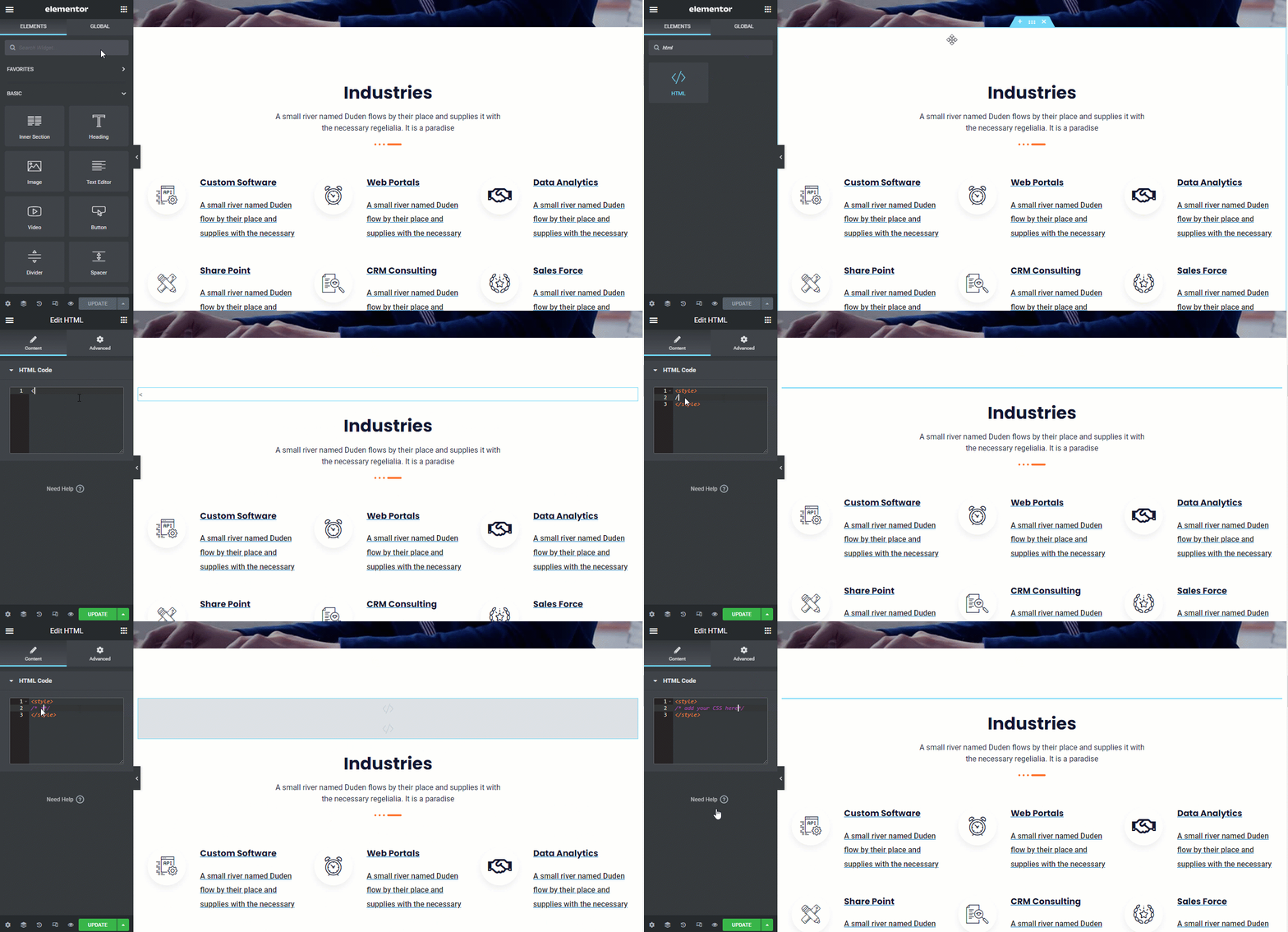
注記: HTML タグを使用して、インライン CSS とスタンドアロン CSS の両方を追加できます。心配しないでください。スタイルのみがサイトに反映され、生のコードは表示されません。

3️⃣ Elementor サイト設定にカスタム CSS を追加する
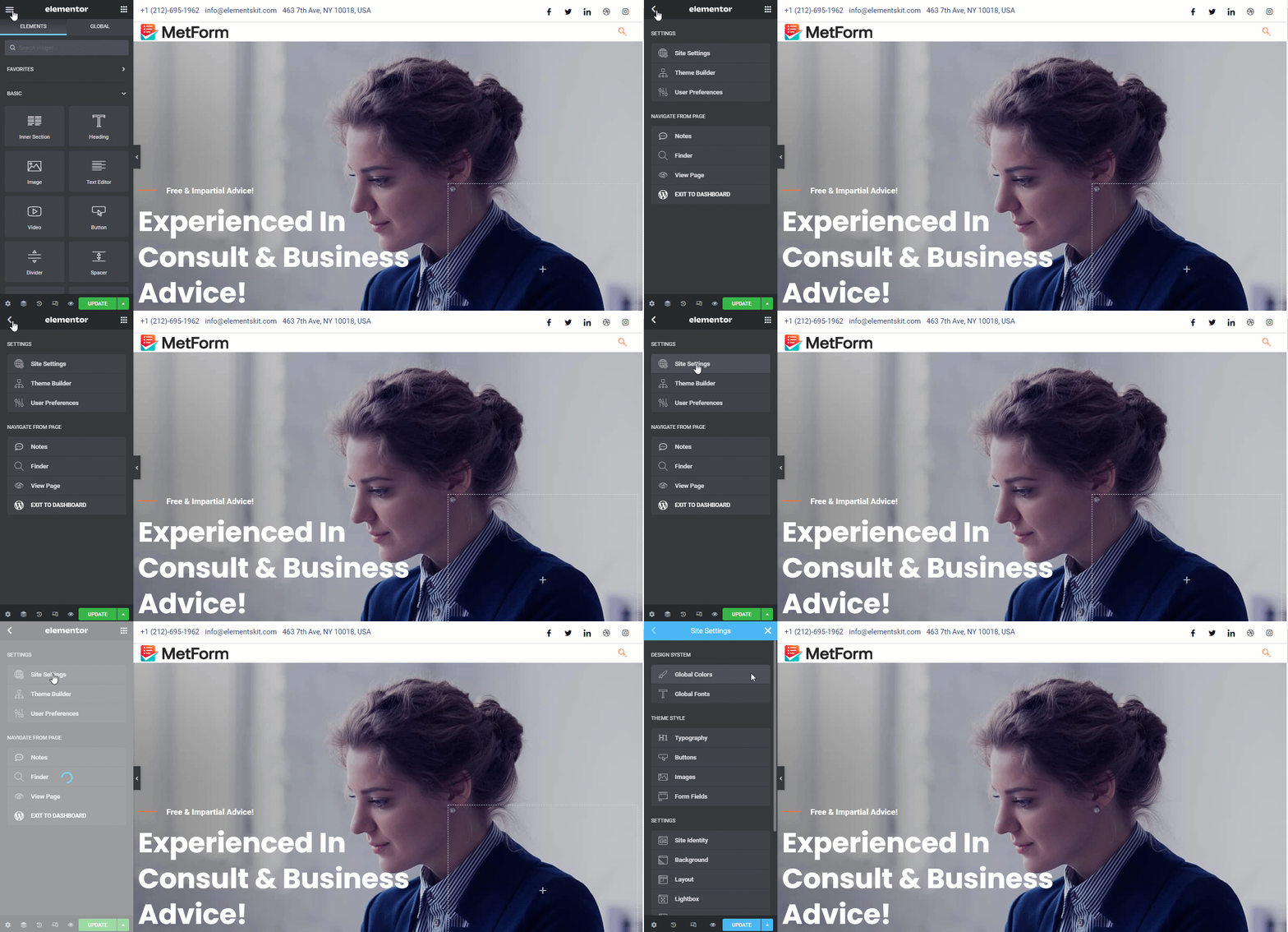
サイト設定オプションを使用して、Elementor にカスタム CSS を追加することもできます。左上隅のハンバーガーメニューをクリックし、設定の下で、 [サイト設定] オプションをクリックして、グローバル サイト設定オプションにアクセスします。
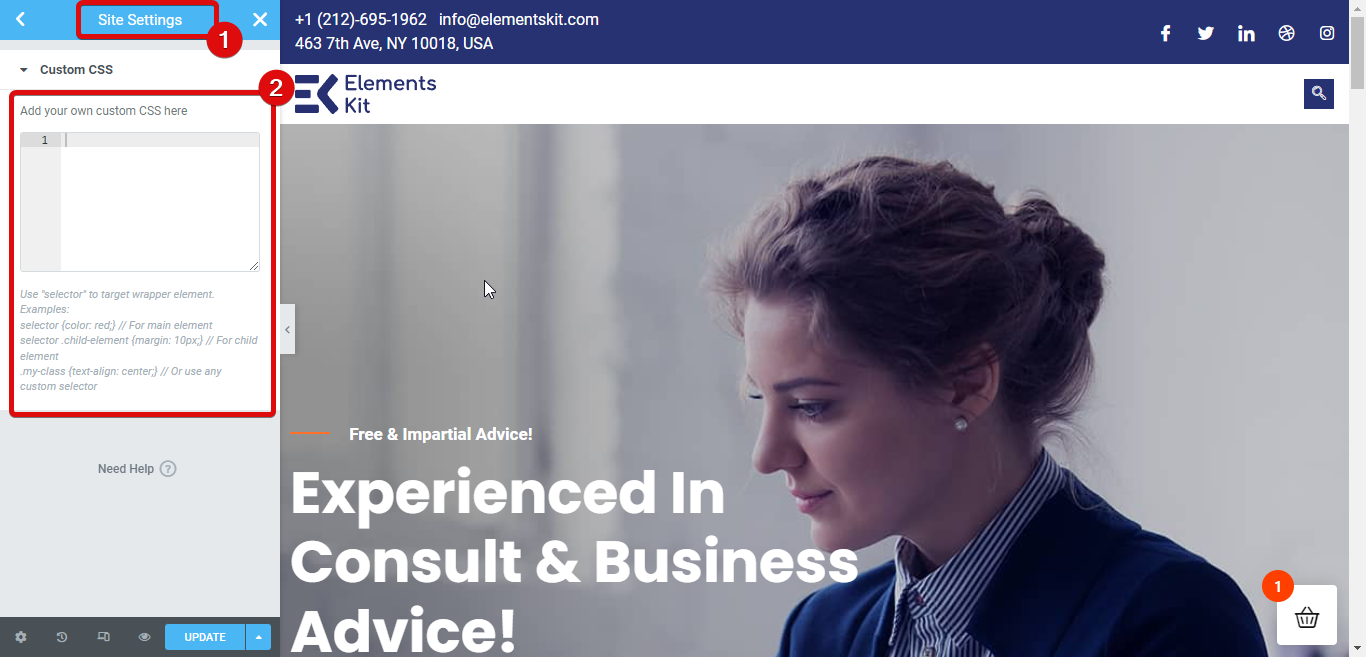
今 カスタムCSSオプションまで下にスクロールしますをクリックしてタブを開き、ここにカスタム スタイルを追加します。
4️⃣ WordPress カスタマイズ設定から Elementor にカスタム CSS を追加する
カスタム CSS を追加するために、Elementor によって提供されるオプションを必ずしも使用する必要はありません。 WordPress カスタマイズ オプションを使用してカスタム CSS を追加することもできます。
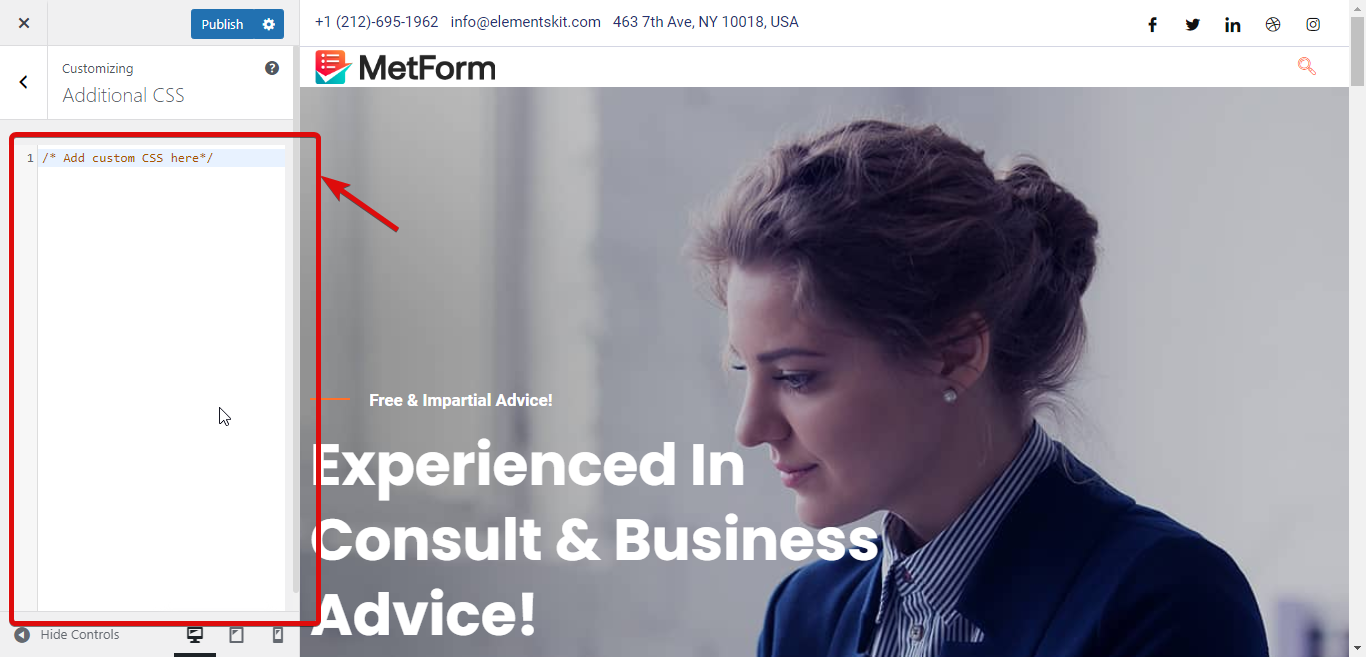
これについては、次の場所にアクセスしてください WordPress ダッシュボード ⇒ 外観 ⇒ カスタマイズ。
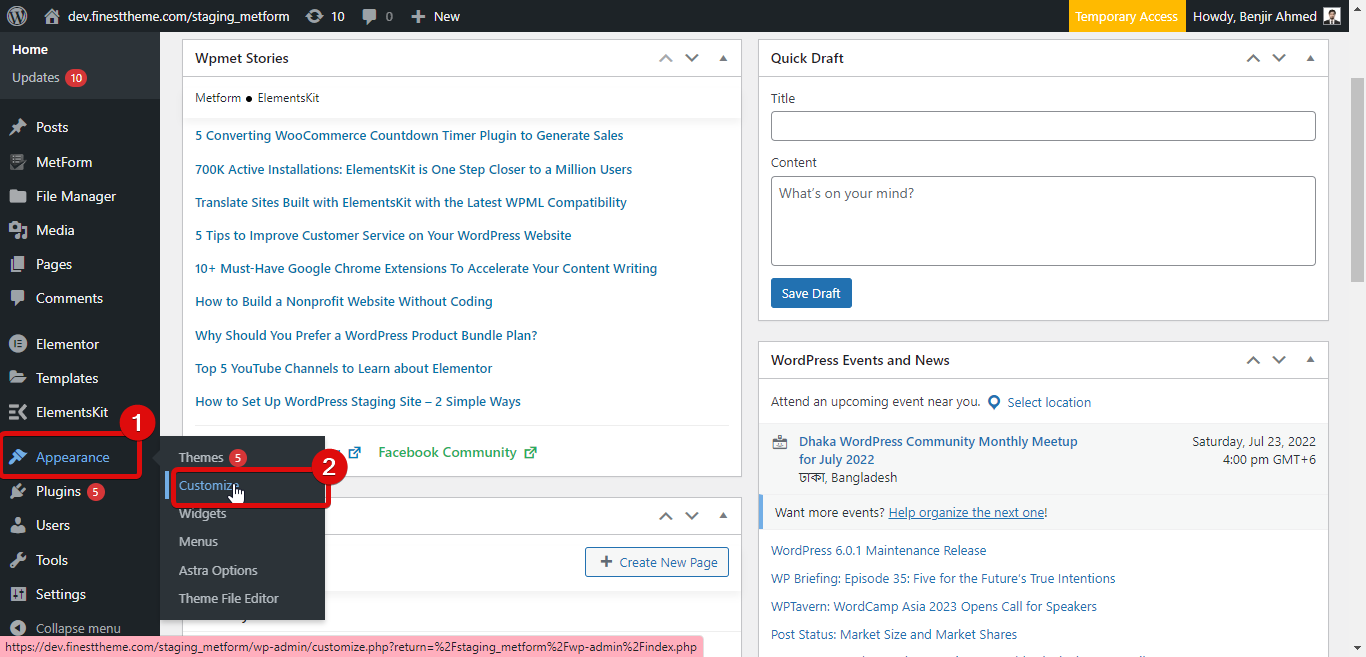
これで、カスタマイズに使用できる多くの設定が見つかります。 ワードプレスサイト。下にスクロールして開きます 追加のCSSタブ カスタム CSS をサイトに追加します。

Elementor カスタム CSS が機能しない問題を修正する方法
Elementor にカスタム CSS を追加しても、技術的な問題によりサイトにすぐに反映されない場合があります。この問題を解決するために採用できる手順は次のとおりです。
✅CSSを再生成
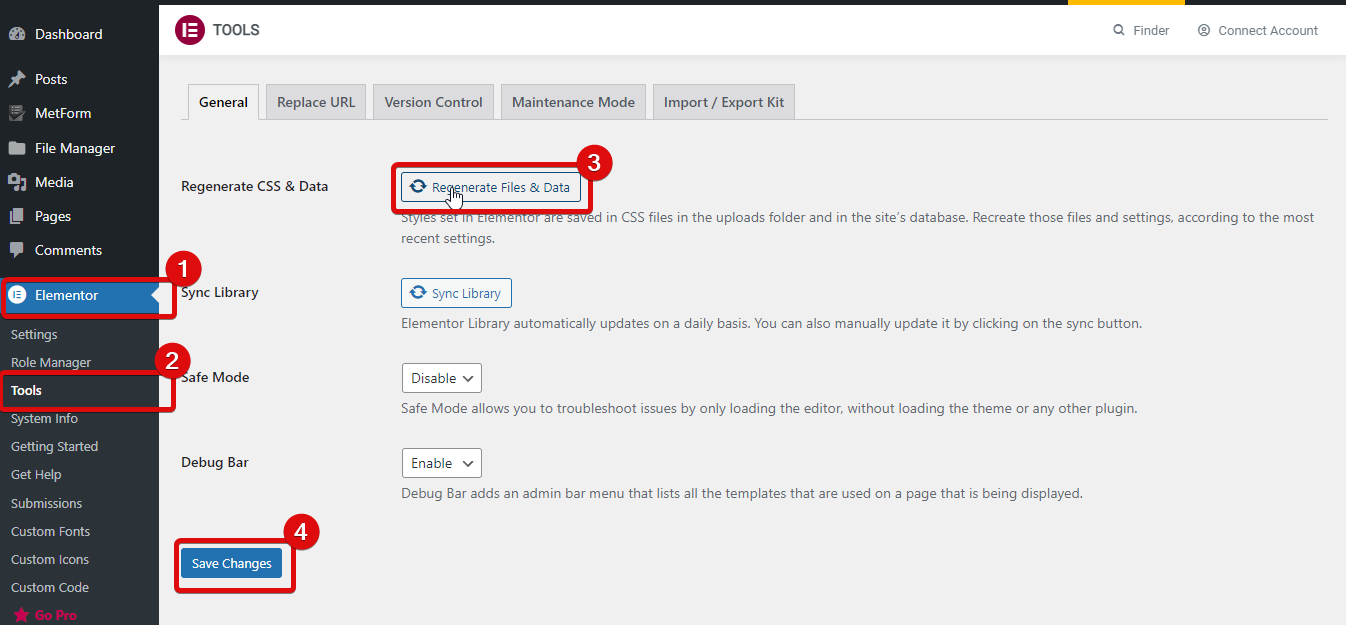
CSS を再生成すると、この問題を解決できます。 CSS を再生成するには、次の場所に移動します。 Elementor ⇒ [ツール] をクリックし、[CSS とデータの再生成] をクリックします。 そして、「変更を保存」をクリックします。
✅ ウェブサイトのキャッシュとブラウザのキャッシュをクリア
WordPress で Web サイトのキャッシュをクリアする キャッシュプラグイン。サーバーレベルのキャッシュがある場合は、それをクリアすることもできます。 Web サイトのキャッシュをクリアした後、ブラウザのキャッシュをクリアし、サイトを更新して CSS が機能しているかどうかを確認します。
✅ テーマの非互換性
時々 エレメンターのテーマ 非互換性が、カスタム CSS がフロントエンドに表示されない原因である可能性があります。デフォルトのテーマに切り替えて、CSS が機能しているかどうかを確認してください。CSS がフロントエンドに表示されるかどうかを確認できます。 デフォルトのテーマ その後、互換性の問題についてテーマ開発者に相談してください。
✅ Elementor とともに別のページビルダーを使用する
複数のページビルダーを同時に使用すると、カスタム CSS が機能しなくなる可能性があります。その単純な理由は、異なるページ ビルダーの CSS が互いに競合する可能性があり、他のページ ビルダーが Elementor カスタム CSS をオーバーライドする可能性があるためです。このような場合は、Elementor ページ ビルダーのみを使用する必要があります。
🔔🔔 注記: 別のページ ビルダーを使用せずに Elementor ページ ビルダーの機能を拡張したい場合は、Elementor アドオンを選択できます。
🔥 試してみる ElementsKit– Elementor の究極のアドオン それは付属しています 85 個以上のウィジェットと 500 個以上の準備済みセクション だからあなたはできる モダンな外観のElementor Webサイトを構築する.
✨以上 700k+ 人々は現在、この素敵なアドオンを使用して素晴らしいウェブサイトを作成しています。 高度なヘッダーとフッター。
そして今、できるのは ElementsKit の Pro バージョンを 20% 割引で入手 を使用して コミュニティ20 コード。 ElementsKit プロを購入するには クリック ここ.
よくある質問
Elementor カスタム CSS に関連する最もよくある質問とその回答をご覧ください。
Elementor でカスタム CSS を使用するにはどうすればよいですか?
Elementor にカスタム CSS を追加するには、4 つの方法があります。これらの方法は、HTML ブロック、Elementor カスタム CSS スニペット、WordPress カスタマイズ オプション、Elementor サイト構築設定を使用することです。
カスタム CSS を Elementor に無料で追加するにはどうすればよいですか?
WordPress カスタマイズ オプションから、Elementor Web サイトにカスタム CSS を無料で追加できます。
🤷 したい Elementor Web サイトに高度なフォームを追加しますか? フォーム構築リソースを確認してください。
👉 WordPress にマルチステップフォームを追加する方法
👉 Elementor 条件付きロジック フォームを構築する方法
👉 Elementor で WordPress アンケートフォームを作成する方法
Elementor カスタム CSS のまとめ
これで、Elementor にカスタム CSS を追加するために使用できる 4 つの方法がわかりました。これらはすべて使用できますが、CSS の優先順位の階層に留意する必要があります。たとえば、インライン スタイルは、ページ レベルまたは Web サイト レベルで記述された CSS よりも常に優先されます。
したがって、CSS をよく知っている場合にのみカスタム CSS を使用することをお勧めします。そうしないと、利益よりも害が大きくなり、Web サイトの外観やレイアウトが損なわれてしまう可能性があります。
そうは言っても、CSS のプロであれば心配する必要はありません。このブログで説明されている方法を自由に使用してカスタム CSS を追加し、Web サイトの外観をうまく変更してください。
コメントを残す