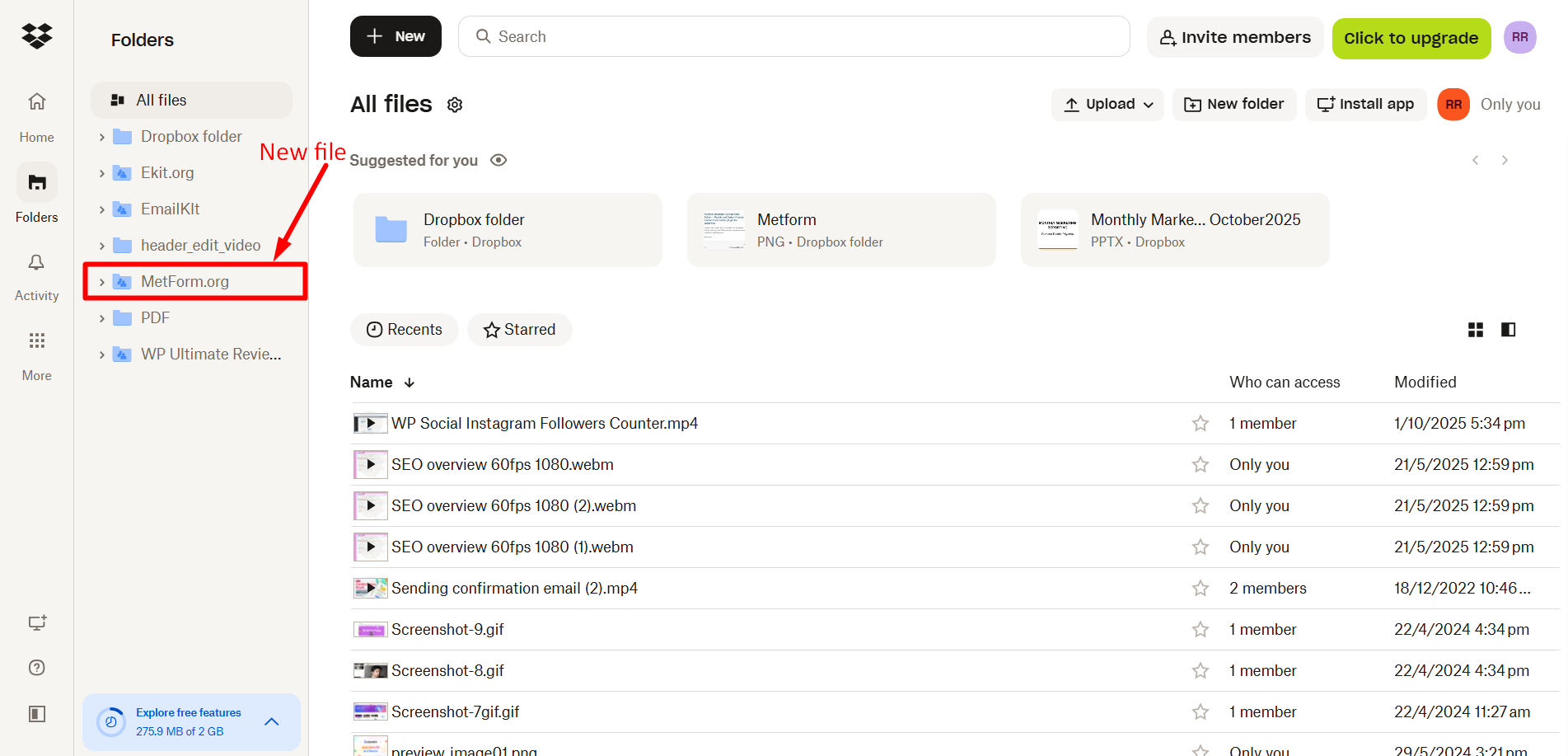
The latest update for MetForm brings powerful cloud capability to your Elementor forms, the Dropbox File Upload Integration. This feature allows you to directly connect your form’s file upload field with a designated folder in your Dropbox.
Let’s learn how you can easily set up this powerful integration.
MetForm Dropbox File Upload Integration #
Warunek wstępny: MetFormPro
Follow the steps below now.
Step 1: Access your WordPress dashboard #
- Log in to your dashboard and go to MetForm’s settings
- Wybierz General tab
- Znaleźć Create App ID from Dropbox developers panel and click on it
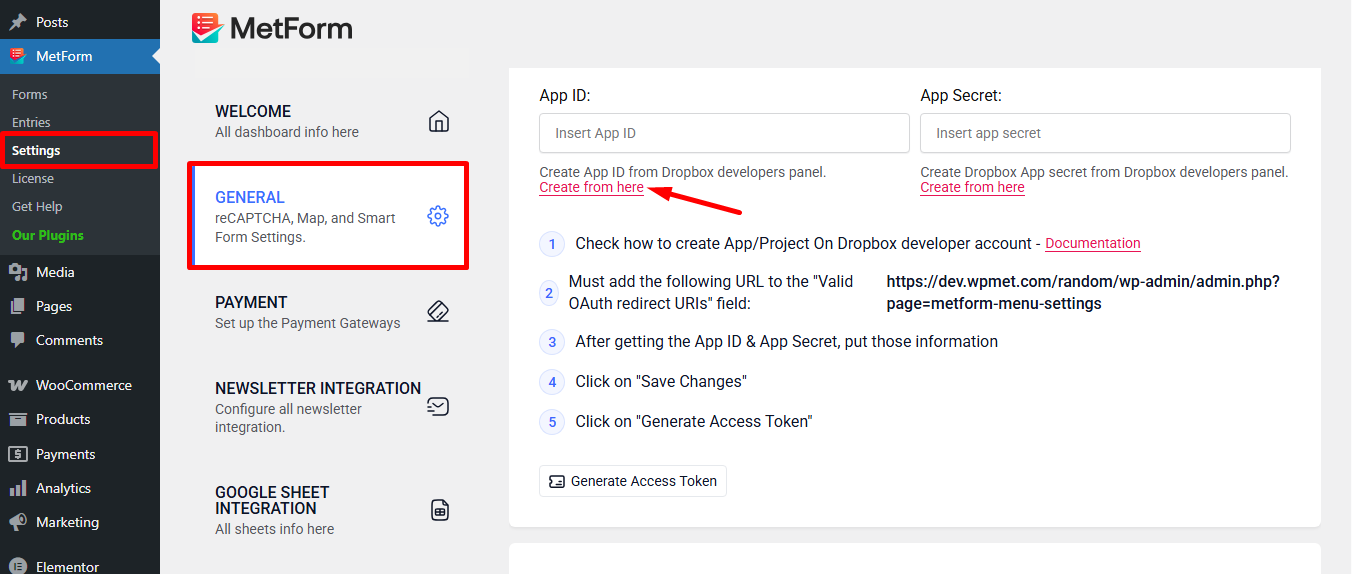
Kliknij Create apps button and it’ll redirect you to the Dropbox site.

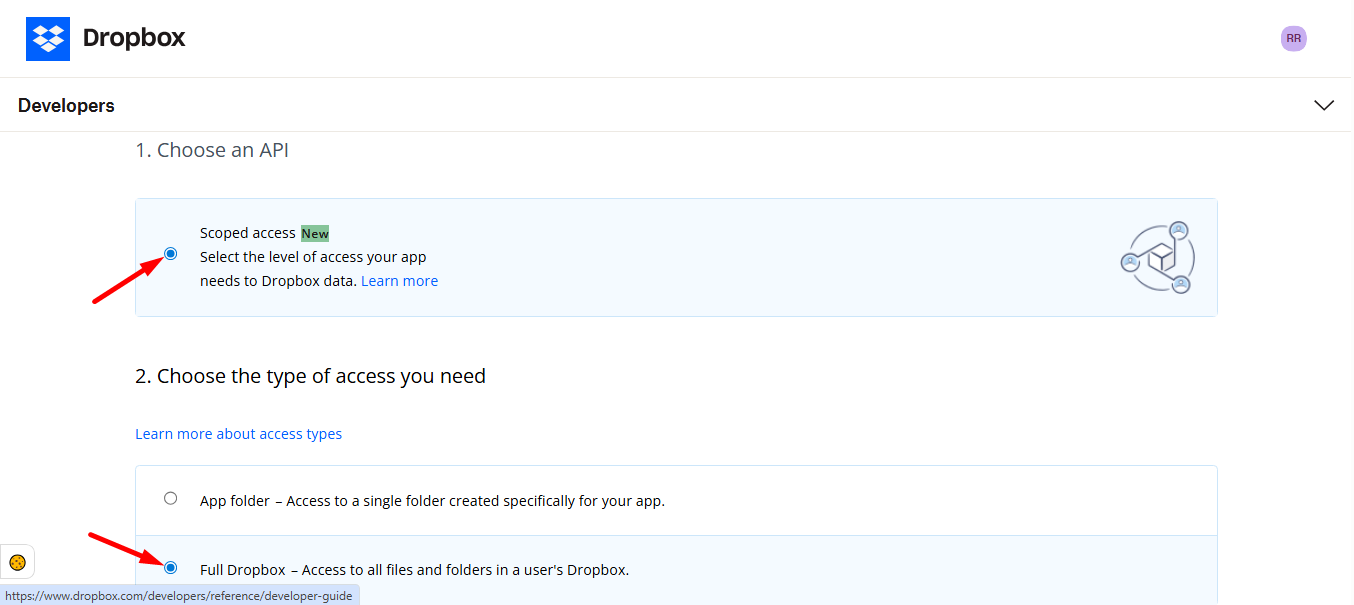
Select access and choose full dropbox access for all files and folders
Name your App and agree to the terms and conditions.
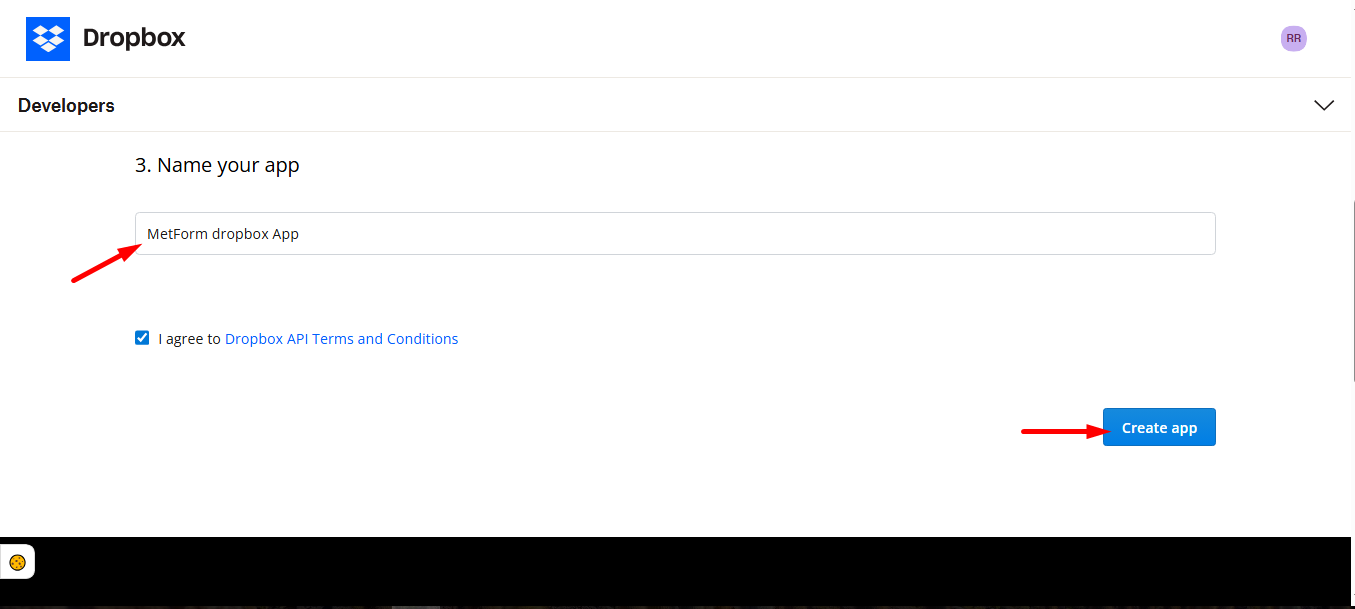
Here you go, you’ll be landed in the Strona ustawień.
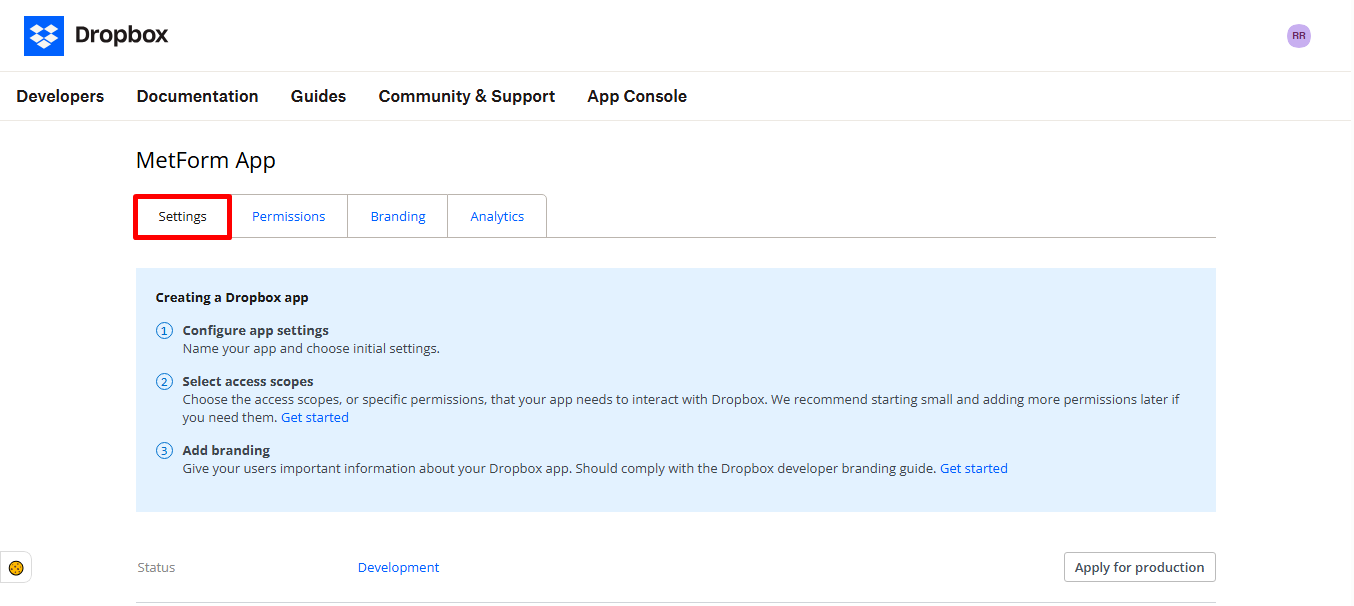
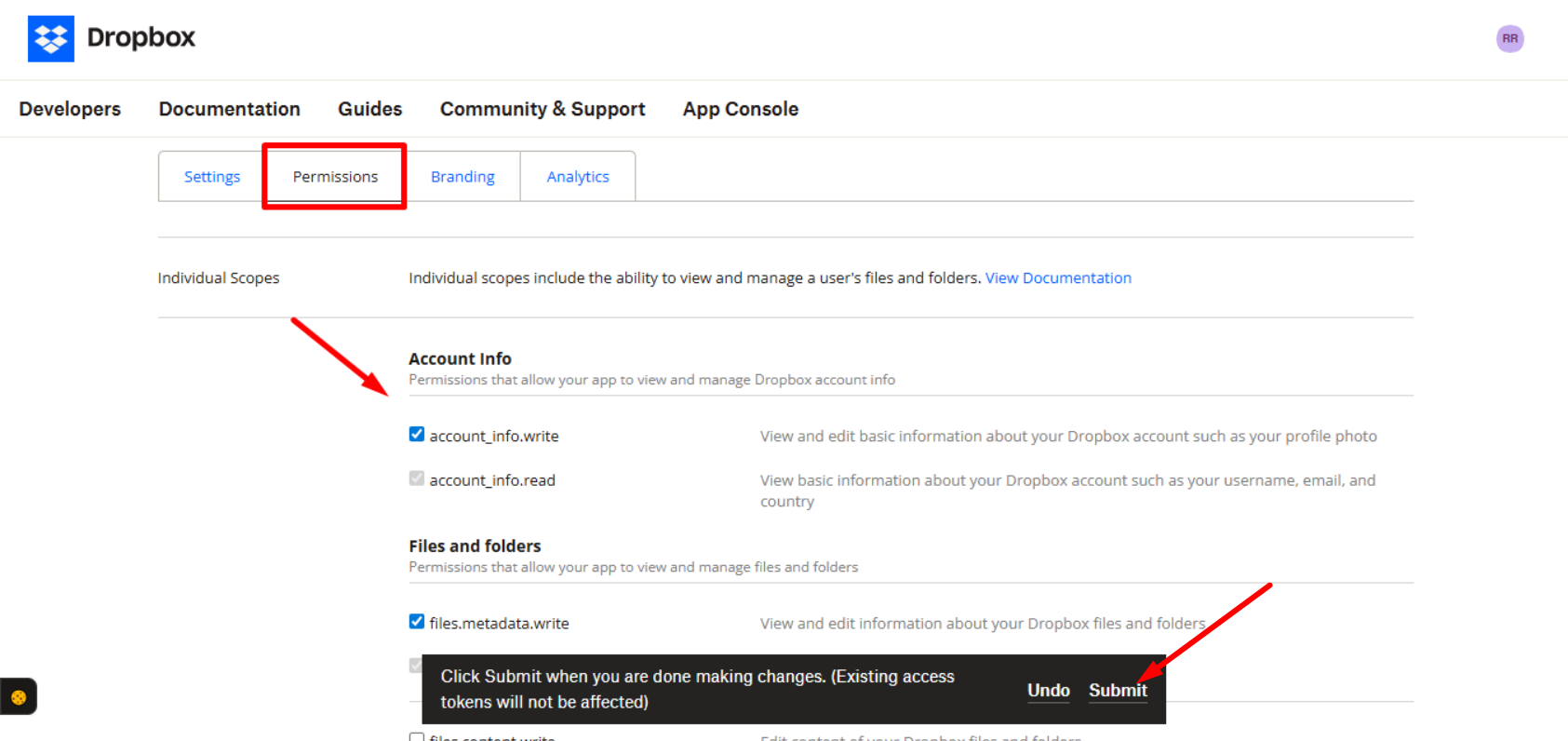
Teraz, move to the Permissions tab. Provide access for Account Info and Files & Folders to allow your app to view and manage Dropbox account info. Finally, click the Submit button.
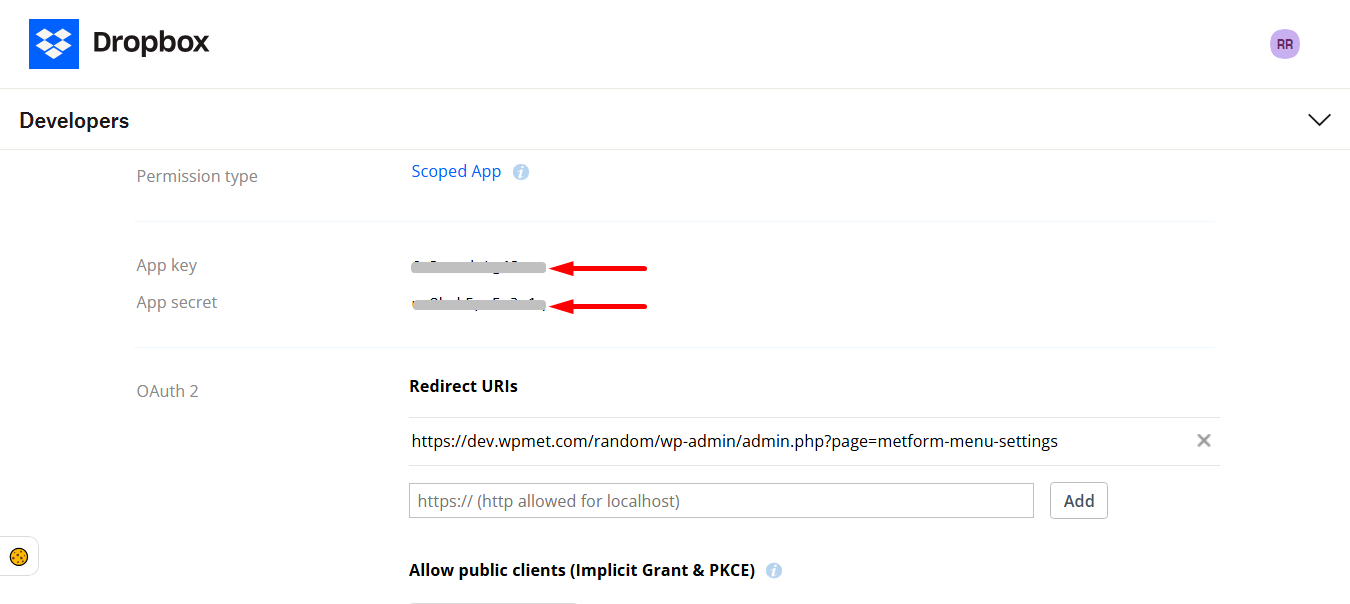
Step 2: Copy the valid OAuth redirect URIs #
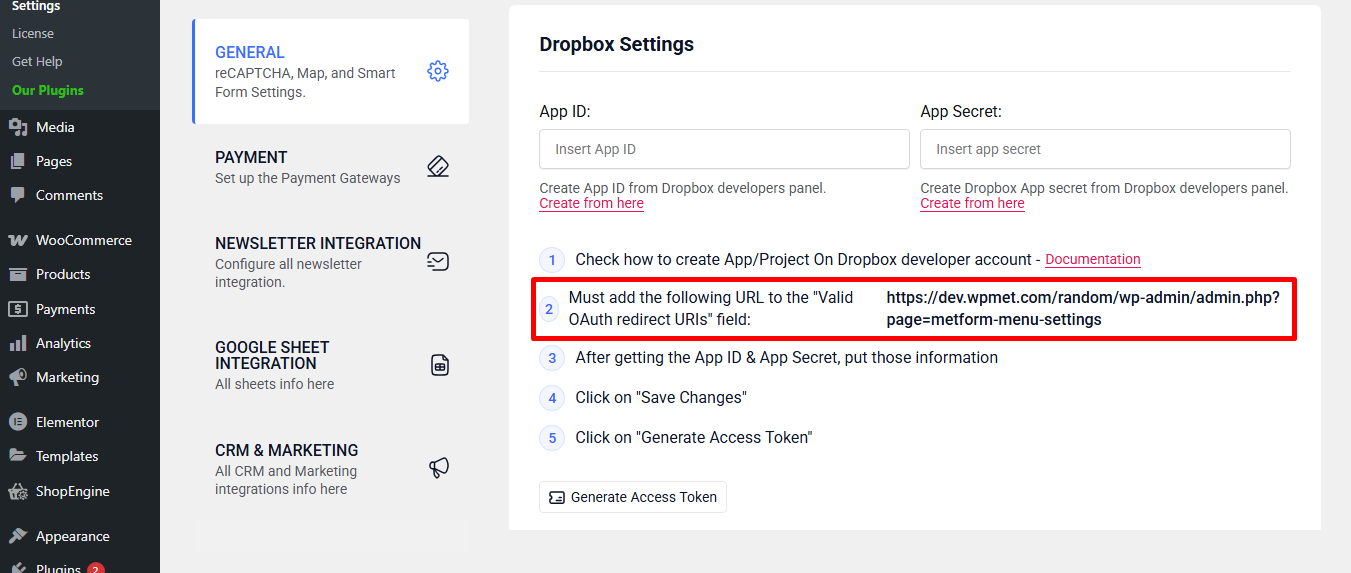
Now, go back to MetForm’s Settings and copy the valid OAuth redirect URIs.
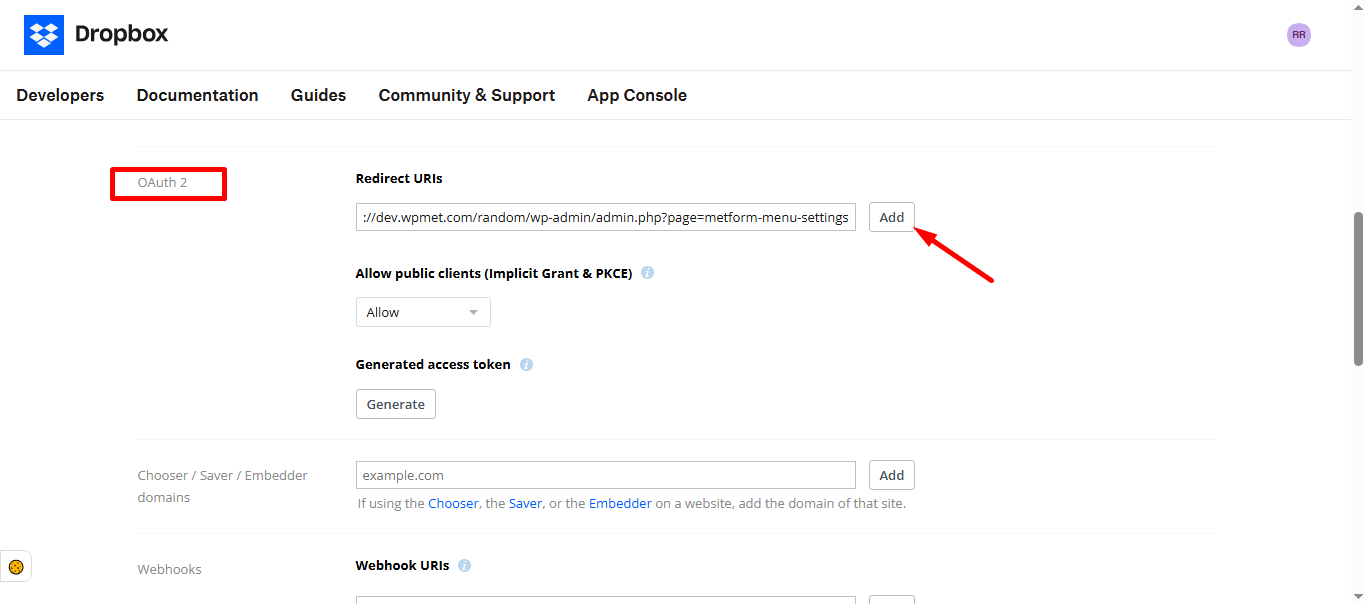
w Strona ustawień find OAuth 2 and paste the copied URIs.
Now, scroll up and copy App key and App secret.
Step 3: Paste the App IDs and Connect #
In the MetForm’s General Settings page, paste the App Id and App Secret keys. After that, scroll down and save the changes.
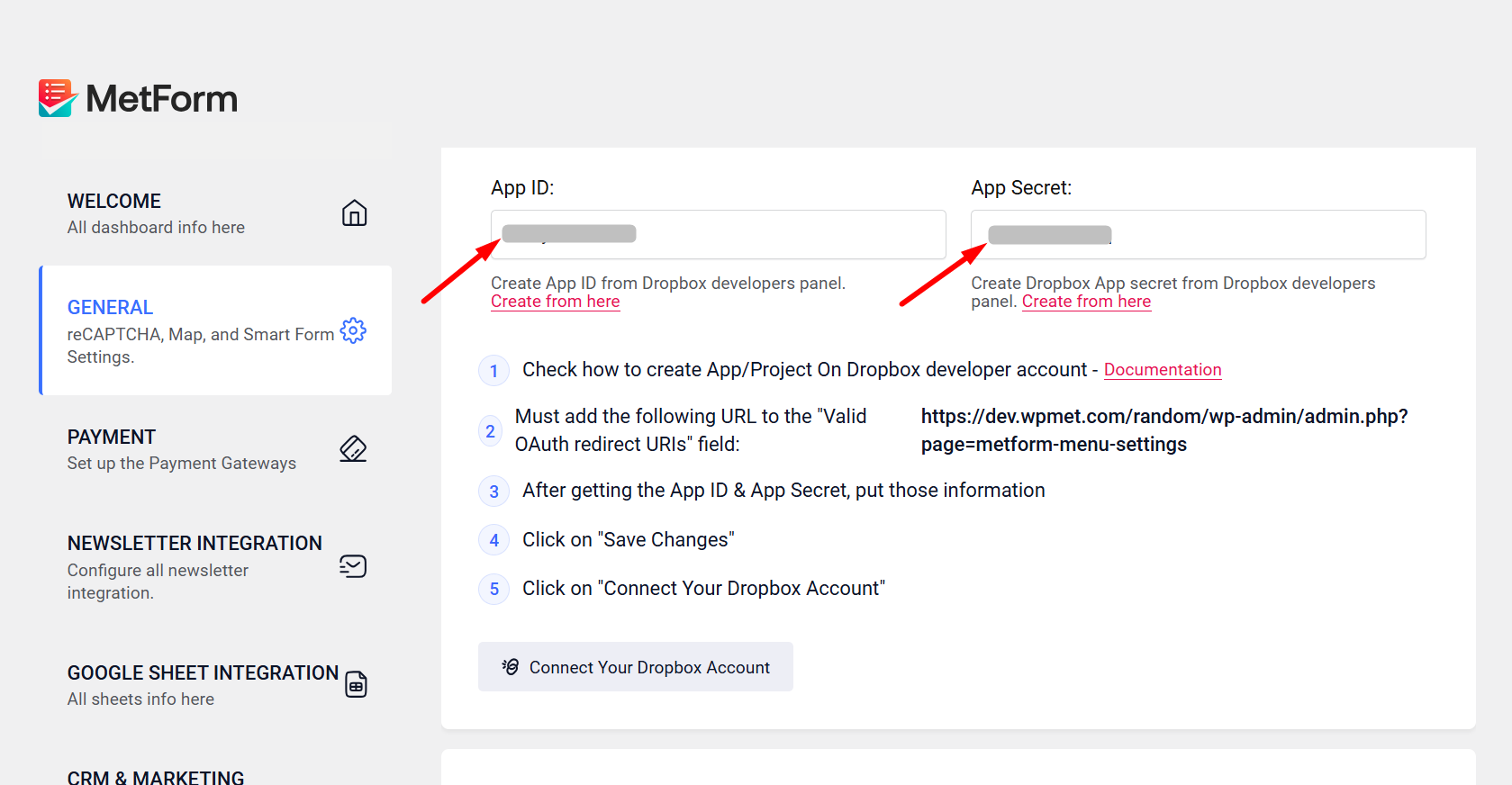
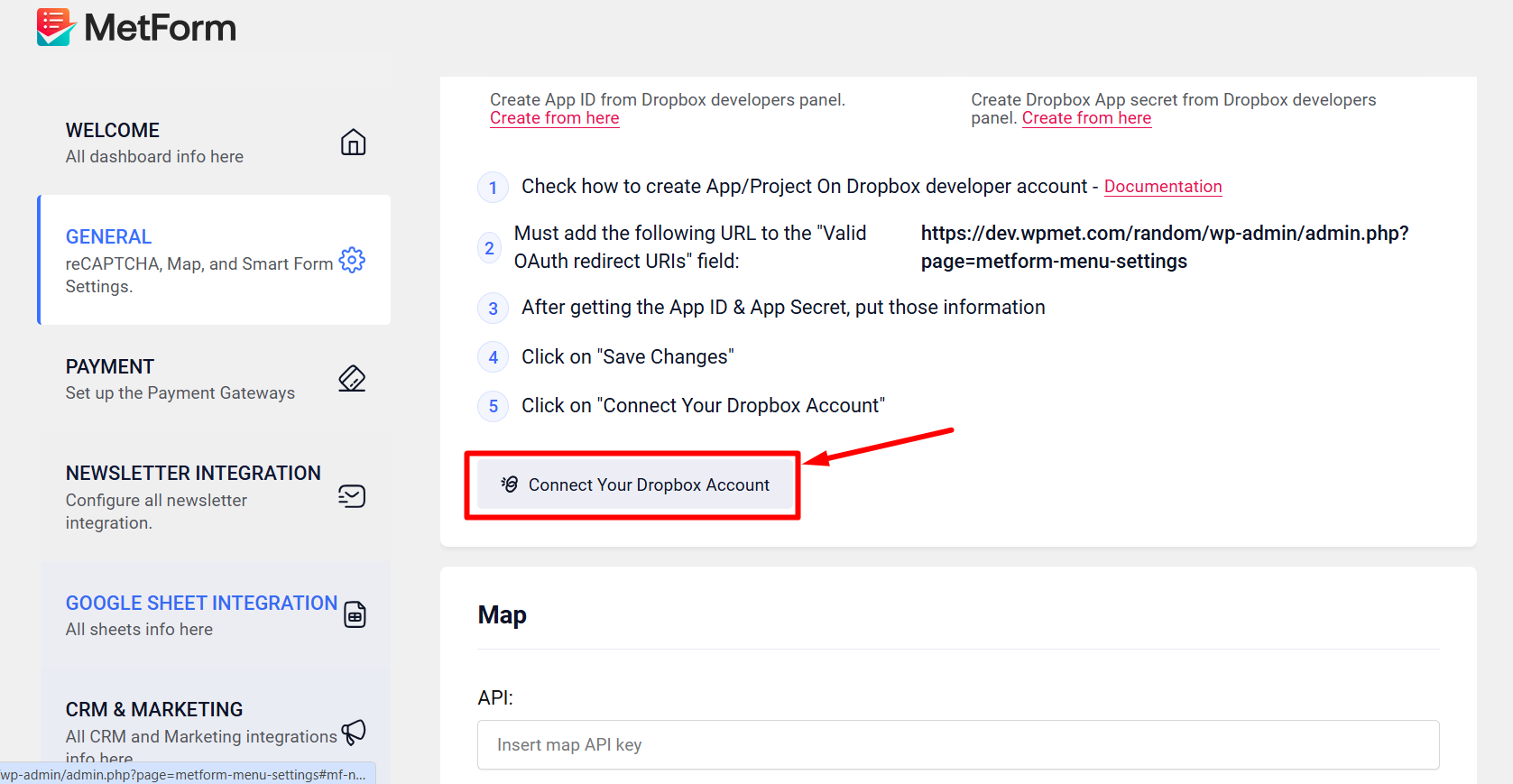
Następnie musisz zapisz zmiany I click on the Connect your dropbox account button.
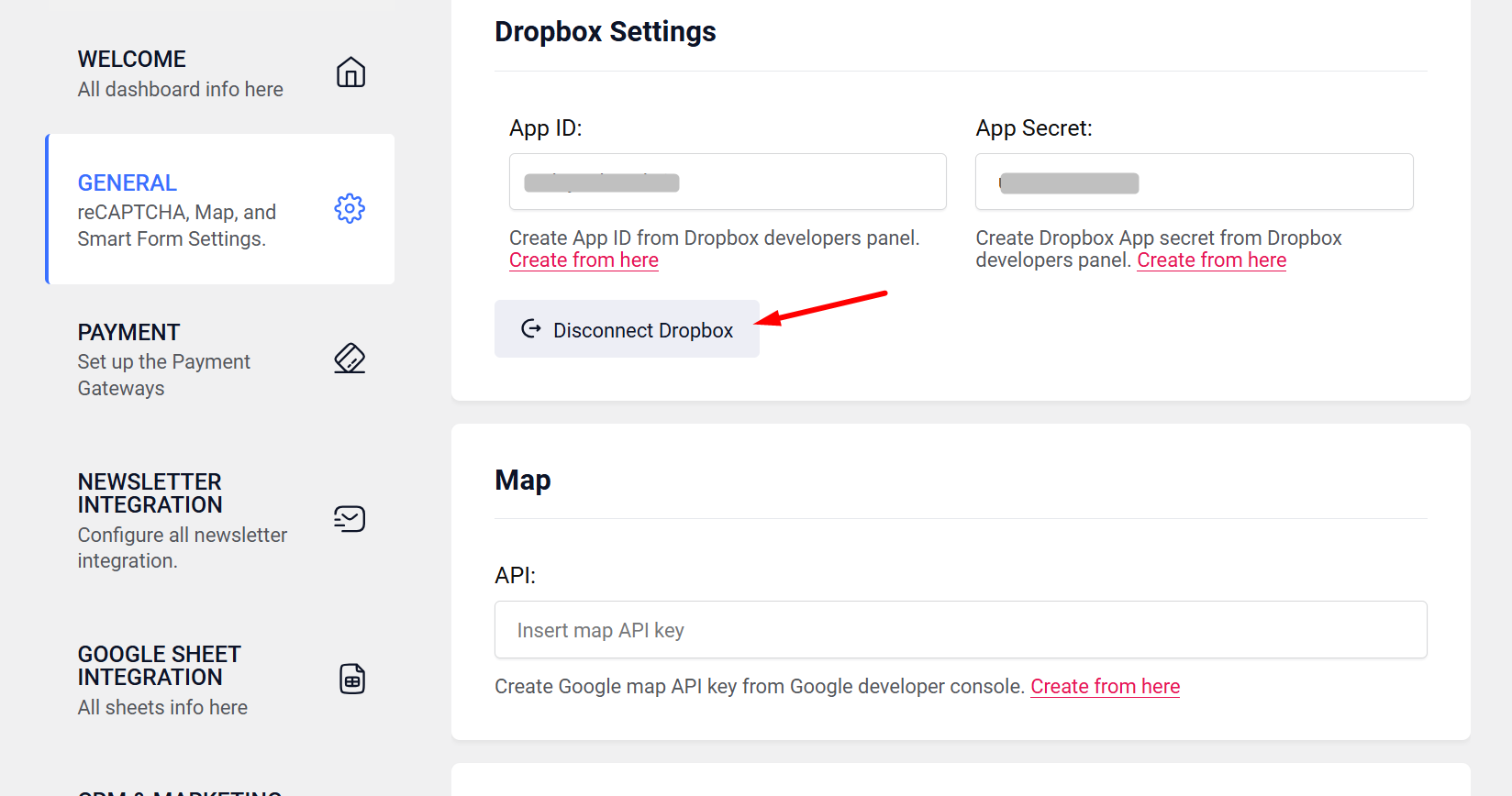
Dropbox is connected successfully.
Step 4: Select a Form and Choose a Dropbox Folder #
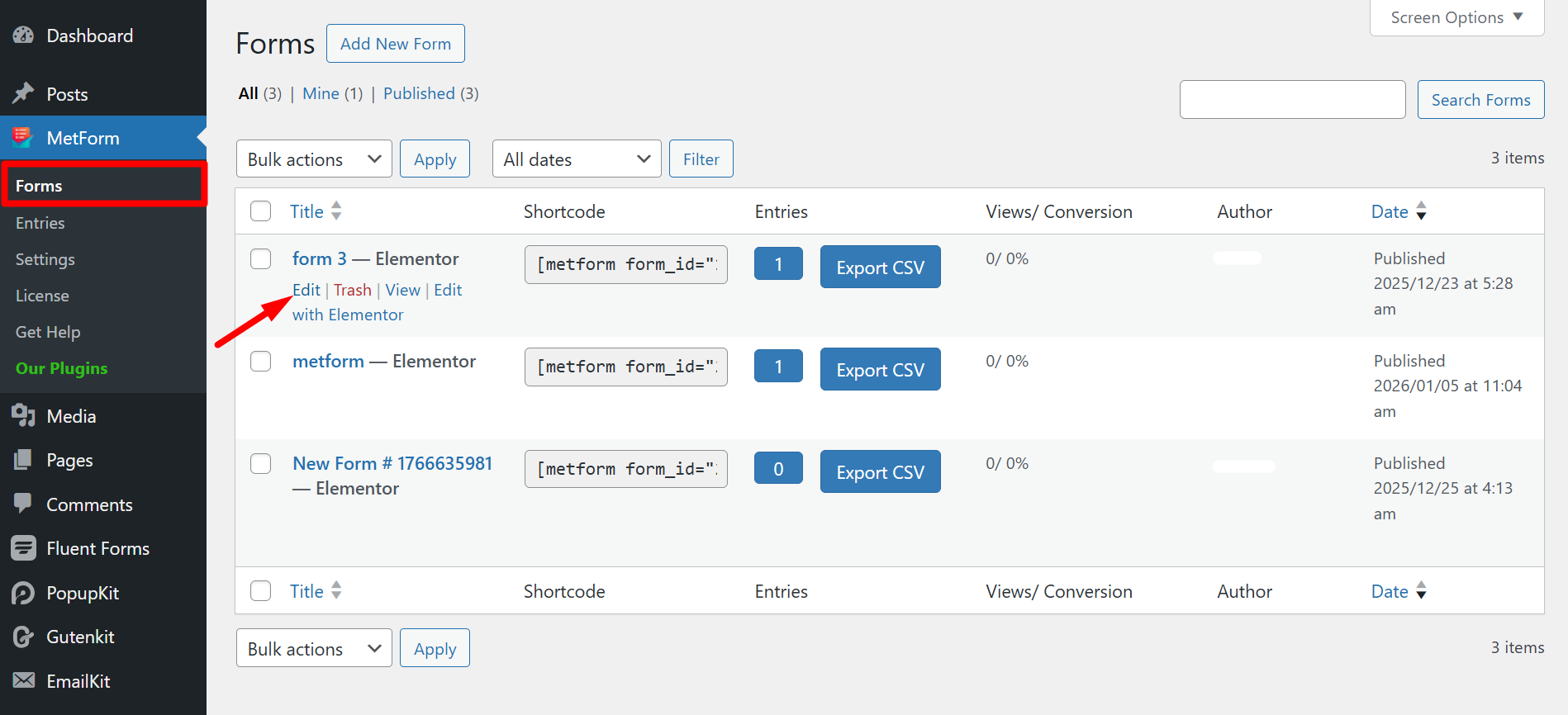
Choose a form and click on the edit button.
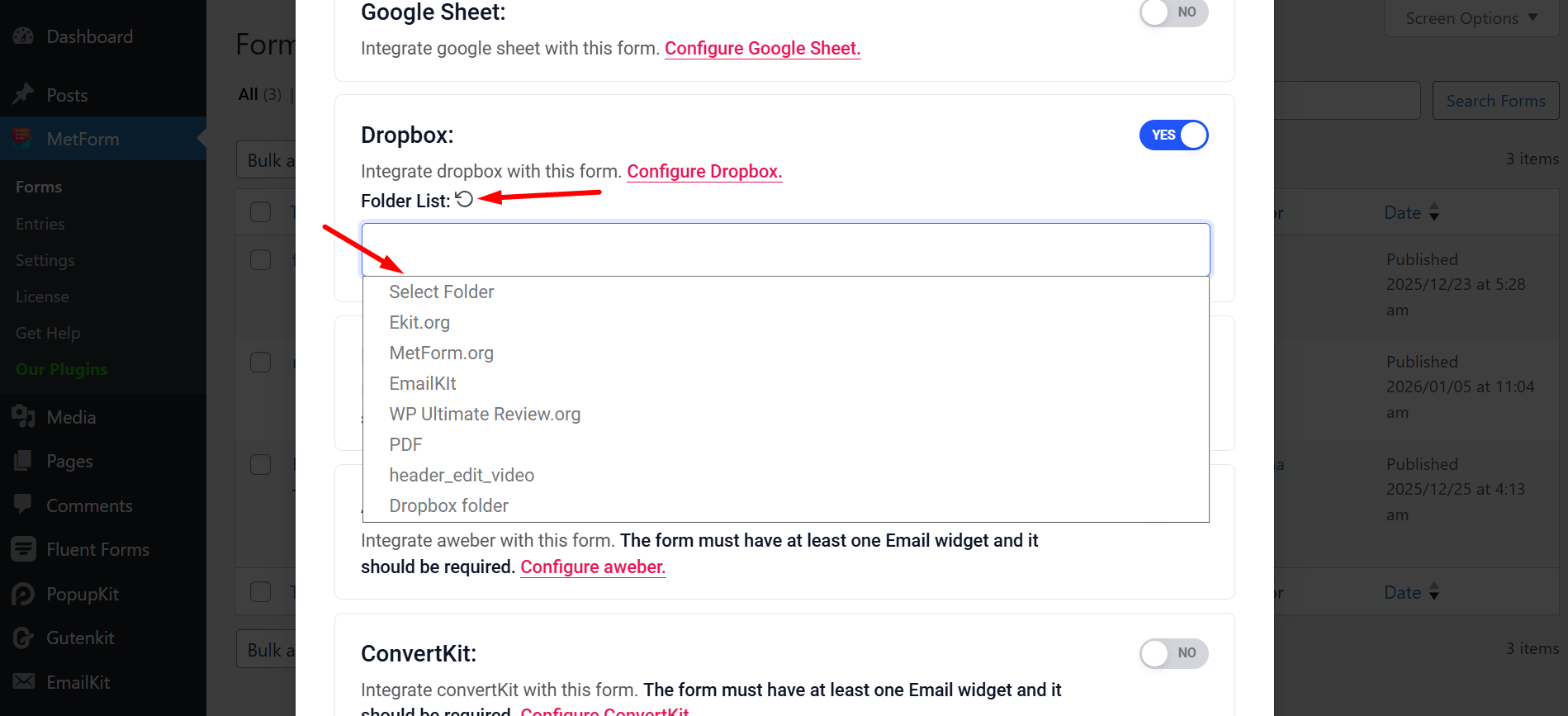
Find Dropbox, click reload and choose your desired folder from the list.
Don’t forget to scroll down and save the changes.
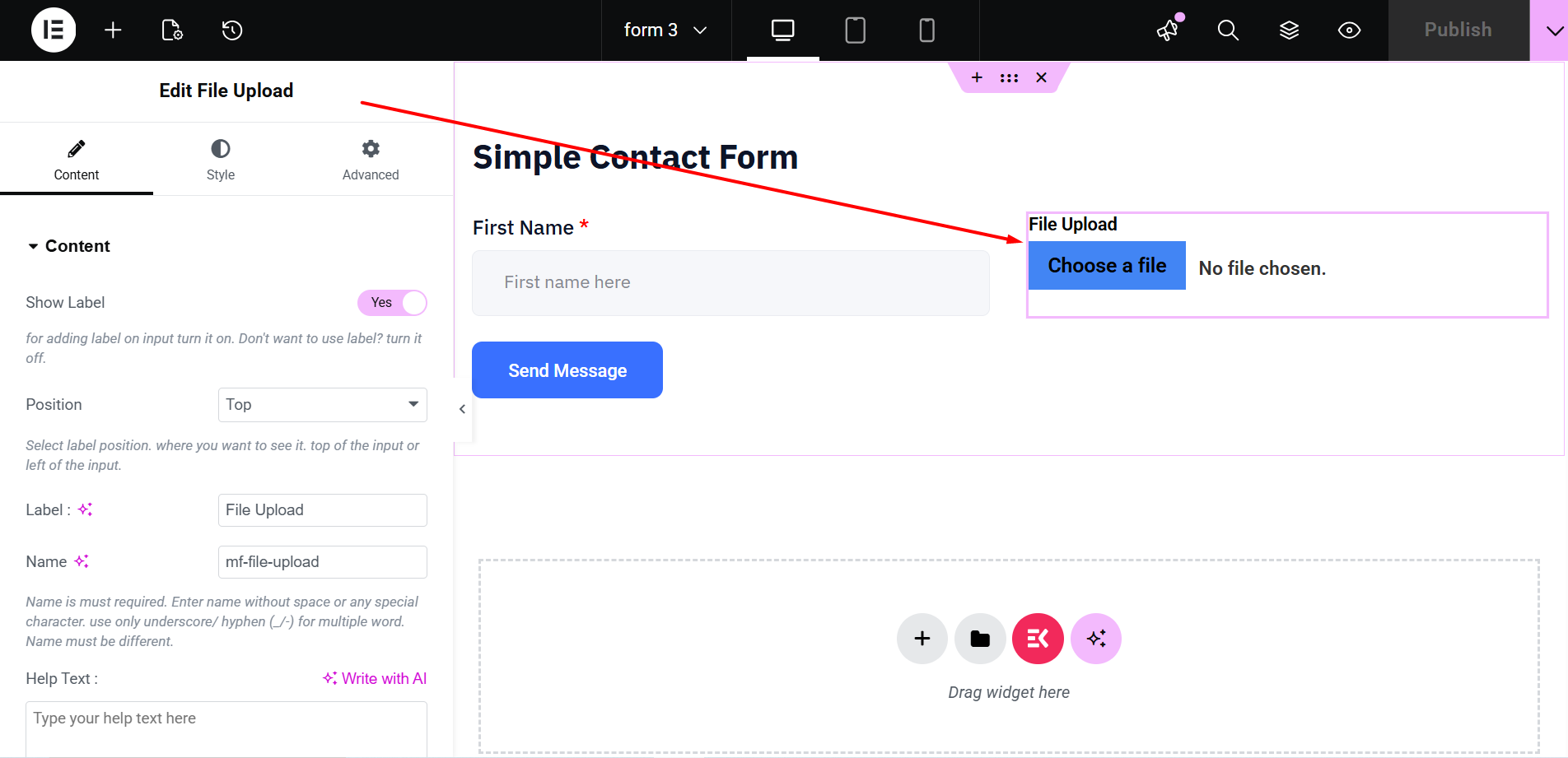
Next, edit your form with Elementor.
Ensure your form includes a File upload field.
Now you can go ahead and publish or save the form. Upload any file and test.
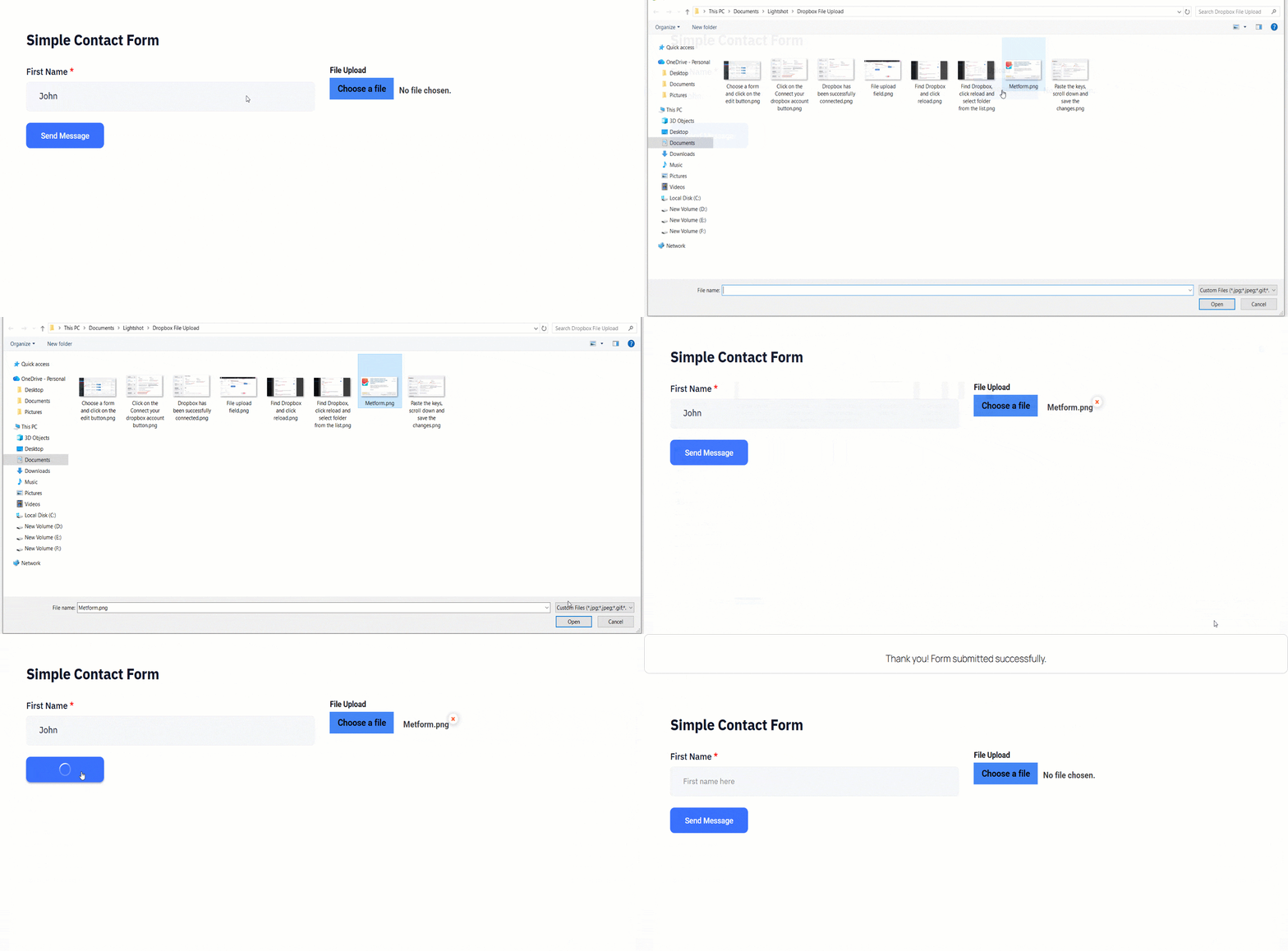
Here you go, the new file has been uploaded to your Dropbox account.