


 Korean
  English
  German
  Spanish
  Italian
  French
  Danish
  Portuguese
  Swedish
  Polish
  Japanese
 Gutenberg Page Builder에서 여러 블록을 추가하여 웹사이트 섹션을 디자인하기 위한 사용자 지정 레이아웃을 구축하고 싶으신가요? 글쎄요, 기본 기능으로는 이 작업을 할 수 없습니다. 그러나 GutenKit 컨테이너 블록은 다양한 열 구조 사전 설정과 함께 제공됩니다. 그리고 한 열에 여러 블록을 추가할 수 있습니다.
또한, 각 열을 개별적으로 사용자 정의하고 블록 위치를 제어할 수 있습니다. 이 설명서는 Gutenberg 페이지 빌더에서 열 레이아웃을 만드는 데 GutenKit 컨테이너 블록을 사용하는 방법을 알려줍니다.
GutenKit 컨테이너 블록 사용 방법 #
GutenKit 플러그인을 설치했는지 확인하세요. 그런 다음 WordPress 대시보드에서 시작하여 새 페이지나 게시물을 가져와서 편집을 시작하세요.
1단계: 컨테이너 블록 추가 #
WordPress 대시보드에서 시작하여 새 페이지나 게시물을 작성합니다. WordPress 블록 편집기로 이동하게 됩니다. 그런 다음 "+블록 편집기의 왼쪽 상단 모서리에 있는 "아이콘을 클릭합니다. 블록 메뉴가 다양한 블록과 함께 나타납니다.
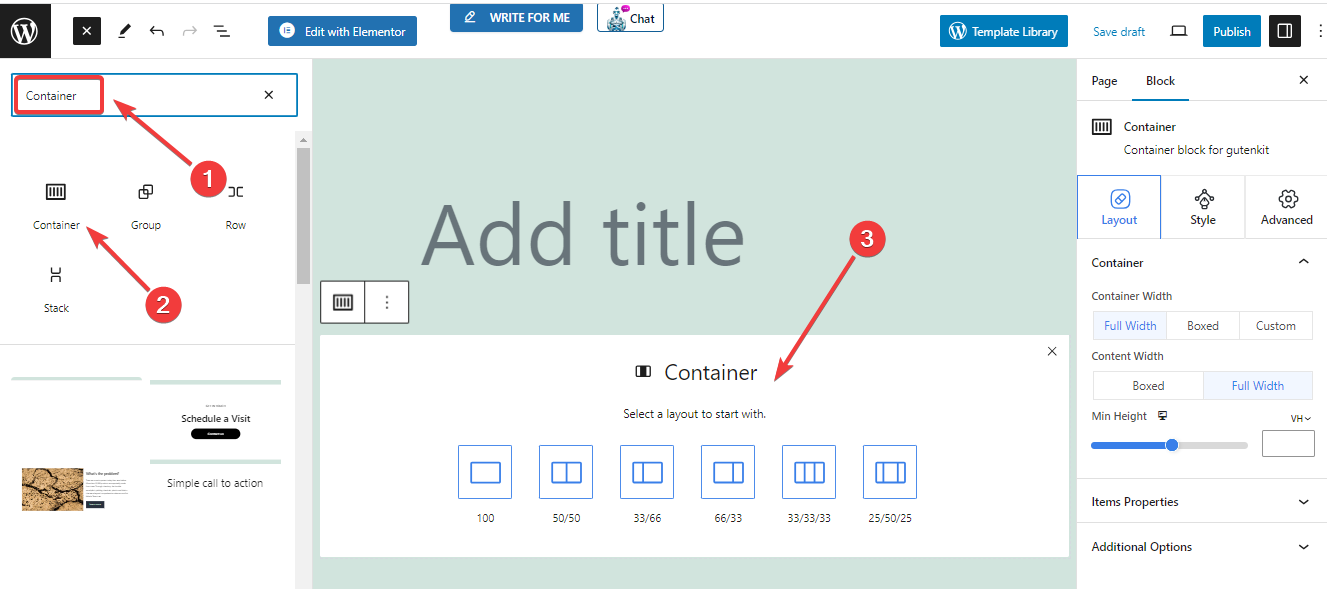
- 검색창을 사용하여 "컨테이너" 차단하다.
- 찾으면 클릭하거나 편집기 화면으로 끌어다 놓으세요.
- 그만큼 컨테이너 블록이 화면에 추가되었습니다.
2단계: 열 구조/열 너비 사전 설정 선택
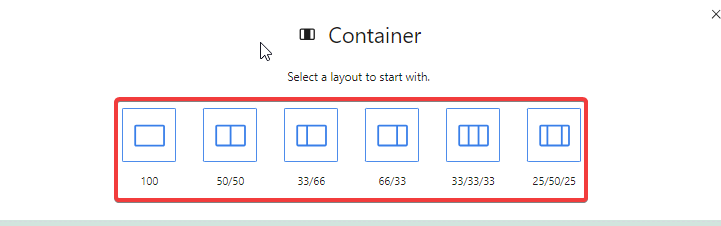
그만큼 컨테이너 블록은 여섯 가지 다른 열 구조/사전 설정된 열 너비를 보여줍니다. 디자인과 콘텐츠 유형에 따라 선호하는 것을 선택하세요. 예를 들어, 50/50 구조를 선택합니다.
3단계: 컨테이너 구성 #
컨테이너에 대한 선호하는 구조를 선택한 후 오른쪽 사이드바의 블록 설정을 살펴보세요. 컨테이너를 다음에서 구성하게 됩니다. 공들여 나열한 것 탭.
참고하세요 각 열을 독립적으로 구성하고 스타일을 지정할 수 있습니다. 설정은 다음과 같습니다.
컨테이너 #
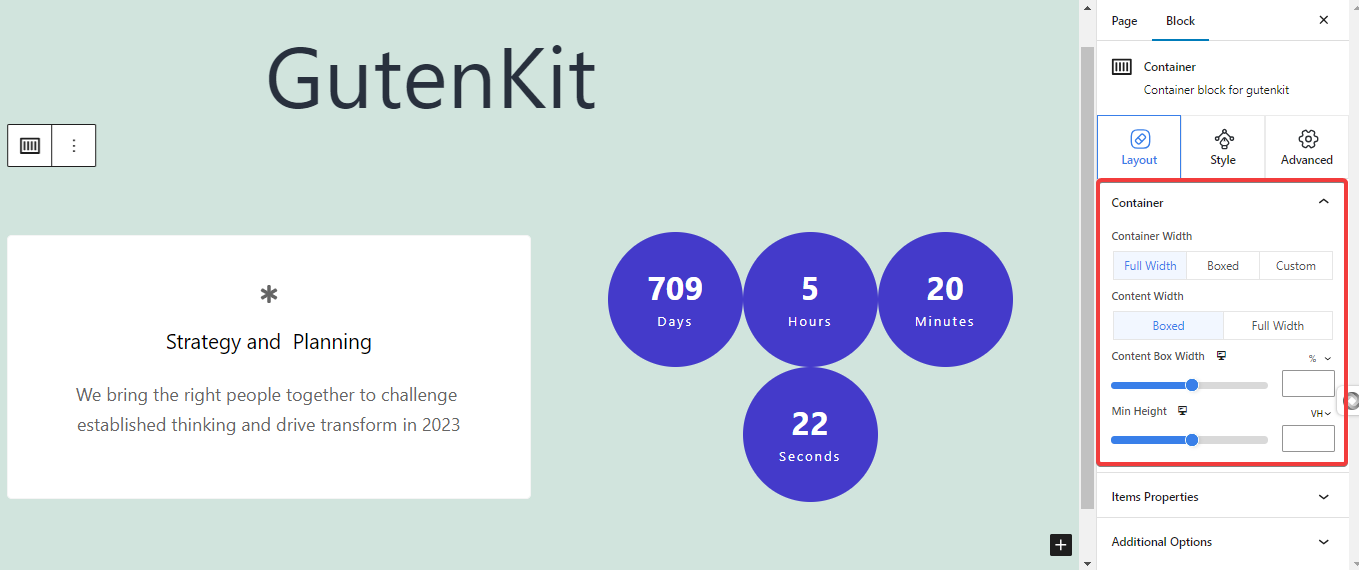
- 컨테이너 폭: 여기에서 열 너비를 제어할 수 있습니다. (전체 너비, 상자형, 사용자 지정)
- 전체 넓이: 이것을 선택하면 “콘텐츠 너비" 옵션.
- 콘텐츠 너비: 여기서 열의 콘텐츠 너비를 선택합니다. "박스형 & 전체 넓이” 옵션. 그리고, 선택하는 동안 콘텐츠 상자 너비를 정의할 수 있습니다. 박스형 옵션.
- 관습: 당신은 설정할 것입니다 사용자 정의 너비 귀하의 칼럼에 대한 내용입니다.
- 전체 넓이: 이것을 선택하면 “콘텐츠 너비" 옵션.
- 최소 높이: 열의 최소 높이를 선택하세요.
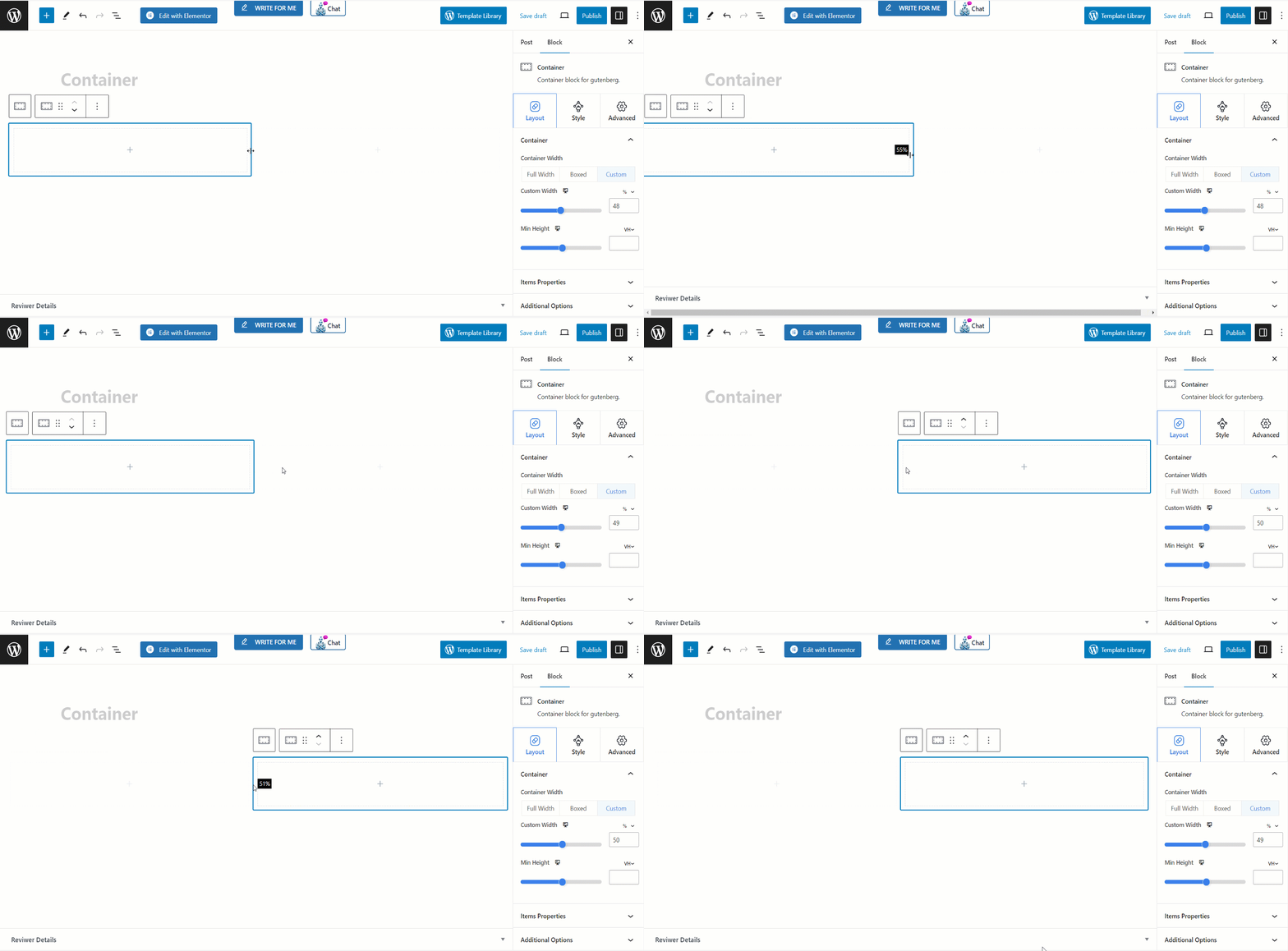
드래그 가능한 컨테이너 너비 #
하지만 컨테이너 사이의 간격을 다음과 같이 수동으로 제어할 수 있습니다.
항목 속성 #
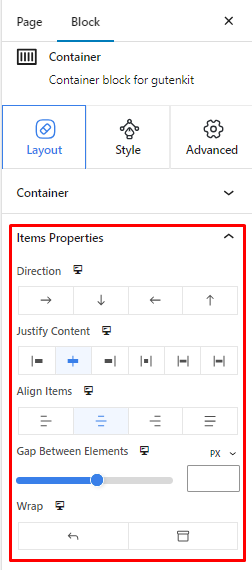
- 방향: 여기에서 열의 요소를 네 개의 다른 방향으로 배치할 수 있습니다.
- 콘텐츠 정당화: 여기에서 컨테이너 열의 요소 사이와 주변의 공간을 제어할 수 있습니다.
- 항목 정렬: 요소의 수직 정렬을 설정합니다.
- 요소 사이의 간격: 열의 요소 사이의 간격을 정의합니다.
- 포장하다: Wrap을 활성화하면 열에 공간이 충분하지 않을 때 요소가 아래쪽에 배치됩니다.
추가 옵션 #
- 과다: 열에 스크롤바를 표시하거나 숨깁니다.
- HTML 태그: HTML 태그를 설정합니다.
4단계: 컨테이너 스타일 지정 #
이 설정 영역에서 열의 모양을 사용자 지정할 수 있습니다.
참고: 다음의 모든 디자인 기능은 호버 효과에도 적용됩니다.
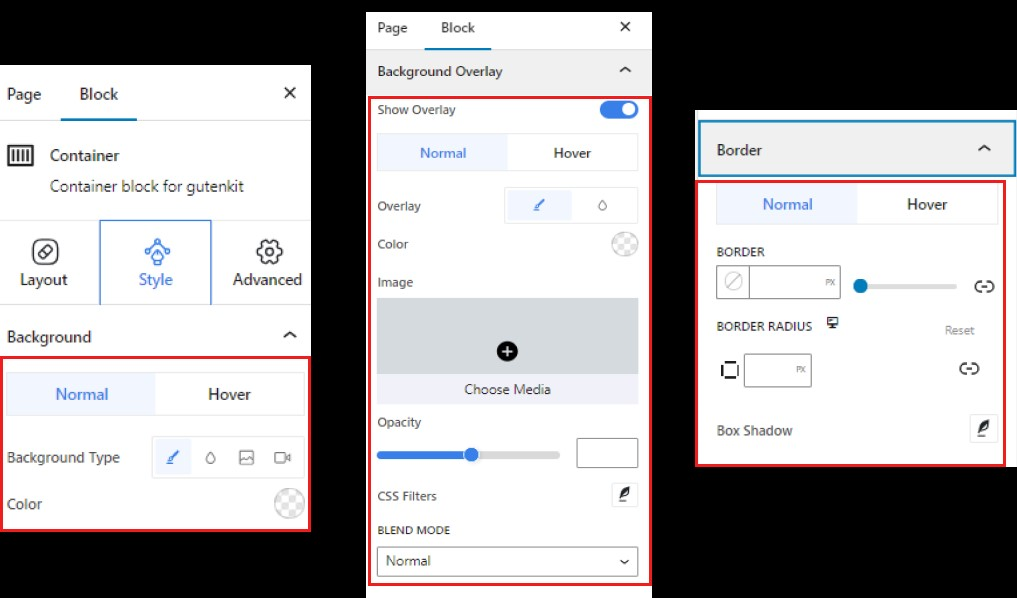
- 배경: 단색, 그라데이션, 이미지, 비디오 중에서 배경 유형을 선택하세요.
- 배경 오버레이: 단색, 그라데이션, 이미지 사이에 오버레이 배경을 설정합니다.
- 국경: 테두리 색상을 지정하고 너비를 정의합니다. 또한 테두리에 그림자 효과를 줍니다.
그게 다입니다! 이제 Gutenberg Page Builder에서 컨테이너 블록을 쉽게 추가하고 사용하여 나만의 레이아웃을 만들 수 있습니다.


