




Quick Overview
Getting pre-sales in WooCommerce is possible by using a WooCommerce preorder plugin. With ShopEngine, you can integrate a preorder system without coding expertise.
The major steps of setting up pre-orders are: activating the specialized Pre-order module and configuring individual product inventory to handle advanced “on pre-order” statuses and shipping messages.
Here are some key considerations for building a successful pre-order system:
✅ Offer “Early Bird” discounts using the specific pre-order price field.
✅ Use countdown timers to build urgency for the official launch date.
✅ Set order limits to prevent overselling initial production runs.
✅ Clearly communicate shipping expectations via custom pre-order messages.
✅ Enable pre-orders for specific variations rather than just the whole product.
✅ Automate the transition from pre-order to “In Stock” based on the available date.
✅ Use the modular system to keep the site fast by only activating the pre-order add-on when needed.
Set Up Pre-orders in WooCommerce
En utilisant Moteur de boutique makes setting up pre-orders in WooCommerce so simple. But make sure you have WooCommerce et Élémentor installed on your WordPress site.
Here is the exact workflow to get your pre-orders live.
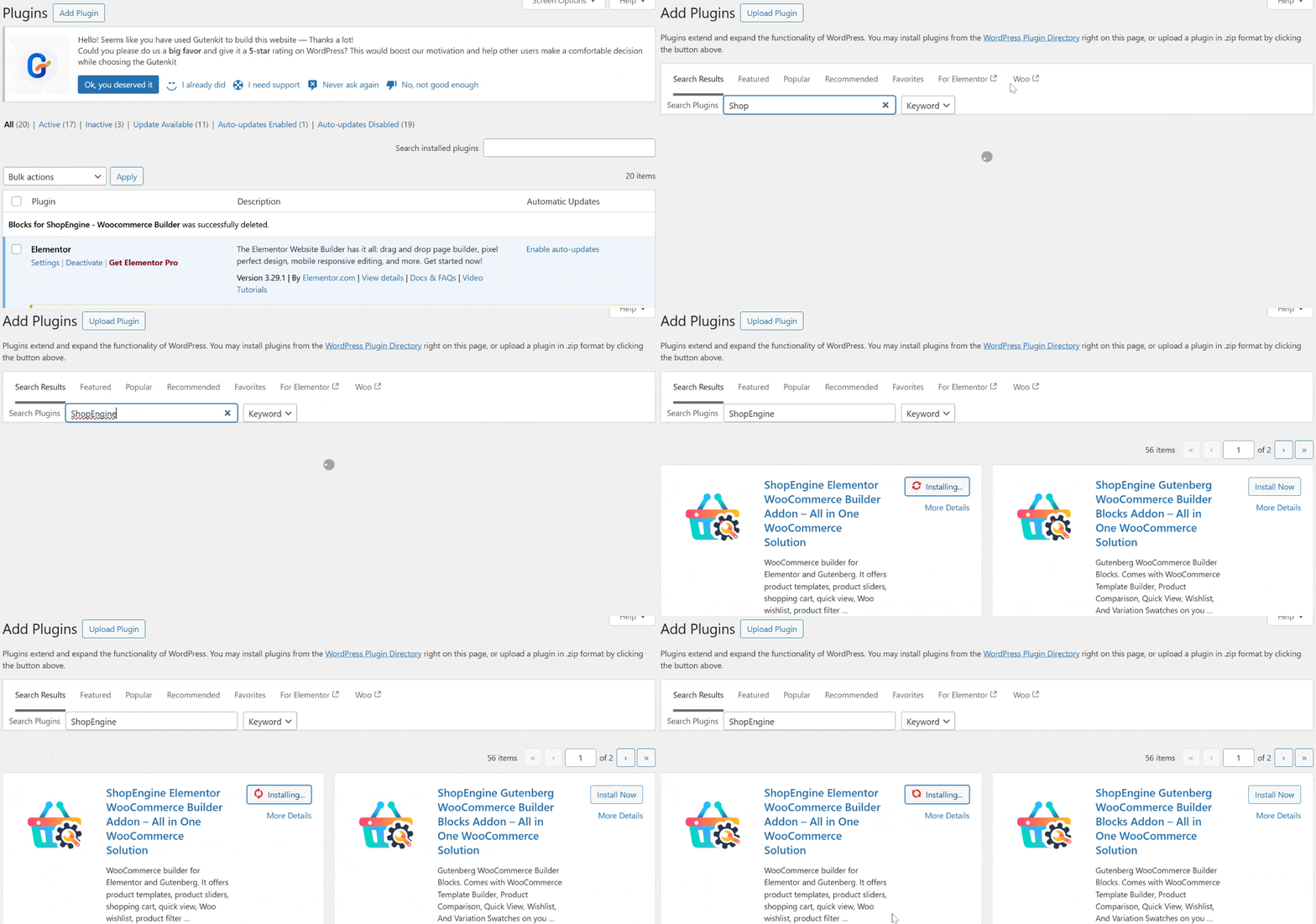
Step 1: Download and Activate ShopEngine
- Aller vers Plugins > Ajouter un nouveau.
- Rechercher Moteur de boutique, then click Installer et Activer.
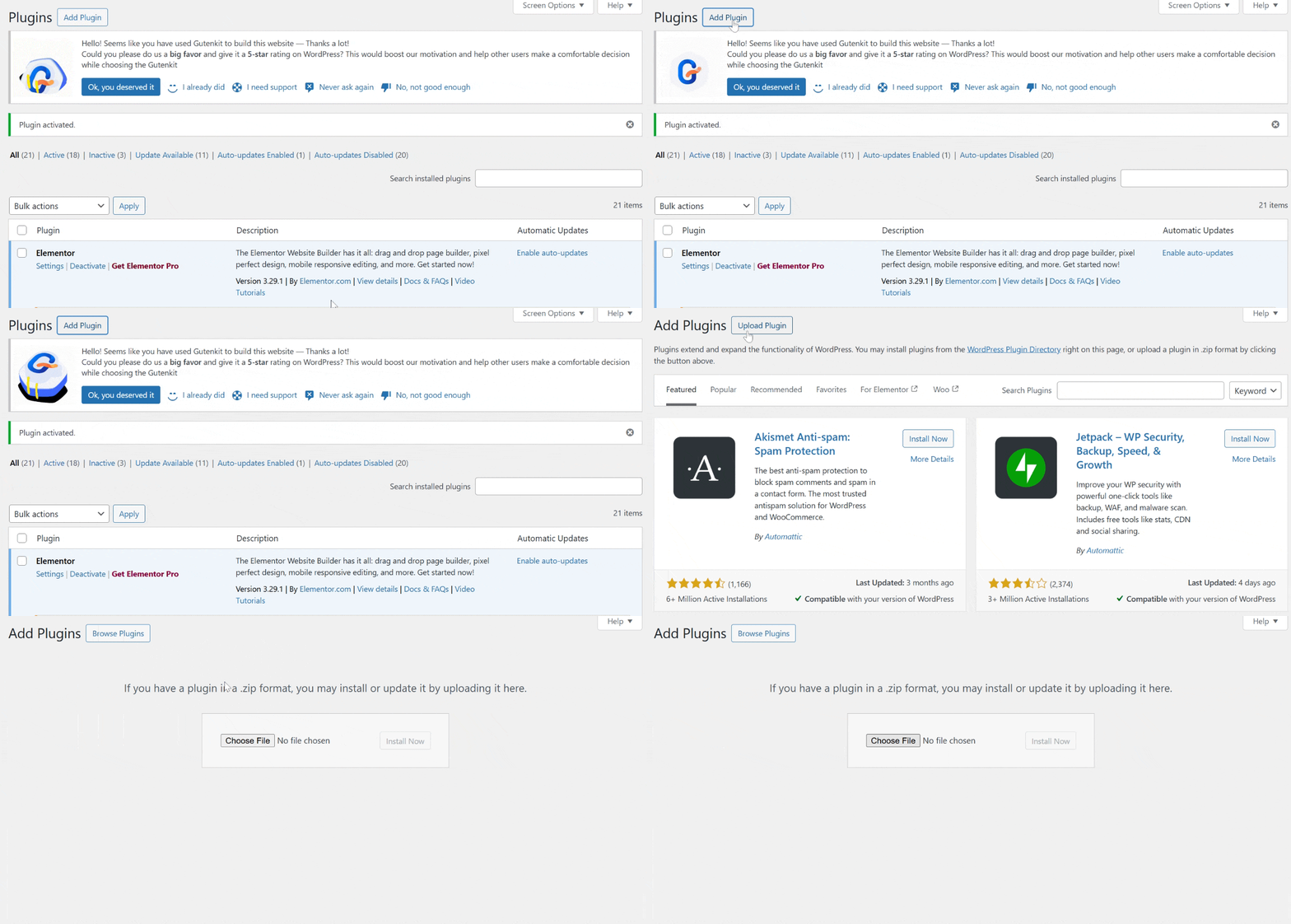
- If you have the Pro version, upload the zip file provided at purchase and activate your license under the ShopEngine dashboard.
Step 2: Enable the WooCommerce Pre-order Add-on
ShopEngine uses a modular system, so you only need to activate the features you use to keep your site fast.
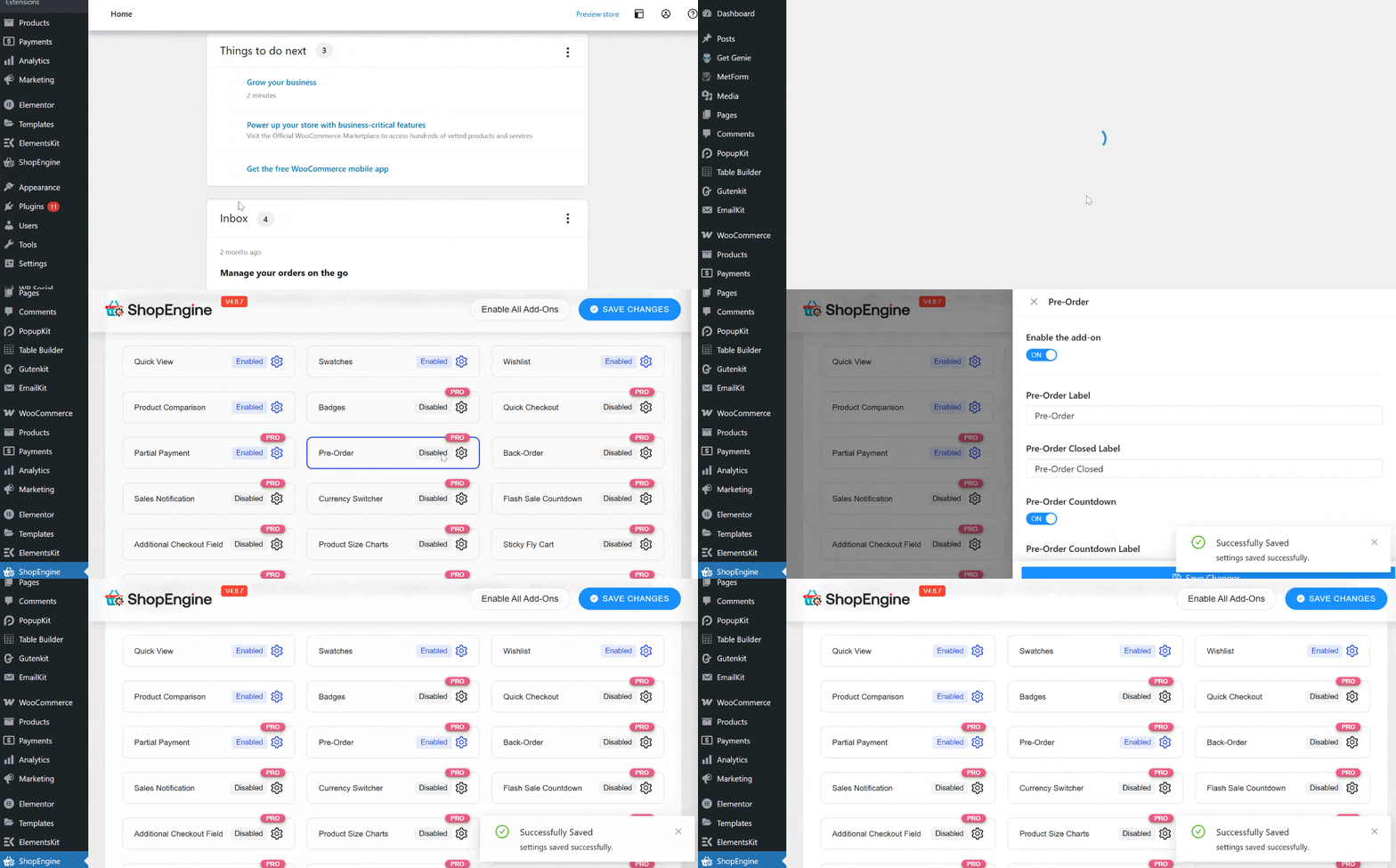
- Aller à ShopEngine > Add-ons from your WordPress admin sidebar.
- Localisez le Pré-commander et cliquez sur le Paramètres icône.
- Basculez le Enable Pre-Order? switch to SUR.
- Customize your settings: You can set the “Add to Cart” button label (e.g., “Pre-order Now”) and customize the countdown timer style.
- Cliquez sur Sauvegarder les modifications.
Step 3: Set Pre-order Option for your Product
Now that the functionality is active, you need to apply it to specific items.
- Aller à Produits > Tous les produits and select the product you want to edit.
- Scroll down to the Product Data section and click on the Inventaire languette.
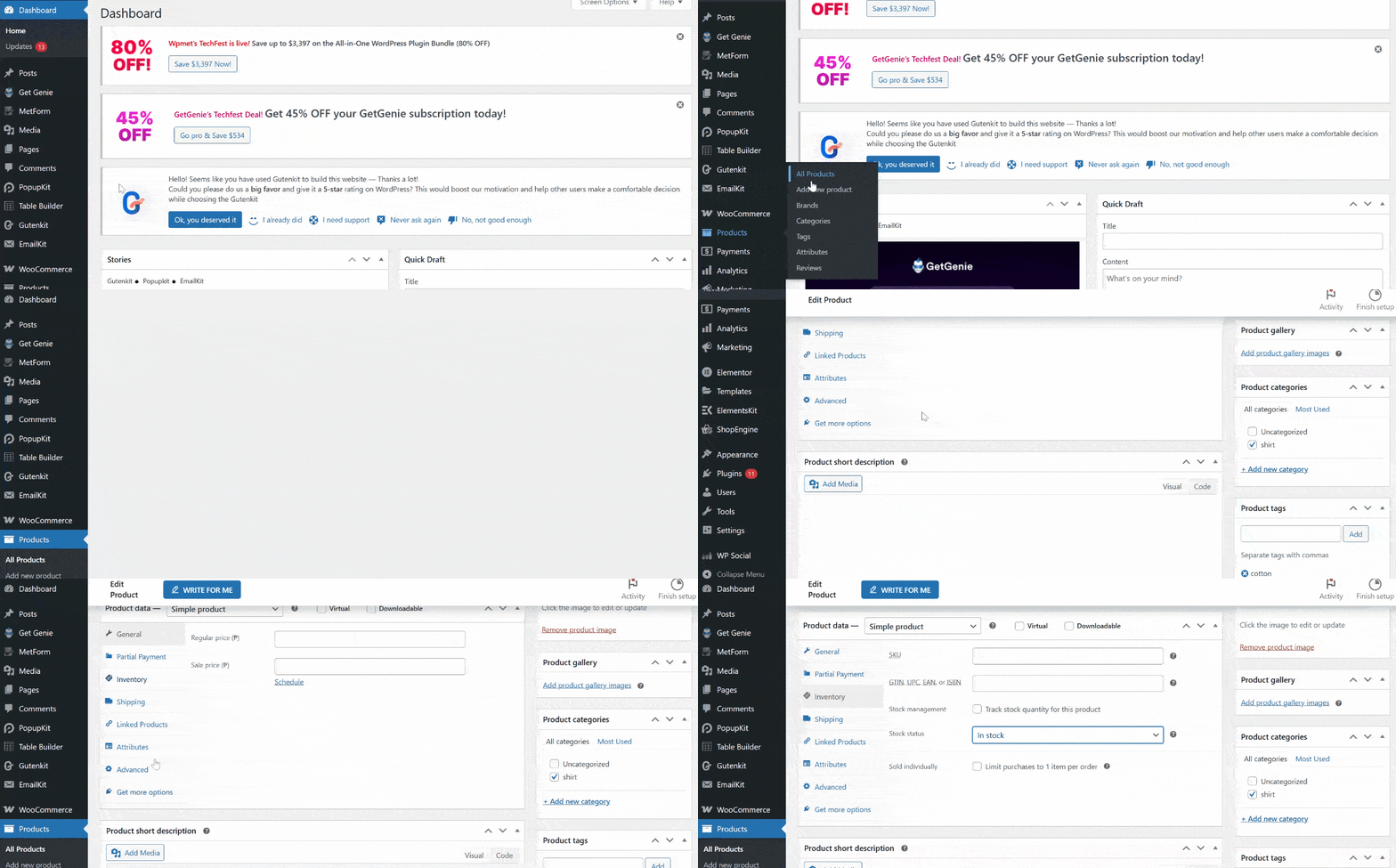
- Dans le Stock status dropdown, select On Pre-Order.
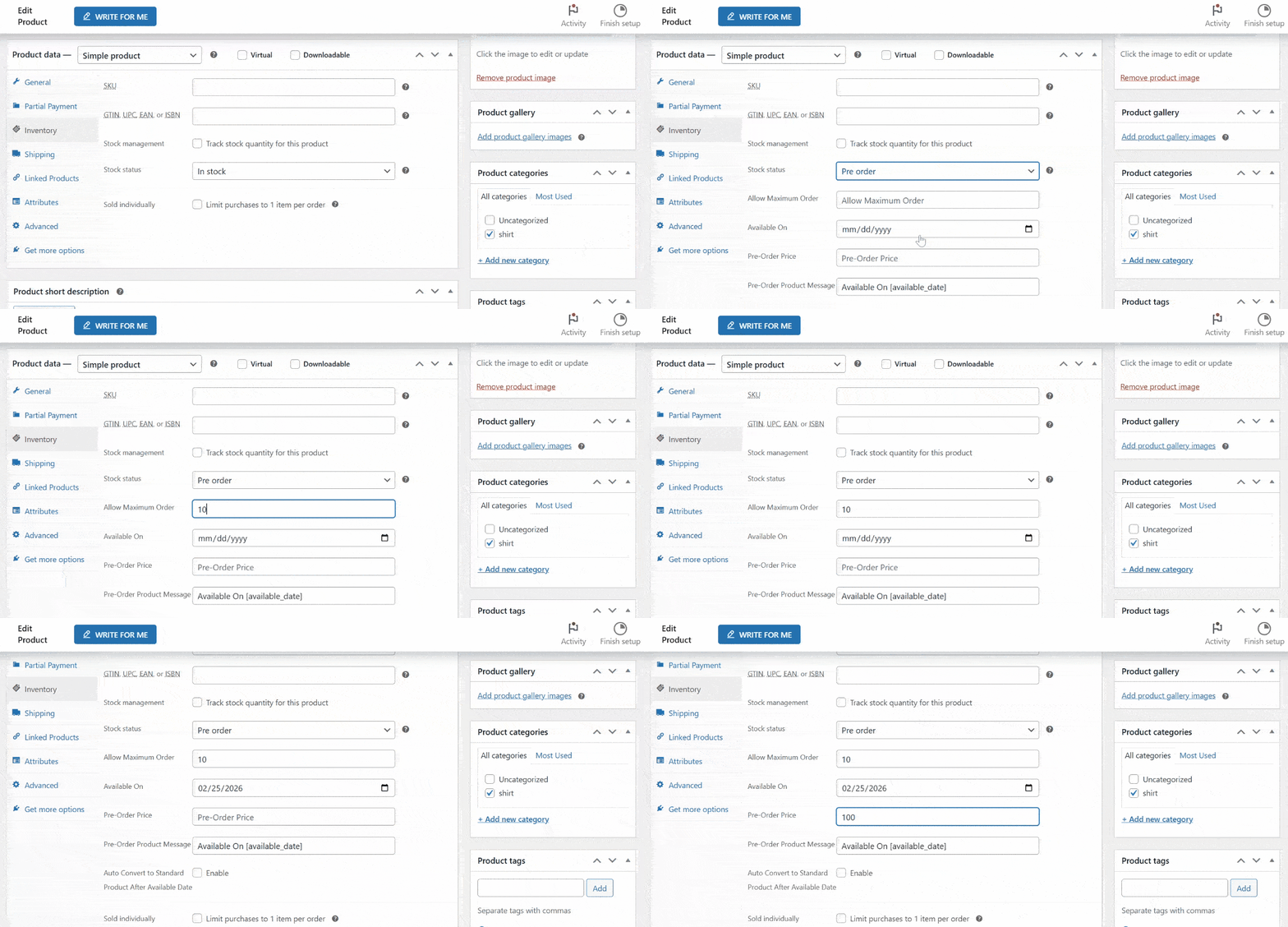
- Fill in the pre-order details:
- Maximum Order: Limit how many units can be pre-ordered.
- Available On: Select the date the product will officially launch.
- Pre-order Price: Set a special discounted price or the regular retail price.
- Message: Add a custom note for customers (e.g., “Expected shipping: Mid-March”).
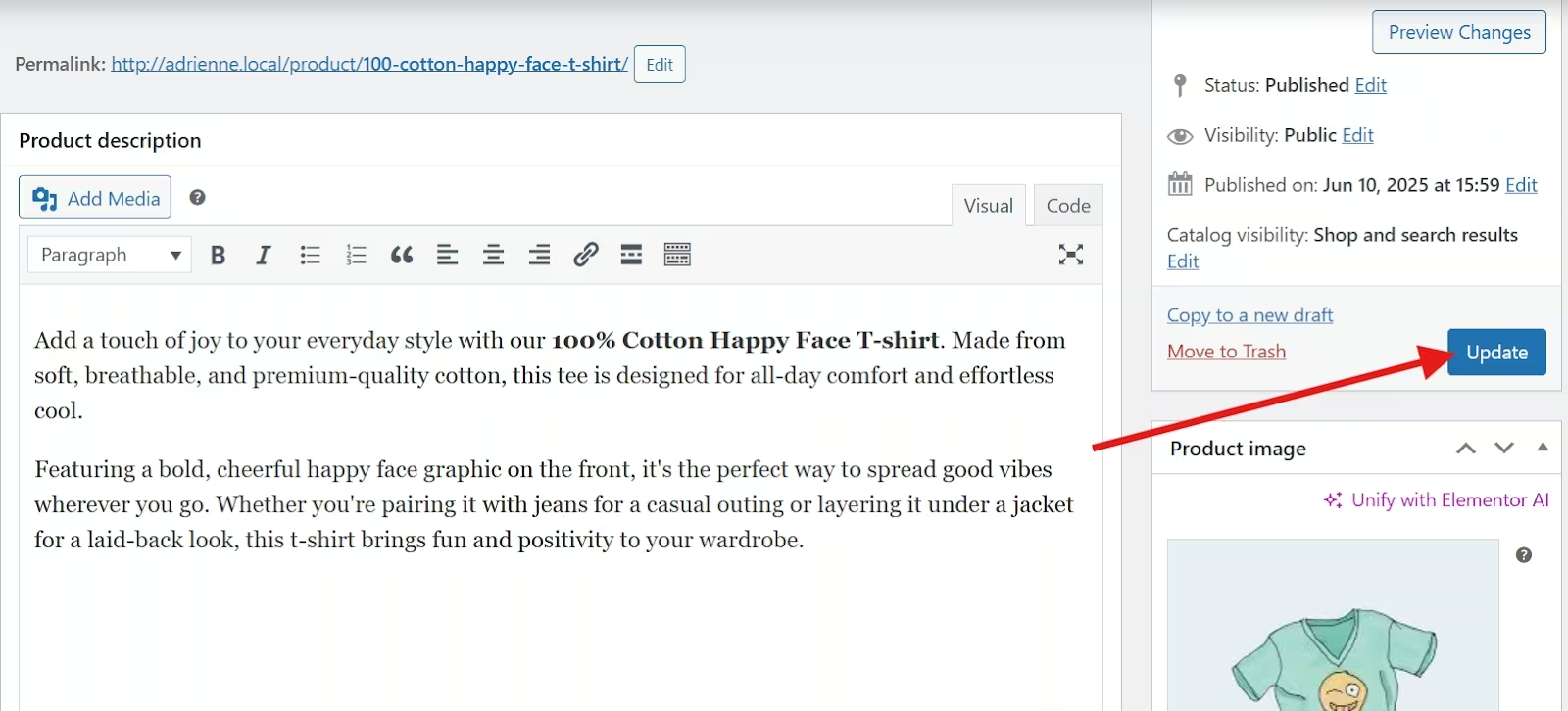
- Cliquez sur Mise à jour to save the product.
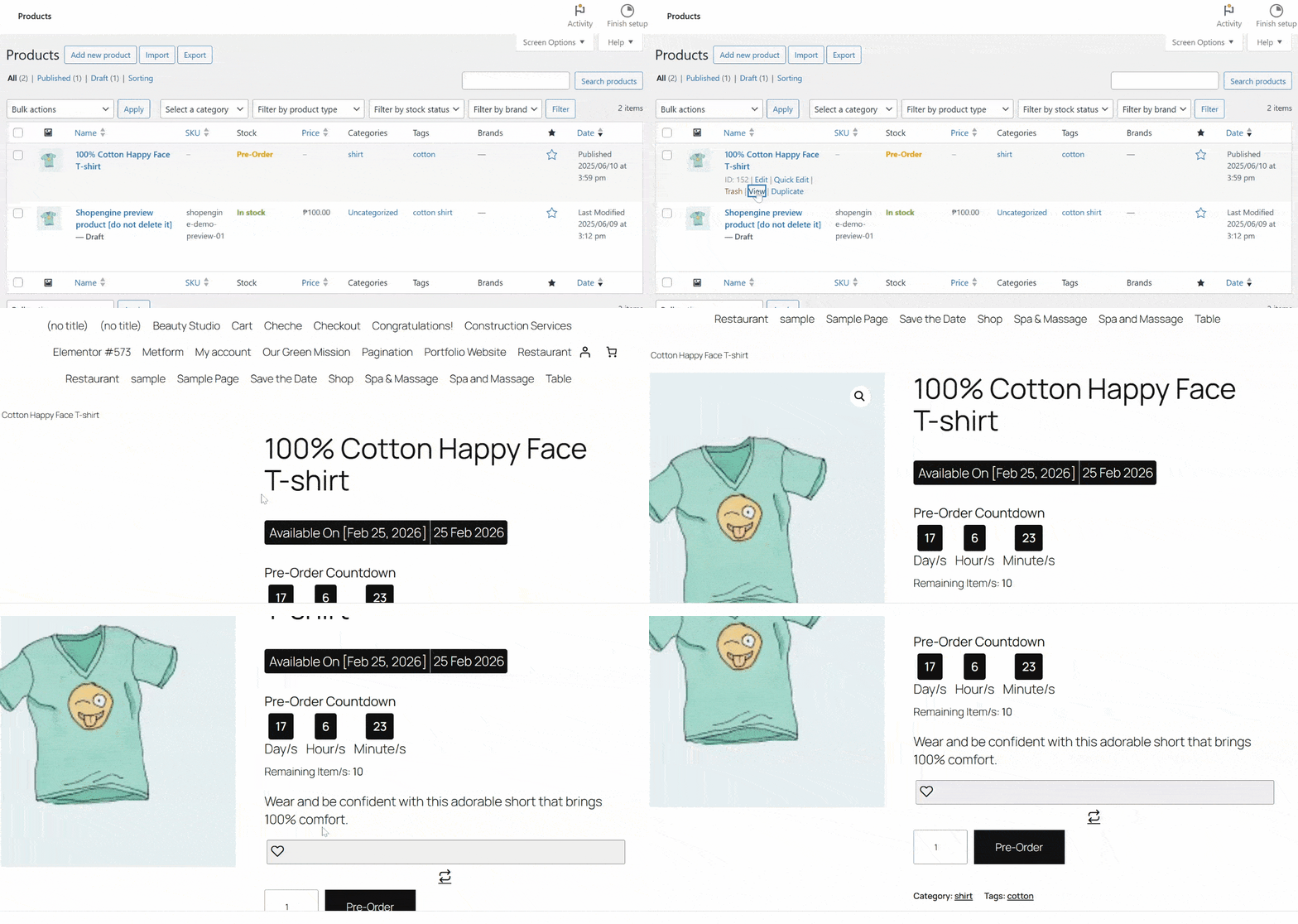
And here’s the final look!
FAQ
1. Can You Charge a Different Price for Pre-orders?
Yes. ShopEngine allows you to set a specific Pre-order Price, which is a great way to offer “Early Bird” discounts to incentivize early buyers.
2. Do Pre-orders Work for Variable Products?
Yes, you can enable pre-orders for specific variations (like a certain color or size) within the product settings.
3. What Happens When the “Available Date” is Reached?
Depending on your settings, the product can automatically switch from “Pre-order” status to a regular “In Stock” item once the release date arrives.
4. Can You Limit the Number of Pre-orders?
Absolutely. By using the Pre-order Limit field in the Inventory tab, you can ensure you don’t sell more than your initial production run can handle.
5. How can You Inform Customers About Shipping Timelines?
You can add a custom Pre-order Message (for example, “Expected shipping: Mid-April”) directly in the product settings. Clear communication helps manage expectations and reduces support inquiries.

Conclusion
Setting up pre-orders can help you generate pre-sales and early revenue. This guide ensures your pre-order system for pre-sales is configured correctly. You can easily enable the module, launch dates, pricing, and order limits.
So, if you want to get pre-sales for your new products, set up a pre-order system with the use of ShopEngine. You can protect your inventory and avoid overselling and sales opportunities.

Laisser un commentaire