
 Spanish
  English
  German
  Italian
  French
  Danish
  Portuguese
  Swedish
  Polish
  Korean
  Japanese
 El desplazamiento de una página le permite crear un diseño de una sola página y desplazar toda la página a la vez. El diseño de una página contiene todas las secciones que normalmente contiene un sitio web, como Inicio, Productos/Servicios, Contáctenos, Acerca de nosotros, etc.
Puede desplazarse a cada una de estas secciones mediante el desplazamiento de la página. Con ElementsKit, puede configurar el desplazamiento de una página para Elementor en su sitio de WordPress. Además, ElementsKit también ofrece plantillas de sitios web de desplazamiento de una página que son totalmente responsivas.
Without further ado, let’s take a look at how to set up one page scroll for Elementor.
Empezar #
Puede crear fácilmente un sitio web de desplazamiento de una página siguiendo los siguientes pasos:
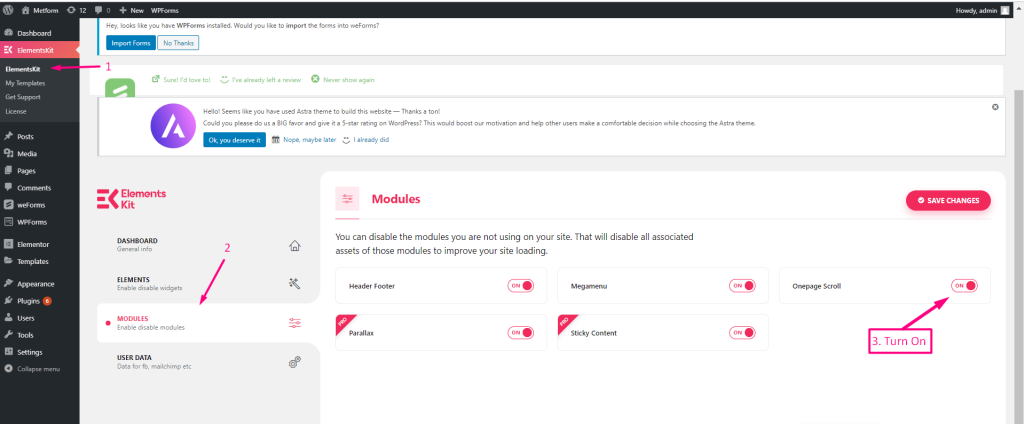
Paso 1: habilite el módulo de desplazamiento de una página para crear un sitio web con desplazamiento de una sola página. #
Cerciorarse Desplazamiento de una página el módulo es EN de Kit de elementos → MÓDULOS
Paso 2: personaliza el desplazamiento de una página #
- Haga clic en el ícono de configuración para agregar un desplazamiento de página.
- Habilitar desplazamiento de una página

3. Seleccione su estilo de navegación en el menú desplegable para agregar un sitio web de desplazamiento de una página.

- Seleccione Posición de navegación para su sitio web de desplazamiento de una sola página.
- Establecer compensación
- Establecer espacio de navegación
- Seleccionar el color
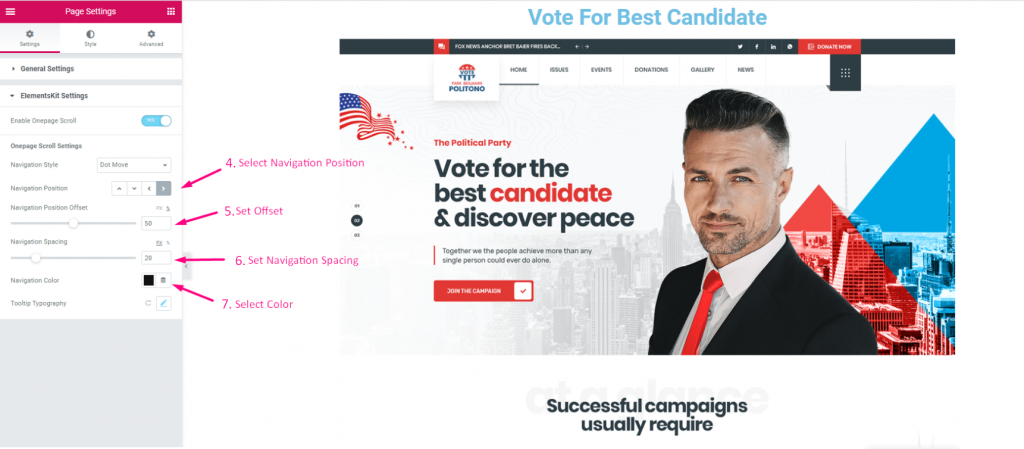
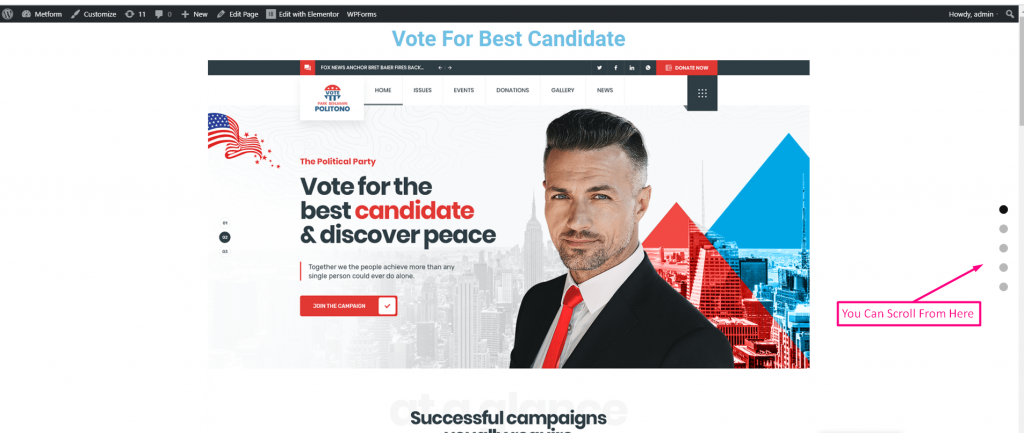
Mostrando las opciones de desplazamiento de una página. Ahora puedes desplazarte simplemente haciendo clic en la opción Punto
Paso 3: Personaliza la tipografía de información sobre herramientas #
- Haga clic en el icono para expandir
- Seleccione Familia en el menú desplegable

- Configurar tamaño
- Seleccionar peso

- Seleccione Transformar
- Seleccionar estilo
- Seleccionar decoración
- Establecer altura de línea
- Seleccionar espaciado entre letras

Así es como puedes crear un desplazamiento de una página para Elementor con ElementsKit de manera fácil y fluida. Configurar un desplazamiento de una página también mejora la experiencia del usuario. Además, encontrará un tema de WordPress de desplazamiento de una página a través del cual puede crear un sitio web responsivo de desplazamiento de una sola página.
Get ElementsKit now 👇



